> ## Documentation Index
> Fetch the complete documentation index at: https://docs.zuper.co/llms.txt
> Use this file to discover all available pages before exploring further.
# Create a new quotation
A quotation, also known as an estimate, is a formal document provided to a customer that details the expected costs for a specific service or project. It includes a breakdown of services, materials, labor, and any additional expenses. As a preliminary agreement, a quotation helps set clear expectations for the scope of work and associated costs.
**Navigation**: *Accounting* *->* *Quotes* -> *+ New (Quote)*
1. Click the “**Accounting**” module from the left navigation menu and select "**Quotes.**"
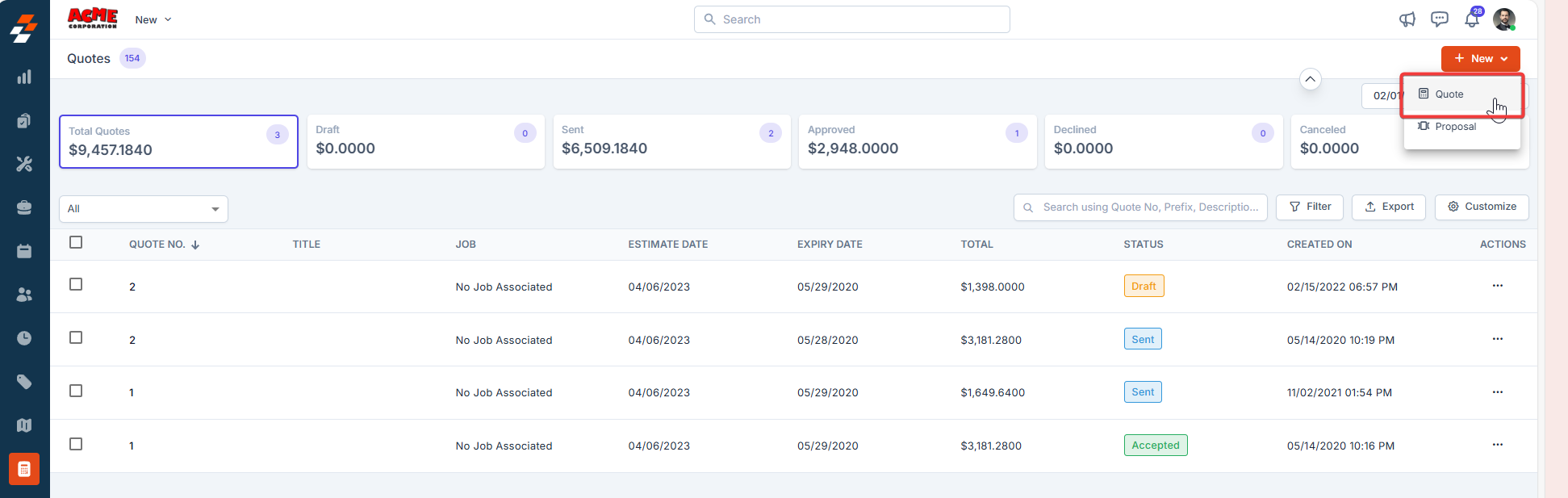
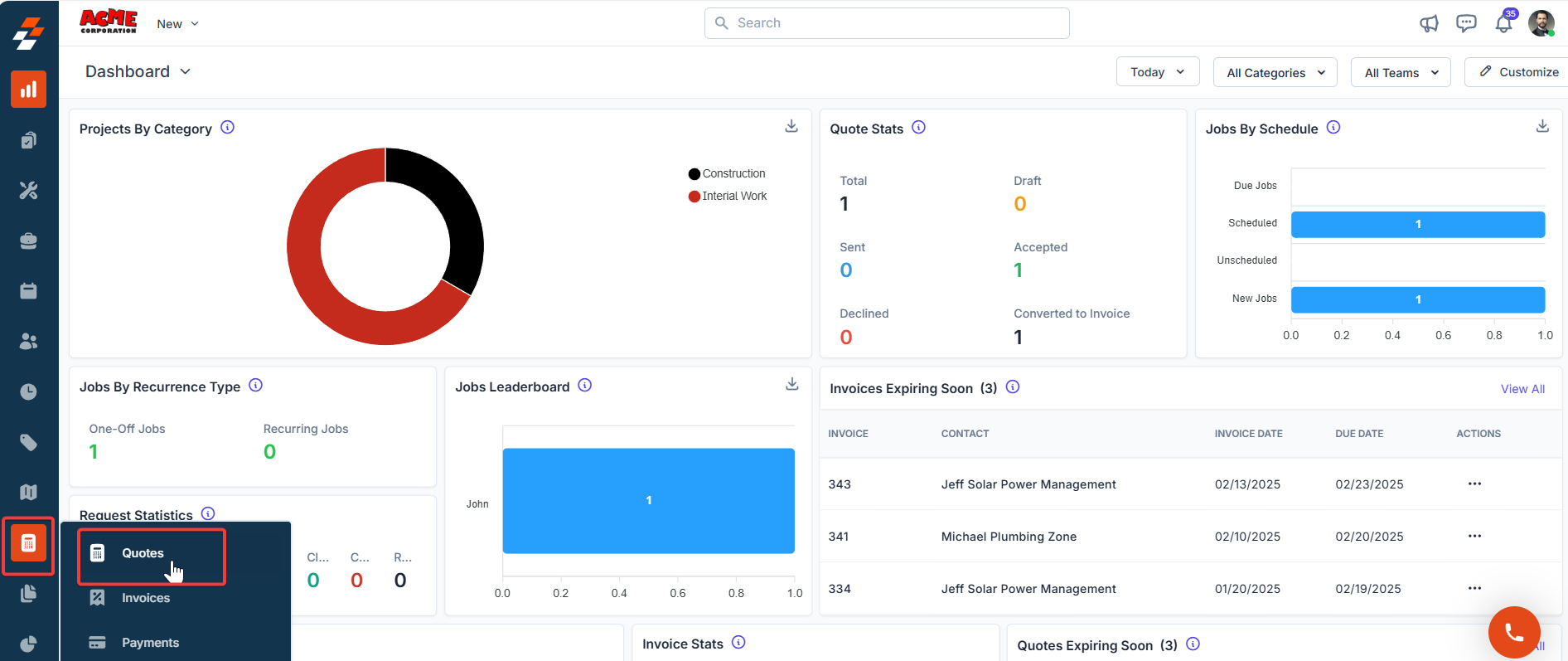 2. Click “**+ New Quote**” to create a new quote.
 3. Select either "**Customer** ", " **Organization**", or "**Property**" to associate with the quotation.
4. Click "**+ Add**" to associate the various modules.
NewYou can now associate multiple assets with a quote.
5. A side panel will appear. Select the required module and click the "**Proceed**" button.
6. The billing and service contact details are automatically populated based on the selected customer or organization.
7. Fill in the mandatory fields in the **Quote Details** section:
* **Quote Date**
* **Expiry Date**
* **Quote Template**
The **Created By** field is automatically set to the user who creates the quote and cannot be changed after the quote is saved. If a different team member takes over the quote, the **Created By** field will continue to display the original creator's name. To reflect updated ownership, use the **Quote Sold By** field to assign the team member actively handling the quote. This field can be updated at any time and is used for ownership tracking, filtering, and sales performance reporting. **Important:** If a specific user needs to appear as the creator of a quote, they must create it themselves from their own login. The **Created By** field cannot be reassigned after creation.
**Note: Remarks field and PDF templates**\
The **Remarks** field on a quote lets you add custom notes that appear on the quote record. However, whether these remarks appear in the generated PDF depends on how the quote template is configured.\
\
If the Remarks section in the PDF template is **hard-coded** (contains static text set during template creation), any changes made to the Remarks field on the quote will not be reflected in the PDF — the template's fixed text will display instead.\
\
To have the Remarks field value appear dynamically in the PDF, the template must be updated to use the dynamic Remarks field variable. Contact [**support@zuper.co**](mailto:support@zuper.co) to request this change.\
\
**Note:** Custom template changes affect all quotes using that template. Before requesting a change, confirm that updating the Remarks behavior will not affect other quotes currently relying on the static text.
8. Click "**+ Add**" in the **Parts & Services** section and select an option to add parts, products, or services to the quotation, such as *Line Item*, *Bundle*, [*Section*](https://docs.zuper.co/Accounting/Sections), *Item Group*, or *Custom Line Item*.
3. Select either "**Customer** ", " **Organization**", or "**Property**" to associate with the quotation.
4. Click "**+ Add**" to associate the various modules.
NewYou can now associate multiple assets with a quote.
5. A side panel will appear. Select the required module and click the "**Proceed**" button.
6. The billing and service contact details are automatically populated based on the selected customer or organization.
7. Fill in the mandatory fields in the **Quote Details** section:
* **Quote Date**
* **Expiry Date**
* **Quote Template**
The **Created By** field is automatically set to the user who creates the quote and cannot be changed after the quote is saved. If a different team member takes over the quote, the **Created By** field will continue to display the original creator's name. To reflect updated ownership, use the **Quote Sold By** field to assign the team member actively handling the quote. This field can be updated at any time and is used for ownership tracking, filtering, and sales performance reporting. **Important:** If a specific user needs to appear as the creator of a quote, they must create it themselves from their own login. The **Created By** field cannot be reassigned after creation.
**Note: Remarks field and PDF templates**\
The **Remarks** field on a quote lets you add custom notes that appear on the quote record. However, whether these remarks appear in the generated PDF depends on how the quote template is configured.\
\
If the Remarks section in the PDF template is **hard-coded** (contains static text set during template creation), any changes made to the Remarks field on the quote will not be reflected in the PDF — the template's fixed text will display instead.\
\
To have the Remarks field value appear dynamically in the PDF, the template must be updated to use the dynamic Remarks field variable. Contact [**support@zuper.co**](mailto:support@zuper.co) to request this change.\
\
**Note:** Custom template changes affect all quotes using that template. Before requesting a change, confirm that updating the Remarks behavior will not affect other quotes currently relying on the static text.
8. Click "**+ Add**" in the **Parts & Services** section and select an option to add parts, products, or services to the quotation, such as *Line Item*, *Bundle*, [*Section*](https://docs.zuper.co/Accounting/Sections), *Item Group*, or *Custom Line Item*.
 If **Mandate asset association to line items** is enabled in the **Settings** and your quote includes one or more assets, ensure every line item has an asset selected. Otherwise, you won’t be able to save the quote.
When you add a non-billable item directly to a quote, its cost is included in the total, ensuring proper tracking. However, if a non-billable item is part of a transaction (such as a job or contract) and that document is later converted into a quote, the item will not appear on the invoice. This is because non-billable items are excluded from the billable total.
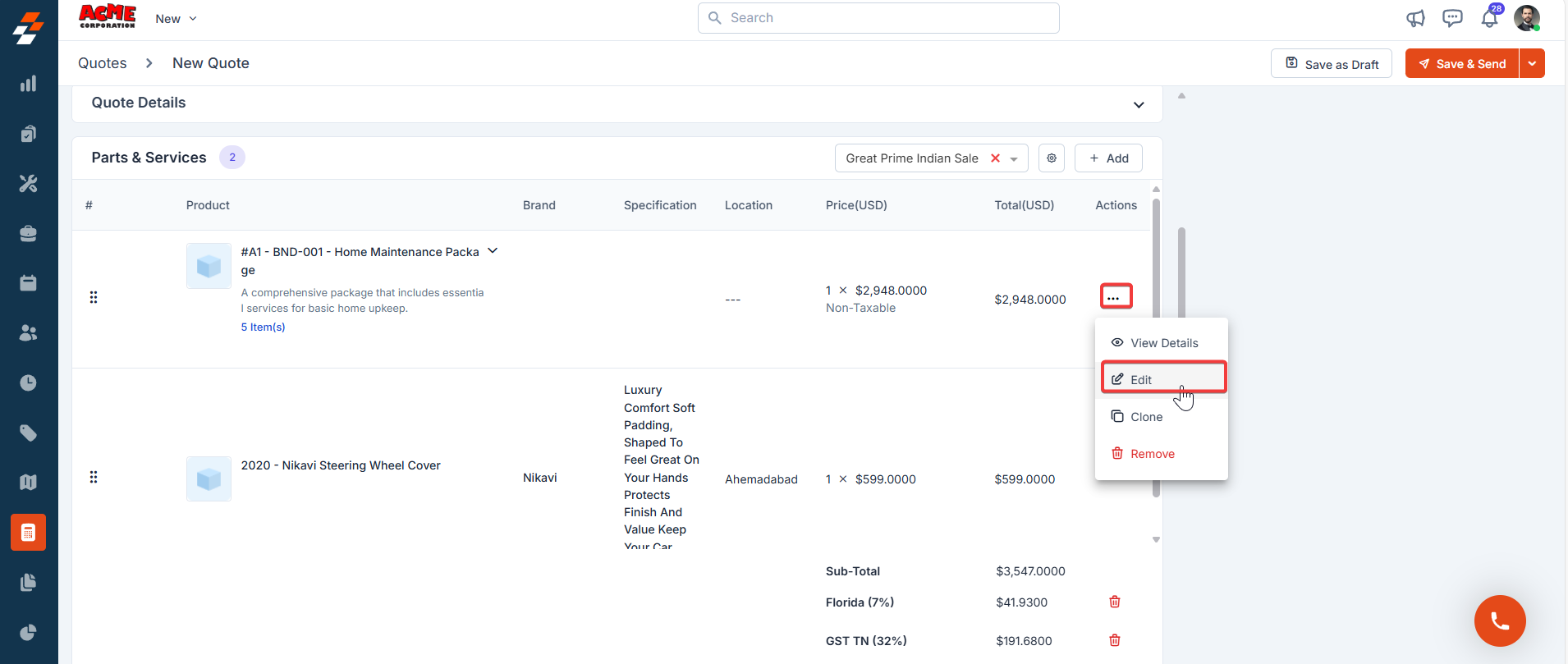
After adding parts, products, and services, you can edit or update the Markup value and its discount by following these steps:
1. Locate the line item in the list of added parts, products, or services.
2. Click the **context menu** (three-dot ellipsis) next to the item you want to update.
3. Choose the **Edit** option. An **Edit Line Item** pop-up will open.
If **Mandate asset association to line items** is enabled in the **Settings** and your quote includes one or more assets, ensure every line item has an asset selected. Otherwise, you won’t be able to save the quote.
When you add a non-billable item directly to a quote, its cost is included in the total, ensuring proper tracking. However, if a non-billable item is part of a transaction (such as a job or contract) and that document is later converted into a quote, the item will not appear on the invoice. This is because non-billable items are excluded from the billable total.
After adding parts, products, and services, you can edit or update the Markup value and its discount by following these steps:
1. Locate the line item in the list of added parts, products, or services.
2. Click the **context menu** (three-dot ellipsis) next to the item you want to update.
3. Choose the **Edit** option. An **Edit Line Item** pop-up will open.
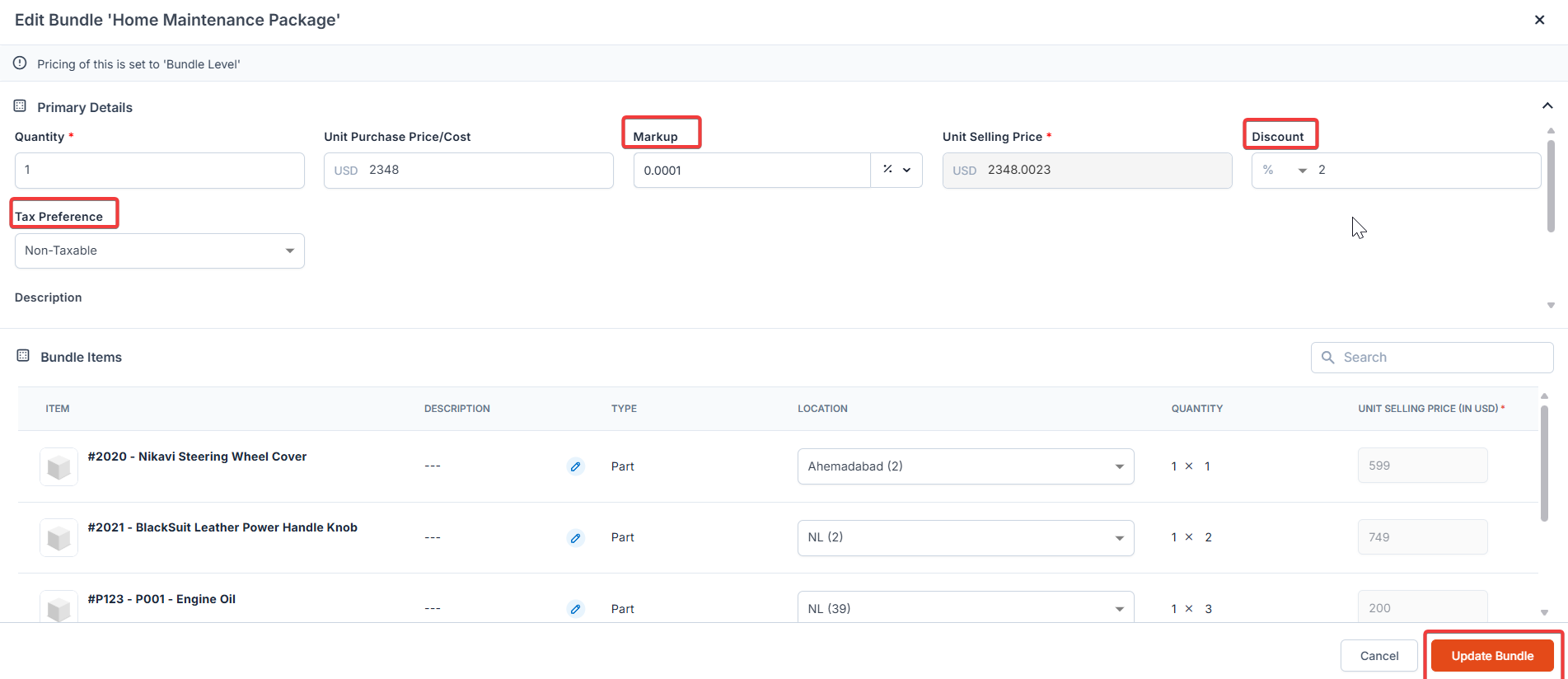
 * Adjust the markup type to **Flat (+)**, **Percentage (%)**, or **Multiplier (x)** based on your requirement and enter the desired value for the selected markup condition.
* Edit the discount as either a **percentage (%)** or a **fixed amount (USD)** and enter the desired value in the **Discount** field.
4. Click **Update** Line Item to apply the changes.
* Adjust the markup type to **Flat (+)**, **Percentage (%)**, or **Multiplier (x)** based on your requirement and enter the desired value for the selected markup condition.
* Edit the discount as either a **percentage (%)** or a **fixed amount (USD)** and enter the desired value in the **Discount** field.
4. Click **Update** Line Item to apply the changes.
 9. If **Track Serial Number** is enabled and **Mandate Serial No** is turned on in Settings, you must need to enter a serial number before proceeding.
10. After adding parts and services to the quote, transactional discounts and global taxes will be applied.
**Notes:**
* If a line item includes a custom tax, transactional discounts, and global taxes cannot be applied.
* Transactional-level discounts apply only when all parts and services in the quote are either fully taxable or fully non-taxable.
**Tax display in templates**
The way taxes appear on your quote PDF — for example, whether tax is shown separately per line item or as a single total — is controlled by your document template settings. Some regional billing standards, such as Canadian invoicing requirements, require taxes to be displayed separately from each line item on the document. If you need to change how taxes appear on your quote or proposal templates, contact [Support ](mailto:support@zuper.co)
Your administrator cannot change this setting directly.
11. Adjust the [margin percentage](/Accounting/Profit_Margin) to instantly recalculate markup % and the total selling price for all line items.
12. Enter the details for any custom fields configured in the settings.
13. Click "**+ Add Attachments"** to upload any quotation-related files.
14. Click " **Save as Draft"** to temporarily save the quotation. In the confirmation pop-up, click " **Save as Draft"** again to confirm.
9. If **Track Serial Number** is enabled and **Mandate Serial No** is turned on in Settings, you must need to enter a serial number before proceeding.
10. After adding parts and services to the quote, transactional discounts and global taxes will be applied.
**Notes:**
* If a line item includes a custom tax, transactional discounts, and global taxes cannot be applied.
* Transactional-level discounts apply only when all parts and services in the quote are either fully taxable or fully non-taxable.
**Tax display in templates**
The way taxes appear on your quote PDF — for example, whether tax is shown separately per line item or as a single total — is controlled by your document template settings. Some regional billing standards, such as Canadian invoicing requirements, require taxes to be displayed separately from each line item on the document. If you need to change how taxes appear on your quote or proposal templates, contact [Support ](mailto:support@zuper.co)
Your administrator cannot change this setting directly.
11. Adjust the [margin percentage](/Accounting/Profit_Margin) to instantly recalculate markup % and the total selling price for all line items.
12. Enter the details for any custom fields configured in the settings.
13. Click "**+ Add Attachments"** to upload any quotation-related files.
14. Click " **Save as Draft"** to temporarily save the quotation. In the confirmation pop-up, click " **Save as Draft"** again to confirm.
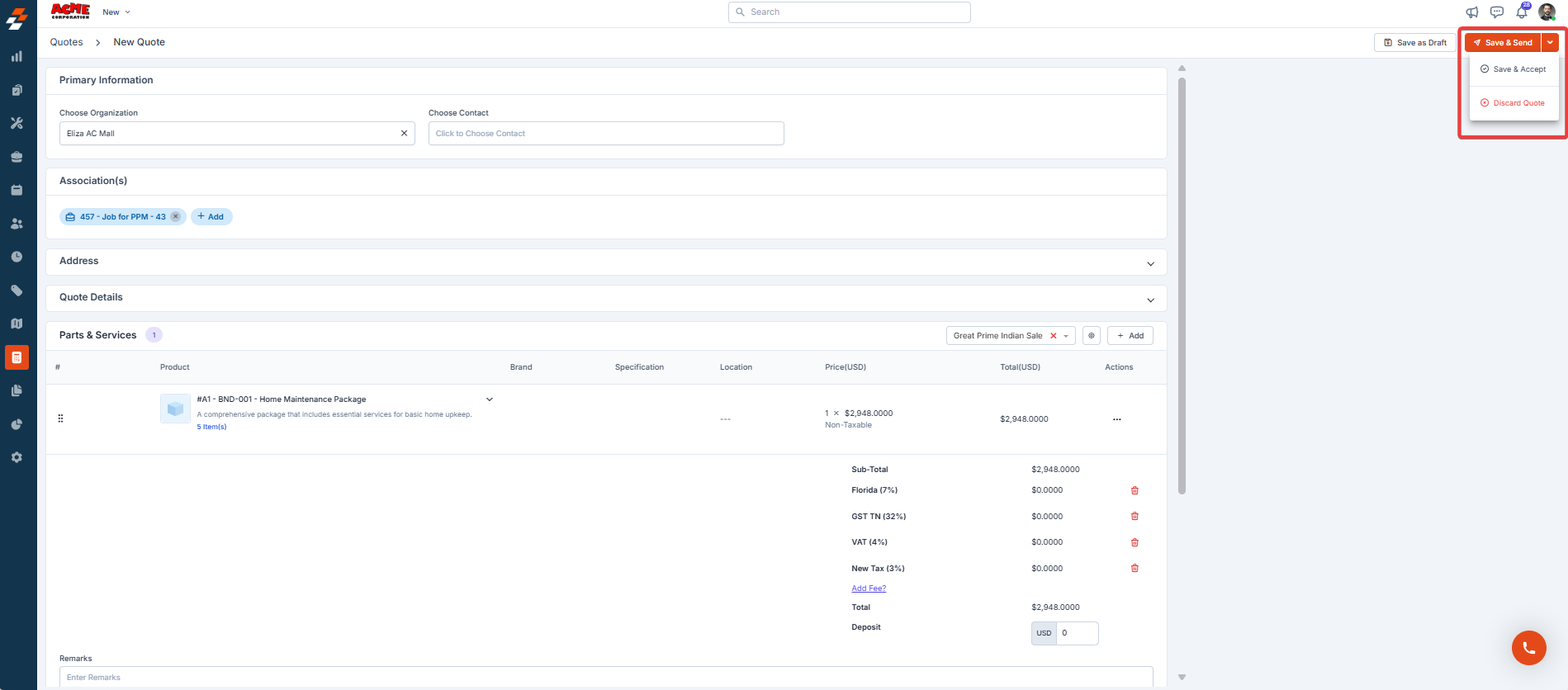 15. The quotation is created successfully.
## Send a quotation
After you save a quotation, you can send it to the customer for review and acceptance.
1. Open the quotation from the **Quotes** listing page.
2. Select **Send** at the top right of the details page.
3. A send dialog appears. Before you send, review the **Document Template** field in the dialog.
The **Document Template** field in the send dialog controls which template is used to generate the PDF the customer receives. This is separate from the template you selected when you created the quote. If you change the template here, the PDF layout and content will reflect the newly selected template — not your original selection. Always confirm that the correct template is selected before sending.
**Email attachment size limit**
When sending a quote by email, attachments are included directly in the email up to a combined size of **20MB**. If the total attachment size exceeds 20MB, Zuper automatically converts attachments to inline download links in the email body rather than sending them as attachments. Recipients can still access the files by clicking the links, but the files will not appear as standard email attachments.
**Workaround:** If you need attachments to be delivered as standard email attachments, ensure the total size of all attached files is under 20MB before sending. Consider compressing large files or splitting them across multiple sends if needed.
4. Make any other adjustments to the email details, then select **Send**.
The customer receives the quotation as a PDF based on the template selected at send time.
**Note:** If you have recently edited a quote, wait at least one minute before sending the email. Sending immediately after making changes may result in the PDF attachment showing outdated values. The electronic signing link will always reflect the latest version.
If you have edited the **Remarks** field, ensure the quote is explicitly saved (via **Save as Draft**) before exporting or sending the PDF. Remarks edits that are not saved prior to PDF generation may revert to the previously saved version.
***
### Set a default document template
To avoid selecting the wrong template each time you send, you can configure a default document template in your settings. The default template pre-populates the **Document Template** field whenever you send a quotation.
1. Go to **Settings**.
2. Go to **Accounting**, then select **Document Templates**.
3. Locate the template you want to set as the default.
4. Select the context menu (three-dot ellipsis) next to the template.
5. Select **Set as Default**.
The selected template now pre-populates the **Document Template** field each time you send a quotation.
Setting a default template does not prevent you from selecting a different template at send time. Always review the **Document Template** field before sending to confirm that the correct template is selected.
Quotations are sent to customers for their review and acceptance before the job begins. Once the customer accepts the quotation, technicians can proceed with the services or replacement of parts listed in the document.
15. The quotation is created successfully.
## Send a quotation
After you save a quotation, you can send it to the customer for review and acceptance.
1. Open the quotation from the **Quotes** listing page.
2. Select **Send** at the top right of the details page.
3. A send dialog appears. Before you send, review the **Document Template** field in the dialog.
The **Document Template** field in the send dialog controls which template is used to generate the PDF the customer receives. This is separate from the template you selected when you created the quote. If you change the template here, the PDF layout and content will reflect the newly selected template — not your original selection. Always confirm that the correct template is selected before sending.
**Email attachment size limit**
When sending a quote by email, attachments are included directly in the email up to a combined size of **20MB**. If the total attachment size exceeds 20MB, Zuper automatically converts attachments to inline download links in the email body rather than sending them as attachments. Recipients can still access the files by clicking the links, but the files will not appear as standard email attachments.
**Workaround:** If you need attachments to be delivered as standard email attachments, ensure the total size of all attached files is under 20MB before sending. Consider compressing large files or splitting them across multiple sends if needed.
4. Make any other adjustments to the email details, then select **Send**.
The customer receives the quotation as a PDF based on the template selected at send time.
**Note:** If you have recently edited a quote, wait at least one minute before sending the email. Sending immediately after making changes may result in the PDF attachment showing outdated values. The electronic signing link will always reflect the latest version.
If you have edited the **Remarks** field, ensure the quote is explicitly saved (via **Save as Draft**) before exporting or sending the PDF. Remarks edits that are not saved prior to PDF generation may revert to the previously saved version.
***
### Set a default document template
To avoid selecting the wrong template each time you send, you can configure a default document template in your settings. The default template pre-populates the **Document Template** field whenever you send a quotation.
1. Go to **Settings**.
2. Go to **Accounting**, then select **Document Templates**.
3. Locate the template you want to set as the default.
4. Select the context menu (three-dot ellipsis) next to the template.
5. Select **Set as Default**.
The selected template now pre-populates the **Document Template** field each time you send a quotation.
Setting a default template does not prevent you from selecting a different template at send time. Always review the **Document Template** field before sending to confirm that the correct template is selected.
Quotations are sent to customers for their review and acceptance before the job begins. Once the customer accepts the quotation, technicians can proceed with the services or replacement of parts listed in the document.