> ## Documentation Index
> Fetch the complete documentation index at: https://docs.zuper.co/llms.txt
> Use this file to discover all available pages before exploring further.
# Collecting a Partial Payment
> Learn how to request a partial payment from a customer, resend or cancel a payment link
A partial payment splits the total invoice into staged instalments, letting you collect a specific amount from a customer at each stage instead of the full balance at once. This helps your business stabilize cash flow and limits out-of-pocket costs so you can start work on time. In Zuper, instead of sending a payment request for the total invoice amount, you can request a specific amount from your customer and send them a secure payment link.
## Before you begin
* Your organization must have **Zuper Pay** enabled. Please contact Zuper Support for details.
* The **Request Payment** button only appears on invoices in **Sent** status. It is not available on draft or unsent invoices.
## Request a partial payment
1. Select the **Accounting** module from the left navigation menu and choose **Invoices**.
2. Open the invoice from the Invoices listing page.
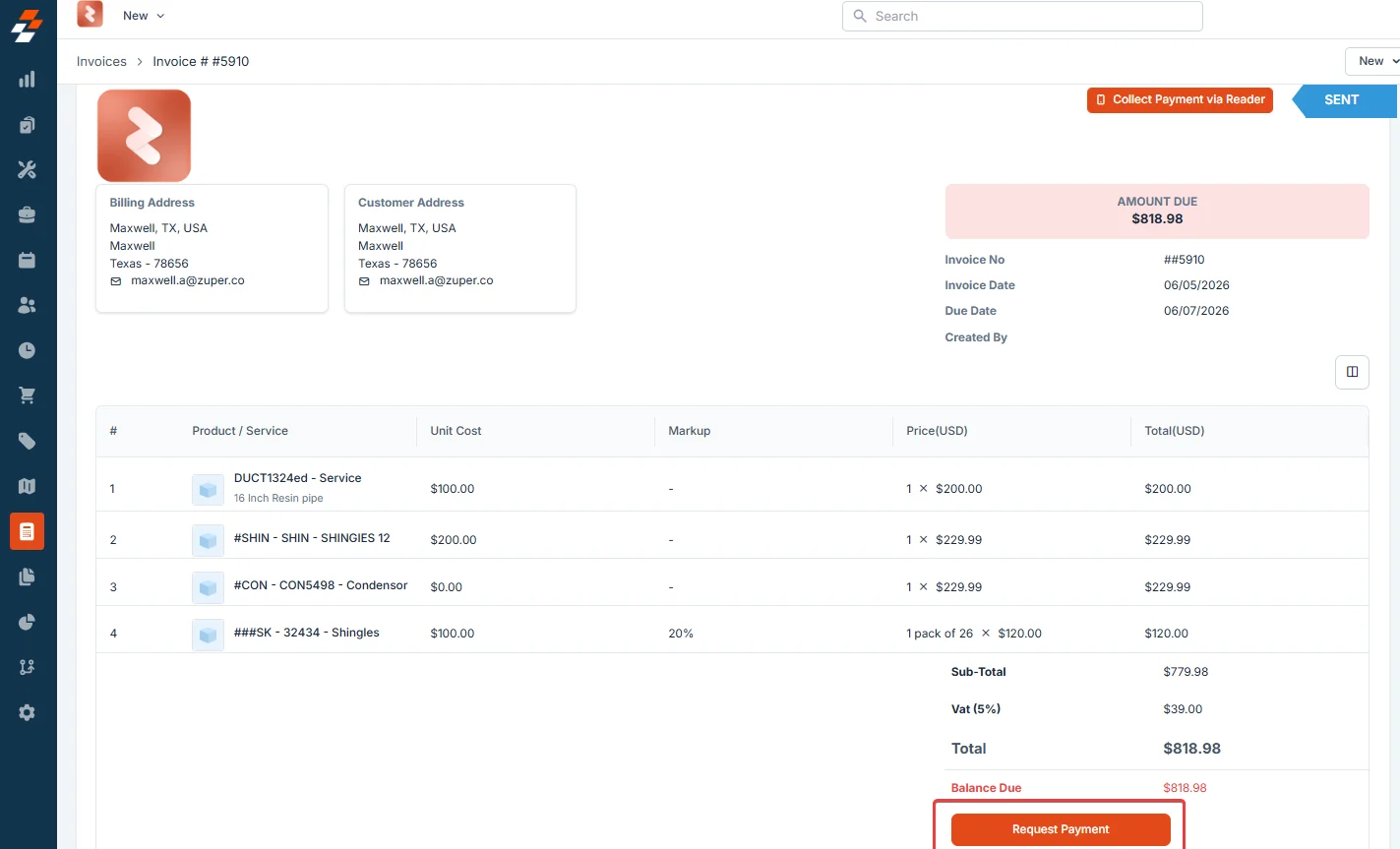
3. Click **Request Payment**. Click **Request Payment**.
 \
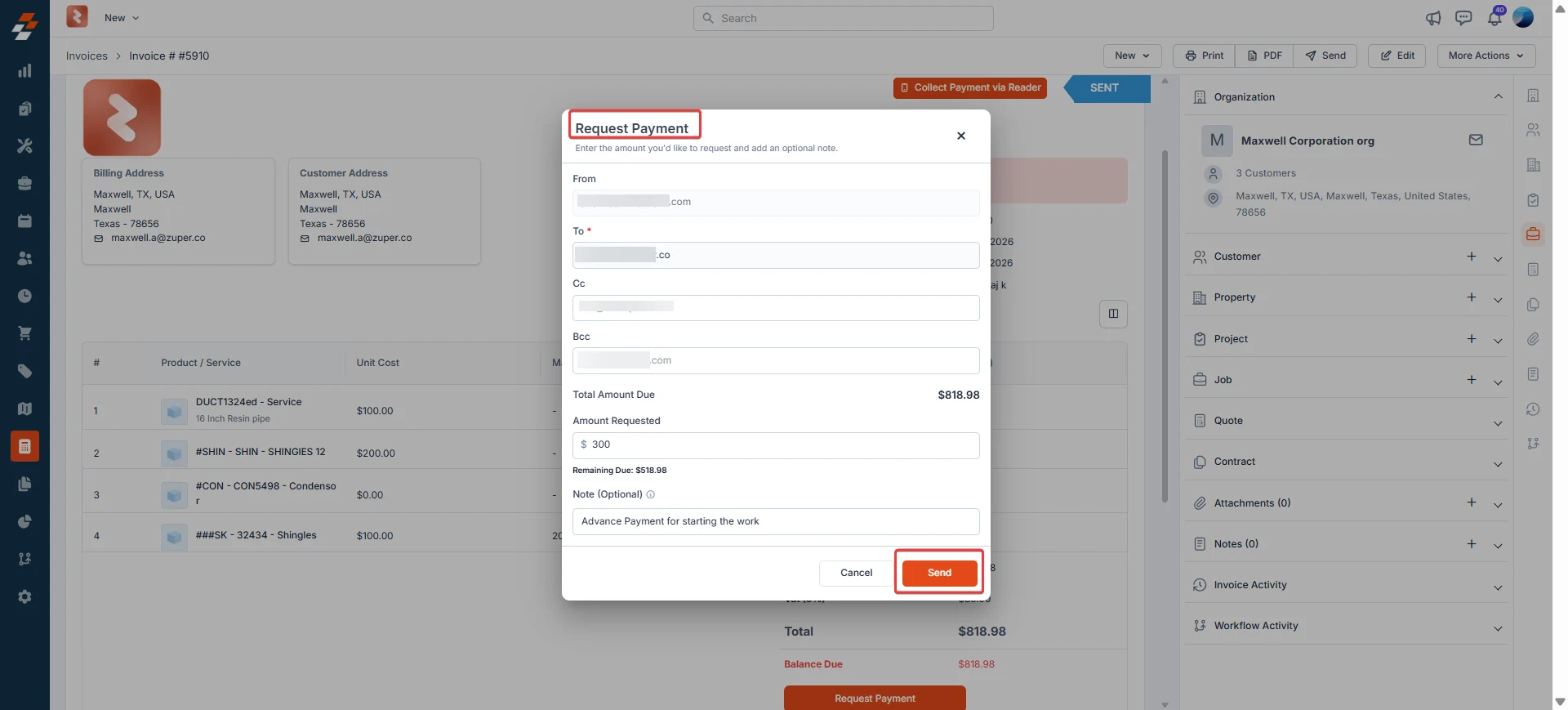
The **Request Payment** dialog opens. Review the following fields:
4. **From** - Displays your sender email.
5. **To** - Enter the customer's email address. This field is required.
6. **Cc / Bcc** - Optionally add additional recipients.
7. **Total Amount Due** - Shows the full outstanding balance on the invoice. This is read-only.
8. In the **Amount Requested** field, enter the partial amount you want to collect. The **Remaining Due** value updates automatically to show what will still be owed after this payment.
9. In the **Note (Optional)** field, enter a short message to your customer explaining what this payment is for.
10. Click **Send**. \
Zuper sends the customer a secure payment link for the requested amount.
\
The **Request Payment** dialog opens. Review the following fields:
4. **From** - Displays your sender email.
5. **To** - Enter the customer's email address. This field is required.
6. **Cc / Bcc** - Optionally add additional recipients.
7. **Total Amount Due** - Shows the full outstanding balance on the invoice. This is read-only.
8. In the **Amount Requested** field, enter the partial amount you want to collect. The **Remaining Due** value updates automatically to show what will still be owed after this payment.
9. In the **Note (Optional)** field, enter a short message to your customer explaining what this payment is for.
10. Click **Send**. \
Zuper sends the customer a secure payment link for the requested amount.
 ## Resend or cancel a payment request
After you send a payment request, you can manage it directly from the invoice.
1. Click the context menu (three-dot icon) next to the **Requested Amount**.
2. Choose one of the following actions:
* **Resend Payment Link** - Sends the same payment link to the customer again. Use this if the customer did not receive the original email.
* **Cancel Payment Request** - Cancels the active payment link immediately. The customer can no longer use the link to pay. The Requested Amount row is removed from the invoice.
## Resend or cancel a payment request
After you send a payment request, you can manage it directly from the invoice.
1. Click the context menu (three-dot icon) next to the **Requested Amount**.
2. Choose one of the following actions:
* **Resend Payment Link** - Sends the same payment link to the customer again. Use this if the customer did not receive the original email.
* **Cancel Payment Request** - Cancels the active payment link immediately. The customer can no longer use the link to pay. The Requested Amount row is removed from the invoice.
 ## Frequently asked questions
The link is deactivated immediately. Your customer can no longer use it to pay. The Requested Amount row is removed from the invoice. You can send a new payment request at any time.
No. Only one payment link can be active on an invoice at a time. Cancel the existing link before sending a new one.
If the customer clicks **Pay Now** on the original invoice and completes the payment, the full outstanding invoice amount is charged. Any active partial payment links are automatically cancelled once the payment is successfully processed.
A new payment request can be sent for any amount at any time, as long as the invoice is in **Sent** status and no other active payment link exists.
No. Partial payments are not supported for quote deposits. The deposit amount must be paid in full.
## Frequently asked questions
The link is deactivated immediately. Your customer can no longer use it to pay. The Requested Amount row is removed from the invoice. You can send a new payment request at any time.
No. Only one payment link can be active on an invoice at a time. Cancel the existing link before sending a new one.
If the customer clicks **Pay Now** on the original invoice and completes the payment, the full outstanding invoice amount is charged. Any active partial payment links are automatically cancelled once the payment is successfully processed.
A new payment request can be sent for any amount at any time, as long as the invoice is in **Sent** status and no other active payment link exists.
No. Partial payments are not supported for quote deposits. The deposit amount must be paid in full.