> ## Documentation Index
> Fetch the complete documentation index at: https://docs.zuper.co/llms.txt
> Use this file to discover all available pages before exploring further.
# Profit Margin Slider
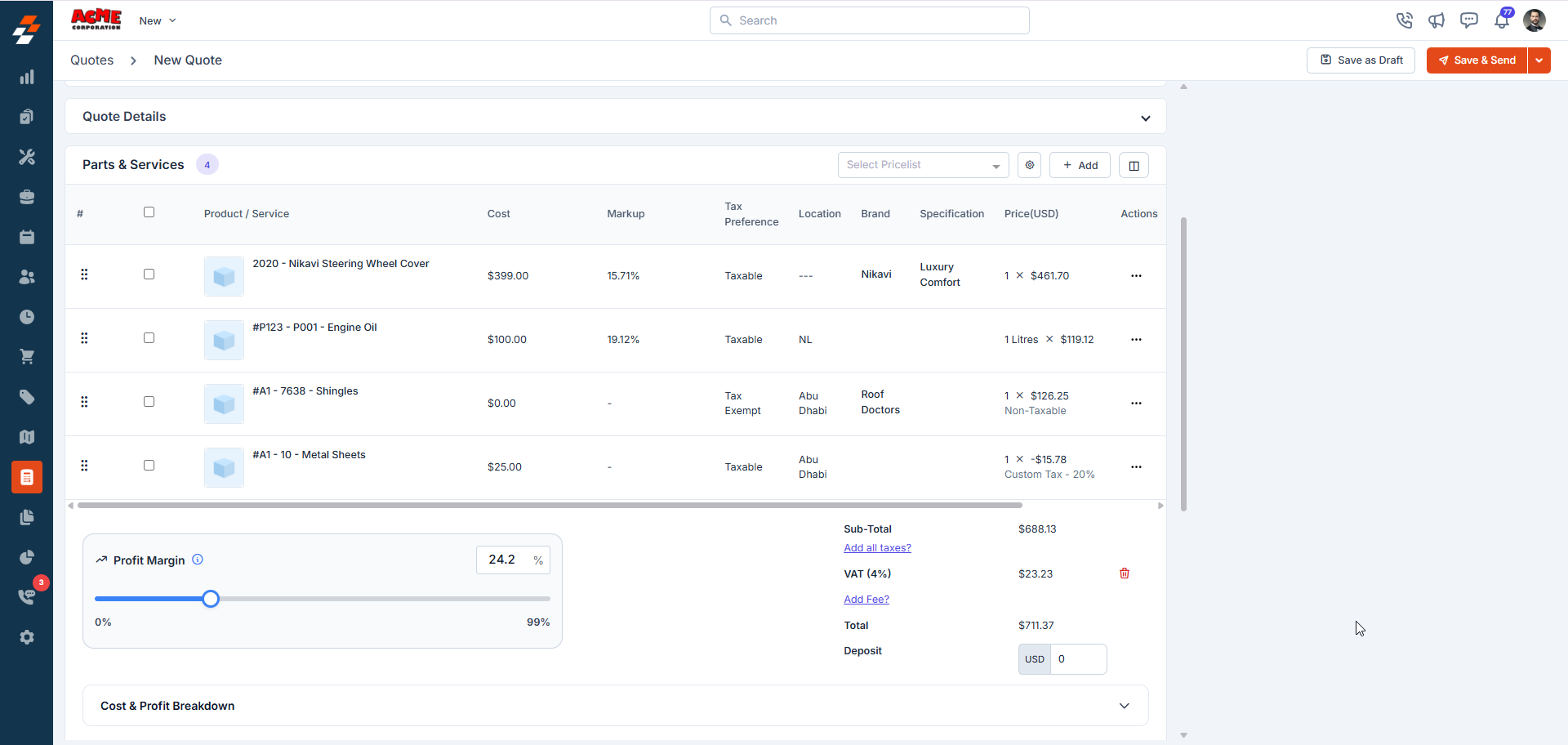
Zuper offers a **Profit Margin Slider** that allows you to adjust the profit margin dynamically across *Quotes*, *Proposals*, and *Service* *Packages*. This feature removes the need for manual recalculations by enabling immediate adjustments to meet specific profit targets.
 **Prerequisites:**
To access and use the **Profit Margin Slider**, the following conditions must be met:
* **Job Profitability** must be enabled for your account. To enable it, contact your account administrator or email [**support@zuper.co**](mailto:support@zuper.co).
* By default, *Admins* and *Team Leads* can view and manage the Profit Margin slider. However, if your business requires different visibility, you can configure access for specific roles.\
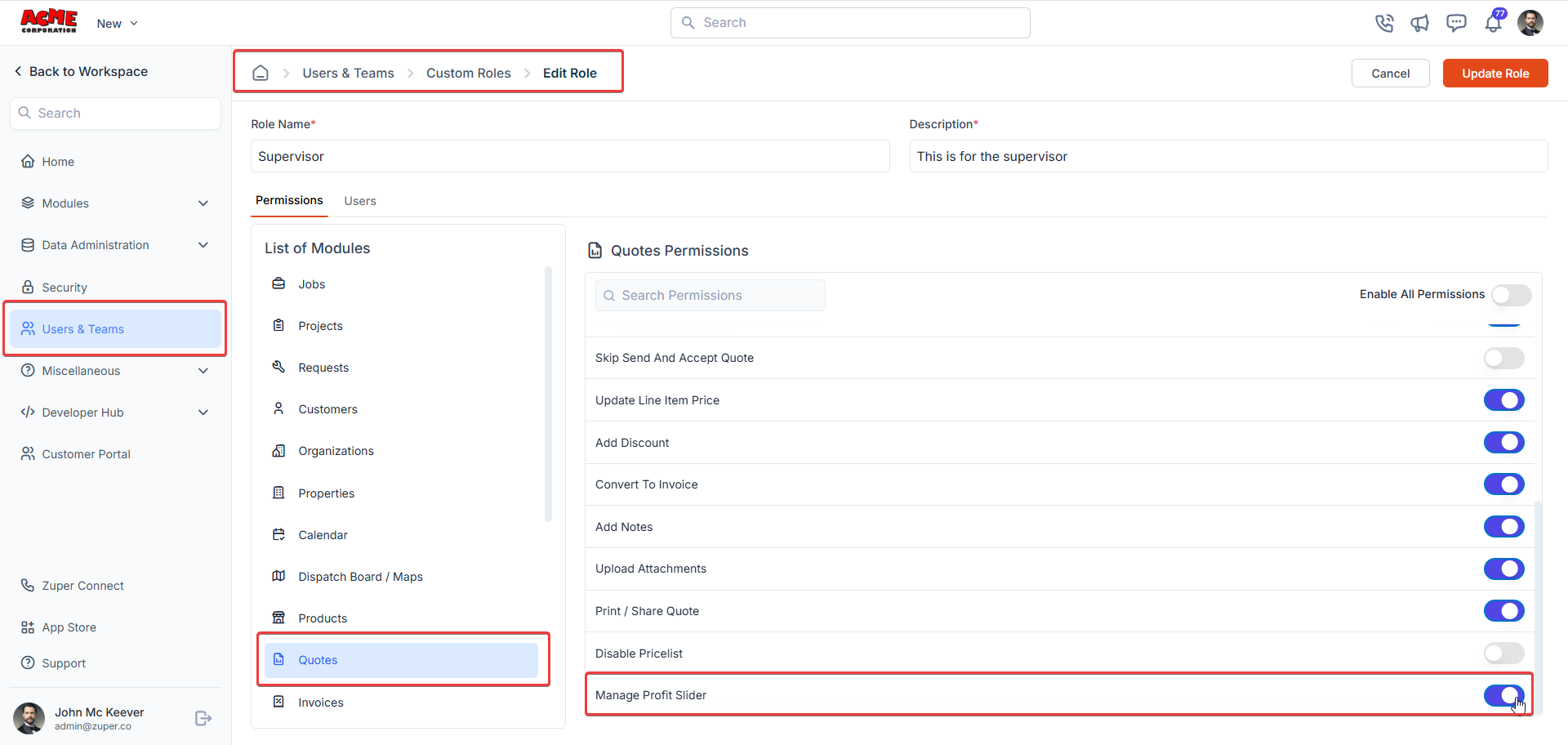
To do this, navigate to: **Settings** module > **Users & Teams** > **Quotes** > enable the **Manage Profit Slider** toggle.
**Prerequisites:**
To access and use the **Profit Margin Slider**, the following conditions must be met:
* **Job Profitability** must be enabled for your account. To enable it, contact your account administrator or email [**support@zuper.co**](mailto:support@zuper.co).
* By default, *Admins* and *Team Leads* can view and manage the Profit Margin slider. However, if your business requires different visibility, you can configure access for specific roles.\
To do this, navigate to: **Settings** module > **Users & Teams** > **Quotes** > enable the **Manage Profit Slider** toggle.
 * Add at least one **billable line item** (part, product, service, or bundle) to a Quote, Proposal, or Service Package to make the slider visible.
* Define the allowable range for profit margin adjustments under:\
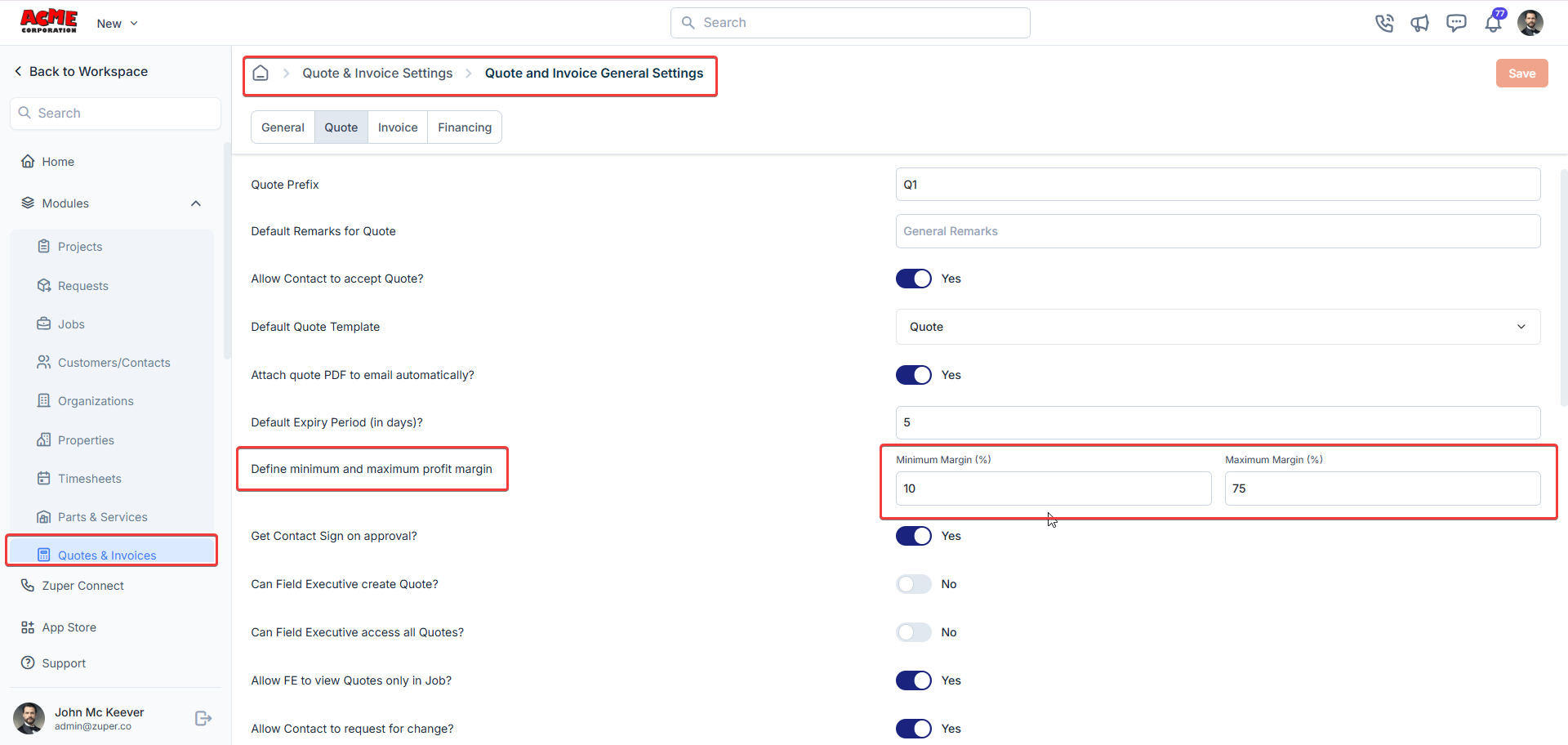
**Settings** module > **Quotes & Invoices** > **Quote and Invoice General Settings** > **Quote** tab > **Define Minimum and Maximum Profit Margin**.
* Add at least one **billable line item** (part, product, service, or bundle) to a Quote, Proposal, or Service Package to make the slider visible.
* Define the allowable range for profit margin adjustments under:\
**Settings** module > **Quotes & Invoices** > **Quote and Invoice General Settings** > **Quote** tab > **Define Minimum and Maximum Profit Margin**.
 ### To use the Profit Margin Slider
1. Open a **Quote**, **Proposal**, or **Service Package** via one of the following paths:
* Accounting module > Quotes
* Accounting module > Proposals
* Settings module > Quotes & Invoices > Service Packages
2. Click **“+ Add”** to include *parts*, *products*, *services*, or *bundles* from the **Parts** & **Services** section. Once at least one **billable item** is added, the **Profit Margin Slider** automatically appears.
**Note**: Items with a **Cost Price of \$0** and **negative line items** are also included in the profit margin calculation.
### To use the Profit Margin Slider
1. Open a **Quote**, **Proposal**, or **Service Package** via one of the following paths:
* Accounting module > Quotes
* Accounting module > Proposals
* Settings module > Quotes & Invoices > Service Packages
2. Click **“+ Add”** to include *parts*, *products*, *services*, or *bundles* from the **Parts** & **Services** section. Once at least one **billable item** is added, the **Profit Margin Slider** automatically appears.
**Note**: Items with a **Cost Price of \$0** and **negative line items** are also included in the profit margin calculation.
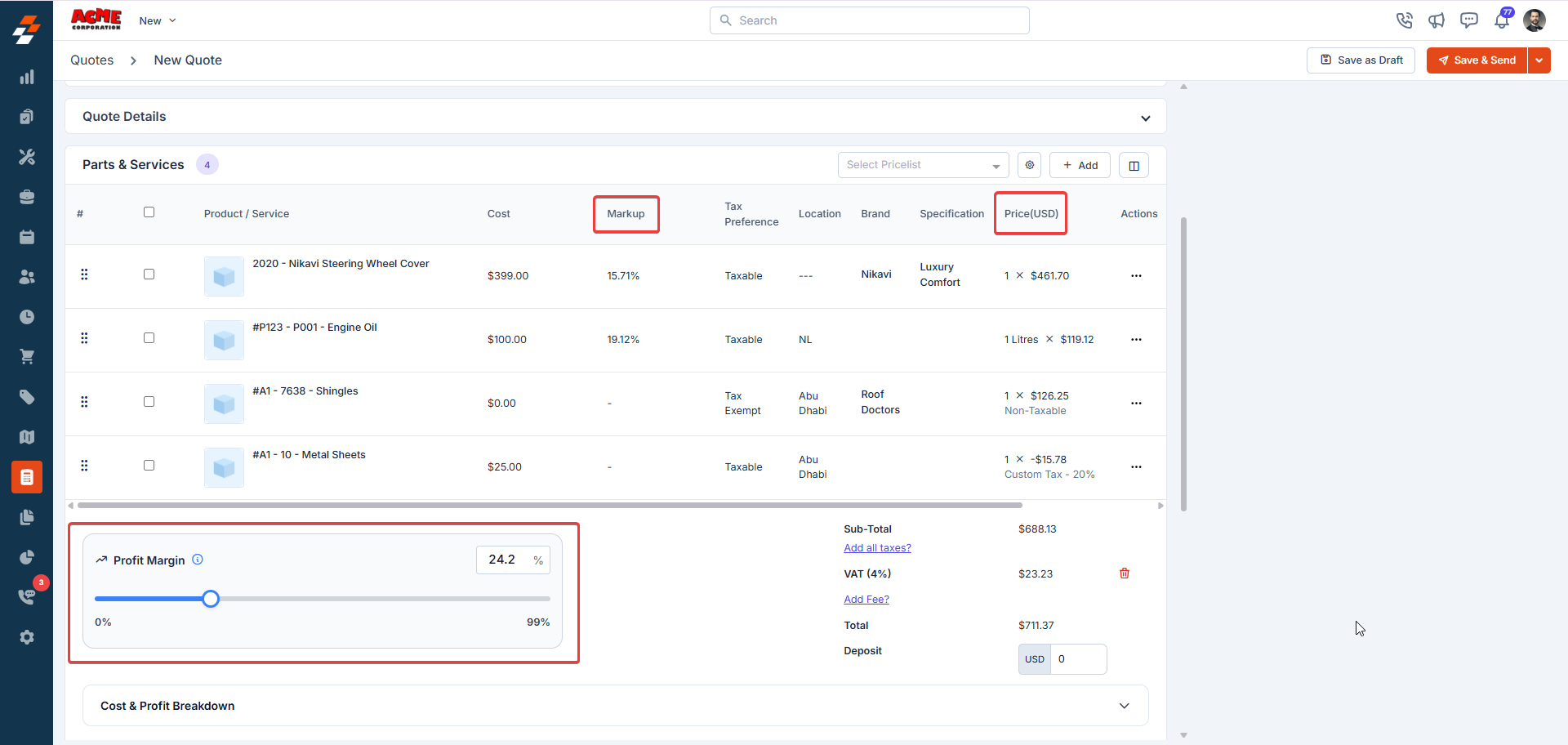
 3. The slider displays the current overall profit margin percentage, calculated using the formula:
```markdown wrap theme={null}
Profit Margin% = (Total Sell Price-Total Cost Price/Total Sell Price)\* 100
```
**Important**: **Fees** are excluded from the actual profit calculation and do not influence the slider’s behavior.
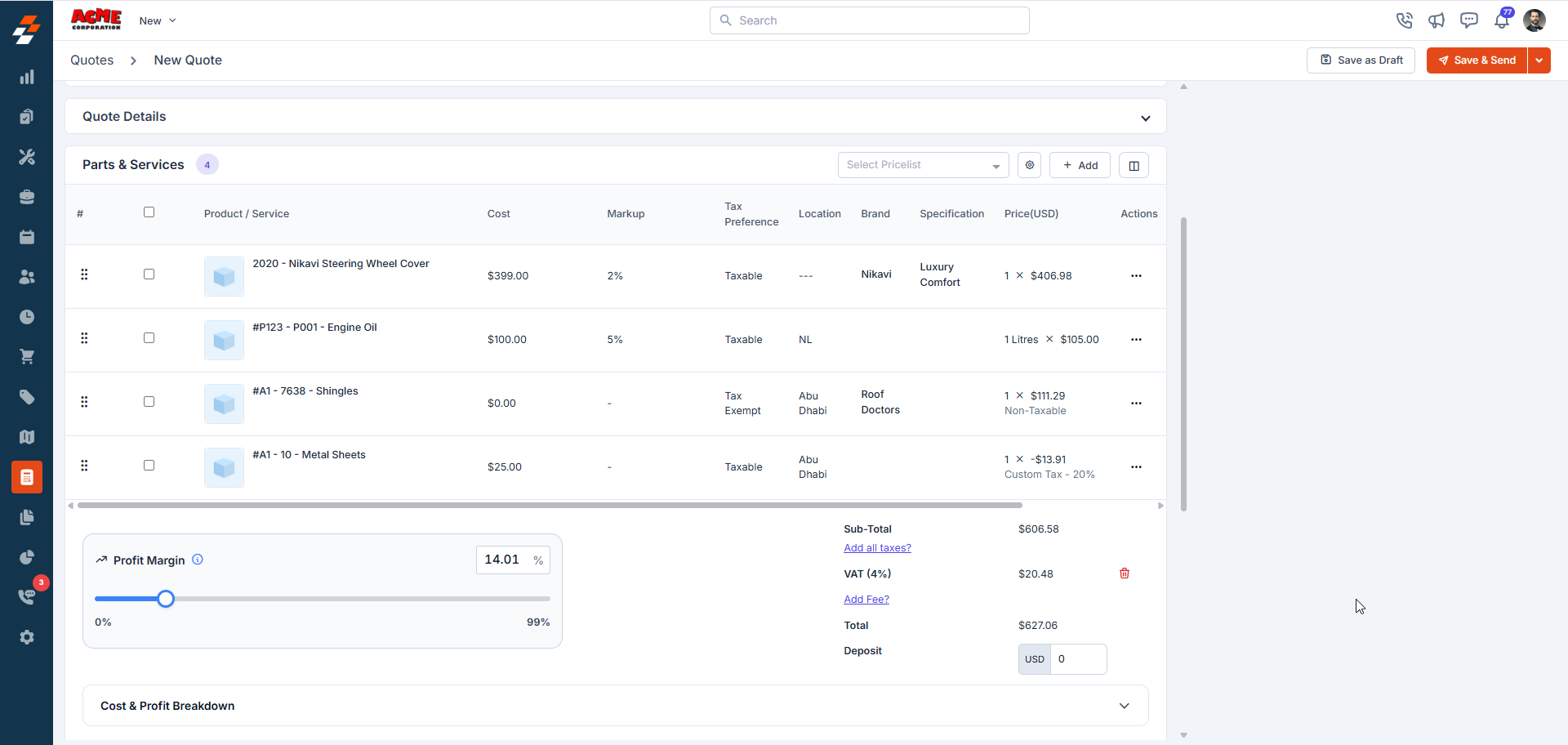
4. Drag the slider to your desired profit margin within the preconfigured minimum and maximum range.
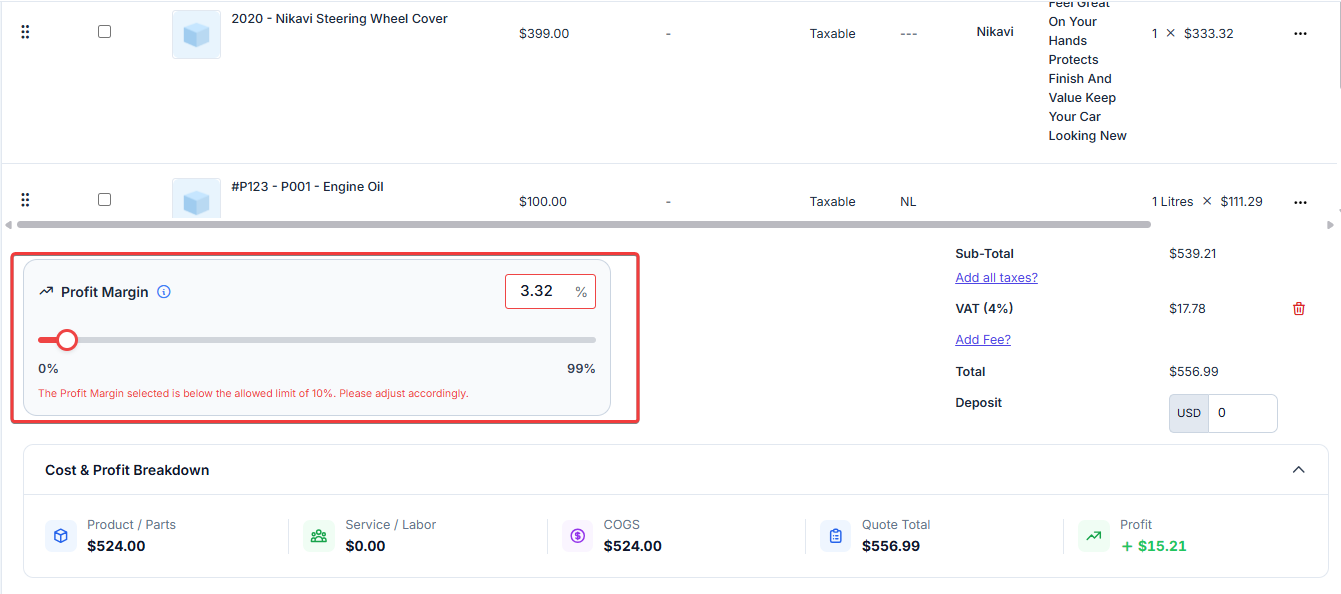
**Note:** If you adjust the slider below the minimum or above the maximum predefined values, it turns red to indicate that the selected profit margin is outside the allowed range.
5. As you adjust the slider, Zuper instantly recalculates and updates:
* **Markup %** for each line item
* **Total Sell Price** across the document
3. The slider displays the current overall profit margin percentage, calculated using the formula:
```markdown wrap theme={null}
Profit Margin% = (Total Sell Price-Total Cost Price/Total Sell Price)\* 100
```
**Important**: **Fees** are excluded from the actual profit calculation and do not influence the slider’s behavior.
4. Drag the slider to your desired profit margin within the preconfigured minimum and maximum range.
**Note:** If you adjust the slider below the minimum or above the maximum predefined values, it turns red to indicate that the selected profit margin is outside the allowed range.
5. As you adjust the slider, Zuper instantly recalculates and updates:
* **Markup %** for each line item
* **Total Sell Price** across the document
 Zuper applies a change factor to proportionally adjust item prices, ensuring consistent and balanced profit distribution across all line items.
**View Cost and Profit Breakdown**
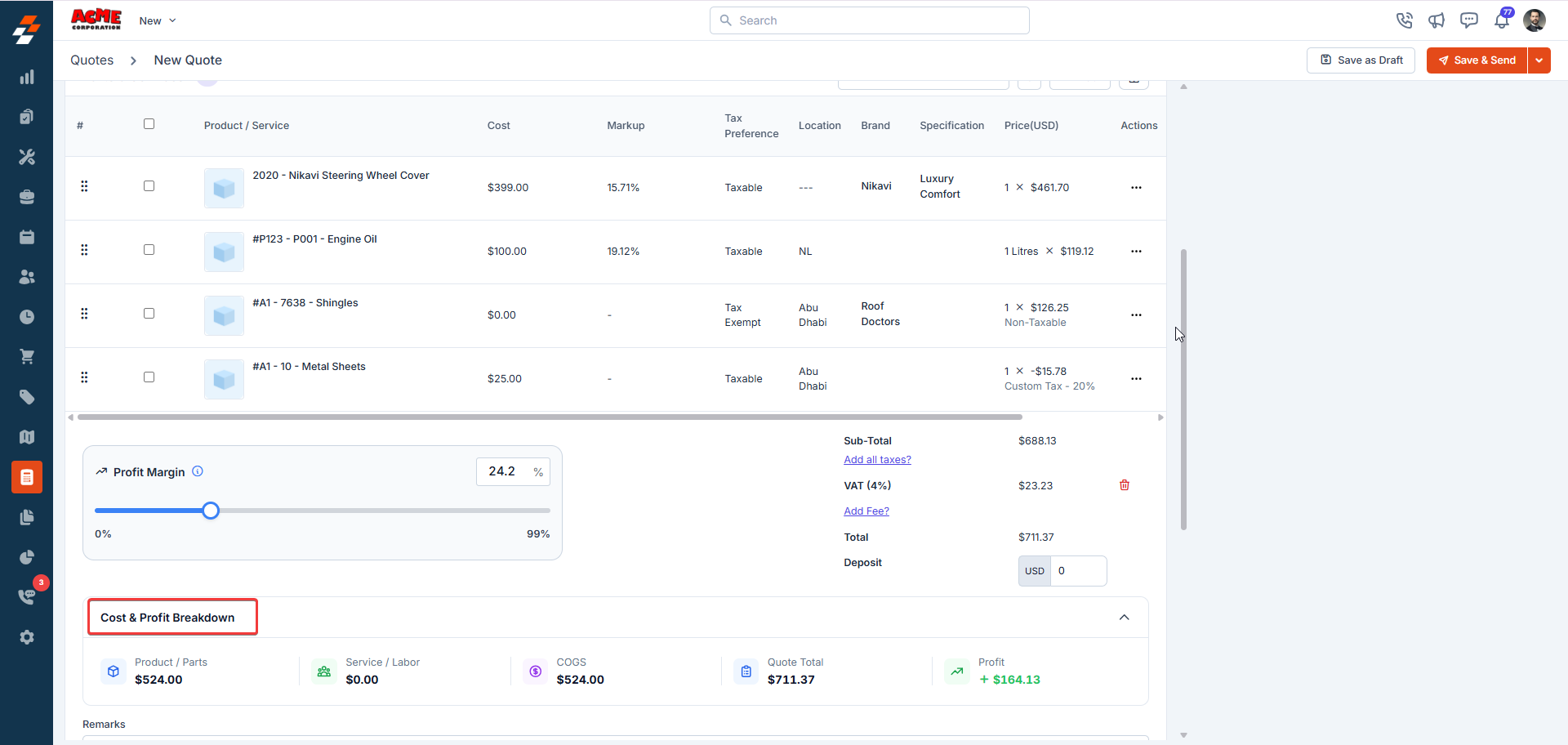
Let’s expand the **Cost & Profit Breakdown** panel beneath the slider to view a comprehensive summary, which includes:
* **Parts & Services cost**
* **Labor cost**
* **COGS** (combined cost of parts and labor)
* **Quote Total**
* **Profit Amount** = Sell Price – Cost Price
Zuper applies a change factor to proportionally adjust item prices, ensuring consistent and balanced profit distribution across all line items.
**View Cost and Profit Breakdown**
Let’s expand the **Cost & Profit Breakdown** panel beneath the slider to view a comprehensive summary, which includes:
* **Parts & Services cost**
* **Labor cost**
* **COGS** (combined cost of parts and labor)
* **Quote Total**
* **Profit Amount** = Sell Price – Cost Price
 ## **Frequently Asked Questions**
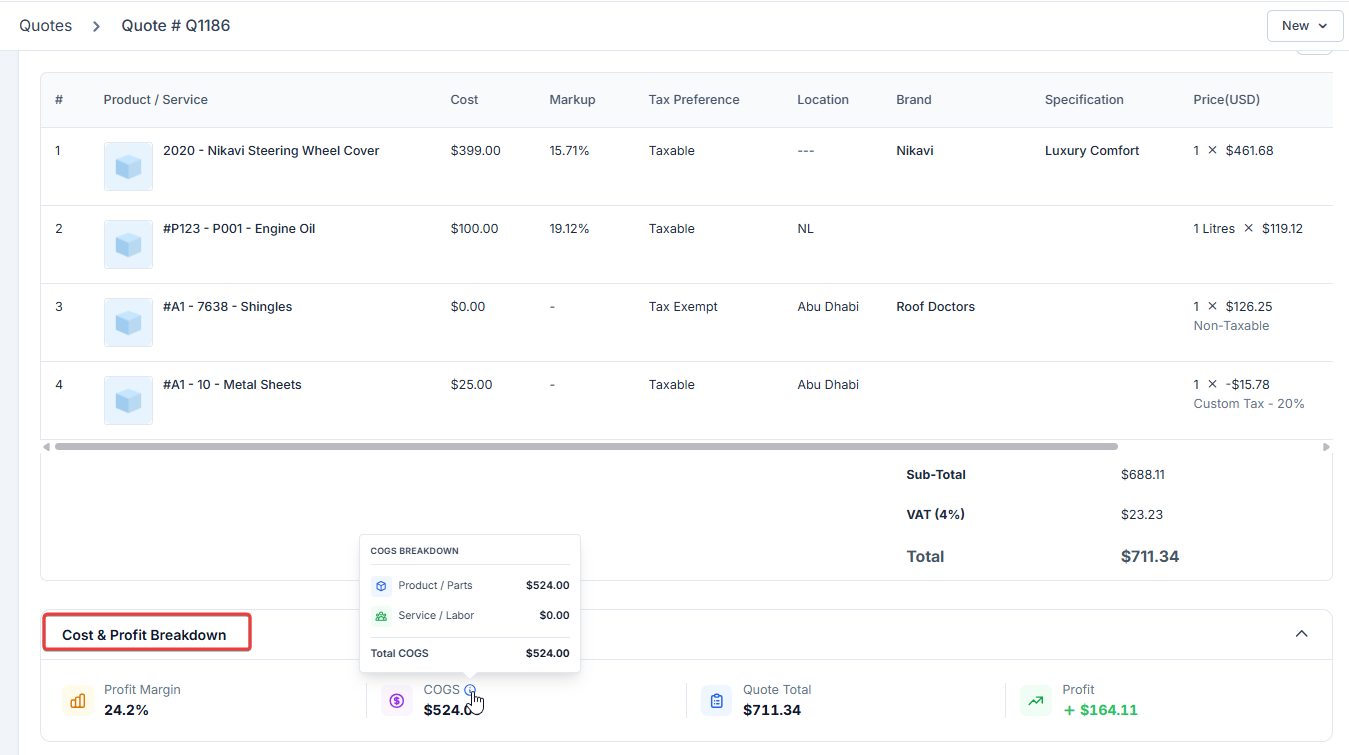
1. **Can I view Cost & Profit breakdowns on the Quote Details page?**
Yes, you can view cost & profit metrics directly on the Quote details page without opening the quote for editing. The **Cost & Profit breakdowns** display:
* **Profit Margin %** – The overall profit margin percentage for the quote
* **COGS** – The combined cost of goods sold. You can hover over this field to see a detailed breakdown of **Product/Parts** and **Service/Labor** costs.
* **Quote Total** – The total quoted amount based on all item costs and configured profit margin.
* **Profit** – The calculated profit amount (Sell Price – Cost Price)
## **Frequently Asked Questions**
1. **Can I view Cost & Profit breakdowns on the Quote Details page?**
Yes, you can view cost & profit metrics directly on the Quote details page without opening the quote for editing. The **Cost & Profit breakdowns** display:
* **Profit Margin %** – The overall profit margin percentage for the quote
* **COGS** – The combined cost of goods sold. You can hover over this field to see a detailed breakdown of **Product/Parts** and **Service/Labor** costs.
* **Quote Total** – The total quoted amount based on all item costs and configured profit margin.
* **Profit** – The calculated profit amount (Sell Price – Cost Price)
 2. **What happens if I adjust the profit margin beyond the allowed range?**
If you drag the slider below the minimum or above the maximum predefined values, the slider turns red to indicate that the selected profit margin is outside the allowed range. You'll need to adjust it back within the configured limits to proceed.
2. **What happens if I adjust the profit margin beyond the allowed range?**
If you drag the slider below the minimum or above the maximum predefined values, the slider turns red to indicate that the selected profit margin is outside the allowed range. You'll need to adjust it back within the configured limits to proceed.
 3. **Are fees included in the profit margin calculation?**
No. Fees are excluded from the profit calculation and do not influence the slider's behavior. Only billable parts, products, services, and bundles are included in the calculation.
4. **Can I use the Profit Margin Slider if some items have zero cost?**
Yes. Items with a Cost Price of \$0 and even negative line items are included in the profit margin calculation. The slider will still function and adjust pricing accordingly.
3. **Are fees included in the profit margin calculation?**
No. Fees are excluded from the profit calculation and do not influence the slider's behavior. Only billable parts, products, services, and bundles are included in the calculation.
4. **Can I use the Profit Margin Slider if some items have zero cost?**
Yes. Items with a Cost Price of \$0 and even negative line items are included in the profit margin calculation. The slider will still function and adjust pricing accordingly.