> ## Documentation Index
> Fetch the complete documentation index at: https://docs.zuper.co/llms.txt
> Use this file to discover all available pages before exploring further.
# Quick Start Guide
The Chat feature enables faster team communication and real-time alignment through instant messaging. Use **Direct Messages** (DM) for private one-to-one discussions and **Channels** for group collaboration on teams, jobs, or topics. Chat is available on the web (V3) and mobile apps.
## Pre-requisites
Before you start, make sure the following requirements are met:
* Chat is available on Web V3, iOS v4.0.3+, and Android v4.1.7+.
* The Chat feature must be enabled for your organization. Contact your Customer Success Manager or email [support@zuper.co](mailto:support@zuper.co) to enable it.
* Your access and actions depend on your role (Admin, Team Lead, Field Executive).
## Getting Started: Sidebar (Web) / Home (Mobile)
The Sidebar on web and the Home screen on mobile are where all conversations live.
From here, you can:
* View all conversations, including Direct Messages, Channels, and Pinned conversations.
* Filter conversations by Unreads, Recents, Threads, or Mentions.
* Start a new Direct Message or Channel.
* Search across Messages, Users, and Channels.
## Direct Messages (DMs)
Direct Messages are one-to-one conversations between users.
**Who can start DMs**:
* Field Executives and Team Leads can start DMs with their own team members.
* Admins can start DMs with any user.
Note: Field Executives and Team Leads can view and reply to DMs initiated by Admins.
## **Channels**
Channels let teams collaborate in group conversations. Zuper supports three types of channels.
### **1. General Channel**
Every organization in Zuper automatically has a **#general** channel. All users are added to this channel by default.
You can use the **#general** channel for:
* Organization-wide announcements
* All-hands updates
* Information everyone needs to stay aligned
Note: The General channel cannot be archived.
### **2. Job-Specific Channels**
Job-specific channels are created to centralize all communication related to a particular job. Each Job Channel is identified by a suitcase icon and is named after the job it belongs to. These channels are initiated from the **Job Details page** → **Chat** → **Start Conversation** and are automatically linked to the job.
**UI Update:**\
We've repositioned **Job Channels** into a dedicated section in the sidebar, separate from your other channels, for quicker access.
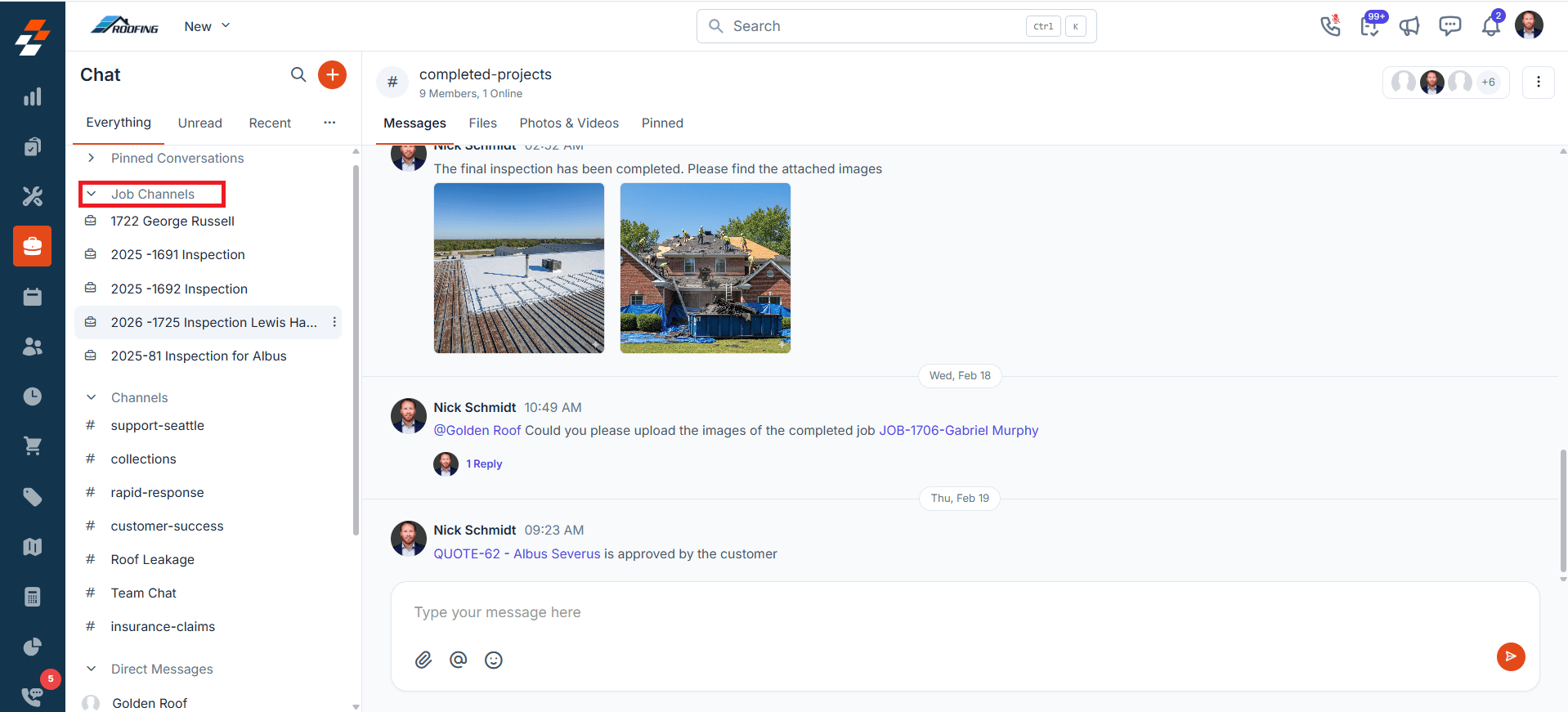 By using a job-specific channel, teams can:
* Share photos, documents, and files related to the job in one place
* Exchange real-time updates as the job progresses
* Receive automated real-time job updates such as clock-in/out, quote acceptance/rejection status, invoice payments, status updates, and user assignment
* Keep all job-related discussions contextually tied to the job details
* Ensure clear communication between office teams and field technicians
**Note**: Any user with permission to view a job can create a Job Channel using the **Start Conversation** button. By default, assigned users, their Team Leads, and users configured in Job General Settings are automatically added as channel members.
### **3. Custom Channels**
Custom channels are created to organize conversations around specific ongoing topics, teams, or projects.
By creating a custom channel, teams can:
* Keep conversations focused and relevant to a particular topic or project.
* Make it easier for members to find past discussions, files, and decisions.
* Collaborate efficiently with the right people, without unnecessary noise
* Maintain clarity as projects evolve or topics continue over time.
## Creating Custom Channels
You can create a channel with one or more members for collaboration.
### Channel Managers
Channel Managers can control member access and help keep conversations organized.
**Channel Managers can:**
* Add or remove channel members.
* Assign other users as Channel Managers.
* Delete messages in the channel.
**Who becomes a Channel Manager:**
* **#general channel:**\
All Admins are automatically assigned as Channel Managers.
* **Job channels:**\
The following users are automatically assigned as Channel Managers:
1. Team Leads of the assigned technicians.
2. Primary Technician of the job.
3. User who created the job (if enabled in Job General Settings).
4. Any Admins added to the channel.
* **Other channels:**\
The user who creates the channel is automatically assigned as the Channel Manager.
Note: Admins have Channel Manager permissions in any channel they join, even if not explicitly assigned.
## Managing Conversation
You can manage conversations to stay focused and respond faster. Zuper lets you pin important conversations, mute distractions, and archive channels when they’re no longer active.
### Pin a Conversation
Pinning keeps it at the top in the “Pinned Conversations” for quick access.
### Set a Notification Preference
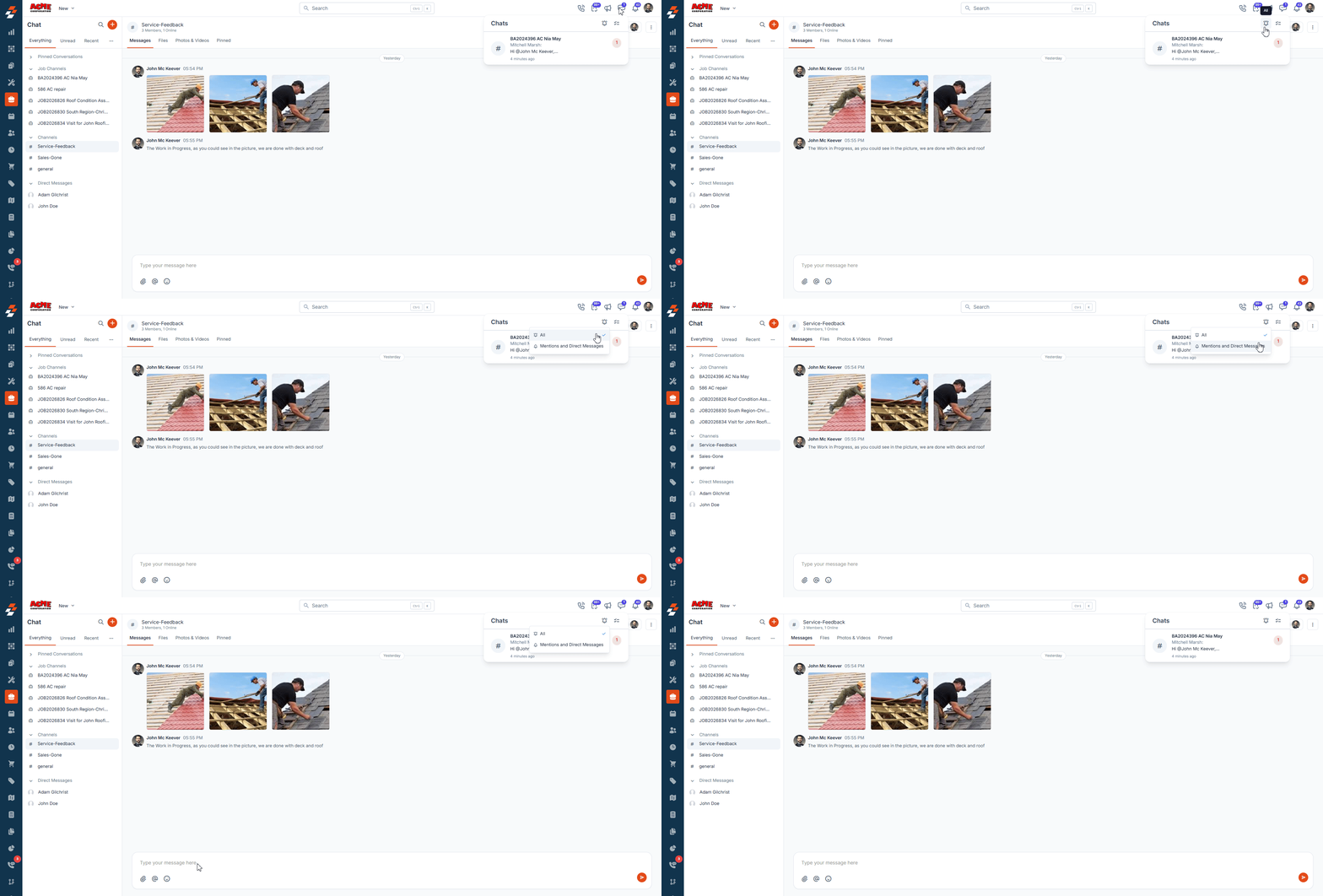
Updated You can control how you are notified for each channel. Zuper gives you two levels of control, a global preference for all channels, and a channel-level preference for individual channels.
Your global preference sets the default notification behavior across all channels.
**Web**
1. Click the **Chat** icon in the top-right corner of the Header bar.
2. Click the icon. A **Notification Preference** panel opens.
3. Choose one of the following:
* **All**: You receive a notification for every message in every channel. This is the default.
* **Mentions and Direct Messages**: You are only notified when someone mentions you or sends you a Direct Message.
4. Your preference is saved immediately.
**Note:** This setting applies to all channels where no channel-level preference has been set.
By using a job-specific channel, teams can:
* Share photos, documents, and files related to the job in one place
* Exchange real-time updates as the job progresses
* Receive automated real-time job updates such as clock-in/out, quote acceptance/rejection status, invoice payments, status updates, and user assignment
* Keep all job-related discussions contextually tied to the job details
* Ensure clear communication between office teams and field technicians
**Note**: Any user with permission to view a job can create a Job Channel using the **Start Conversation** button. By default, assigned users, their Team Leads, and users configured in Job General Settings are automatically added as channel members.
### **3. Custom Channels**
Custom channels are created to organize conversations around specific ongoing topics, teams, or projects.
By creating a custom channel, teams can:
* Keep conversations focused and relevant to a particular topic or project.
* Make it easier for members to find past discussions, files, and decisions.
* Collaborate efficiently with the right people, without unnecessary noise
* Maintain clarity as projects evolve or topics continue over time.
## Creating Custom Channels
You can create a channel with one or more members for collaboration.
### Channel Managers
Channel Managers can control member access and help keep conversations organized.
**Channel Managers can:**
* Add or remove channel members.
* Assign other users as Channel Managers.
* Delete messages in the channel.
**Who becomes a Channel Manager:**
* **#general channel:**\
All Admins are automatically assigned as Channel Managers.
* **Job channels:**\
The following users are automatically assigned as Channel Managers:
1. Team Leads of the assigned technicians.
2. Primary Technician of the job.
3. User who created the job (if enabled in Job General Settings).
4. Any Admins added to the channel.
* **Other channels:**\
The user who creates the channel is automatically assigned as the Channel Manager.
Note: Admins have Channel Manager permissions in any channel they join, even if not explicitly assigned.
## Managing Conversation
You can manage conversations to stay focused and respond faster. Zuper lets you pin important conversations, mute distractions, and archive channels when they’re no longer active.
### Pin a Conversation
Pinning keeps it at the top in the “Pinned Conversations” for quick access.
### Set a Notification Preference
Updated You can control how you are notified for each channel. Zuper gives you two levels of control, a global preference for all channels, and a channel-level preference for individual channels.
Your global preference sets the default notification behavior across all channels.
**Web**
1. Click the **Chat** icon in the top-right corner of the Header bar.
2. Click the icon. A **Notification Preference** panel opens.
3. Choose one of the following:
* **All**: You receive a notification for every message in every channel. This is the default.
* **Mentions and Direct Messages**: You are only notified when someone mentions you or sends you a Direct Message.
4. Your preference is saved immediately.
**Note:** This setting applies to all channels where no channel-level preference has been set.
 1. In the **Chat** home, tap on the icon.
2. Choose **Everything** or **Mentions**.
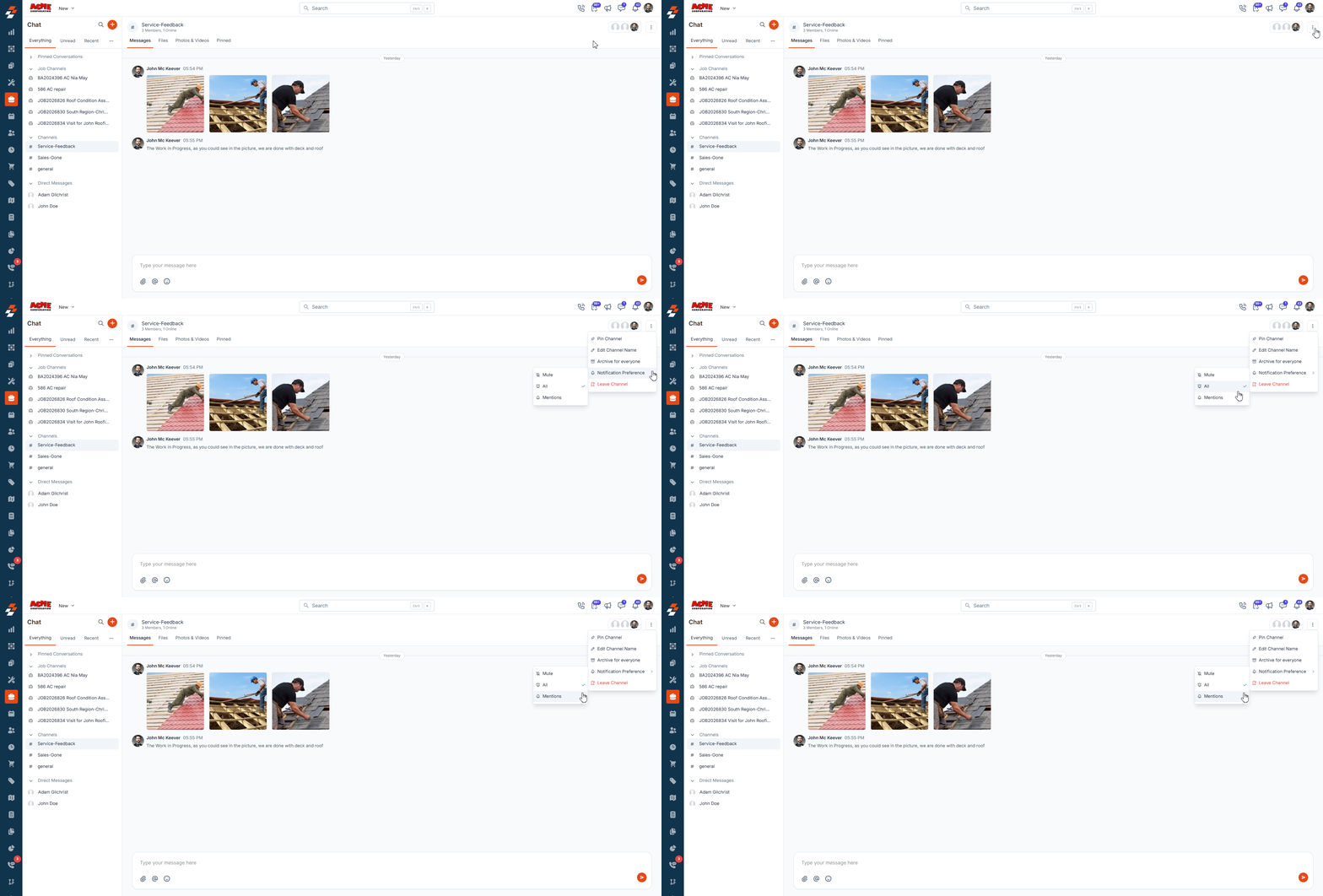
You can override your global preference for any individual channel. Channel-level preferences always take precedence over your global settings.
**Note:** Once a channel-level preference is set, it cannot be overridden by the global preference.
1. Open the channel and click **More actions (⋮)** in the channel header.
2. Select **Notification Preference**.
3. Choose one of the following:
* **All**: You receive a notification for every message in this channel.
* **Mentions**: You are only notified when someone mentions you in this channel.
* **Mute**: You receive no notifications from this channel.
1. In the **Chat** home, tap on the icon.
2. Choose **Everything** or **Mentions**.
You can override your global preference for any individual channel. Channel-level preferences always take precedence over your global settings.
**Note:** Once a channel-level preference is set, it cannot be overridden by the global preference.
1. Open the channel and click **More actions (⋮)** in the channel header.
2. Select **Notification Preference**.
3. Choose one of the following:
* **All**: You receive a notification for every message in this channel.
* **Mentions**: You are only notified when someone mentions you in this channel.
* **Mute**: You receive no notifications from this channel.
 1. In the Chat home, tap and hold the channel name, or open the channel and tap its name to open the details page.
2. Select **Notification Preference**.
3. Choose **Muted**, **Everything**, or **Mentions**.
### Archive a channel
Removes it from view for all users (searchable and restorable later).
Note: DMs and the #general channel cannot be archived.
## Sending and Managing Messages
### Mentions
Tag users (@username) or entities (Jobs, Projects, Customers, Quotes, Invoices) — triggers notifications for user mentions; entity mentions link to details.
### Threads
Reply to a specific message to keep related discussions organized.
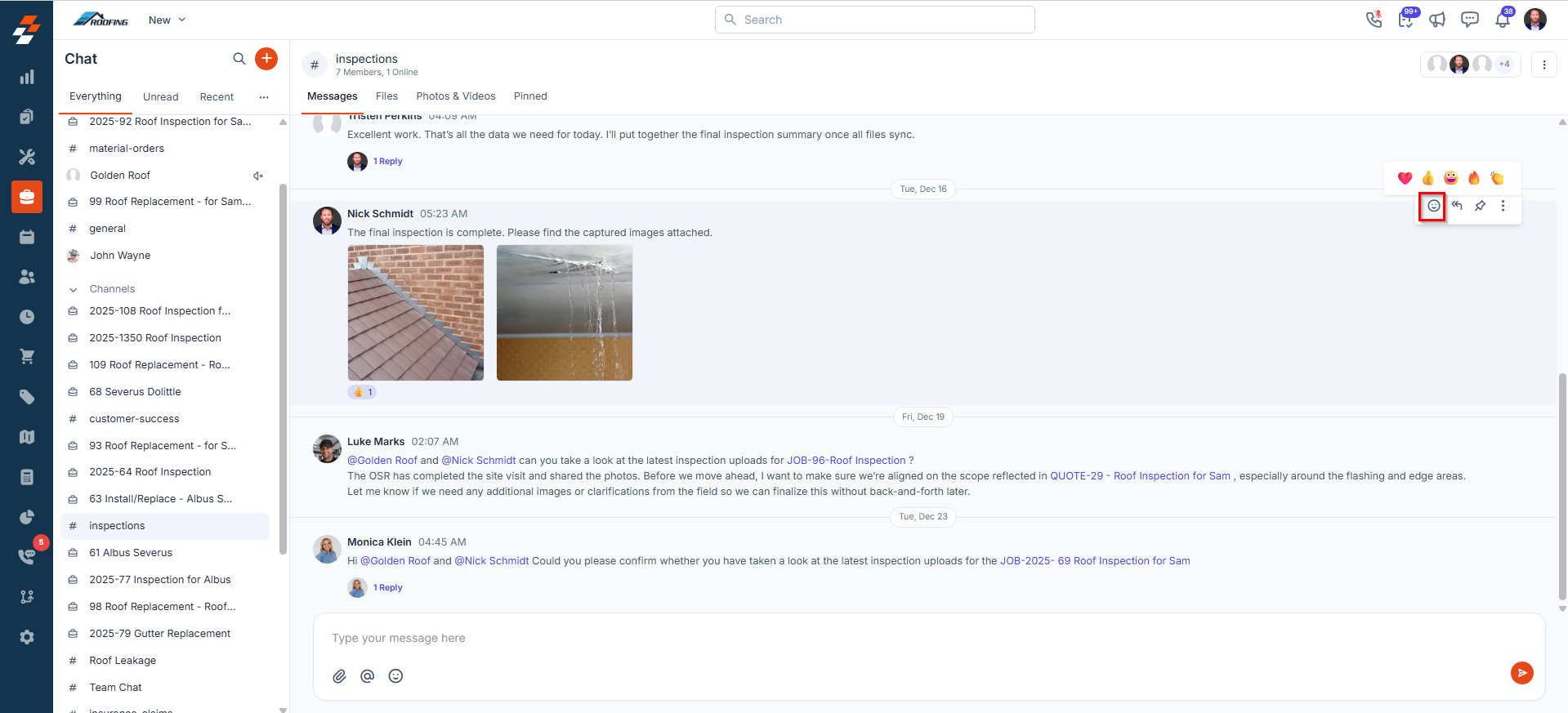
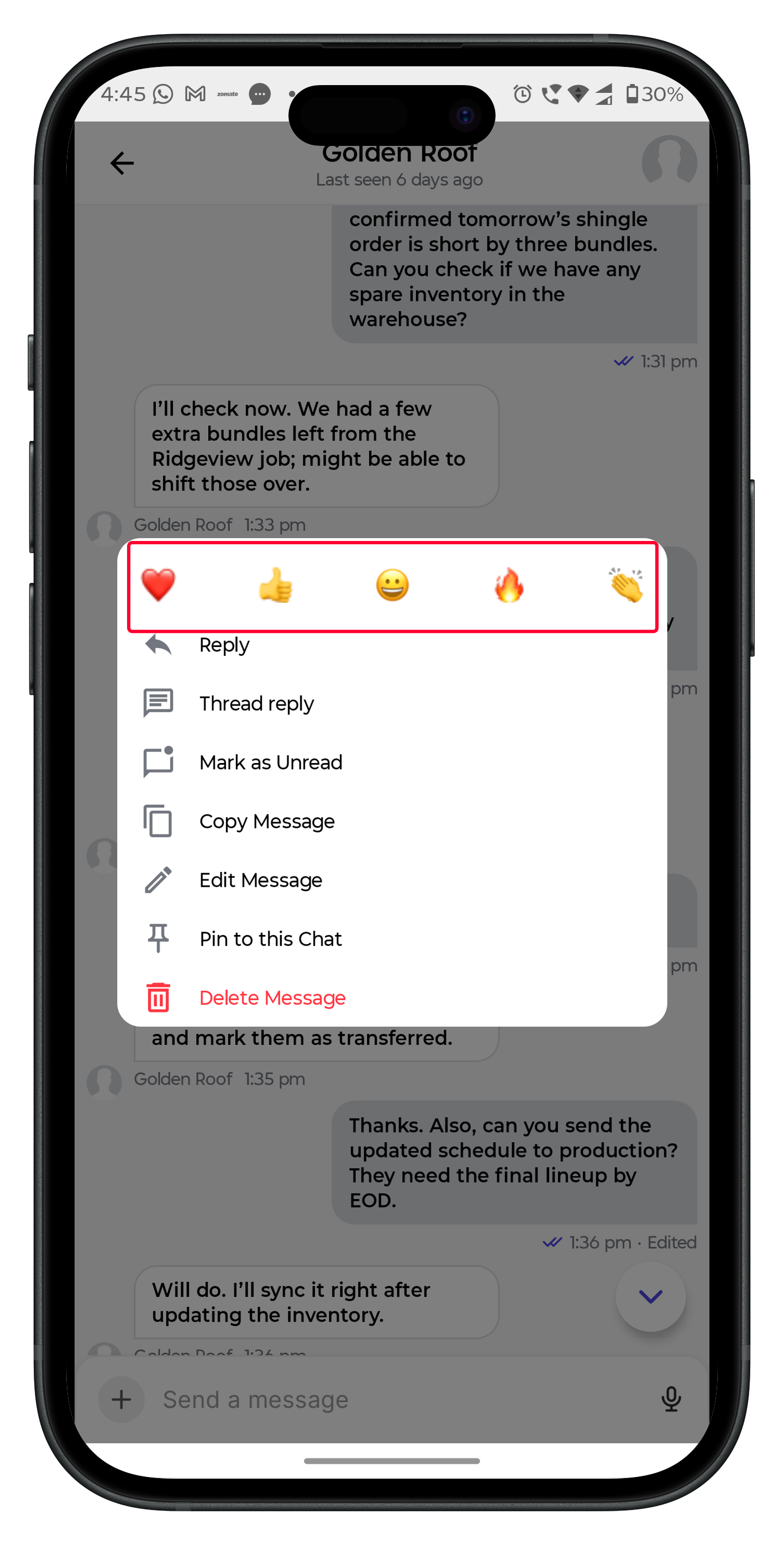
### Reactions
Add emojis to acknowledge messages quickly.
1. In the Chat home, tap and hold the channel name, or open the channel and tap its name to open the details page.
2. Select **Notification Preference**.
3. Choose **Muted**, **Everything**, or **Mentions**.
### Archive a channel
Removes it from view for all users (searchable and restorable later).
Note: DMs and the #general channel cannot be archived.
## Sending and Managing Messages
### Mentions
Tag users (@username) or entities (Jobs, Projects, Customers, Quotes, Invoices) — triggers notifications for user mentions; entity mentions link to details.
### Threads
Reply to a specific message to keep related discussions organized.
### Reactions
Add emojis to acknowledge messages quickly.
 ### Attachments
Share images, videos, documents — media appears in "**Photos & Videos**"; files in "**Files**" section.
### Pinning a message
Highlight key info within a conversation for easy reference.
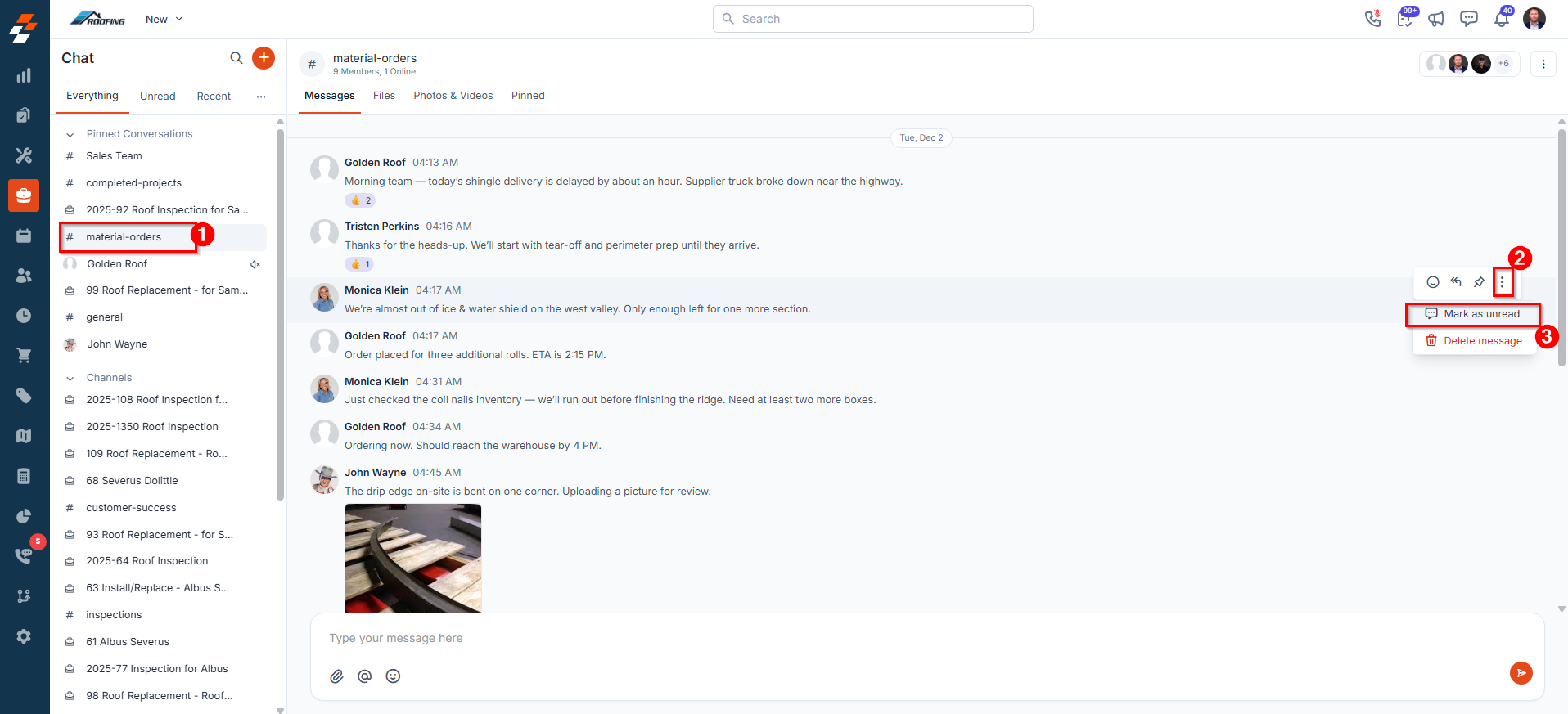
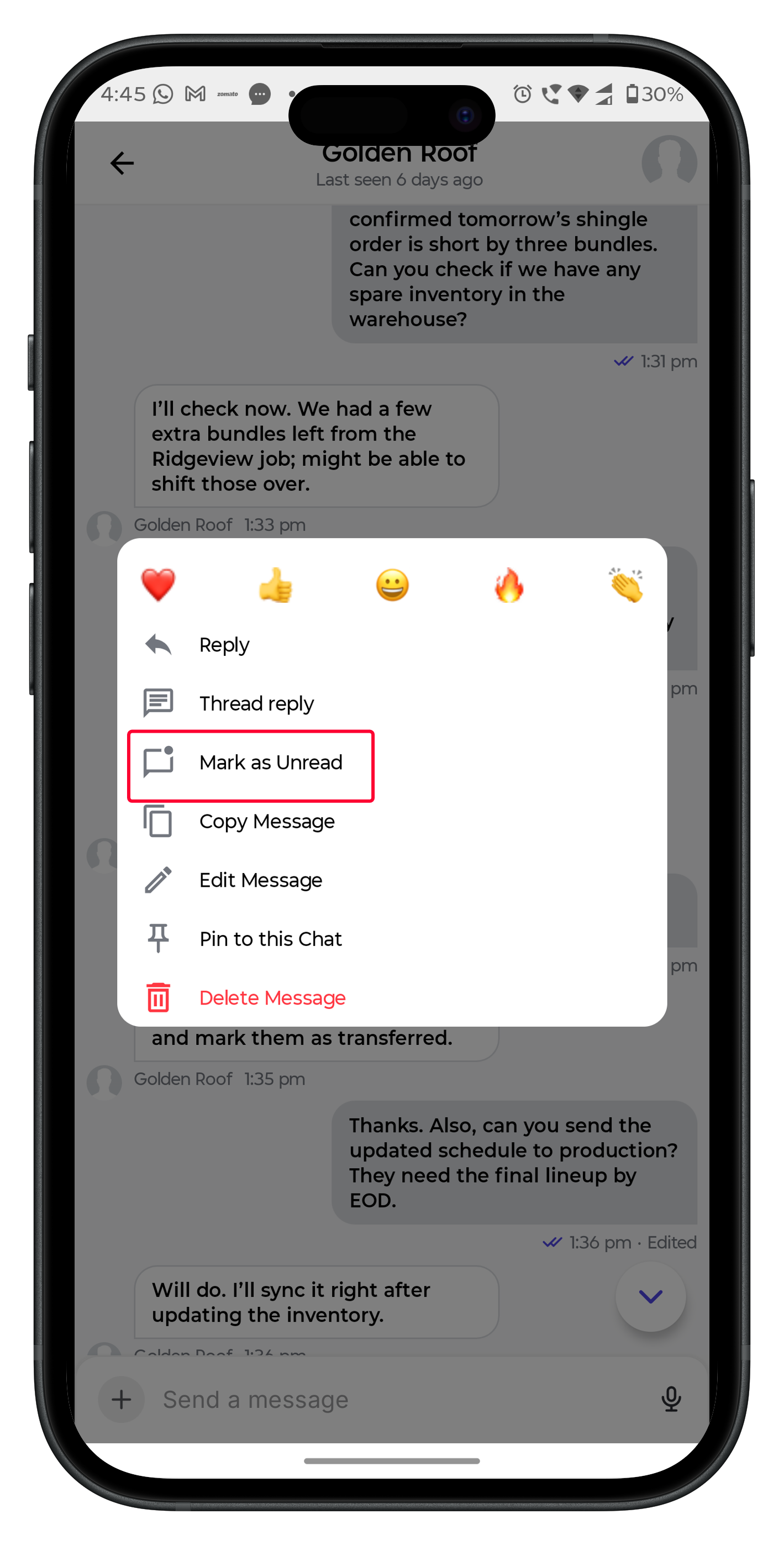
### Mark as unread
Flag messages to review later (thread replies excluded).
### Attachments
Share images, videos, documents — media appears in "**Photos & Videos**"; files in "**Files**" section.
### Pinning a message
Highlight key info within a conversation for easy reference.
### Mark as unread
Flag messages to review later (thread replies excluded).
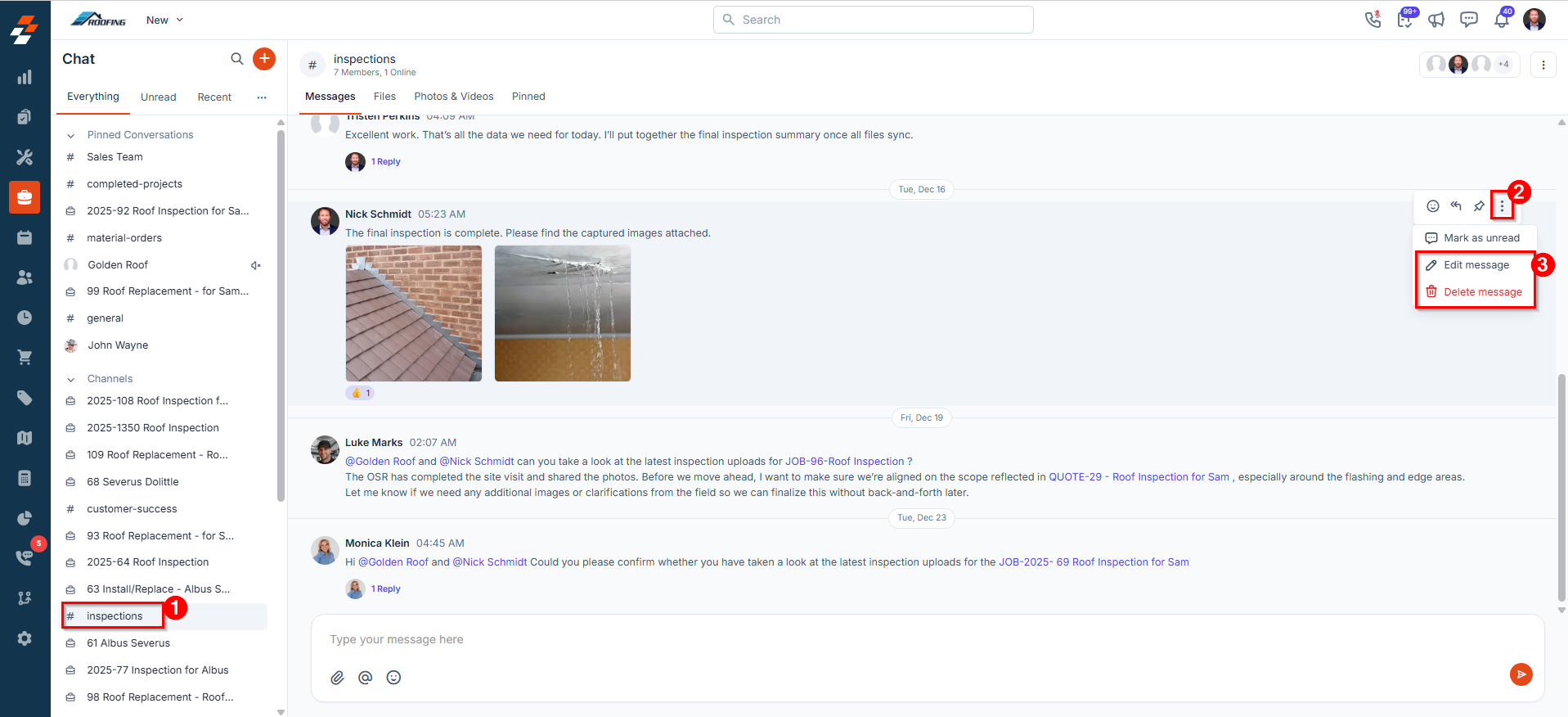
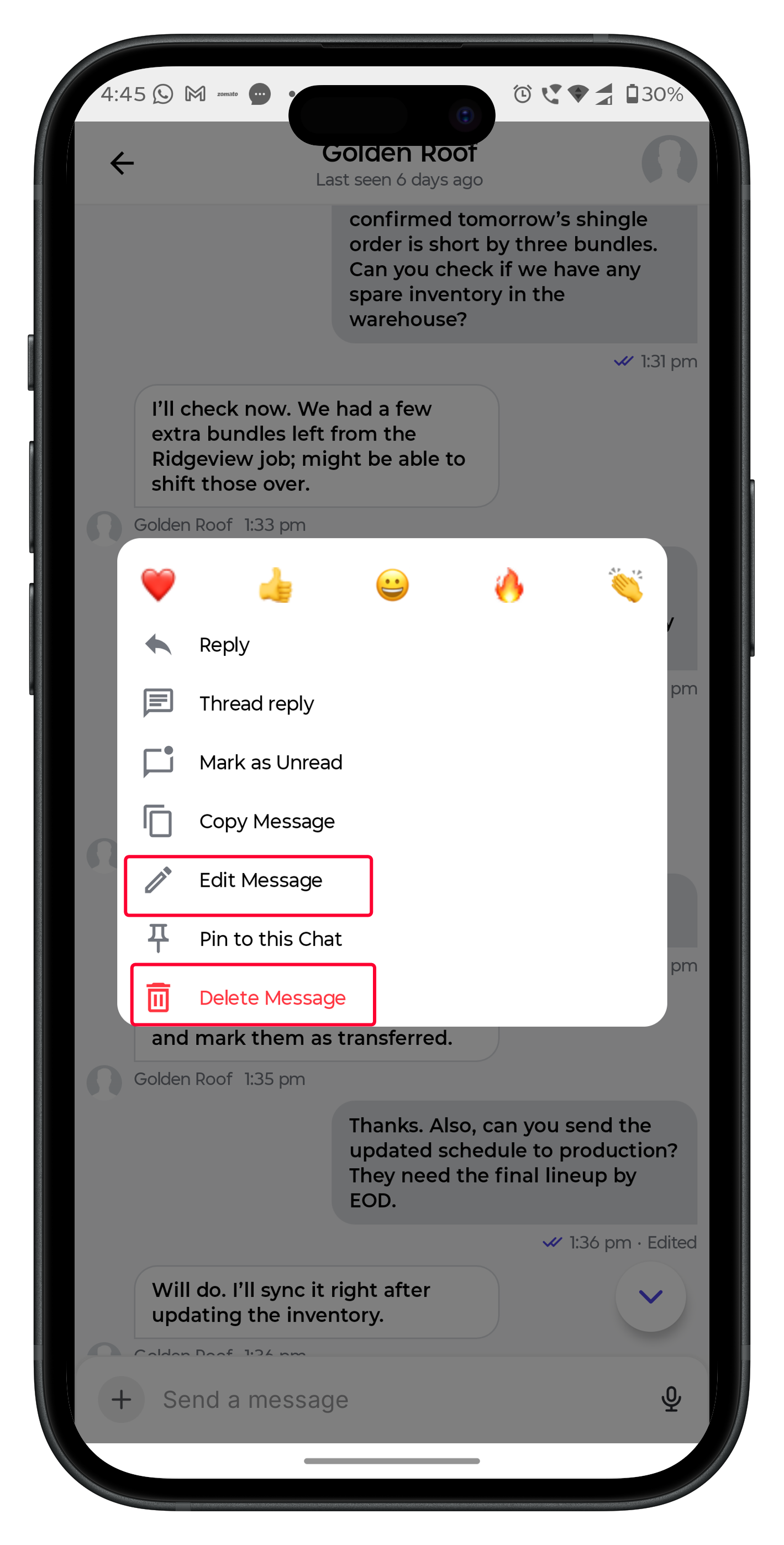
 ### Edit/Delete Messages:
* Users: Can edit/delete their own messages.
* Channel Managers: Can delete others' messages (but can’t edit them).
### Edit/Delete Messages:
* Users: Can edit/delete their own messages.
* Channel Managers: Can delete others' messages (but can’t edit them).
 ## Search
Quickly locate content:
* Search across Messages, Users, and Channels.
* Sort message results by creation date.
* Filter message results by sender or channel.
This streamlined guide focuses on essential steps to get you started quickly. For deeper details, refer to the articles below:
* **Channels**\
Learn how to create, manage, and collaborate with your team using channels.
* **Direct Messages**\
Learn how to start and manage private conversations with individuals.
* **Messages**\
Learn how to send, receive, and organize messages effectively.
* **Search**\
Learn how to quickly find messages, channels, and conversations using search.
## Search
Quickly locate content:
* Search across Messages, Users, and Channels.
* Sort message results by creation date.
* Filter message results by sender or channel.
This streamlined guide focuses on essential steps to get you started quickly. For deeper details, refer to the articles below:
* **Channels**\
Learn how to create, manage, and collaborate with your team using channels.
* **Direct Messages**\
Learn how to start and manage private conversations with individuals.
* **Messages**\
Learn how to send, receive, and organize messages effectively.
* **Search**\
Learn how to quickly find messages, channels, and conversations using search.