> ## Documentation Index
> Fetch the complete documentation index at: https://docs.zuper.co/llms.txt
> Use this file to discover all available pages before exploring further.
# Installing Zuper
Give your field teams the information and technology they need on-site with our mobile app. Enable your field teams to manage jobs, schedules, and customer information within the app while staying connected with the back office.
## iOS
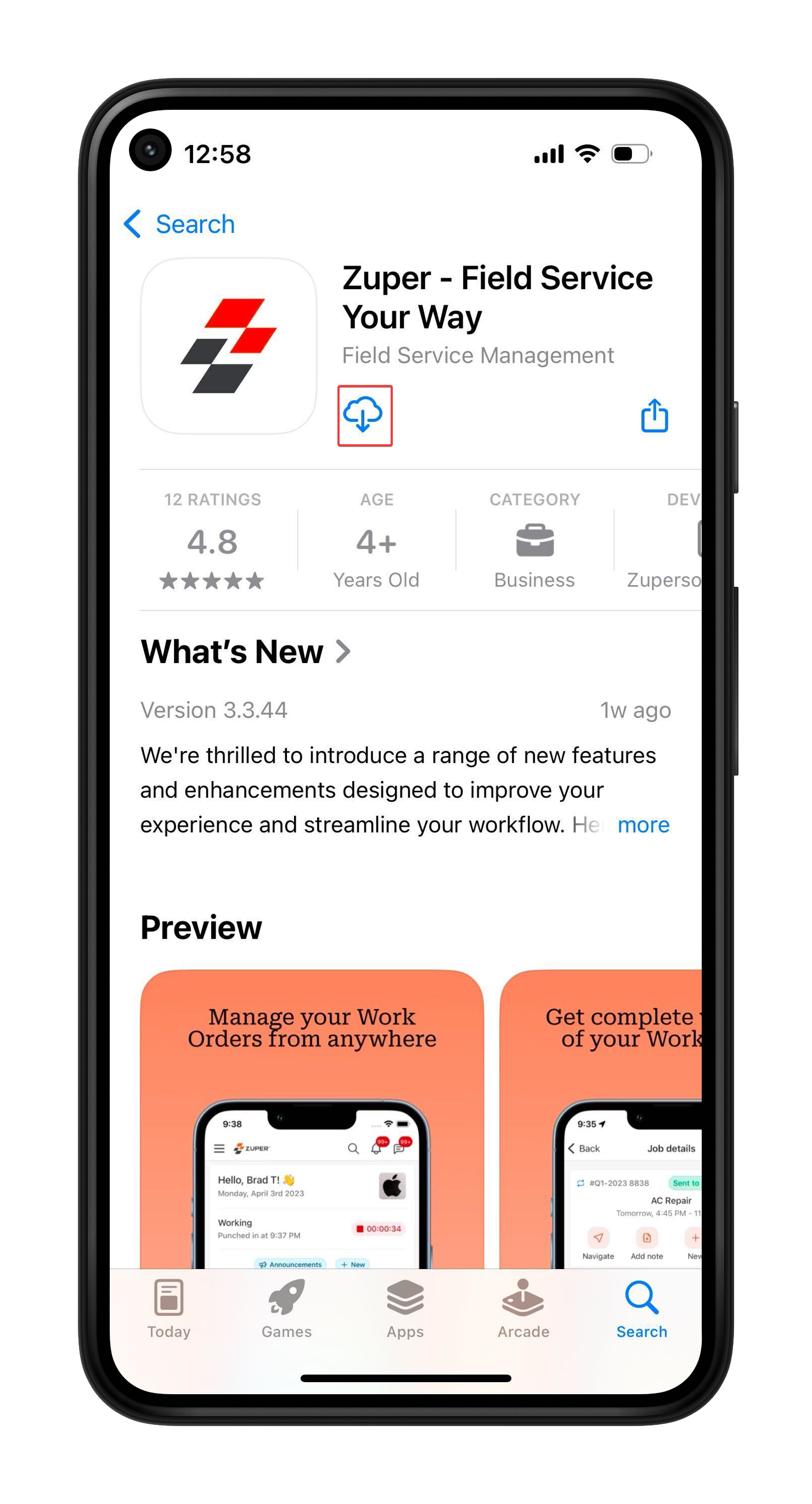
1. Open the **App Store** on your device. Alternatively, click this [link](https://apps.apple.com/in/app/zuper-field-service-your-way/id1633081340). Search for “**Zuper- Field Service Your Way**” and select it from the results. Tap the ⬇️ icon to install the app.
2. Once installed, open the app and enter your “**Company Name**” to proceed. Enter your “**Email ID**” and “**Password**,” then click the “**Login**” button.
 ## Android
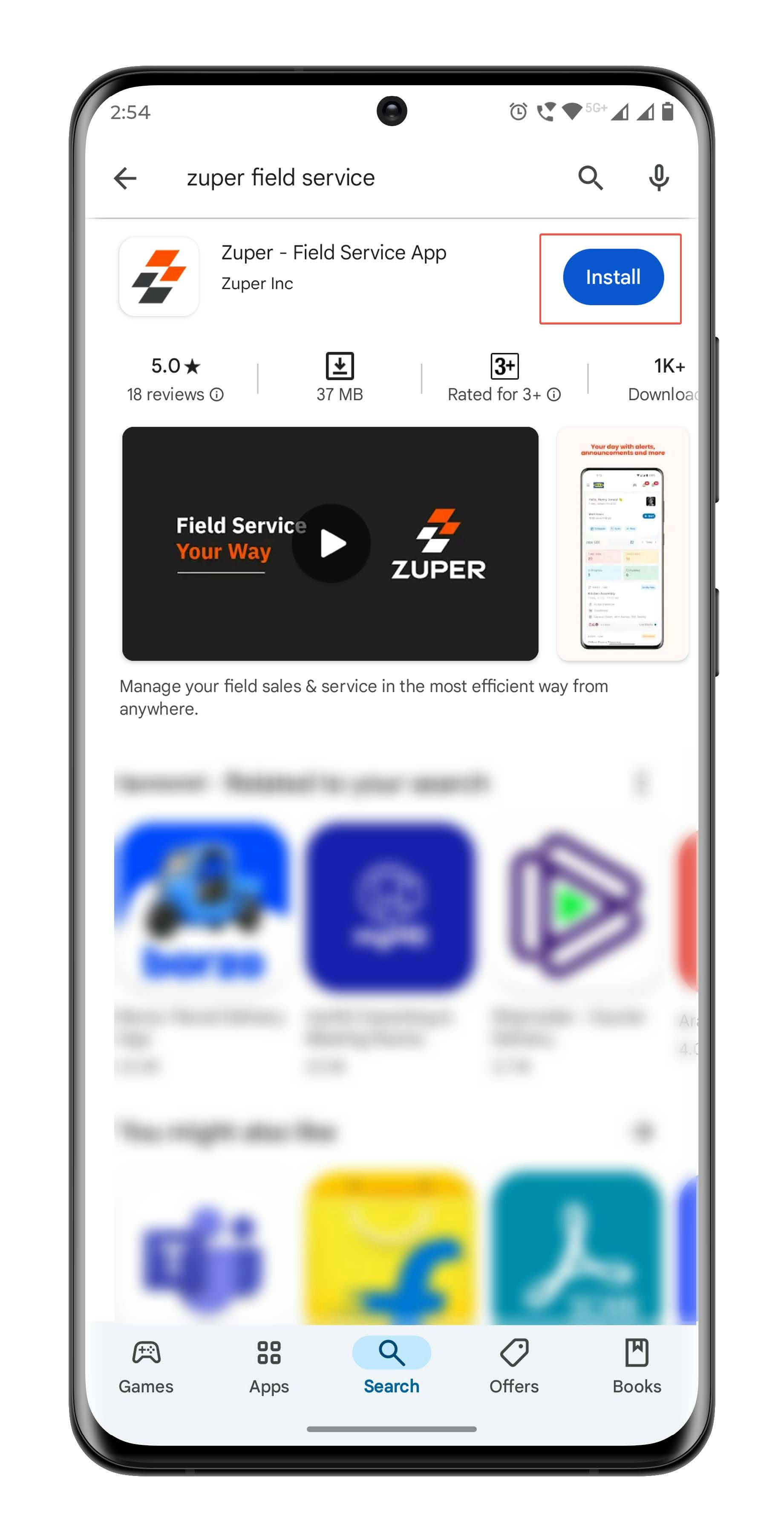
1. Open the **Google Play Store** on your device. Alternatively, click this [link](https://play.google.com/store/apps/details?id=co.zuper.android). Search for “**Zuper- Field Service App**” and select it from the results. Tap the "**Install**" button to install the apps.
2. Once installed, open the app and enter your “**Company Name**” to proceed. Enter your “**Email ID**” and “**Password**,” then click the “**Login**” button.
## Android
1. Open the **Google Play Store** on your device. Alternatively, click this [link](https://play.google.com/store/apps/details?id=co.zuper.android). Search for “**Zuper- Field Service App**” and select it from the results. Tap the "**Install**" button to install the apps.
2. Once installed, open the app and enter your “**Company Name**” to proceed. Enter your “**Email ID**” and “**Password**,” then click the “**Login**” button.
 Note: The **Zuper Field Service App** is the current, latest mobile application. The **Zuper Pro Mobile App** is the older version and is no longer the latest.
## Web
1. Open your web browser and go to [https://web.zuperpro.com/login](https://web.zuperpro.com/login)
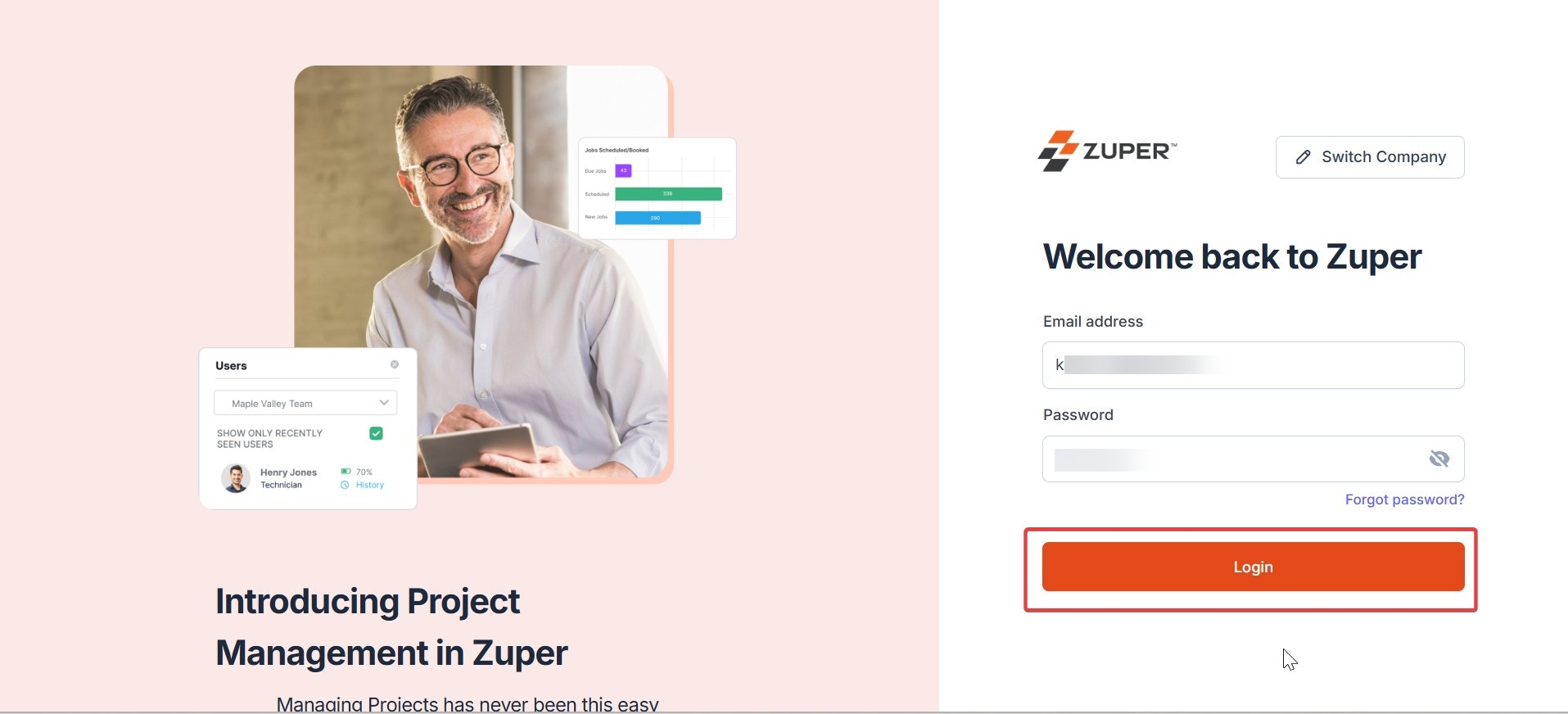
2. Enter your "**Company Name**," and on the next page, enter your "**Email ID**" and "**Password,**" then click the "**Login**" button to enter Zuper.
Note: The **Zuper Field Service App** is the current, latest mobile application. The **Zuper Pro Mobile App** is the older version and is no longer the latest.
## Web
1. Open your web browser and go to [https://web.zuperpro.com/login](https://web.zuperpro.com/login)
2. Enter your "**Company Name**," and on the next page, enter your "**Email ID**" and "**Password,**" then click the "**Login**" button to enter Zuper.
 Zuper web app currently supports the following web browsers:
* Chrome 131 and later
* Firefox 126 and later
* Edge 127 and later
* Safari 17.4 and later
Zuper web app currently supports the following web browsers:
* Chrome 131 and later
* Firefox 126 and later
* Edge 127 and later
* Safari 17.4 and later