> ## Documentation Index
> Fetch the complete documentation index at: https://docs.zuper.co/llms.txt
> Use this file to discover all available pages before exploring further.
# Accept or Reject a Work Order
When your business sends work to a subcontractor, Zuper uses a two-stage process to make sure everyone agrees before work begins. An internal approver inside your Zuper account reviews and approves the work order first. Then, the subcontractor receives an email with a link to review, sign, and formally accept or reject the order on the subcontractor portal.
Once a subcontractor accepts the work order, an **Uploaded Photos** tab becomes active on their portal. They can use it to upload photos of the completed work, giving your team a clear on-site record. Those photos then appear inside Zuper — on the work order and on the related job gallery — so your internal team always has full visibility.
This article covers each stage of the process: internal approval, subcontractor review and sign-off, photo upload, and where those photos appear inside Zuper.
***
## Internal approval
An internal approver — an admin or team lead must review and approve the work order inside Zuper before Zuper sends it to the subcontractor.
### Approve a work order internally
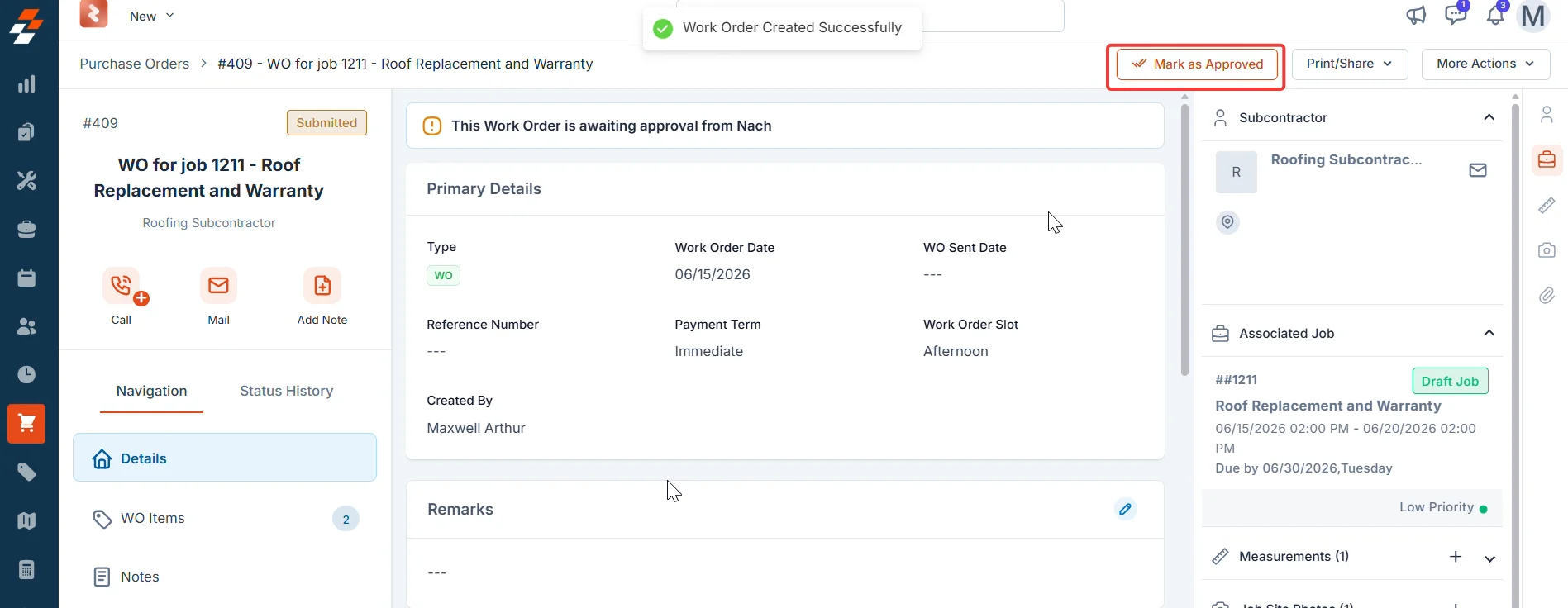
1. Select **Purchasing** from the left navigation menu and choose **Purchase Orders**.
2. Select the work order you want to approve. The work order detail page opens.
3. Review the work order details to confirm everything is correct.
4. Select **Mark as Approved** in the top-right corner of the page.
The work order status updates and Zuper sends an email notification to the subcontractor with a link to review the order.
 The **Approved** status appears only if your organization has an approval hierarchy configured in **Settings → Modules → Purchasing → General Settings**. If no approval workflow is set up, the work order moves directly from Submitted to the sending workflow.
***
## Subcontractor review and acceptance
The subcontractor receives an email from Zuper with the work order attached as a PDF and a link to review and accept or reject the order on the subcontractor portal.
### Open the work order from the email
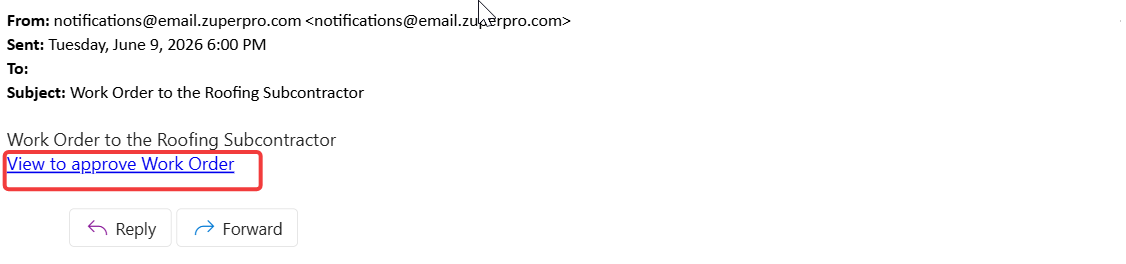
1. Open the email from Zuper in your inbox.
2. Select the **View to approve Work Order** link in the email body.
The **Approved** status appears only if your organization has an approval hierarchy configured in **Settings → Modules → Purchasing → General Settings**. If no approval workflow is set up, the work order moves directly from Submitted to the sending workflow.
***
## Subcontractor review and acceptance
The subcontractor receives an email from Zuper with the work order attached as a PDF and a link to review and accept or reject the order on the subcontractor portal.
### Open the work order from the email
1. Open the email from Zuper in your inbox.
2. Select the **View to approve Work Order** link in the email body.
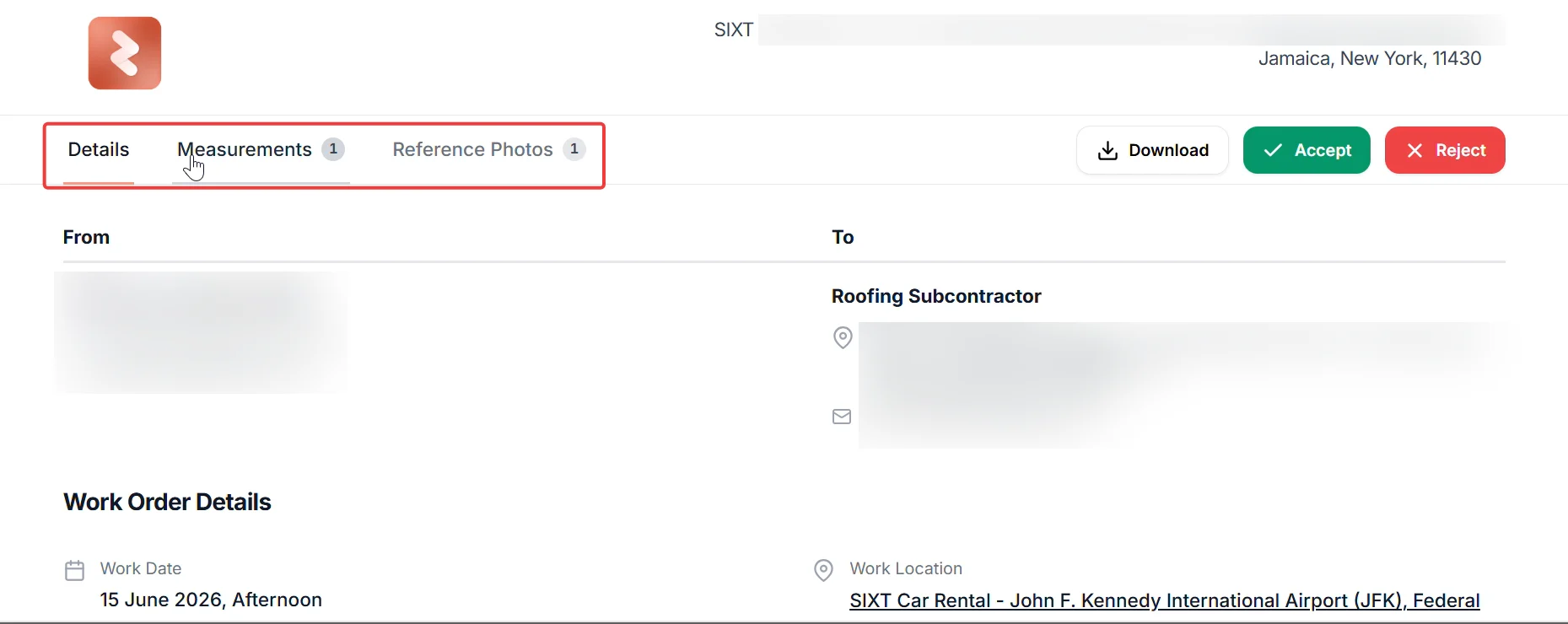
 The subcontractor portal opens in your browser and displays the full work order details.
### Review the work order
Before accepting or rejecting, review all the information on the portal carefully. The portal includes the following tabs:
| Tab | What it shows |
| -------------------- | ------------------------------------------------------------------------ |
| **Details** | work order details, work date, location, and contact information |
| **Measurements** | Site measurement data shared by the business |
| **Reference Photos** | Site photos shared by the business for reference |
| **Uploaded Photos** | Becomes active after acceptance — use it to upload completed work photos |
You can also select **Download** to save a copy of the work order PDF for your records. This button appears once the status is set to accepted.
The subcontractor portal opens in your browser and displays the full work order details.
### Review the work order
Before accepting or rejecting, review all the information on the portal carefully. The portal includes the following tabs:
| Tab | What it shows |
| -------------------- | ------------------------------------------------------------------------ |
| **Details** | work order details, work date, location, and contact information |
| **Measurements** | Site measurement data shared by the business |
| **Reference Photos** | Site photos shared by the business for reference |
| **Uploaded Photos** | Becomes active after acceptance — use it to upload completed work photos |
You can also select **Download** to save a copy of the work order PDF for your records. This button appears once the status is set to accepted.
 ***
### Accept the work order
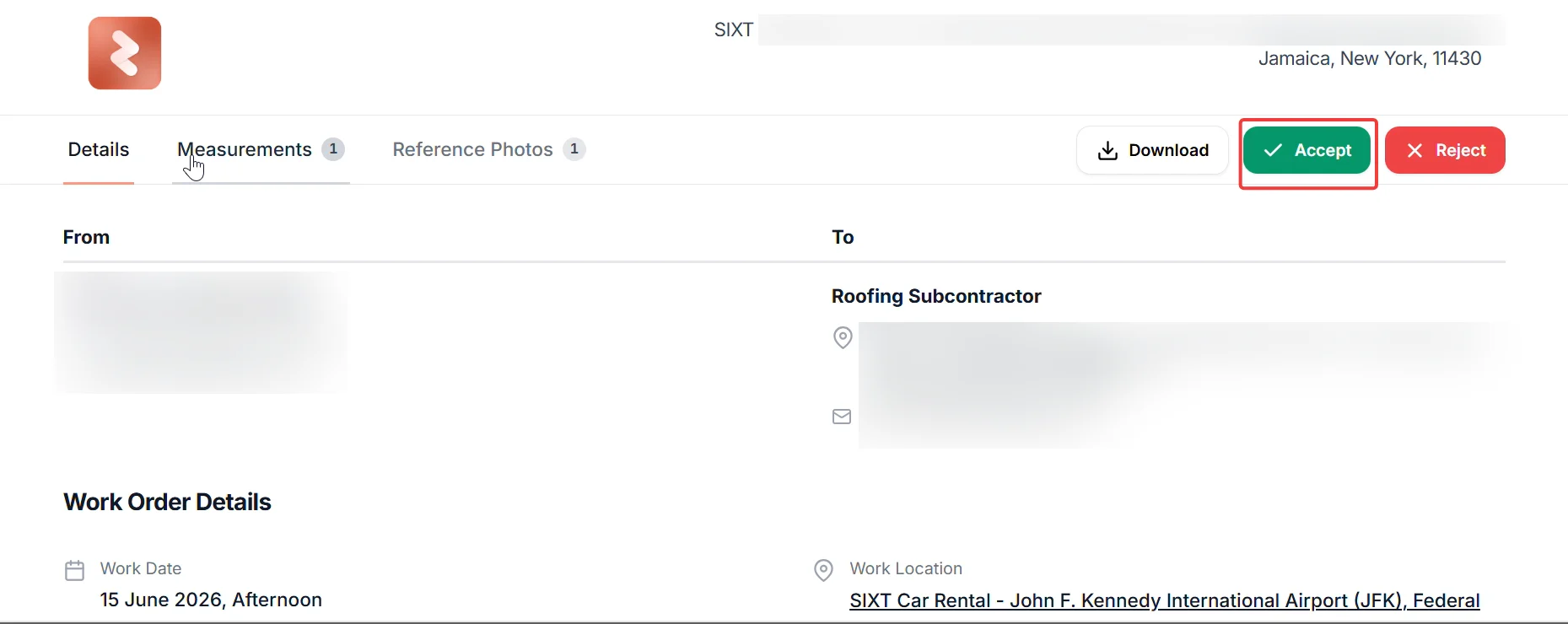
1. Select **Accept** in the top-right corner of the portal page. The **Accept work Order** dialog opens.
***
### Accept the work order
1. Select **Accept** in the top-right corner of the portal page. The **Accept work Order** dialog opens.
 2. Draw your signature in the signature area using your mouse or touchscreen.
3. Select the checkbox to confirm you agree to the Terms and Conditions outlined in the work order.
4. Select **Accept** to submit your signature.
2. Draw your signature in the signature area using your mouse or touchscreen.
3. Select the checkbox to confirm you agree to the Terms and Conditions outlined in the work order.
4. Select **Accept** to submit your signature.
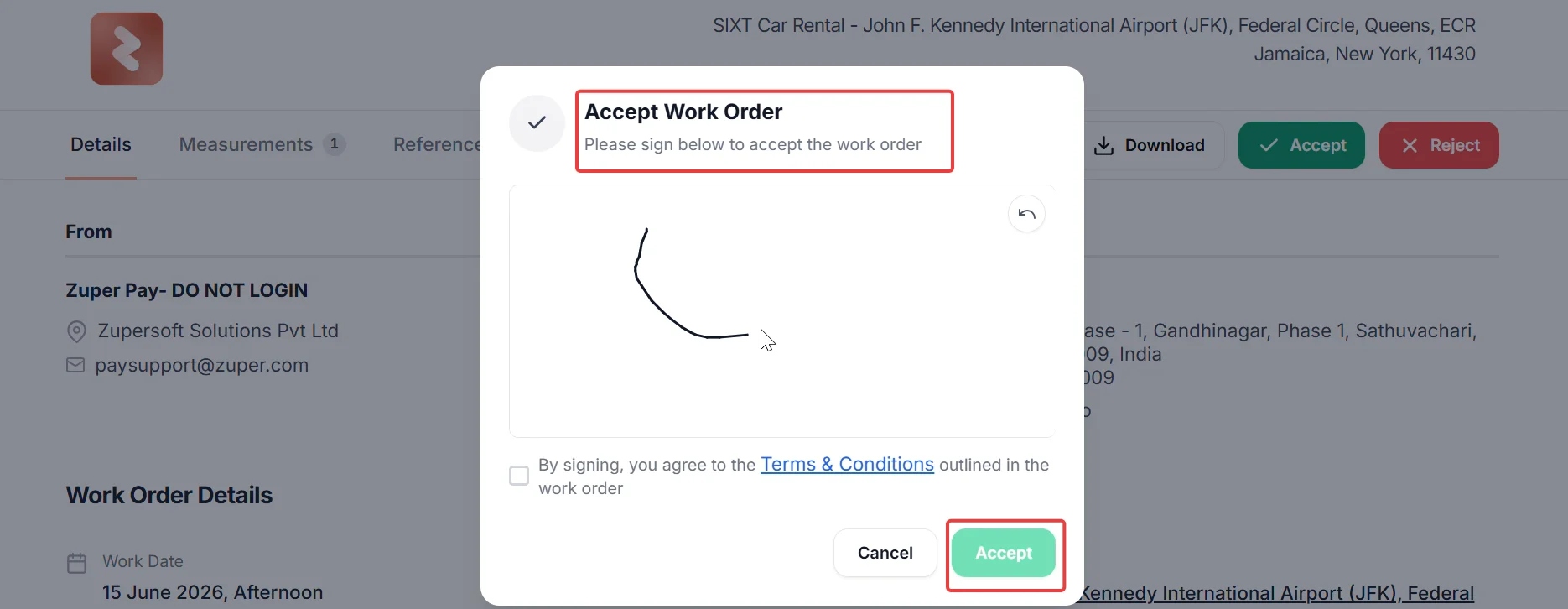 You must sign and select the Terms and Conditions checkbox before you can complete the acceptance. The **Accept** button remains inactive until both are done.
5. Select Done to close the confirmation.
You must sign and select the Terms and Conditions checkbox before you can complete the acceptance. The **Accept** button remains inactive until both are done.
5. Select Done to close the confirmation.
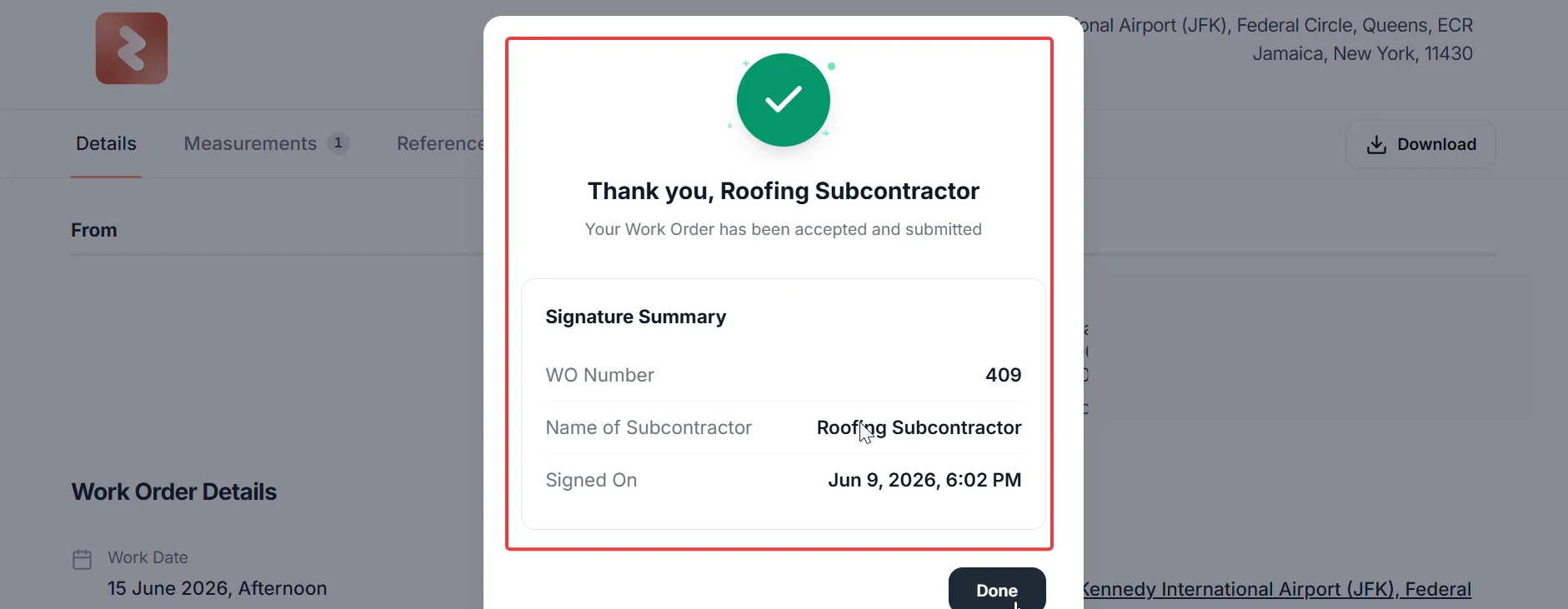 A confirmation screen appears showing your **Signature Summary**, including the work order number, your company name, and the date and time of signing.
The work order is now accepted. Your internal team receives a notification, and the **Uploaded Photos** tab becomes active on the portal.
Two settings in Zuper affect how the subcontractor portal behaves when the email link is opened.\
\
**Require Vendor Approval:** If your business has disabled this setting, the email link still takes you to the subcontractor portal to view the work order details. However, the **Accept** and **Reject** buttons do not appear. Contact your business to confirm how they want you to proceed.\
\
**Auto-send PO to vendor after approval:** If your business has enabled this setting, Zuper automatically sends the work order to the subcontractor as soon as it is approved internally — no manual send is required. If you receive the email unexpectedly, this setting is likely on.
***
### Reject the work order
If the work order details are not correct, you can reject it. Your business receives a notification to review and reissue the order.
1. Select **Reject** in the top-right corner of the portal page.
2. Confirm the rejection when prompted.
A confirmation screen appears showing your **Signature Summary**, including the work order number, your company name, and the date and time of signing.
The work order is now accepted. Your internal team receives a notification, and the **Uploaded Photos** tab becomes active on the portal.
Two settings in Zuper affect how the subcontractor portal behaves when the email link is opened.\
\
**Require Vendor Approval:** If your business has disabled this setting, the email link still takes you to the subcontractor portal to view the work order details. However, the **Accept** and **Reject** buttons do not appear. Contact your business to confirm how they want you to proceed.\
\
**Auto-send PO to vendor after approval:** If your business has enabled this setting, Zuper automatically sends the work order to the subcontractor as soon as it is approved internally — no manual send is required. If you receive the email unexpectedly, this setting is likely on.
***
### Reject the work order
If the work order details are not correct, you can reject it. Your business receives a notification to review and reissue the order.
1. Select **Reject** in the top-right corner of the portal page.
2. Confirm the rejection when prompted.
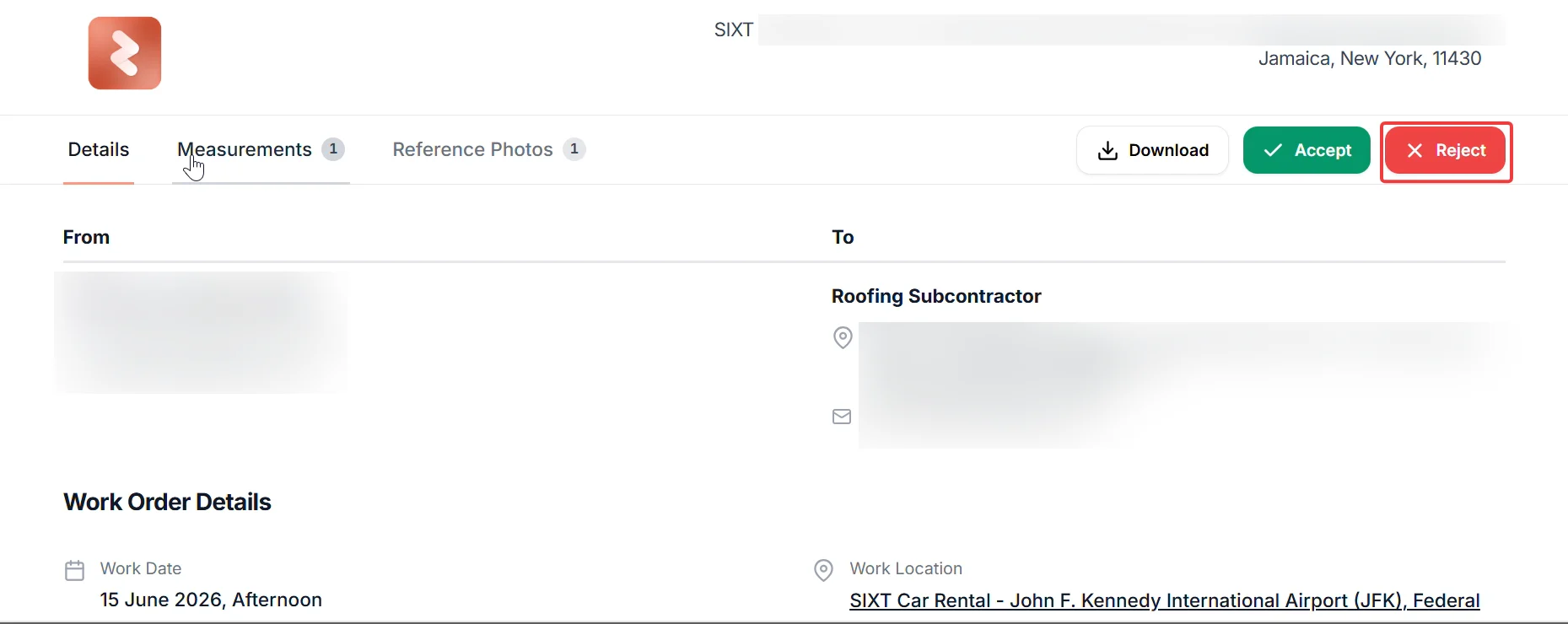 The work order returns to the business for review, and the WO status moves automatically to Subcontractor Rejected inside Zuper. Contact the person who sent you the order to discuss what needs to change.
If you reject the work order by mistake, contact the business directly so they can reissue it.
***
## Upload completed work photos
After you accept the work order, the **Uploaded Photos** tab becomes active on the subcontractor portal. Use it to upload photos of the completed work as evidence of completion.
### Upload photos to a work order
1. Return to the subcontractor portal using the original link from your email, or open a new link if the business shares one.
2. Select the **Uploaded Photos** tab at the top of the portal.
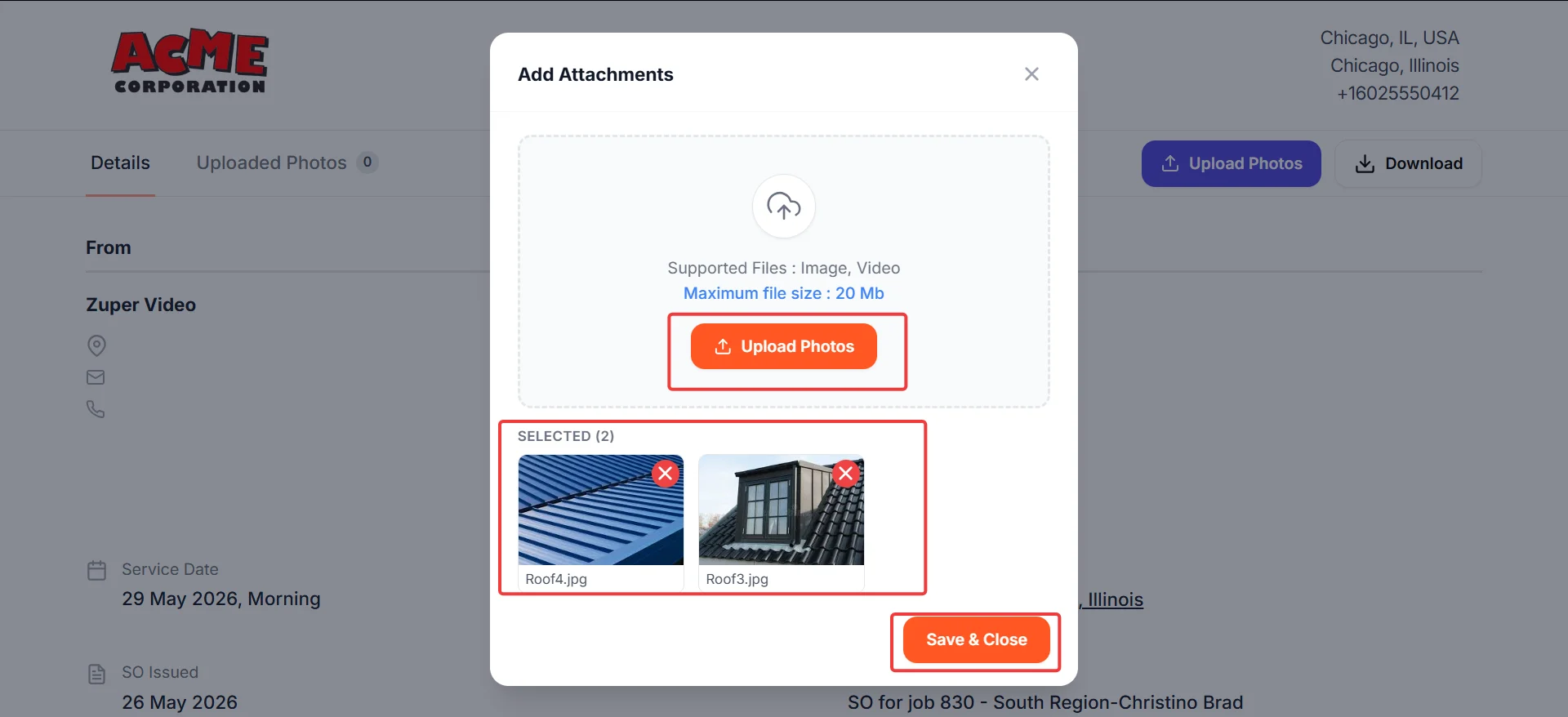
3. Select **Upload Photos** in the top-right corner. The **Add Attachments** dialog opens.
The work order returns to the business for review, and the WO status moves automatically to Subcontractor Rejected inside Zuper. Contact the person who sent you the order to discuss what needs to change.
If you reject the work order by mistake, contact the business directly so they can reissue it.
***
## Upload completed work photos
After you accept the work order, the **Uploaded Photos** tab becomes active on the subcontractor portal. Use it to upload photos of the completed work as evidence of completion.
### Upload photos to a work order
1. Return to the subcontractor portal using the original link from your email, or open a new link if the business shares one.
2. Select the **Uploaded Photos** tab at the top of the portal.
3. Select **Upload Photos** in the top-right corner. The **Add Attachments** dialog opens.
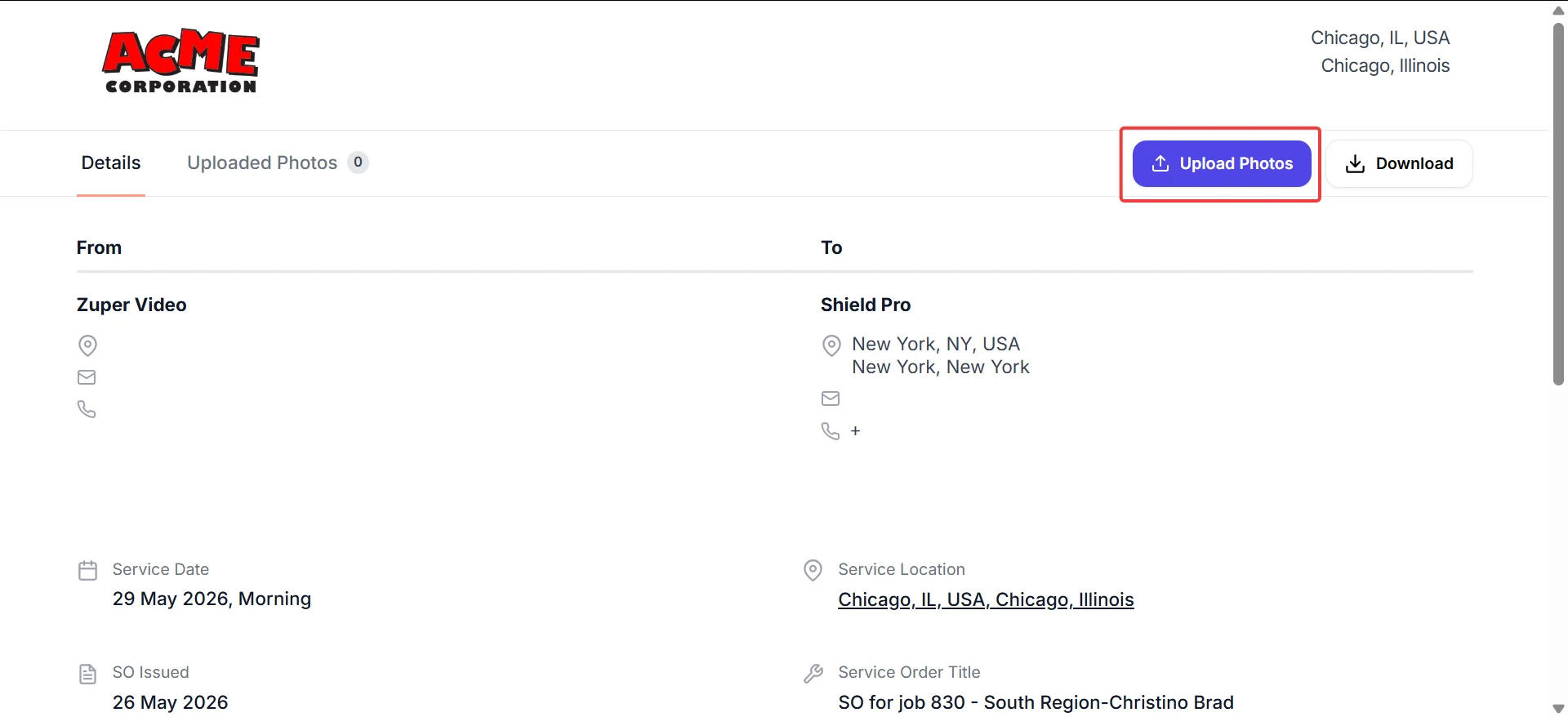 4. Select **Upload Photos** inside the dialog to browse and select files from your device.
Supported file types: image and video files. Maximum file size per upload: 20 MB.
5. Review the selected files shown in the **Selected** section of the dialog. To remove a file before saving, select the **X** on its thumbnail.
6. Select **Save and Close** to upload the photos.
4. Select **Upload Photos** inside the dialog to browse and select files from your device.
Supported file types: image and video files. Maximum file size per upload: 20 MB.
5. Review the selected files shown in the **Selected** section of the dialog. To remove a file before saving, select the **X** on its thumbnail.
6. Select **Save and Close** to upload the photos.
 The photos are saved and appear in the **Uploaded Photos** tab. The count next to the tab name updates to reflect the number of uploaded files.
You can return to the portal and upload more photos at any time after acceptance, as long as the work order remains active.
***
## Where to find uploaded photos in Zuper
Once a subcontractor uploads photos through the portal, they become visible in Zuper in two places, so your internal team always has a complete record of the completed work.
**Work order attachments** — The uploaded photos appear in the **Attachments** section of the corresponding work order detail page. Your team can view, download, or reference them directly from there.
**Job gallery** — The photos also appear on the related job's **Gallery** page in a dedicated album named **work Order – \[WO Number] Work Photos**. This keeps all site evidence organized by work order, making it straightforward to review completed work alongside other job photos.
***
## FAQs
Zuper notifies your internal team that the work order has been accepted. The **Uploaded Photos** tab becomes active on the portal so you can upload photos of the completed work.\
\
The signature summary — including the work order number, your company name, and the time of signing — is recorded and stored against the work order. Zuper also sends a confirmation email to the Zuper user or admin with a PDF attachment containing the full order details
The approval link in the email might expire depending on your business settings. If the link no longer works, contact the business that sent the work order and ask them to resend it.
There are two possible reasons for this.\
\
The business might not have added any measurements or reference photos to the work order. If no data of that type exists, the tab does not appear.\
\
Alternatively, the business might have added measurements or photos but left the option to share them with you unselected when they sent the work order email. The data exists in Zuper but was not included in what was shared with you.\
\
In either case, contact the business to confirm what has been shared and ask them to resend the work order if needed.
No. The **Uploaded Photos** tab becomes active only after you accept the service order. You must complete the acceptance and signature process first.
Contact the business that sent the work order. They can review and reissue it so you can accept it again.\
\
If the issue continues, contact [Support](mailto:support@zuper.co).
***
## Related articles
* [Creating work orders](/Purchasing/Work%20Orders/Creating%20work%20orders)
* [Work order status](/Purchasing/Work%20Orders/Work%20order%20status)
* [Subcontractors](/Purchasing/Work%20Orders/Sub-Contractors/Sub-Contractors)
* [Creating a purchase order](/Purchasing/Purchase-Orders/Creating-purchase-order)
* [Understanding purchase order status](/Purchasing/Purchase-Orders/Purchase-order-status)
The photos are saved and appear in the **Uploaded Photos** tab. The count next to the tab name updates to reflect the number of uploaded files.
You can return to the portal and upload more photos at any time after acceptance, as long as the work order remains active.
***
## Where to find uploaded photos in Zuper
Once a subcontractor uploads photos through the portal, they become visible in Zuper in two places, so your internal team always has a complete record of the completed work.
**Work order attachments** — The uploaded photos appear in the **Attachments** section of the corresponding work order detail page. Your team can view, download, or reference them directly from there.
**Job gallery** — The photos also appear on the related job's **Gallery** page in a dedicated album named **work Order – \[WO Number] Work Photos**. This keeps all site evidence organized by work order, making it straightforward to review completed work alongside other job photos.
***
## FAQs
Zuper notifies your internal team that the work order has been accepted. The **Uploaded Photos** tab becomes active on the portal so you can upload photos of the completed work.\
\
The signature summary — including the work order number, your company name, and the time of signing — is recorded and stored against the work order. Zuper also sends a confirmation email to the Zuper user or admin with a PDF attachment containing the full order details
The approval link in the email might expire depending on your business settings. If the link no longer works, contact the business that sent the work order and ask them to resend it.
There are two possible reasons for this.\
\
The business might not have added any measurements or reference photos to the work order. If no data of that type exists, the tab does not appear.\
\
Alternatively, the business might have added measurements or photos but left the option to share them with you unselected when they sent the work order email. The data exists in Zuper but was not included in what was shared with you.\
\
In either case, contact the business to confirm what has been shared and ask them to resend the work order if needed.
No. The **Uploaded Photos** tab becomes active only after you accept the service order. You must complete the acceptance and signature process first.
Contact the business that sent the work order. They can review and reissue it so you can accept it again.\
\
If the issue continues, contact [Support](mailto:support@zuper.co).
***
## Related articles
* [Creating work orders](/Purchasing/Work%20Orders/Creating%20work%20orders)
* [Work order status](/Purchasing/Work%20Orders/Work%20order%20status)
* [Subcontractors](/Purchasing/Work%20Orders/Sub-Contractors/Sub-Contractors)
* [Creating a purchase order](/Purchasing/Purchase-Orders/Creating-purchase-order)
* [Understanding purchase order status](/Purchasing/Purchase-Orders/Purchase-order-status)