> ## Documentation Index
> Fetch the complete documentation index at: https://docs.zuper.co/llms.txt
> Use this file to discover all available pages before exploring further.
# Work Order Status
A work order tracks every step of work you send to a subcontractor — from the moment you create it to the moment you close it. Each status tells you exactly where the work stands and what action to take next. Use this article to understand every status in the lifecycle, the actions available at each stage, and how to read the full status history.
**Navigation**: *Purchasing → Purchase Orders → \[Work order name]*
## The work order lifecycle
A work order moves through the following stages in order:
**Draft → Submitted → Accepted / Rejected (Internally)→ Sent to Subcontractor → Subcontractor Accepted / Rejected → Work Completed → Paid → Closed / Canceled**
The **Approved** and **Subcontractor Accepted** statuses appear only when specific settings are enabled in your Purchasing configuration. See [How Purchasing settings affect work orders](#how-purchasing-settings-affect-service-orders) below for details.
***
## Navigating to a work order
1. Select **Purchasing** from the left navigation menu and choose **Purchase Orders**.
2. Select any work order from the listing page to open its detail page.
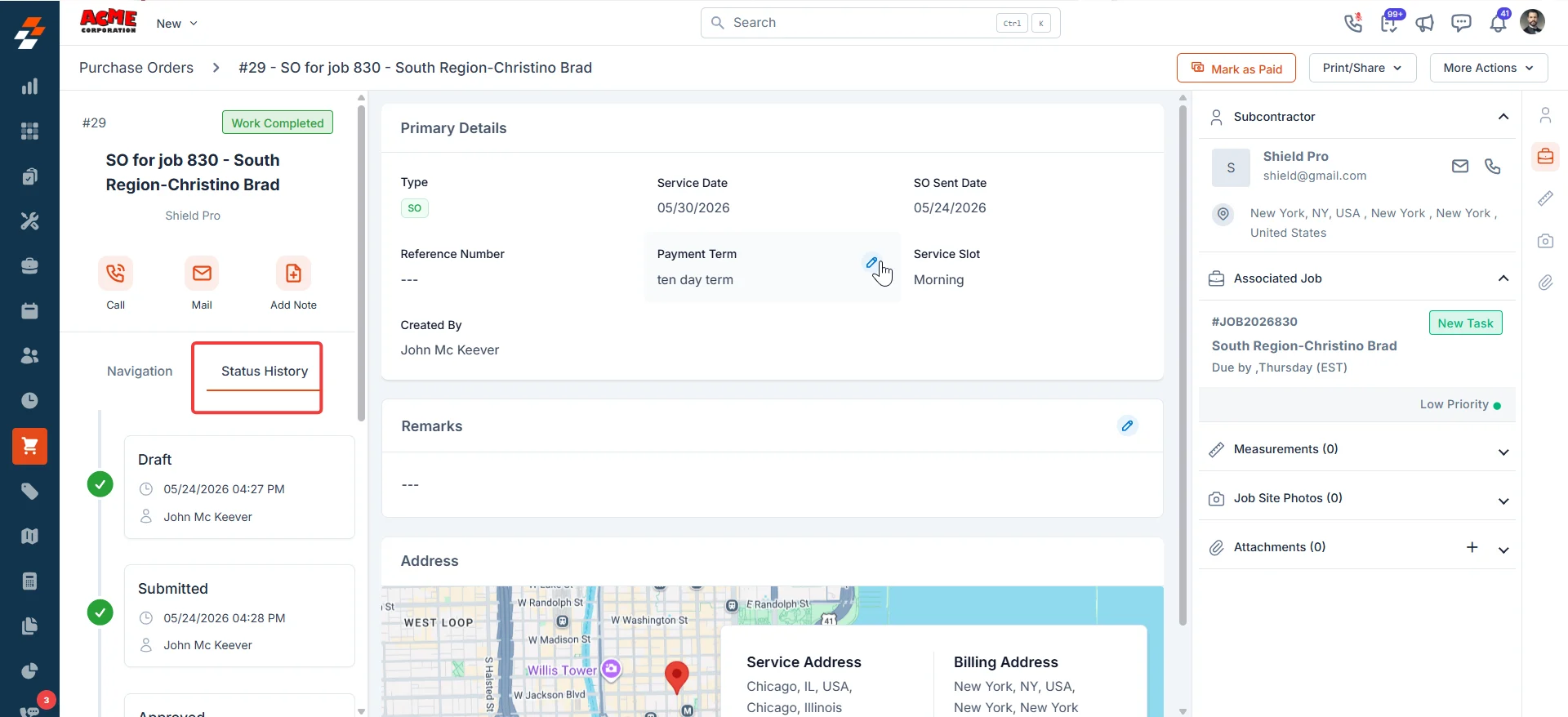
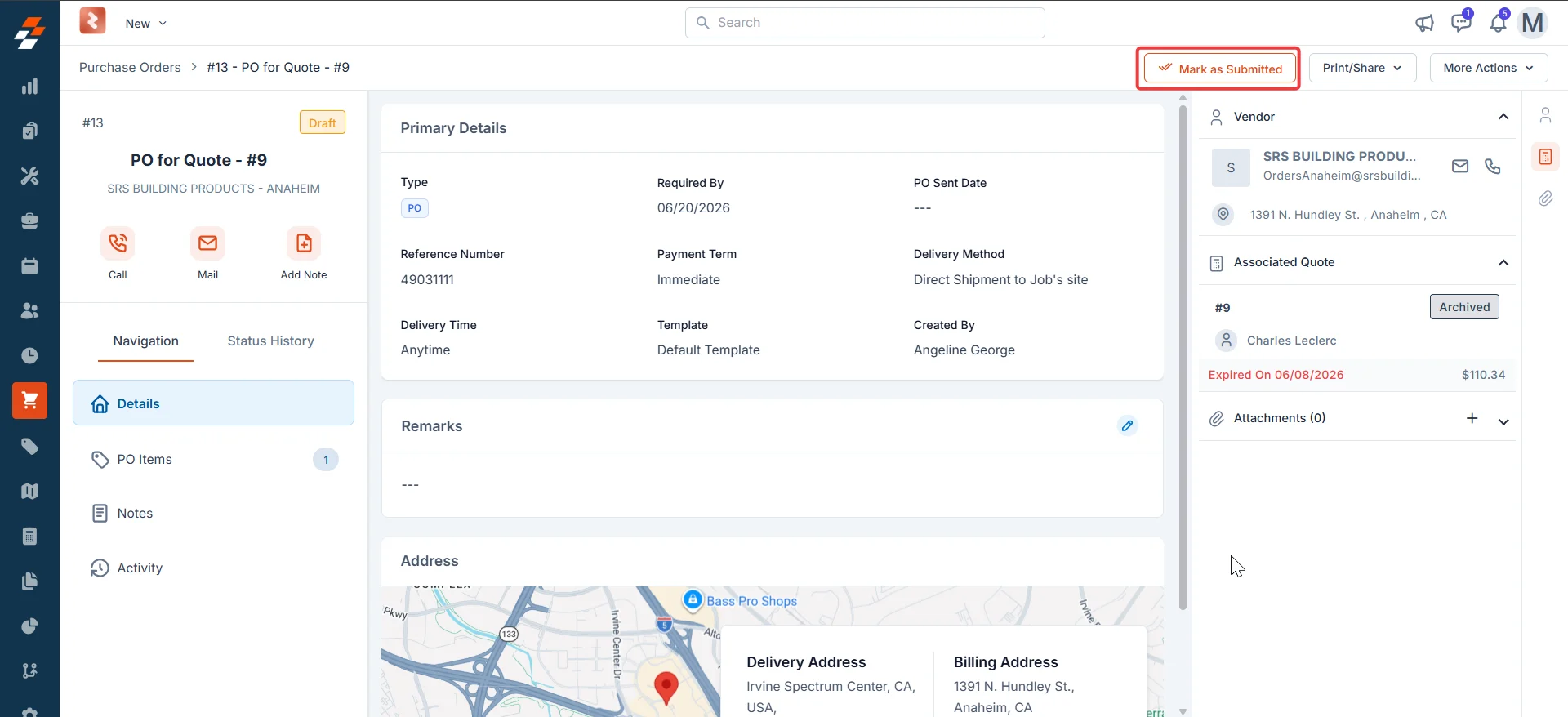
3. The status badge appears at the top left of the detail page, below the WO number.
The left panel on the detail page shows two tabs — **Navigation** and **Status History**. Select **Status History** at any time to see a complete audit trail of every status change, including who made the change and any attachments or remarks recorded at that stage.
 When a work order moves to **Send to Subcontractor** status, Zuper sends the subcontractor a PDF of the work order by email. This PDF includes the full work order details — line items, measurements, and any reference photos you chose to include.
***
## How Purchasing settings affect work orders
Two settings in your Purchasing configuration control how a work order moves through the workflow. Your administrator can find them at **Settings → Purchasing → General Settings → Purchase Orders**.
| Setting | Enabled | Disabled |
| --------------------------------------------------- | --------------------------------------------------------------------------------------------------------------------------------------------------------------------------------------- | ---------------------------------------------------------------------------------------------------------------------------------------------------------------------------------------- |
| **Require Vendor Approval?** | The subcontractor receives an email with **Accept** and **Reject** buttons. The WO moves automatically to Subcontractor Accepted or Subcontractor Rejected based on their response. | The email is sent without **Accept** or **Reject** buttons. The Subcontractor Accepted step is skipped. The WO moves directly to Work Completed when you are ready to record completion. |
| **Automatically Send PO to Vendor after Approval?** | Zuper sends the work order to the subcontractor automatically as soon as it reaches Approved status. The **Send to Subcontractor** button does not appear — no manual action is needed. | You must send the work order manually. Select **Send to Subcontractor** on the detail page to open the send dialog and dispatch the WO. |
If you are unsure which settings your organization uses, check with your administrator before sending a work order. To update these settings, go to **Settings → Purchasing → General Settings** and select the **Purchase Orders** tab.
***
## Status 1: Draft
When a work order is in Draft, you have created it but have not yet submitted it for review. The subcontractor cannot see it at this stage — it stays internal until you are ready to move it forward.
**Available actions**
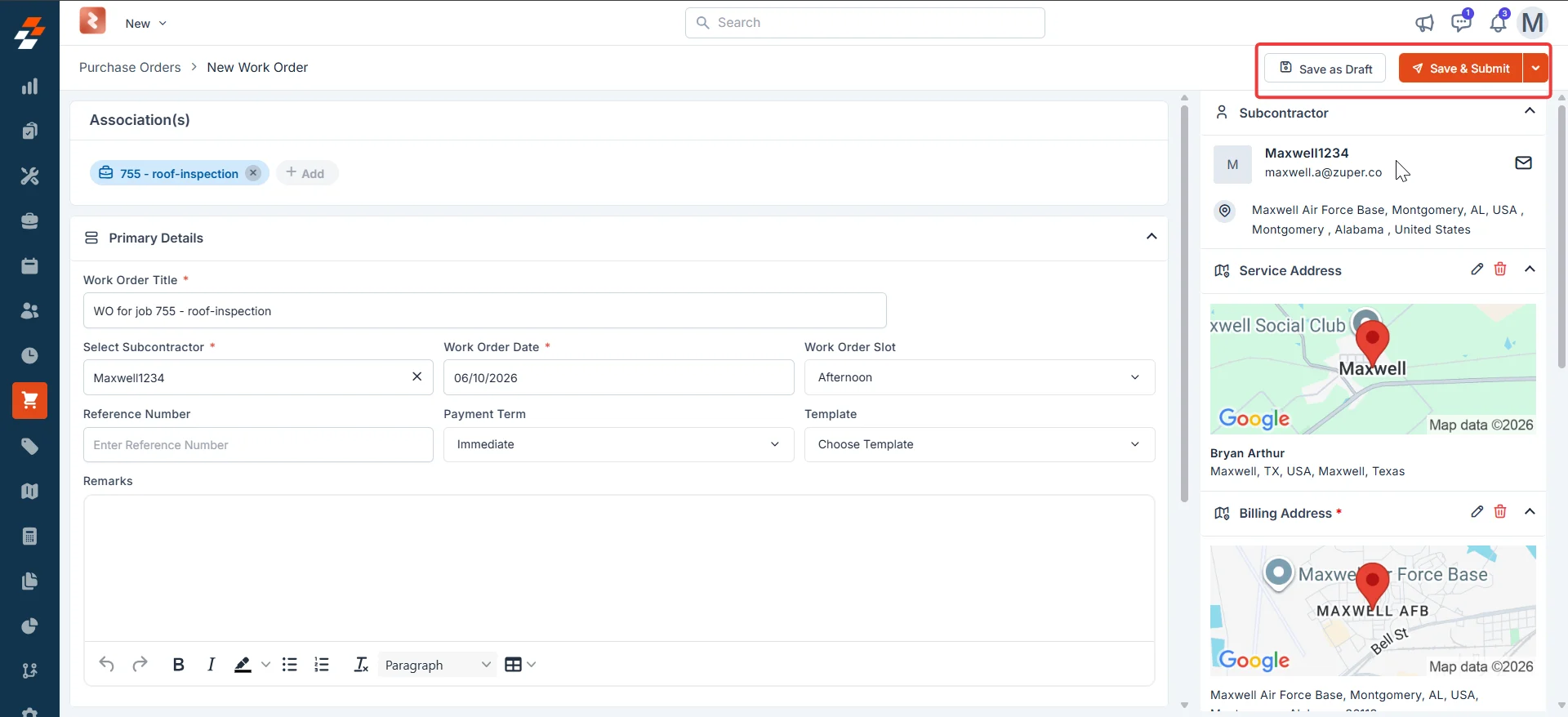
* **Mark as Submitted** — Moves the WO to the next stage. This button appears in the top-right corner of the detail page.
* **More Actions → Clone** — Creates a duplicate of the work order.
* **More Actions → Canceled** — Cancels the work order without deleting it, keeping the record for your audit trail.
* **More Actions → Delete WO** — Permanently removes the work order. This action cannot be undone.
When a work order moves to **Send to Subcontractor** status, Zuper sends the subcontractor a PDF of the work order by email. This PDF includes the full work order details — line items, measurements, and any reference photos you chose to include.
***
## How Purchasing settings affect work orders
Two settings in your Purchasing configuration control how a work order moves through the workflow. Your administrator can find them at **Settings → Purchasing → General Settings → Purchase Orders**.
| Setting | Enabled | Disabled |
| --------------------------------------------------- | --------------------------------------------------------------------------------------------------------------------------------------------------------------------------------------- | ---------------------------------------------------------------------------------------------------------------------------------------------------------------------------------------- |
| **Require Vendor Approval?** | The subcontractor receives an email with **Accept** and **Reject** buttons. The WO moves automatically to Subcontractor Accepted or Subcontractor Rejected based on their response. | The email is sent without **Accept** or **Reject** buttons. The Subcontractor Accepted step is skipped. The WO moves directly to Work Completed when you are ready to record completion. |
| **Automatically Send PO to Vendor after Approval?** | Zuper sends the work order to the subcontractor automatically as soon as it reaches Approved status. The **Send to Subcontractor** button does not appear — no manual action is needed. | You must send the work order manually. Select **Send to Subcontractor** on the detail page to open the send dialog and dispatch the WO. |
If you are unsure which settings your organization uses, check with your administrator before sending a work order. To update these settings, go to **Settings → Purchasing → General Settings** and select the **Purchase Orders** tab.
***
## Status 1: Draft
When a work order is in Draft, you have created it but have not yet submitted it for review. The subcontractor cannot see it at this stage — it stays internal until you are ready to move it forward.
**Available actions**
* **Mark as Submitted** — Moves the WO to the next stage. This button appears in the top-right corner of the detail page.
* **More Actions → Clone** — Creates a duplicate of the work order.
* **More Actions → Canceled** — Cancels the work order without deleting it, keeping the record for your audit trail.
* **More Actions → Delete WO** — Permanently removes the work order. This action cannot be undone.
 **Delete WO** is permanent. If you might need to reference this work order later, use **More Actions → Canceled** instead to keep the record.
***
## Status 2: Submitted
Once you submit the work order, it enters the approval stage. What happens next depends on whether your organization has an approval hierarchy configured.
**Delete WO** is permanent. If you might need to reference this work order later, use **More Actions → Canceled** instead to keep the record.
***
## Status 2: Submitted
Once you submit the work order, it enters the approval stage. What happens next depends on whether your organization has an approval hierarchy configured.
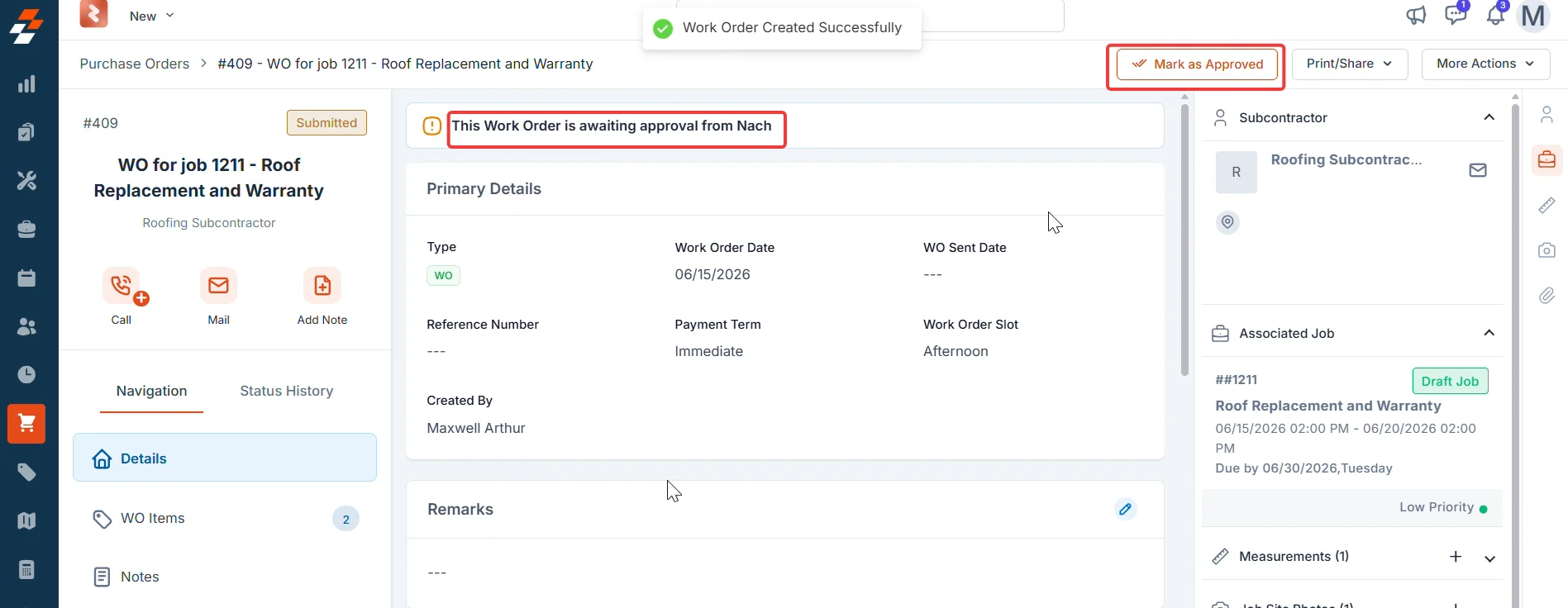
 * **If an approval hierarchy is configured** — The WO waits for sign-off from the designated approver. A banner on the detail page shows whose approval is pending. The approver selects **Mark as Approved** to move the WO forward.
 * **If no approval hierarchy is configured** — The **Mark as Approved** step does not appear. The next available action is to send the WO directly to the subcontractor.
If your organization does not use an approval hierarchy, the **Mark as Approved** button does not appear. The WO moves directly from Submitted to the sending workflow.
***
## Status 3: Approved
Your approver has reviewed and signed off on the work order. You can now send it to the subcontractor.
* **If no approval hierarchy is configured** — The **Mark as Approved** step does not appear. The next available action is to send the WO directly to the subcontractor.
If your organization does not use an approval hierarchy, the **Mark as Approved** button does not appear. The WO moves directly from Submitted to the sending workflow.
***
## Status 3: Approved
Your approver has reviewed and signed off on the work order. You can now send it to the subcontractor.
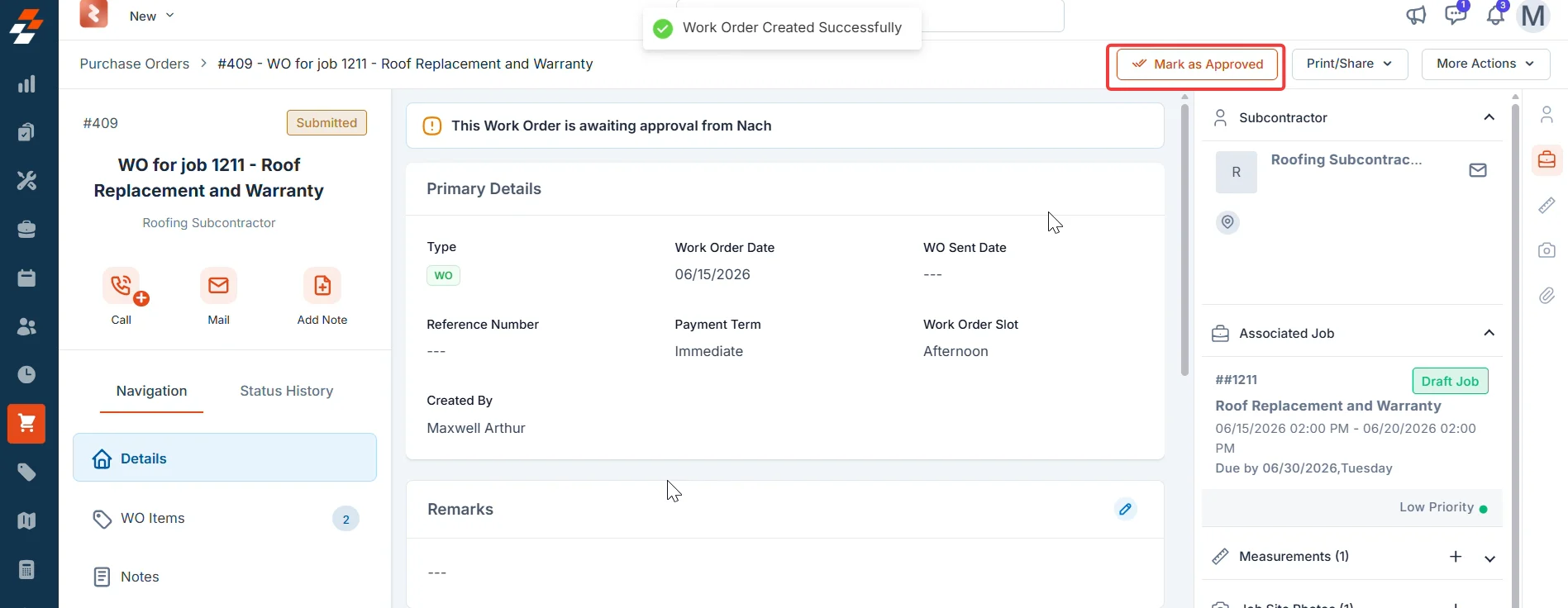 If the **Automatically Send PO to Vendor after Approval?** toggle is enabled in your Purchasing settings, Zuper sends the work order to the subcontractor automatically when it reaches Approved status. The **Send to Subcontractor** button does not appear — the WO moves to Sent to Subcontractor without any action from you.
The **WO Sent Date** field on the detail page records the date the WO was dispatched. Zuper populates this automatically when the WO reaches Sent to Subcontractor status.
***
## Status 4: Send to subcontractor
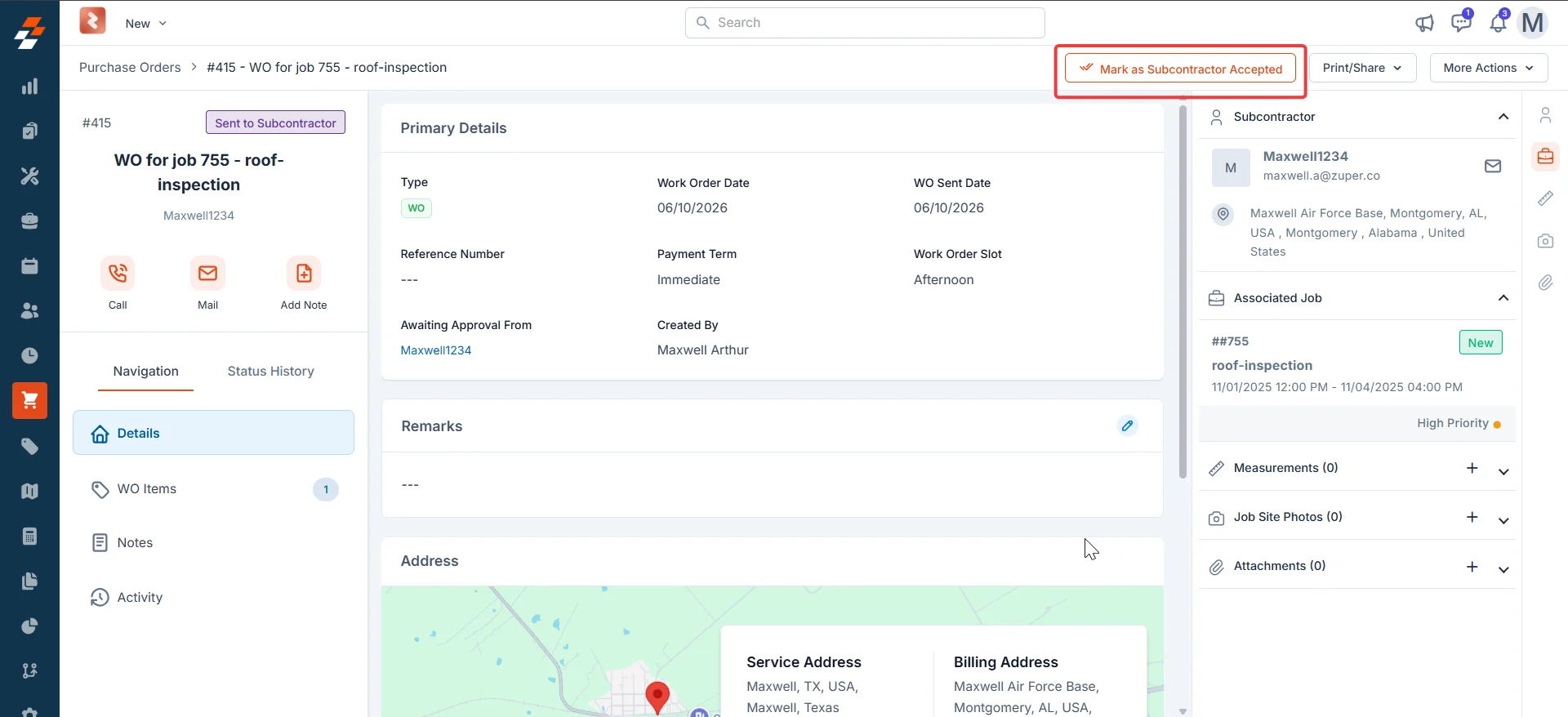
Once Zuper sends the work order, the **WO Sent Date** appears on the details panel. Check the **Awaiting Approval From** field to confirm which subcontractor is expected to respond.
If the **Automatically Send PO to Vendor after Approval?** toggle is enabled in your Purchasing settings, Zuper sends the work order to the subcontractor automatically when it reaches Approved status. The **Send to Subcontractor** button does not appear — the WO moves to Sent to Subcontractor without any action from you.
The **WO Sent Date** field on the detail page records the date the WO was dispatched. Zuper populates this automatically when the WO reaches Sent to Subcontractor status.
***
## Status 4: Send to subcontractor
Once Zuper sends the work order, the **WO Sent Date** appears on the details panel. Check the **Awaiting Approval From** field to confirm which subcontractor is expected to respond.
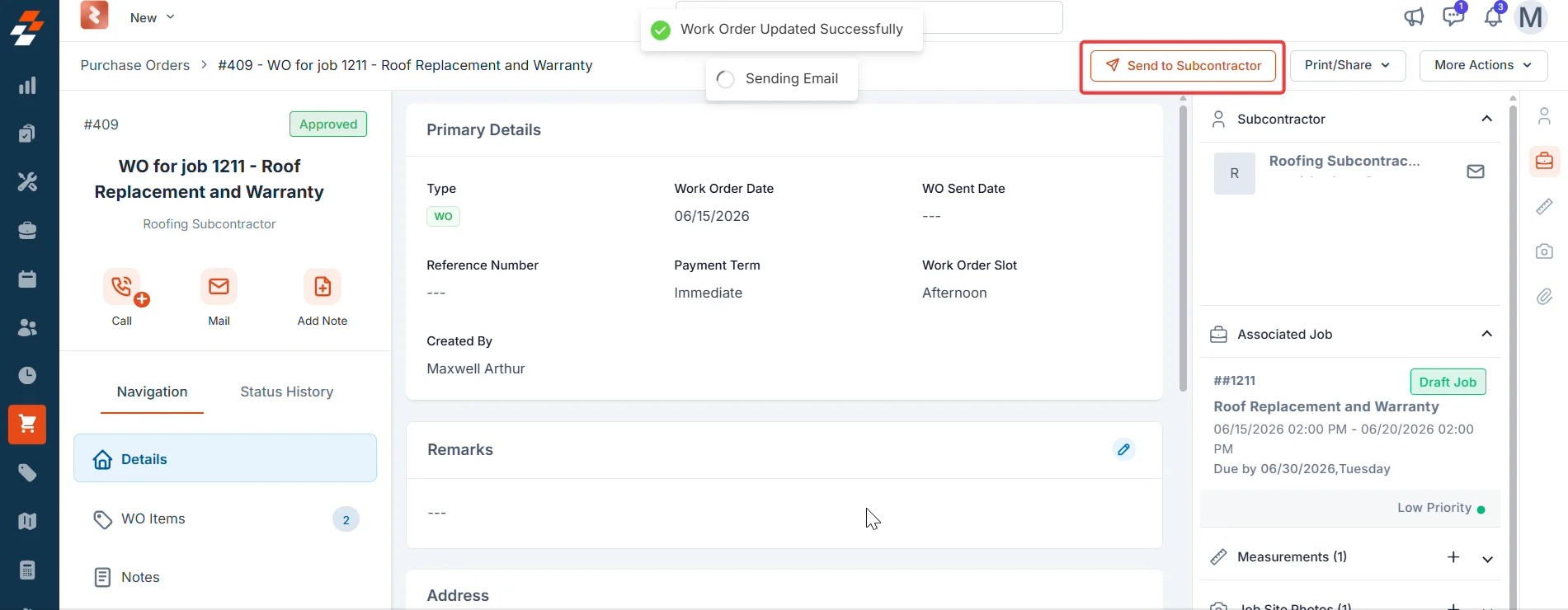 ### Send the work order to the subcontractor
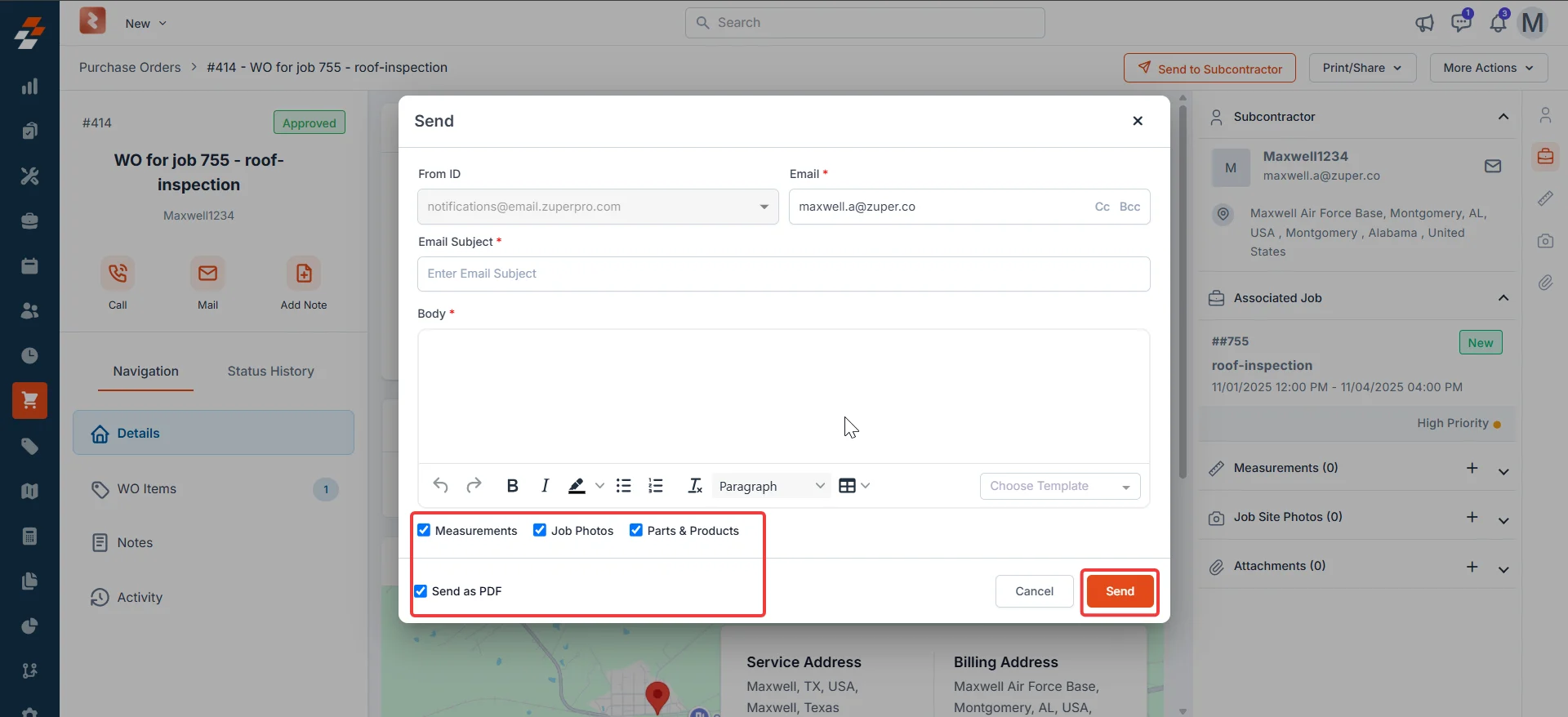
1. Select **Send to Subcontractor**. The send dialog opens.
2. Confirm or enter the subcontractor's email address in the **To** field.
3. Select the items to include: **Measurements**, **Job site photos**, and **Parts and products**.
4. Confirm **Send as PDF** is selected.
5. Select **Send**. The WO moves to Sent to Subcontractor and the subcontractor receives the PDF by email.
### Send the work order to the subcontractor
1. Select **Send to Subcontractor**. The send dialog opens.
2. Confirm or enter the subcontractor's email address in the **To** field.
3. Select the items to include: **Measurements**, **Job site photos**, and **Parts and products**.
4. Confirm **Send as PDF** is selected.
5. Select **Send**. The WO moves to Sent to Subcontractor and the subcontractor receives the PDF by email.
 What happens next depends on your **Require Vendor Approval**? setting:
* If **Require Vendor Approval is enabled** — The subcontractor receives an email with an Accept or Reject button. When they respond, the WO moves automatically to Subcontractor Accepted or Subcontractor Rejected.
* If **Require Vendor Approval is disabled** — The email is sent but does not include Accept or Reject buttons. The WO moves directly to Work Completed when you are ready to record completion. The Subcontractor Accepted step is skipped.
What happens next depends on your **Require Vendor Approval**? setting:
* If **Require Vendor Approval is enabled** — The subcontractor receives an email with an Accept or Reject button. When they respond, the WO moves automatically to Subcontractor Accepted or Subcontractor Rejected.
* If **Require Vendor Approval is disabled** — The email is sent but does not include Accept or Reject buttons. The WO moves directly to Work Completed when you are ready to record completion. The Subcontractor Accepted step is skipped.
 ***
## Status 5a: Subcontractor accepted
The subcontractor has accepted the work order through the email link. Zuper updates this status automatically when the subcontractor selects **Accept** and signs the work order on the subcontractor portal — no action is needed from you.
If the **Automatically Send PO to Vendor after Approval?** toggle is enabled in your Purchasing settings, Zuper sends the work order to the subcontractor automatically when it reaches Approved status. The **Send to Subcontractor** button does not appear — the WO moves to Sent to Subcontractor without any action from you.
The **WO Sent Date** field on the detail page records the date the WO was dispatched. Zuper populates this automatically when the WO reaches Sent to Subcontractor status.
***
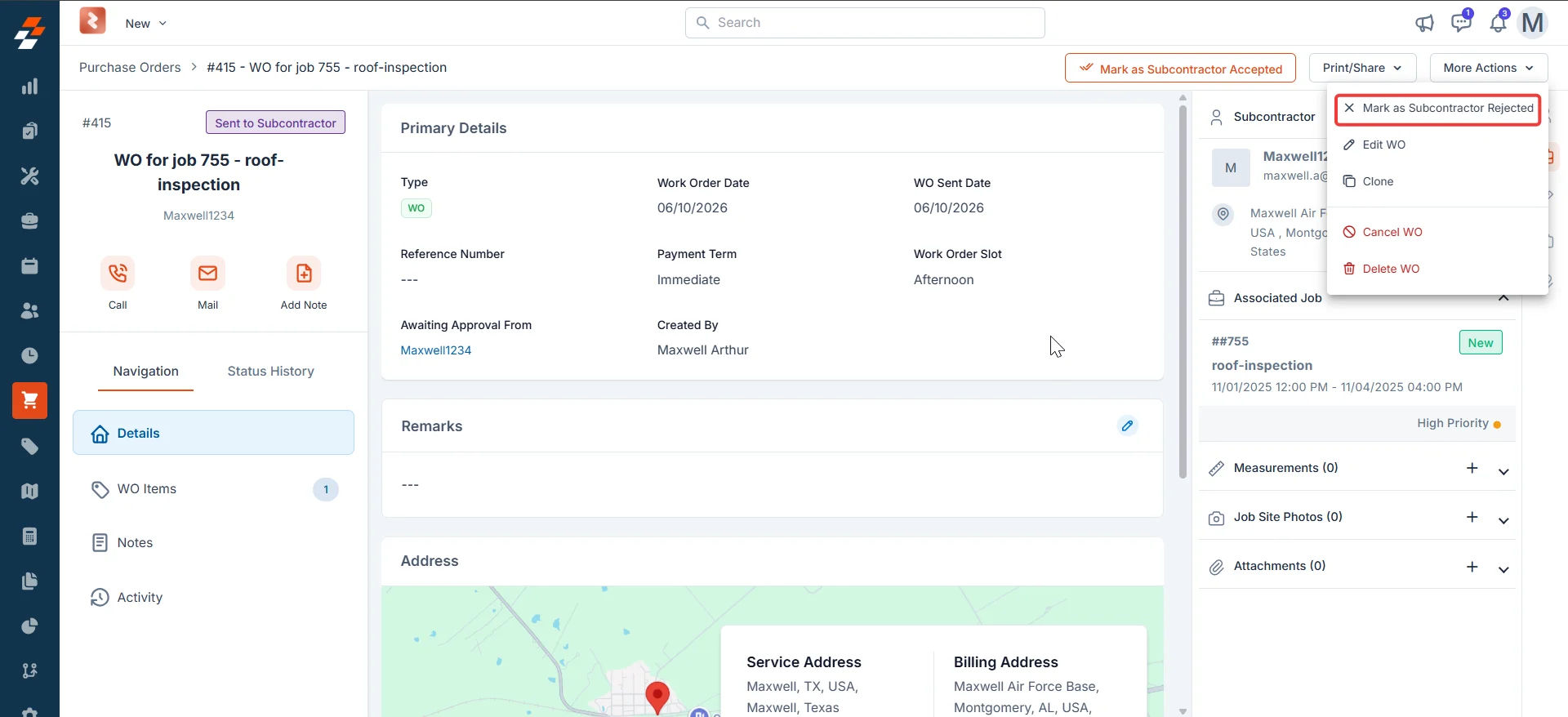
## Status 5b: Subcontractor rejected
The subcontractor has declined the work order. The WO returns to your team for review.
**Available actions**
* **Edit the WO** — Update the work order details and resend it to the subcontractor.
* **More Actions → Clone** — Create a new work order based on this one and assign it to a different subcontractor.
* **More Actions → Canceled** — Cancel the WO if the work is no longer needed.
***
## Status 5a: Subcontractor accepted
The subcontractor has accepted the work order through the email link. Zuper updates this status automatically when the subcontractor selects **Accept** and signs the work order on the subcontractor portal — no action is needed from you.
If the **Automatically Send PO to Vendor after Approval?** toggle is enabled in your Purchasing settings, Zuper sends the work order to the subcontractor automatically when it reaches Approved status. The **Send to Subcontractor** button does not appear — the WO moves to Sent to Subcontractor without any action from you.
The **WO Sent Date** field on the detail page records the date the WO was dispatched. Zuper populates this automatically when the WO reaches Sent to Subcontractor status.
***
## Status 5b: Subcontractor rejected
The subcontractor has declined the work order. The WO returns to your team for review.
**Available actions**
* **Edit the WO** — Update the work order details and resend it to the subcontractor.
* **More Actions → Clone** — Create a new work order based on this one and assign it to a different subcontractor.
* **More Actions → Canceled** — Cancel the WO if the work is no longer needed.
 ***
## Status 6: Work completed
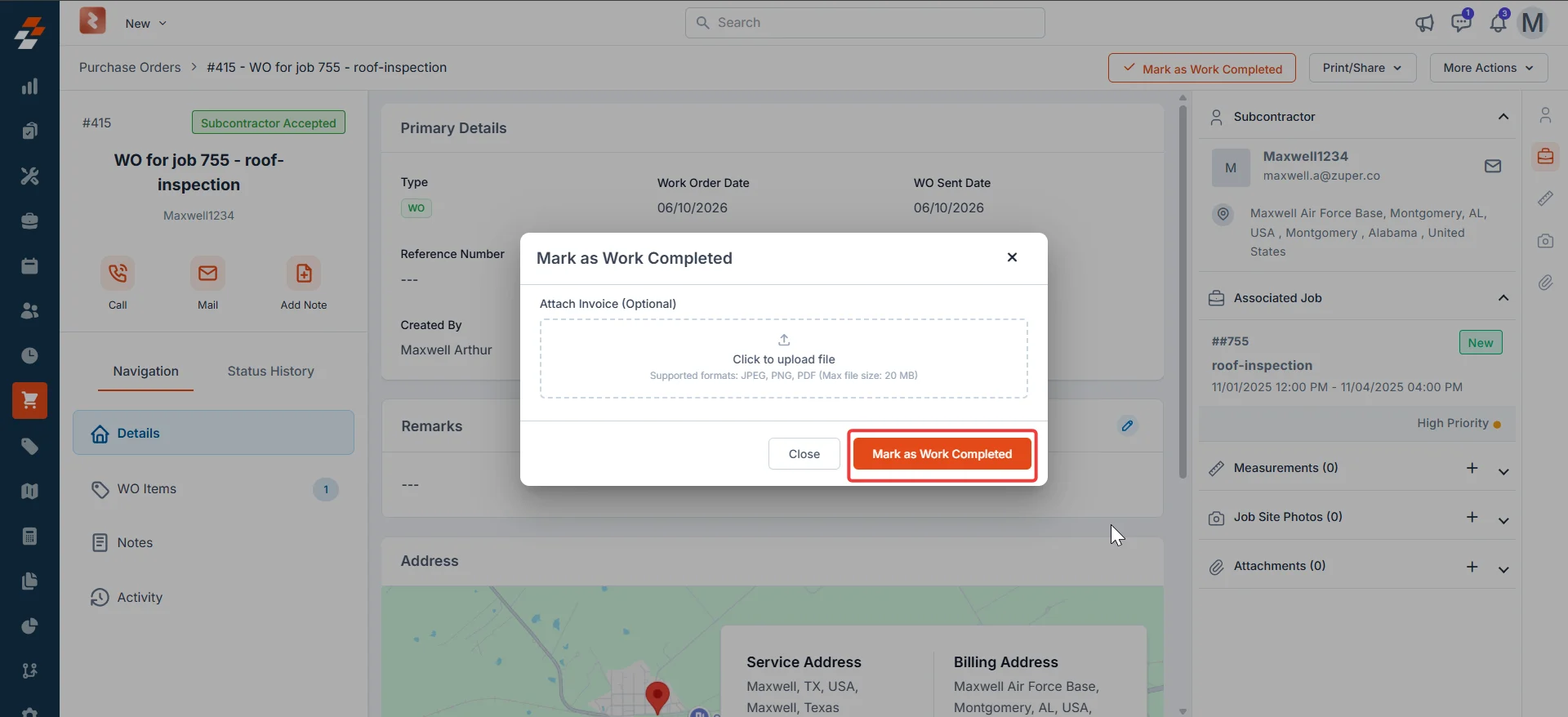
The subcontractor has finished the work and you are ready to record completion. A dialog opens where you can attach the subcontractor's invoice before confirming.
### Record work completion
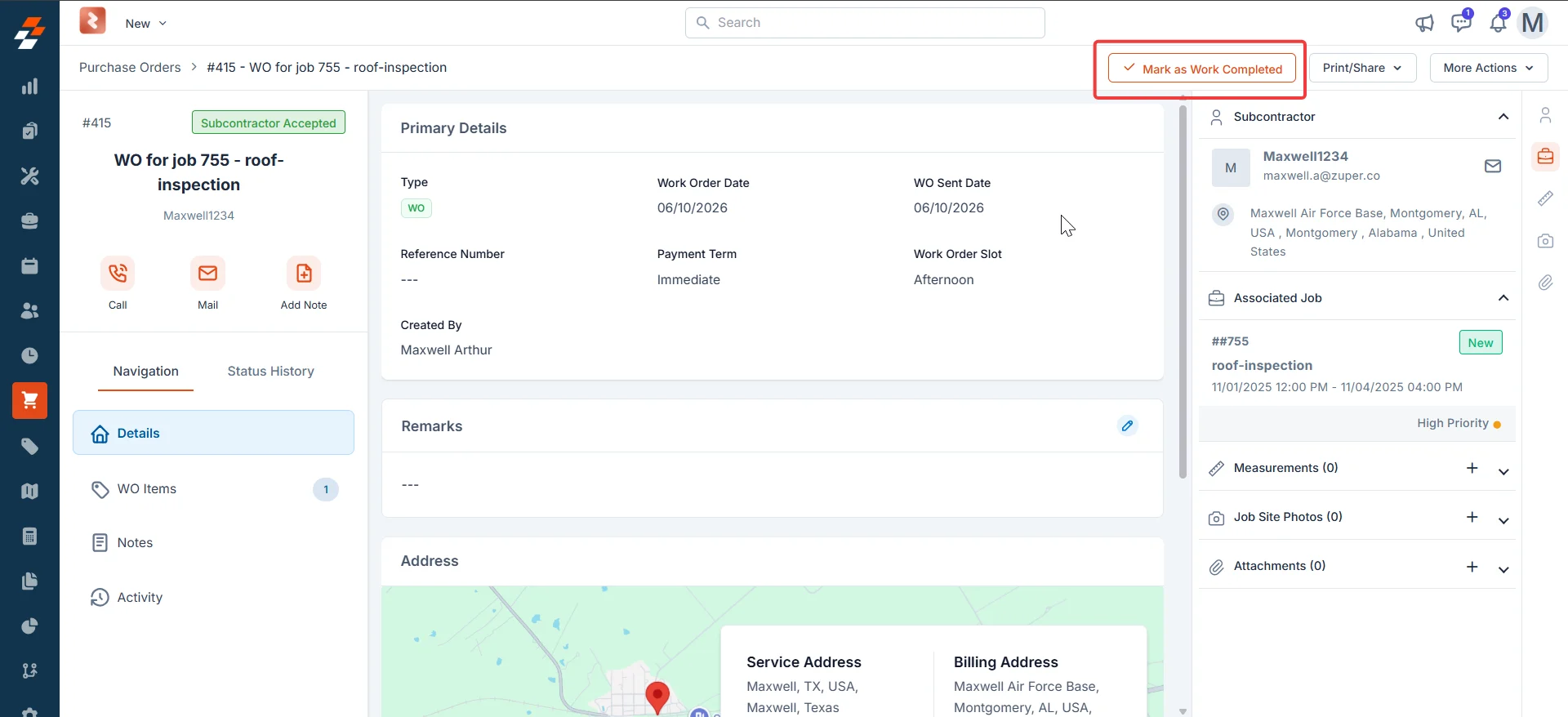
1. Select **Mark as Work Completed** in the top-right corner of the detail page. A dialog opens.
2. Select **Click to upload file** to attach the subcontractor's invoice (optional). Supported formats: JPEG, PNG, PDF. Maximum file size: 20 MB.
3. Select **Mark as Work Completed** in the dialog to confirm.
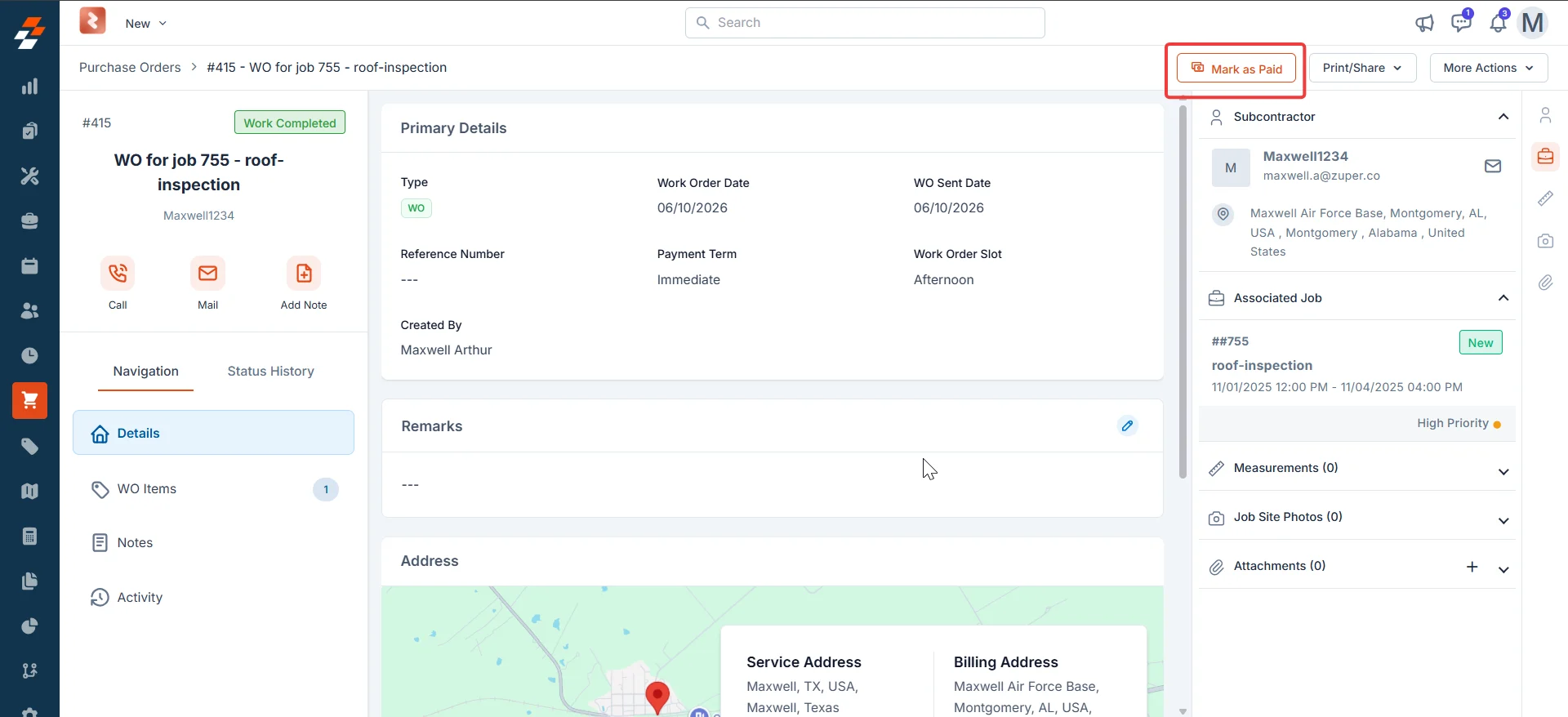
The WO moves to Work Completed status. Any invoice you attached is recorded in the **Status History** tab. The **Mark as Paid** button appears in the top-right corner.
***
## Status 6: Work completed
The subcontractor has finished the work and you are ready to record completion. A dialog opens where you can attach the subcontractor's invoice before confirming.
### Record work completion
1. Select **Mark as Work Completed** in the top-right corner of the detail page. A dialog opens.
2. Select **Click to upload file** to attach the subcontractor's invoice (optional). Supported formats: JPEG, PNG, PDF. Maximum file size: 20 MB.
3. Select **Mark as Work Completed** in the dialog to confirm.
The WO moves to Work Completed status. Any invoice you attached is recorded in the **Status History** tab. The **Mark as Paid** button appears in the top-right corner.
 ***
## Status 7: Paid
Once you mark the work order as paid, the record is locked and no further changes are permitted.
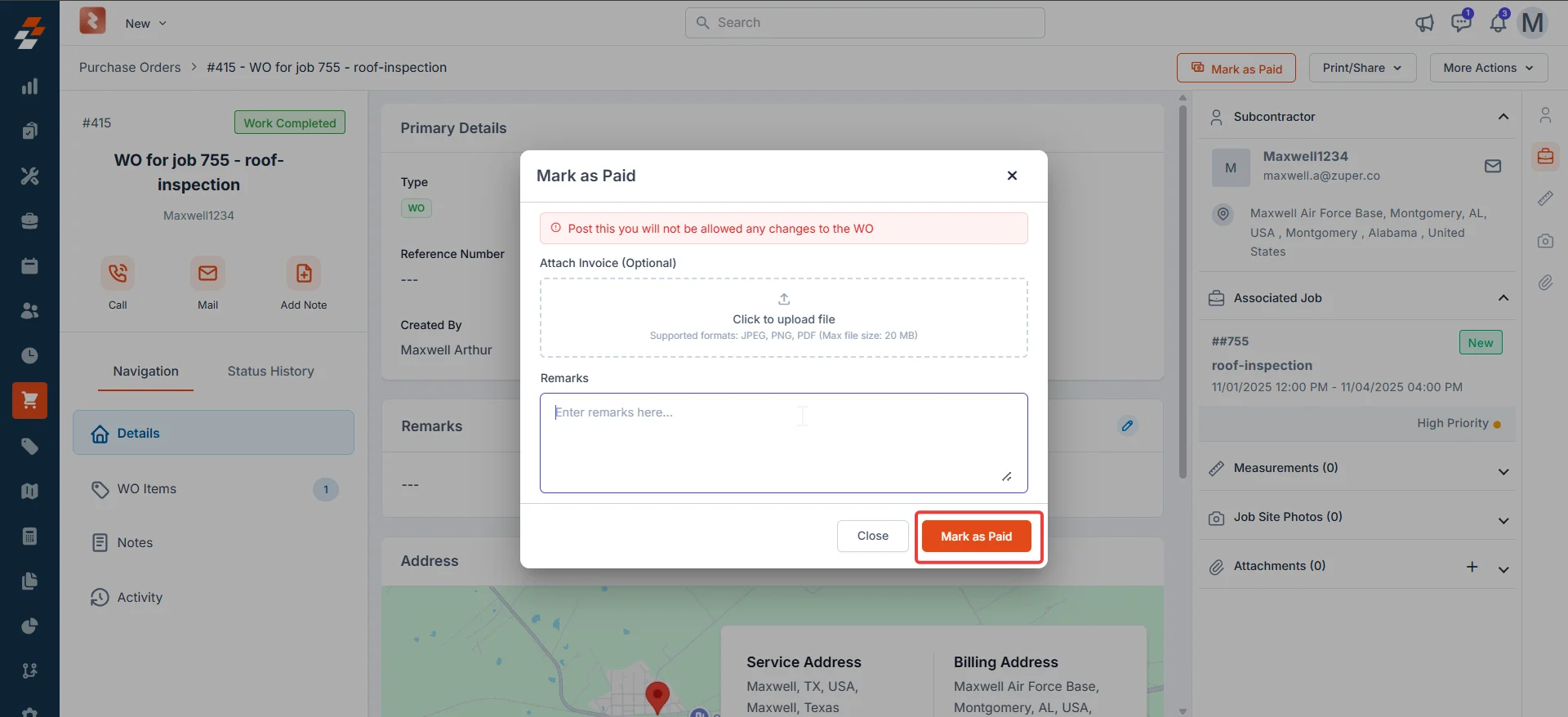
### Record payment
1. Select **Click to upload file** to attach a copy of the payment confirmation or invoice (optional). Supported formats: JPEG, PNG, PDF. Maximum file size: 20 MB.
2. Enter any payment notes or reference details in the **Remarks** field.
3. Select **Mark as Paid** to confirm payment.
Once you mark a work order as paid, the record is locked and no further changes are permitted. Review all details carefully before selecting **Mark as Paid**.
The WO status updates to Paid. The **Close WO** button appears in the top-right corner. All invoices and payment remarks are visible in the **Status History** tab.
***
## Status 7: Paid
Once you mark the work order as paid, the record is locked and no further changes are permitted.
### Record payment
1. Select **Click to upload file** to attach a copy of the payment confirmation or invoice (optional). Supported formats: JPEG, PNG, PDF. Maximum file size: 20 MB.
2. Enter any payment notes or reference details in the **Remarks** field.
3. Select **Mark as Paid** to confirm payment.
Once you mark a work order as paid, the record is locked and no further changes are permitted. Review all details carefully before selecting **Mark as Paid**.
The WO status updates to Paid. The **Close WO** button appears in the top-right corner. All invoices and payment remarks are visible in the **Status History** tab.
 ## Status 8: Closed
With payment recorded, the work order has reached its final step. Closing it removes the WO from your active workload and permanently locks the record.
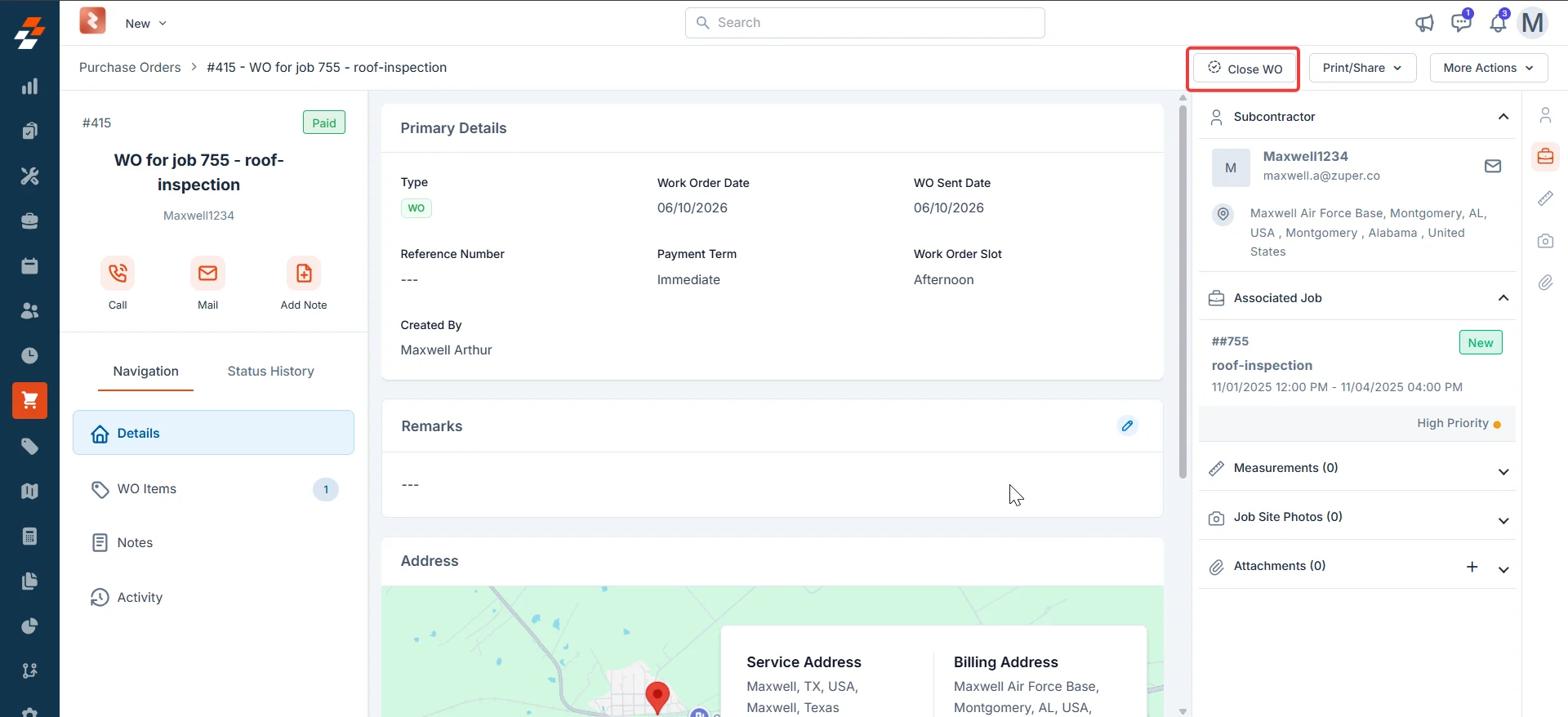
### Close a work order
1. Select **Close WO** in the top-right corner of the detail page.
2. Confirm the action when prompted.
The WO status updates to Closed. No further actions are available.
## Status 8: Closed
With payment recorded, the work order has reached its final step. Closing it removes the WO from your active workload and permanently locks the record.
### Close a work order
1. Select **Close WO** in the top-right corner of the detail page.
2. Confirm the action when prompted.
The WO status updates to Closed. No further actions are available.
 Closing is final. If you need to revisit the work or engage the same subcontractor again, use **More Actions → Clone** to create a new work order based on this one before closing it.
***
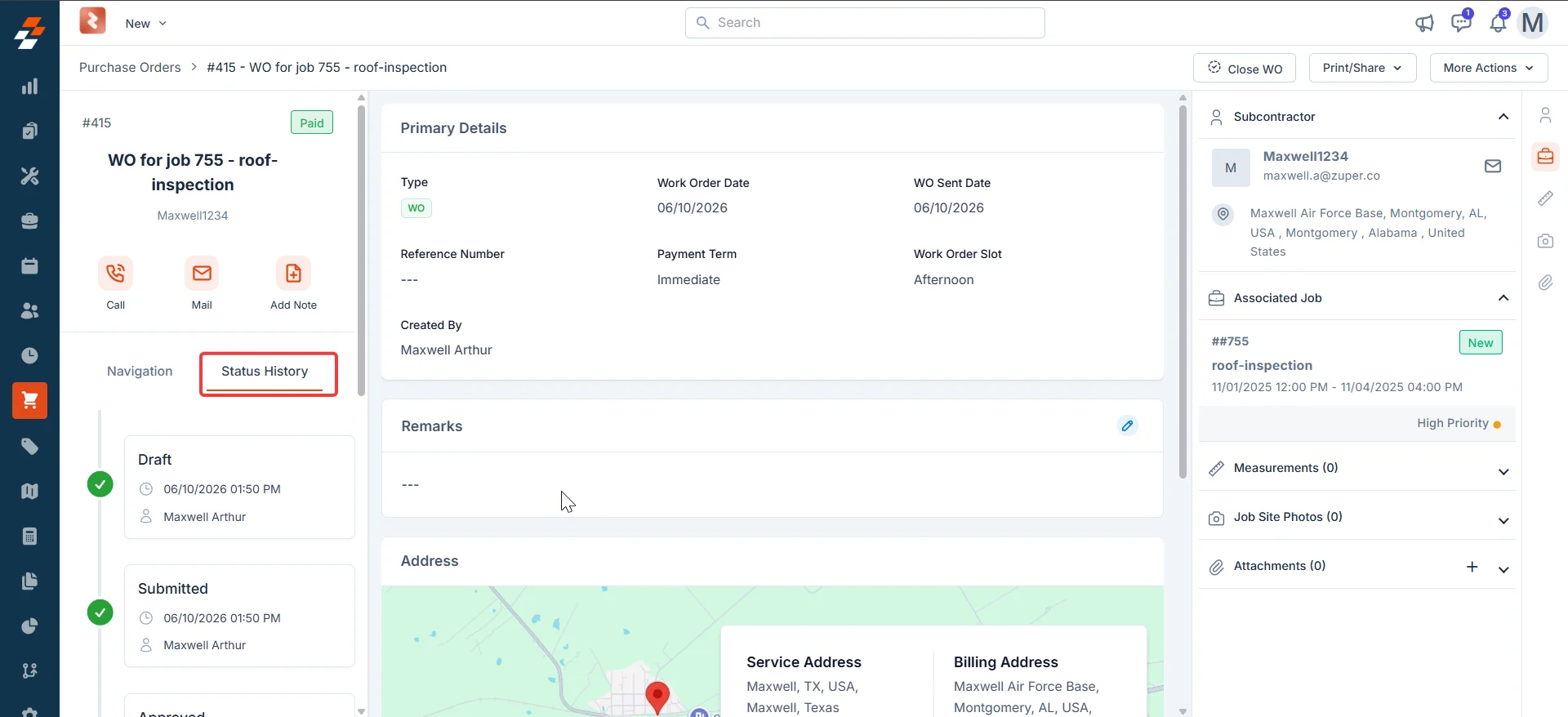
## Status history
Zuper records every status change automatically. To view the full audit trail:
1. Open the work order detail page.
2. Select the **Status History** tab in the left panel.
Each entry shows the status name, the date and time of the change, and the name of the user who made the change. It also includes any remarks entered at that stage and any attached invoice or document, with a download link.
Closing is final. If you need to revisit the work or engage the same subcontractor again, use **More Actions → Clone** to create a new work order based on this one before closing it.
***
## Status history
Zuper records every status change automatically. To view the full audit trail:
1. Open the work order detail page.
2. Select the **Status History** tab in the left panel.
Each entry shows the status name, the date and time of the change, and the name of the user who made the change. It also includes any remarks entered at that stage and any attached invoice or document, with a download link.
 ***
## Work order status at a glance
| Status | What it means | Primary action |
| ---------------------- | ------------------------------------------ | ----------------------------------------- |
| Draft | Created but not yet submitted | Mark as Submitted |
| Submitted | Awaiting internal approval (if configured) | Mark as Approved or Send to Subcontractor |
| Approved | Approved internally | Send to Subcontractor |
| Sent to subcontractor | Dispatched to subcontractor | Awaiting subcontractor response |
| Subcontractor accepted | Subcontractor confirmed via portal | Mark as Work Completed |
| Subcontractor rejected | Subcontractor declined | Edit, clone, or cancel |
| Work completed | Work finished | Mark as Paid |
| Paid | Payment recorded | Close WO |
| Closed | Lifecycle complete | None |
| Canceled | Canceled before completion | None |
***
## FAQs
If your organization does not have an approval hierarchy configured, the Approved status does not appear in the workflow. The SO moves directly from Submitted to the sending workflow without requiring a separate approval step. To set up an approval hierarchy, go to **Settings → Modules → Purchasing → General Settings**.
Yes. You can edit a work order from Draft through Subcontractor Accepted or Subcontractor Rejected. Once the WO moves to Work Completed, the record is locked — only existing line items can be edited at that stage, and no other changes are allowed.
No. Once you confirm **Mark as Paid**, the record is locked, and no further changes are permitted. Review all details carefully before confirming payment.
All attachments — including invoices added at the Work Completed and Paid stages — are available in the **Status History** tab on the work order detail page. Select the file name to download the attachment.
If the subcontractor rejects the WO, select **More Actions → Mark as Subcontractor Rejected** to record the rejection and preserve the audit trail.\
\
To reassign the work, select **More Actions → Clone** and assign the new WO to a different subcontractor.\
\
To address the subcontractor's concerns, edit the existing WO and resend it.\
\
If the issue continues, contact [Support](mailto:support@zuper.co).
***
## Related articles
* [Creating work orders](/Purchasing/Work%20Orders/Creating%20work%20orders)
* [Subcontractors](/Purchasing/Work%20Orders/Sub-Contractors/Sub-Contractors)
* [Creating a purchase order](/Purchasing/Purchase-Orders/Creating-purchase-order)
* [Understanding purchase order status](/Purchasing/Purchase-Orders/Purchase-order-status)
***
## Work order status at a glance
| Status | What it means | Primary action |
| ---------------------- | ------------------------------------------ | ----------------------------------------- |
| Draft | Created but not yet submitted | Mark as Submitted |
| Submitted | Awaiting internal approval (if configured) | Mark as Approved or Send to Subcontractor |
| Approved | Approved internally | Send to Subcontractor |
| Sent to subcontractor | Dispatched to subcontractor | Awaiting subcontractor response |
| Subcontractor accepted | Subcontractor confirmed via portal | Mark as Work Completed |
| Subcontractor rejected | Subcontractor declined | Edit, clone, or cancel |
| Work completed | Work finished | Mark as Paid |
| Paid | Payment recorded | Close WO |
| Closed | Lifecycle complete | None |
| Canceled | Canceled before completion | None |
***
## FAQs
If your organization does not have an approval hierarchy configured, the Approved status does not appear in the workflow. The SO moves directly from Submitted to the sending workflow without requiring a separate approval step. To set up an approval hierarchy, go to **Settings → Modules → Purchasing → General Settings**.
Yes. You can edit a work order from Draft through Subcontractor Accepted or Subcontractor Rejected. Once the WO moves to Work Completed, the record is locked — only existing line items can be edited at that stage, and no other changes are allowed.
No. Once you confirm **Mark as Paid**, the record is locked, and no further changes are permitted. Review all details carefully before confirming payment.
All attachments — including invoices added at the Work Completed and Paid stages — are available in the **Status History** tab on the work order detail page. Select the file name to download the attachment.
If the subcontractor rejects the WO, select **More Actions → Mark as Subcontractor Rejected** to record the rejection and preserve the audit trail.\
\
To reassign the work, select **More Actions → Clone** and assign the new WO to a different subcontractor.\
\
To address the subcontractor's concerns, edit the existing WO and resend it.\
\
If the issue continues, contact [Support](mailto:support@zuper.co).
***
## Related articles
* [Creating work orders](/Purchasing/Work%20Orders/Creating%20work%20orders)
* [Subcontractors](/Purchasing/Work%20Orders/Sub-Contractors/Sub-Contractors)
* [Creating a purchase order](/Purchasing/Purchase-Orders/Creating-purchase-order)
* [Understanding purchase order status](/Purchasing/Purchase-Orders/Purchase-order-status)