> ## Documentation Index
> Fetch the complete documentation index at: https://docs.zuper.co/llms.txt
> Use this file to discover all available pages before exploring further.
# Custom Functions
Custom Functions in Zuper allow you to automate and streamline workflows by creating tailored functions to interact with your data.
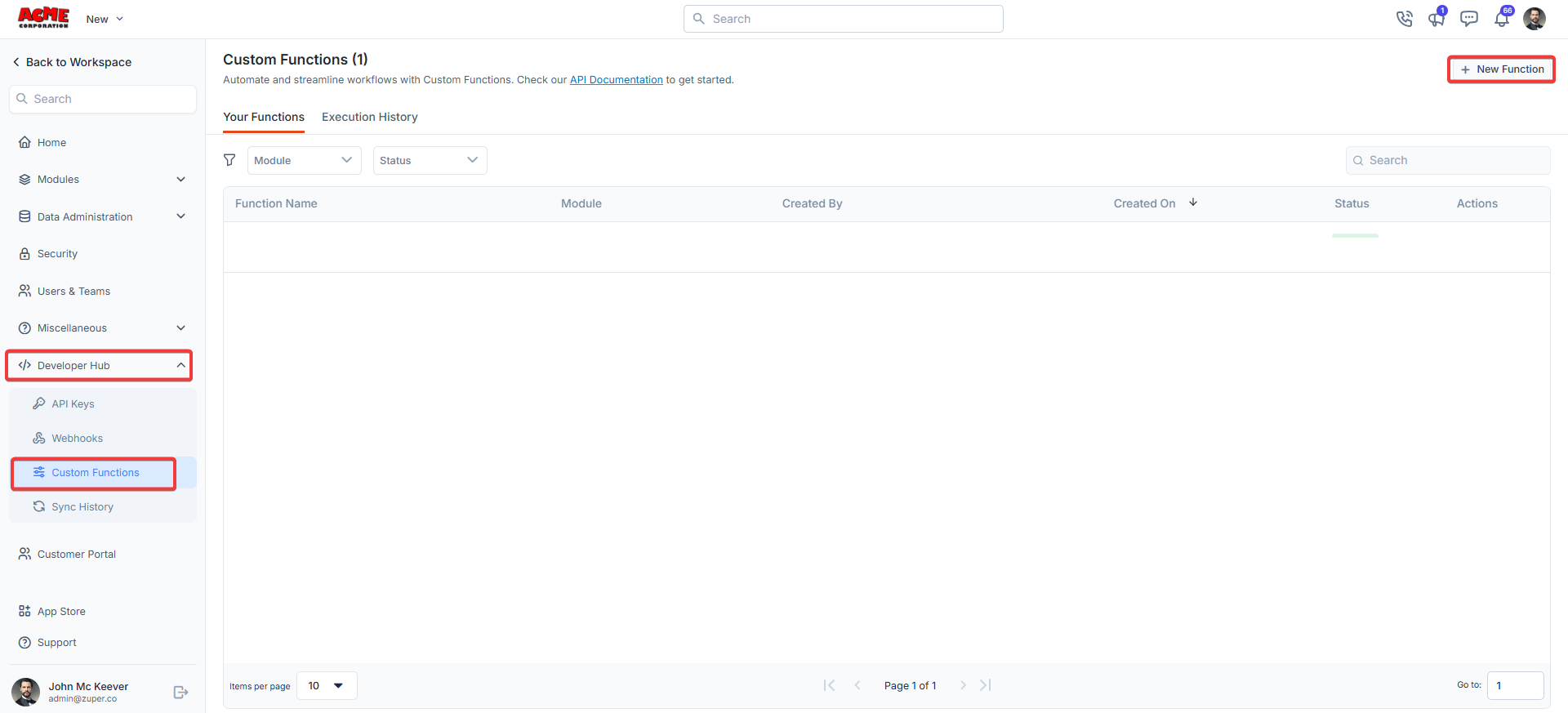
**Navigation**: *Settings -> Developer Hub -> Custom Functions*
1. From the settings, select “**Developer Hub**," choose “**Custom Functions**," and click "**+New Custom Function**."
 2. Fill in the custom function details.
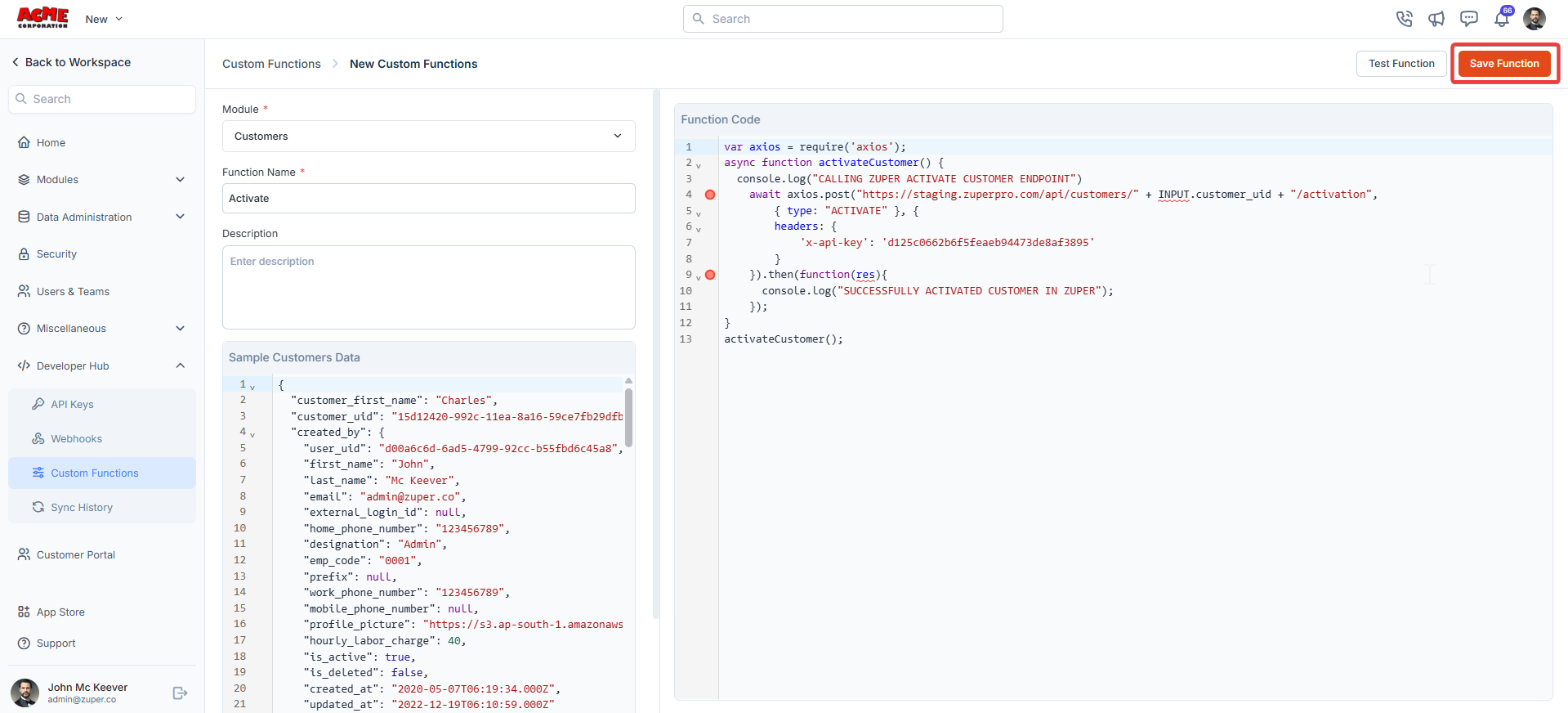 Click "**Save Function**" to save the custom function.
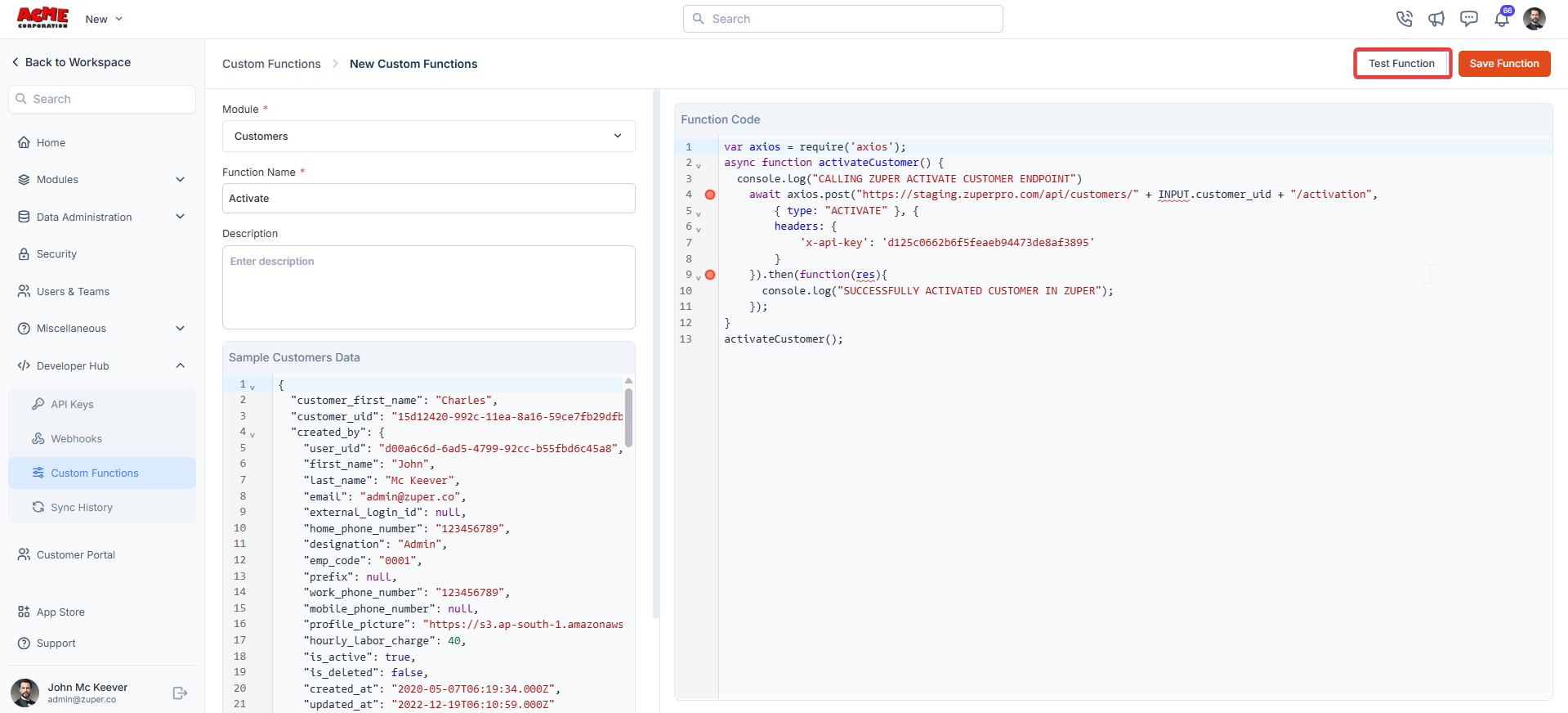
3. Click "**Test Function**" to test the coding.
Click "**Save Function**" to save the custom function.
3. Click "**Test Function**" to test the coding.
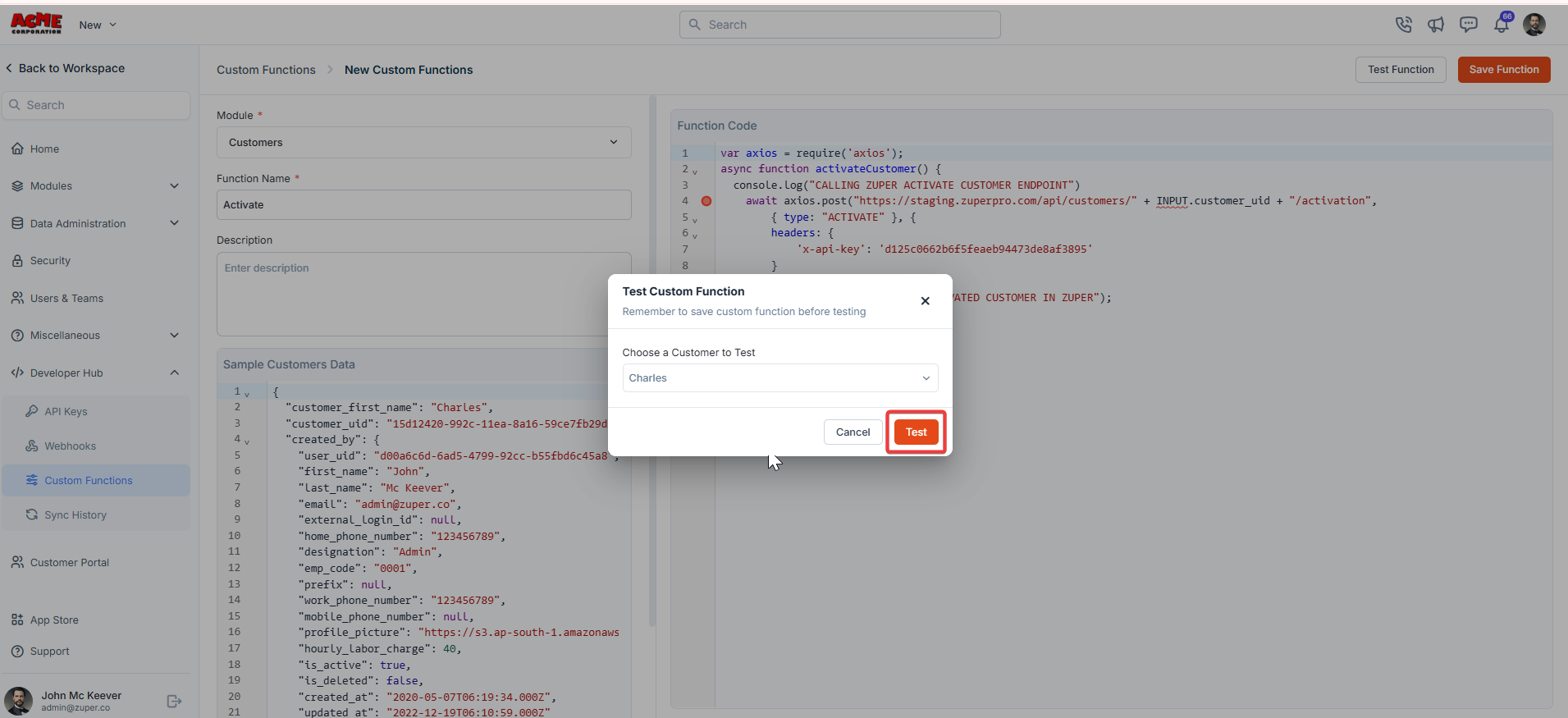
 4. A dialog box appears. Click "**Test**" to proceed.
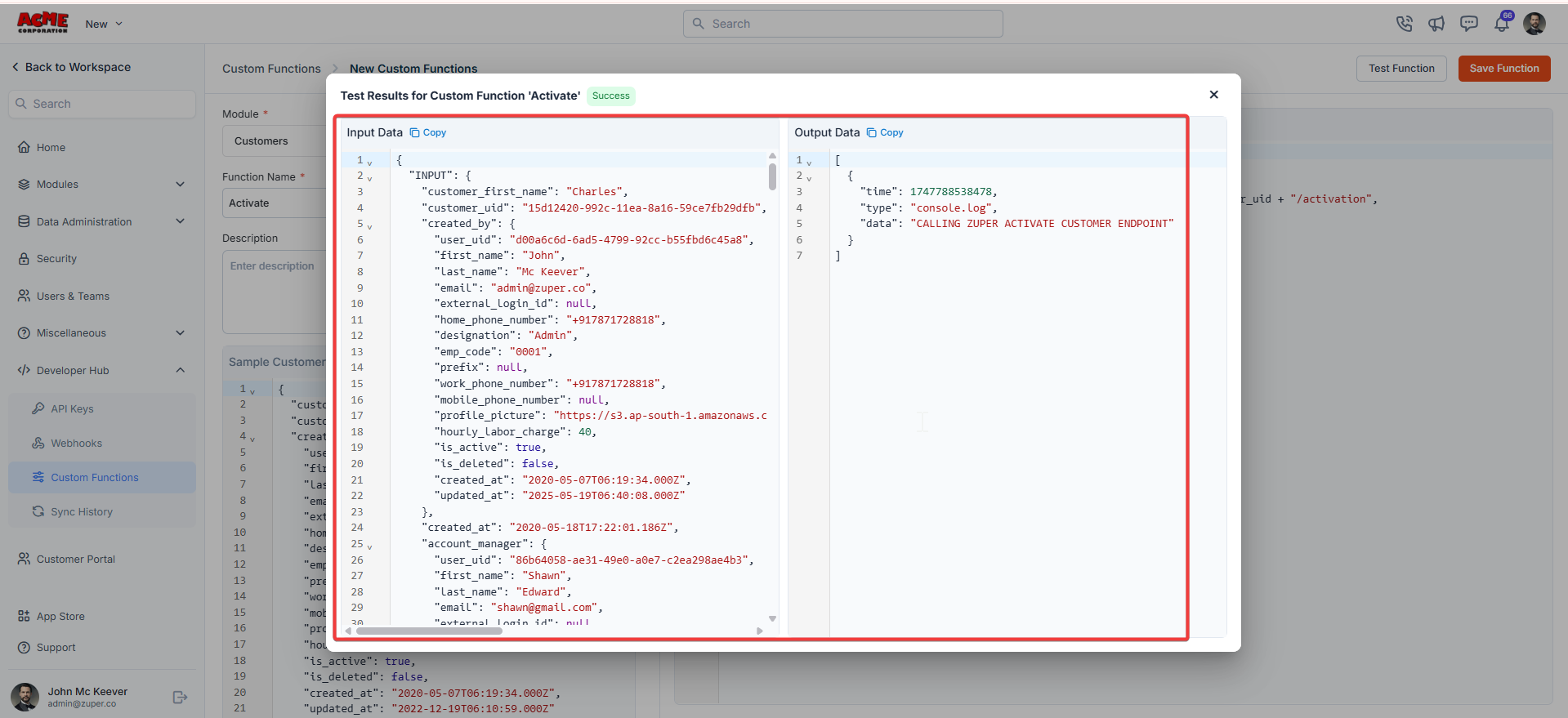
 5. The test function is successfully done.
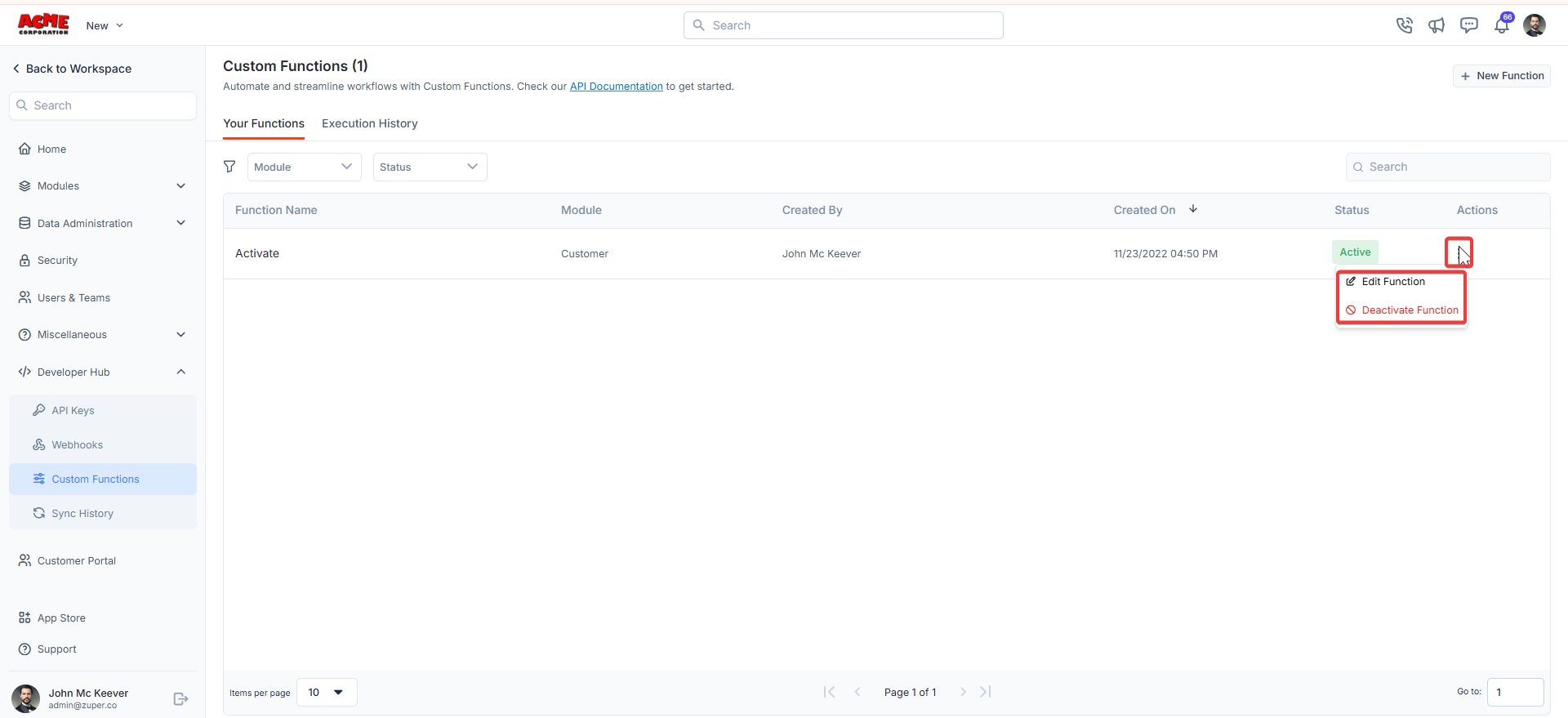
 6. Click icon to edit or deactivate the function.
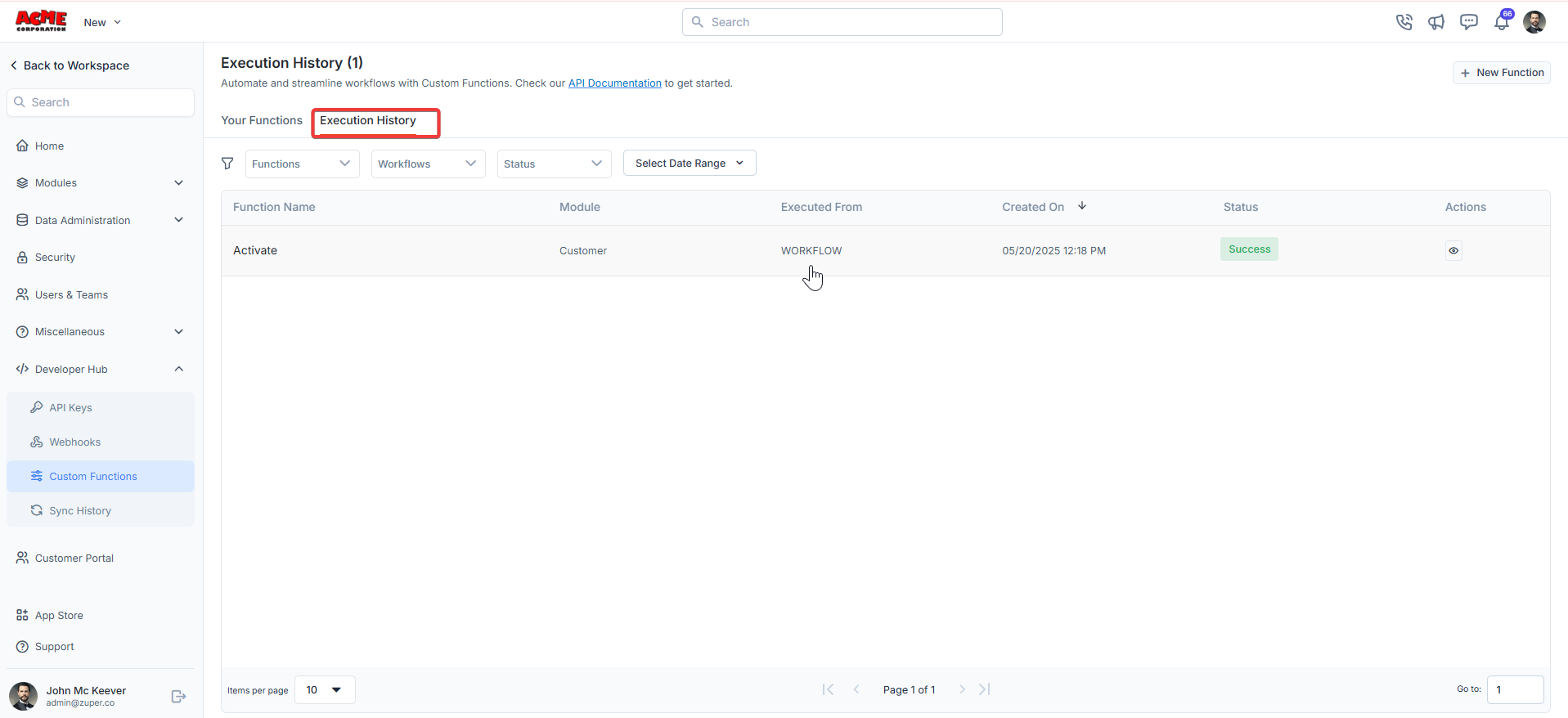
 7. Click the "**Execution History**" tab to view the custom function execution history.
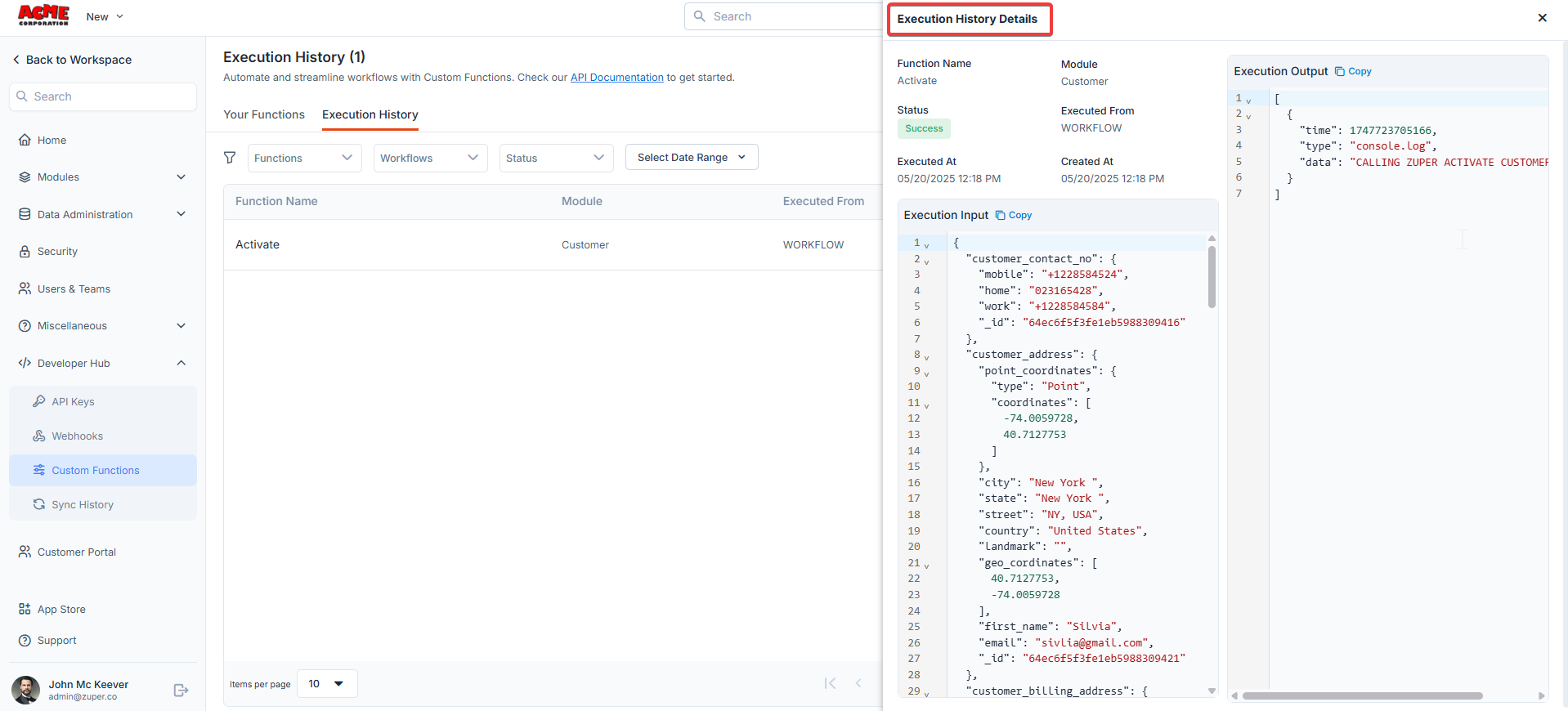
 8. The execution history details are displayed.
 ## Additional Tips
* [**Check API Documentation**](https://developers.zuper.co/reference/getting-started-with-your-api)**:** For more details on available endpoints and parameters, refer to the [Zuper API Documentation ](https://developers.zuper.co/reference/getting-started-with-your-api)(linked at the top of the Custom Functions page).
* **Monitor Status:** Use the **Status** filter in the Execution History tab to view successful, failed, or in-progress executions.
## Additional Tips
* [**Check API Documentation**](https://developers.zuper.co/reference/getting-started-with-your-api)**:** For more details on available endpoints and parameters, refer to the [Zuper API Documentation ](https://developers.zuper.co/reference/getting-started-with-your-api)(linked at the top of the Custom Functions page).
* **Monitor Status:** Use the **Status** filter in the Execution History tab to view successful, failed, or in-progress executions.