> ## Documentation Index
> Fetch the complete documentation index at: https://docs.zuper.co/llms.txt
> Use this file to discover all available pages before exploring further.
# Master Tags
Master tags in Zuper are a powerful organizational tool designed to help you categorize and manage various modules, such as Jobs, Customers, Quotations, Invoices, and Projects.
**Navigation**: *Settings -> Miscellaneous -> Master Tags*
1. From the settings, select “**Miscellaneous**." Under the "**Master Tags**" section, choose “**+ New Tag."**
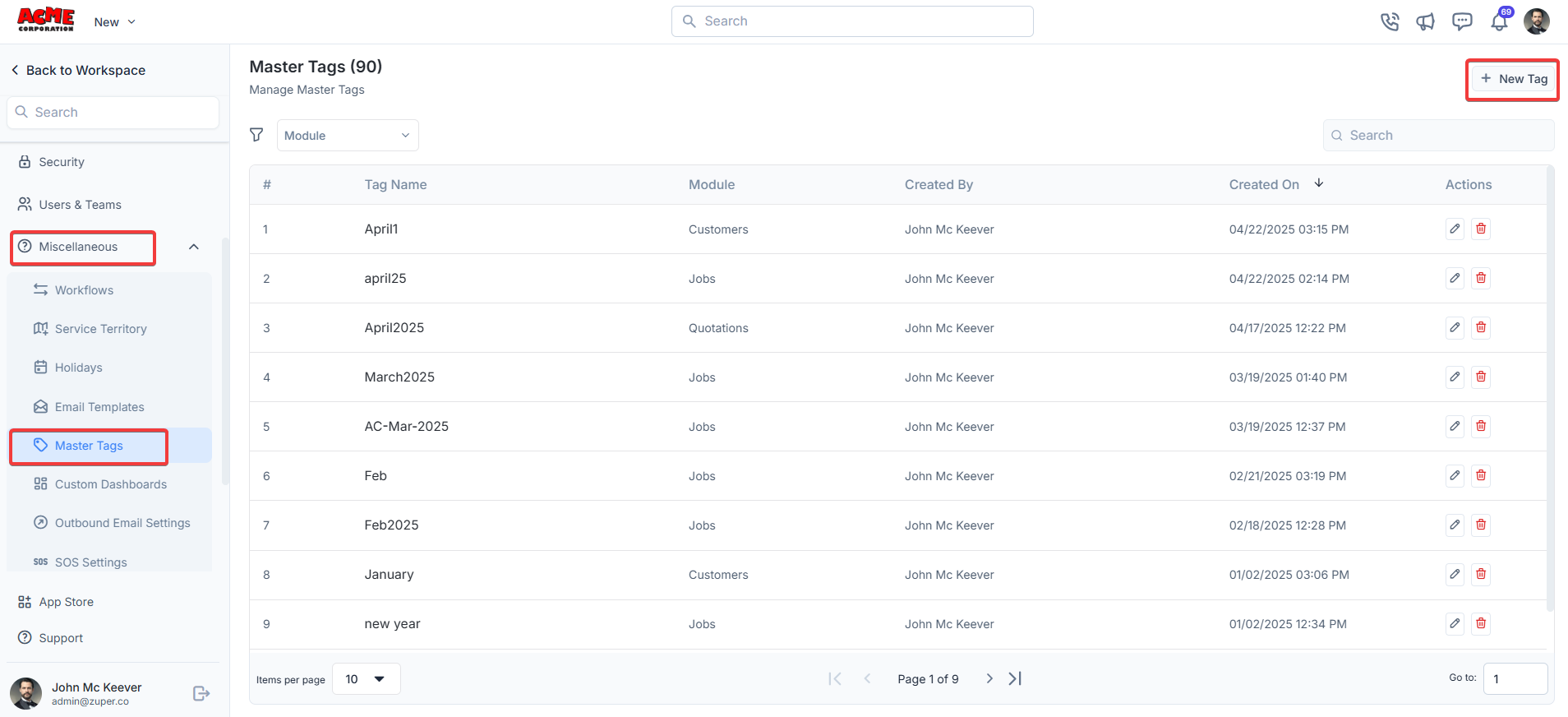 2. Enter the following details.
* **Tag Name**: Enter a unique name for the tag. This field is mandatory.
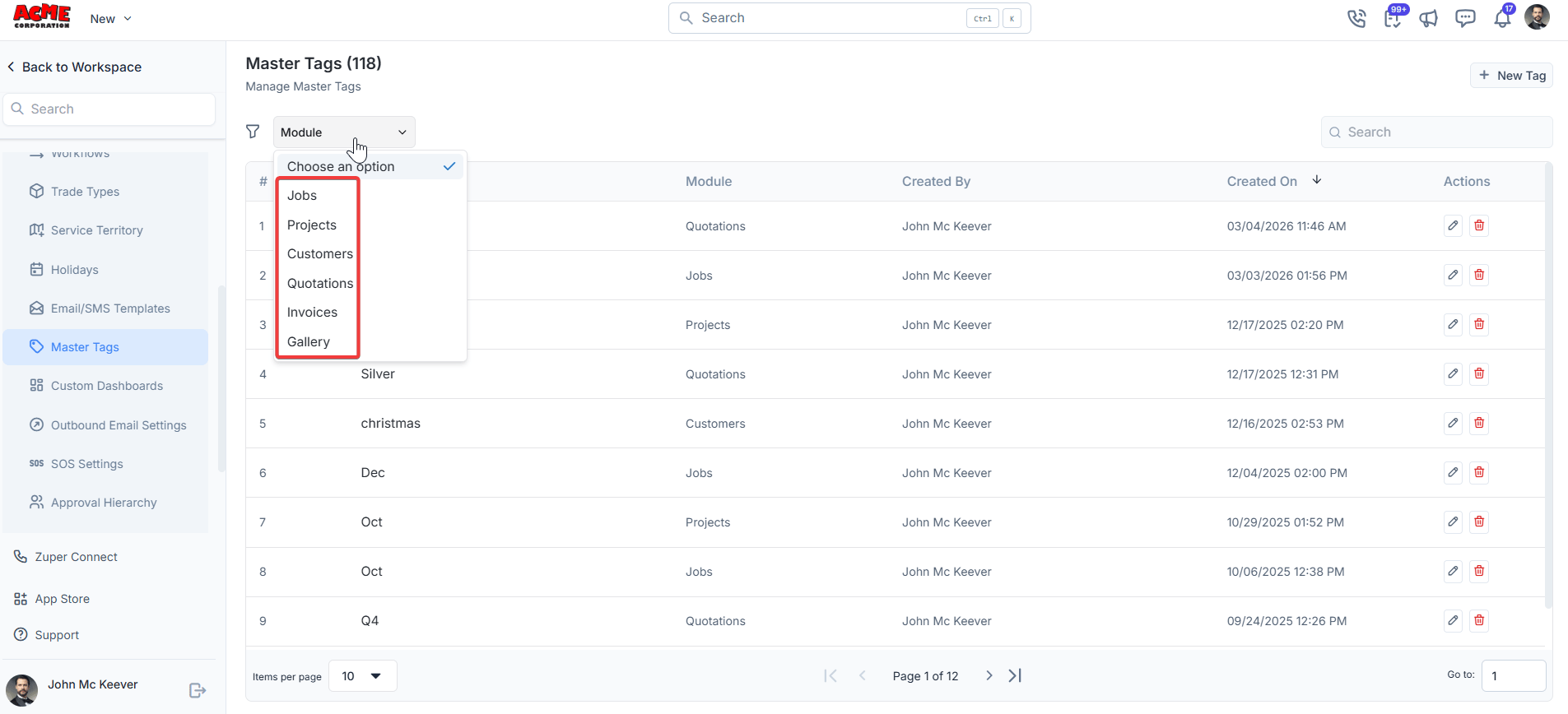
* From the **Module** dropdown, you can select the module you want to map this tag to. This field is required.
* Jobs
* Customers
* Quotations
* Invoice
* Projects
* Gallery
These fields are also mandatory. This determines where the tag will be mapped to the modules.
* **Description** - Enter the master tag description.
2. Enter the following details.
* **Tag Name**: Enter a unique name for the tag. This field is mandatory.
* From the **Module** dropdown, you can select the module you want to map this tag to. This field is required.
* Jobs
* Customers
* Quotations
* Invoice
* Projects
* Gallery
These fields are also mandatory. This determines where the tag will be mapped to the modules.
* **Description** - Enter the master tag description.
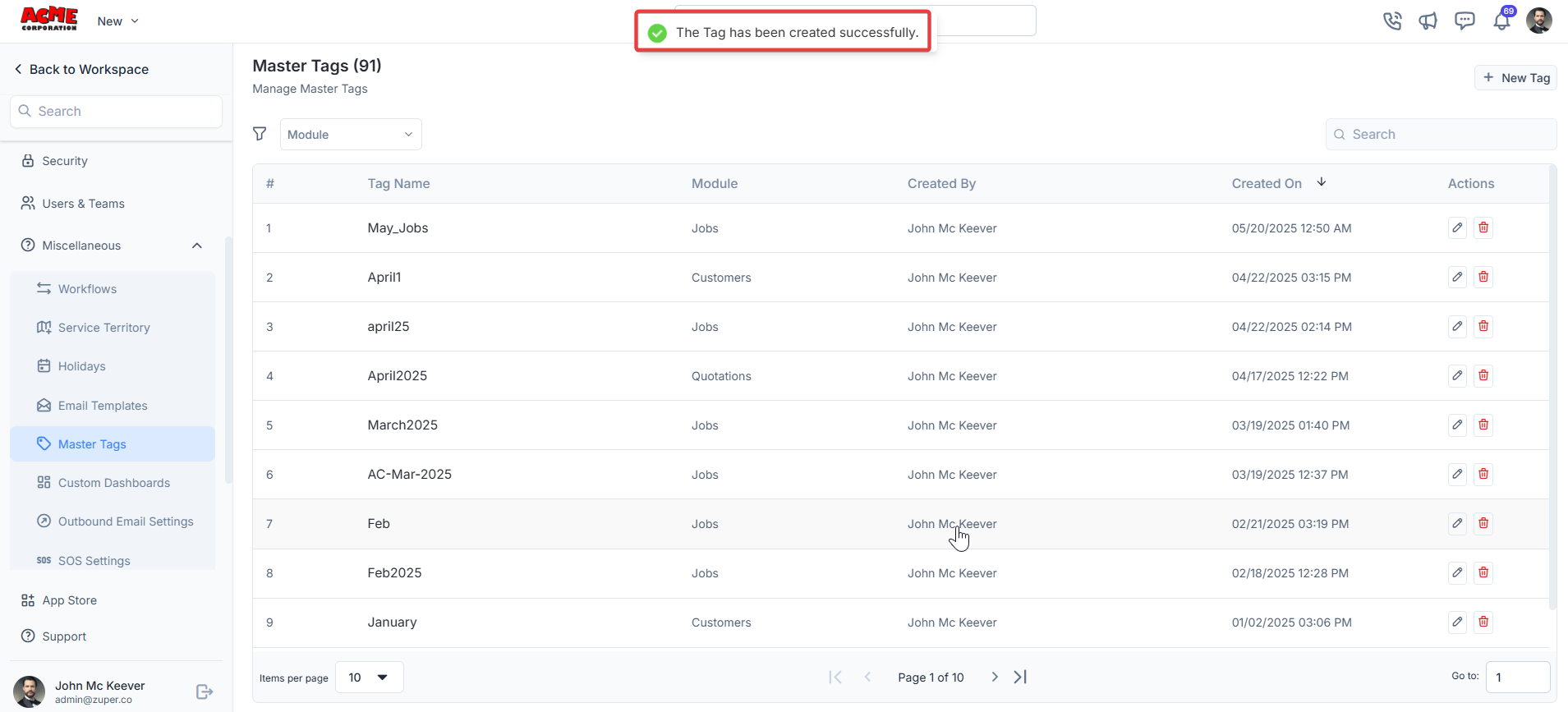
 3. The tag is created successfully.
 4. Choose the "**Module**" filter to filter the list of module line items. Tags can be edited or deleted using the action icons in the table.
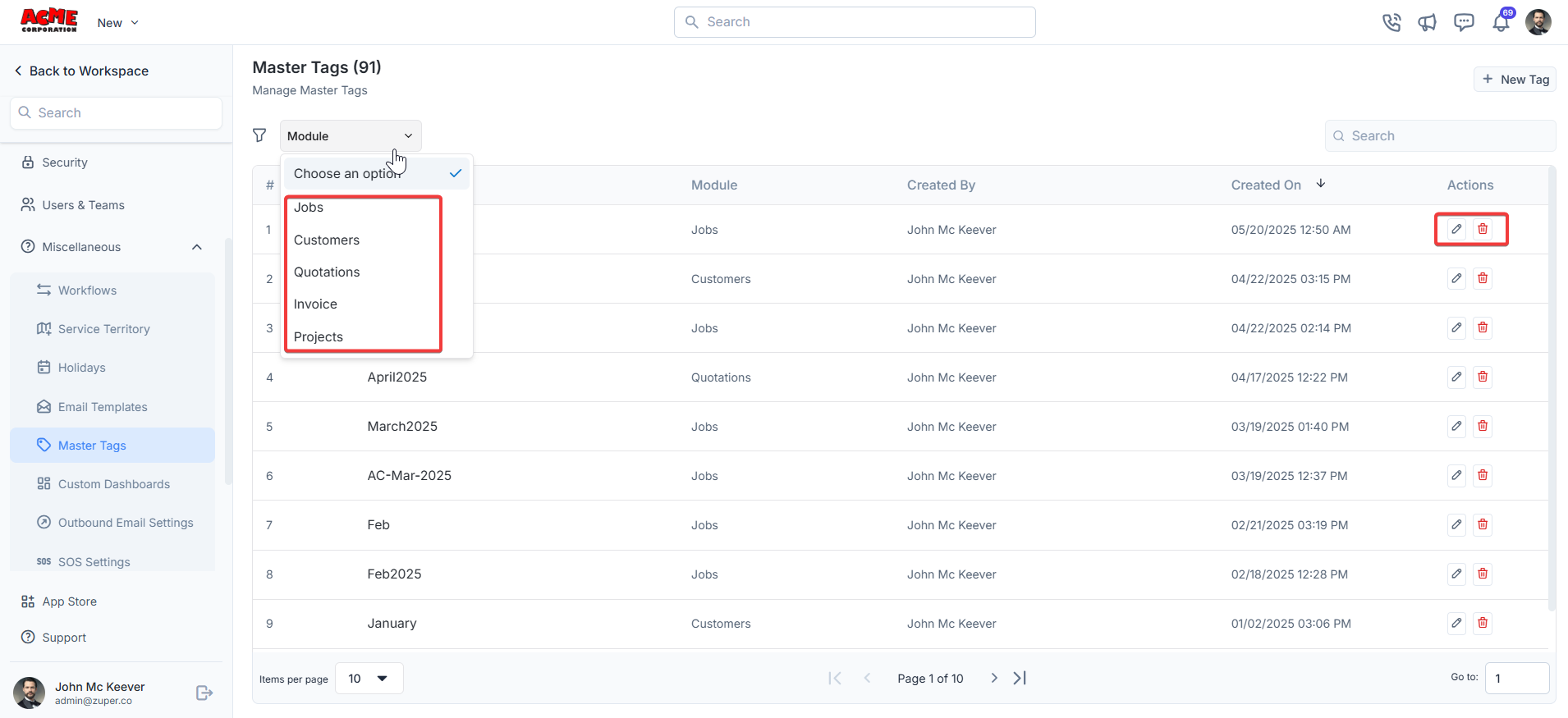 The process of creating a new tag is straightforward—simply enter a unique tag name, select the appropriate module, and save.