> ## Documentation Index
> Fetch the complete documentation index at: https://docs.zuper.co/llms.txt
> Use this file to discover all available pages before exploring further.
# Service Territory
Zuper’s service territories enable division and management of areas serviced by field teams into smaller, manageable units. Organizing territories and mapping them to the right teams reduces travel and enables better control over teams, leading to optimal utilization. Businesses can create, edit, deactivate, or delete service territories based on their dynamic business environments.
It's flexible with multiple options to create territories: geo radius, custom-drawn geo fences, and zip code. The new visualization helps users avoid overlaps between territories. This helps maintain the right access control on the field teams by team leads/back-office (refer to the service territory-based dispatching [link here](https://docs.zuper.co/Dispatch/Detailed_Overview#service-territory-filter)).
**Navigation**: *Settings -> Miscellaneous -> Service Territory -> Create service territory*
## Service territory creation
1. Select the "**Settings**" module from the left navigation menu, and under the "**Miscellaneous**" section, select "**Service Territory**." Click "**Create New**" to add the new region.
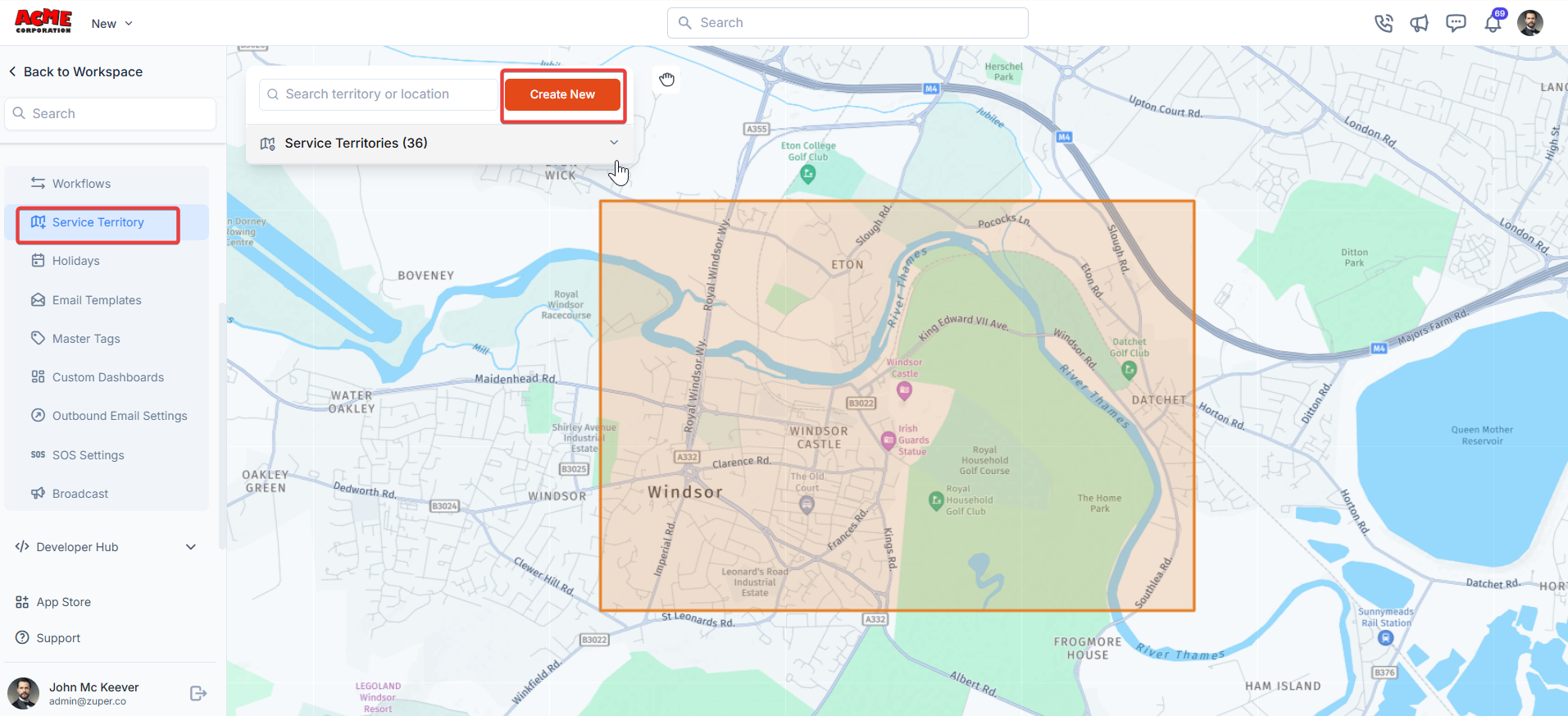 3. Enter the following details to create a new service territory:
* **Territory Color** - Choose a unique color for your region to represent the territory on the map.
* **Name** – Enter the name of the service territory.
* **Description** - Enter the description of the region.
* **Owners** - Add the user(s) who will act as the owner of the respective Service Territory. Only users marked as ‘Owners’ will be able to dispatch jobs (via the dispatch board) whose service address falls within a territory. They can assign jobs to teams that are assigned to the territory.
* **Assigned teams** - Choose the teams responsible for working within this territory. You can assign multiple teams if needed. Dispatchers (Owners) can assign jobs falling within a service territory only to teams assigned to it.
**Note**: We recommend assigning Team Leads as the owners of Service Territories, as they are best positioned to oversee and manage the associated jobs and resources. Refer to Dispatch Board article here
* Territory Type –Choose Zipcodes, Geo-radius, or Geo fence. **Geo-radius** – Define the territory by setting a radius around a central point. The system will automatically create the territory boundary based on the radius entered.
3. Enter the following details to create a new service territory:
* **Territory Color** - Choose a unique color for your region to represent the territory on the map.
* **Name** – Enter the name of the service territory.
* **Description** - Enter the description of the region.
* **Owners** - Add the user(s) who will act as the owner of the respective Service Territory. Only users marked as ‘Owners’ will be able to dispatch jobs (via the dispatch board) whose service address falls within a territory. They can assign jobs to teams that are assigned to the territory.
* **Assigned teams** - Choose the teams responsible for working within this territory. You can assign multiple teams if needed. Dispatchers (Owners) can assign jobs falling within a service territory only to teams assigned to it.
**Note**: We recommend assigning Team Leads as the owners of Service Territories, as they are best positioned to oversee and manage the associated jobs and resources. Refer to Dispatch Board article here
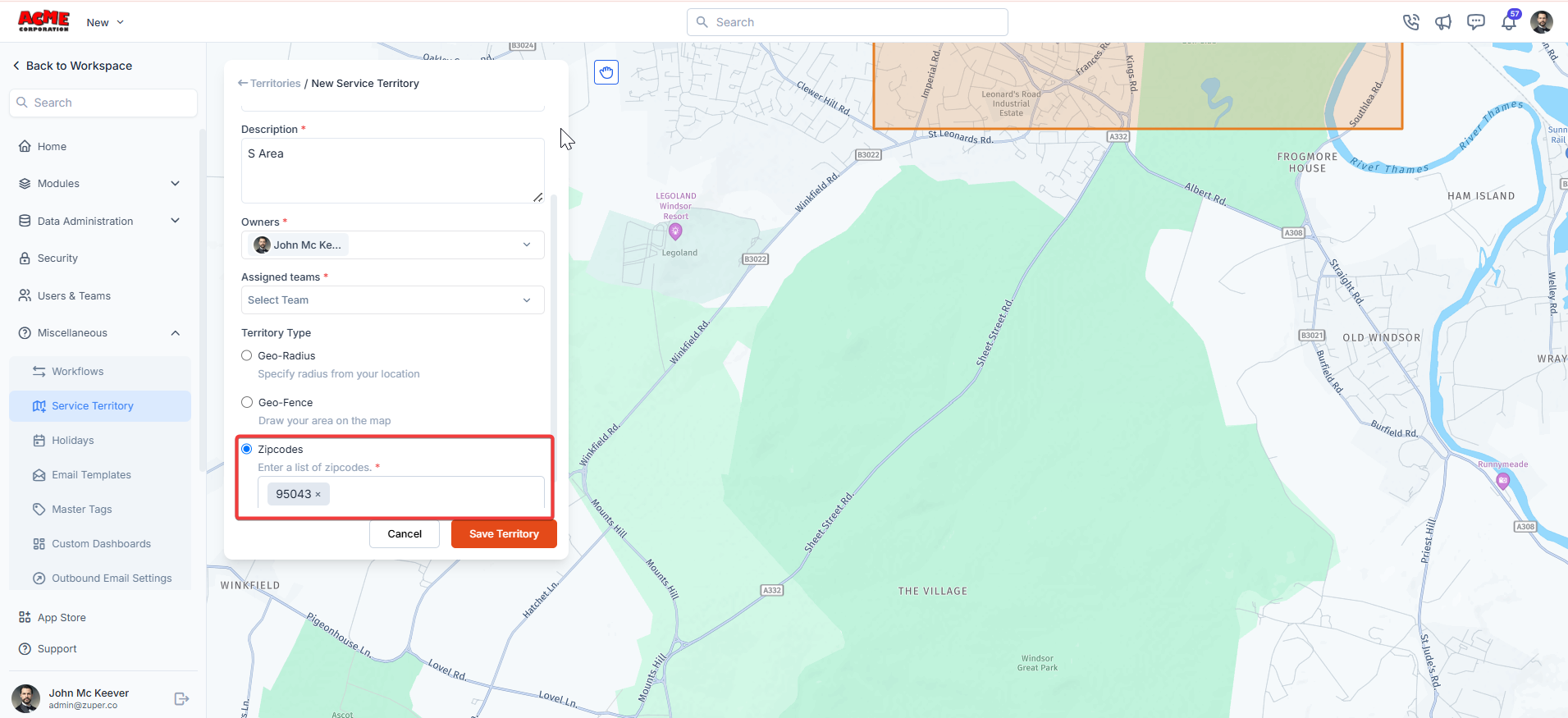
* Territory Type –Choose Zipcodes, Geo-radius, or Geo fence. **Geo-radius** – Define the territory by setting a radius around a central point. The system will automatically create the territory boundary based on the radius entered. 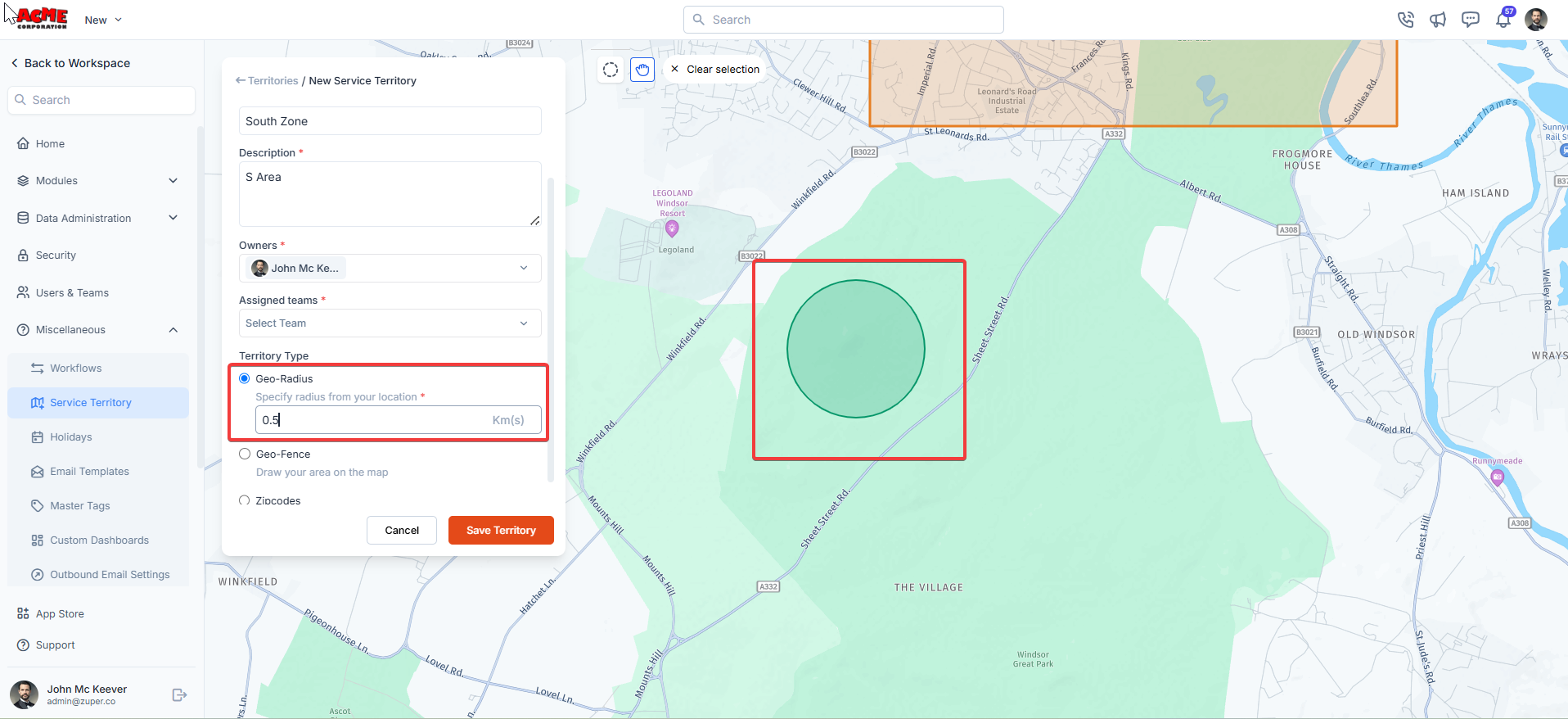 **Zip codes** – Enter specific zip codes to define the territory based on postal codes.
  ### International postal code support
The **Zipcodes** territory type supports both US ZIP codes and international postal code formats, including UK postcodes. Jobs are automatically assigned to a service territory when the postal code in the job's service address matches a postal code defined for that territory.
You can add postal codes from multiple countries to the same territory or across different territories in the same workspace. For example, a territory can be defined using US ZIP codes (such as `30301`) while another territory in the same account uses UK postcodes (such as `SW1A 1AA`).
Territory assignment relies on an exact match between the postal code in the customer, organization, or job service address and the postal code entered in the service territory. Ensure the format is consistent in both places — including spacing for UK postcodes (for example, `SW1A 1AA` and `SW1A1AA` are treated as different values).
**Geo-fence** - Draw a custom boundary on the map. Click the "**Save Service Territory**" button to confirm the creation of the new region, and then click the Create button to save the created service territory.
### International postal code support
The **Zipcodes** territory type supports both US ZIP codes and international postal code formats, including UK postcodes. Jobs are automatically assigned to a service territory when the postal code in the job's service address matches a postal code defined for that territory.
You can add postal codes from multiple countries to the same territory or across different territories in the same workspace. For example, a territory can be defined using US ZIP codes (such as `30301`) while another territory in the same account uses UK postcodes (such as `SW1A 1AA`).
Territory assignment relies on an exact match between the postal code in the customer, organization, or job service address and the postal code entered in the service territory. Ensure the format is consistent in both places — including spacing for UK postcodes (for example, `SW1A 1AA` and `SW1A1AA` are treated as different values).
**Geo-fence** - Draw a custom boundary on the map. Click the "**Save Service Territory**" button to confirm the creation of the new region, and then click the Create button to save the created service territory. 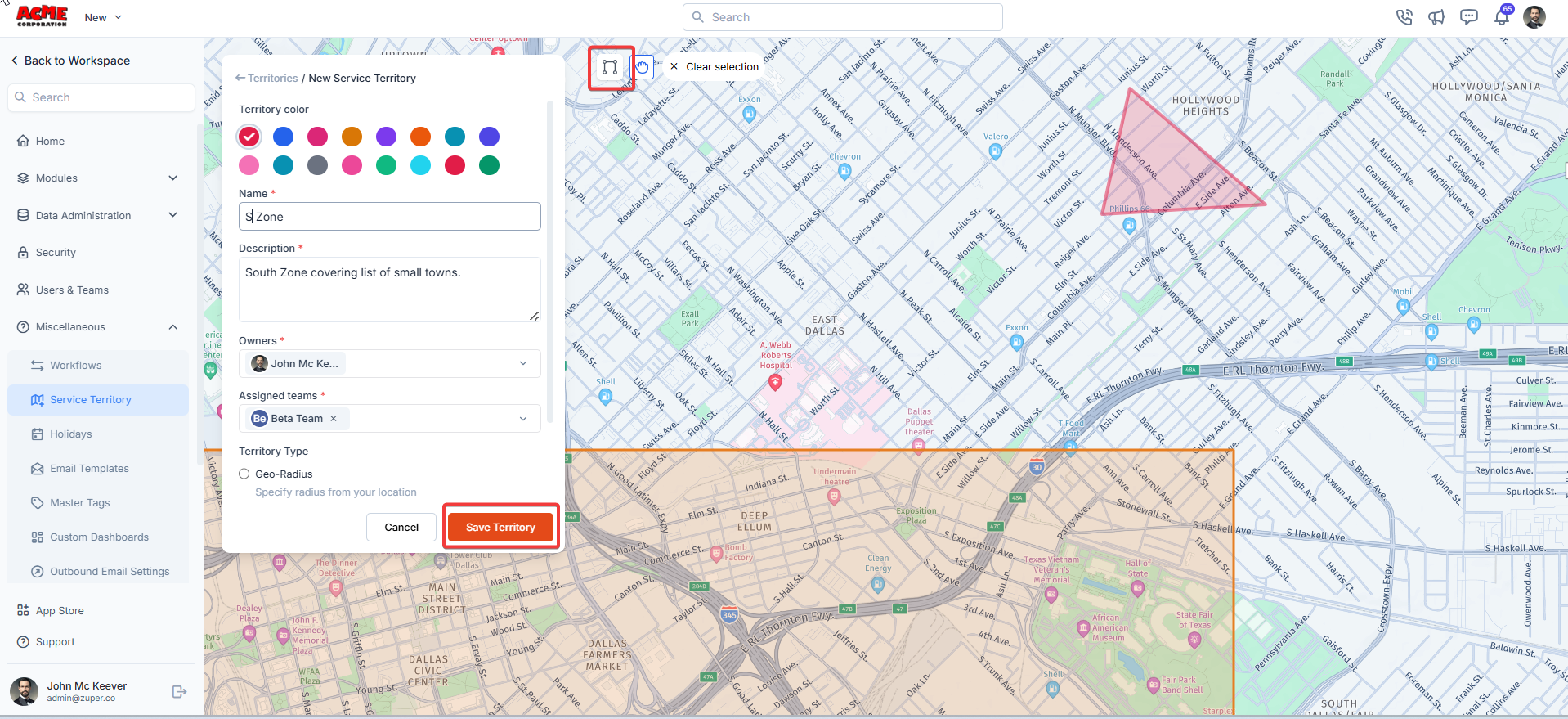 A new service territory is created successfully.
## More actions
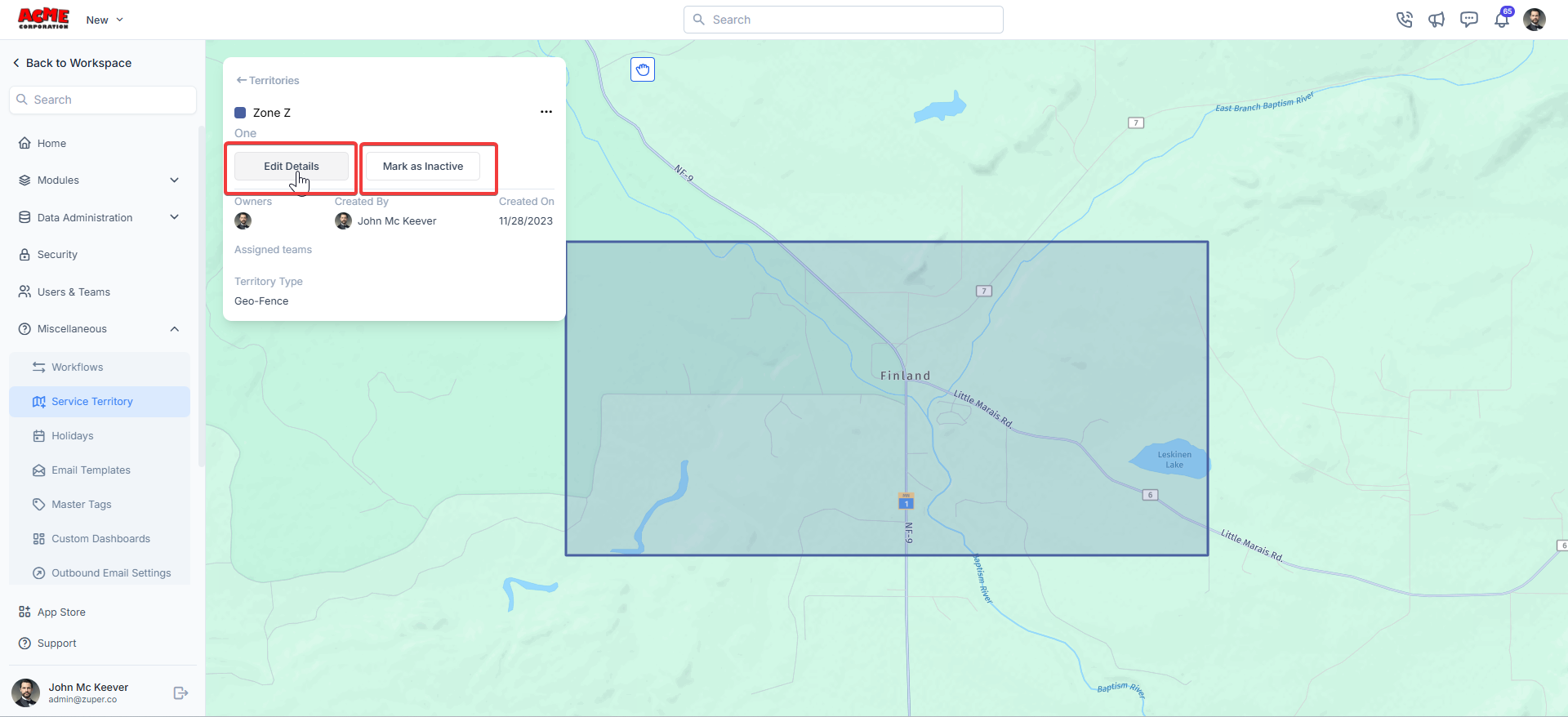
You can perform the following functions on the Service Territory's detail page.
* **Edit Details**: Use this option to edit the existing service territories.
Note: Modifying the service territory radius of the existing service territory will not impact the assigned jobs. For example, if a job is already assigned to a service territory and the territory is edited/marked inactive, it will remain part of the service territory based only on its initial definition. Such extreme business cases must be handled through bulk action of ‘**Assign Service Territory**’ on the jobs listing page.
A new service territory is created successfully.
## More actions
You can perform the following functions on the Service Territory's detail page.
* **Edit Details**: Use this option to edit the existing service territories.
Note: Modifying the service territory radius of the existing service territory will not impact the assigned jobs. For example, if a job is already assigned to a service territory and the territory is edited/marked inactive, it will remain part of the service territory based only on its initial definition. Such extreme business cases must be handled through bulk action of ‘**Assign Service Territory**’ on the jobs listing page.
 ### Troubleshooting: Territory not assigned when using postal codes
If a job is not being automatically assigned to the expected territory, check the following:
Open the customer, organization, or job record and confirm the postal code field is filled in and formatted correctly. Territory matching uses the postal code in the service address, not the city or country fields.
Go to **Settings > Miscellaneous > Service Territory**, open the territory, and confirm the postal code is listed under the Zipcodes territory type. The value must match the service address format exactly, including spaces and letter casing.
Ensure **Enable Service Territories** is turned on under **Settings > Modules > Jobs > General Settings**. Territory-based assignment does not run when this setting is disabled.
If the address falls under more than one territory, the system selects the first matching territory by default. You can manually assign the correct territory from the job detail page.
The new service territory feature makes creating and managing service territories simple, efficient, and intuitive.
### Troubleshooting: Territory not assigned when using postal codes
If a job is not being automatically assigned to the expected territory, check the following:
Open the customer, organization, or job record and confirm the postal code field is filled in and formatted correctly. Territory matching uses the postal code in the service address, not the city or country fields.
Go to **Settings > Miscellaneous > Service Territory**, open the territory, and confirm the postal code is listed under the Zipcodes territory type. The value must match the service address format exactly, including spaces and letter casing.
Ensure **Enable Service Territories** is turned on under **Settings > Modules > Jobs > General Settings**. Territory-based assignment does not run when this setting is disabled.
If the address falls under more than one territory, the system selects the first matching territory by default. You can manually assign the correct territory from the job detail page.
The new service territory feature makes creating and managing service territories simple, efficient, and intuitive.