> ## Documentation Index
> Fetch the complete documentation index at: https://docs.zuper.co/llms.txt
> Use this file to discover all available pages before exploring further.
# Configuring Contract Settings
The **Contract Settings** allow you to configure and customize contract-related features.
## General contract settings
General settings allow you to define default behaviors for the contract.
**Navigation**: *Settings -> Modules -> Contracts - > Contracts General Settings*
1. Select the "**Settings**" module from the left panel. Under the "**Modules**," choose the "**Contracts**." Select the "**Contract General Settings**."
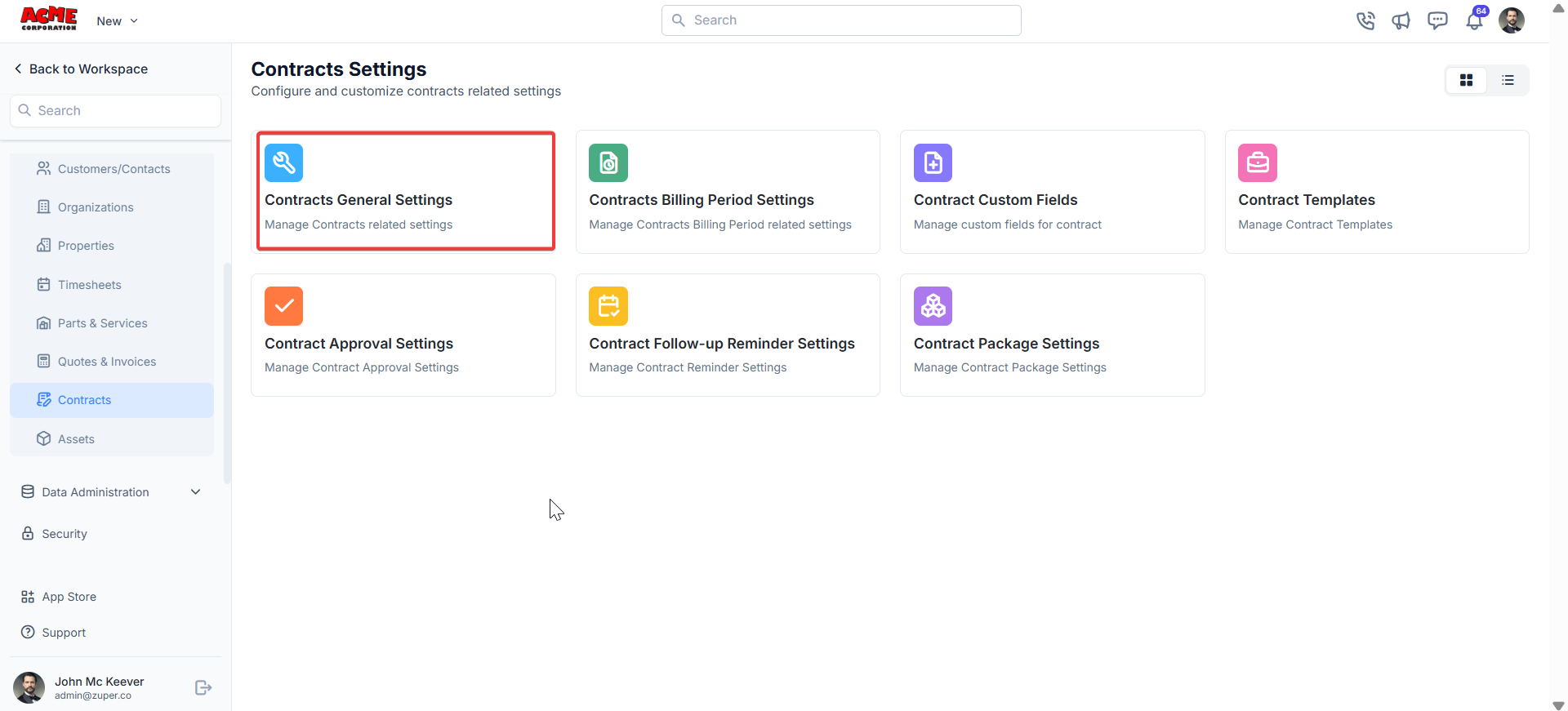 2. Enter the following details.
Contract Prefix – Define a prefix for the contract number.
Default Remarks for Contract: Add default remarks that will appear on all contracts.
Require Customer/Contact approval?: Toggle "**Yes**" or "**No**" to turn the customer/contact approval on or off.
Allow sending public link to Customers/Contacts?: Toggle "**Yes**" or "**No**" to allow/disallow sending contracts as a public link.
Notify Customer/Contact for Contract Approval?: Toggle "**Yes**" or "**No**" to notify or not notify the customer/contact for contract approval.
Allow Field Executive to view all Contracts?: Toggle "**Yes**" or "**No**" to allow/disallow the field executive to view all contracts.
Allow Team Leader to view all Contracts?: Toggle "**Yes**" or "**No**" to allow/disallow the team leader to view all contracts.
Default Contract PDF FileName: Set the default filename format for contract PDFs.
Choose Contract Component: Select components to include in contracts.
2. Enter the following details.
Contract Prefix – Define a prefix for the contract number.
Default Remarks for Contract: Add default remarks that will appear on all contracts.
Require Customer/Contact approval?: Toggle "**Yes**" or "**No**" to turn the customer/contact approval on or off.
Allow sending public link to Customers/Contacts?: Toggle "**Yes**" or "**No**" to allow/disallow sending contracts as a public link.
Notify Customer/Contact for Contract Approval?: Toggle "**Yes**" or "**No**" to notify or not notify the customer/contact for contract approval.
Allow Field Executive to view all Contracts?: Toggle "**Yes**" or "**No**" to allow/disallow the field executive to view all contracts.
Allow Team Leader to view all Contracts?: Toggle "**Yes**" or "**No**" to allow/disallow the team leader to view all contracts.
Default Contract PDF FileName: Set the default filename format for contract PDFs.
Choose Contract Component: Select components to include in contracts.
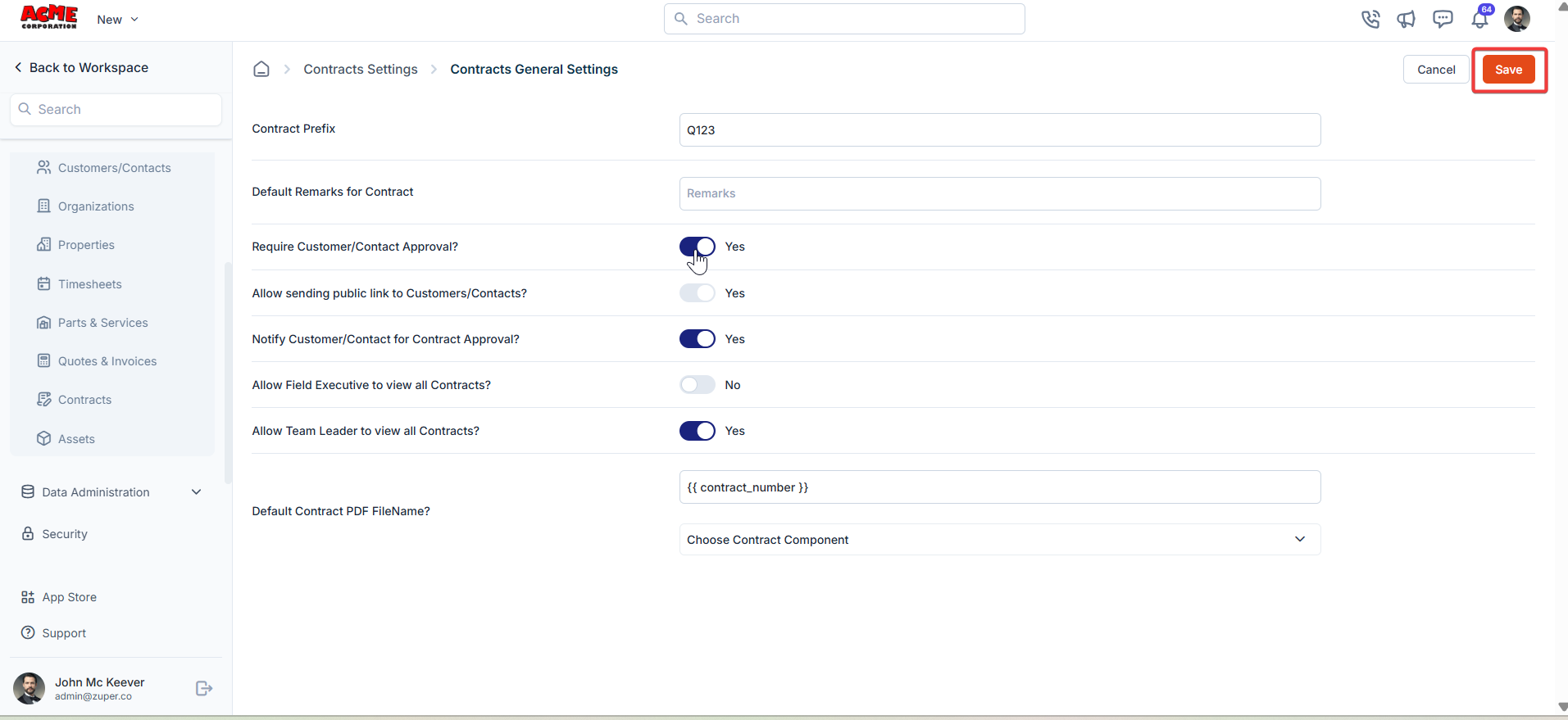 Click **Save** to apply changes.
## Contract billing period settings
Billing periods define how frequently invoices are generated for contracts.
**Navigation**: *Settings -> Modules -> Contracts - > Contracts Billing Period Settings*
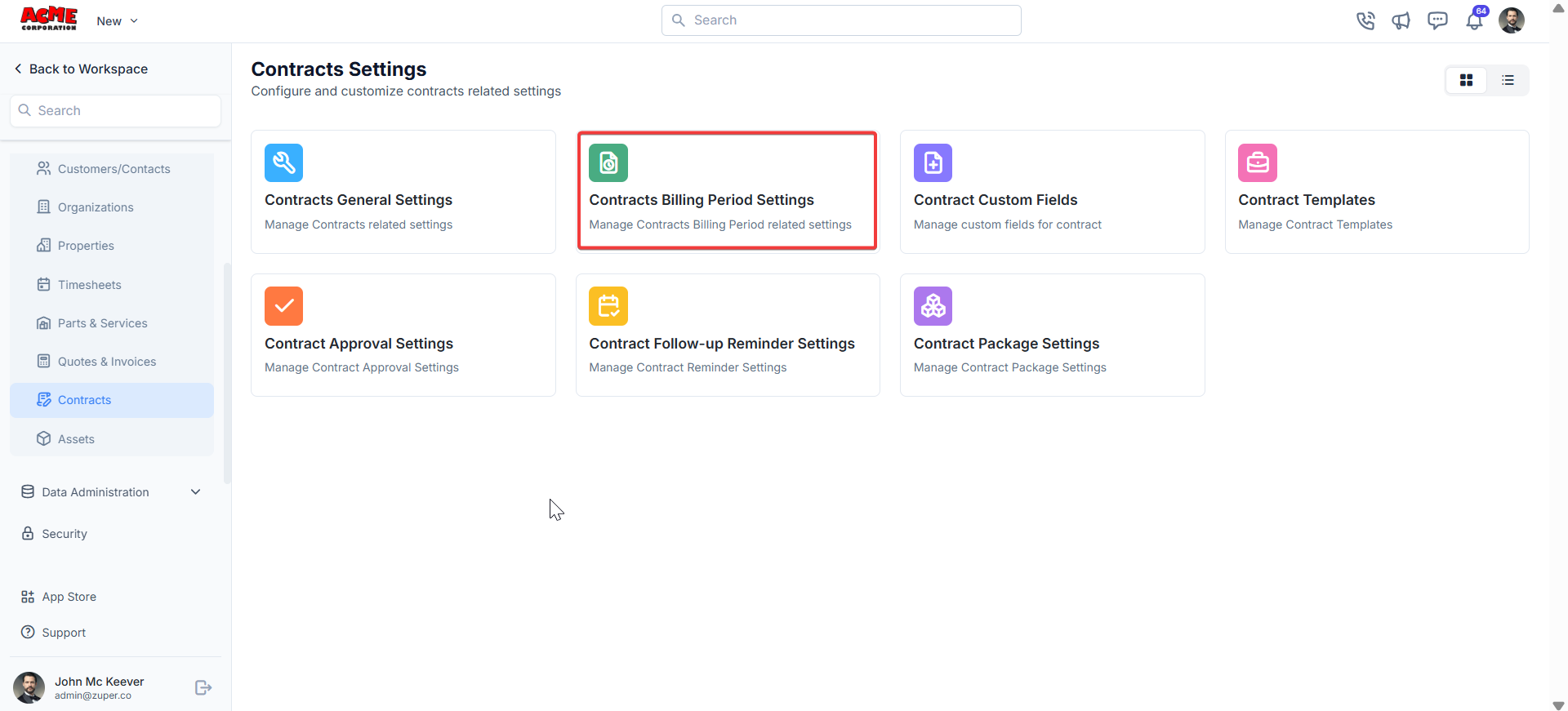
1. Select the "**Settings**" module from the left panel. Under the "**Modules**," choose the "**Contracts**." Select the "**Contract Billing Period Settings**."
Click **Save** to apply changes.
## Contract billing period settings
Billing periods define how frequently invoices are generated for contracts.
**Navigation**: *Settings -> Modules -> Contracts - > Contracts Billing Period Settings*
1. Select the "**Settings**" module from the left panel. Under the "**Modules**," choose the "**Contracts**." Select the "**Contract Billing Period Settings**."
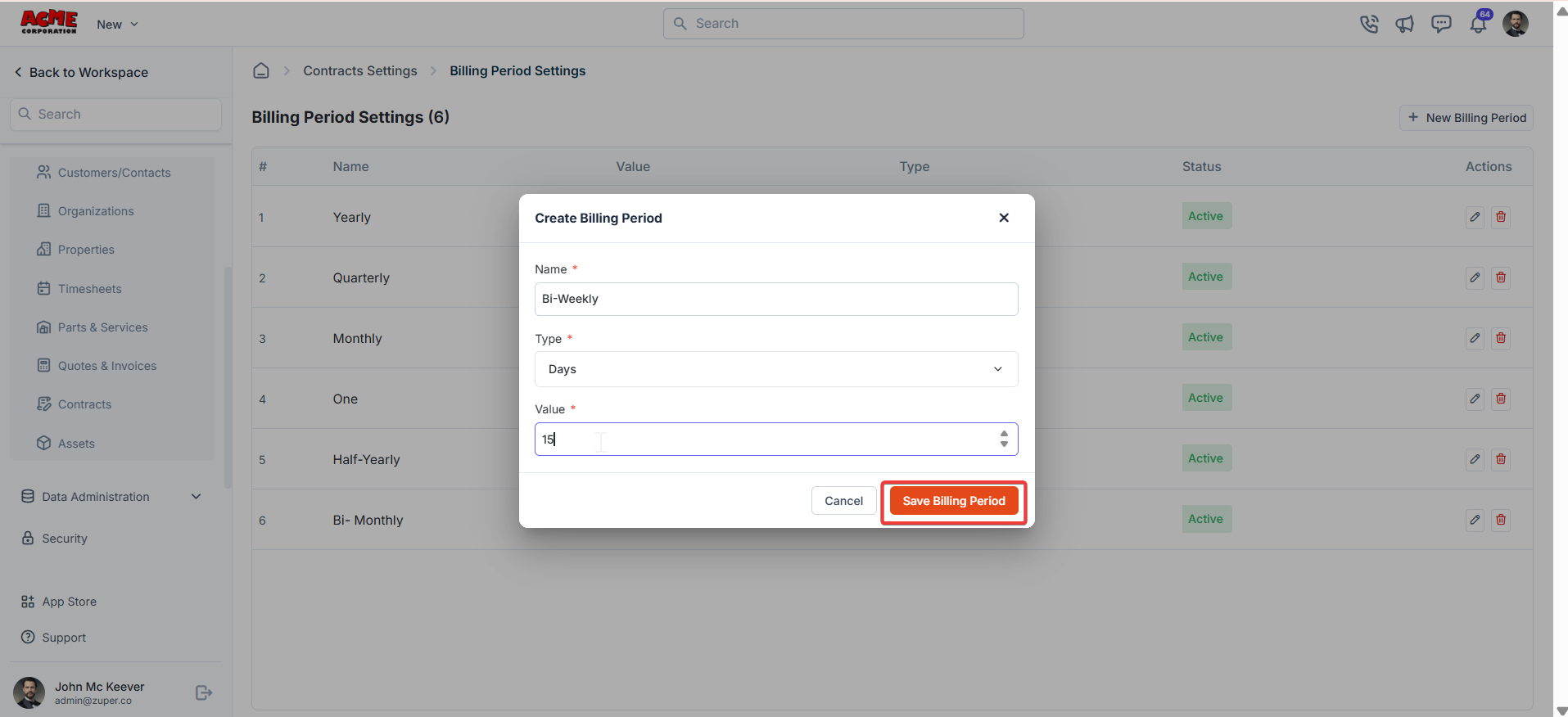
 2. Under billing period settings, click "**+ New Billing Period**" to create the billing period.
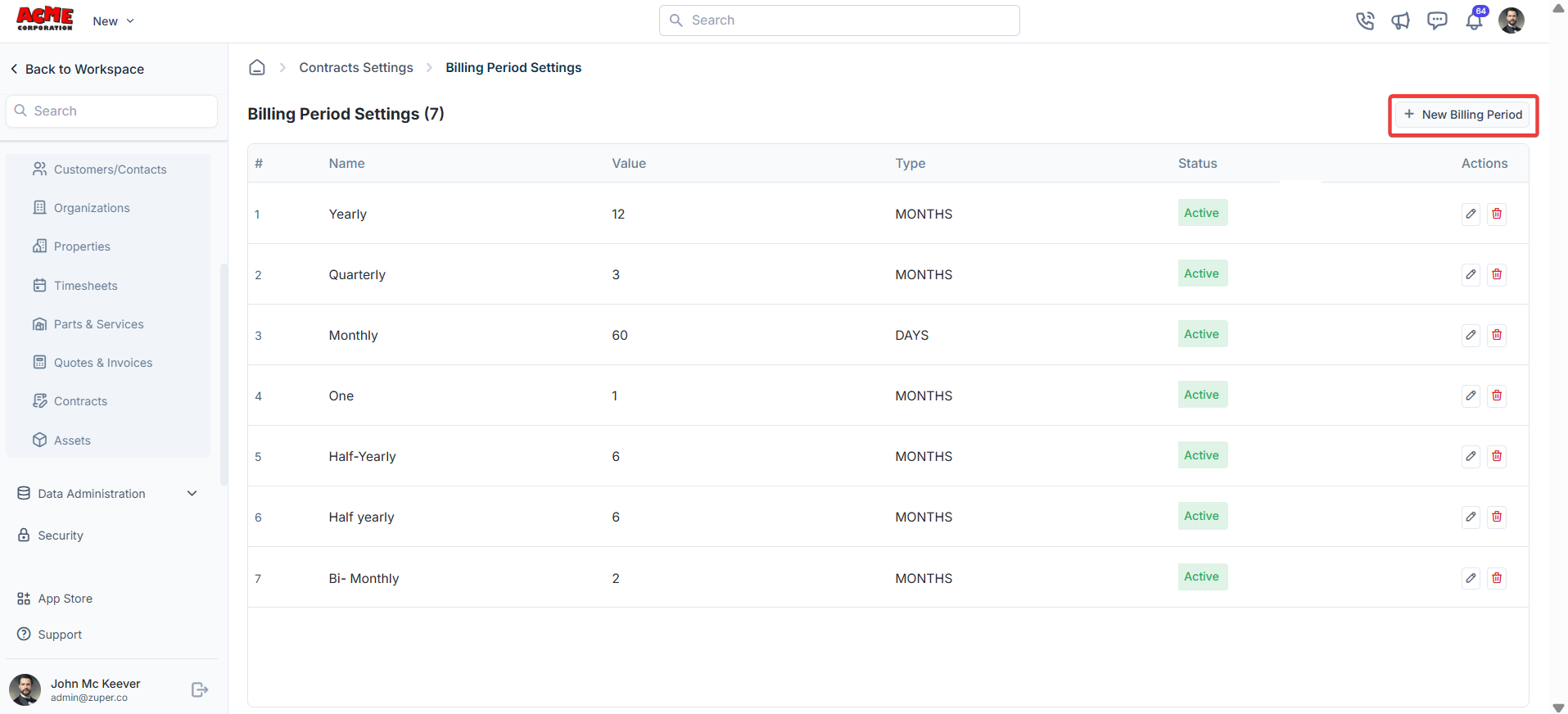 3. Fill in the billing period details – Name and Value. Choose the type (Days, Weeks, Months).
Click "**Save Billing Period** ."
3. Fill in the billing period details – Name and Value. Choose the type (Days, Weeks, Months).
Click "**Save Billing Period** ."
 ## **Contract custom fields**
**Navigation**: *Settings -> Modules -> Contracts - > Contract Custom Fields*
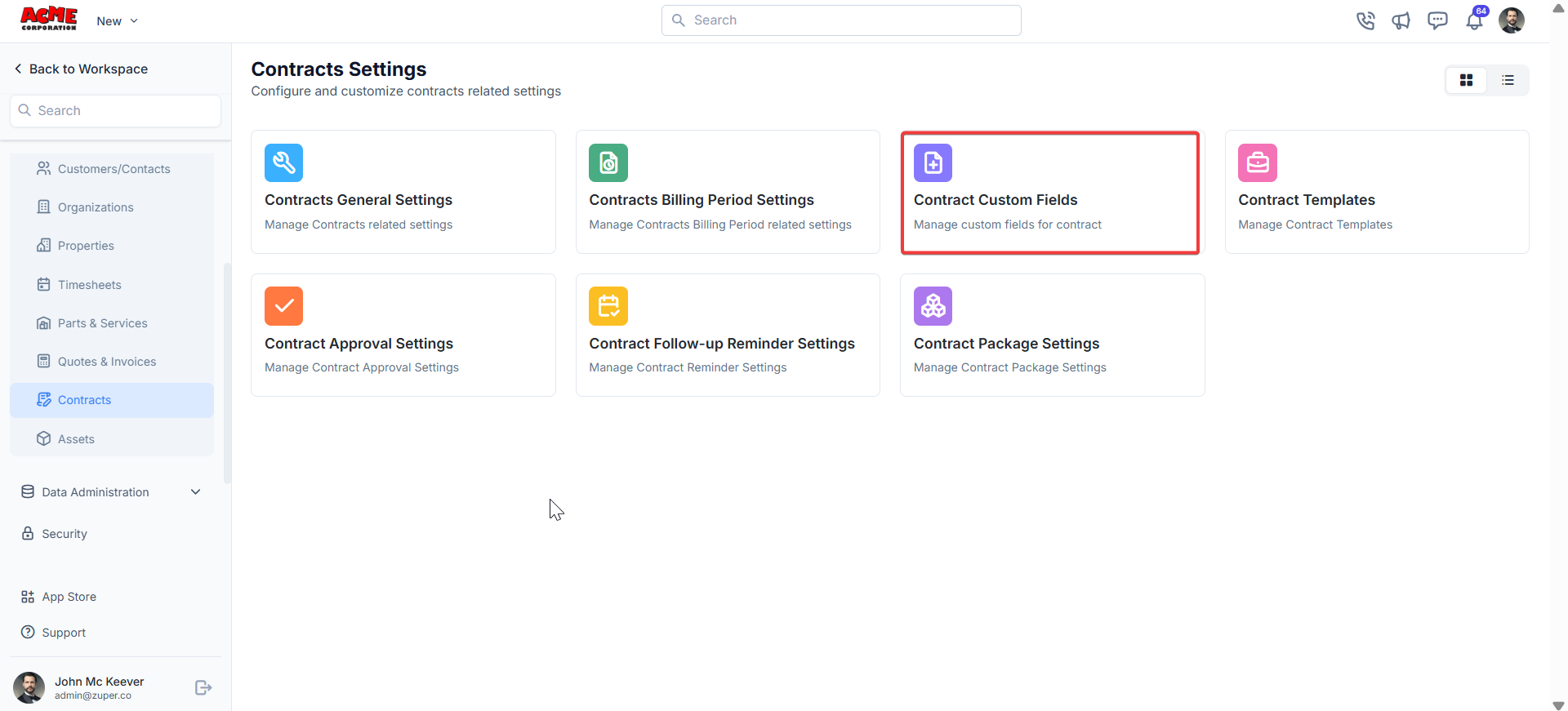
1. Select the "**Settings**" module from the left panel. Under the "**Modules**," choose the "**Contracts.**" Select the "**Contracts Custom Fields**."
## **Contract custom fields**
**Navigation**: *Settings -> Modules -> Contracts - > Contract Custom Fields*
1. Select the "**Settings**" module from the left panel. Under the "**Modules**," choose the "**Contracts.**" Select the "**Contracts Custom Fields**."
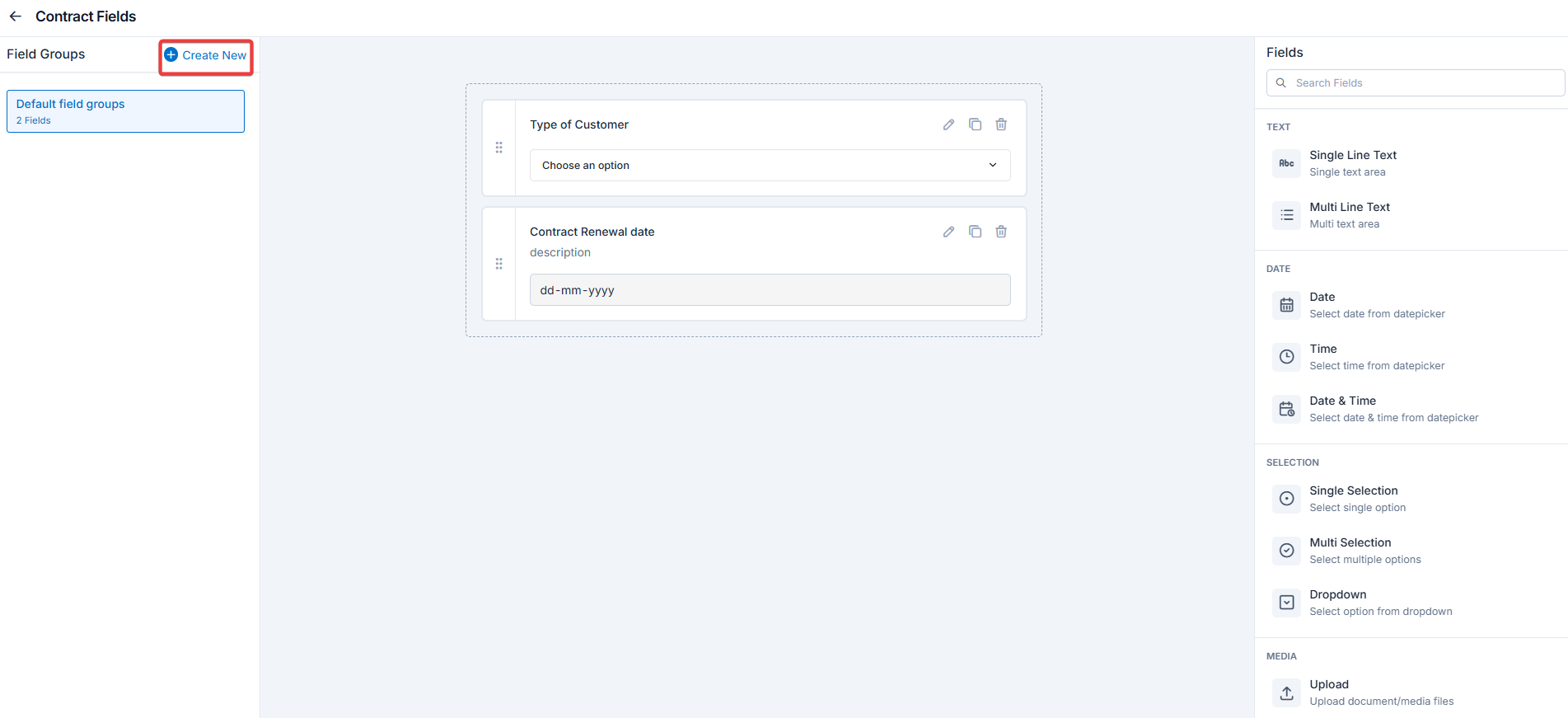
 Drag and drop the fields from the right panel.
Text
* Single-Line Input: This allows you to create a field to enter a single line of free text.
* Multi-Line Input: This allows you to create a field to enter multiple lines of free text.
Date
* Date Input: This allows you to create a field to select a specific date from a calendar.
* Time Input: This allows you to create a field where you can select a specific time.
* Date Time Input: This allows you to create a field where both date and time can be selected.
Selection
* Single-Selection: This allows you to create a radio input Field where one of the provided options can be selected.
* Multi-Selection: This allows you to create check boxes where the provided options can be checked.
* Drop-Down: This allows you to create a drop-down field with the required list of options.
Media
* Upload: This allows you to create a file input field to upload files.
Misc
* Look up : This allows you to create a file input field to look up the products from the parts and services module.
Note: You can also control the behavior and visibility of each field using the following options:
* Mark as Required Field - Makes the field mandatory to fill out before submitting the form.
* Mark as Read Only—This option makes the field non-editable; users can view the value but cannot modify it.
* Mark as hidden field- This hides the field from all users; it will not appear in the form interface.
* Hide to FE/Technician- This option makes the field invisible to technicians or front-end users during form access.
Click “**Create New**” to create the “**Custom Field**” group.
Drag and drop the fields from the right panel.
Text
* Single-Line Input: This allows you to create a field to enter a single line of free text.
* Multi-Line Input: This allows you to create a field to enter multiple lines of free text.
Date
* Date Input: This allows you to create a field to select a specific date from a calendar.
* Time Input: This allows you to create a field where you can select a specific time.
* Date Time Input: This allows you to create a field where both date and time can be selected.
Selection
* Single-Selection: This allows you to create a radio input Field where one of the provided options can be selected.
* Multi-Selection: This allows you to create check boxes where the provided options can be checked.
* Drop-Down: This allows you to create a drop-down field with the required list of options.
Media
* Upload: This allows you to create a file input field to upload files.
Misc
* Look up : This allows you to create a file input field to look up the products from the parts and services module.
Note: You can also control the behavior and visibility of each field using the following options:
* Mark as Required Field - Makes the field mandatory to fill out before submitting the form.
* Mark as Read Only—This option makes the field non-editable; users can view the value but cannot modify it.
* Mark as hidden field- This hides the field from all users; it will not appear in the form interface.
* Hide to FE/Technician- This option makes the field invisible to technicians or front-end users during form access.
Click “**Create New**” to create the “**Custom Field**” group.
 ## **Contract templates**
Contract templates allow you to standardize contract formats for consistency.
**Navigation**: *Settings -> Modules -> Contracts - > Contracts Templates*
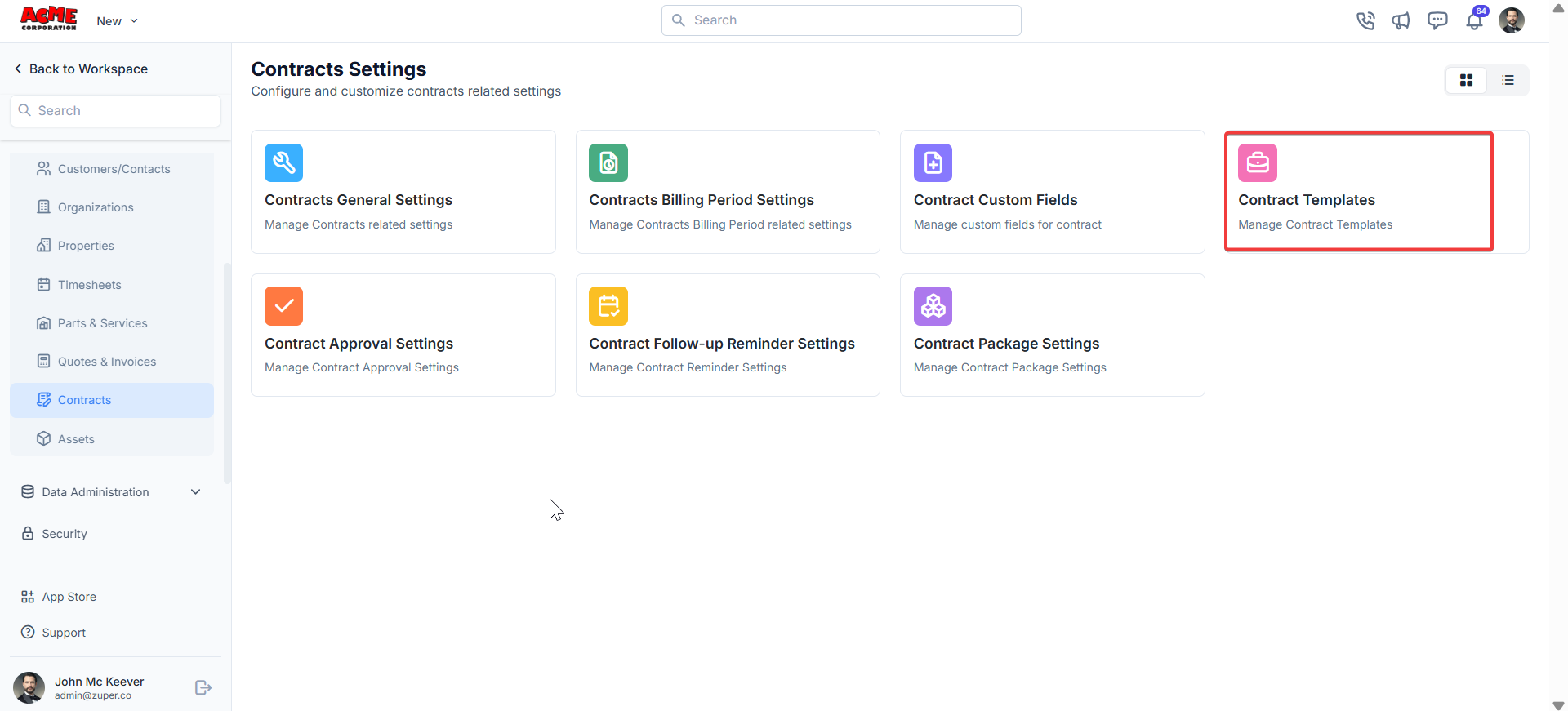
1. Select the "**Settings**" module from the left panel. Under the "**Modules**," choose the "**Contracts**." Select the "**Contract Templates**."
## **Contract templates**
Contract templates allow you to standardize contract formats for consistency.
**Navigation**: *Settings -> Modules -> Contracts - > Contracts Templates*
1. Select the "**Settings**" module from the left panel. Under the "**Modules**," choose the "**Contracts**." Select the "**Contract Templates**."
 2. Click "**+ New Template**" to create the new template.
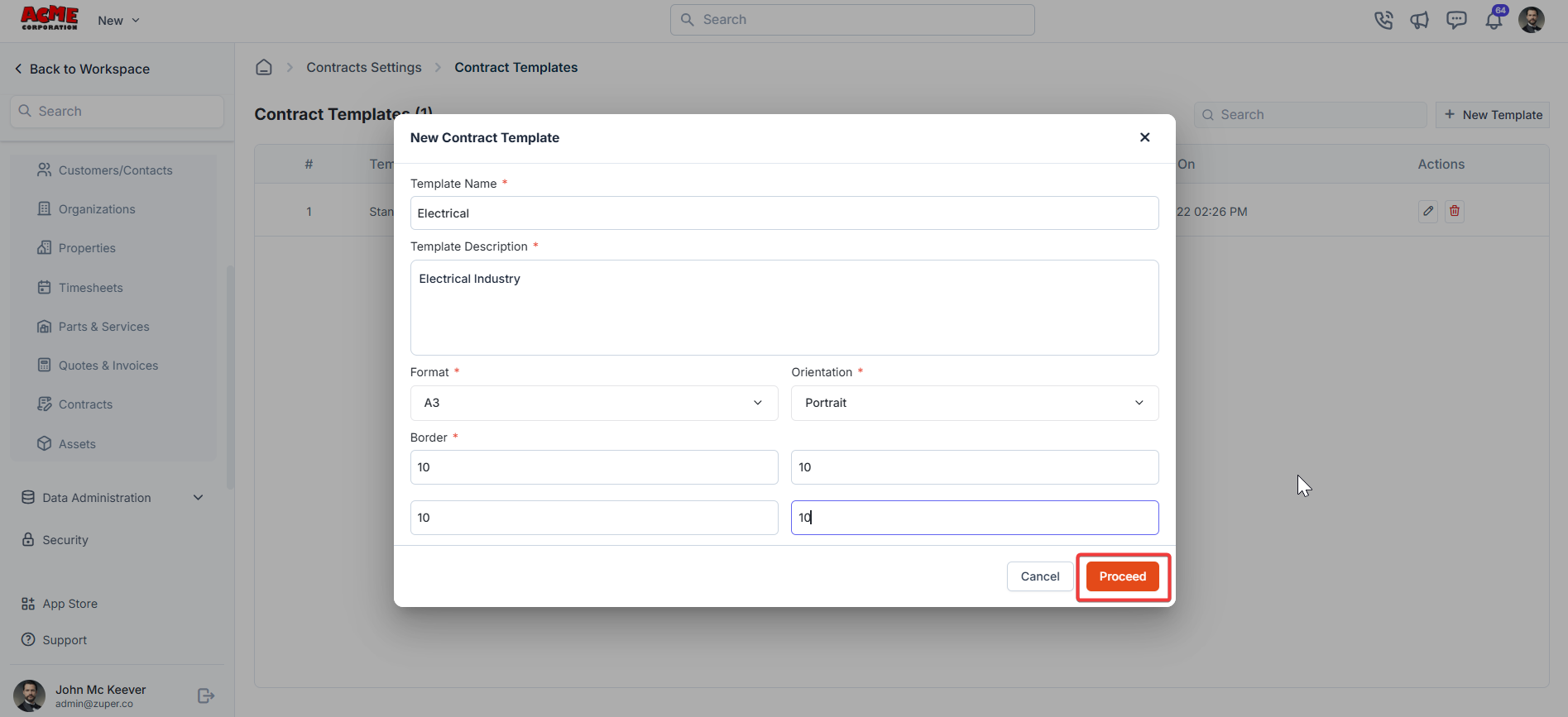
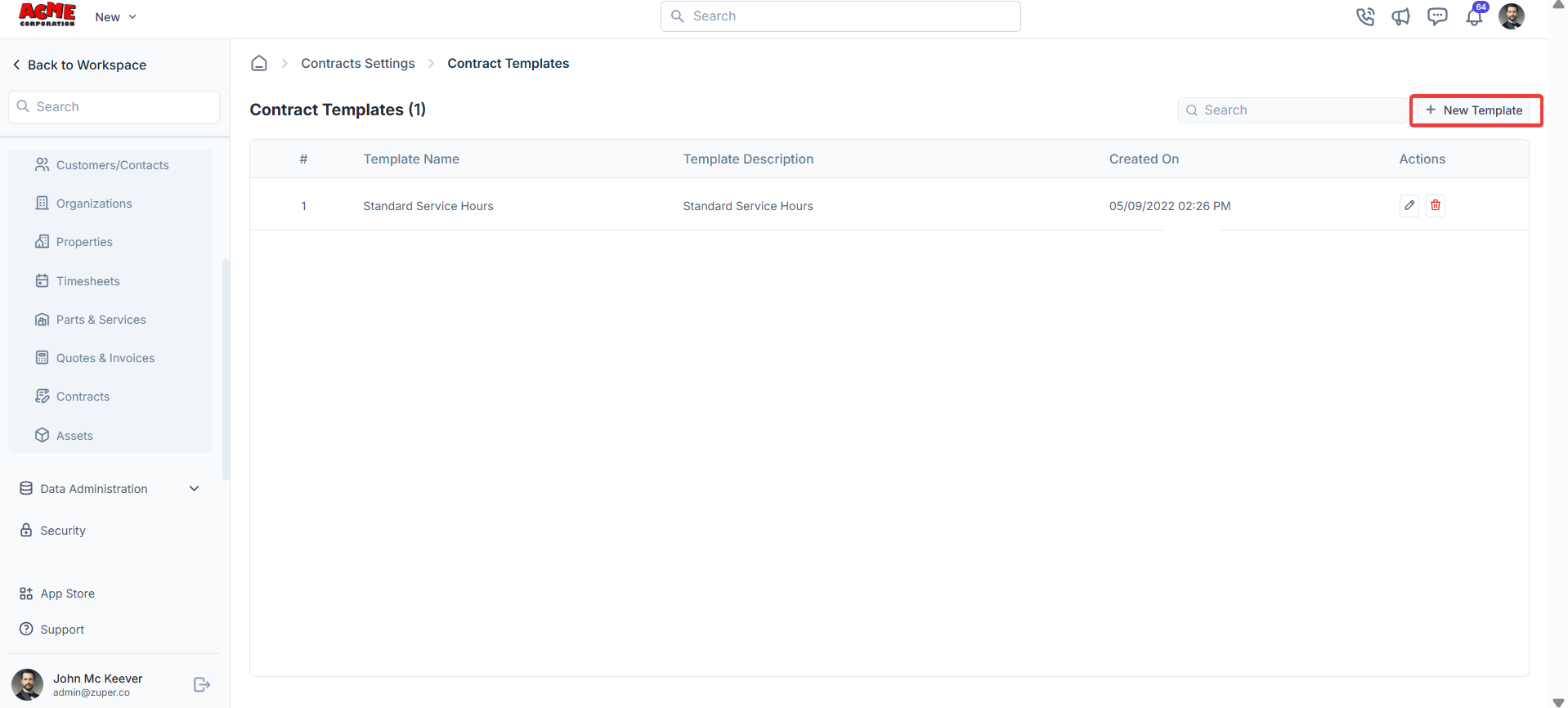 3. Fill in the template details and click "**Save Template**."
 ## **Contract approval settings**
Approval settings control how contracts are approved within your organization.
**Navigation**: *Settings -> Modules -> Contracts - > Contracts Approval Settings*
1. Select the "**Settings**" module from the left panel. Under the "**Modules**," choose the "**Contracts**." Select the "**Contract Approval Settings**."
## **Contract approval settings**
Approval settings control how contracts are approved within your organization.
**Navigation**: *Settings -> Modules -> Contracts - > Contracts Approval Settings*
1. Select the "**Settings**" module from the left panel. Under the "**Modules**," choose the "**Contracts**." Select the "**Contract Approval Settings**."
 2. Navigate to Timesheet Approval to manage approval hierarchies.
* Add a new hierarchy by clicking + New Approval Hierarchy.
2. Navigate to Timesheet Approval to manage approval hierarchies.
* Add a new hierarchy by clicking + New Approval Hierarchy.
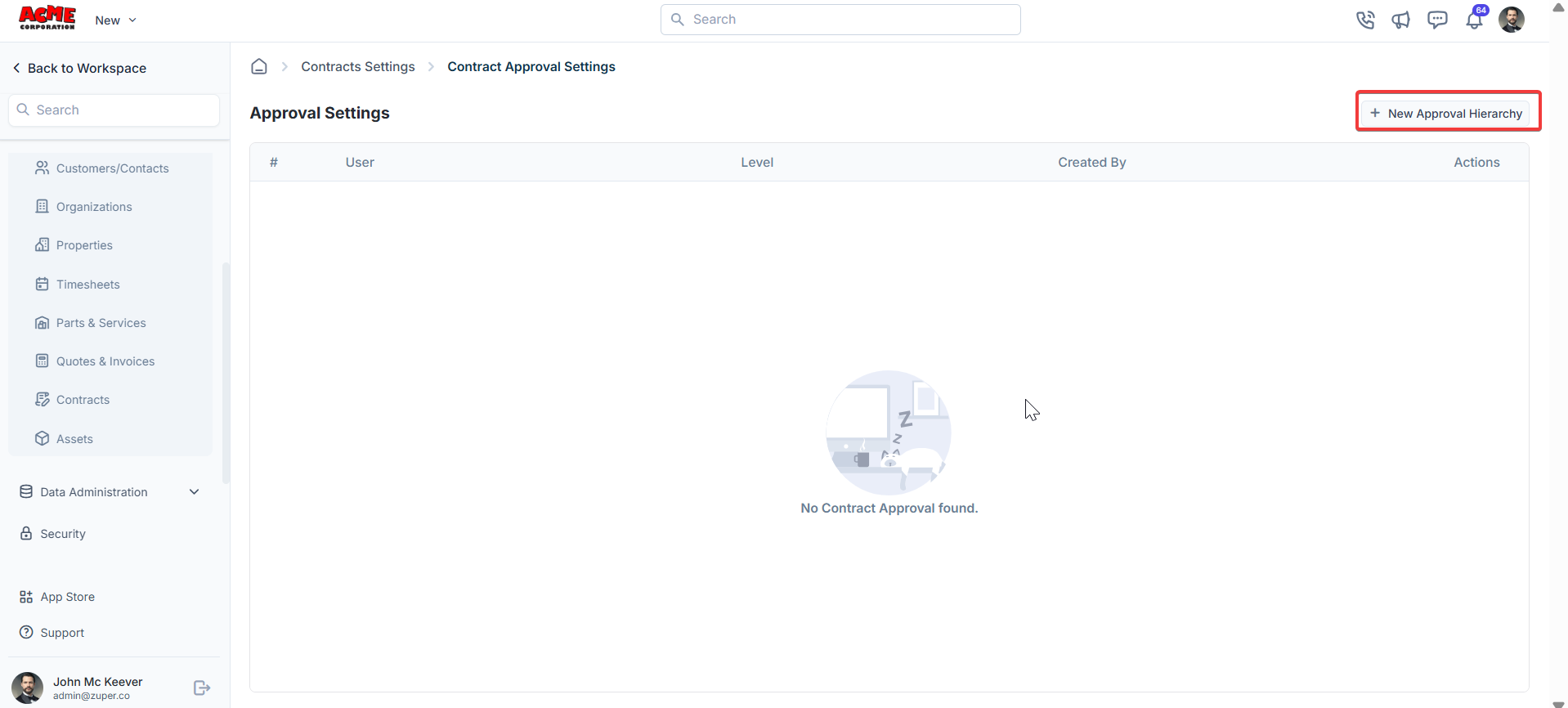 * Assign users and levels for approval (For instance, John McKeever at Level 1).
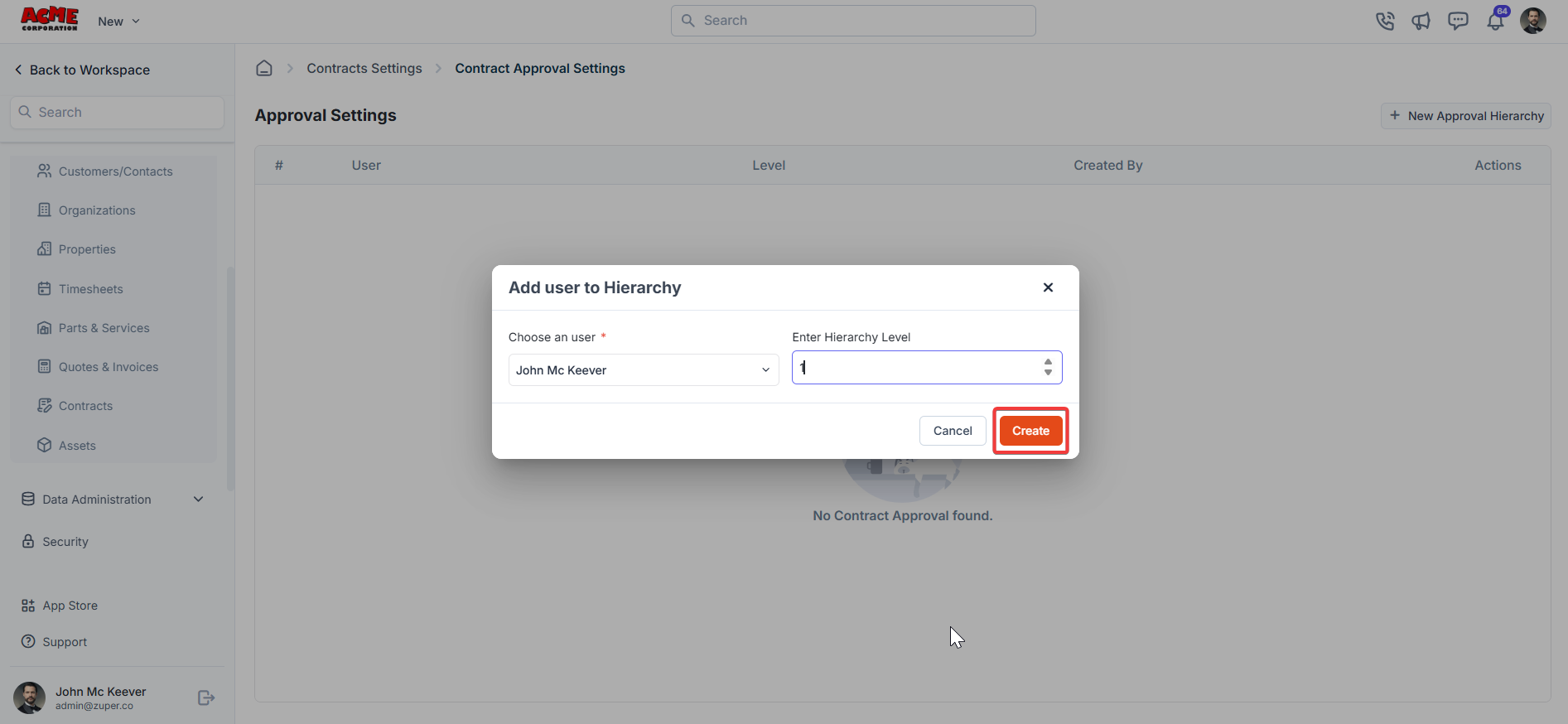 Click "**Create**" to create the approval hierarchy.
## **Follow-up reminders**
**Navigation**: *Settings -> Modules -> Contracts - > Contracts Follow up reminders*
The users can instantly send follow-up reminders before or after a particular date via SMS or Email.
1. Select the "**Settings**" module from the left panel. Under the "**Module**s," Choose the "**Contracts**." Select the "**Contract** **Follow-up Reminders** ."
Click "**Create**" to create the approval hierarchy.
## **Follow-up reminders**
**Navigation**: *Settings -> Modules -> Contracts - > Contracts Follow up reminders*
The users can instantly send follow-up reminders before or after a particular date via SMS or Email.
1. Select the "**Settings**" module from the left panel. Under the "**Module**s," Choose the "**Contracts**." Select the "**Contract** **Follow-up Reminders** ."
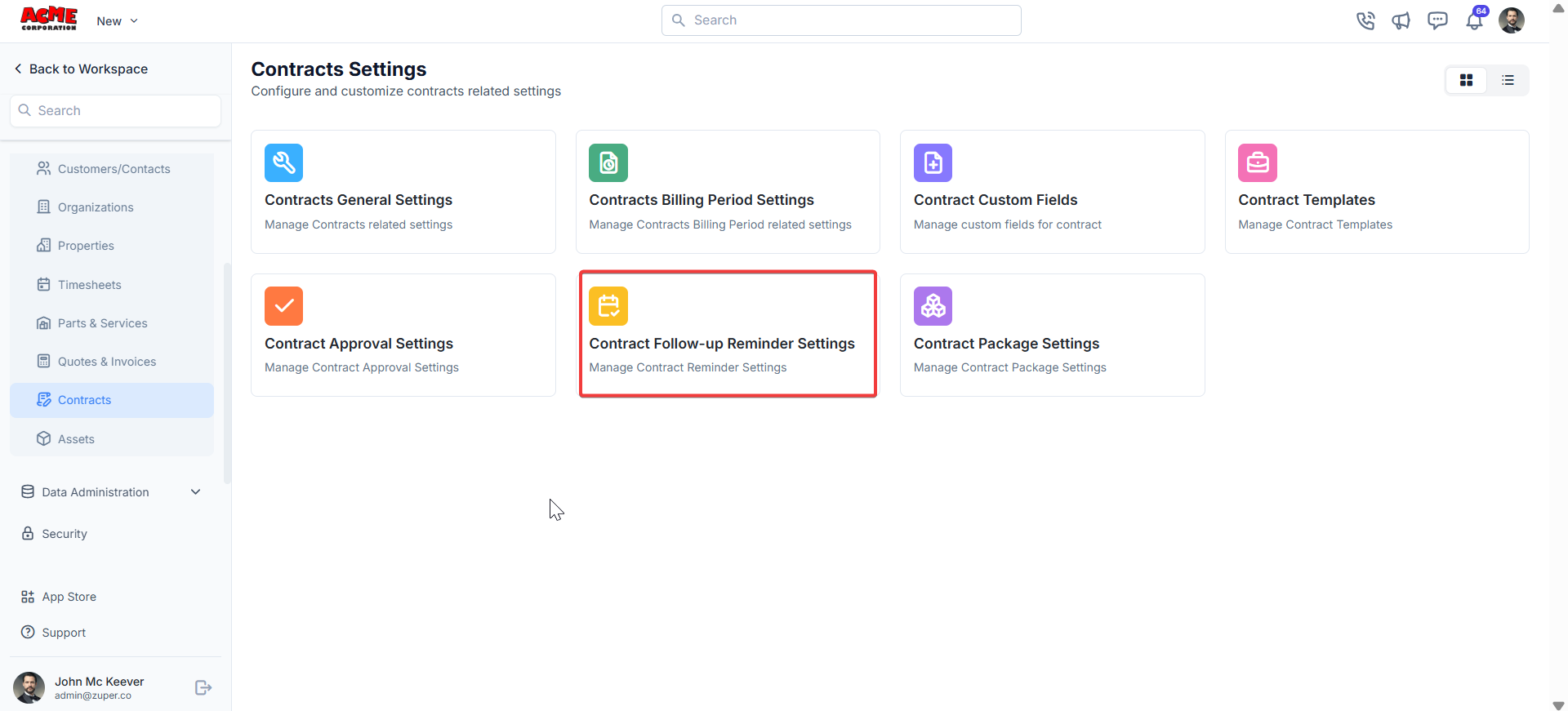 2. Click " **+ New Reminder** " to create the follow-up reminder.
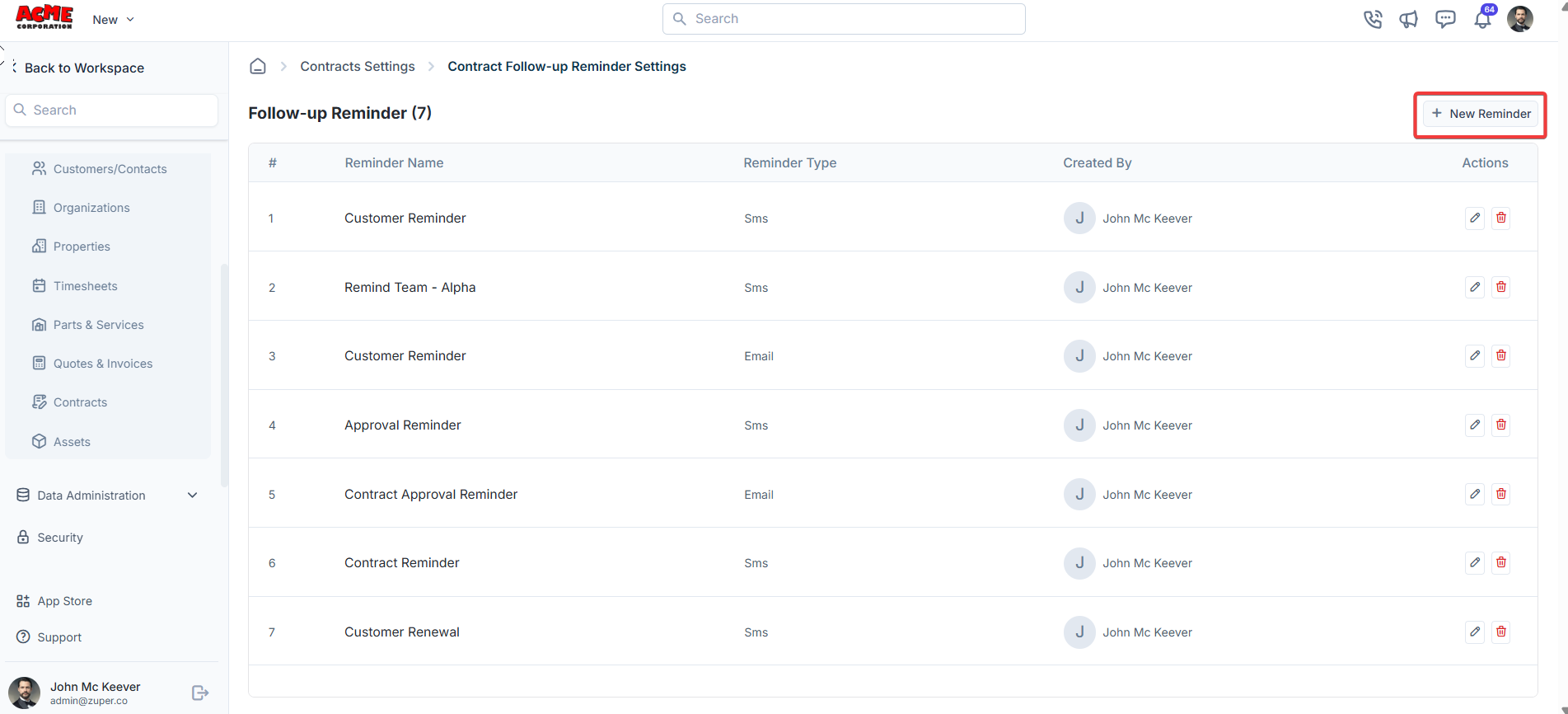 3. a) Under "**Remind To**"-The user can send a follow-up reminder to the back office and the customer. The drop-down box lists: "**Customer**," "**Selected Users**," and "**Selected Teams**."
b) Under "**Reminder Name**" - Type the name for the reminder.
c) Under "**Remind After / Remind Before**" -The reminder can be sent "**Before**"\
or "**After**."\
d) **Remind At** – Enter the time of the reminder.\
e) Under "**Reminder Type**" -The reminder type can be either "SMS" or "Email."\
f) **SMS Body** & **Available Components** – Choose the available components and create the SMS body.
3. a) Under "**Remind To**"-The user can send a follow-up reminder to the back office and the customer. The drop-down box lists: "**Customer**," "**Selected Users**," and "**Selected Teams**."
b) Under "**Reminder Name**" - Type the name for the reminder.
c) Under "**Remind After / Remind Before**" -The reminder can be sent "**Before**"\
or "**After**."\
d) **Remind At** – Enter the time of the reminder.\
e) Under "**Reminder Type**" -The reminder type can be either "SMS" or "Email."\
f) **SMS Body** & **Available Components** – Choose the available components and create the SMS body.
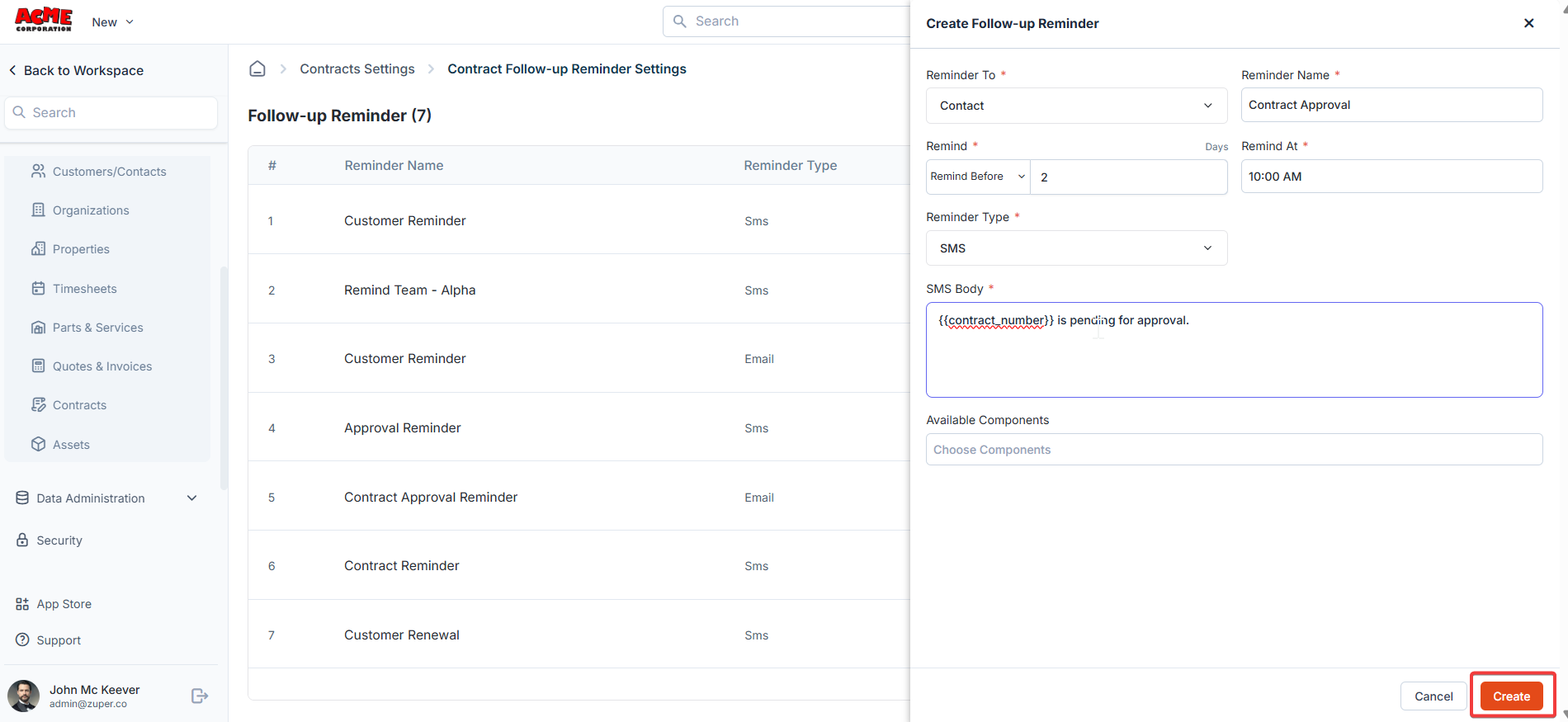 Click "**Create**" to create the follow-up reminder.
## Contract packages
Contract packages allow you to bundle multiple contracts, templates, and settings into a single package for streamlined management.
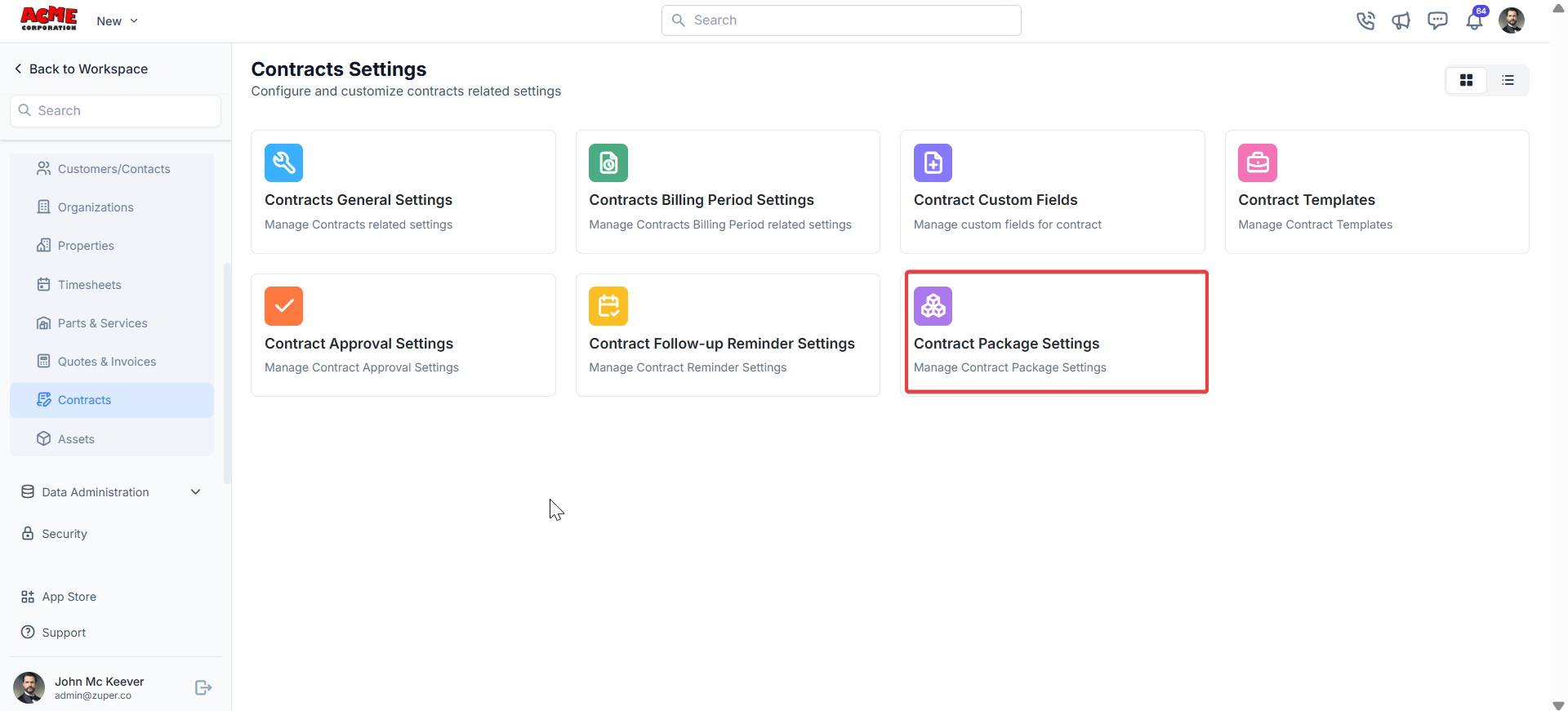
**Navigation**: *Settings -> Modules -> Contracts - > Contract Packages*
Click the "**+ New Contract Package**" button in the top-right corner. A dialog box titled "**Create Contract Package**" will appear.
Click "**Create**" to create the follow-up reminder.
## Contract packages
Contract packages allow you to bundle multiple contracts, templates, and settings into a single package for streamlined management.
**Navigation**: *Settings -> Modules -> Contracts - > Contract Packages*
Click the "**+ New Contract Package**" button in the top-right corner. A dialog box titled "**Create Contract Package**" will appear.
 Fill in the following fields:
* Package Prefix: Define a prefix for the contract.
* Package Name: Enter a name for the package.
* Description: Provide a description.
* Contract Terms: Enter the contract terms in months.
* Contract Templates: Choose the contract templates to associate with this package.
* Click the "**+ Add**" button to add individual parts, products, and services. Alternatively, use the drop-down menu next to the "+ Add" button to:
Add from Group: Select a predefined group of items to add to the package.
Bundle: Add a product or service bundle. Note that bundles added here will not appear as a product type in the filter menu.
* Billing Period: Assign a billing period from the drop-down menu.
* Generate Invoice Before Days: Enter the days before the invoice can be
generated.
* Payment term: Choose the payment term from the drop-down menu.
* Invoice Template: Choose the template from the drop-down menu.
* Automatically Generate Invoice: Toggle "**Yes**" or "**No**" to turn the automatic invoice generation on or off.
* Send Invoice to Contact: Toggle "**Yes**" or "**No**" to turn the automatic invoice sending to the contact on or off.
Fill in the following fields:
* Package Prefix: Define a prefix for the contract.
* Package Name: Enter a name for the package.
* Description: Provide a description.
* Contract Terms: Enter the contract terms in months.
* Contract Templates: Choose the contract templates to associate with this package.
* Click the "**+ Add**" button to add individual parts, products, and services. Alternatively, use the drop-down menu next to the "+ Add" button to:
Add from Group: Select a predefined group of items to add to the package.
Bundle: Add a product or service bundle. Note that bundles added here will not appear as a product type in the filter menu.
* Billing Period: Assign a billing period from the drop-down menu.
* Generate Invoice Before Days: Enter the days before the invoice can be
generated.
* Payment term: Choose the payment term from the drop-down menu.
* Invoice Template: Choose the template from the drop-down menu.
* Automatically Generate Invoice: Toggle "**Yes**" or "**No**" to turn the automatic invoice generation on or off.
* Send Invoice to Contact: Toggle "**Yes**" or "**No**" to turn the automatic invoice sending to the contact on or off.
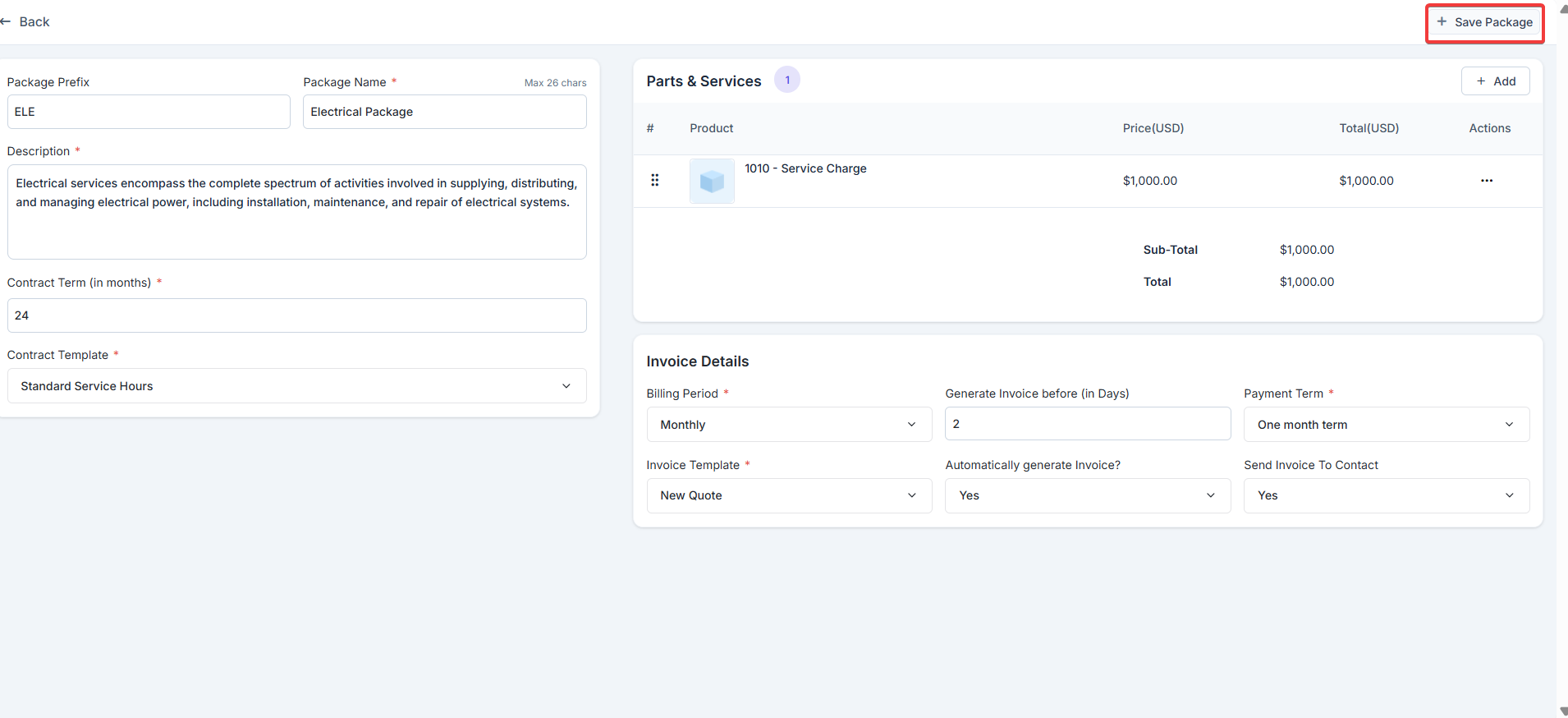 Click + **Save** **Packag**e to create the package.