> ## Documentation Index
> Fetch the complete documentation index at: https://docs.zuper.co/llms.txt
> Use this file to discover all available pages before exploring further.
# Login using Google
Sign in to Zuper with your Google account for a quick, secure experience. This article shows admins how to enable Google sign-in and walks users through logging in on the web and the mobile app.
## How do you enable sign-in with Google for your organization?
An admin with permission can manage Security settings.
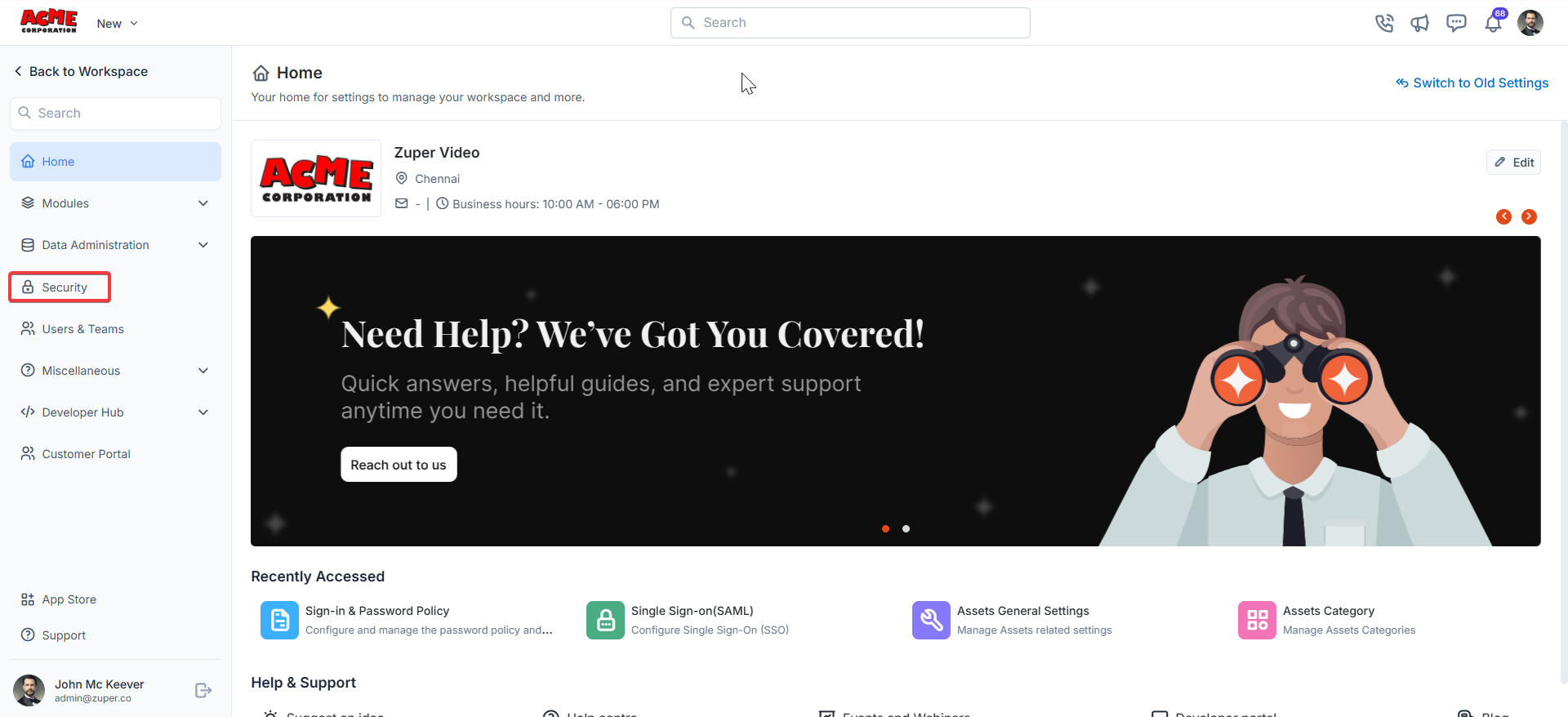
1. Log in to your Zuper account. Under Settings, select the “**Security**” module from the left navigation menu.
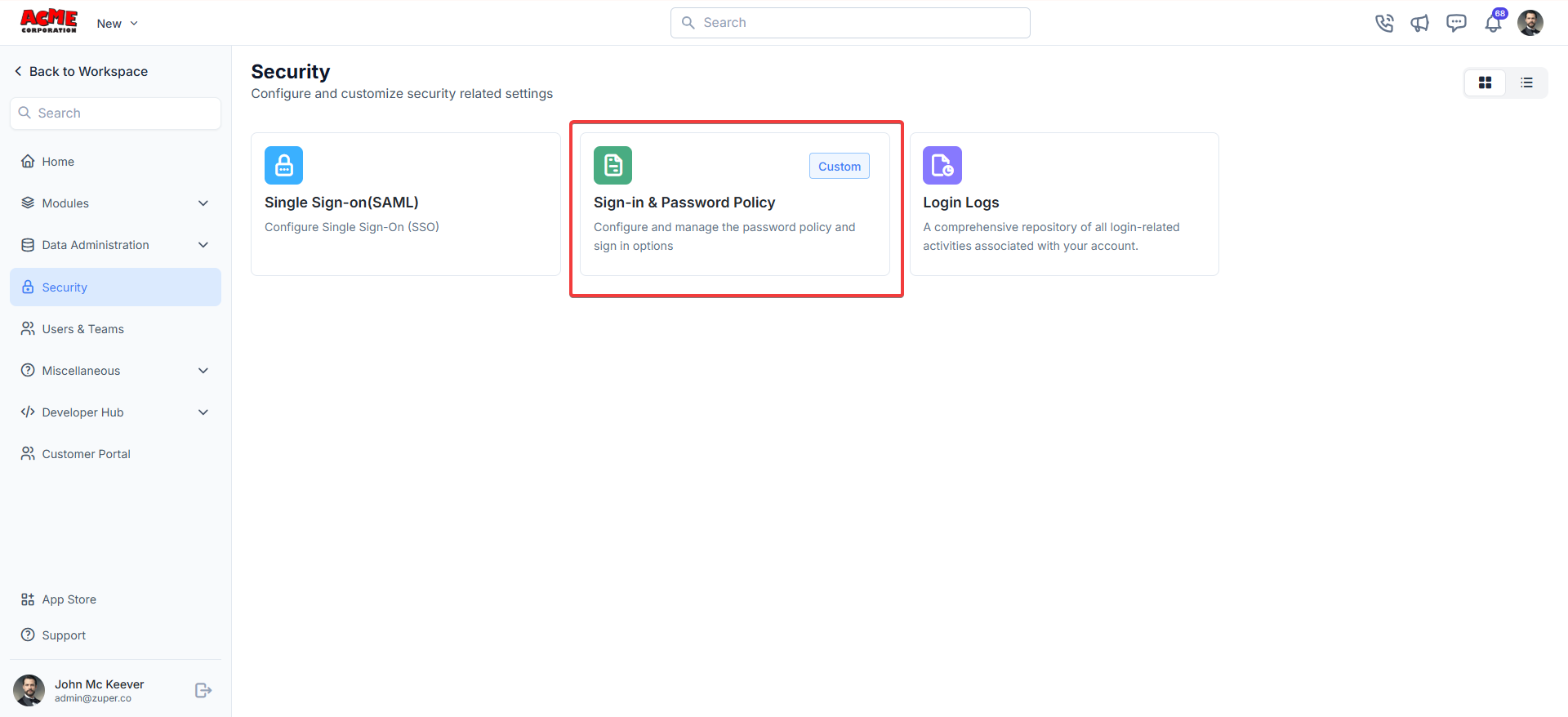
 2. In the Security module, click **Sign-in & Password Policy**. This section lets you manage your organization's sign-in methods and password policies.
 3. Scroll to the bottom and find Enable Sign in with Google? Choose Yes from the dropdown. Click "**Save**" from the top right.
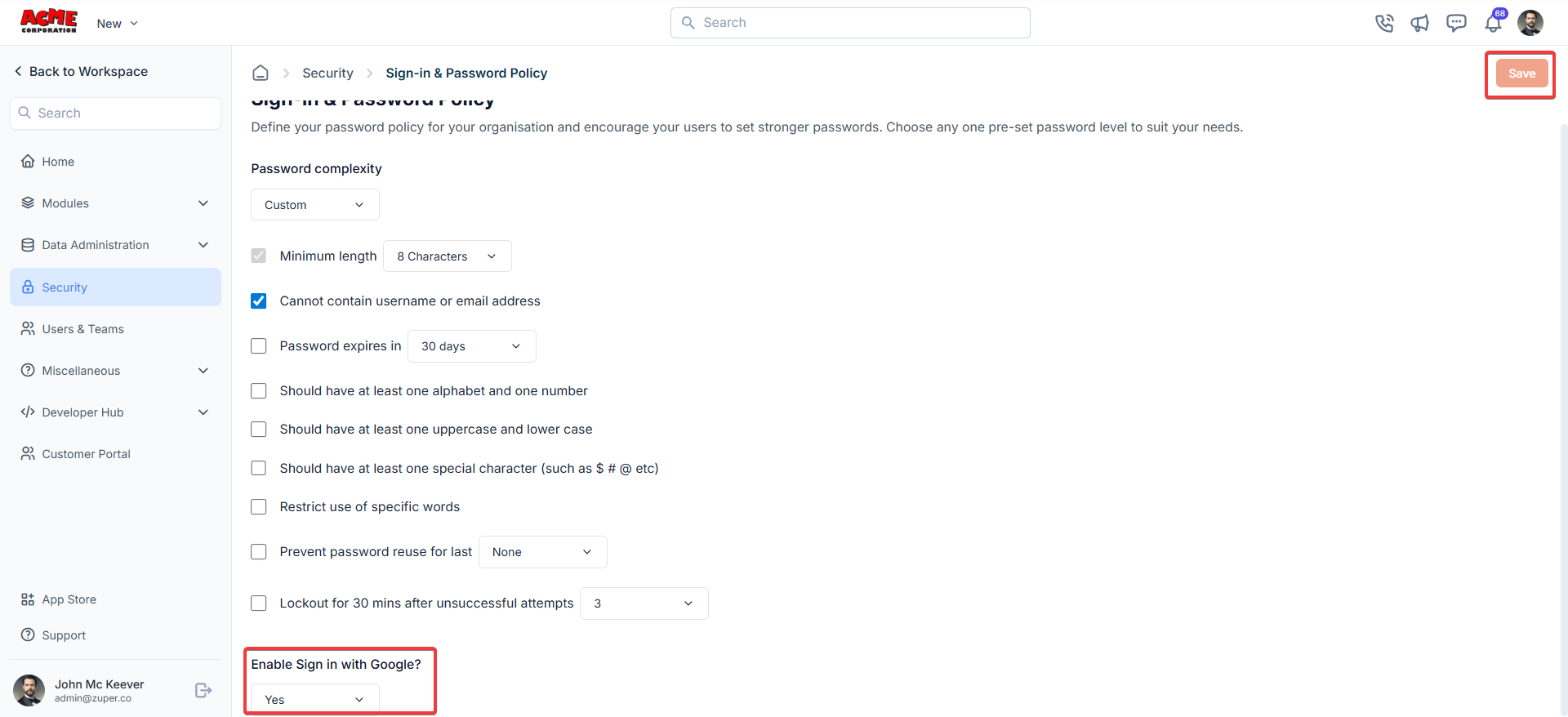 **Note**: To disable it later, set "**Enable Sign in with Google?**" to "**No**" and save. The button is removed; existing sessions remain active until they expire or the user signs out.
## Google login using Zuper Web App
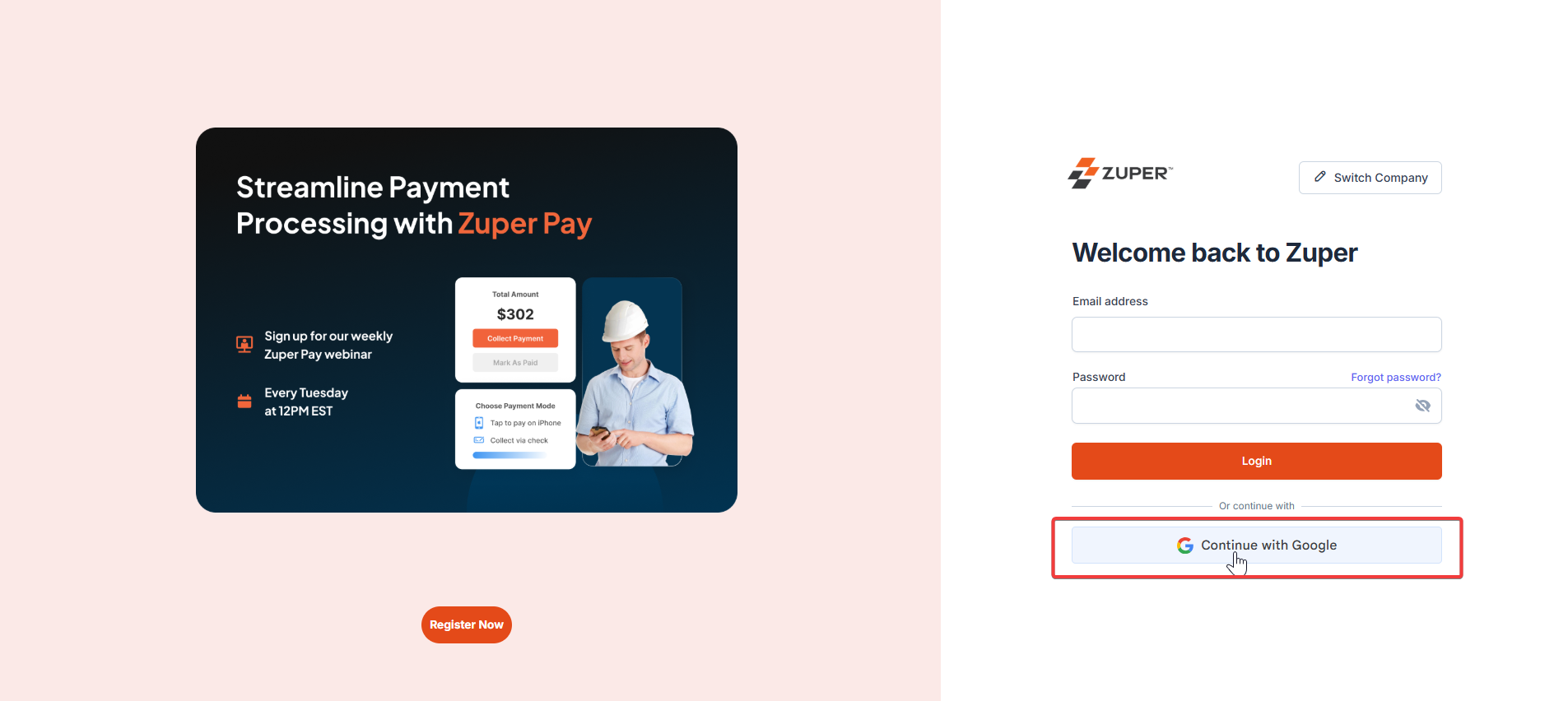
1. Open your web browser and go to [https://web.zuperpro.com/login](https://web.zuperpro.com/login). Enter the company name, and you will be redirected to the login page.
Click the **Continue** \*\*with Google \*\*button below the username & password fields.
**Note**: To disable it later, set "**Enable Sign in with Google?**" to "**No**" and save. The button is removed; existing sessions remain active until they expire or the user signs out.
## Google login using Zuper Web App
1. Open your web browser and go to [https://web.zuperpro.com/login](https://web.zuperpro.com/login). Enter the company name, and you will be redirected to the login page.
Click the **Continue** \*\*with Google \*\*button below the username & password fields.
 2. You will be redirected to the Google sign-in screen, where you can enter your Google credentials to proceed.
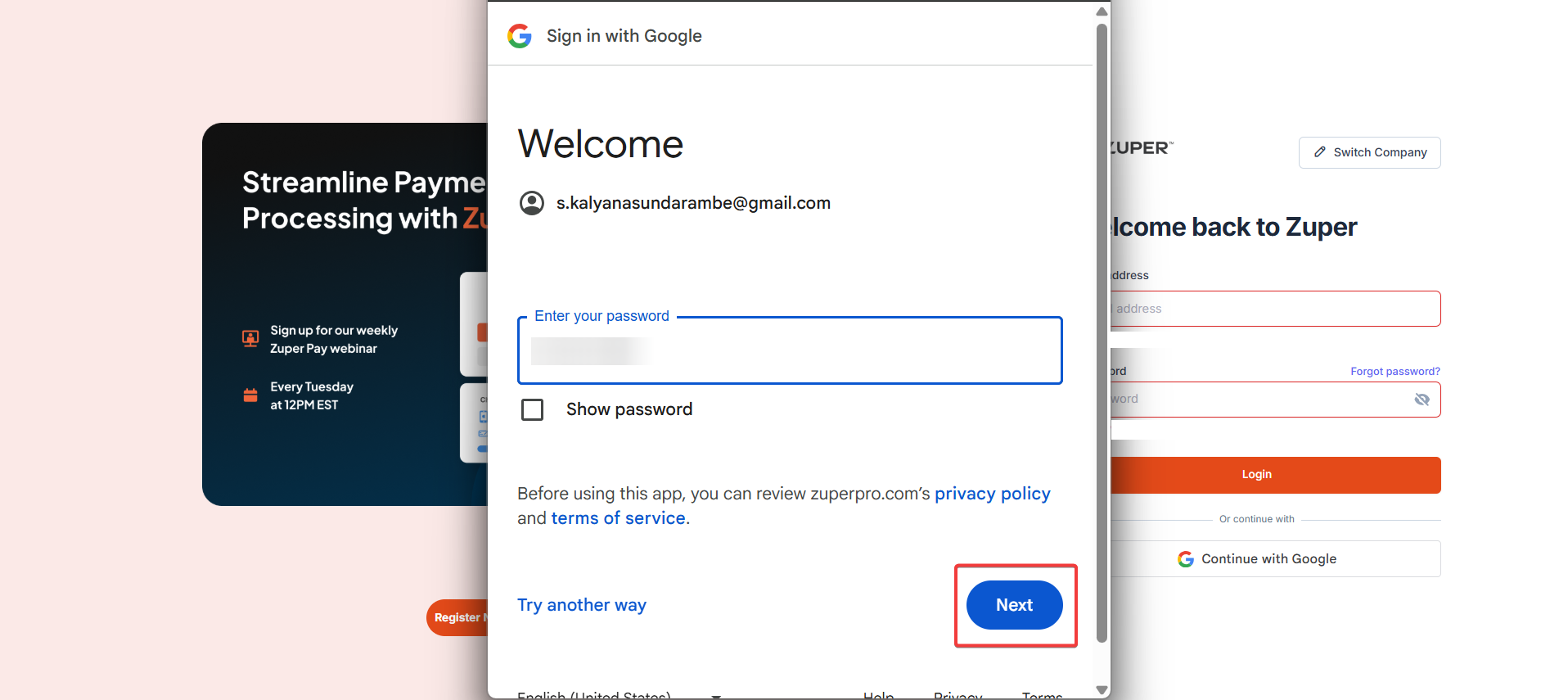
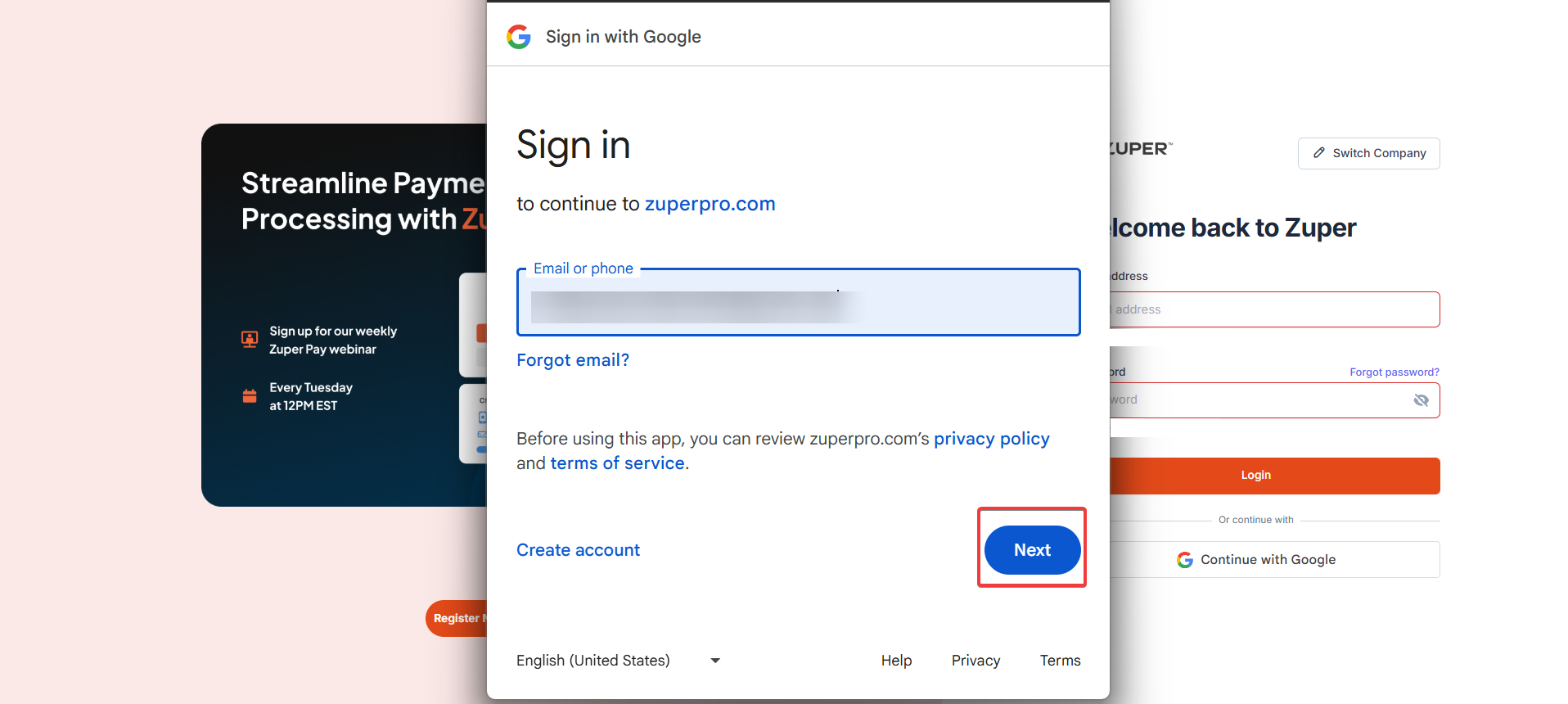 3. Enter your Google password (or approve a passkey/2‑Step Verification), then click Next.
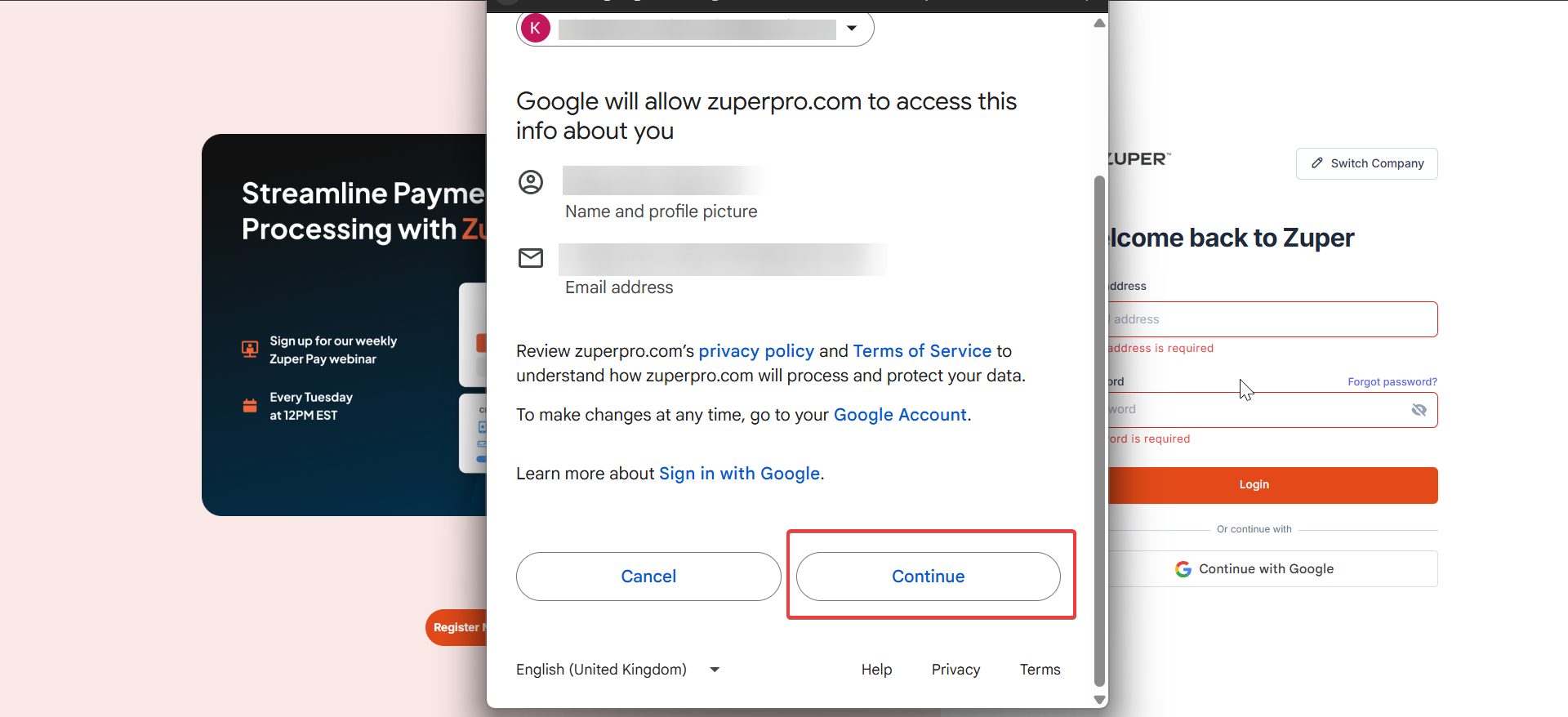
 4. Review the access request (name and email address) when prompted and click **Continue**.
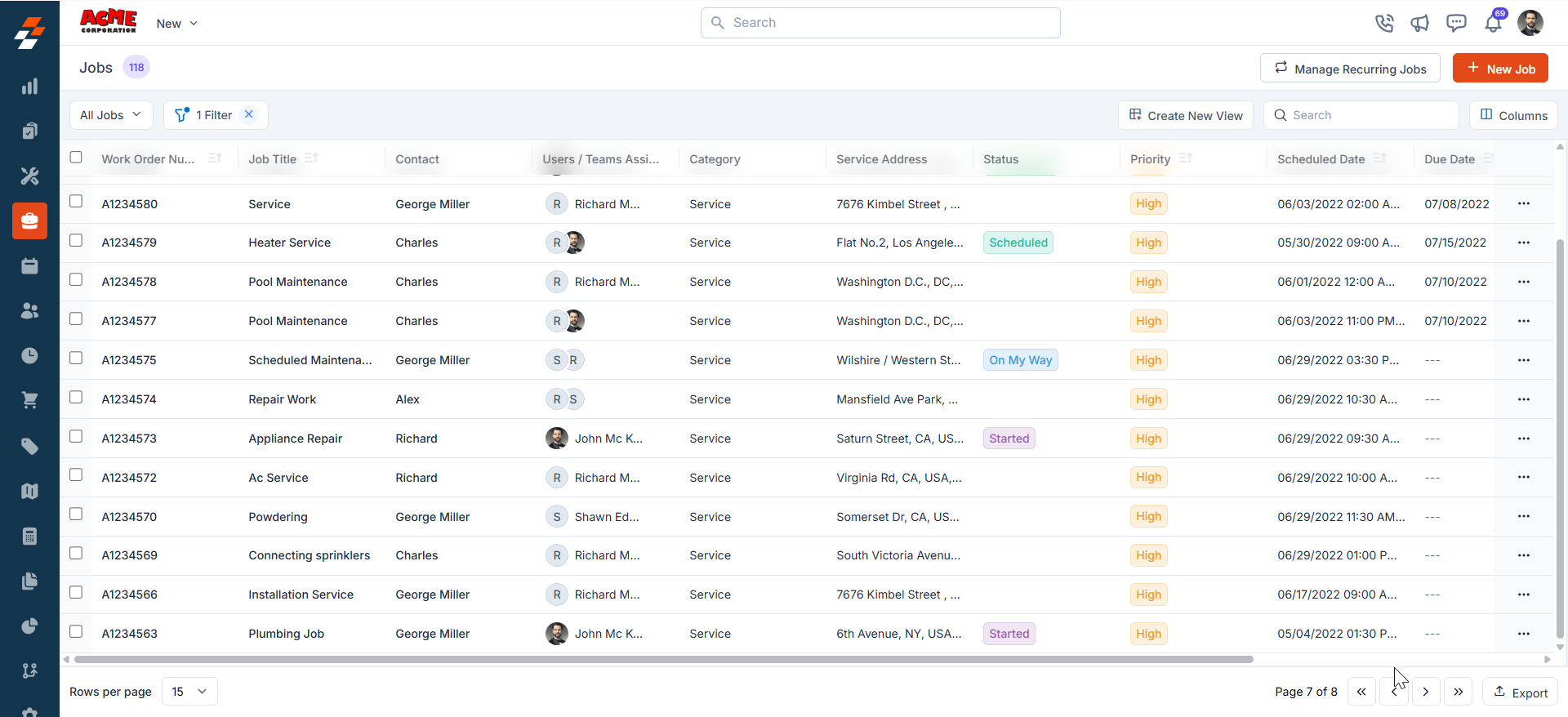
 5. You’ll be redirected back to Zuper and signed in.
 ## Google Login using Zuper Mobile App
Use your Google account to log in on iOS or Android.
**Requirements**
Your Zuper Admin has enabled “**Sign in with Google**.” Your Zuper user email matches your Google account email. You need the latest Zuper mobile app and a stable internet connection.
### Steps (iOS and Android)
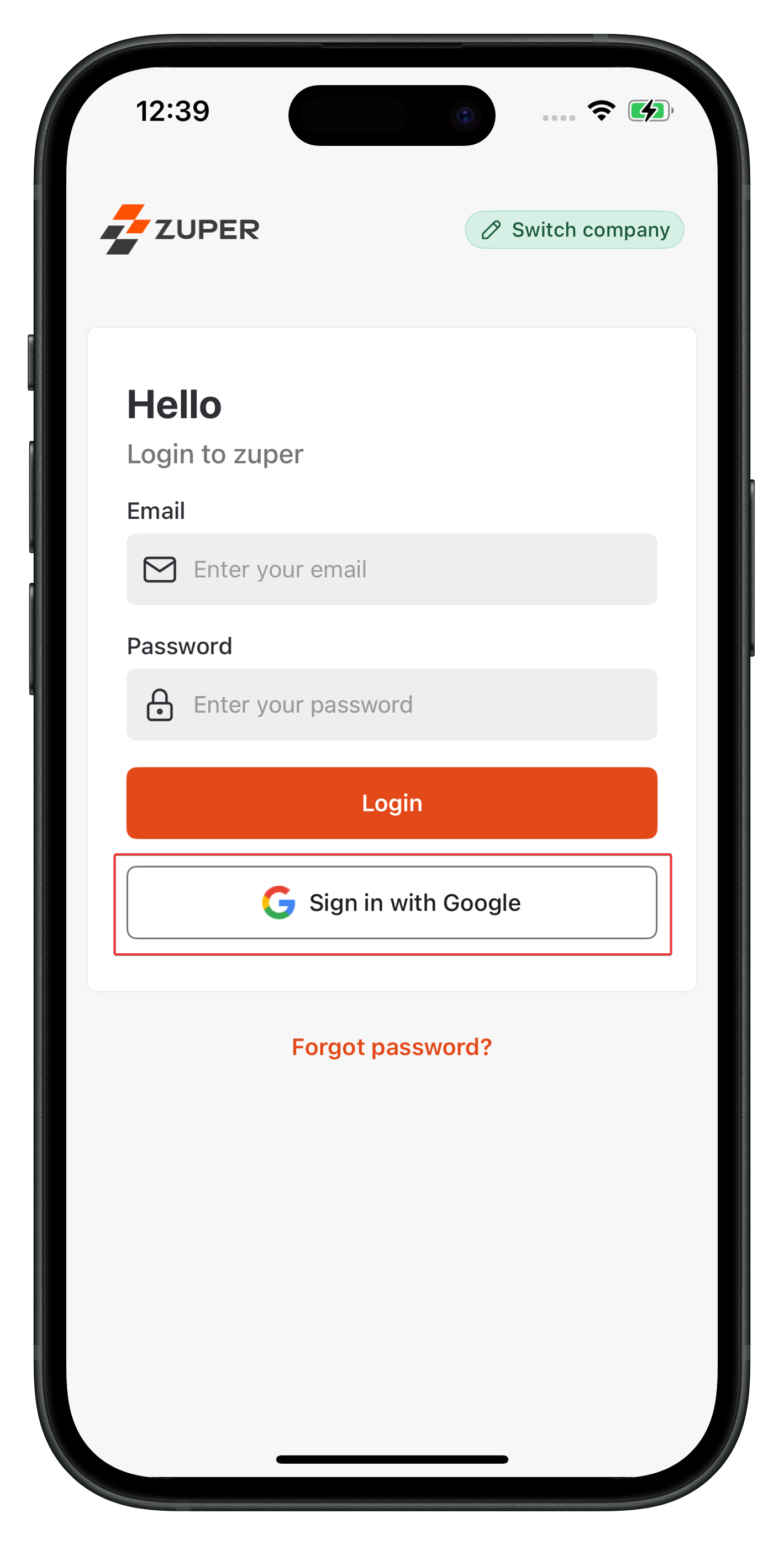
Open the Zuper app. If you belong to multiple companies, tap Switch company (top‑right) and choose the correct workspace.
* Tap Sign in with Google.
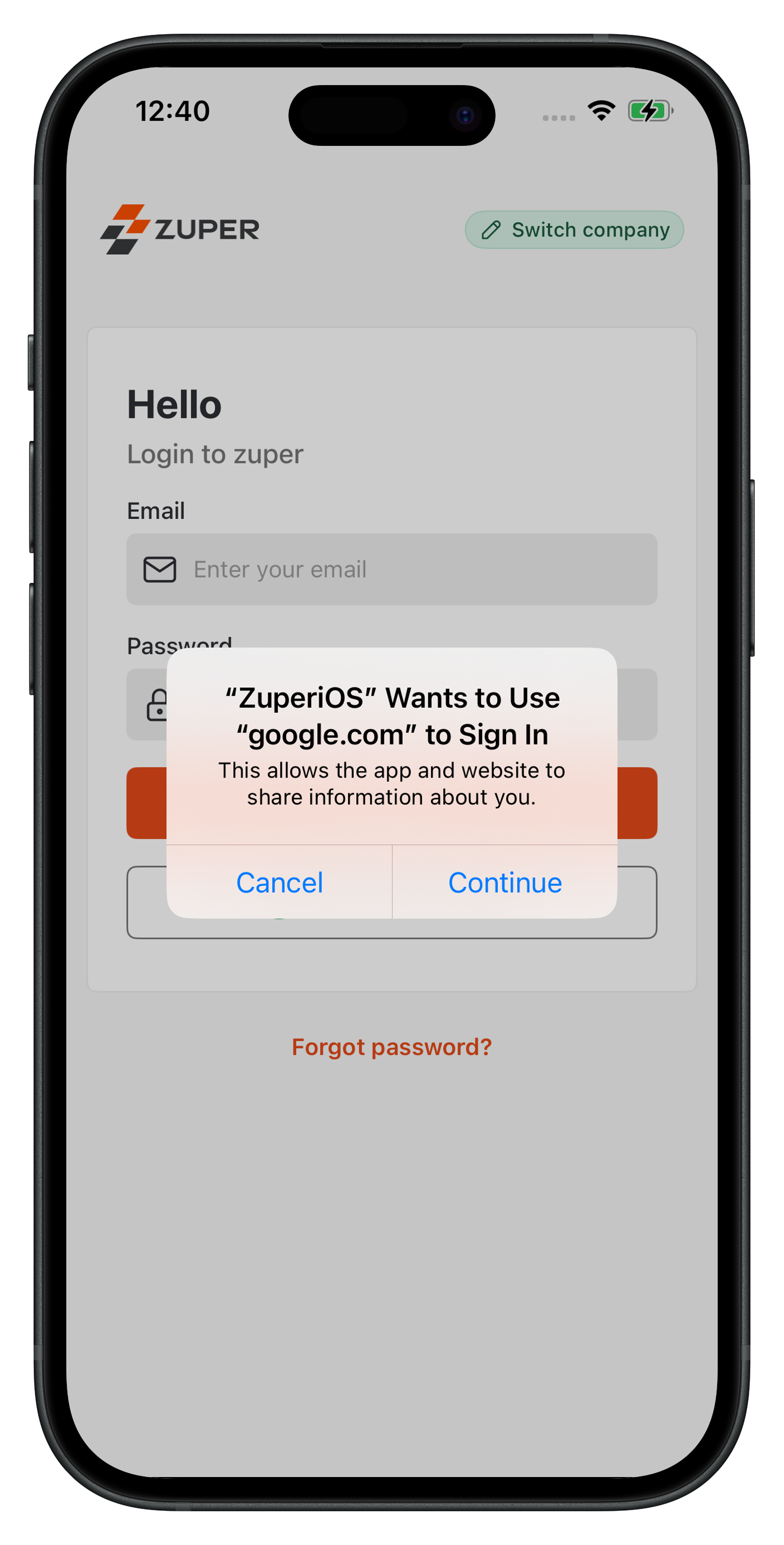
* When prompted, tap Continue to allow the app to use [Google.com](http://google.com) to sign in.
## Google Login using Zuper Mobile App
Use your Google account to log in on iOS or Android.
**Requirements**
Your Zuper Admin has enabled “**Sign in with Google**.” Your Zuper user email matches your Google account email. You need the latest Zuper mobile app and a stable internet connection.
### Steps (iOS and Android)
Open the Zuper app. If you belong to multiple companies, tap Switch company (top‑right) and choose the correct workspace.
* Tap Sign in with Google.
* When prompted, tap Continue to allow the app to use [Google.com](http://google.com) to sign in.
 * Choose your Google account.
 * If you don’t see it, tap "**Use another account**," enter your Google email and password, or use your passkey, and complete any 2‑Step Verification your Google account requires.
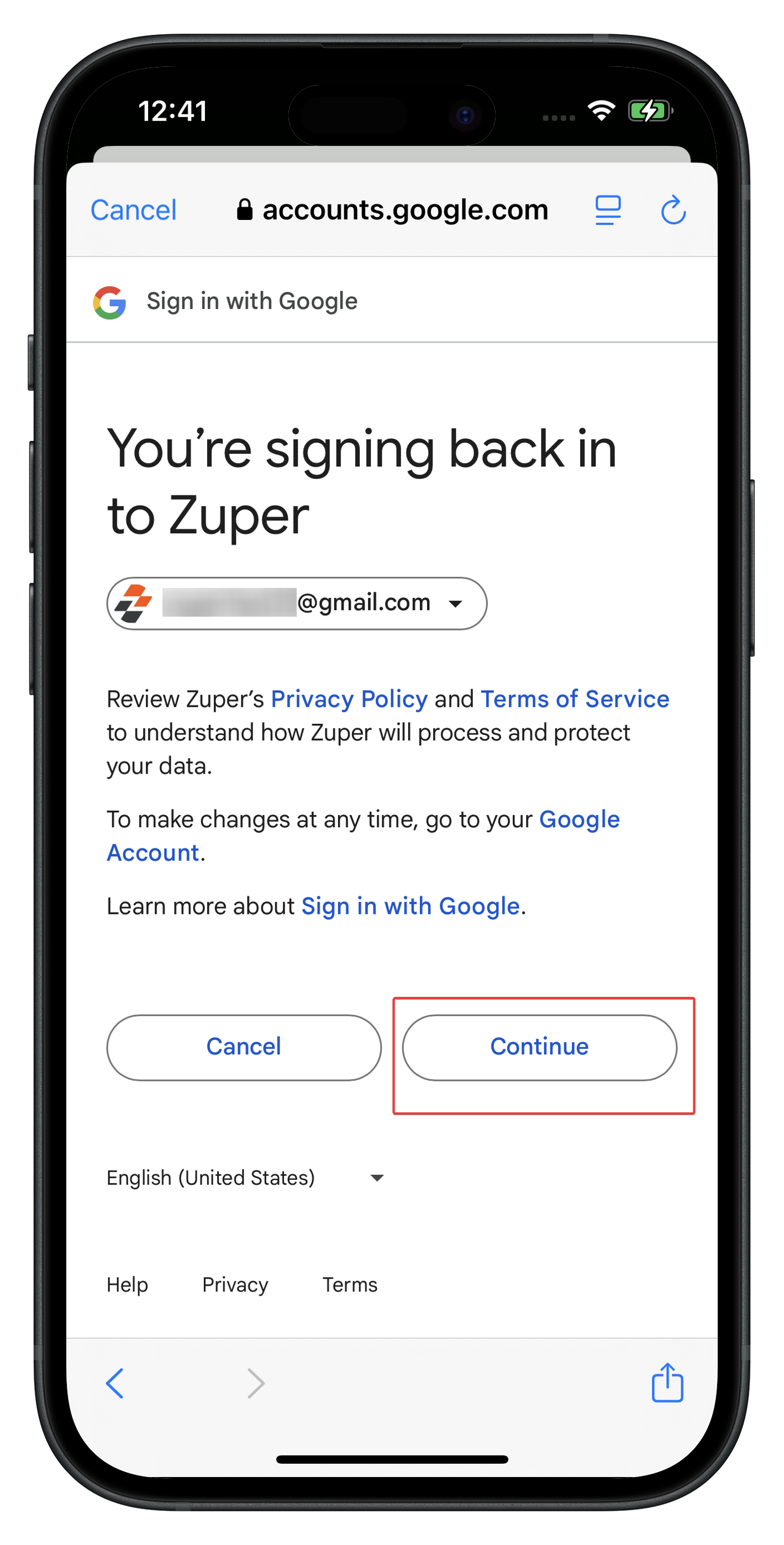
* Review the access screen and tap Continue.
* If you don’t see it, tap "**Use another account**," enter your Google email and password, or use your passkey, and complete any 2‑Step Verification your Google account requires.
* Review the access screen and tap Continue.
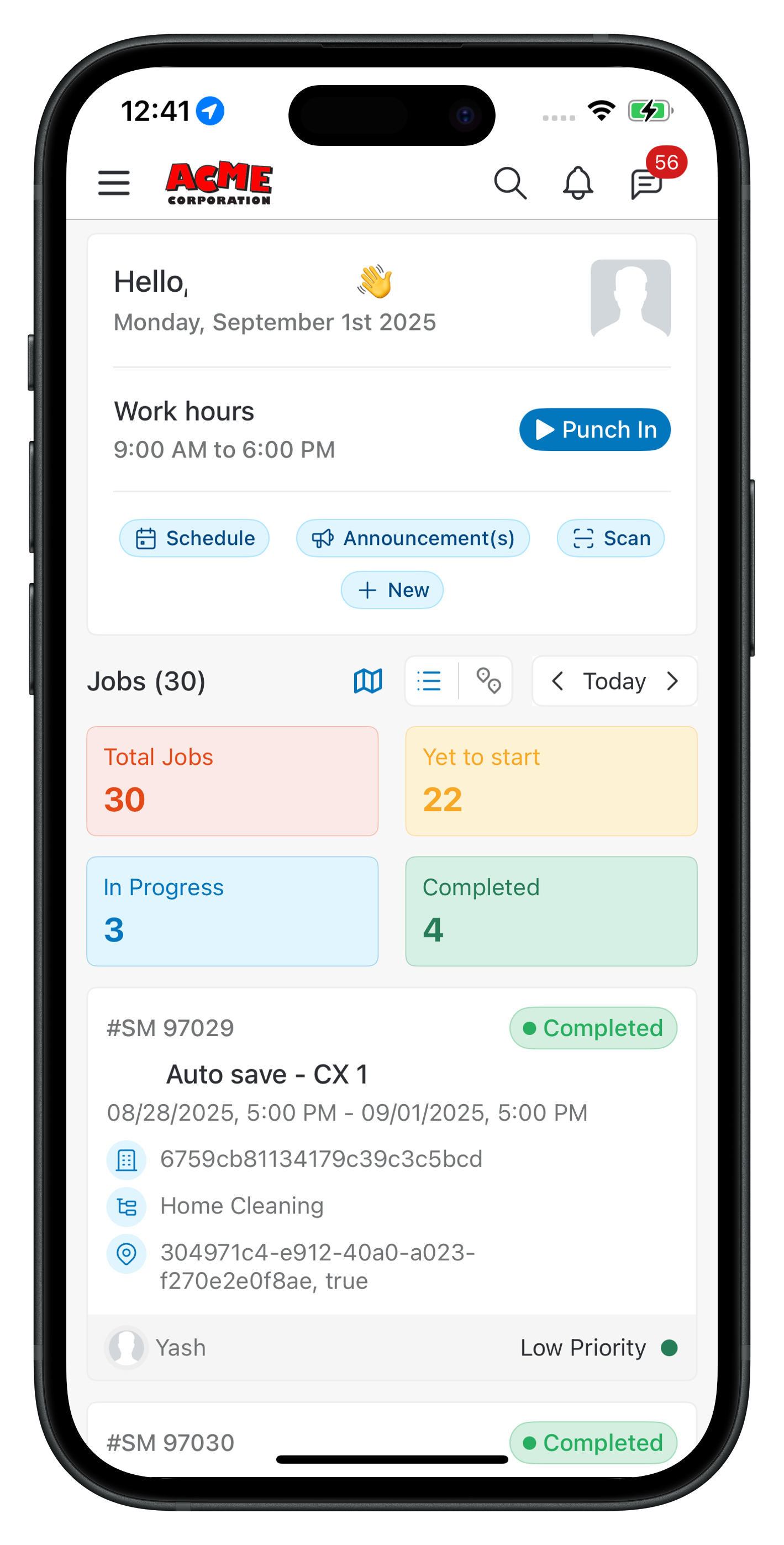
 * Your login to Zuper is successful, and you land on your Dashboard.
 With “**Sign in with Google**” enabled, your team can access Zuper quickly and securely across the web and mobile—there is no separate password to remember.