> ## Documentation Index
> Fetch the complete documentation index at: https://docs.zuper.co/llms.txt
> Use this file to discover all available pages before exploring further.
# Lightning Search
**Zuper Lightning Search** is a fast search tool that helps you quickly find records such as Jobs, Contacts, Quotes, Invoices, Properties, and Products from a single search bar. It searches the entire platform and displays results instantly, letting you preview items or open the full search results page for more details.
**Note**: This feature is currently in Beta, and please contact the account manager to get access.
**Global Search, Lightning Search, and Atlas Search**
* By default, Zuper uses **Global Search** — the standard search available to all users.
* **Lightning Search** is an enhanced search experience that delivers faster results and
broader cross-module coverage.
* **Atlas Search** offers an additional layer of search
capability built on advanced indexing technology.
* Both Lightning Search and Atlas Search are available as upgrades to Global Search. To switch, contact [Zuper Support](mailto:support@zuper.co).
## **Open lightning search**
1. Click the **search bar** at the top center of the screen or use “**Ctrl + K** or **CMD + K**.”
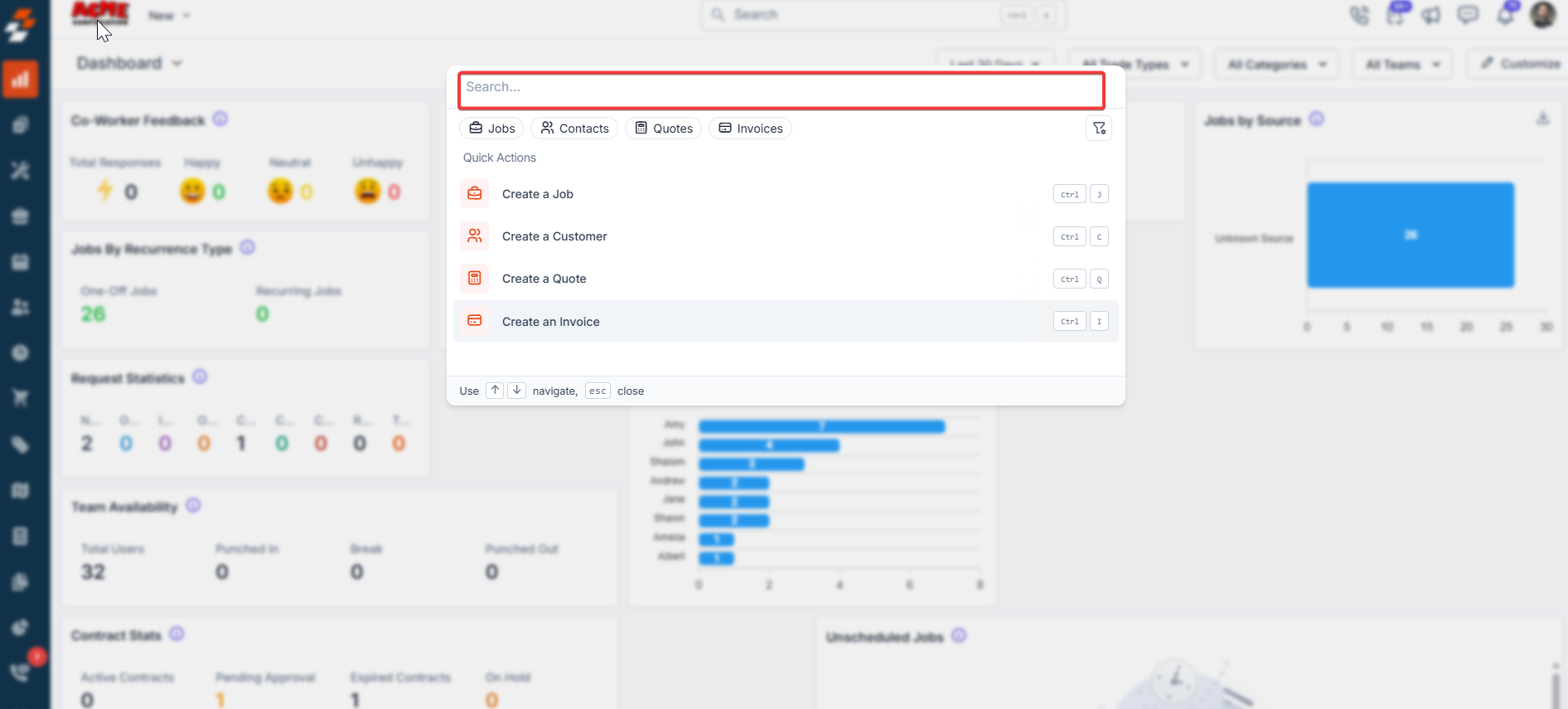 2. Start typing your keyword (e.g., “roof”, “AC”, or a job number).
The Lightning Search window opens immediately with live results.
**The Quick Search**
When you type, a large dialog box appears with:
* **Search box** at the top (pre-filled with what you typed).
**Four main tabs** (with result counts):
* **Jobs**
2. Start typing your keyword (e.g., “roof”, “AC”, or a job number).
The Lightning Search window opens immediately with live results.
**The Quick Search**
When you type, a large dialog box appears with:
* **Search box** at the top (pre-filled with what you typed).
**Four main tabs** (with result counts):
* **Jobs**
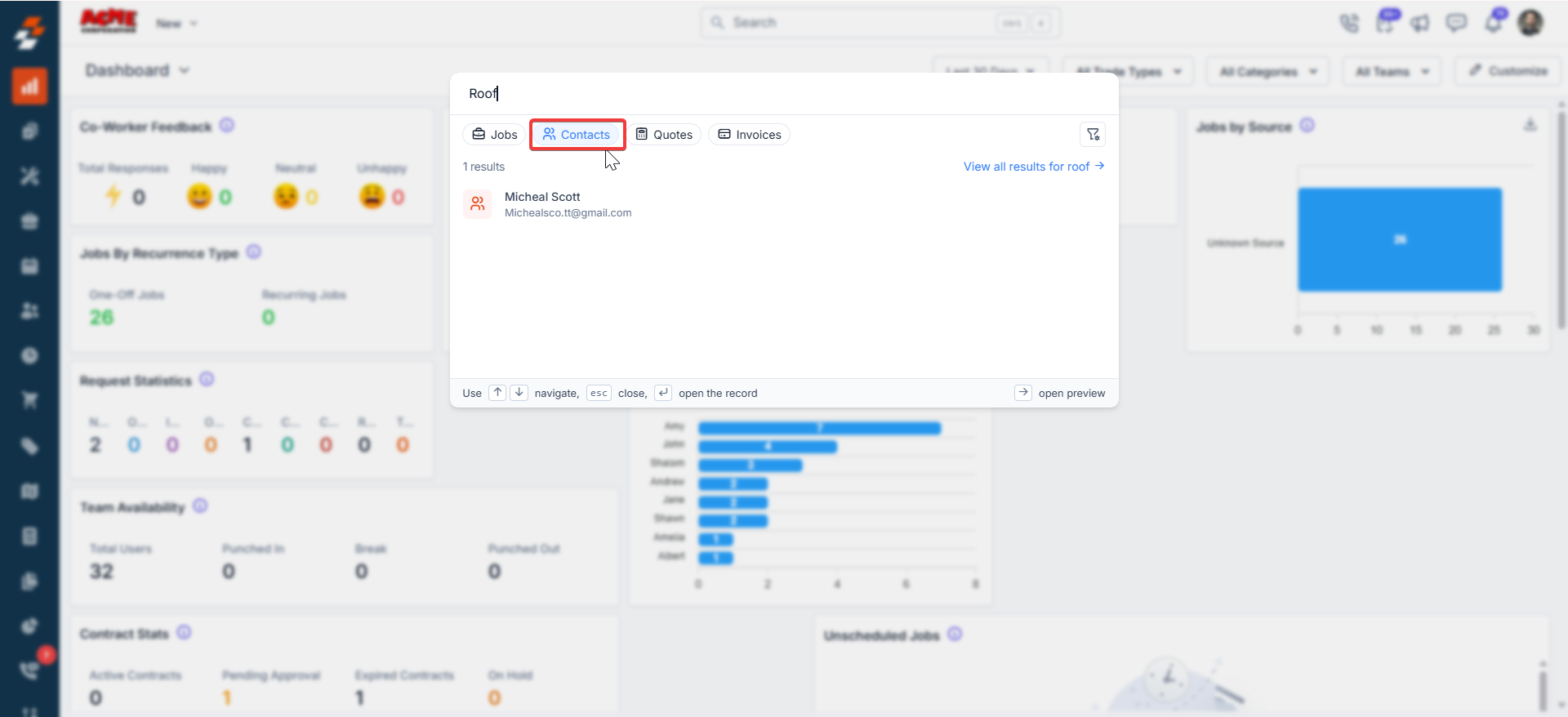
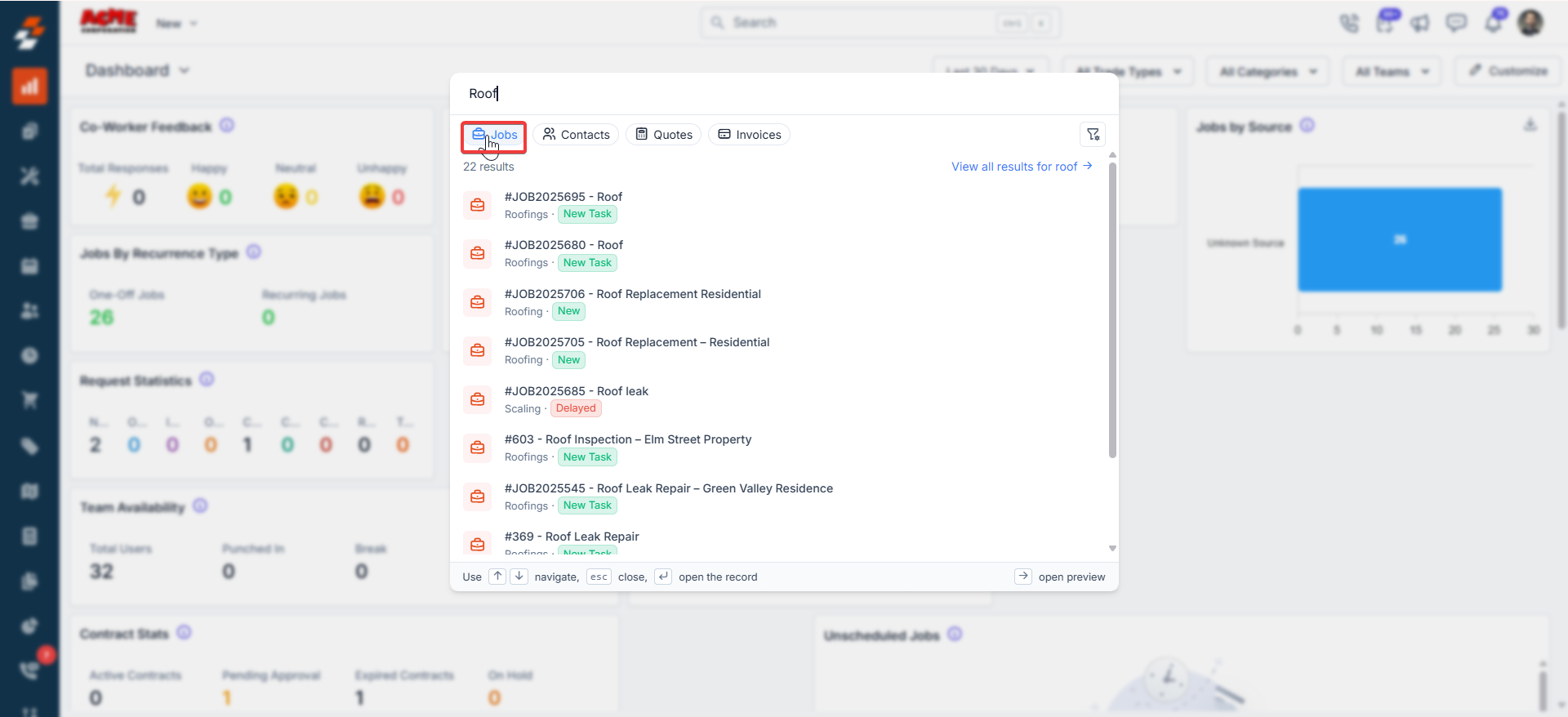 * **Contacts**
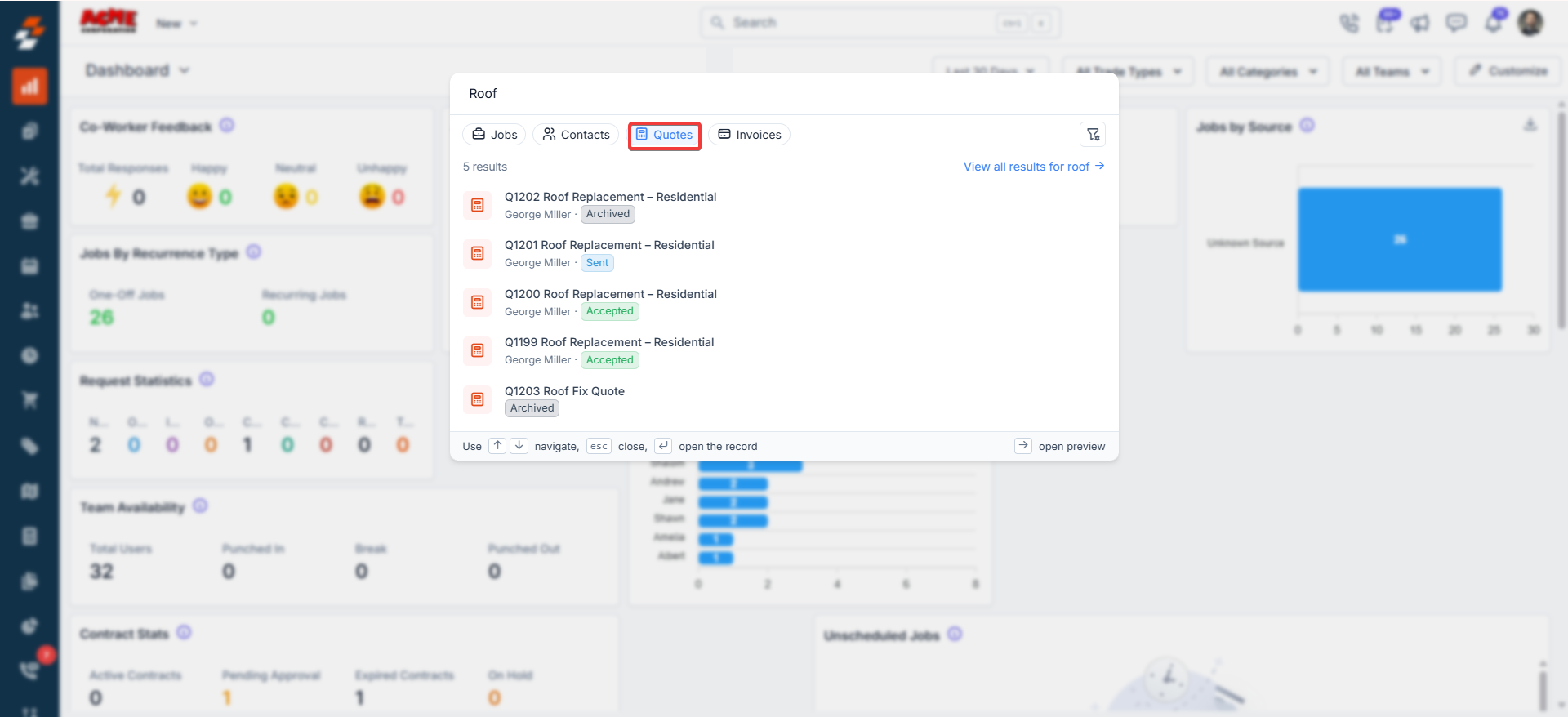
 * **Quotes**
 * **Invoices**
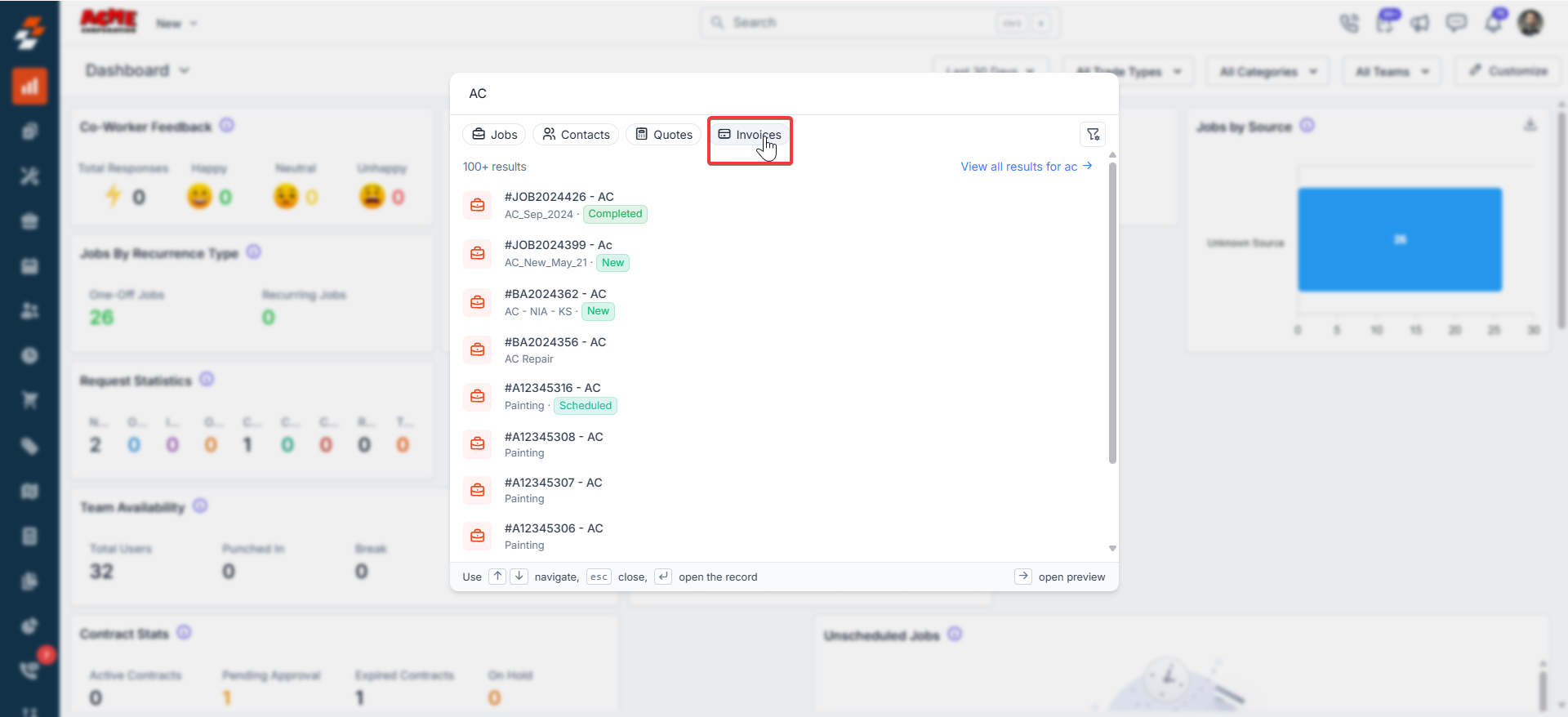 * Click any tab to switch views instantly.
* **Results list** on the left: Display search results.
* You can do multiple selections as required.
* Click any tab to switch views instantly.
* **Results list** on the left: Display search results.
* You can do multiple selections as required.
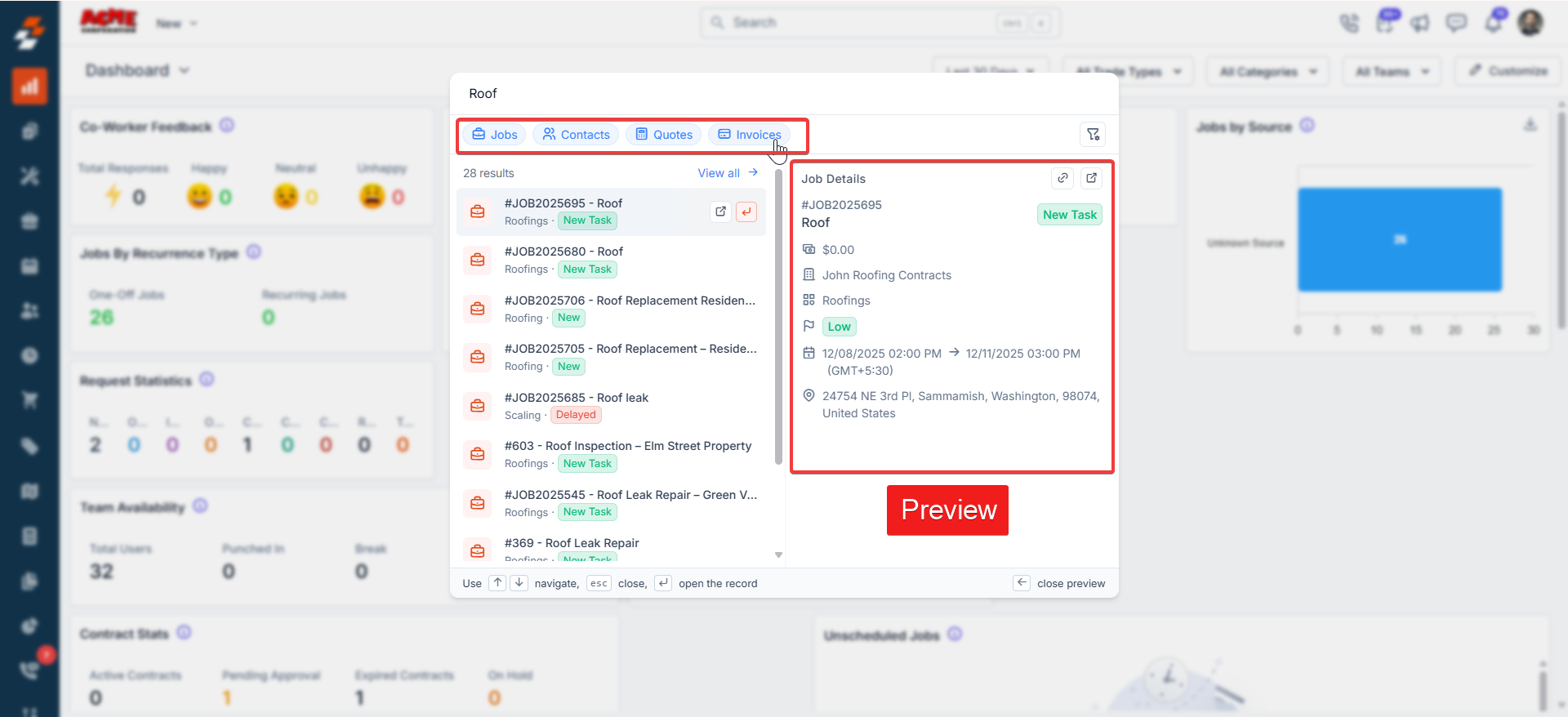
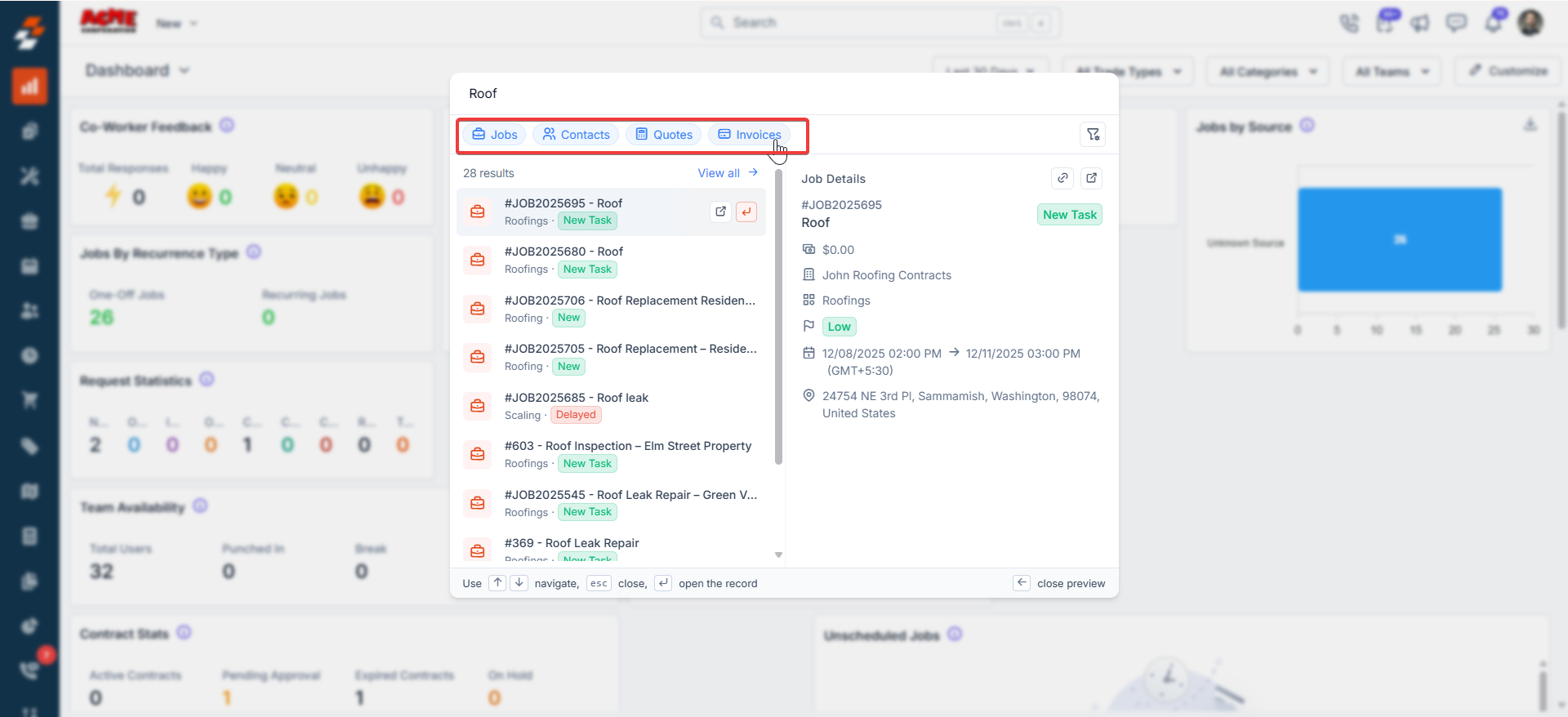 * **Preview pane** on the right: Click on any result to see a preview of the record (job value, schedule, address, customer info, etc.) without leaving the search.
 ## **Filter Search by Module**
Click the **filter icon** (top-right of the search window). A dropdown appears where you can check/uncheck categories:
* Jobs
* Contacts
* Quotes
* Invoices
* Properties
* Products
Only selected modules will appear in the results. This is great for narrowing down large searches.
## **Filter Search by Module**
Click the **filter icon** (top-right of the search window). A dropdown appears where you can check/uncheck categories:
* Jobs
* Contacts
* Quotes
* Invoices
* Properties
* Products
Only selected modules will appear in the results. This is great for narrowing down large searches.
 ## **Quick create actions**
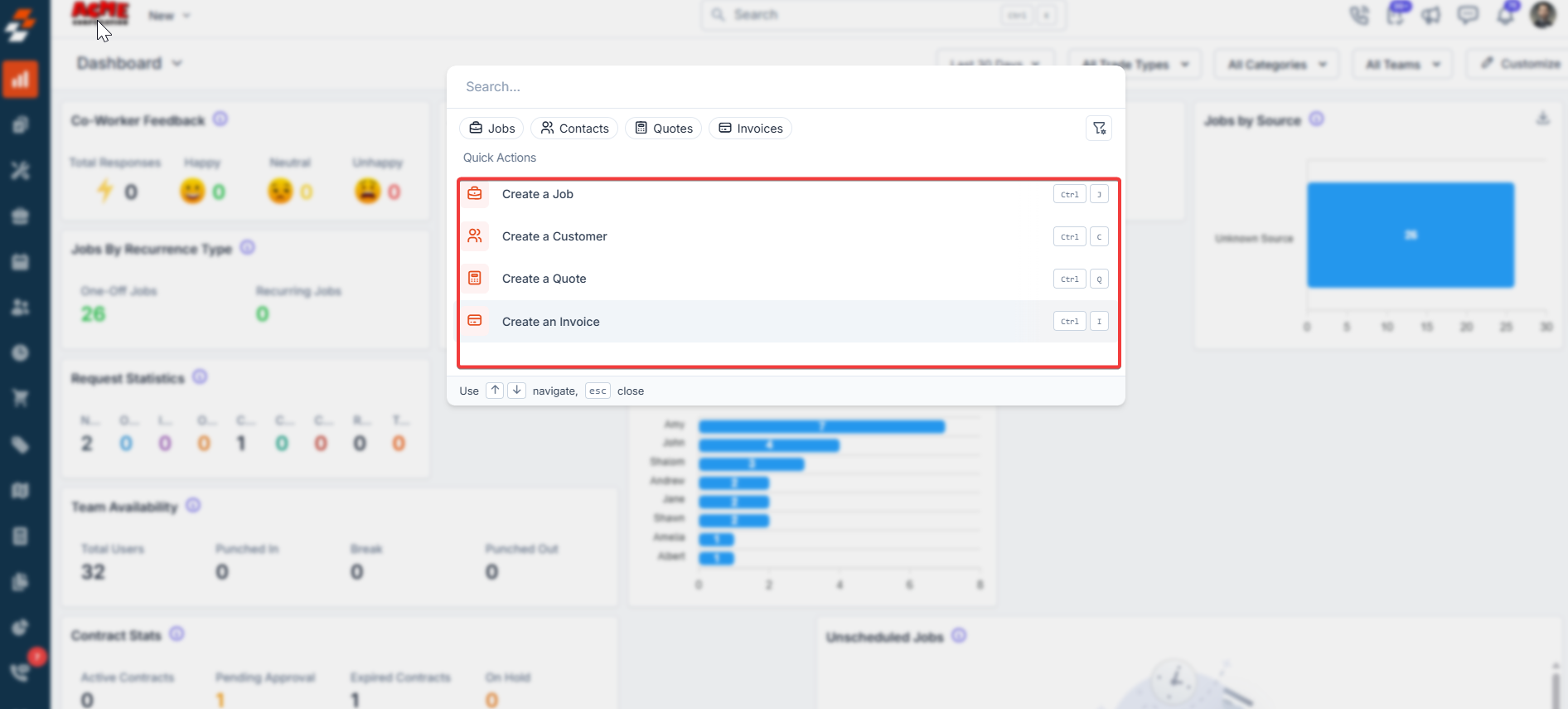
If the search bar is empty (or you clear it), you’ll see handy **Quick Actions**:
| Action | Shortcut |
| :---------------- | :----------- |
| Create a Job | **Ctrl + J** |
| Create a Customer | **Ctrl + C** |
| Create a Quote | **Ctrl + Q** |
| Create an Invoice | **Ctrl + I** |
Perfect for starting new work without having to navigate menus.
## **Quick create actions**
If the search bar is empty (or you clear it), you’ll see handy **Quick Actions**:
| Action | Shortcut |
| :---------------- | :----------- |
| Create a Job | **Ctrl + J** |
| Create a Customer | **Ctrl + C** |
| Create a Quote | **Ctrl + Q** |
| Create an Invoice | **Ctrl + I** |
Perfect for starting new work without having to navigate menus.
 ## **View full search results**
To see everything in a clean table view:
* **“View all →”** link at the top or
* Press **Enter** while typing.
* **↑ ↓** arrows → Move up/down the list.
* **Enter** → Open the selected record.
* **Esc** → Close the window completely.
## **View full search results**
To see everything in a clean table view:
* **“View all →”** link at the top or
* Press **Enter** while typing.
* **↑ ↓** arrows → Move up/down the list.
* **Enter** → Open the selected record.
* **Esc** → Close the window completely.
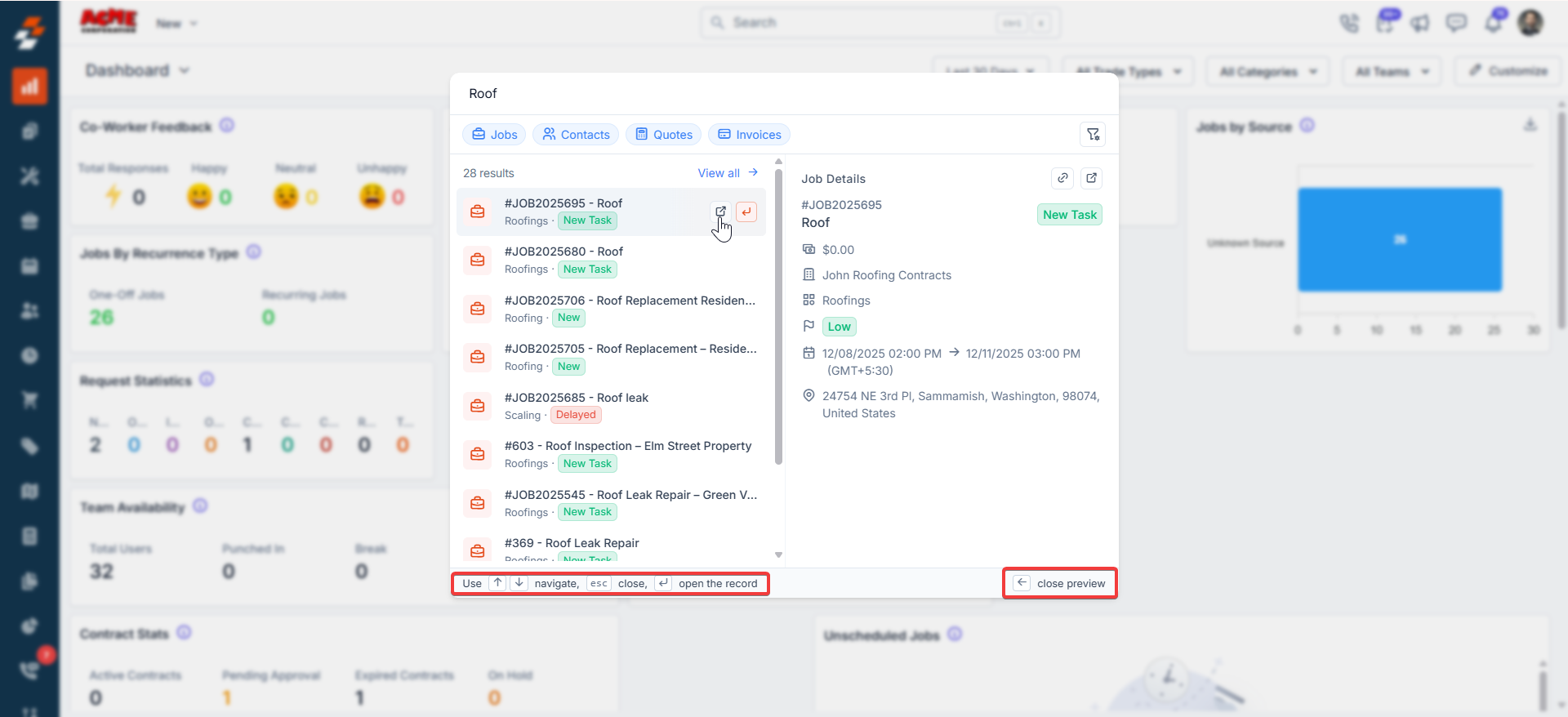 Lightning Search helps you quickly find and open records across multiple modules from a single search interface.