> ## Documentation Index
> Fetch the complete documentation index at: https://docs.zuper.co/llms.txt
> Use this file to discover all available pages before exploring further.
# Setup Zuper Pay
After completing the Zuper Pay [onboarding process](/Zuper-pay/Onboarding), you can access the **Zuper Pay** settings page to manage your account details and terminals. In this guide, we will walk you through how to manage your account and payment terminals, and how to update your payout bank accounts.
## Accessing Zuper Pay settings
Navigate to **Settings** module > **Zuper Pay** from the left navigation menu in the Zuper application. The settings page includes two tabs: **Account Management** and **Terminal Management**, where you can review and manage your payment settings.
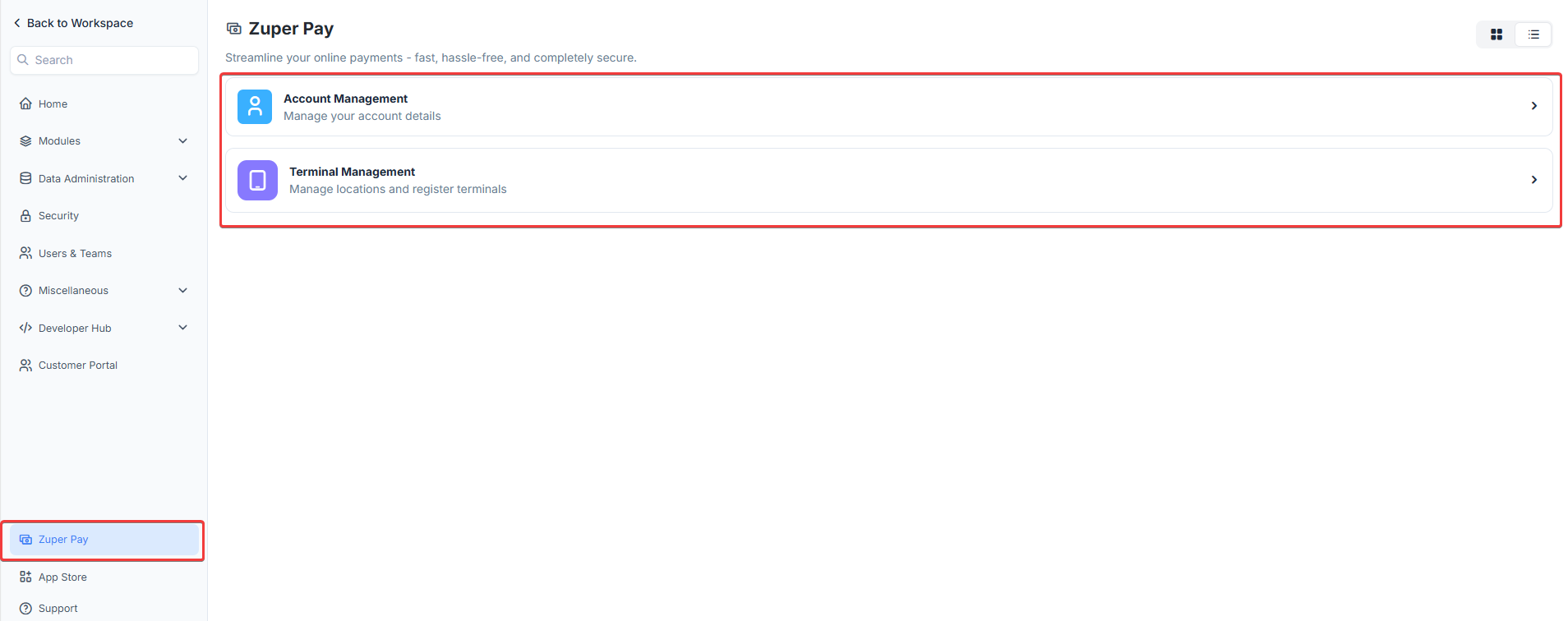 ### Account Management
The **Account Management** tab allows you to view and manage key information of your account, business, personal, and ownership details.
### Account Management
The **Account Management** tab allows you to view and manage key information of your account, business, personal, and ownership details.
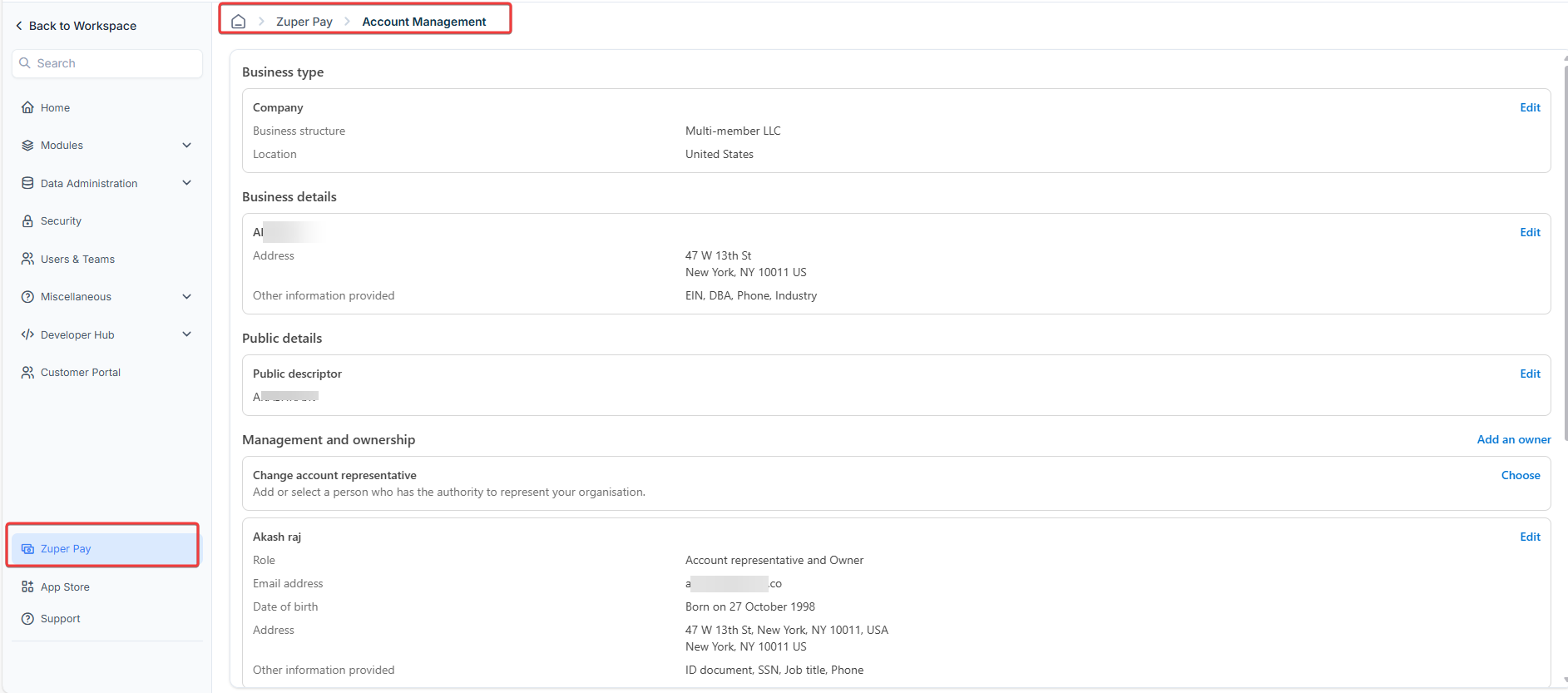 * **Business Details**: This section displays your registered business name, address, and industry details. Ensure these details are accurate for compliance and verification.
* **Public Details**: This section displays customer support information such as your support address, phone number, and the descriptor shown on customer statements.
* **Management & Ownership**: This section shows the assigned account representative with their contact details. You can add or update representatives as needed.
* **Payout Details**: This section displays the linked bank account where payouts will be deposited. You can manage or update these details to ensure seamless transactions.
* **Linked Accounts**: This section lists external payment accounts connected to Zuper Pay for transaction processing. You can remove or modify linked accounts if necessary.
* **Authentication Details**: This section contains the registered email and phone number for account verification. Keeping these details updated ensures secure access to your payment settings.
### How to change the bank account for payouts
To update the bank account where payouts are deposited, follow these steps:
1. Navigate to **Settings** > **Zuper Pay** from the left navigation menu.
2. Go to the **Account Management** section and select **Payout details**.
* **Business Details**: This section displays your registered business name, address, and industry details. Ensure these details are accurate for compliance and verification.
* **Public Details**: This section displays customer support information such as your support address, phone number, and the descriptor shown on customer statements.
* **Management & Ownership**: This section shows the assigned account representative with their contact details. You can add or update representatives as needed.
* **Payout Details**: This section displays the linked bank account where payouts will be deposited. You can manage or update these details to ensure seamless transactions.
* **Linked Accounts**: This section lists external payment accounts connected to Zuper Pay for transaction processing. You can remove or modify linked accounts if necessary.
* **Authentication Details**: This section contains the registered email and phone number for account verification. Keeping these details updated ensures secure access to your payment settings.
### How to change the bank account for payouts
To update the bank account where payouts are deposited, follow these steps:
1. Navigate to **Settings** > **Zuper Pay** from the left navigation menu.
2. Go to the **Account Management** section and select **Payout details**.
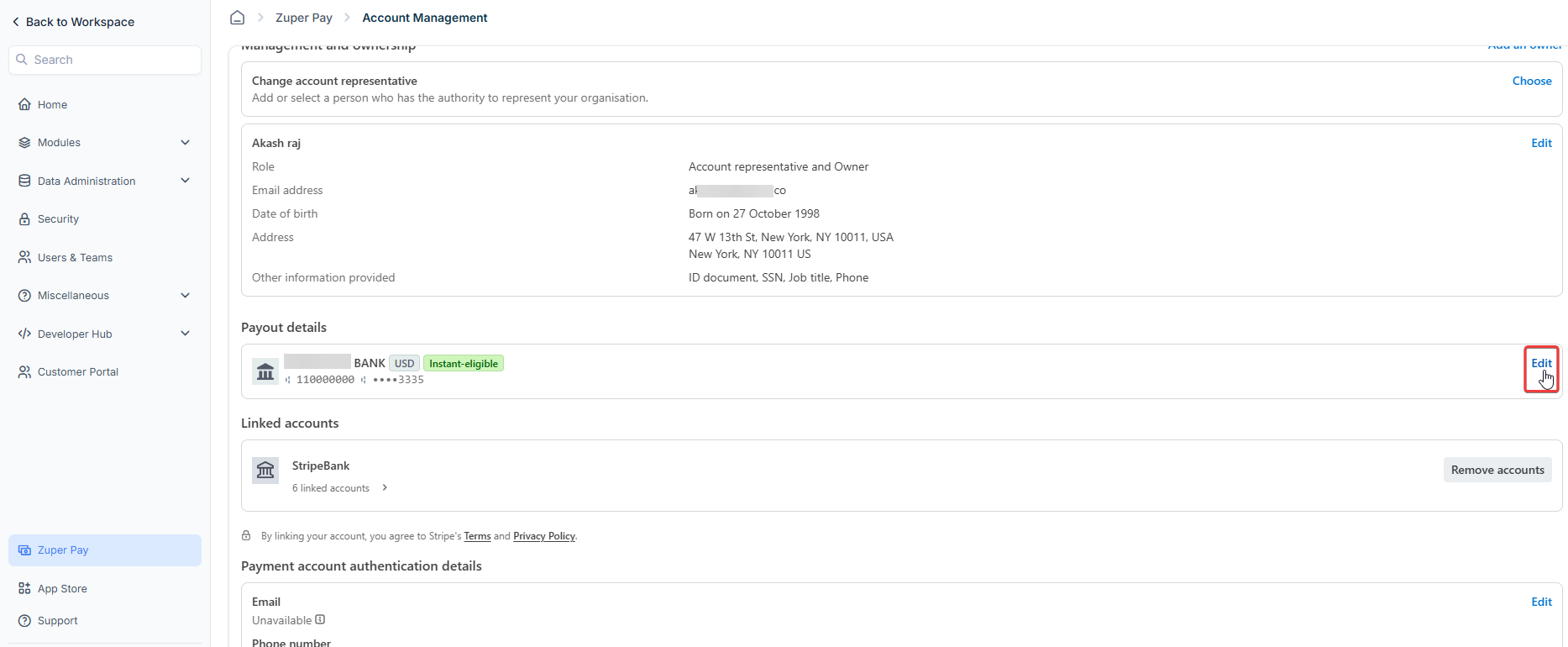 3. On the **Payout details** section, you’ll see the bank account currently connected to Zuper Pay.
4. Click the **Edit** icon next to your bank account.
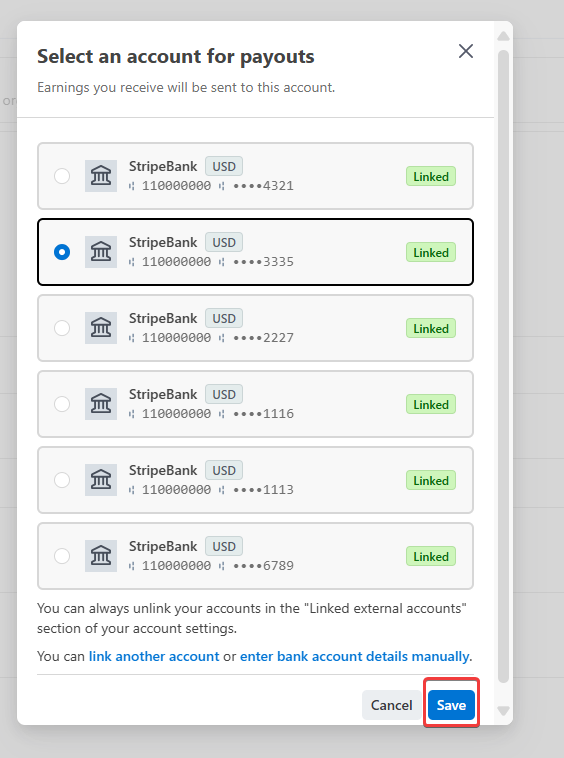
5. View the list of connected bank accounts. Select the appropriate account and click **Save**. If the desired account isn’t listed, choose **Link another account or enter bank account details manually** to add it.
3. On the **Payout details** section, you’ll see the bank account currently connected to Zuper Pay.
4. Click the **Edit** icon next to your bank account.
5. View the list of connected bank accounts. Select the appropriate account and click **Save**. If the desired account isn’t listed, choose **Link another account or enter bank account details manually** to add it.
 ## Terminal Management
The **Terminal Management** tab helps you manage payment terminals. You can add locations, register new payment readers, and view a list of your terminals.
**My Terminals**
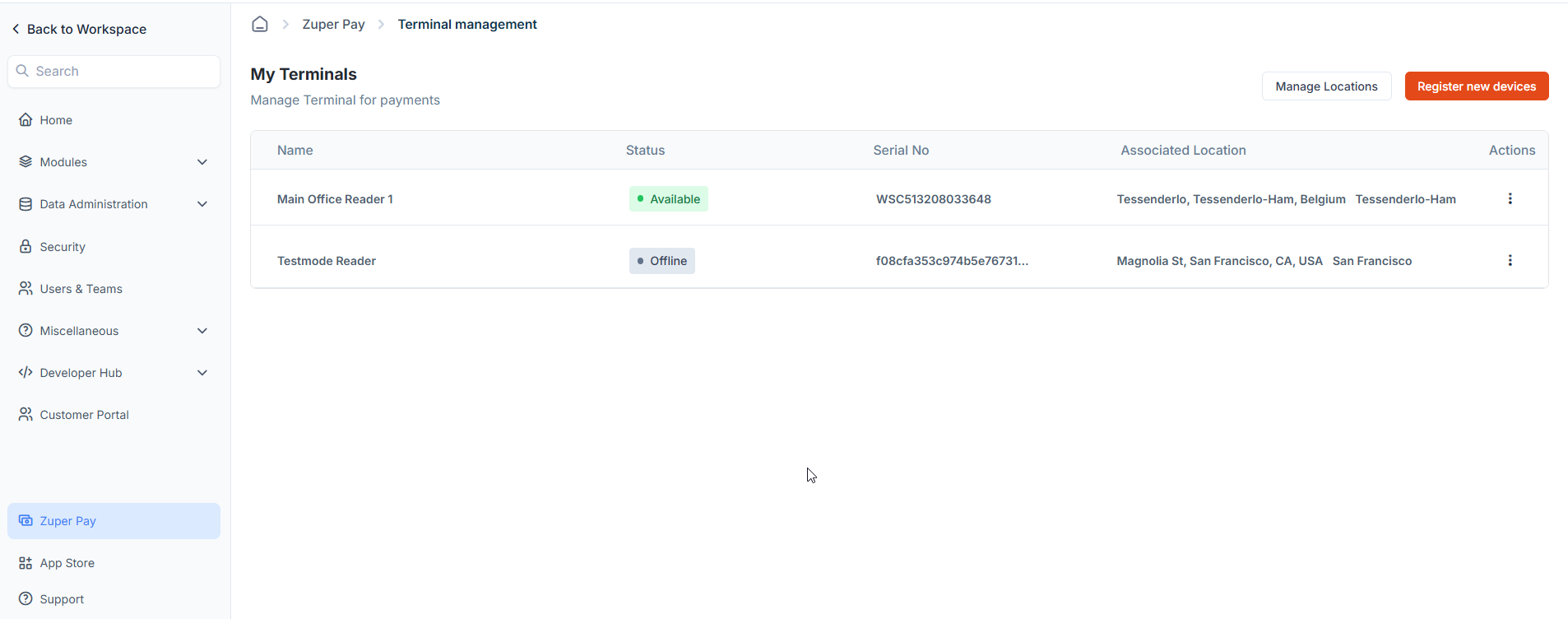
To view your terminals, go to **Zuper Pay** > **Terminal Management** > **My Terminals**. This page displays a list of your terminals with details like name, status, serial number, and associated location.
## Terminal Management
The **Terminal Management** tab helps you manage payment terminals. You can add locations, register new payment readers, and view a list of your terminals.
**My Terminals**
To view your terminals, go to **Zuper Pay** > **Terminal Management** > **My Terminals**. This page displays a list of your terminals with details like name, status, serial number, and associated location.
 **Manage Locations**
You can create and manage locations to link your payment readers (e.g., BBPOS WisePOS E) to specific physical or operational sites for streamlined device management.
**Manage Locations**
You can create and manage locations to link your payment readers (e.g., BBPOS WisePOS E) to specific physical or operational sites for streamlined device management.
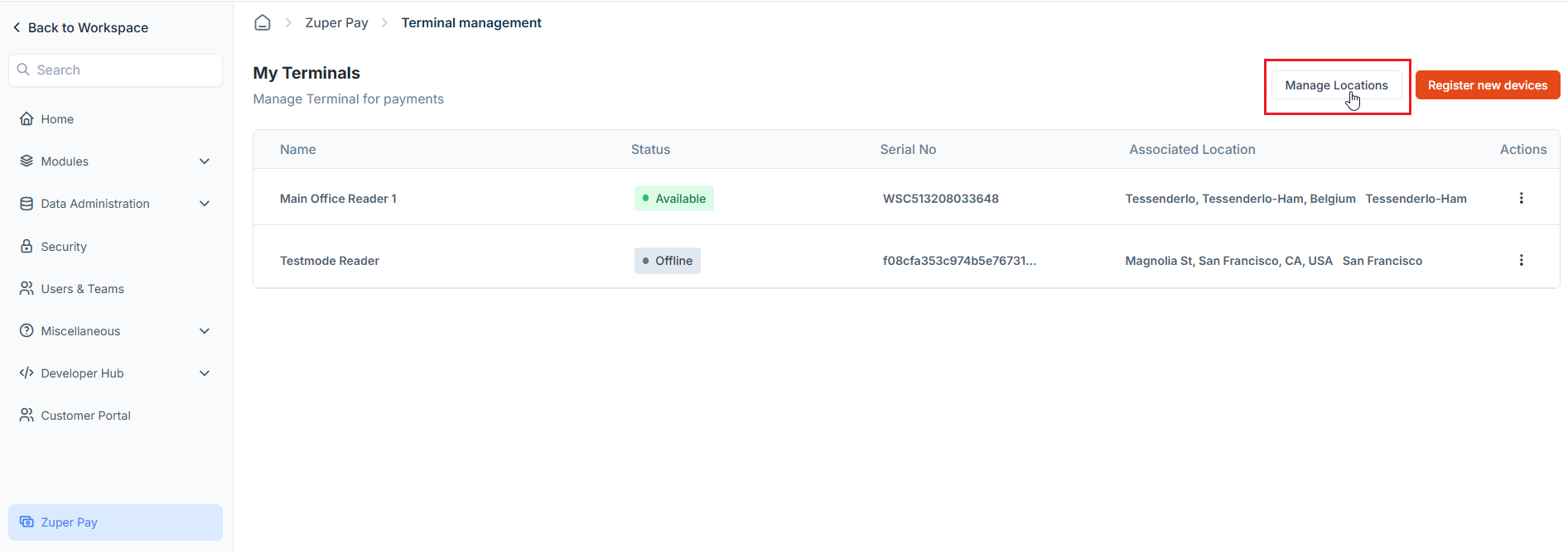 1. On the **My Terminals** page, click the **Manage Locations** button.
2. On the **Manage Locations** page, you can:
* **Create a Location**: Click **Create Location** to add a new location for your payment reader.
* **Delete a Location**: Click the delete icon next to the location you want to remove.
**Register New Device**
You can register a new payment reader (e.g., BBPOS WisePOS E) to link it to your Zuper account and a specific location for accepting payments.
1. On the **My Terminals** page, click the **Manage Locations** button.
2. On the **Manage Locations** page, you can:
* **Create a Location**: Click **Create Location** to add a new location for your payment reader.
* **Delete a Location**: Click the delete icon next to the location you want to remove.
**Register New Device**
You can register a new payment reader (e.g., BBPOS WisePOS E) to link it to your Zuper account and a specific location for accepting payments.
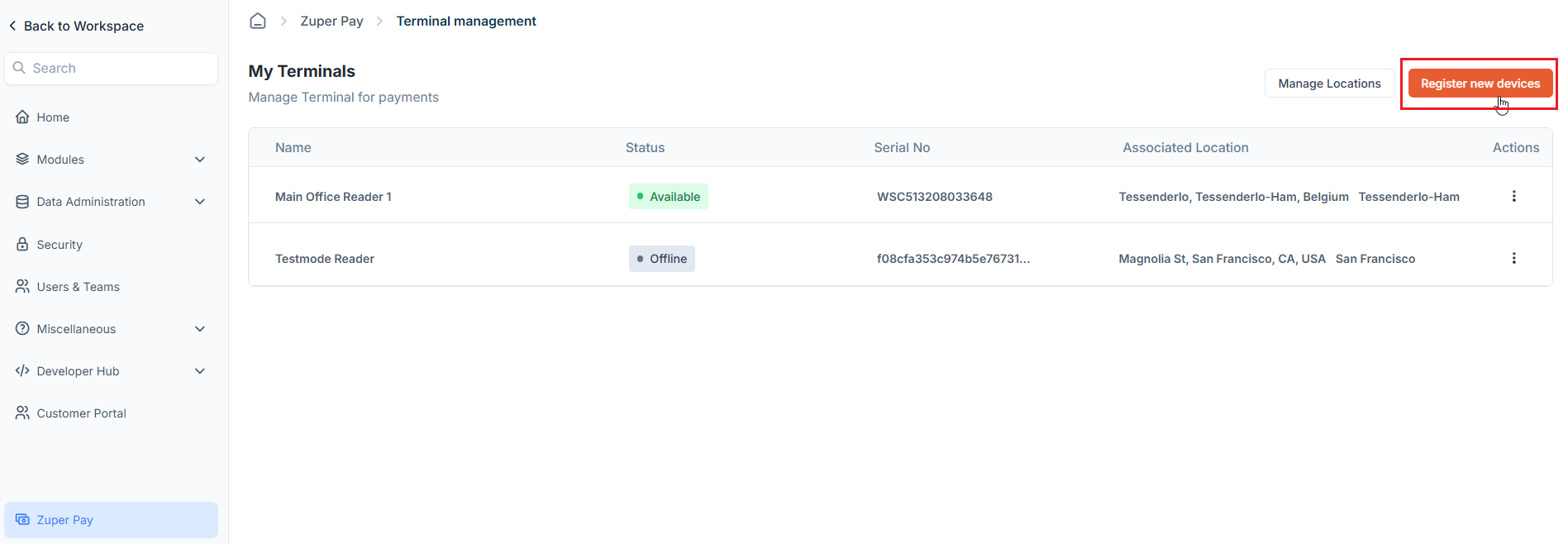 * To do so, click the "**Register New Device**" button on the **My Terminals** page.
* A **Register New Device** page opens. Enter the reader's name, specify the three-word code, and assign it to a location.
* Click "**Proceed**" to complete the registration.
* To do so, click the "**Register New Device**" button on the **My Terminals** page.
* A **Register New Device** page opens. Enter the reader's name, specify the three-word code, and assign it to a location.
* Click "**Proceed**" to complete the registration.