> ## Documentation Index
> Fetch the complete documentation index at: https://docs.zuper.co/llms.txt
> Use this file to discover all available pages before exploring further.
# Tap to Pay on Android
Accept contactless payments anywhere with just your Android device — no card reader needed. With Tap to Pay on Android, you can securely accept Apple Pay, Google Pay, Samsung Pay, and payment cards with NFC (Near Field Communication) chips wherever you are.
**Requirements for Tap to Pay on Android**
To enable Tap to Pay on Android, ensure the following requirements are met:
* NFC-enabled Android device running **Android 9 or later**
* The latest version of the Zuper Field Service mobile app (download from the **Google Play Store**)
Note: You must **input a location** for the Tap to Pay functionality to work properly. Ensure a valid location is configured before accepting payments. For more details, refer to this [article](https://docs.zuper.co/Zuper-pay/Settings#terminal-management).
**How to accept payments with Tap to Pay on Android**
As you get started with Tap to Pay on Android, a best practice is to have your customer tap their phone near the back of the device. Note that this NFC spot is on the backside of Android devices, so be sure to turn your phone toward the customer with the screen facing you so that they may tap to pay with a card or phone.
1. Open the **Zuper Field Service** mobile app.
2. Navigate to **Invoices** or **Quotes**, then select the transaction.
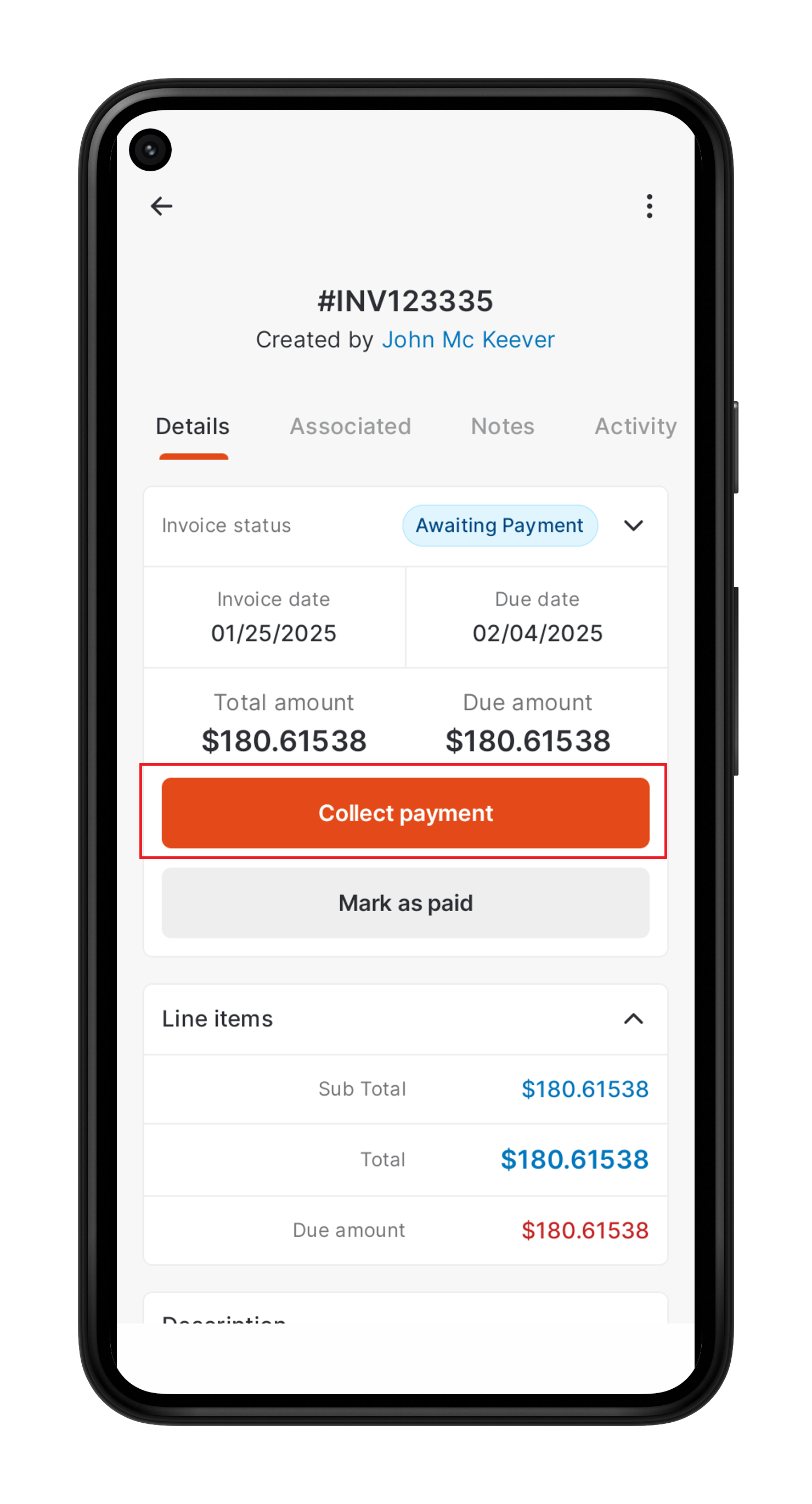
3. Tap **Collect Payment / Collect Deposit**.
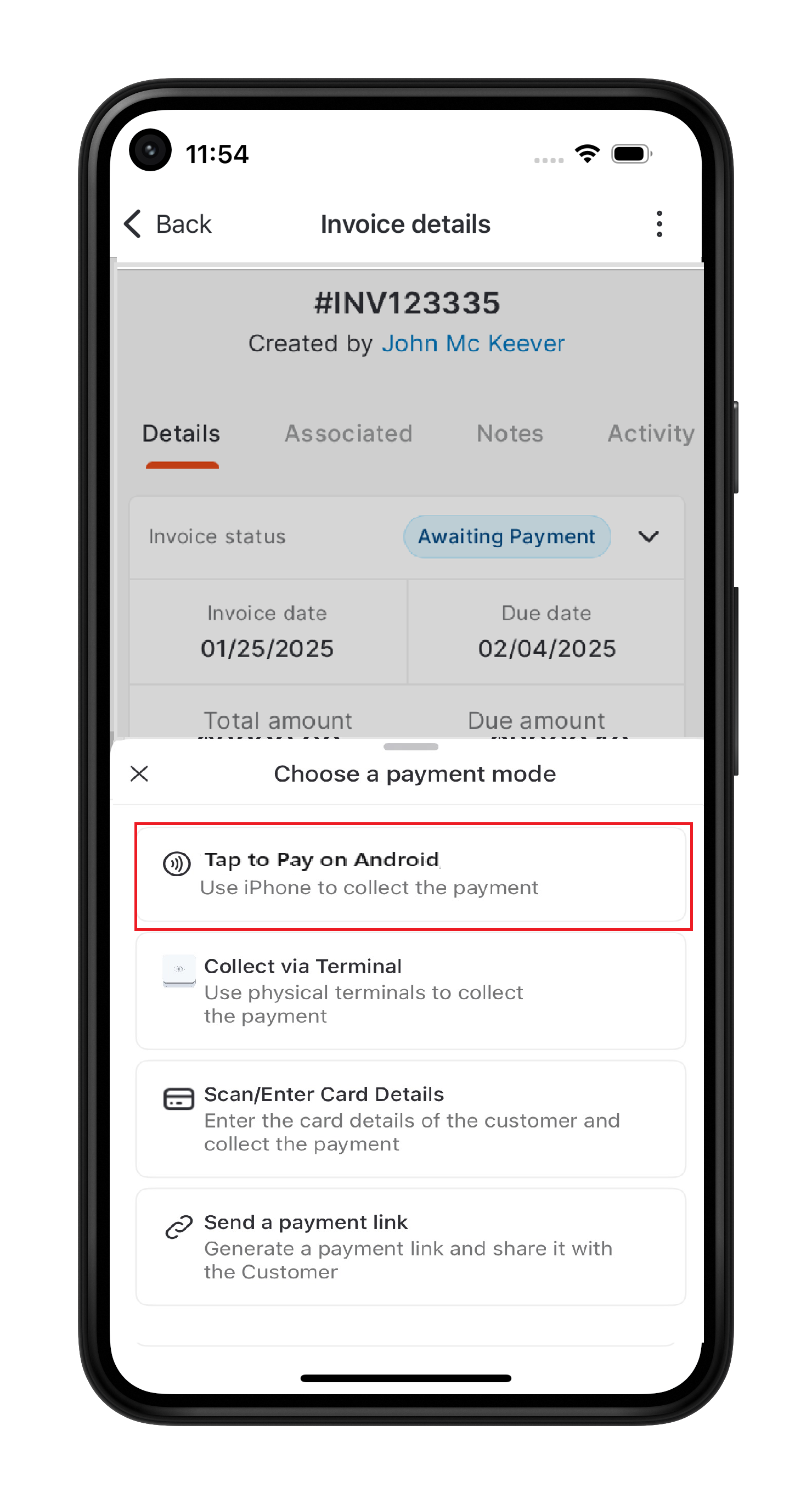
 4. Select **Tap to Pay on Android**, then ask the customer to:
 * Hold their **contactless card, NFC device, or digital wallet** (Apple Pay, Google Pay, Samsung Pay) over the **contactless payment symbol** on your mobile device.
* If using a smartwatch, ensure the watch is unlocked and placed close to the device.
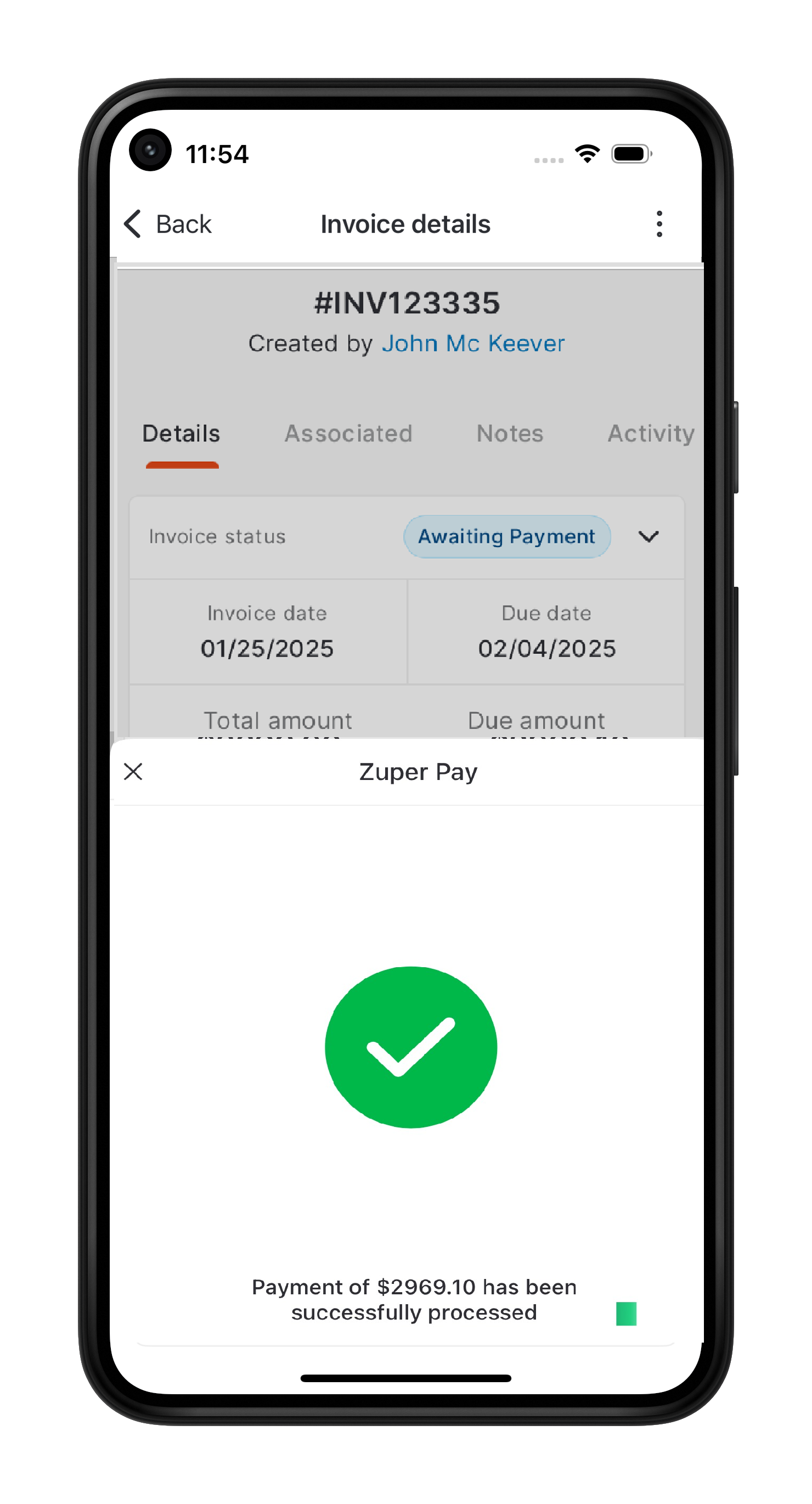
5. Once you see the **"Done"** screen, the transaction is complete!
* Hold their **contactless card, NFC device, or digital wallet** (Apple Pay, Google Pay, Samsung Pay) over the **contactless payment symbol** on your mobile device.
* If using a smartwatch, ensure the watch is unlocked and placed close to the device.
5. Once you see the **"Done"** screen, the transaction is complete!