> ## Documentation Index
> Fetch the complete documentation index at: https://docs.zuper.co/llms.txt
> Use this file to discover all available pages before exploring further.
# Zuper Pay Reports
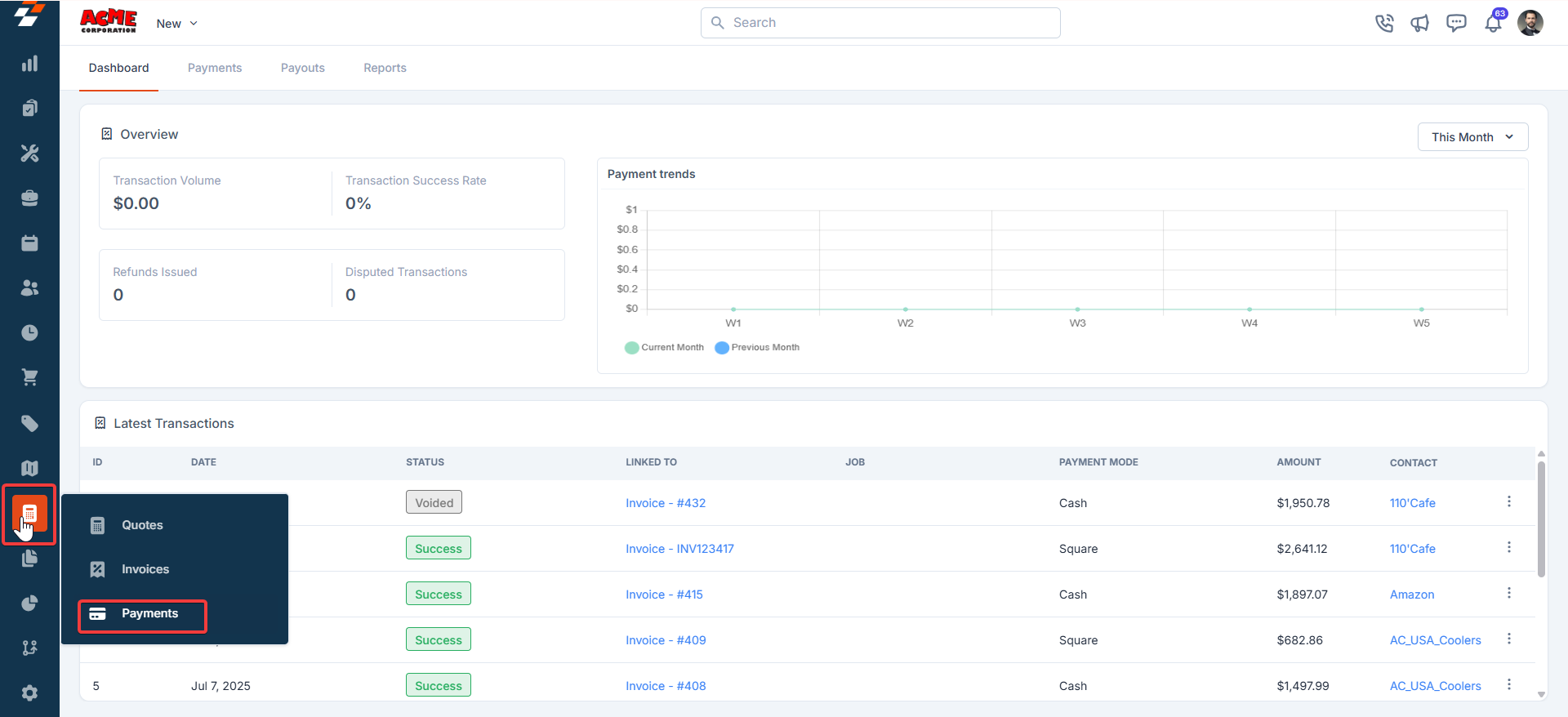
1. Select the "**Accounting**" module from the left navigation menu and choose the "**Payments**" module.
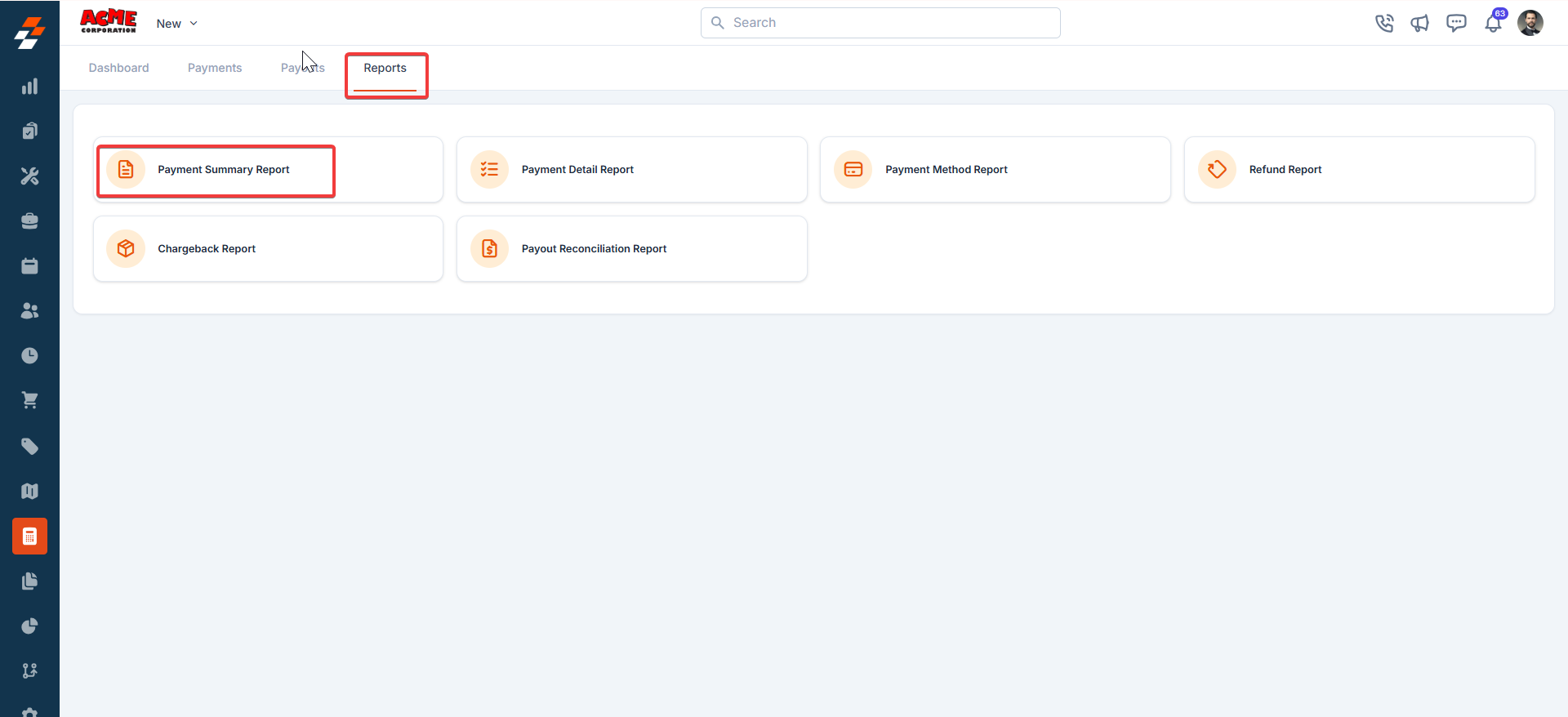
 2. Click the Reports tab. You will see the list of available reports:
* **Payment Summary Report**
* **Payment Detail Report**
* **Payment Method Report**
* **Refund Report**
* **Chargeback Report**
* **Payout Reconciliation Report**
## **Types of Reports**
### **1. Payment Summary Report**
This report provides an **overview of payments** within a selected date range.
* **Use Case:** Perfect for high-level business reporting and quick insights into overall payment activity.
* **Steps to Generate:**
1. Click **Payment Summary Report**.
2. Click the Reports tab. You will see the list of available reports:
* **Payment Summary Report**
* **Payment Detail Report**
* **Payment Method Report**
* **Refund Report**
* **Chargeback Report**
* **Payout Reconciliation Report**
## **Types of Reports**
### **1. Payment Summary Report**
This report provides an **overview of payments** within a selected date range.
* **Use Case:** Perfect for high-level business reporting and quick insights into overall payment activity.
* **Steps to Generate:**
1. Click **Payment Summary Report**.
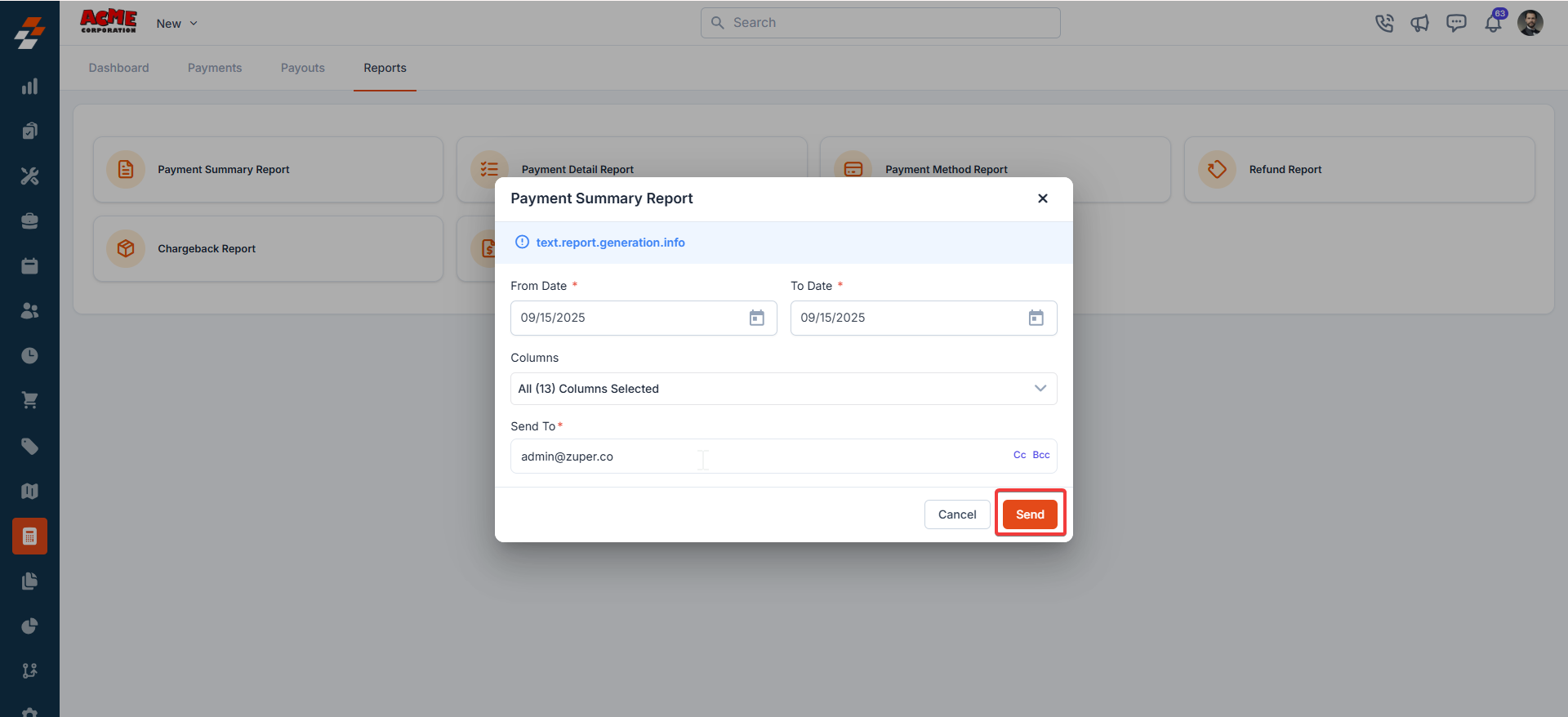
 2. Select **From Date** and **To Date**. 3. Choose the columns you want to include (all by default). 4. Enter the recipient email under **Send To**. 5. Click **Send**.
 ***
### **2. Payment Detail Report**
This report shows **granular transaction details**, including customer-specific data.
* **Use Case:** Ideal for auditing individual transactions or customer queries.
* **Steps to Generate:**
1. Click **Payment Detail Report**.
***
### **2. Payment Detail Report**
This report shows **granular transaction details**, including customer-specific data.
* **Use Case:** Ideal for auditing individual transactions or customer queries.
* **Steps to Generate:**
1. Click **Payment Detail Report**.
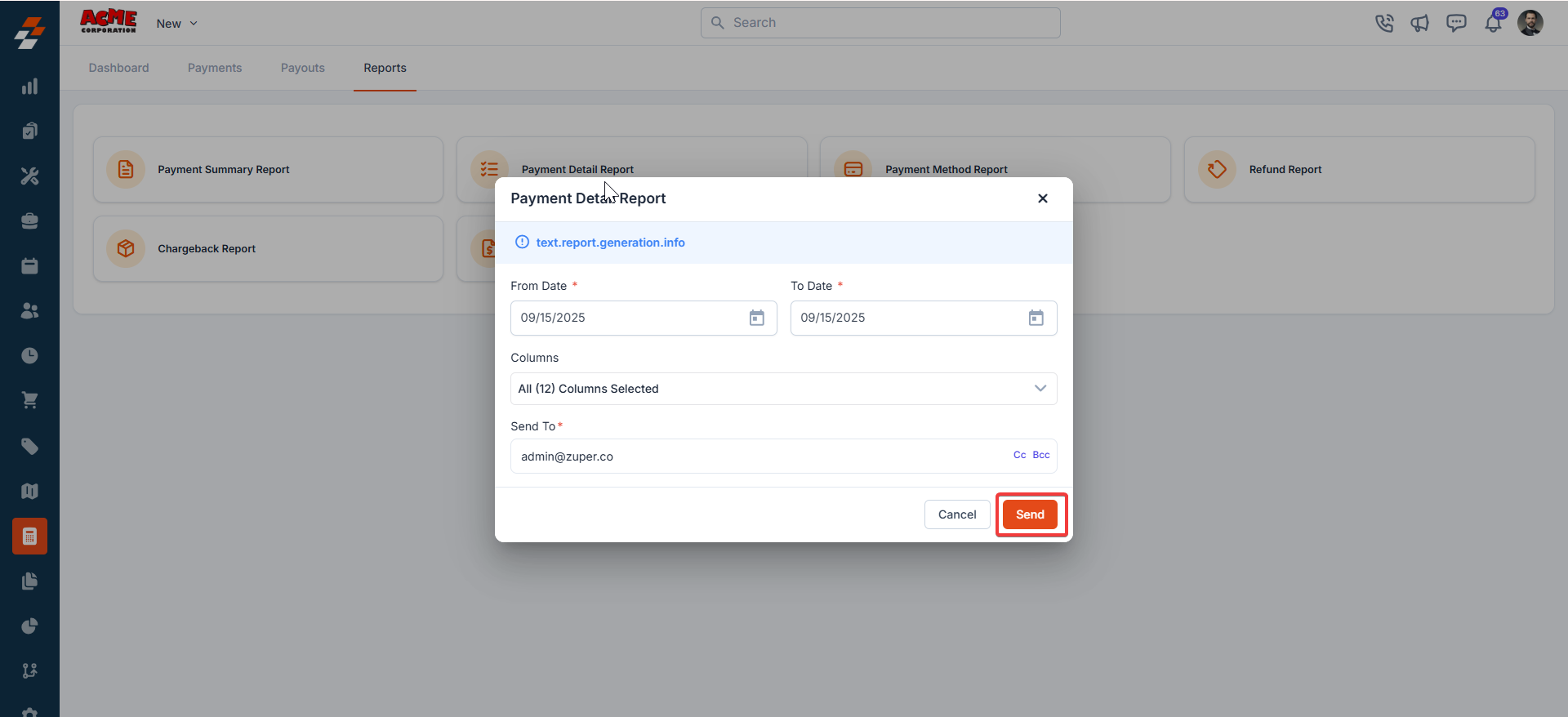
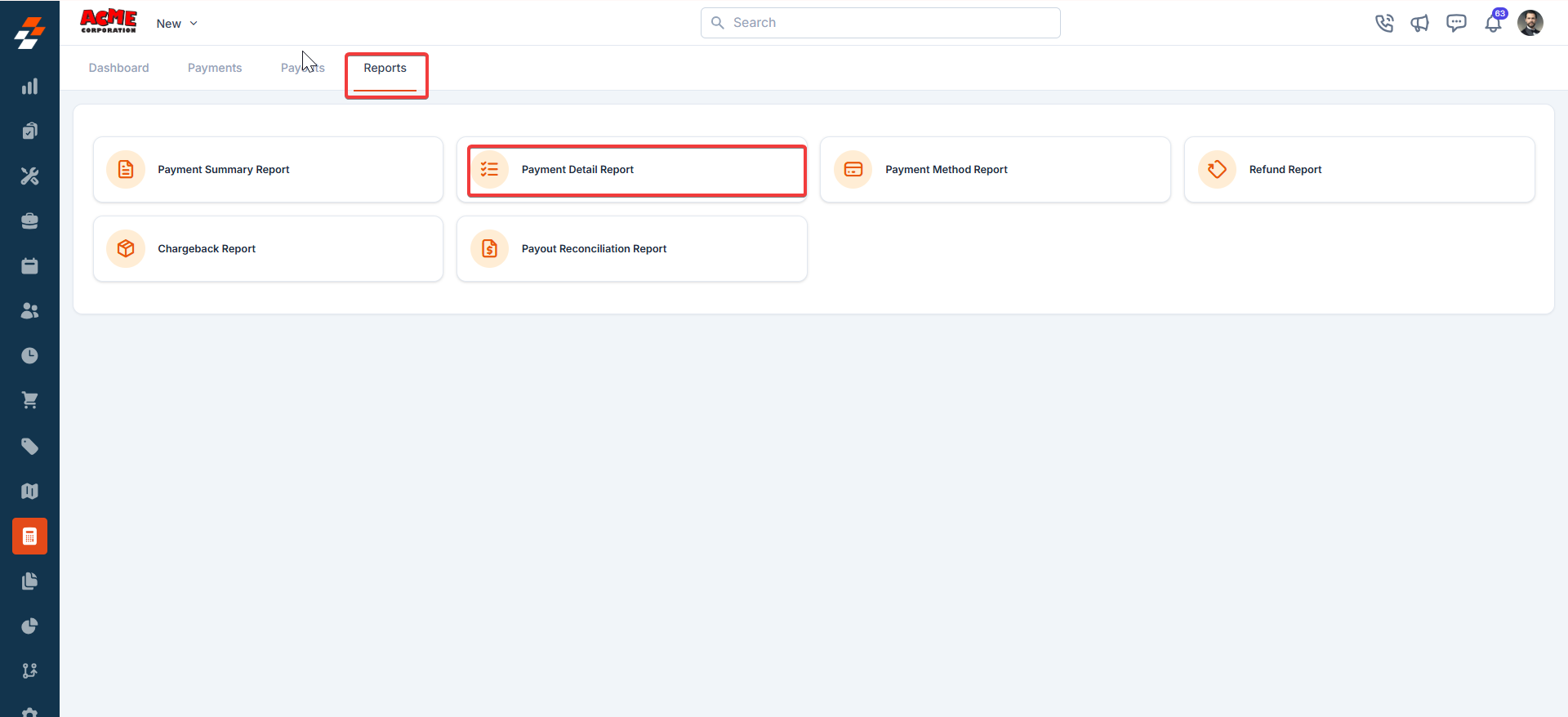 2. Set the **date range**. 3. Choose your columns (default: all selected). 4. Enter the email address where the report should be sent. 5. Click **Send**.
 ### **3. Payment Method Report**
This report organizes transactions based on **payment methods** such as credit card, bank transfer, or wallet.
* **Use Case:** Great for analyzing customer preferences and optimizing payment options.
* **Steps to Generate:**
1. Click **Payment Method Report**.
### **3. Payment Method Report**
This report organizes transactions based on **payment methods** such as credit card, bank transfer, or wallet.
* **Use Case:** Great for analyzing customer preferences and optimizing payment options.
* **Steps to Generate:**
1. Click **Payment Method Report**.
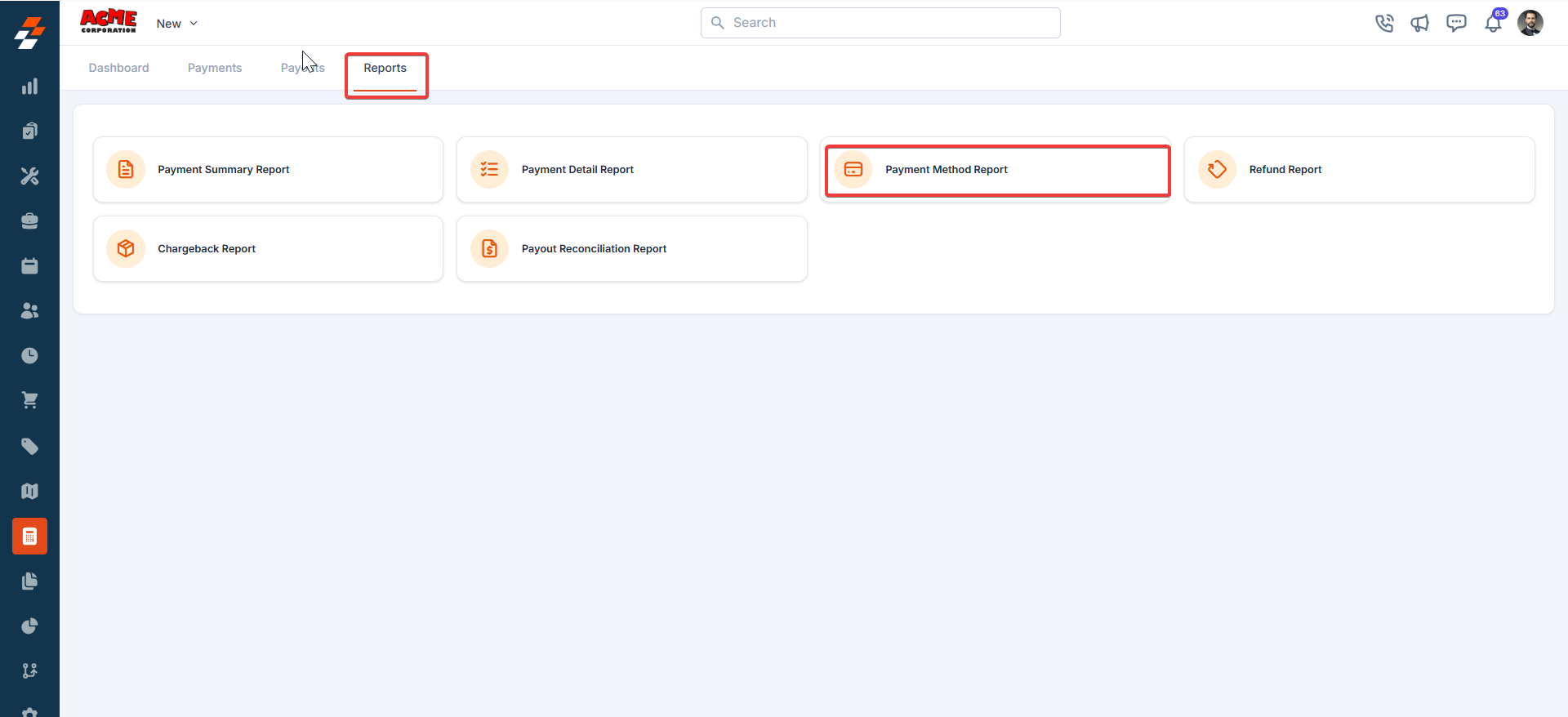 2. Select the **date range**. 3. Choose preferred columns. 4. Provide the recipient’s email address. 5. Click **Send**.
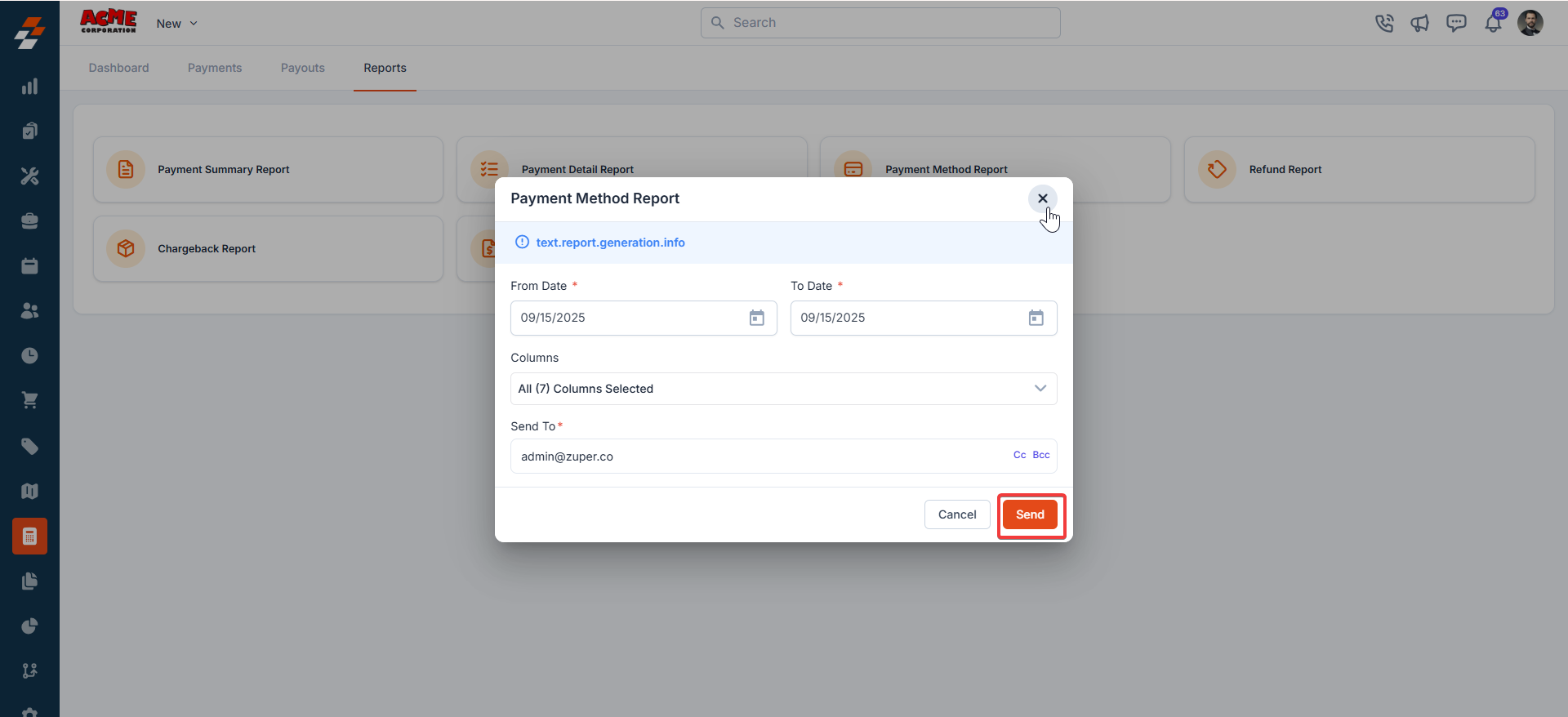 ### **4. Refund Report**
This report provides details of all **refund transactions** processed within a specific timeframe.
* **Use Case:** Useful for customer support teams handling refund-related inquiries.
* **Steps to Generate:**
1. Select **Refund Report**.
### **4. Refund Report**
This report provides details of all **refund transactions** processed within a specific timeframe.
* **Use Case:** Useful for customer support teams handling refund-related inquiries.
* **Steps to Generate:**
1. Select **Refund Report**.
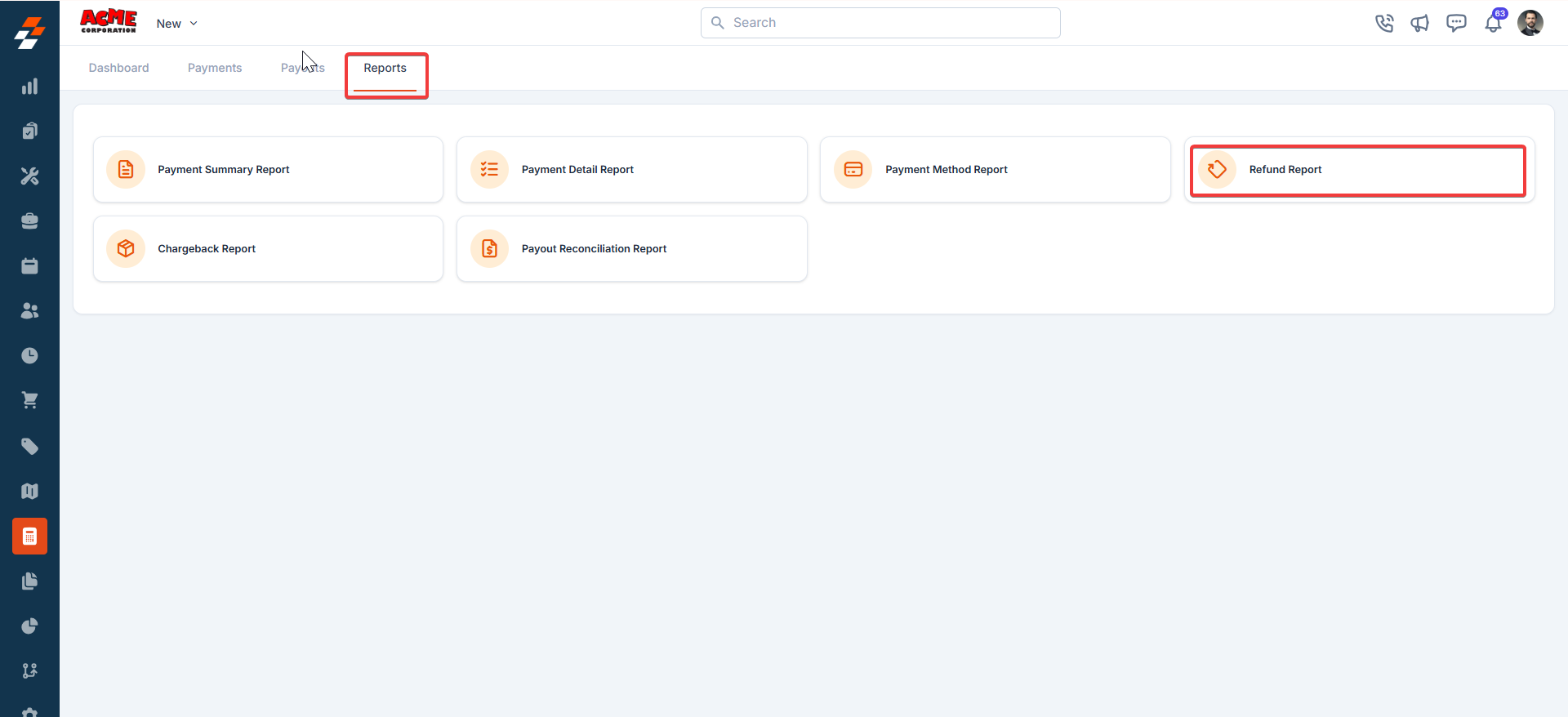 2. Set the **From Date** and **To Date**. 3. Select columns to include. 4. Enter the report recipient’s email. 5. Click **Send**.
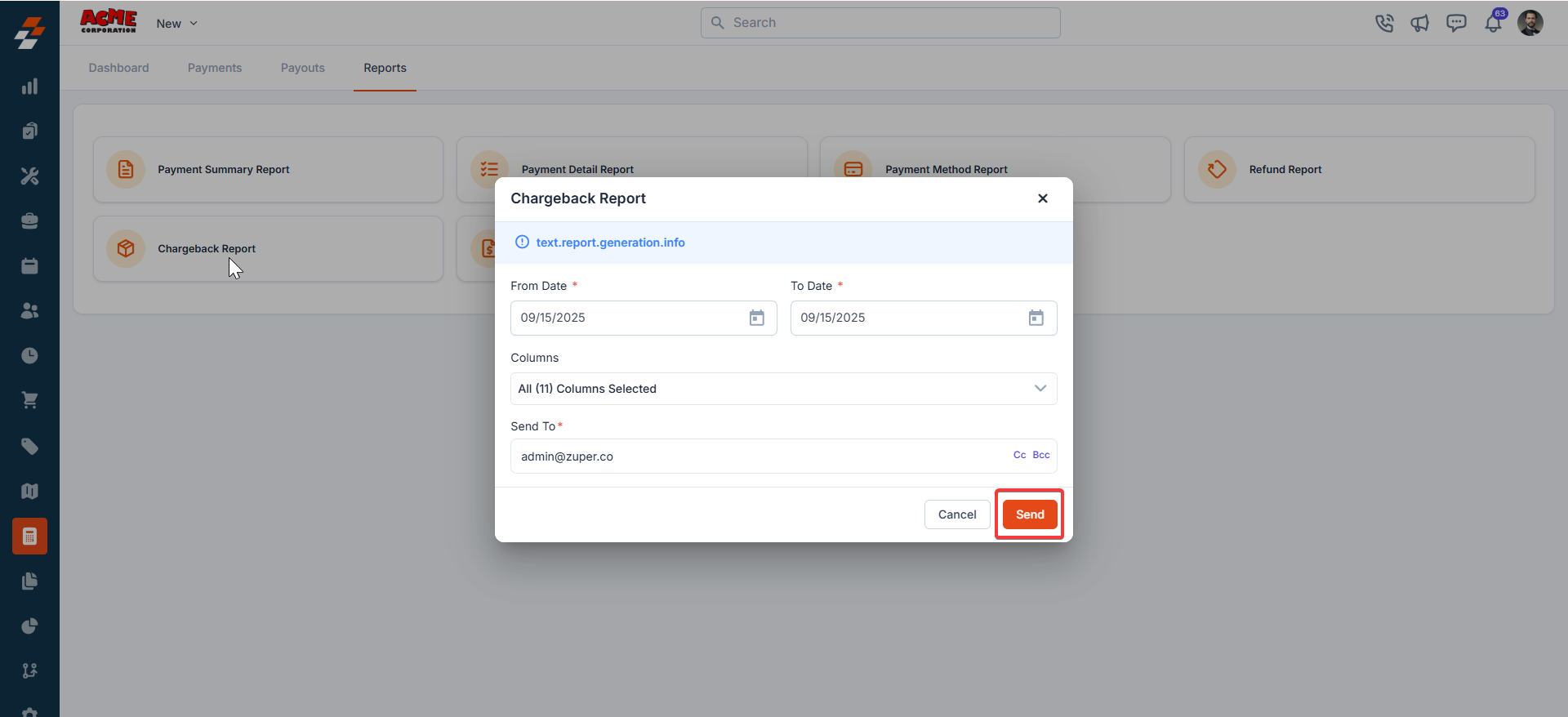 ### **5. Chargeback Report**
This report captures all **chargeback transactions**, allowing you to review disputes efficiently.
* **Use Case:** Essential for finance and risk teams monitoring disputes.
* **Steps to Generate:**
1. Open **Chargeback Report**.
### **5. Chargeback Report**
This report captures all **chargeback transactions**, allowing you to review disputes efficiently.
* **Use Case:** Essential for finance and risk teams monitoring disputes.
* **Steps to Generate:**
1. Open **Chargeback Report**.
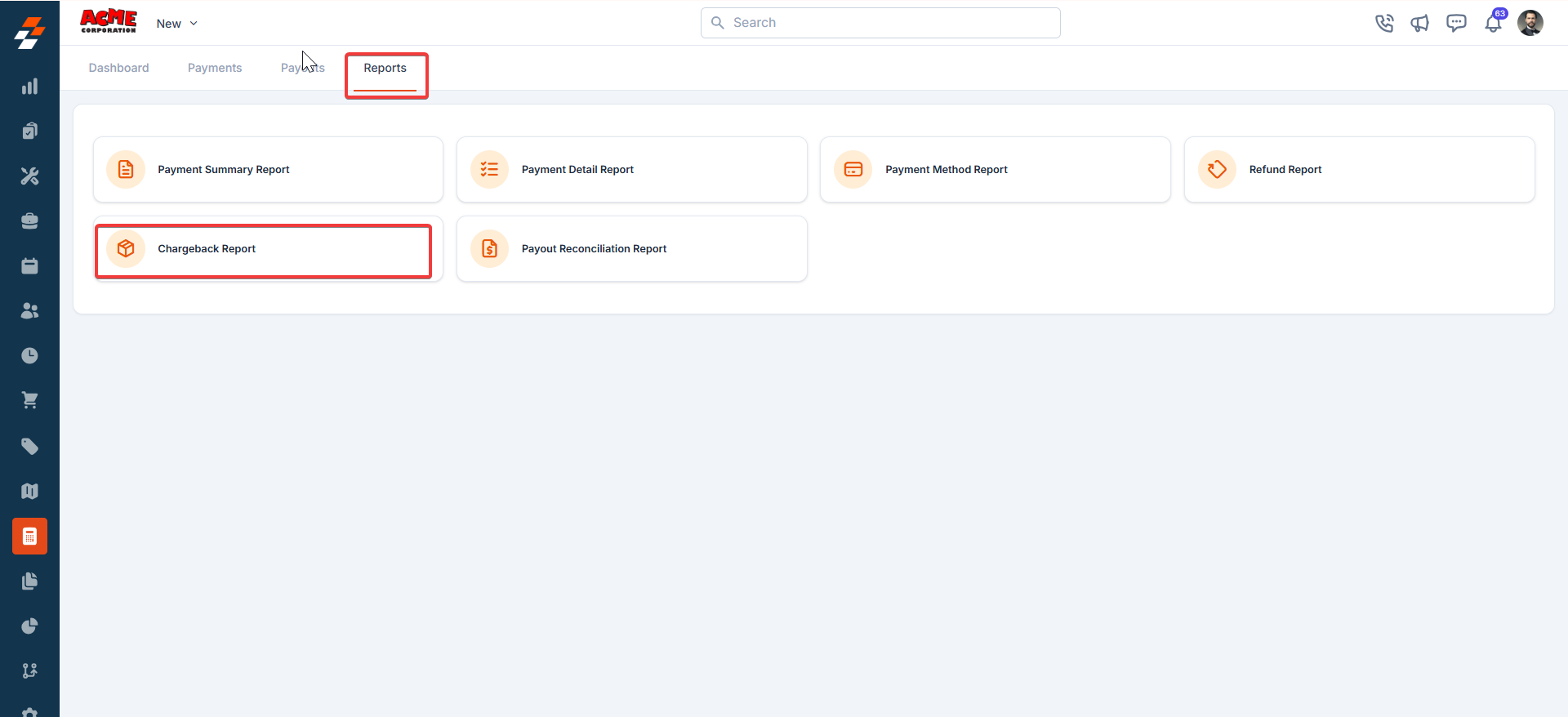 2. Choose the date range. 3. Select relevant columns. 4. Enter the email address for delivery. 5. Click **Send**.
### **6. Payout Reconciliation Report**
This report reconciles payments against payouts, helping you verify that expected amounts have been deposited.
* **Use Case:** A must-have for finance teams ensuring accuracy between system records and bank payouts.
* **Steps to Generate:**
1. Select **Payout Reconciliation Report**.
2. Choose the date range. 3. Select relevant columns. 4. Enter the email address for delivery. 5. Click **Send**.
### **6. Payout Reconciliation Report**
This report reconciles payments against payouts, helping you verify that expected amounts have been deposited.
* **Use Case:** A must-have for finance teams ensuring accuracy between system records and bank payouts.
* **Steps to Generate:**
1. Select **Payout Reconciliation Report**.
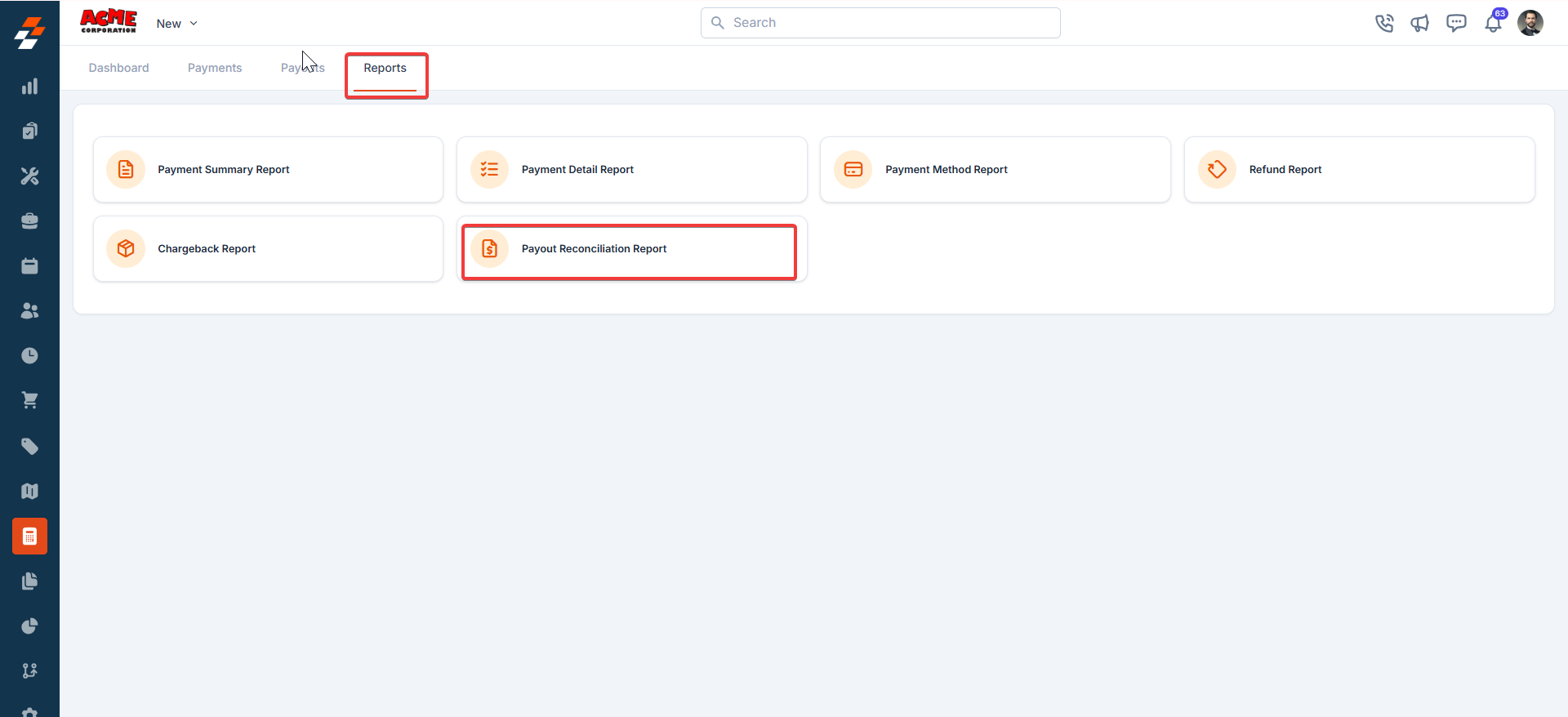 2. (Optional) Adjust columns. 3. Enter the recipient email. 4. Click **Send**.
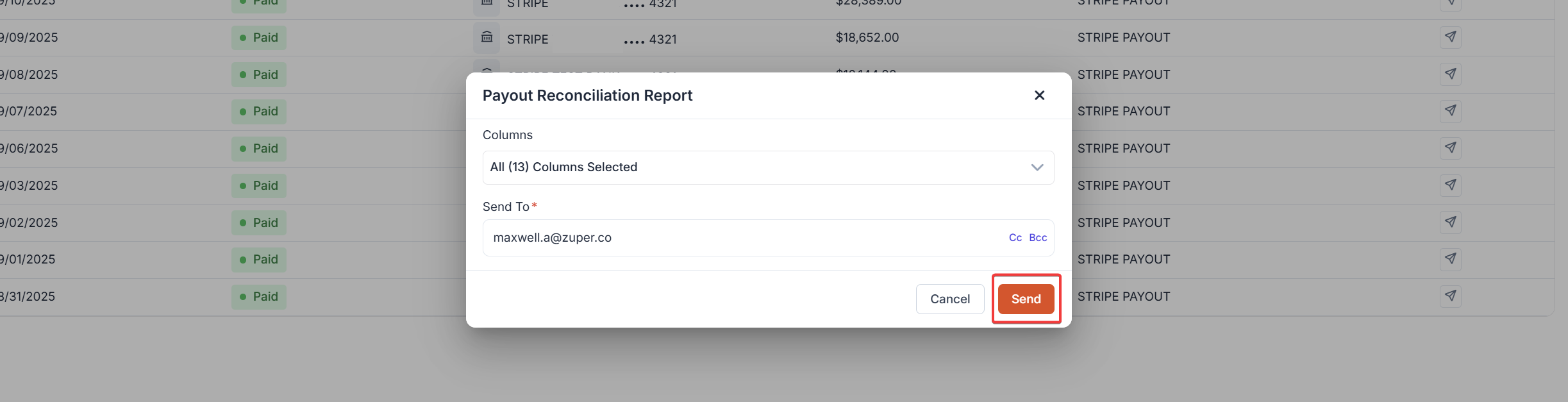 **Important:** The reports available on the **Payments → Reports** tab are scoped to transactions processed through **Zuper Pay** (card payments, bank transfers, and other methods processed via Zuper's integrated payment platform). Payments recorded manually via other methods — such as check, cash, or external POS — are **not included** in these reports.
To view or export all payment records regardless of method, navigate to **Accounting → Payments** (the main Payments tab) and use the **Filters** option to select the payment method (e.g., Check, Cash) and date range, then export from there.
With Zuper Pay’s reporting features, managing your payments, refunds, and reconciliations is seamless and efficient.
**Important:** The reports available on the **Payments → Reports** tab are scoped to transactions processed through **Zuper Pay** (card payments, bank transfers, and other methods processed via Zuper's integrated payment platform). Payments recorded manually via other methods — such as check, cash, or external POS — are **not included** in these reports.
To view or export all payment records regardless of method, navigate to **Accounting → Payments** (the main Payments tab) and use the **Filters** option to select the payment method (e.g., Check, Cash) and date range, then export from there.
With Zuper Pay’s reporting features, managing your payments, refunds, and reconciliations is seamless and efficient.