> ## Documentation Index
> Fetch the complete documentation index at: https://docs.zuper.co/llms.txt
> Use this file to discover all available pages before exploring further.
# BBPOS WisePOS E Reader
The **BBPOS WisePOS** **E** Payment Reader is a smart countertop payment reader with handheld capability that integrates with the Zuper web app to process in-person payments efficiently. Whether you’re collecting deposits on quotes or processing invoice payments, this intuitive device ensures a smooth and secure card-present transaction experience. With support for multiple payment methods, including credit and debit cards (Swipe, Tap, Dip), customers can choose the payment method that suits them best.
The BBPOS Payment Reader reduces transaction costs by supporting card-present transactions, which incur lower processing fees compared to online or manually entered payments. With its robust integration, fast processing, and end-to-end encryption (E2EE), the BBPOS Payment Reader enhances business efficiency and customer satisfaction, delivering a frictionless payment experience.
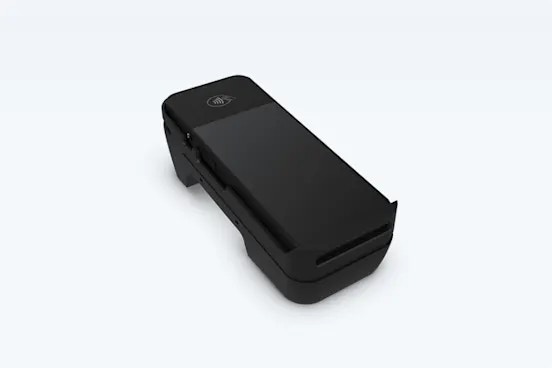 **Note**: The BBPOS WisePOS E is currently available only in the United States.
## **Order your BBPOS WisePOS E payment reader**
To order a BBPOS WisePOS E payment reader, contact the Zuper support team at [support@zuper.co](mailto:support@zuper.co). The team will coordinate the ordering and shipping process and provide tracking details once the reader is shipped.
## **Setting up your BBPOS WisePOS E payment reader**
**Note**: The BBPOS WisePOS E is currently available only in the United States.
## **Order your BBPOS WisePOS E payment reader**
To order a BBPOS WisePOS E payment reader, contact the Zuper support team at [support@zuper.co](mailto:support@zuper.co). The team will coordinate the ordering and shipping process and provide tracking details once the reader is shipped.
## **Setting up your BBPOS WisePOS E payment reader**
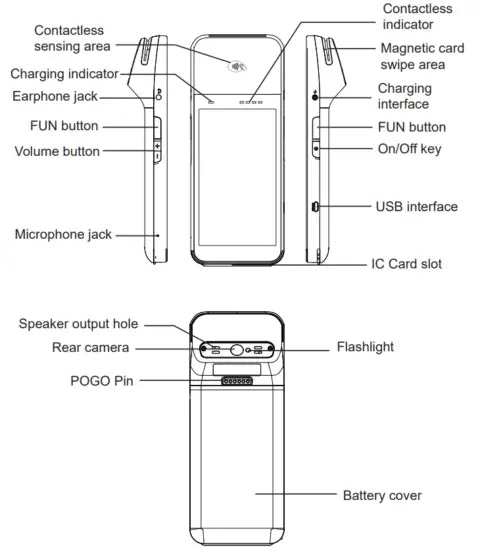 Follow these steps to set up your payment reader:
1. **Install the battery**: Gently lift the back cover using the indentation in the bottom-left corner (use a coin or key, if needed). Slide the battery into its slot, ensuring the gold connectors align with the contacts at the top.
2. **Charge the device**: Connect the provided USB cable to the port marked with a lightning bolt symbol. Charge for 2–3 hours for a full battery, which provides approximately 8 hours of use. For countertop use, keep the device plugged in or docked to maintain power and receive automatic software updates.
3. **Power on the device**: Press and hold the power button for 2 seconds until the screen turns on and the right LED array flashes, indicating the device is ready.
4. **Power off or sleep**: To put the device to sleep, press the power button once. To power off, hold the power button until the “Power Off” option appears, then select it.
5. **Connect to the Internet:** The BBPOS WisePOS E requires an internet connection to process payments. Ensure the reader is on the same network as the device running the Zuper app.
Follow these steps to set up your payment reader:
1. **Install the battery**: Gently lift the back cover using the indentation in the bottom-left corner (use a coin or key, if needed). Slide the battery into its slot, ensuring the gold connectors align with the contacts at the top.
2. **Charge the device**: Connect the provided USB cable to the port marked with a lightning bolt symbol. Charge for 2–3 hours for a full battery, which provides approximately 8 hours of use. For countertop use, keep the device plugged in or docked to maintain power and receive automatic software updates.
3. **Power on the device**: Press and hold the power button for 2 seconds until the screen turns on and the right LED array flashes, indicating the device is ready.
4. **Power off or sleep**: To put the device to sleep, press the power button once. To power off, hold the power button until the “Power Off” option appears, then select it.
5. **Connect to the Internet:** The BBPOS WisePOS E requires an internet connection to process payments. Ensure the reader is on the same network as the device running the Zuper app.
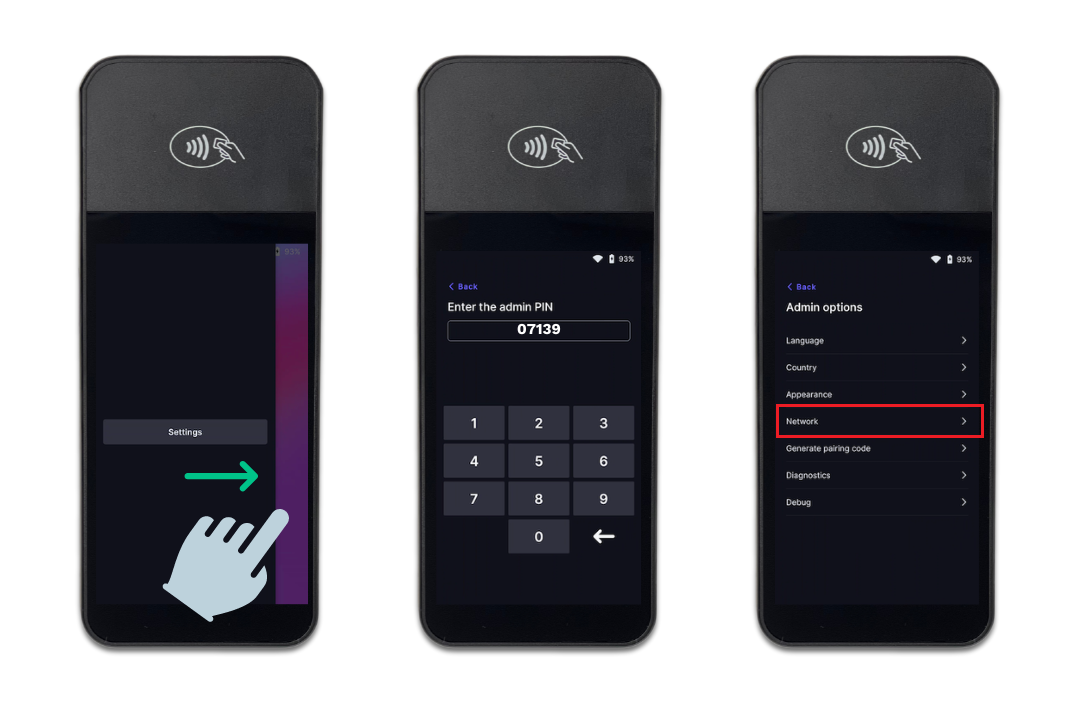 * **Wi-Fi**: Swipe right on the reader’s screen, tap **Settings**, enter the admin PIN (07139), and select **Network settings**. Choose a WPA-Personal or WPA2-Personal encrypted, password-protected Wi-Fi network. Non-password-protected or enterprise networks are not supported.
* **Ethernet (Optional Dock)**: Connect the dock to a power source and an Ethernet cable. When docked, the reader uses the Ethernet connection instead of Wi-Fi. Ensure both cables are securely connected before docking.
For more detailed information, you can refer to the help article for [BBPOS WisePOS E](https://docs.stripe.com/terminal/payments/setup-reader/bbpos-wisepos-e) of Stripe.
## **Managing a location**
To link your BBPOS WisePOS E to a specific physical or operational site for streamlined device management, create a location in the Zuper web app:
1. Log in to the Zuper web app with admin credentials.
2. Navigate to **Settings > Zuper Pay settings> Terminal Management**.
* **Wi-Fi**: Swipe right on the reader’s screen, tap **Settings**, enter the admin PIN (07139), and select **Network settings**. Choose a WPA-Personal or WPA2-Personal encrypted, password-protected Wi-Fi network. Non-password-protected or enterprise networks are not supported.
* **Ethernet (Optional Dock)**: Connect the dock to a power source and an Ethernet cable. When docked, the reader uses the Ethernet connection instead of Wi-Fi. Ensure both cables are securely connected before docking.
For more detailed information, you can refer to the help article for [BBPOS WisePOS E](https://docs.stripe.com/terminal/payments/setup-reader/bbpos-wisepos-e) of Stripe.
## **Managing a location**
To link your BBPOS WisePOS E to a specific physical or operational site for streamlined device management, create a location in the Zuper web app:
1. Log in to the Zuper web app with admin credentials.
2. Navigate to **Settings > Zuper Pay settings> Terminal Management**.
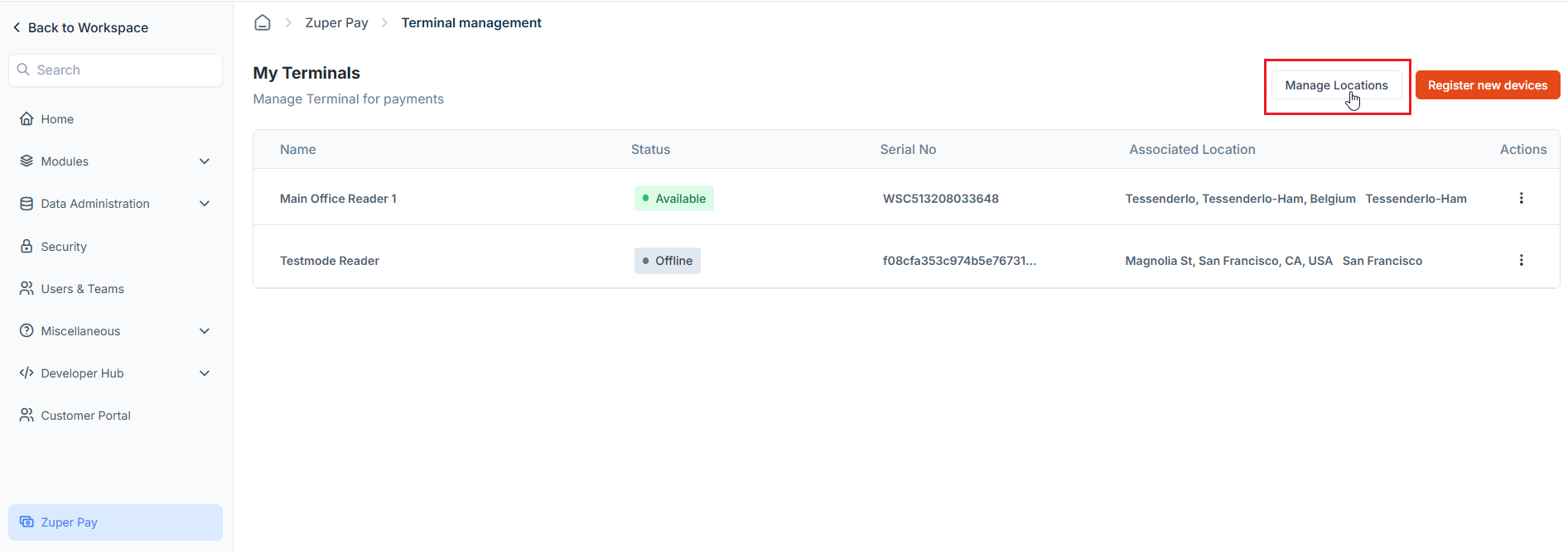
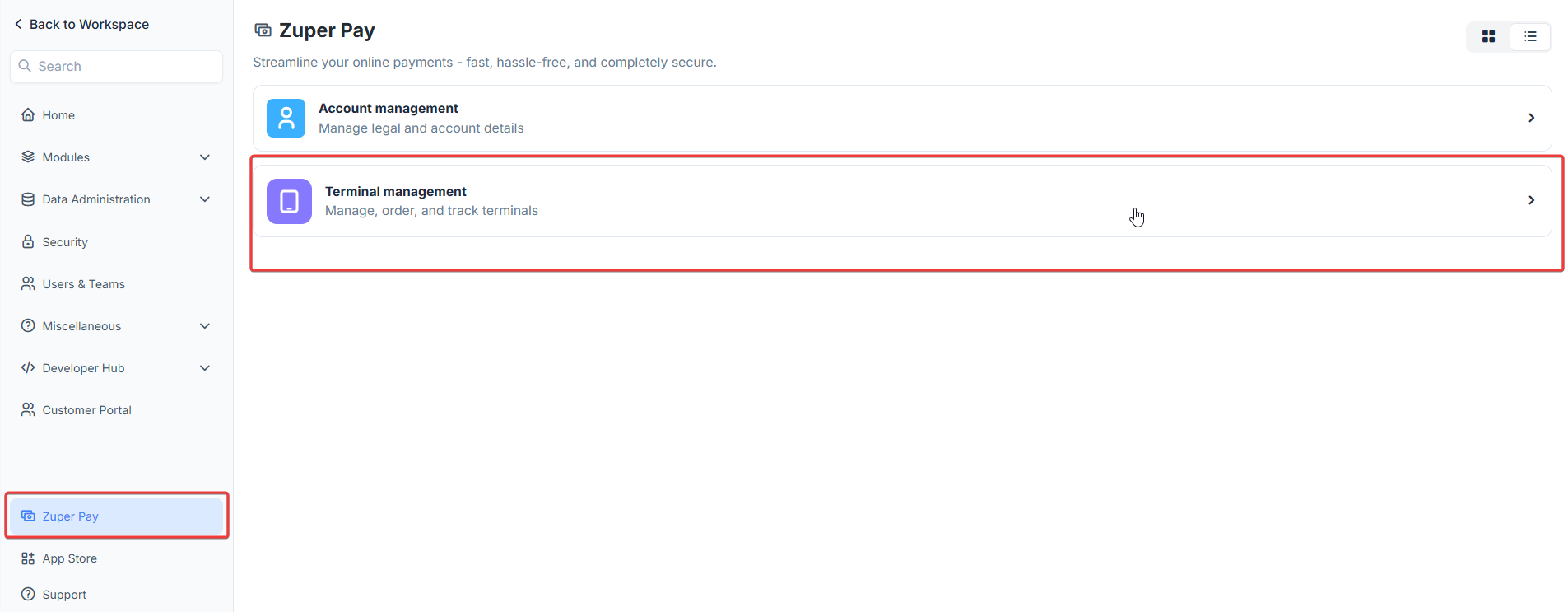 3. Click **Manage Location** to open the location listing page.
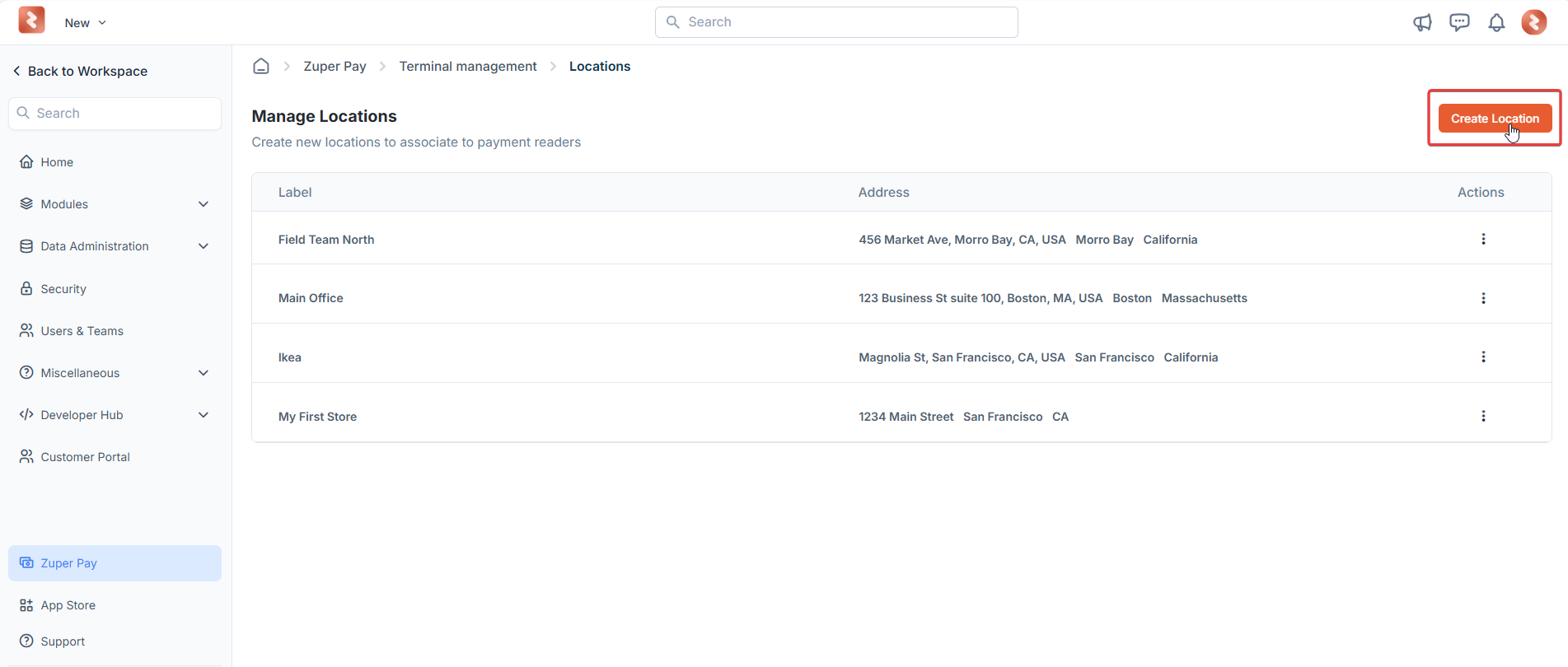
 4. Click **Create Location** to create a new one.
 5. On the Location creation page, enter the following details:
* **Location Name**: E.g., "Field Team 1" or "Main Office".
* **Address**: Provide the physical address or operational area.
5. On the Location creation page, enter the following details:
* **Location Name**: E.g., "Field Team 1" or "Main Office".
* **Address**: Provide the physical address or operational area.
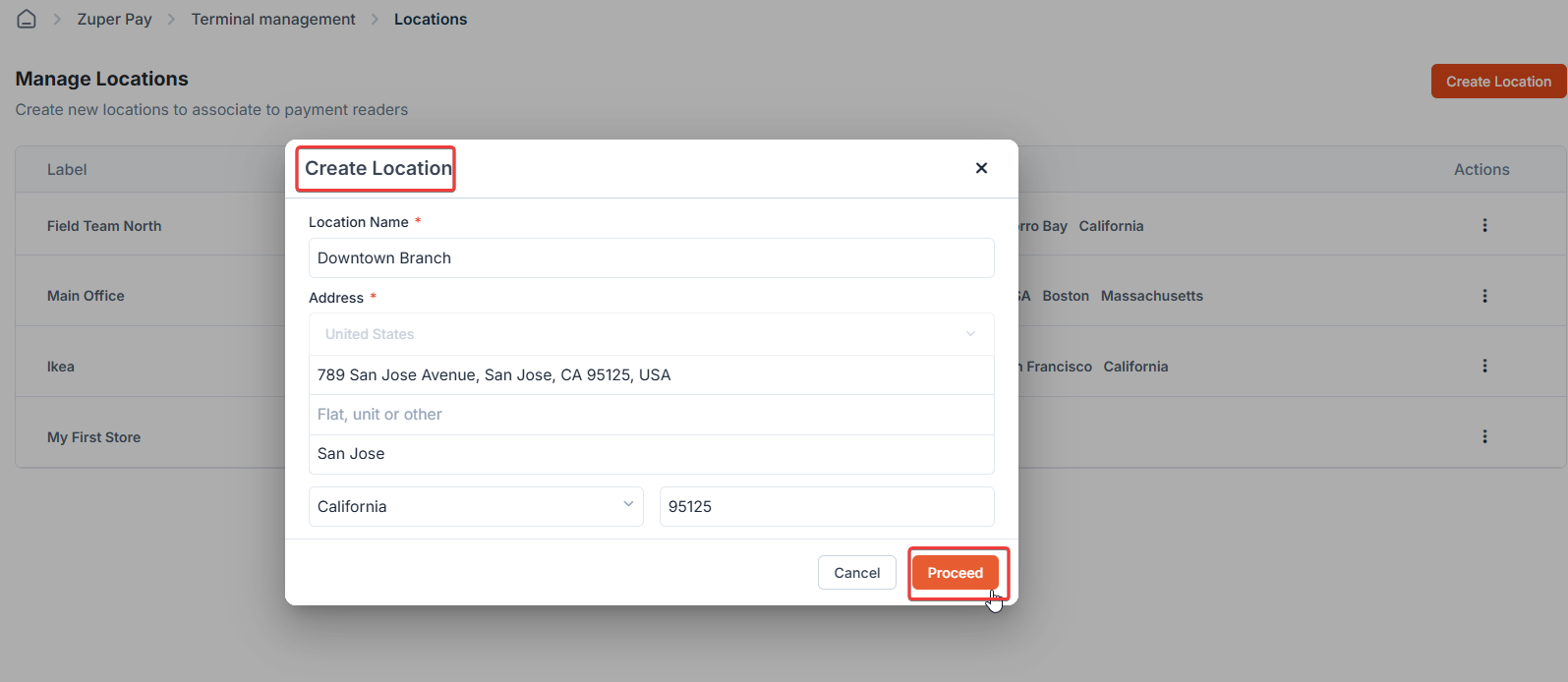 6. Click **Proceed** to save the location. This will be used during device registration.
**Note**: Each WisePOS E requires a unique location. Create multiple locations if managing numerous terminals.
## **Registering the device**
Register your BBPOS WisePOS E payment reader to associate it with your Zuper account and a specific location:
1. Log in to the Zuper web portal.
2. Go to **Settings > Zuper Pay > Terminal Management**.
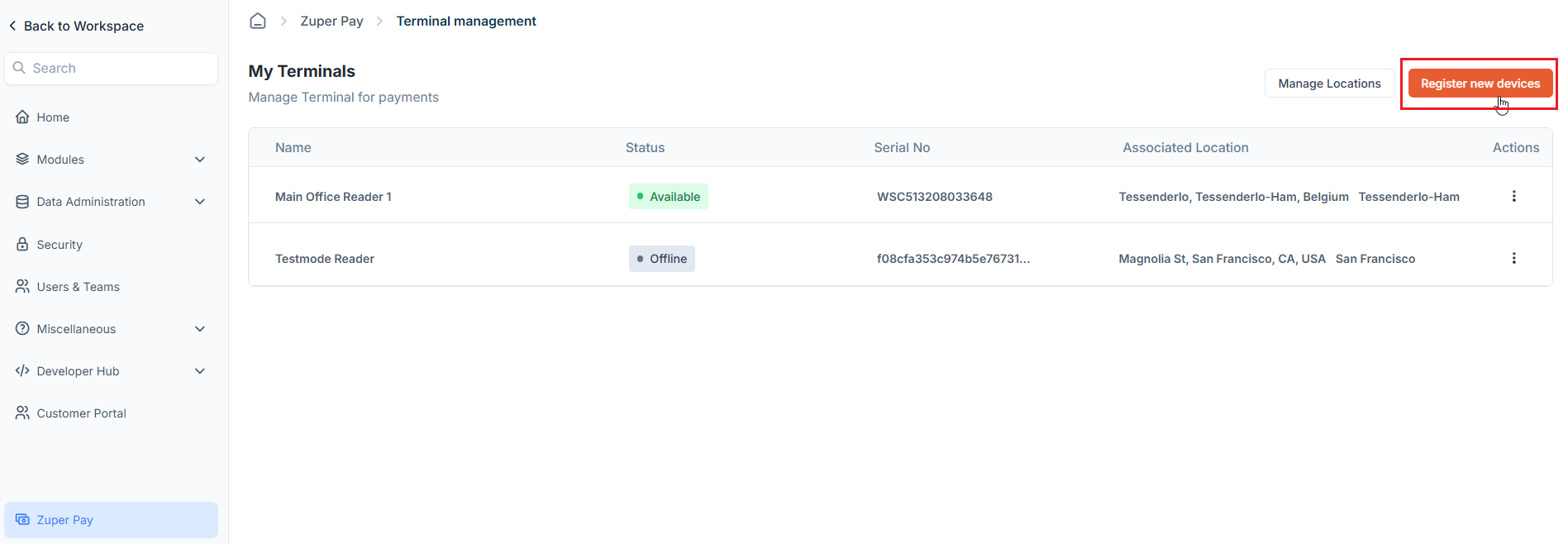
3. Select **Register new devices**.
6. Click **Proceed** to save the location. This will be used during device registration.
**Note**: Each WisePOS E requires a unique location. Create multiple locations if managing numerous terminals.
## **Registering the device**
Register your BBPOS WisePOS E payment reader to associate it with your Zuper account and a specific location:
1. Log in to the Zuper web portal.
2. Go to **Settings > Zuper Pay > Terminal Management**.
3. Select **Register new devices**.
 4. Power on the WisePOS E device:
* Hold the power button on the right side for 2 seconds until the screen turns on.
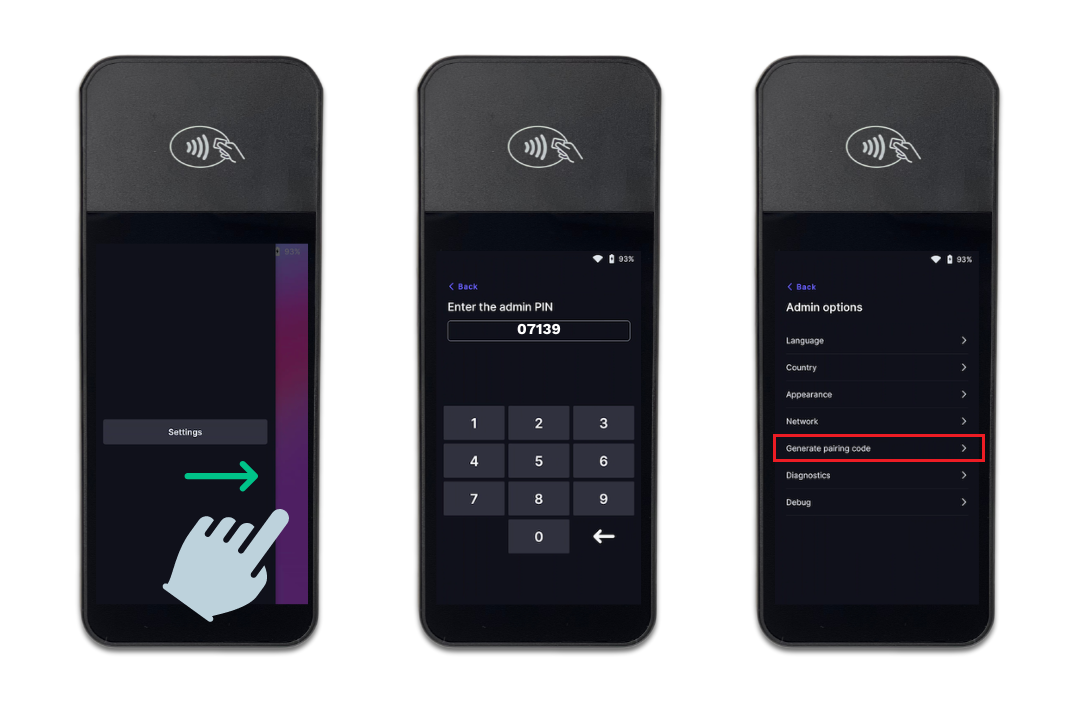
* Swipe right from the left edge of the screen, tap **Settings**, enter the admin PIN (for example - 07139), and select **Generate Pairing Code** to display a three-word hyphenated code (e.g., apple-banana-cherry).
4. Power on the WisePOS E device:
* Hold the power button on the right side for 2 seconds until the screen turns on.
* Swipe right from the left edge of the screen, tap **Settings**, enter the admin PIN (for example - 07139), and select **Generate Pairing Code** to display a three-word hyphenated code (e.g., apple-banana-cherry).
 5. In the Zuper web portal, enter the reader's name.
6. Enter the three-word code exactly as shown (including hyphens) in the **Registration Code** field.
7. Select the **location** created earlier from the dropdown.
5. In the Zuper web portal, enter the reader's name.
6. Enter the three-word code exactly as shown (including hyphens) in the **Registration Code** field.
7. Select the **location** created earlier from the dropdown.
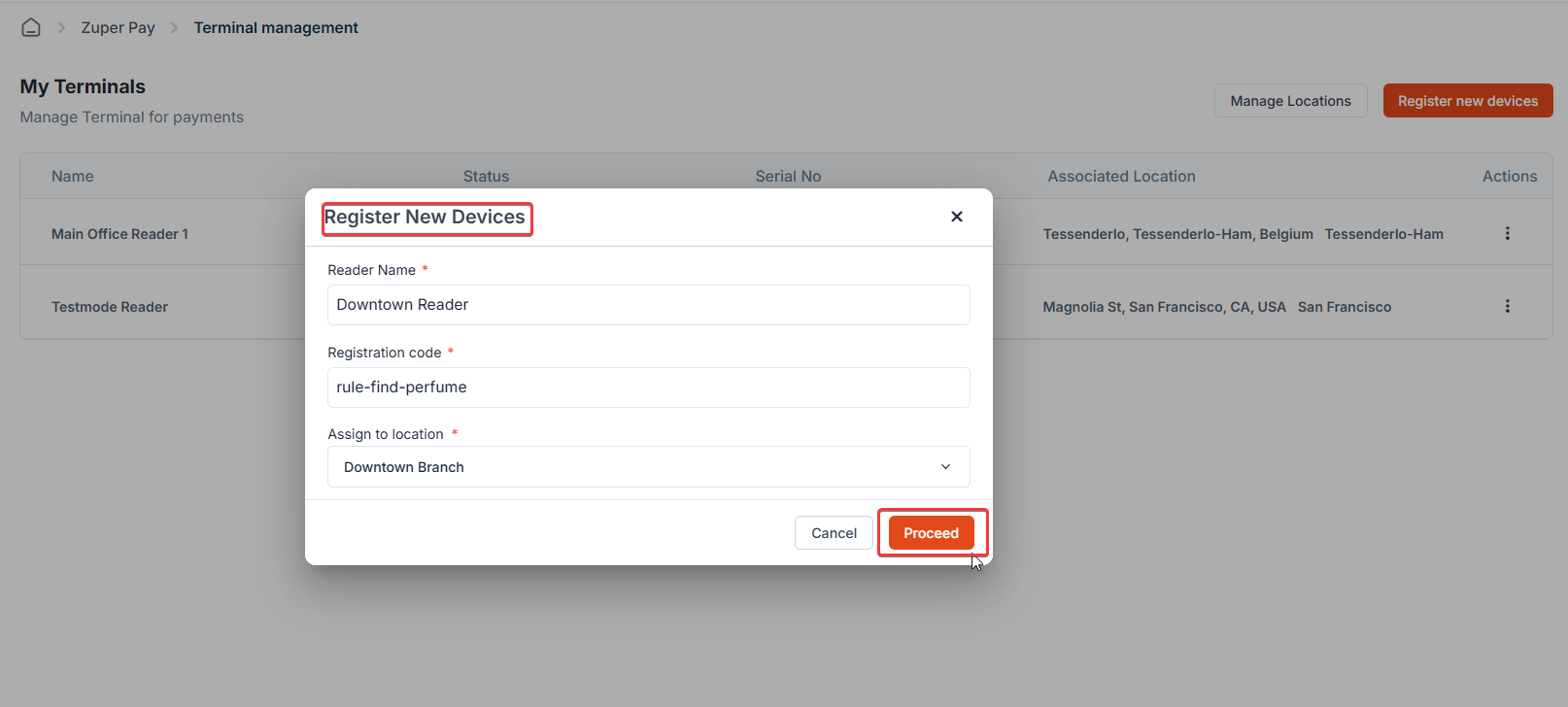 8. Click **Proceed** to complete registration.
**Note**: Verify the device’s serial number (on the back) matches the registered device. If the pairing code doesn’t work, reboot the device and generate a new code.
## **Pair with the Zuper web app** **and collect payments**
The BBPOS WisePOS E will seamlessly connect to the Zuper web app to process payments for invoices or quotes, enabling you to accept in-person payments efficiently. For security reasons, the reader must be paired and connect each time an invoice or quote payment is collected.
Follow these steps to pair the reader and collect payments:
1. Navigate to the **Invoices** or **Quotes** section.
2. Select the specific invoice or quote for which you want to collect payment.
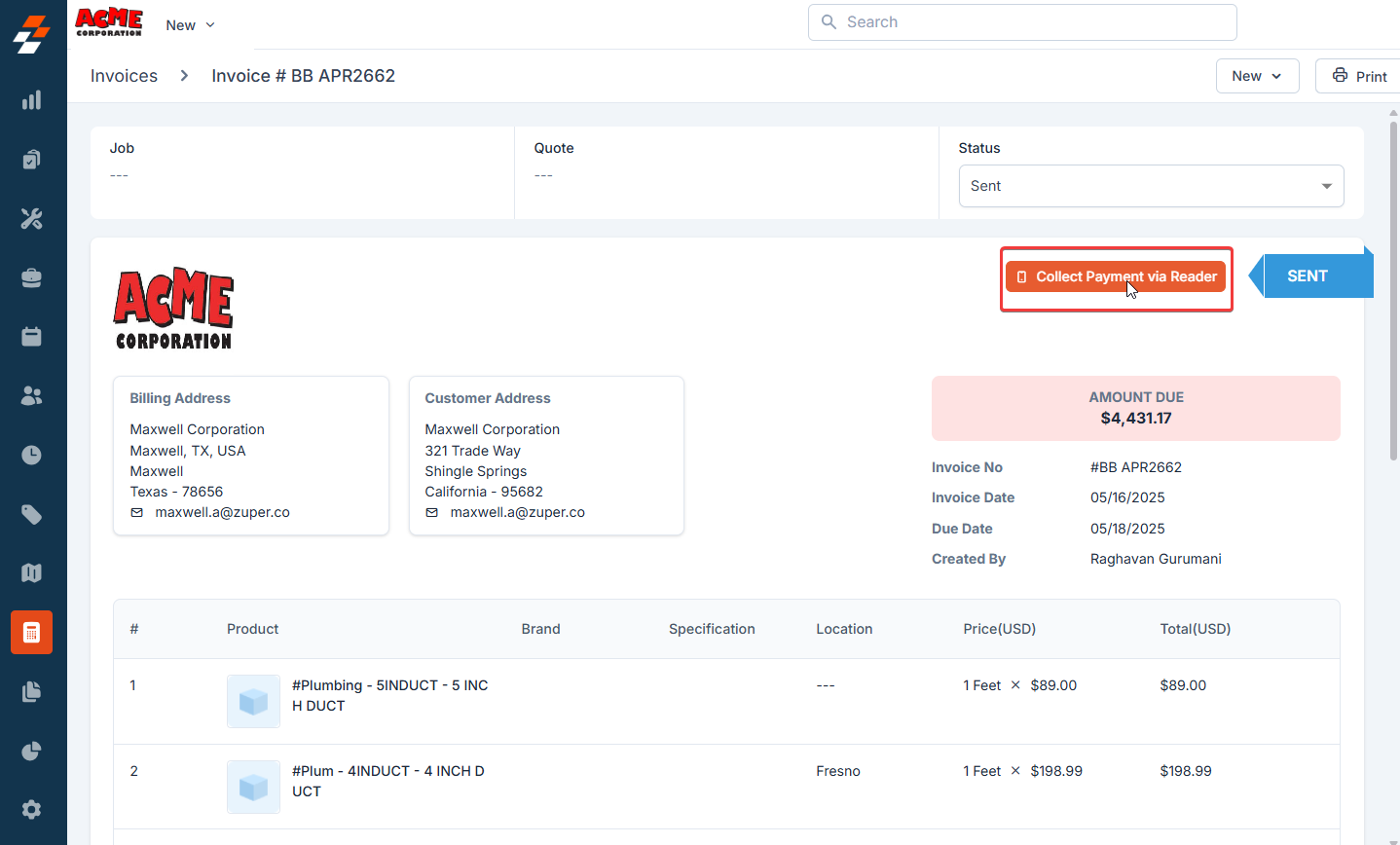
3. Click **Collect Payment via Reader** to start the payment process.
8. Click **Proceed** to complete registration.
**Note**: Verify the device’s serial number (on the back) matches the registered device. If the pairing code doesn’t work, reboot the device and generate a new code.
## **Pair with the Zuper web app** **and collect payments**
The BBPOS WisePOS E will seamlessly connect to the Zuper web app to process payments for invoices or quotes, enabling you to accept in-person payments efficiently. For security reasons, the reader must be paired and connect each time an invoice or quote payment is collected.
Follow these steps to pair the reader and collect payments:
1. Navigate to the **Invoices** or **Quotes** section.
2. Select the specific invoice or quote for which you want to collect payment.
3. Click **Collect Payment via Reader** to start the payment process.
 4. Ensure the WisePOS E is powered on and connected to the same network as the device running the Zuper web app.
5. A list of available readers will appear, identified by their name (e.g., "Field Team 1 Reader") or serial number (found on the back of the device).
4. Ensure the WisePOS E is powered on and connected to the same network as the device running the Zuper web app.
5. A list of available readers will appear, identified by their name (e.g., "Field Team 1 Reader") or serial number (found on the back of the device).
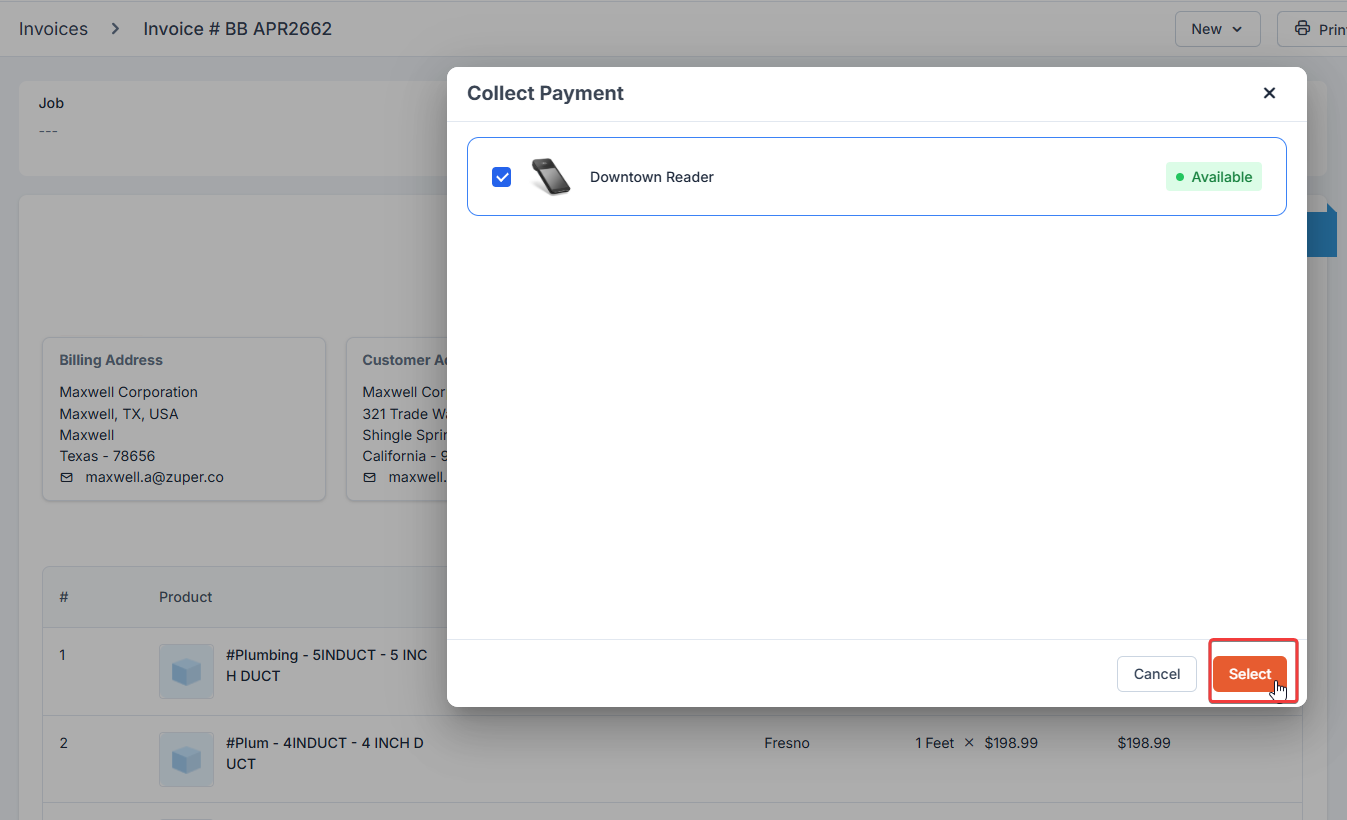 6. Choose the correct reader and click **Select**.
**Note:** The reader can only connect to one device at a time. If the WisePOS E is already connected to a computer, a connection request from another computer will fail. Additionally, if another tab or window on the same computer discovers the reader, the connection to the first tab or window will fail, requiring the pairing process to be repeated.
**Important:** For security reasons, the reader must be paired and connected for each payment collection session. This ensures secure transaction processing and prevents unauthorized access.
7. Once connected, the collect payment screen will display the name or serial number of the paired WisePOS E.
6. Choose the correct reader and click **Select**.
**Note:** The reader can only connect to one device at a time. If the WisePOS E is already connected to a computer, a connection request from another computer will fail. Additionally, if another tab or window on the same computer discovers the reader, the connection to the first tab or window will fail, requiring the pairing process to be repeated.
**Important:** For security reasons, the reader must be paired and connected for each payment collection session. This ensures secure transaction processing and prevents unauthorized access.
7. Once connected, the collect payment screen will display the name or serial number of the paired WisePOS E.
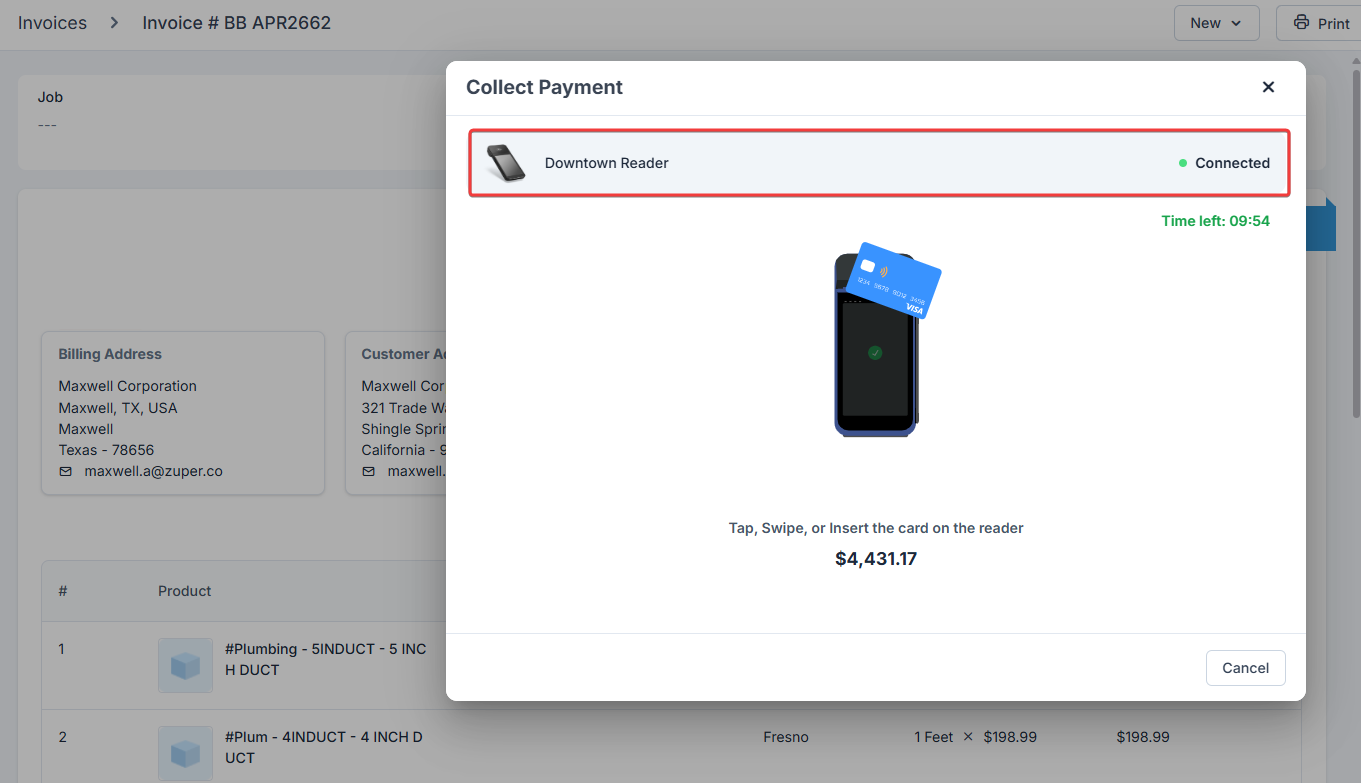 8. Ask the customer to swipe, dip, or tap their card on the reader.
**Note:** Once the surcharge is configured for this transaction, the **Surcharge Notice** dialog appears, displaying the surcharge percentage and amount before the transaction is paid. Your customer must confirm the following statement before proceeding:
8. Ask the customer to swipe, dip, or tap their card on the reader.
**Note:** Once the surcharge is configured for this transaction, the **Surcharge Notice** dialog appears, displaying the surcharge percentage and amount before the transaction is paid. Your customer must confirm the following statement before proceeding:
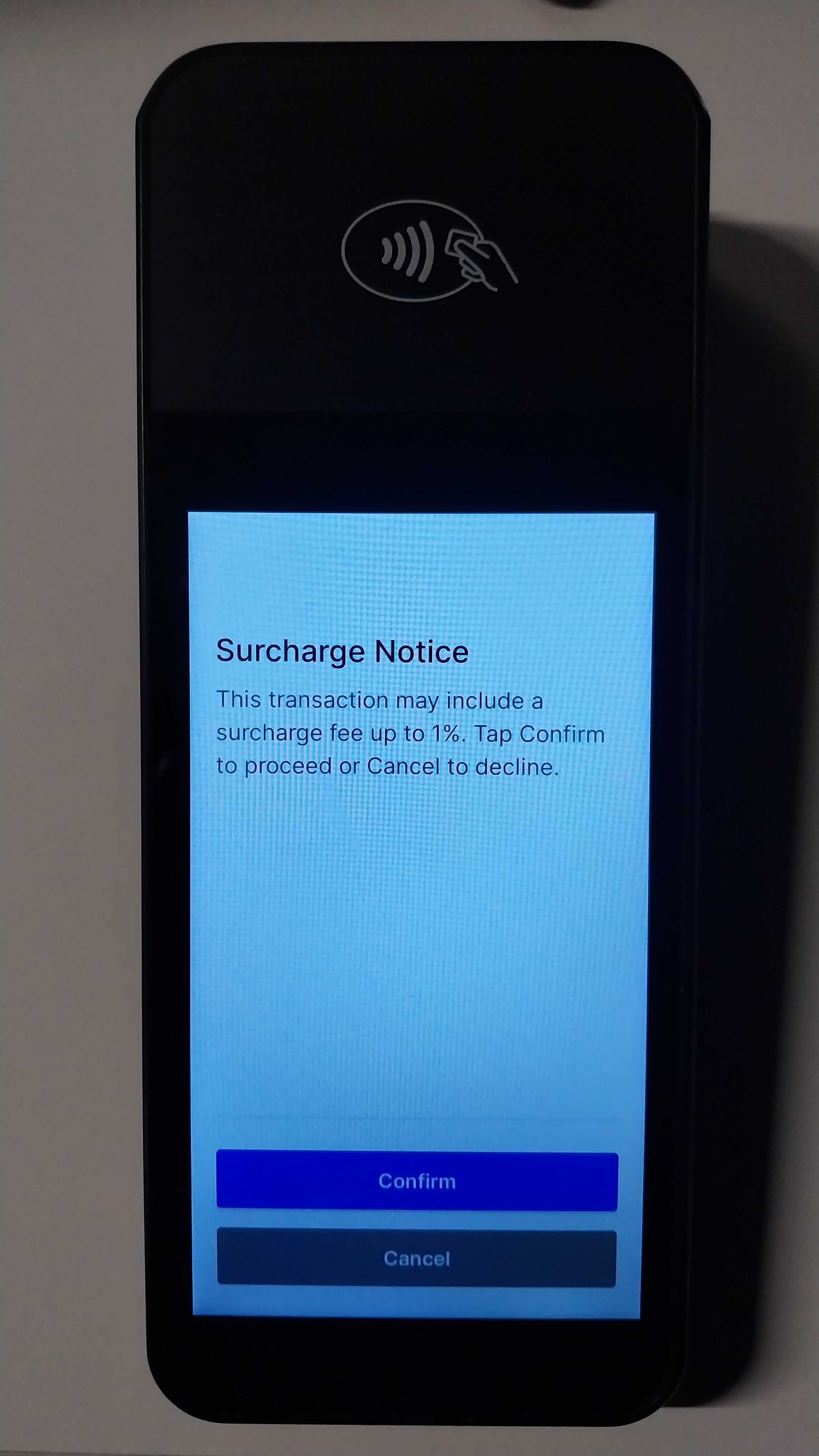 9. A confirmation payment will be displayed with details.
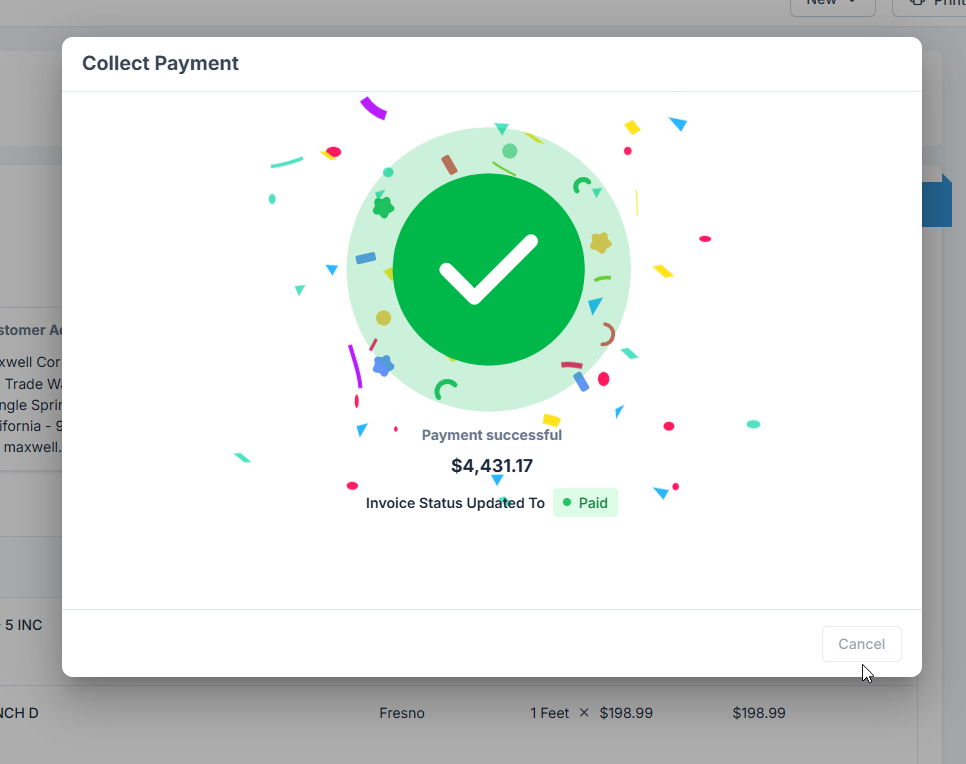 Successful payments trigger a confirmation sound; failed payments produce a distinct error sound.
### **Payment Reader Updates**
Zuper Payments reader, powered by Stripe, automatically updates the WisePOS E when not in use, typically at midnight in your timezone. Updates include security enhancements and new features.
Keep the reader powered on and plugged in (or docked) overnight to receive updates without interrupting sales.
* If unplugged, updates may start upon powering on, delaying use.
* To check for updates manually, reboot the device or go to **Settings > Diagnostics** (PIN 07139) to verify the latest software version (e.g., PCI firmware ID WSC5x).
* Failing to install required updates may prevent payment processing.
### Troubleshooting
**Connection Issues:**
* Verify Wi-Fi/Ethernet connectivity in **Settings > Network settings**. Ensure the reader and the computer running the Zuper Web app are on the same WPA/WPA2 password-protected network.
* If the network disconnects or goes down during a payment attempt, restart the WisePOS E by holding the power button for 6 seconds to restore connectivity. Afterward, restart the payment process from the invoice or quote in the Zuper Web app.
**Payment Failures:**
* Ensure the card’s chip is correctly oriented and not blocked.
* The transaction may fail if the browser window is reloaded or closed during payment processing.
**Pairing Issues:**
* Confirm that the correct three-word code is entered. Reboot and generate a new code if needed.
* Ensure the reader is paired for each payment session, as required for security.
**Power Issues**: When powering off, the WisePOS E may take a few seconds to fully transition to offline status.
***
Successful payments trigger a confirmation sound; failed payments produce a distinct error sound.
### **Payment Reader Updates**
Zuper Payments reader, powered by Stripe, automatically updates the WisePOS E when not in use, typically at midnight in your timezone. Updates include security enhancements and new features.
Keep the reader powered on and plugged in (or docked) overnight to receive updates without interrupting sales.
* If unplugged, updates may start upon powering on, delaying use.
* To check for updates manually, reboot the device or go to **Settings > Diagnostics** (PIN 07139) to verify the latest software version (e.g., PCI firmware ID WSC5x).
* Failing to install required updates may prevent payment processing.
### Troubleshooting
**Connection Issues:**
* Verify Wi-Fi/Ethernet connectivity in **Settings > Network settings**. Ensure the reader and the computer running the Zuper Web app are on the same WPA/WPA2 password-protected network.
* If the network disconnects or goes down during a payment attempt, restart the WisePOS E by holding the power button for 6 seconds to restore connectivity. Afterward, restart the payment process from the invoice or quote in the Zuper Web app.
**Payment Failures:**
* Ensure the card’s chip is correctly oriented and not blocked.
* The transaction may fail if the browser window is reloaded or closed during payment processing.
**Pairing Issues:**
* Confirm that the correct three-word code is entered. Reboot and generate a new code if needed.
* Ensure the reader is paired for each payment session, as required for security.
**Power Issues**: When powering off, the WisePOS E may take a few seconds to fully transition to offline status.
***