> ## Documentation Index
> Fetch the complete documentation index at: https://docs.zuper.co/llms.txt
> Use this file to discover all available pages before exploring further.
# Capturing Photos
> Powered by AI, this feature allows technicians to capture images and record voice input simultaneously during a job. Zuper AI then transcribes and summarizes the spoken content, combining it with the captured images to automatically generate a clear and structured job note.
The **AI Walkthrough Note** feature in the Zuper mobile app is designed to simplify and enhance job documentation for field technicians. Powered by advanced AI technology, this feature supports recording **videos, capturing photos, and recording audio** during a job. After the walkthrough session, Zuper AI automatically transcribes and summarizes the recorded audio, combining it with your captured media to create a clear, organized job note.
This eliminates manual data entry, reduces documentation time, and ensures accurate, professional records of the work performed.
In this guide, we will focus on **how to capture photos** using the AI Walkthrough Note feature effectively, step by step.
**Prerequisite**: Ensure that the feature is enabled for your organization. If it is not enabled, contact our account admin or email [**support@zuper.co**](mailto:support@zuper.co) to have it enabled.
# Capturing Photos
* Open the Zuper mobile app.
* Navigate to the Job Details page.
* Tap **Add Note**. The camera will launch automatically.
* Go to the **Walkthrough** option.
* Switch to the **camera mode** at the bottom of the screen.
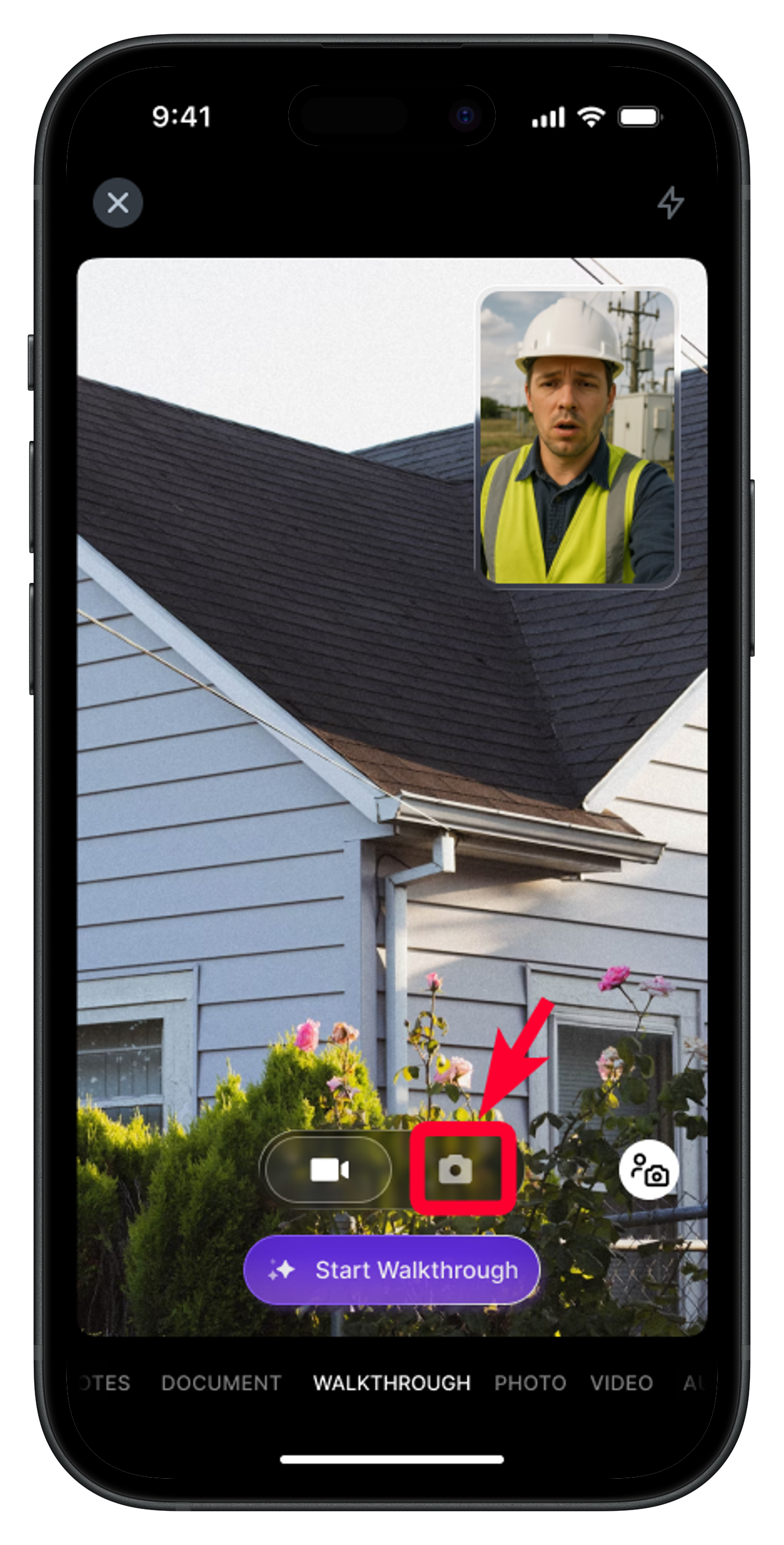 * Click “**Start Walkthrough**” to begin the session.
* Open the Zuper mobile app.
* Navigate to the Job Details page.
* Tap **Add Note**. The camera will launch automatically.
* Go to the **WALKTHROUGH PHOTO** option.
* Click “**Start Walkthrough**” to begin the session.
* Open the Zuper mobile app.
* Navigate to the Job Details page.
* Tap **Add Note**. The camera will launch automatically.
* Go to the **WALKTHROUGH PHOTO** option.
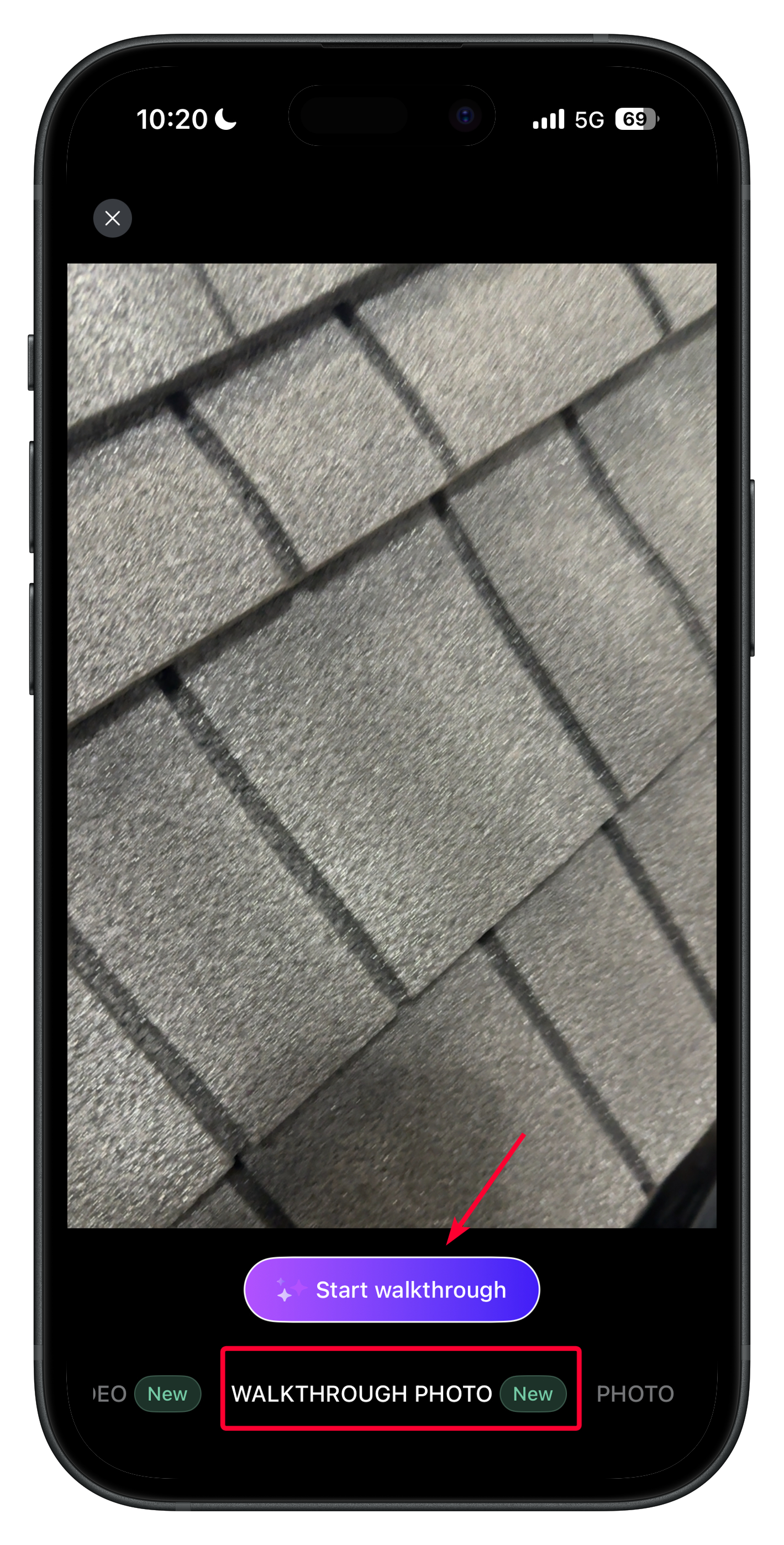 * Click “**Start Walkthrough**” to begin the session.
**Note**: You can capture multiple photos while recording audio.
* Once you're done, your recording will be prepared for preview.
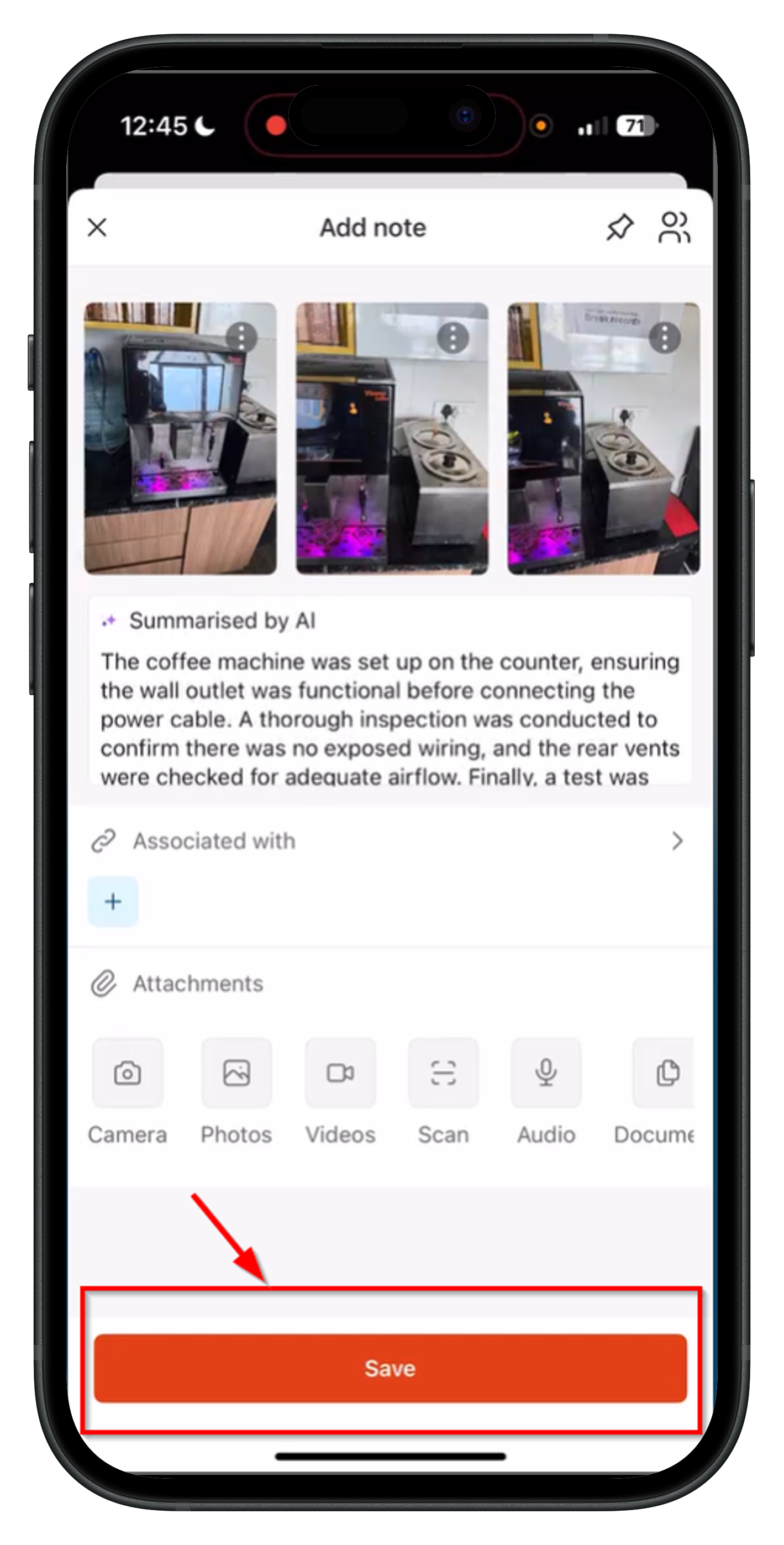
* After previewing, you’ll be directed to the **Add Note** page, where Zuper AI will automatically generate a summary of your recorded audio, improving clarity, spelling, and grammar.
* Click “**Start Walkthrough**” to begin the session.
**Note**: You can capture multiple photos while recording audio.
* Once you're done, your recording will be prepared for preview.
* After previewing, you’ll be directed to the **Add Note** page, where Zuper AI will automatically generate a summary of your recorded audio, improving clarity, spelling, and grammar.
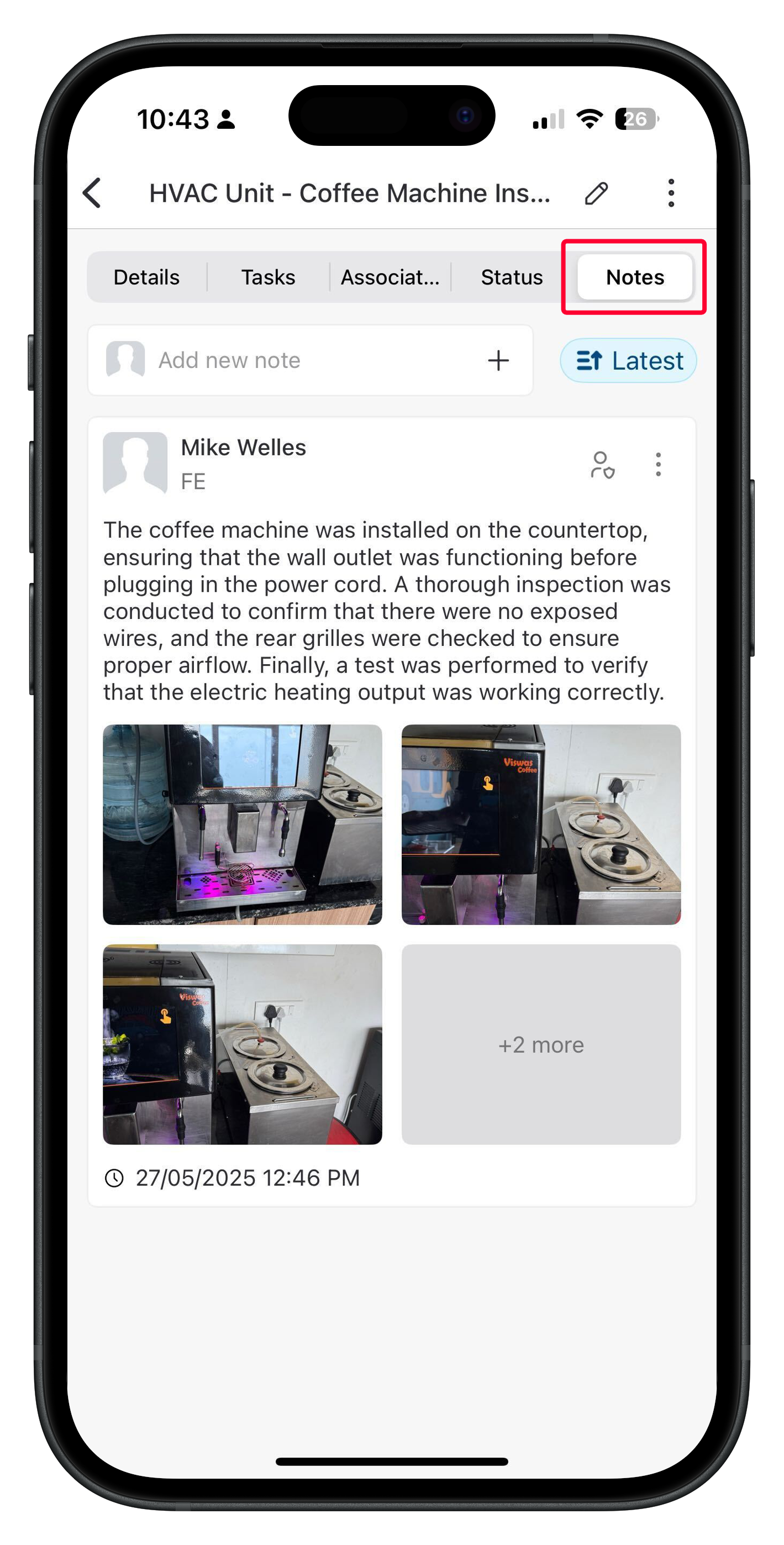
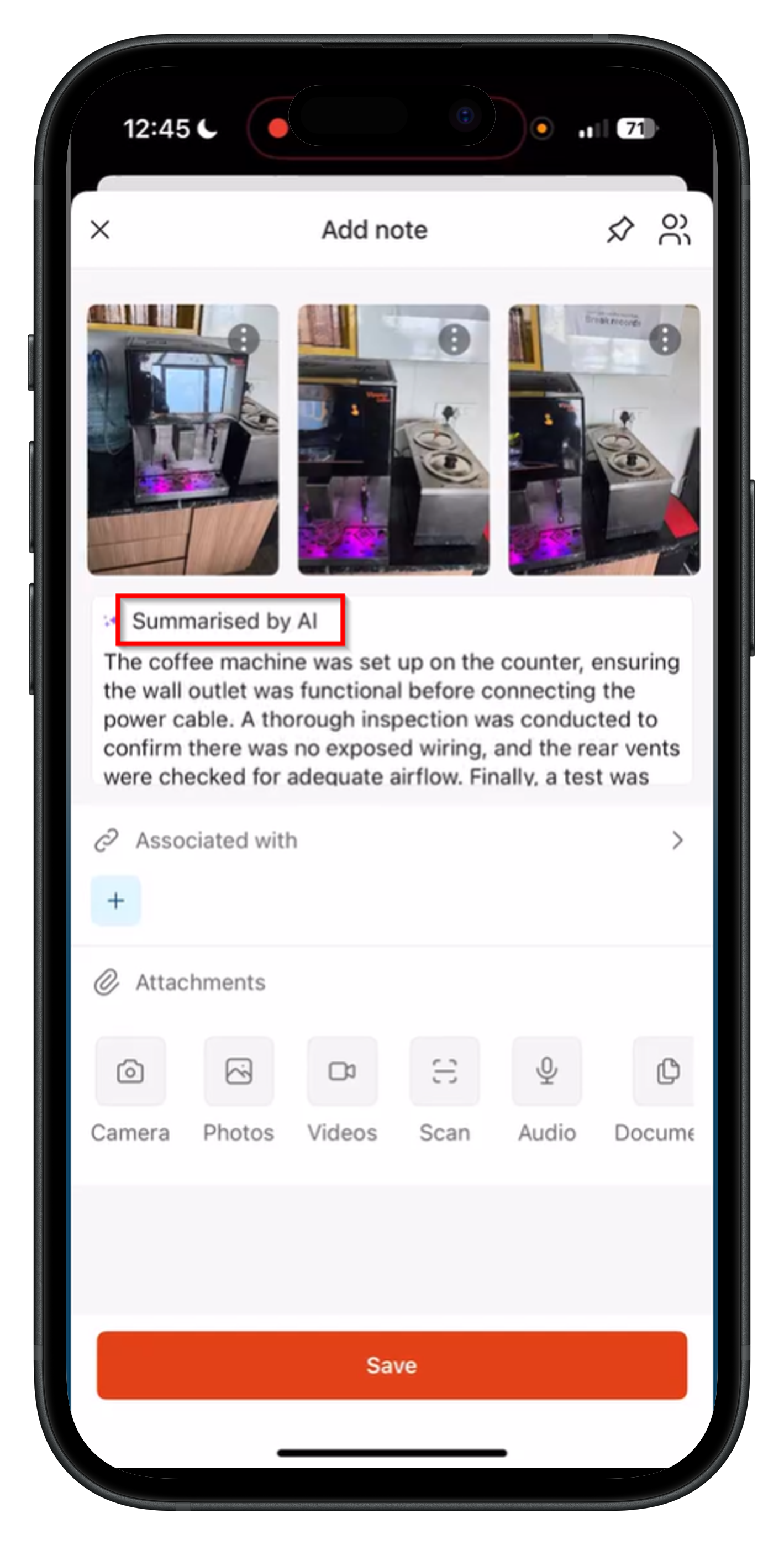 * Tap **Save**. The summarized note, along with the captured images, will be added to the job notes successfully.
 ## Editing the Note (Optional)
After AI generates the summarized note, you can modify it as needed:
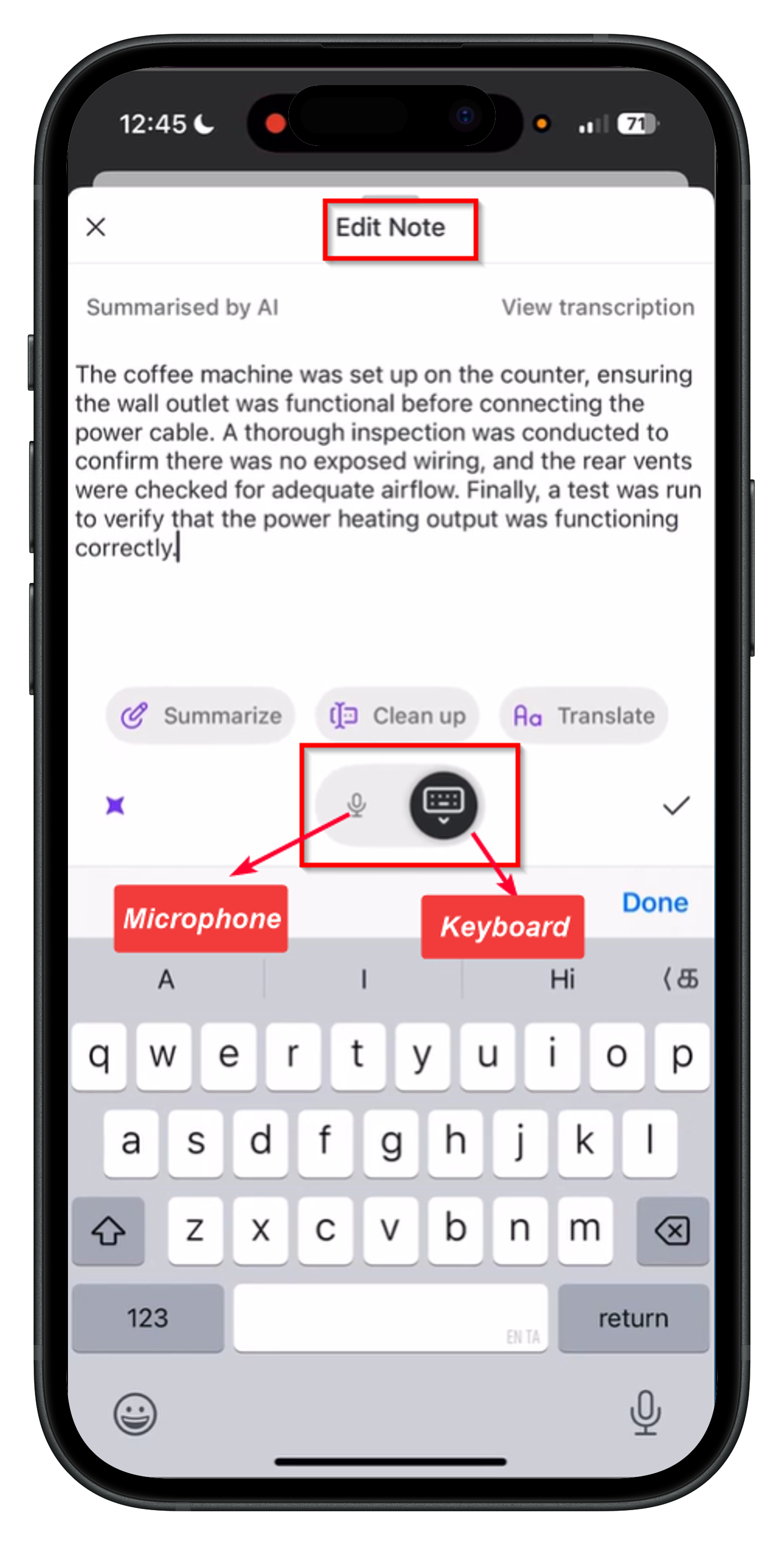
* Tap on the "**Summarized by AI**" section to open the **Edit Note** screen.
* Choose from two editing options:
1. **Microphone Input** – Use your microphone to speak and add more details to the note.
2. **Manual Editing** – Use the keyboard to make changes to the text manually.
## Editing the Note (Optional)
After AI generates the summarized note, you can modify it as needed:
* Tap on the "**Summarized by AI**" section to open the **Edit Note** screen.
* Choose from two editing options:
1. **Microphone Input** – Use your microphone to speak and add more details to the note.
2. **Manual Editing** – Use the keyboard to make changes to the text manually.
 ## Enhancing the Note with AI
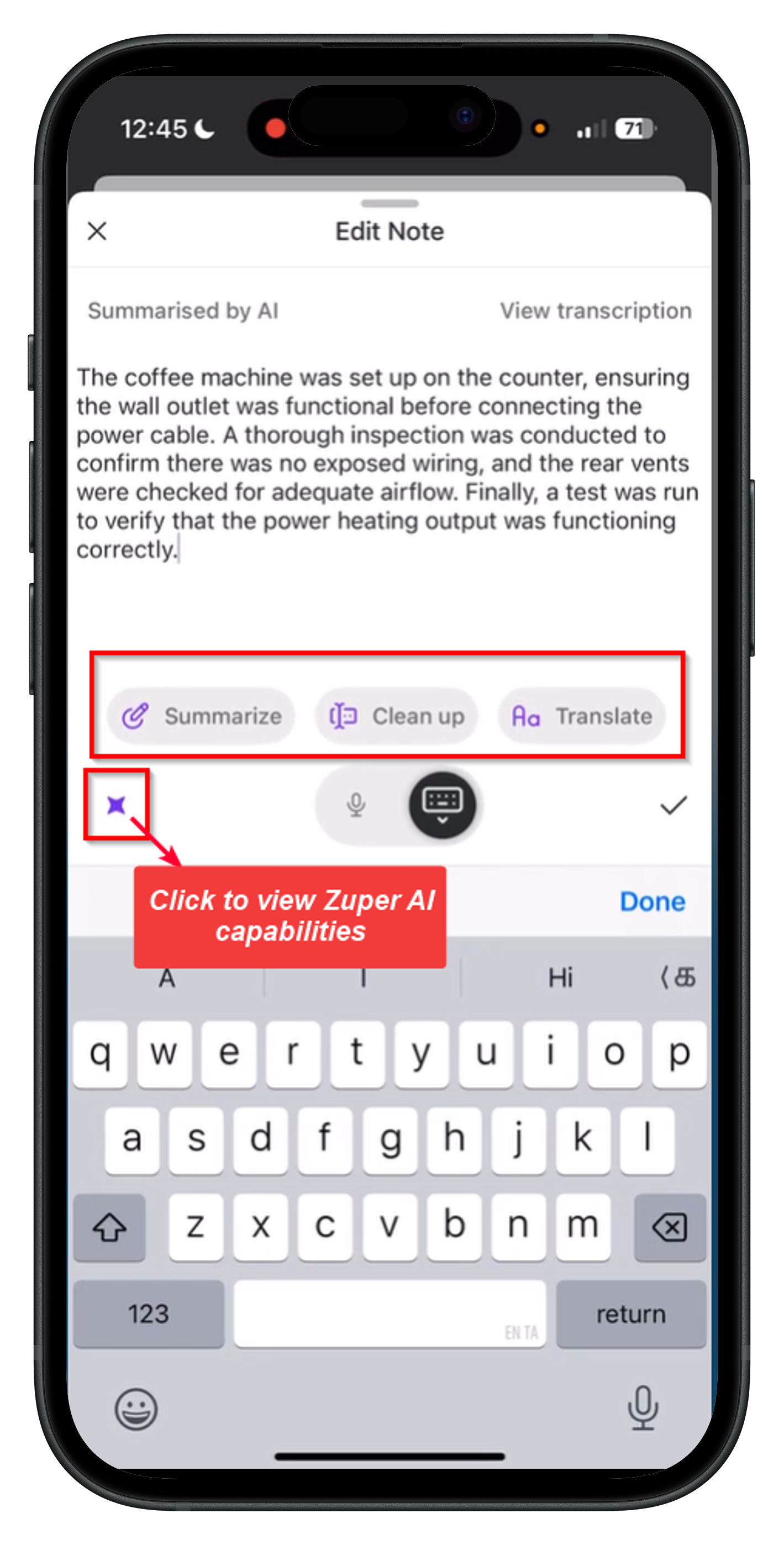
After you've edited the note, you can further refine it using the AI capabilities listed below before saving.
* **Summarize** – Condenses lengthy notes into clear, concise content.
* **Clean up** – Corrects grammar, spelling, and sentence structure.
* **Translate** – Convert notes into 17 different languages, including Dutch, French, Slovenian, and Spanish.
## Enhancing the Note with AI
After you've edited the note, you can further refine it using the AI capabilities listed below before saving.
* **Summarize** – Condenses lengthy notes into clear, concise content.
* **Clean up** – Corrects grammar, spelling, and sentence structure.
* **Translate** – Convert notes into 17 different languages, including Dutch, French, Slovenian, and Spanish.
 The summarized note, along with any captured images, will be successfully added to the job notes.