> ## Documentation Index
> Fetch the complete documentation index at: https://docs.zuper.co/llms.txt
> Use this file to discover all available pages before exploring further.
# AI Voice Notes
> The AI Voice Notes feature in the Zuper mobile app lets technicians speak instead of type when entering text in job notes, checklists, or inspection forms.
The **AI Voice Notes** feature in the Zuper mobile app helps technicians save time and effort by allowing them to speak instead of typing. Wherever text input is required, such as job notes, checklists, or inspection forms, technicians can simply tap the **microphone** icon to record their voice. Zuper AI will automatically transcribe the audio into clean, structured text.
**Note:** This feature is available only on select Zuper plans. To enable it for your account, please contact your account administrator or email us at [support@zuper.co](mailto:support@zuper.co)
This feature is especially useful for adding lengthy descriptions or detailed observations without requiring manual typing. It improves documentation speed, reduces manual effort, and ensures accurate records.
This guide will walk you through how to use AI Voice Notes efficiently step by step.
## Using AI voice notes
Follow these steps to use the **AI Voice Notes** feature:
1. **Open the Zuper mobile app** on your device.
2. **Navigate to the Job Details page** of the job you’re working on.
3. You can use AI Voice Notes feature in the following areas:
* **Job Notes**
* **Checklist fields**
* **Inspection forms**
To use voice notes in **Job Notes**:
1. Navigate to the **Notes** tab on the Job Details page.
2. Tap the **“+” icon** to add a new note.
3. On the **Add Note** page, you’ll see a **microphone icon** in the text input field.
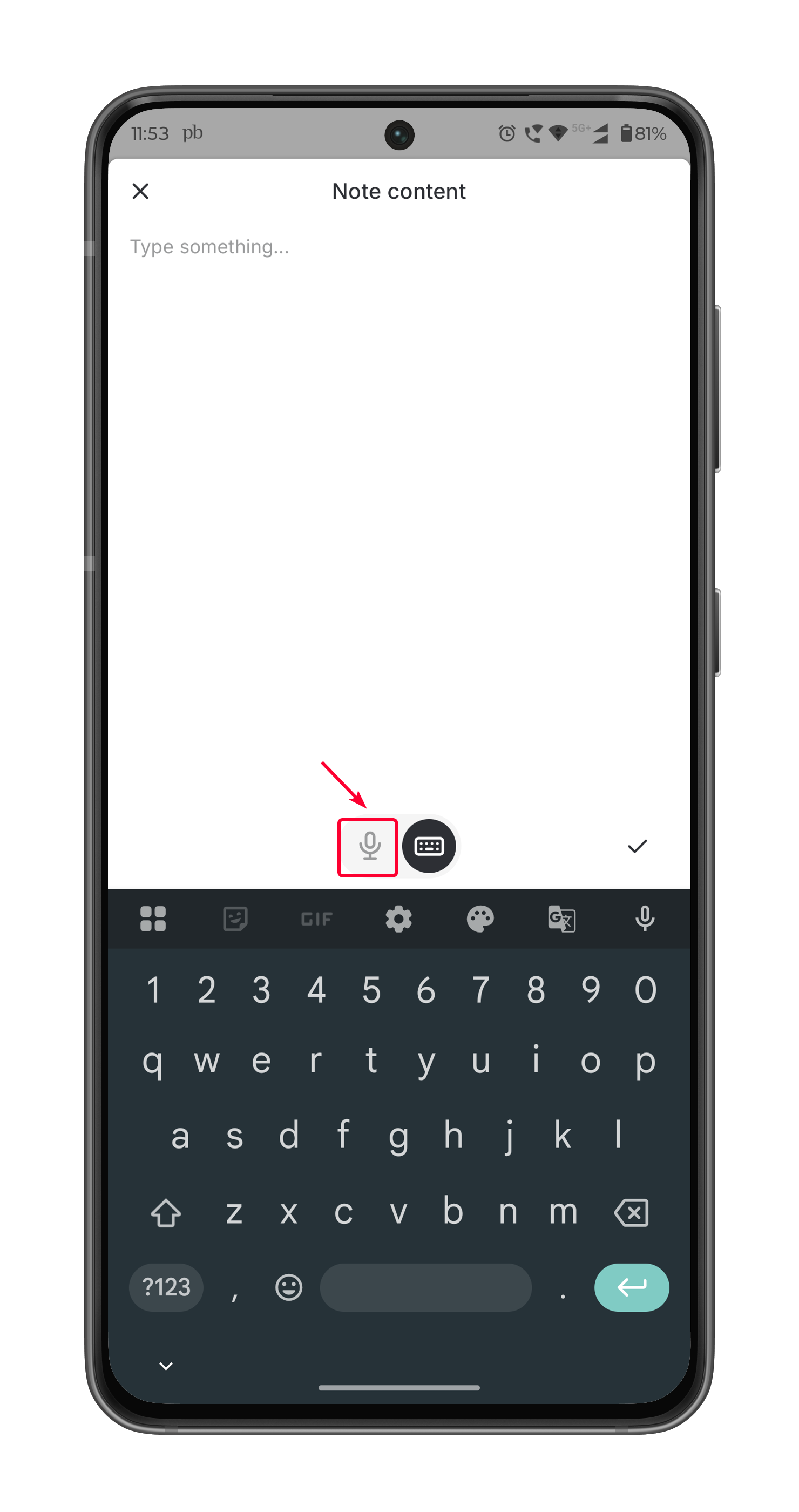 4. **Tap the microphone icon** to start recording your voice.
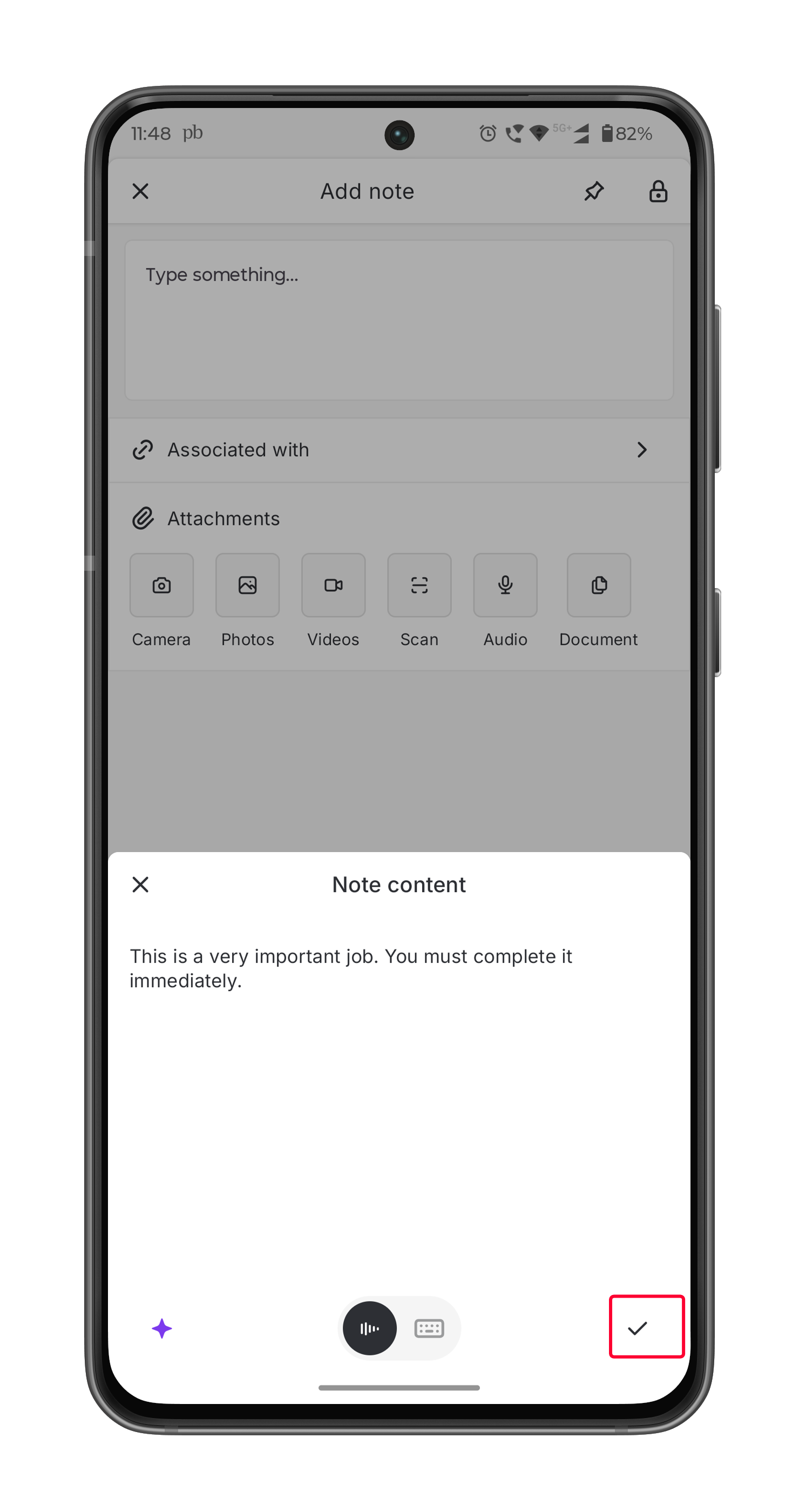
5. **Speak clearly and naturally.** Zuper AI will transcribe your speech into text in real time.
6. Once done, tap the **icon**.
4. **Tap the microphone icon** to start recording your voice.
5. **Speak clearly and naturally.** Zuper AI will transcribe your speech into text in real time.
6. Once done, tap the **icon**.
 To use voice notes in a checklist or inspection form:
1. Tap "**Update Status**" on the Job Details page to begin progressing the job.
2. If a **checklist or inspection form** is linked to the job:
* You must complete the required fields before updating the job status.
3. Locate the **multiline text fields** within the checklist or form that require input.
4. **Tap the microphone icon** next to the field to begin recording your voice.
To use voice notes in a checklist or inspection form:
1. Tap "**Update Status**" on the Job Details page to begin progressing the job.
2. If a **checklist or inspection form** is linked to the job:
* You must complete the required fields before updating the job status.
3. Locate the **multiline text fields** within the checklist or form that require input.
4. **Tap the microphone icon** next to the field to begin recording your voice.
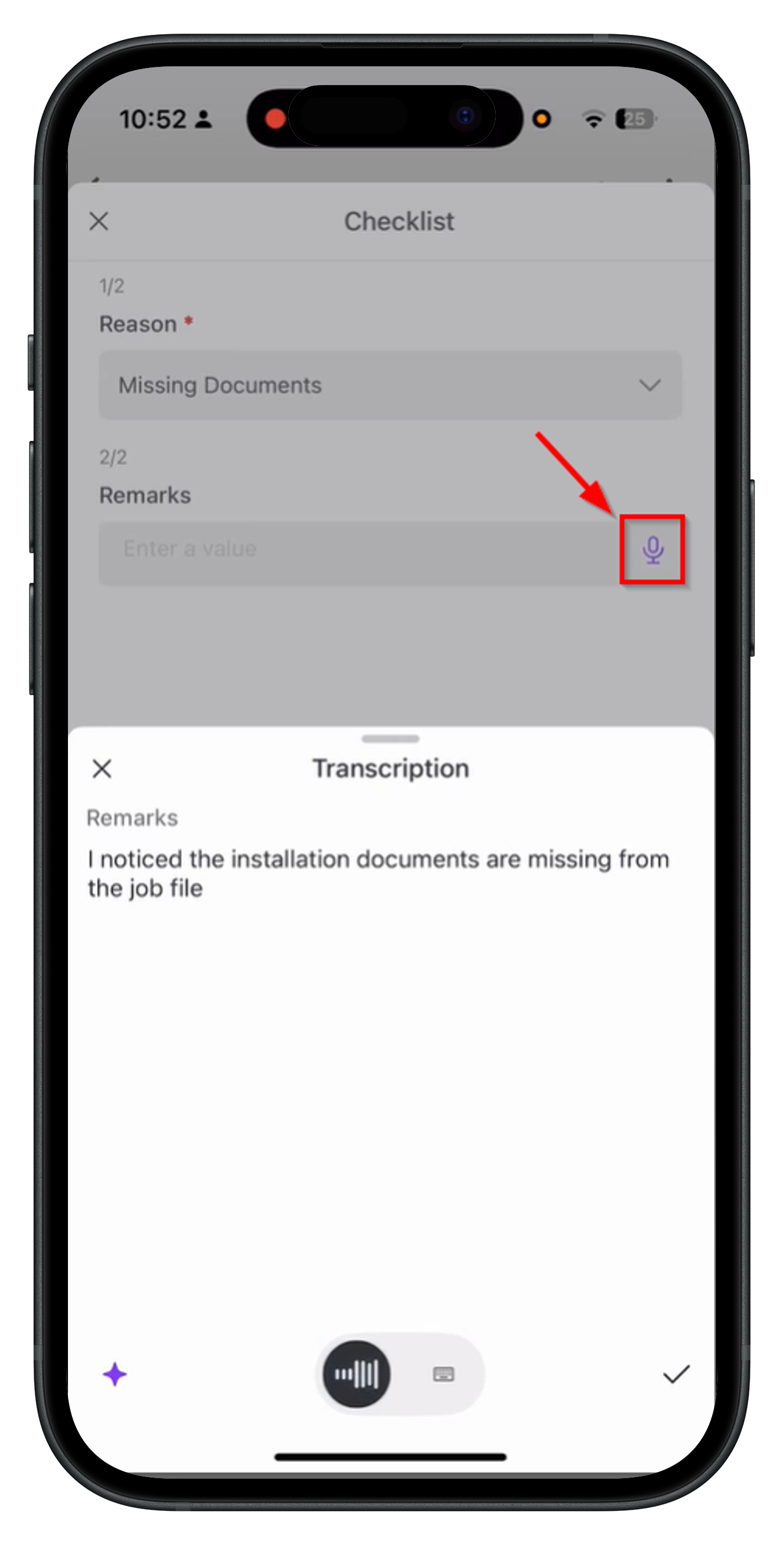 5. **Speak clearly and naturally.** Zuper AI will transcribe your speech into neatly formatted text in real time.
6. Once you're done, tap the **icon** to confirm and proceed.
5. **Speak clearly and naturally.** Zuper AI will transcribe your speech into neatly formatted text in real time.
6. Once you're done, tap the **icon** to confirm and proceed.
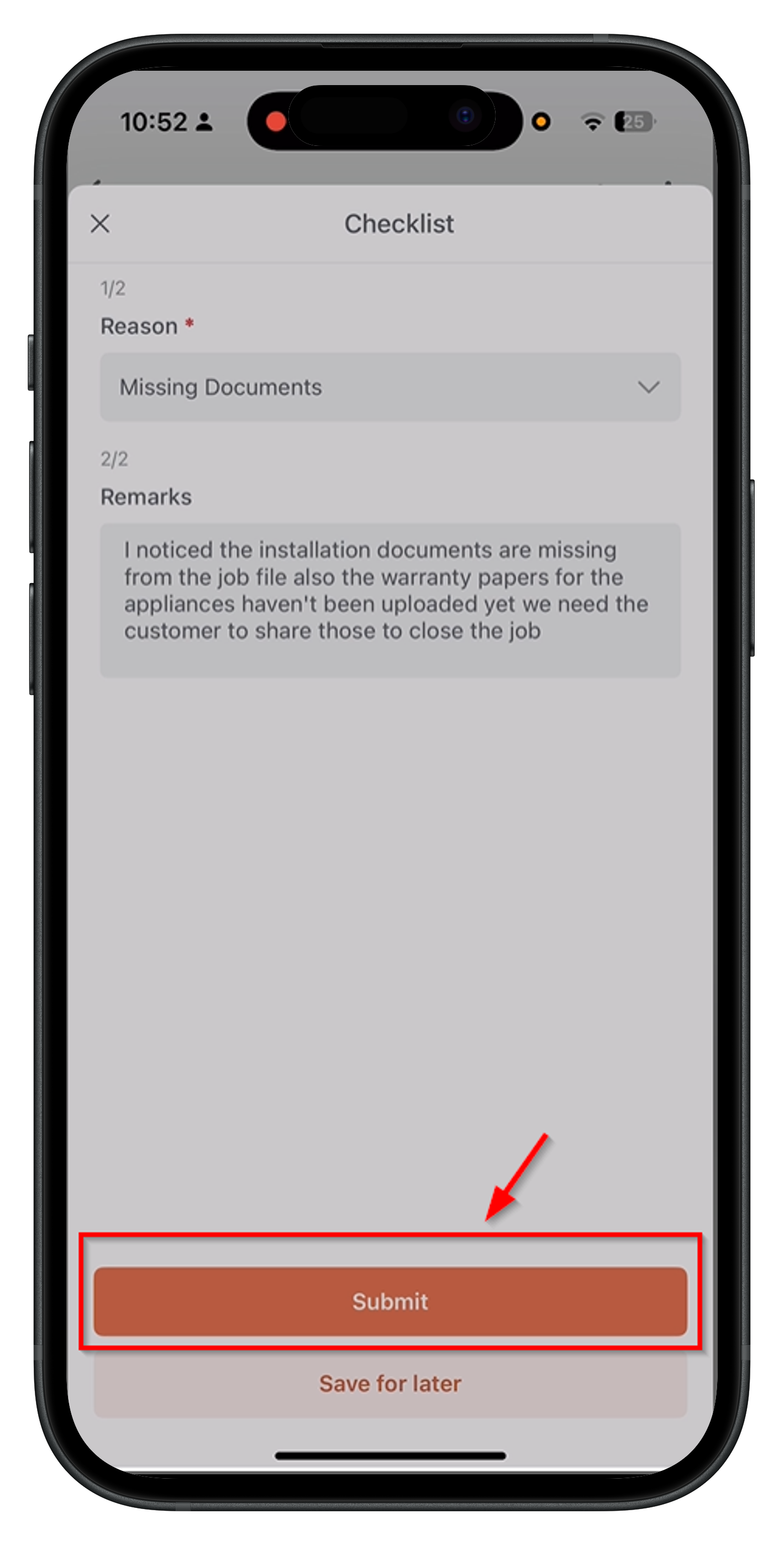
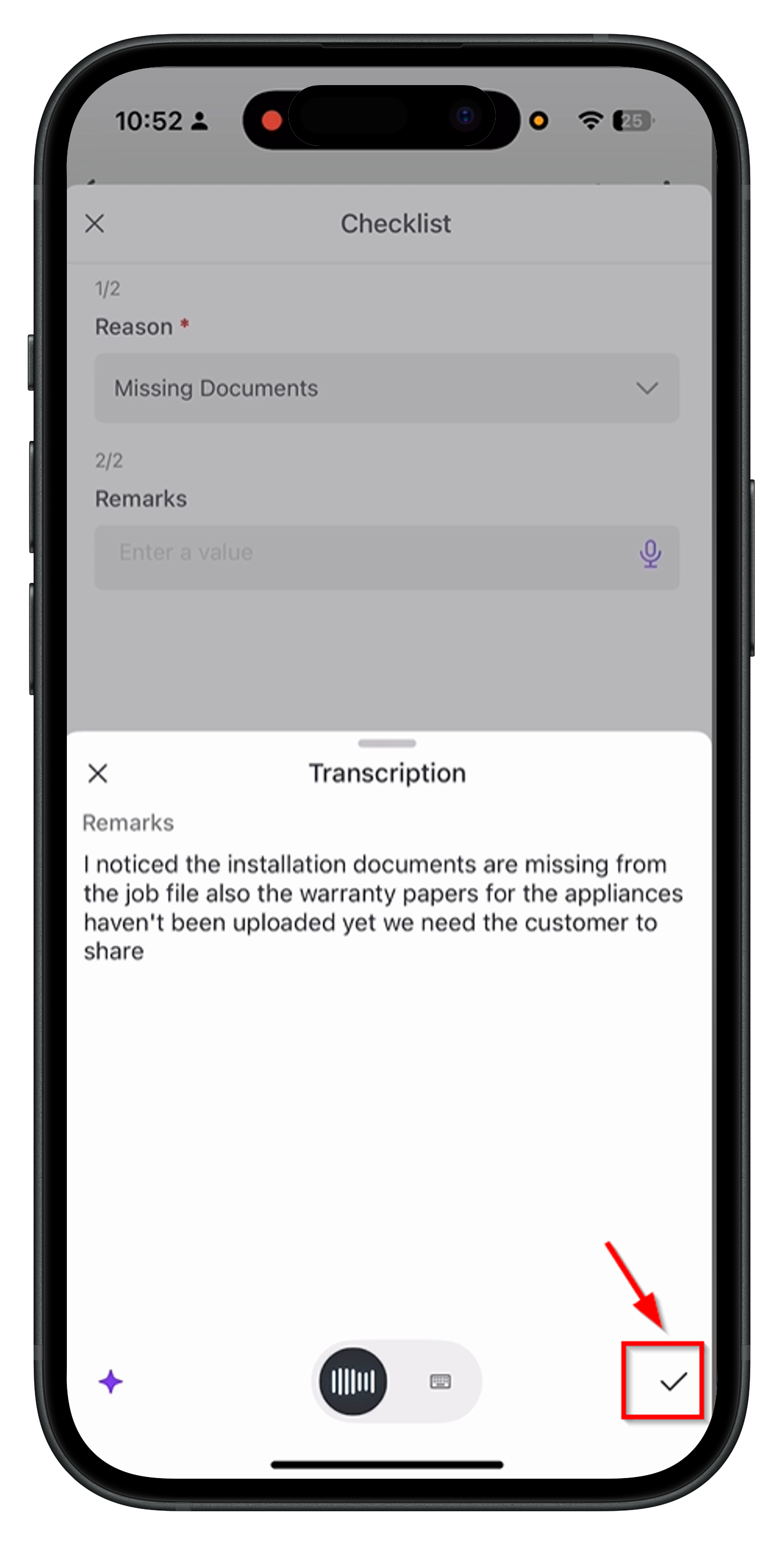 **Review** the transcribed text for accuracy and click **Submit** to save the voice notes.
 ## Editing the Transcript
Once the transcript is generated, you can make changes as needed.
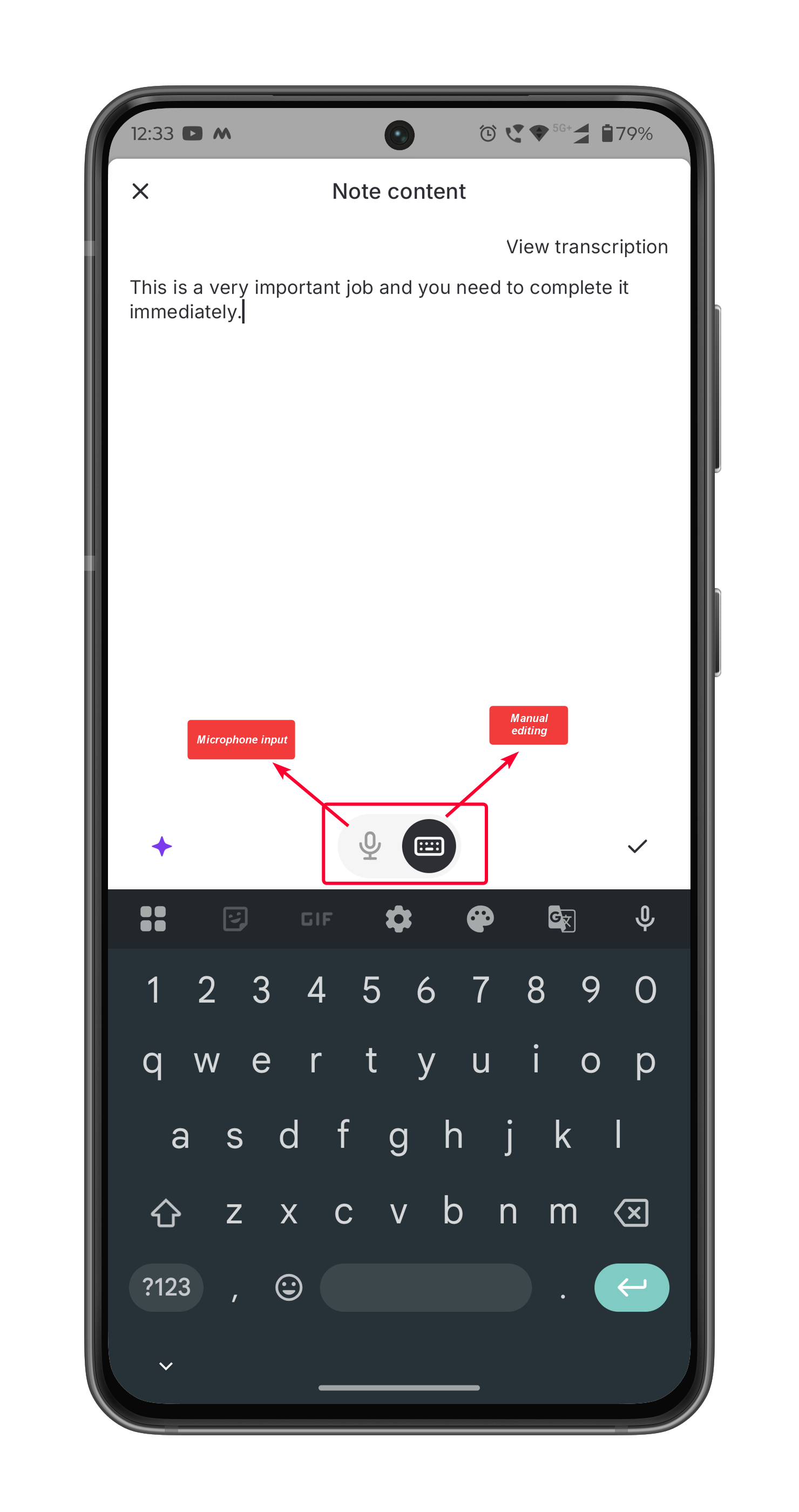
1. Tap the generated transcript to open the transcription page.
2. Choose from the following editing options:
* **Microphone Input** – Use the microphone to speak and add more details to the voice notes.
* **Manual Editing** – Use the keyboard to manually modify the text.
## Editing the Transcript
Once the transcript is generated, you can make changes as needed.
1. Tap the generated transcript to open the transcription page.
2. Choose from the following editing options:
* **Microphone Input** – Use the microphone to speak and add more details to the voice notes.
* **Manual Editing** – Use the keyboard to manually modify the text.
 This flexibility ensures that your voice notes are accurate and complete before saving.
### **Enhancing voice notes with AI**
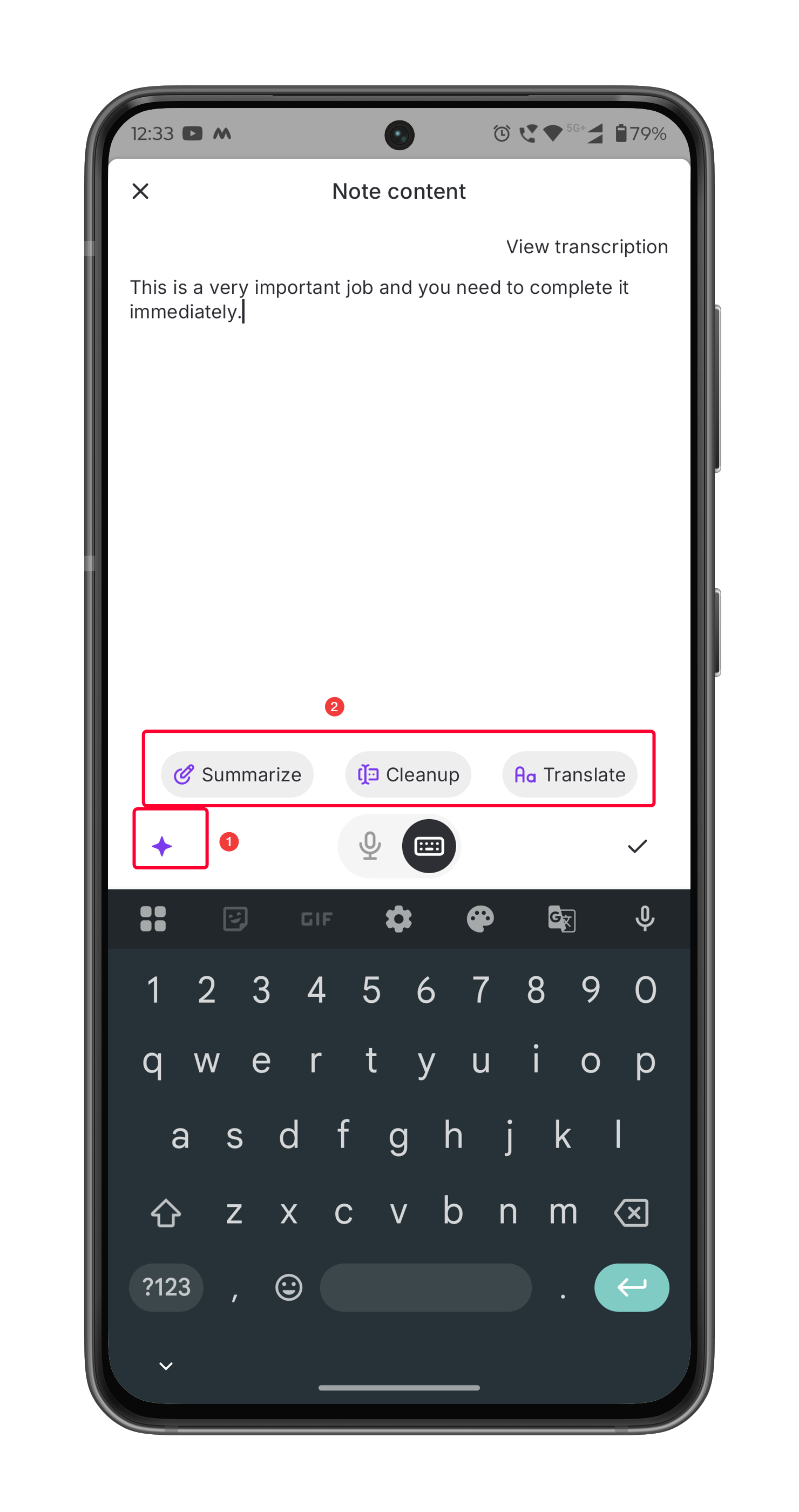
After editing, you can further refine your voice notes using the following AI capabilities:
* **Summarize** – Condenses lengthy text into a clear, concise summary.
* **Clean Up** – Fixes grammar, spelling, and sentence structure for better readability.
* **Translate** – Converts text into 17 different languages, including Dutch, French, Slovenian, and Spanish.
This flexibility ensures that your voice notes are accurate and complete before saving.
### **Enhancing voice notes with AI**
After editing, you can further refine your voice notes using the following AI capabilities:
* **Summarize** – Condenses lengthy text into a clear, concise summary.
* **Clean Up** – Fixes grammar, spelling, and sentence structure for better readability.
* **Translate** – Converts text into 17 different languages, including Dutch, French, Slovenian, and Spanish.
 ### **Submitting the voice notes**
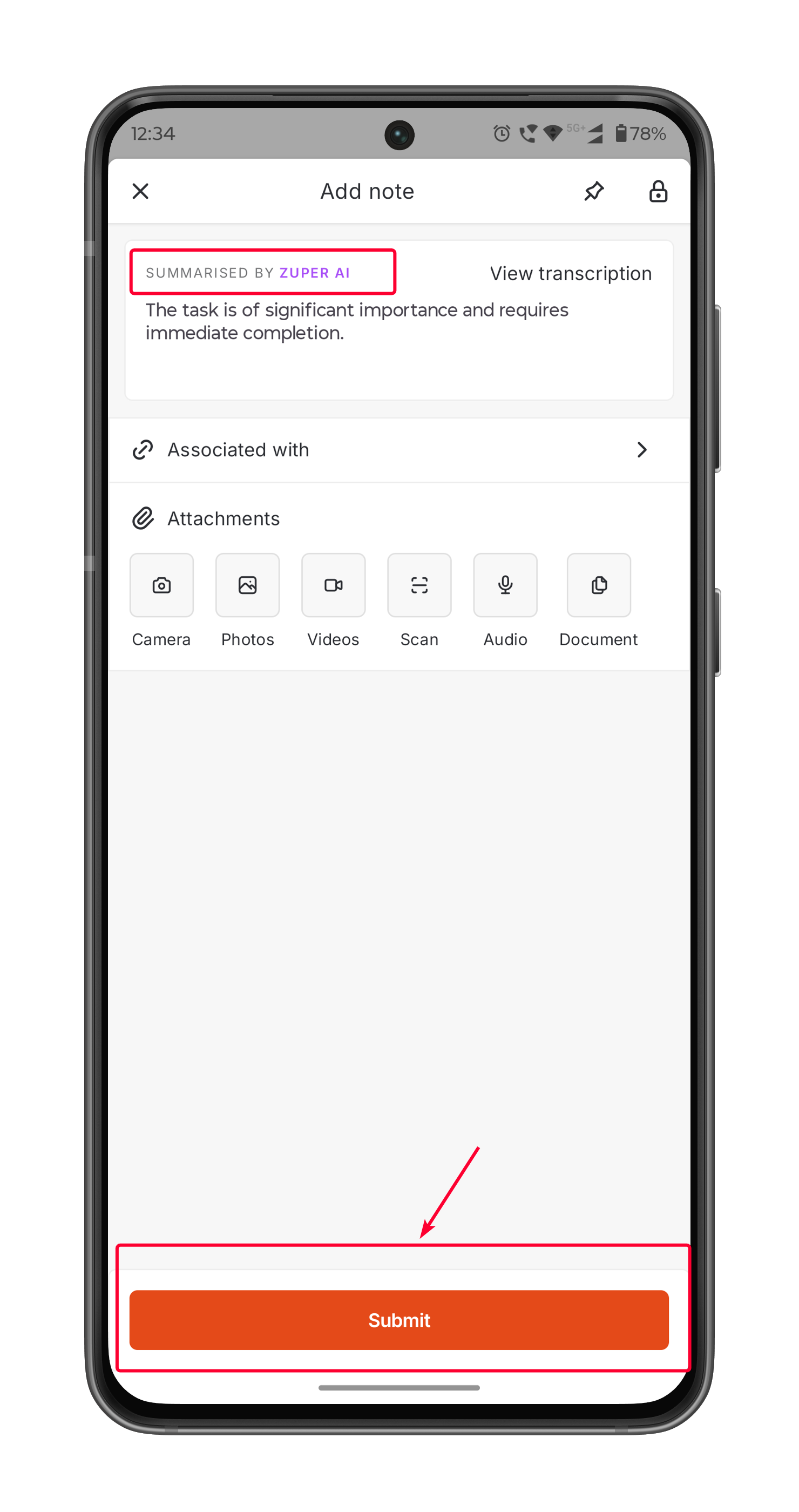
Once refined, the voice note will display the label **“Summarized/Translated by Zuper AI.”**
* Review the AI-enhanced voice note.
* Tap **Submit** to save the voice note.
### **Submitting the voice notes**
Once refined, the voice note will display the label **“Summarized/Translated by Zuper AI.”**
* Review the AI-enhanced voice note.
* Tap **Submit** to save the voice note.
 This feature significantly improves the speed and accuracy of job documentation, allowing you to focus more on the job itself rather than on data entry.
***
This feature significantly improves the speed and accuracy of job documentation, allowing you to focus more on the job itself rather than on data entry.
***