> ## Documentation Index
> Fetch the complete documentation index at: https://docs.zuper.co/llms.txt
> Use this file to discover all available pages before exploring further.
# Record a Walkthrough Video on a Checklist & Inspection Form
The **AI Walkthrough Video** field lets field executives record a video walkthrough directly from their mobile app while completing a job checklist or inspection form. Instead of relying solely on written notes, field executives can capture a visual record of the site, equipment, or work completed — giving your team richer context for every job.
This field works in two places:
* A[ **job checklist**](https://docs.zuper.co/Settings/Modules/Jobs/Configuring-job-checklist) that appears when a field executive updates a job status.
* An [**inspection form**](https://docs.zuper.co/Settings/Modules/Jobs/Configuring_inspection_form) accessed from the [**Tasks**](https://docs.zuper.co/Zuper_Dashboard/Tasks) or [**Assets**](https://docs.zuper.co/Contracts_and_Assets_Management/Assets/Inspection_form) module.
Once submitted, the video, photo thumbnails, and an AI-generated summary are available inline for anyone reviewing the record in the back office.
## **Adding a field in the checklist**
Admins add the **AI Walkthrough Video** field to a checklist or inspection form in Settings. Once you save the field, it appears to field executives in the mobile app when they update a job status or complete an inspection form. The user cannot record the AI walkthrough video from a desktop.
**Navigation:** *Settings → Modules → Jobs → Job Category Hub → select a job category → Checklist section → +Create (or open an existing checklist)*
1. From the left navigation menu, Select **Settings**
2. Select **Modules**, then Choose **Jobs**.
3. Select **Job Category Hub** and open the job category you want to update.
4. In the **Checklist** section, select **+Create** to build a new checklist, or select an existing checklist to edit it.
5. In the **Checklist Builder**, locate **AI Walkthrough Video** in the Media category on the right panel.
6. Drag **AI Walkthrough Video** from the right panel and drop it into the checklist. The **Edit AI Walkthrough Video** panel opens on the right.
.png?fit=max&auto=format&n=V6lrJ2R8bYwIF8wh&q=85&s=0db7a6ccbdaf101e1c4c7c3428e60155)
.png?fit=max&auto=format&n=V6lrJ2R8bYwIF8wh&q=85&s=20b6e0c67b1a86c2d9c7daef7be8395b) 7. Enter a **Field Name**.
8. Under **Configuration**, toggle **Mark as Required Field** on to require the walkthrough before the checklist can be submitted.
9. Select **Save** to add the field to the checklist.
Note: To add AI Walkthrough field to an inspection form, follow the steps in Configuring [inspection forms](https://docs.zuper.co/Settings/Modules/Jobs/Configuring_inspection_form#customizing-the-inspection-form).
To learn more about checklists, see Configure [job checklists](https://docs.zuper.co/Settings/Modules/Jobs/Configuring-job-checklist#adding-fields-to-the-checklist).
## Capturing a walkthrough in a checklist
**Navigation:** *Jobs → select a job → **Update Status** → select a checklist → **AI Walkthrough** Video*
### Open the checklist
When you update a job status, and the checklist is configured with an AI walkthrough video, follow these steps:
1. Go to the **Jobs** module.
7. Enter a **Field Name**.
8. Under **Configuration**, toggle **Mark as Required Field** on to require the walkthrough before the checklist can be submitted.
9. Select **Save** to add the field to the checklist.
Note: To add AI Walkthrough field to an inspection form, follow the steps in Configuring [inspection forms](https://docs.zuper.co/Settings/Modules/Jobs/Configuring_inspection_form#customizing-the-inspection-form).
To learn more about checklists, see Configure [job checklists](https://docs.zuper.co/Settings/Modules/Jobs/Configuring-job-checklist#adding-fields-to-the-checklist).
## Capturing a walkthrough in a checklist
**Navigation:** *Jobs → select a job → **Update Status** → select a checklist → **AI Walkthrough** Video*
### Open the checklist
When you update a job status, and the checklist is configured with an AI walkthrough video, follow these steps:
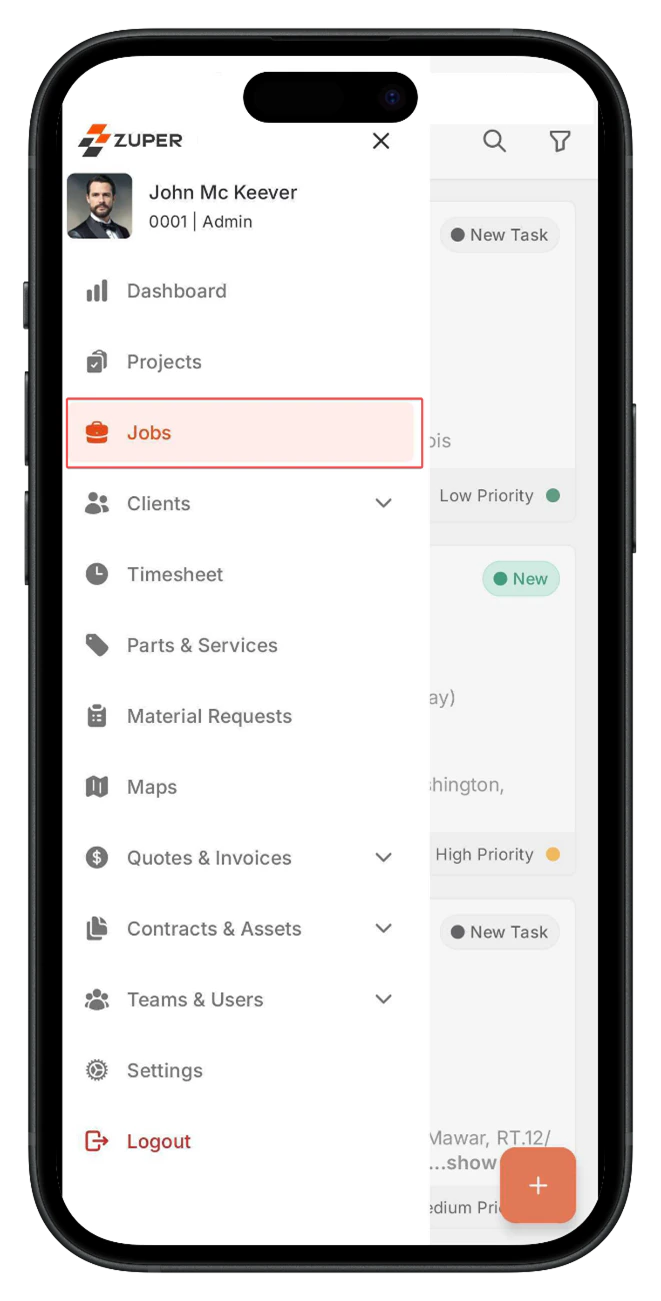
1. Go to the **Jobs** module.
 2. From the job listing page, select the job you are working on to open the job details page.
3. Tap **Update Status** — the checklist attached to the current job status opens
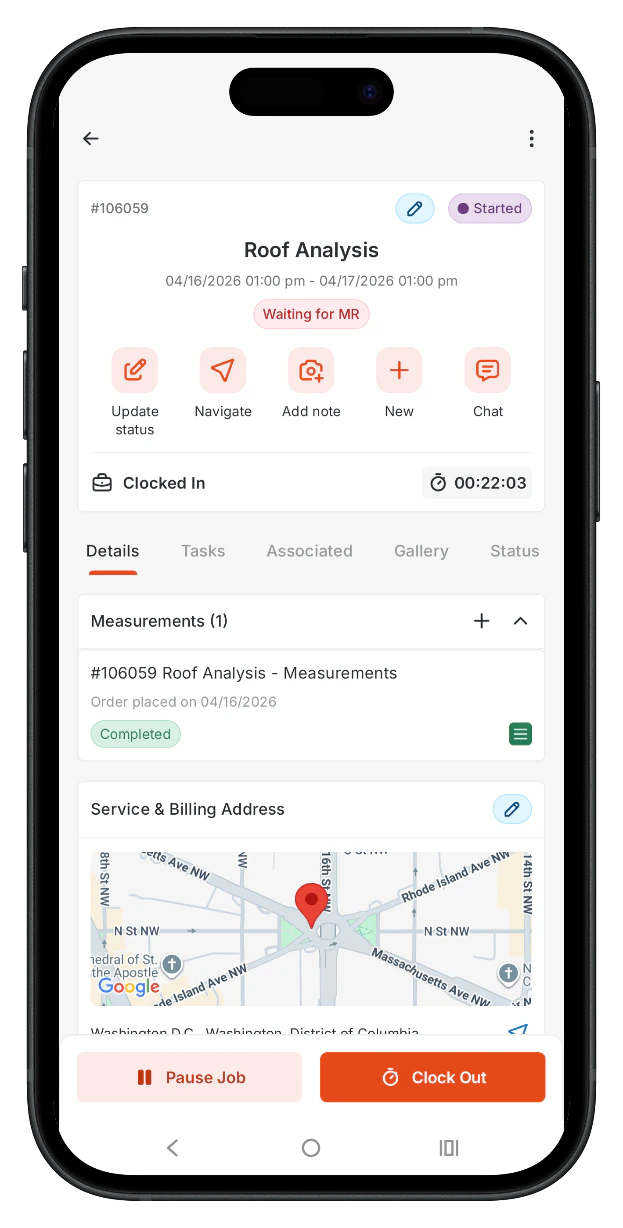
2. From the job listing page, select the job you are working on to open the job details page.
3. Tap **Update Status** — the checklist attached to the current job status opens
 ### Start the walkthrough
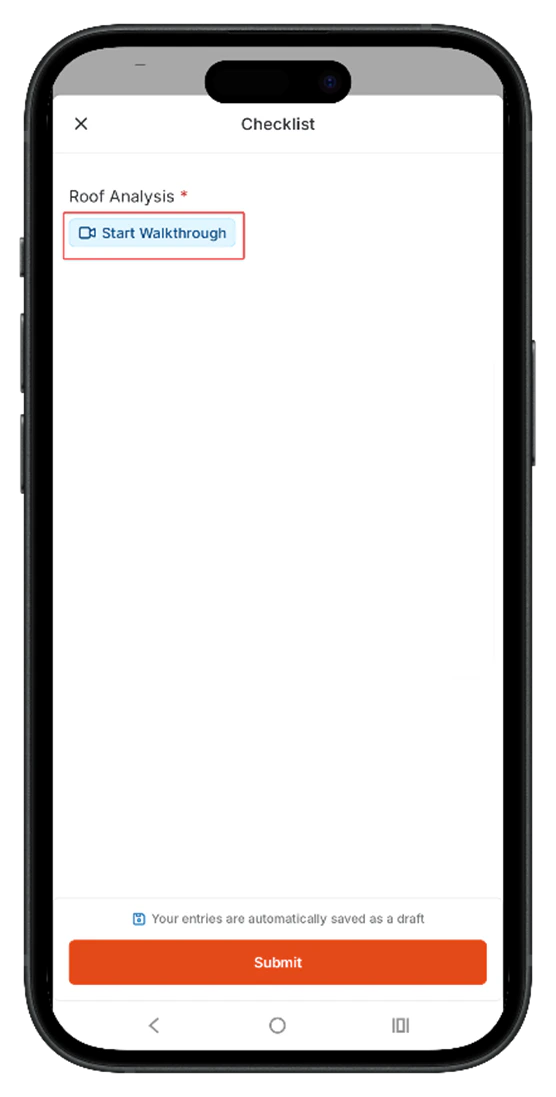
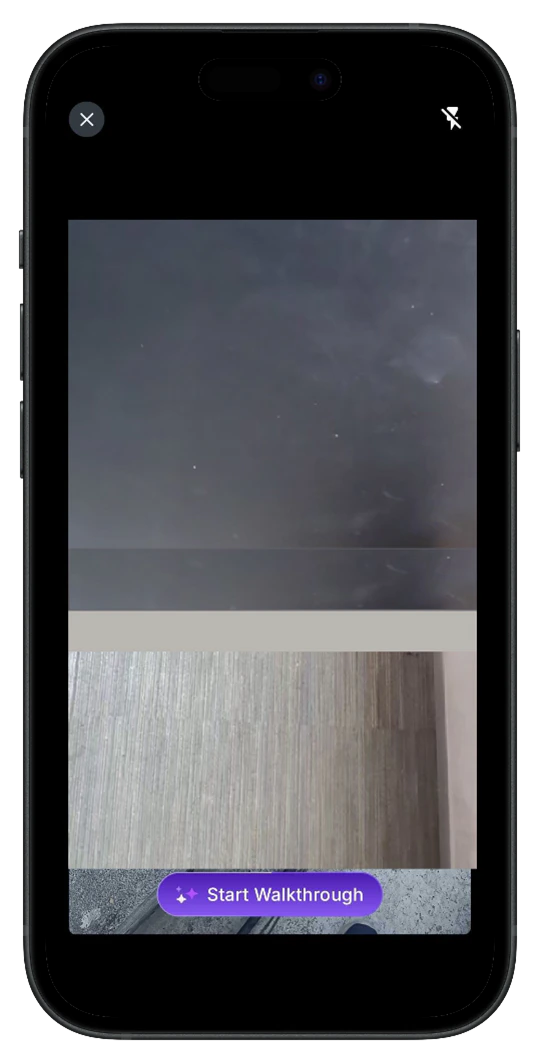
4. Locate the **AI Walkthrough Video** field in the checklist and tap **Start Walkthrough**. The camera opens automatically.
5. Select a camera mode. **Dual Camera** records from both front and rear cameras at the same time, and **Single Camera** records from one camera only.
*Fields marked with (\*) are required.* Complete them before you submit the checklist.
6. Walk through the job site. Speak naturally — Zuper AI transcribes your voice in real time.
7. Tap the **camera** icon at the bottom of the screen to capture photos at any point during the recording.
8. Tap **Pause** if you need to stop temporarily, then tap **Resume** to continue.
9. Tap **Stop** when the recording is complete.
### Start the walkthrough
4. Locate the **AI Walkthrough Video** field in the checklist and tap **Start Walkthrough**. The camera opens automatically.
5. Select a camera mode. **Dual Camera** records from both front and rear cameras at the same time, and **Single Camera** records from one camera only.
*Fields marked with (\*) are required.* Complete them before you submit the checklist.
6. Walk through the job site. Speak naturally — Zuper AI transcribes your voice in real time.
7. Tap the **camera** icon at the bottom of the screen to capture photos at any point during the recording.
8. Tap **Pause** if you need to stop temporarily, then tap **Resume** to continue.
9. Tap **Stop** when the recording is complete.
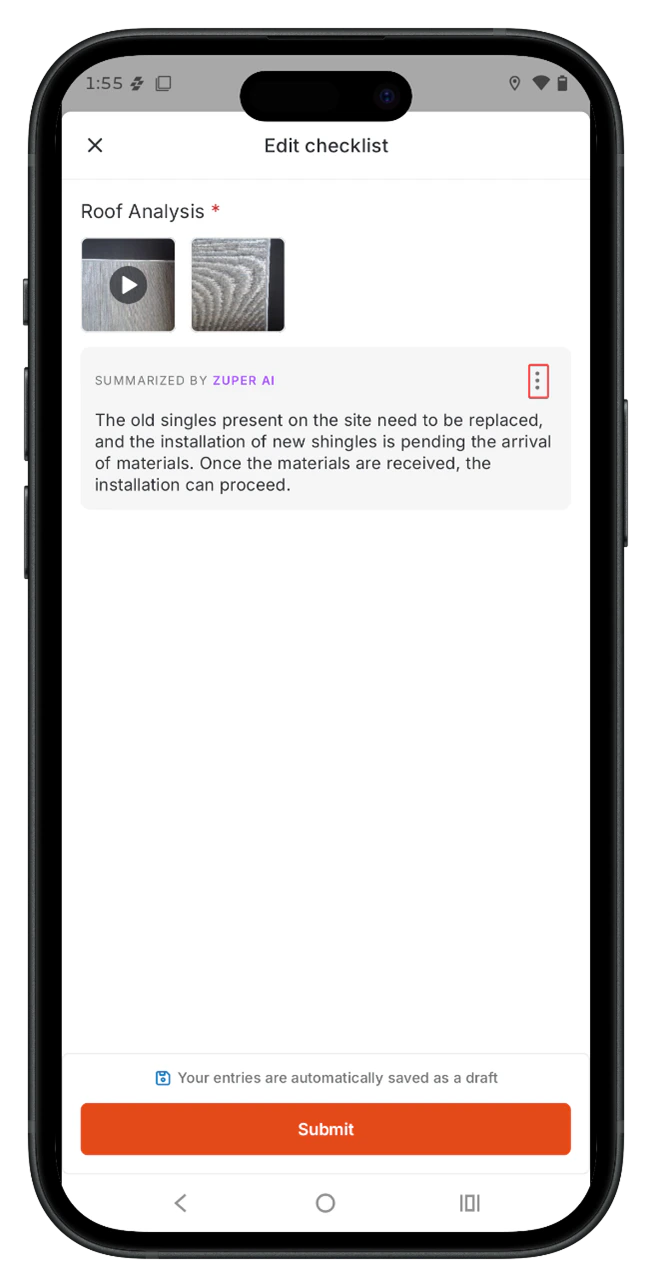 **Note:** Each session records a single video up to 3 minutes long. On the recording preview screen, select **Add images** or **Clear text** from the context menu to add more photos or remove the transcribed text.
### Review and attach
10. Review the video preview. The preview screen shows the full recording. Verify the video to ensure the footage is complete and clear before attaching it.
11. Check the photo thumbnails below the video preview. Tap any thumbnail to open the full image and confirm it is usable.
To add a tag or description, enter your text in the field that appears and tap **Done**. To remove a photo, select **Delete**.
12. Tap **Attach all** to attach the video and photos to the checklist.
### Submit the checklist
13. Complete any remaining required fields in the checklist.
14. Tap **Submit** at the bottom of the checklist screen.
**Note:** Each session records a single video up to 3 minutes long. On the recording preview screen, select **Add images** or **Clear text** from the context menu to add more photos or remove the transcribed text.
### Review and attach
10. Review the video preview. The preview screen shows the full recording. Verify the video to ensure the footage is complete and clear before attaching it.
11. Check the photo thumbnails below the video preview. Tap any thumbnail to open the full image and confirm it is usable.
To add a tag or description, enter your text in the field that appears and tap **Done**. To remove a photo, select **Delete**.
12. Tap **Attach all** to attach the video and photos to the checklist.
### Submit the checklist
13. Complete any remaining required fields in the checklist.
14. Tap **Submit** at the bottom of the checklist screen.
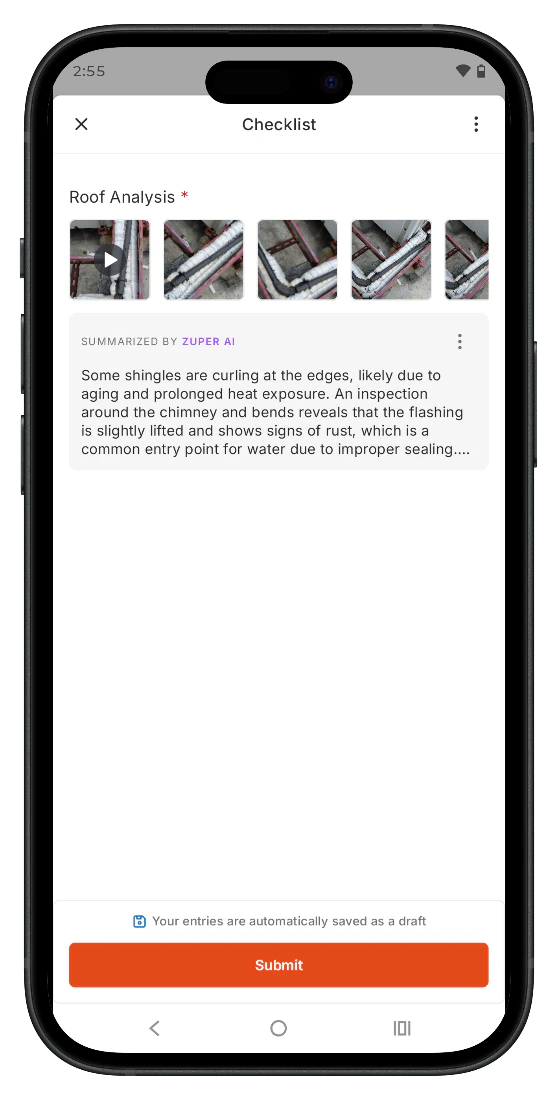 **Note:** If the **AI Walkthrough Video** field is marked as required, the **Submit** button stays inactive until you attach the walkthrough. You do not need to wait for the AI summary to generate before submitting.
What happens after you submit
Once you submit, the **AI Walkthrough Video** field displays the video, any photos, and the AI Walkthrough Summary. The summary generates in the background and does not hold up the checklist or job completion — Zuper marks both as complete straightaway.
To correct the summary after submission, reopen the job, select the draft checklist, tap the **Summary** text field within the **AI Walkthrough Video** field, make your changes, and tap **Submit**.
### Viewing the walkthrough output on the web
After a field executive submits a checklist, the walkthrough output appears on the web in read-only mode. To view the submission:
1. Open the job.
2. Go to the **Checklist** tab.
3. Select the submitted checklist.
The **AI Walkthrough Video** field displays the video, photo thumbnails, and the AI Walkthrough Summary inline.
Note: The web view is read-only — to make a correction, reopen the job on mobile, edit the draft checklist, and submit again.
## Frequently Asked Questions
The recording stops. Reopen the checklist and tap the **AI Walkthrough Video** field to start a new recording. Zuper does not save incomplete recordings.
Yes. Open the job on mobile, select the checklist, and tap **Edit** to modify or replace the walkthrough.
AI processing normally takes a few seconds to about a minute. If you were offline when you recorded, the summary will not generate until you reconnect to the internet. Once you are online, the summary updates automatically.
If the issue continues, contact [Support](mailto:support@zuper.co).
## Related articles
• [Capturing videos and using dual camera mode](https://docs.zuper.co/Zuper_AI/AI_Walkthrough_Note/Capturing_Videos)
• [Capturing photos in AI Walkthrough Note](https://docs.zuper.co/Zuper_AI/AI_Walkthrough_Note/Capturing_Photo)
• [Configuring inspection forms](https://docs.zuper.co/Settings/Modules/Jobs/Configuring_inspection_form)
**Note:** If the **AI Walkthrough Video** field is marked as required, the **Submit** button stays inactive until you attach the walkthrough. You do not need to wait for the AI summary to generate before submitting.
What happens after you submit
Once you submit, the **AI Walkthrough Video** field displays the video, any photos, and the AI Walkthrough Summary. The summary generates in the background and does not hold up the checklist or job completion — Zuper marks both as complete straightaway.
To correct the summary after submission, reopen the job, select the draft checklist, tap the **Summary** text field within the **AI Walkthrough Video** field, make your changes, and tap **Submit**.
### Viewing the walkthrough output on the web
After a field executive submits a checklist, the walkthrough output appears on the web in read-only mode. To view the submission:
1. Open the job.
2. Go to the **Checklist** tab.
3. Select the submitted checklist.
The **AI Walkthrough Video** field displays the video, photo thumbnails, and the AI Walkthrough Summary inline.
Note: The web view is read-only — to make a correction, reopen the job on mobile, edit the draft checklist, and submit again.
## Frequently Asked Questions
The recording stops. Reopen the checklist and tap the **AI Walkthrough Video** field to start a new recording. Zuper does not save incomplete recordings.
Yes. Open the job on mobile, select the checklist, and tap **Edit** to modify or replace the walkthrough.
AI processing normally takes a few seconds to about a minute. If you were offline when you recorded, the summary will not generate until you reconnect to the internet. Once you are online, the summary updates automatically.
If the issue continues, contact [Support](mailto:support@zuper.co).
## Related articles
• [Capturing videos and using dual camera mode](https://docs.zuper.co/Zuper_AI/AI_Walkthrough_Note/Capturing_Videos)
• [Capturing photos in AI Walkthrough Note](https://docs.zuper.co/Zuper_AI/AI_Walkthrough_Note/Capturing_Photo)
• [Configuring inspection forms](https://docs.zuper.co/Settings/Modules/Jobs/Configuring_inspection_form)