> ## Documentation Index
> Fetch the complete documentation index at: https://docs.zuper.co/llms.txt
> Use this file to discover all available pages before exploring further.
# CSR Agent
## **Overview**
The CSR (Customer Support Representative) Agent is an AI-driven customer support that ensures all inbound calls are answered. The agent greets the caller, determines whether they are new or returning, and resolves their request without transfers or callbacks.
Whether a customer needs to book a job, check an appointment, or receive a payment link by SMS, the agent handles it from start to finish. Your team stays focused on work that requires a human. Customers receive a faster, more consistent experience every time they call.
## **Before you begin**
CSR Agent must be enabled on your Zuper Connect plan. Contact Zuper [Support](mailto:support@zuper.co) to request activation.
## **How CSR agent work**
When a customer calls your business number, the agent answers immediately. It greets the caller and checks your Zuper records at the same time.
The agent identifies the caller's needs and acts on them directly in Zuper. It can:
* Book a job
* Check an existing appointment
* Send a payment link by SMS
## **CSR agent setup**
Setting up your agent takes four stages. Each stage builds on the previous one, so your agent is fully prepared before it answers its first call.
The first stage is the agent profile, where you give your agent its name and purpose. The name you choose is what the agent speaks when it greets callers, while the description is internal — it helps your team identify this agent on the listing page.
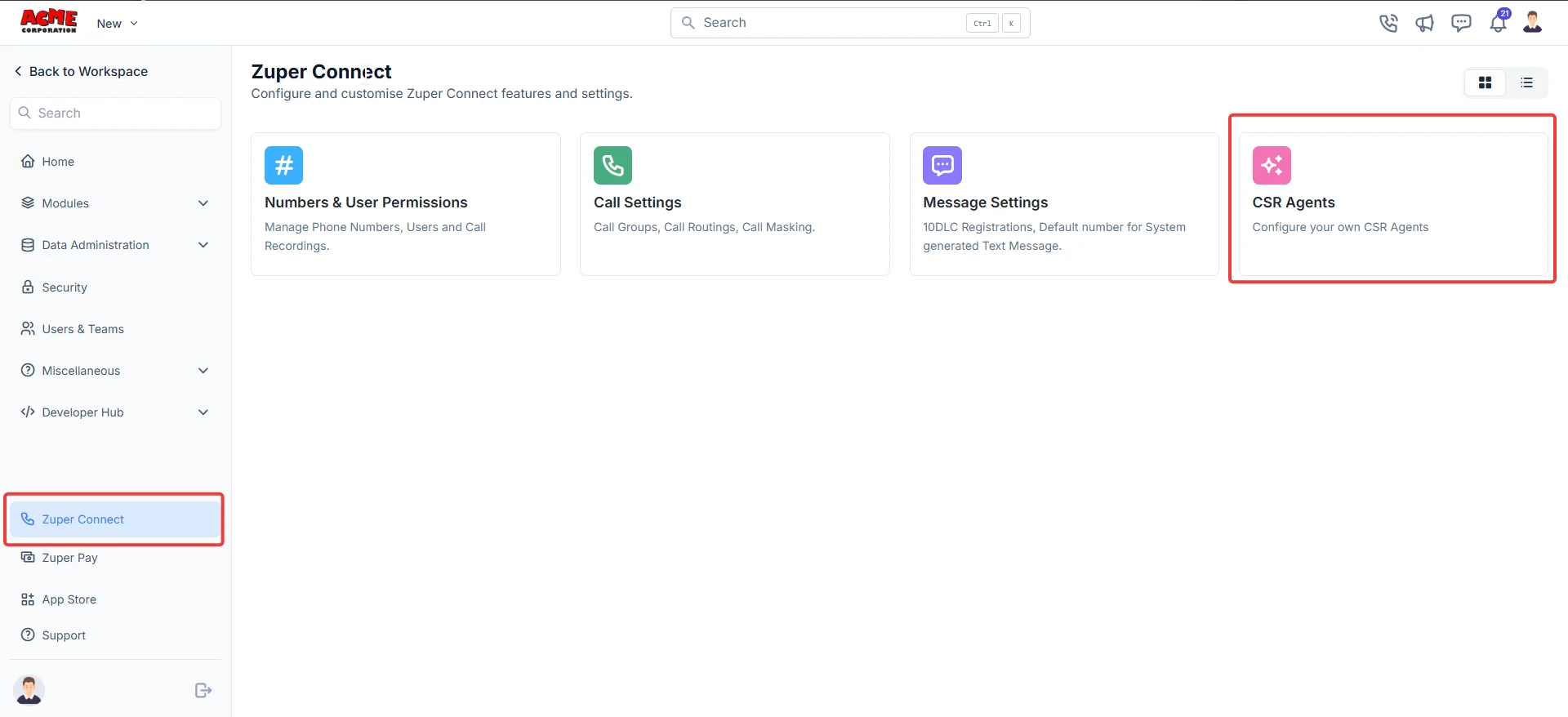
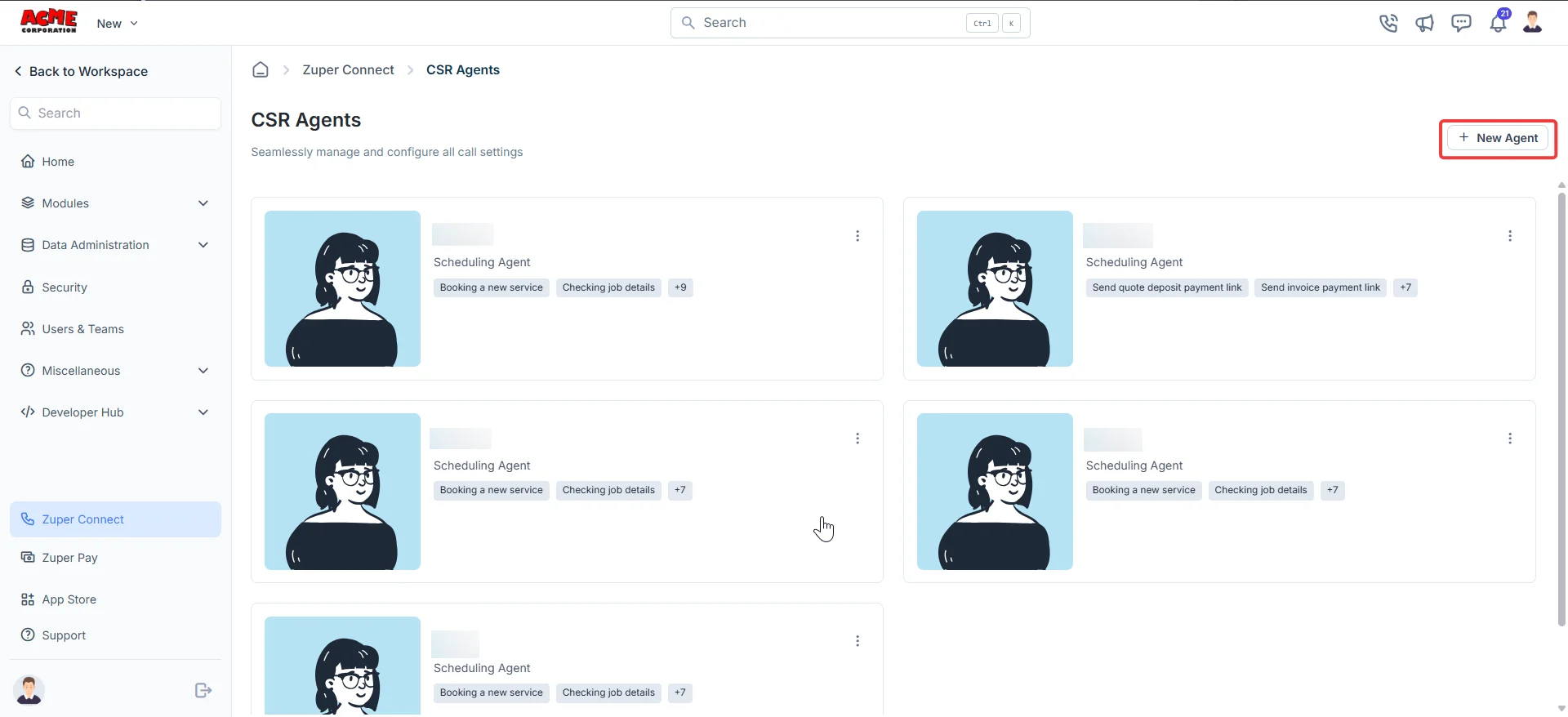
**Navigation:** *Zuper Connect → CSR Agent → + New Agent*
1. Select **Zuper Connect** from the left navigation menu and then choose **CSR Agent**.
 2. Select **+ New Agent** at the top right of the page to create a new one. The agent setup opens with four stages shown at the top: **Agent Profile**, **Superpowers**, **Knowledge Base**, and **Add to Route**.
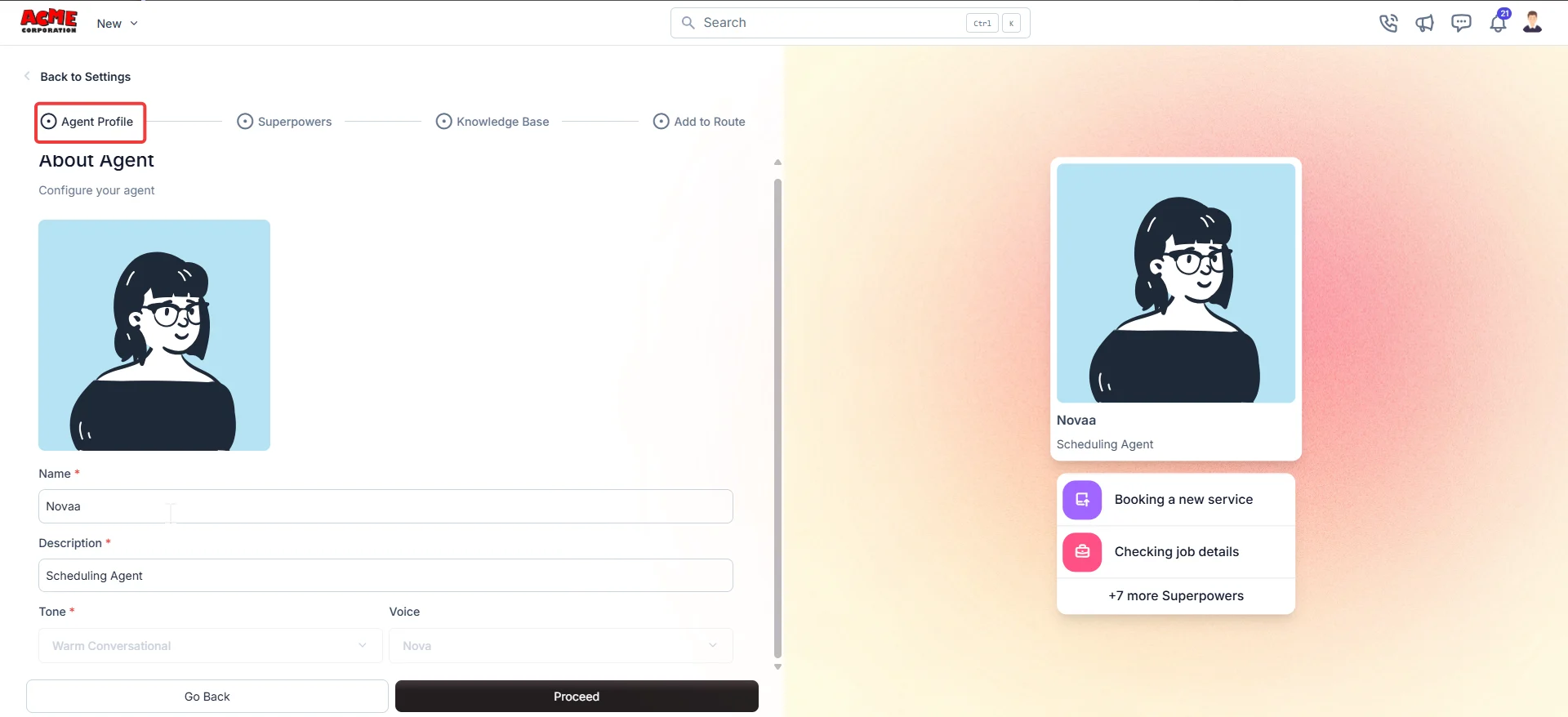
 3. Enter a name for your agent in the **Name** field.
4. Enter a description in the **Description** field to help your team identify this agent.
Note: A live preview on the right side of the screen updates as you configure the profile, so you can see exactly how your agent will appear before you proceed.
5. **Tone** and **Voice** are set to system defaults. You do not need to change these.
6. Select **Proceed** to move to the next stage.
3. Enter a name for your agent in the **Name** field.
4. Enter a description in the **Description** field to help your team identify this agent.
Note: A live preview on the right side of the screen updates as you configure the profile, so you can see exactly how your agent will appear before you proceed.
5. **Tone** and **Voice** are set to system defaults. You do not need to change these.
6. Select **Proceed** to move to the next stage.
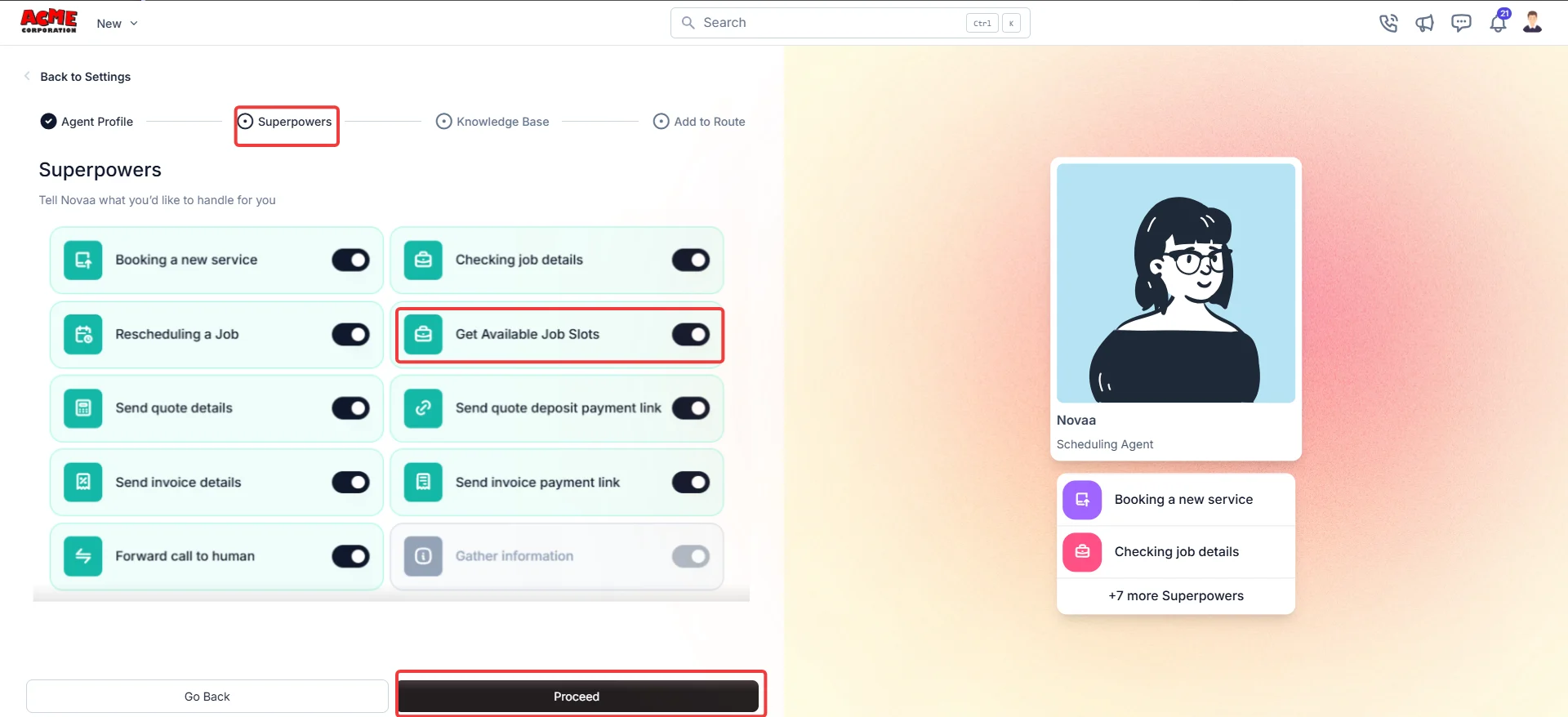
 Superpowers are the actions your agent can take during a call. **Gather information** is always on because every call starts there — review the remaining superpowers and enable only those that fit how your business operates.
Select the toggle next to each superpower you want to enable.
| **Superpower** | **Purpose** |
| :---------------------------------- | :------------------------------------------------------ |
| **Booking a new service** | Schedules a new job for the customer. |
| **Checking job details** | Reads existing job information to the caller. |
| **Rescheduling a job** | Moves an existing booking to a new time. |
| **Get Available Job Slots** | Create job based on the real time slot availability. |
| **Send quote details** | Shares quote details with the customer by SMS. |
| **Send quote deposit payment link** | Sends a payment link for a quote deposit by SMS. |
| **Send invoice details** | Shares invoice information with the customer by SMS. |
| **Send invoice payment link** | Sends a payment link for an outstanding invoice by SMS. |
| **Forward call to human** | Transfers the call to a human agent when needed. |
Note: **Forward call to human** requires setup by the Zuper support team. Contact Zuper [Support ](support@zuper.co)to request activation.
**Tip**: You can update your agent's superpowers at any time from the agent settings page.
**Get available job slots**
When enabled, the CSR agent checks your **Scheduling Assistant** in real time during a call, confirms an available slot, and creates the job in a single conversation. It respects your business hours, closed days, and team assignments, and suggests alternative slots when the requested time is not available.
**Key note:** For new customers, this can be configured during CSR Agent setup. For existing CSR Agent customers, enabling the Scheduling Assistant requires an update by the Zuper Connect team — it is not self-serve. Contact your CSM or the Connect team to activate it.
**Before activating, verify this setting in your Zuper account:** Settings → Modules → Jobs → General Job Settings → Assignment → **Notify user upon assignment.** This toggle controls whether assigned technicians receive a notification when Nova books a job. Confirm with your operations team whether you want this active — if enabled, every job Nova creates triggers an assignment notification to the technician.
* Select Proceed to move to the next stage.
Superpowers are the actions your agent can take during a call. **Gather information** is always on because every call starts there — review the remaining superpowers and enable only those that fit how your business operates.
Select the toggle next to each superpower you want to enable.
| **Superpower** | **Purpose** |
| :---------------------------------- | :------------------------------------------------------ |
| **Booking a new service** | Schedules a new job for the customer. |
| **Checking job details** | Reads existing job information to the caller. |
| **Rescheduling a job** | Moves an existing booking to a new time. |
| **Get Available Job Slots** | Create job based on the real time slot availability. |
| **Send quote details** | Shares quote details with the customer by SMS. |
| **Send quote deposit payment link** | Sends a payment link for a quote deposit by SMS. |
| **Send invoice details** | Shares invoice information with the customer by SMS. |
| **Send invoice payment link** | Sends a payment link for an outstanding invoice by SMS. |
| **Forward call to human** | Transfers the call to a human agent when needed. |
Note: **Forward call to human** requires setup by the Zuper support team. Contact Zuper [Support ](support@zuper.co)to request activation.
**Tip**: You can update your agent's superpowers at any time from the agent settings page.
**Get available job slots**
When enabled, the CSR agent checks your **Scheduling Assistant** in real time during a call, confirms an available slot, and creates the job in a single conversation. It respects your business hours, closed days, and team assignments, and suggests alternative slots when the requested time is not available.
**Key note:** For new customers, this can be configured during CSR Agent setup. For existing CSR Agent customers, enabling the Scheduling Assistant requires an update by the Zuper Connect team — it is not self-serve. Contact your CSM or the Connect team to activate it.
**Before activating, verify this setting in your Zuper account:** Settings → Modules → Jobs → General Job Settings → Assignment → **Notify user upon assignment.** This toggle controls whether assigned technicians receive a notification when Nova books a job. Confirm with your operations team whether you want this active — if enabled, every job Nova creates triggers an assignment notification to the technician.
* Select Proceed to move to the next stage.
 Use this stage to teach your agent about your services, pricing, hours, service areas, and booking rules. Accurate input leads to accurate answers on every call.
You can use one source at a time — either a website URL or a document upload. Once you add your content, Zuper AI generates a set of training questions and answers for you to review and refine.
**Option A: Add your website URL**
1. Enter website address in the **Your website** field.
2. Select **Continue**. The agent fetches your site content and begins processing, displaying a "**Processing your content**..." message on screen. Wait for the process to complete before moving to the next step.
**Tip**: Use your main landing page or services page. These are usually the most complete and up-to-date sources of information about your offerings, location, and contact details./
Use this stage to teach your agent about your services, pricing, hours, service areas, and booking rules. Accurate input leads to accurate answers on every call.
You can use one source at a time — either a website URL or a document upload. Once you add your content, Zuper AI generates a set of training questions and answers for you to review and refine.
**Option A: Add your website URL**
1. Enter website address in the **Your website** field.
2. Select **Continue**. The agent fetches your site content and begins processing, displaying a "**Processing your content**..." message on screen. Wait for the process to complete before moving to the next step.
**Tip**: Use your main landing page or services page. These are usually the most complete and up-to-date sources of information about your offerings, location, and contact details./
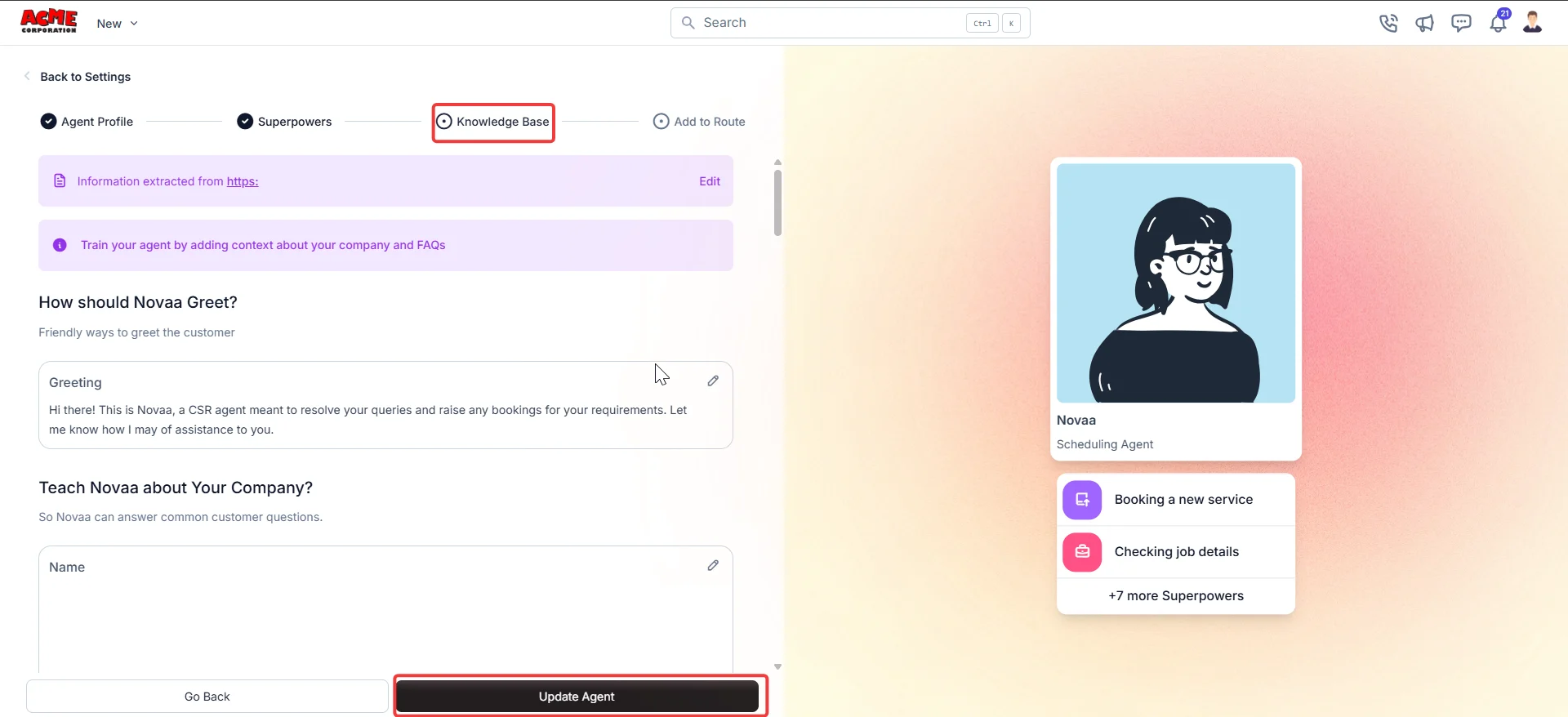 **Note**: The greeting your agent speaks at the start of a call is limited to 500 characters. The agent details field is limited to 2,500 characters.
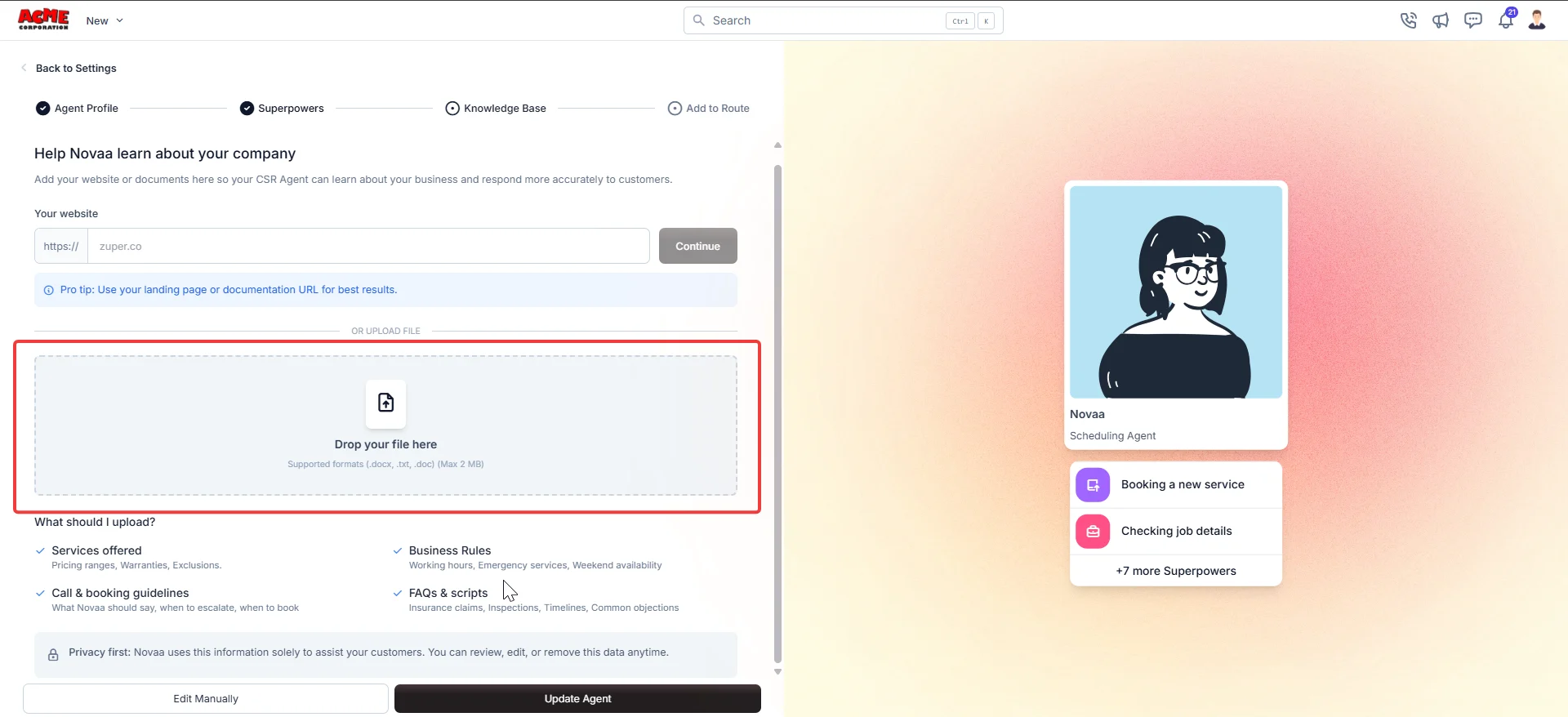
**Option B: Upload a file**
1. Drag your file into the **Drop your file here** area or select it to browse your files.
2. Supported formats are .docx, .txt, and .doc. The maximum file size is 2 MB.
**Note**: To enter content directly without a URL or file upload, select Edit Manually at the bottom of the screen.
**Note**: The greeting your agent speaks at the start of a call is limited to 500 characters. The agent details field is limited to 2,500 characters.
**Option B: Upload a file**
1. Drag your file into the **Drop your file here** area or select it to browse your files.
2. Supported formats are .docx, .txt, and .doc. The maximum file size is 2 MB.
**Note**: To enter content directly without a URL or file upload, select Edit Manually at the bottom of the screen.
 **Review and refine training questions**
Once your content is processed, Zuper AI-powered agent generates **Training Questions**, a set of questions and answers based on your source content that become the responses your agent gives when callers ask about your business.
Review every question and answer before you save, and correct anything that is inaccurate, incomplete, or does not reflect how your business operates.
**Limits:** Each agent supports up to **30 training questions**. The total character limit across all **questions and answers** is **8,000 characters**.
A counter at the top right of the **Training Questions** section shows your current usage.
**Tip**: Do not skip the review step. Inaccurate training questions lead to inaccurate answers on live customer calls.
If you reach the 30-question limit or the 8,000-character limit, edit or remove existing questions before adding new ones.
To edit an existing training question:
1. Select the question or answer text you want to change.
2. Edit the text directly in the field.
3. Select **Update Agent** to save your change.
A call route controls how incoming calls reach your agent. It sets the operating hours, opening greeting, and the number it answers.
On the confirmation screen, select **Add to Route**. You can create a new route or add the agent to an existing one.
**Review and refine training questions**
Once your content is processed, Zuper AI-powered agent generates **Training Questions**, a set of questions and answers based on your source content that become the responses your agent gives when callers ask about your business.
Review every question and answer before you save, and correct anything that is inaccurate, incomplete, or does not reflect how your business operates.
**Limits:** Each agent supports up to **30 training questions**. The total character limit across all **questions and answers** is **8,000 characters**.
A counter at the top right of the **Training Questions** section shows your current usage.
**Tip**: Do not skip the review step. Inaccurate training questions lead to inaccurate answers on live customer calls.
If you reach the 30-question limit or the 8,000-character limit, edit or remove existing questions before adding new ones.
To edit an existing training question:
1. Select the question or answer text you want to change.
2. Edit the text directly in the field.
3. Select **Update Agent** to save your change.
A call route controls how incoming calls reach your agent. It sets the operating hours, opening greeting, and the number it answers.
On the confirmation screen, select **Add to Route**. You can create a new route or add the agent to an existing one.
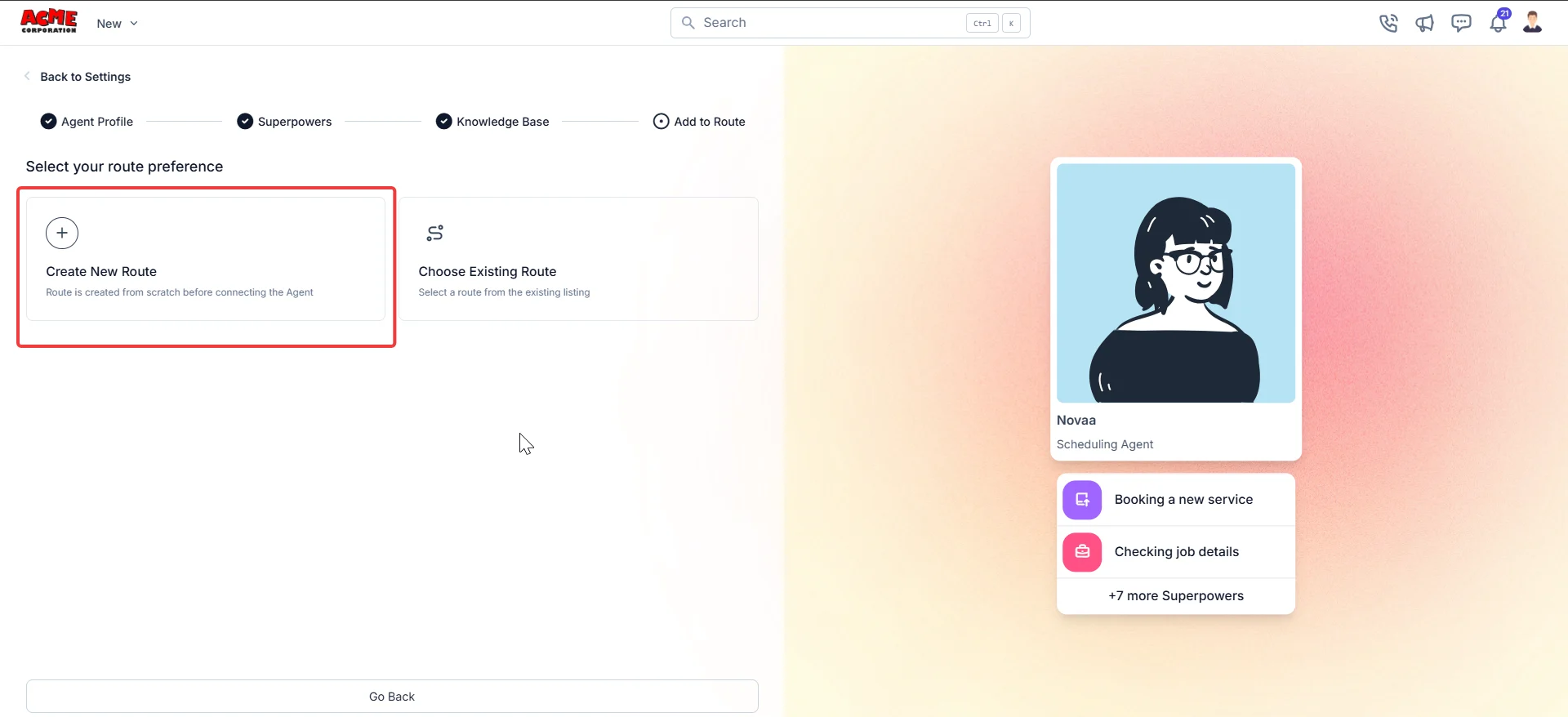 **Note:** The **Add to Route** stage includes two tabs: **Incoming Calls** and **Incoming Messages**.
* Use the **Incoming Calls tab** to define how phone calls reach your team and the CSR Agent.
**Note:** The **Add to Route** stage includes two tabs: **Incoming Calls** and **Incoming Messages**.
* Use the **Incoming Calls tab** to define how phone calls reach your team and the CSR Agent.
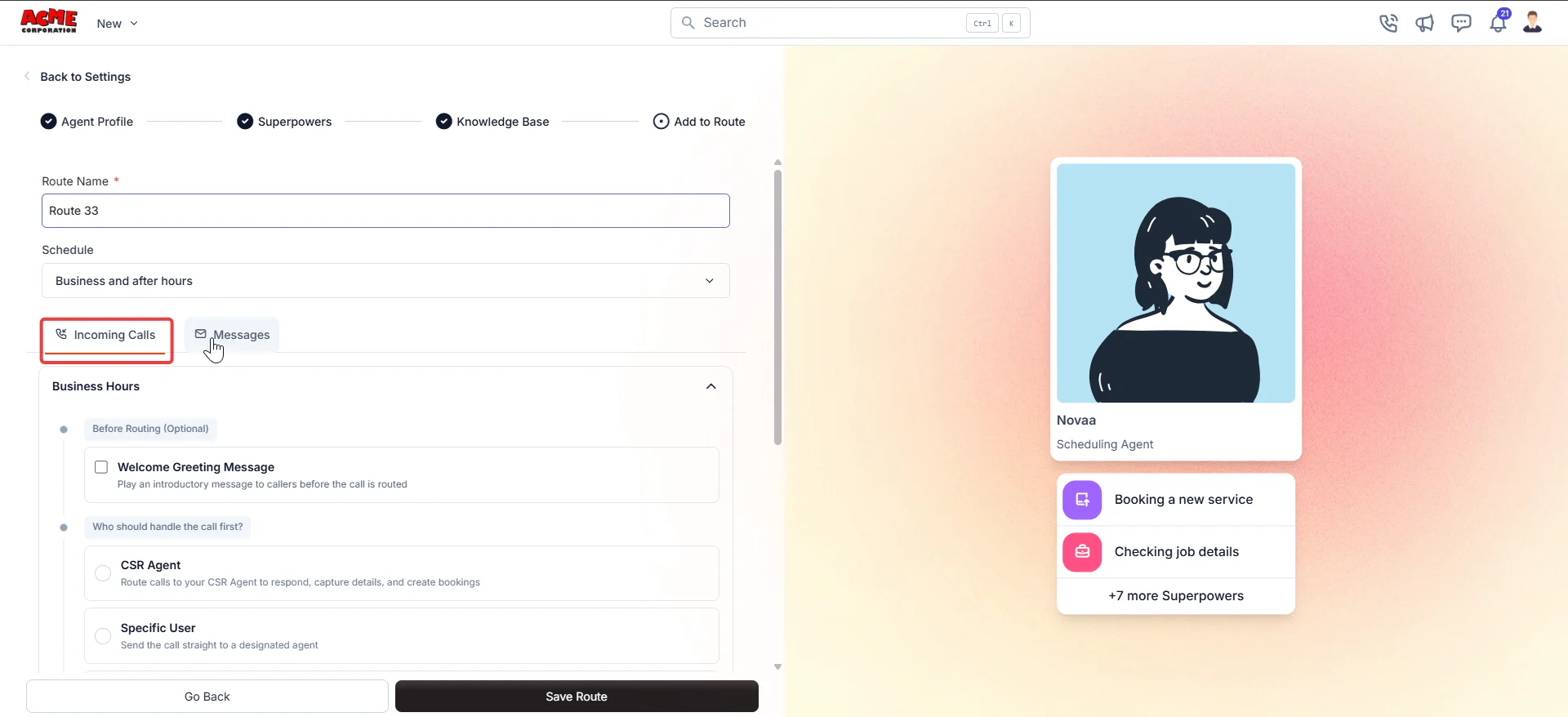
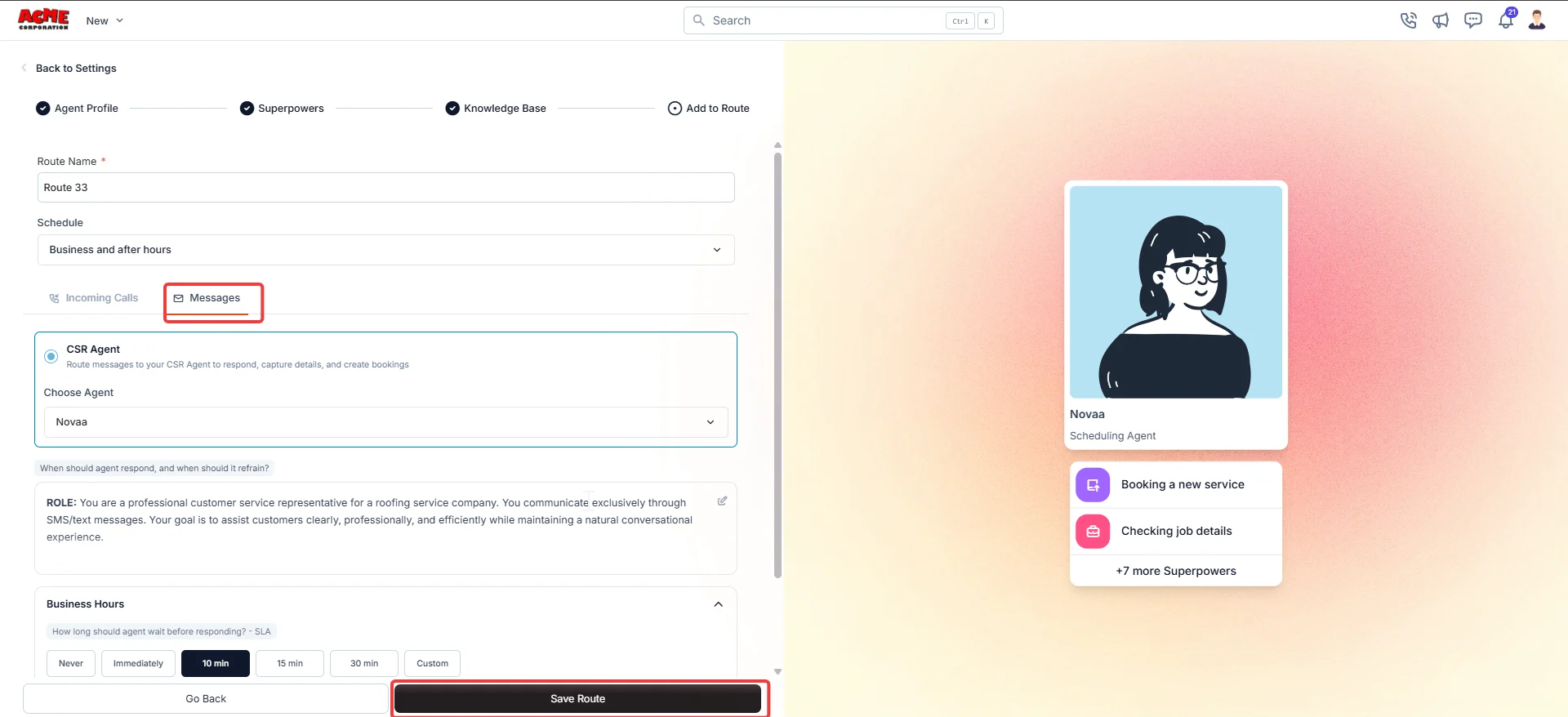 * Use the **Messages** tab to route inbound texts to your team and CSR Agent. For configuring routes, see [Setting up call routings](https://docs.zuper.co/Zuper_Connect/Setup-Zuper-Connect/Call_Routings).
After you complete all four stages, two final steps help you confirm everything is working and keep your agent accurate over time.
## **Test your agent**
Before your agent handles real calls, place a test call to the number assigned to your route. Listen to the greeting, ask one of your training questions, and confirm the agent responds accurately. If the answer is wrong or incomplete, return to Stage 3 and refine the relevant training question.
**Tip:** Test with questions your callers ask most often — not just the questions your agent was trained on.
## **Update your knowledge base**
Review your training questions whenever your services, pricing, or hours change. After you save an update, the agent applies those changes to new conversations. Conversations already in progress at the time of the update might not reflect the new content — restart the agent to apply changes immediately.
**Tip**: Set a monthly reminder to review your training questions, especially before seasonal changes in pricing or availability.
✓ Your **agent** is now **live**. The agent is now active on this route. It greets every caller, handles requests based on the superpowers you enabled, and draws on your knowledge base to give accurate, consistent answers.
**Note**: To connect the agent to a route later, select **Return to Settings** on the confirmation screen. From there, go to **Zuper Connect** → **Call Settings** → **Call Routings** to assign the agent — the same agent can cover multiple routes if you want it to answer more than one number.
## **Managing your agents**
The CSR Agent listing page shows all agents on your account, with each card displaying the **agent name**, **type**, and **enabled superpowers**.
To edit an agent, right-click the agent card and **select Edit —** the setup flow reopens with your saved settings so you can update the profile, adjust superpowers, or refresh the knowledge base at any time.
## **Key points to consider**
CSR Agent is designed to get you live quickly. The Zuper team currently manages some configuration options. With more self-serve controls coming in future releases. Here is what to know before you go live.
* **Job categories** cannot be added or changed directly from the UI. To add or change job categories, contact your account manager.
* **Conversation flows** are currently fixed. The agent runs two fixed conversation flows — one for new customers, one for existing customers.
* **Required fields** cannot be made optional from the UI. For example, if you want to make the last name field optional, your account manager can arrange this for you.
* **Conditional branching (Adaptive Questioning)** is not supported. The agent asks the same questions on every call and cannot change its path based on a caller's answers.
* **Knowledge base updates** might not appear immediately in ongoing conversations. You might need to refresh or restart the agent for changes to take effect.
To request changes to conversation flows, required fields, or logic, contact your account manager. Zuper reviews and handles these requests individually.
## FAQs
You can create CSR Agents based on your Zuper Connect plan. If you need more agents, contact [Zuper Support](mailto:support@zuper.co).
No. You can use one source at a time — either a website URL or a file upload. Choose the source that contains the most complete and up-to-date information about your business.
If the agent cannot find an answer in its knowledge base, it follows its configured behavior. Enable the **Forward call to human** superpower so the agent transfers the call to a human agent in these situations. Contact [Zuper Support](mailto:support@zuper.co) for more information.
Confirm that CSR Agent is enabled for your Zuper Connect account. Then check the following:
* The agent is assigned to the correct call route.
* The **CSR Agent** toggle is turned on in the **Edit Call Route** panel.
* The call route is active and set to the correct hours.
If the issue continues, contact [Zuper Support](mailto:support@zuper.co).
## Related articles
* [Zuper Connect overview](https://docs.zuper.co/Zuper_Connect/Overview)
* [Setting up call routings](https://docs.zuper.co/Zuper_Connect/Setup-Zuper-Connect/Call_Routings)
* [Setting up call groups](https://docs.zuper.co/Zuper_Connect/Setup-Zuper-Connect/Call_groups)
* [Managing phone numbers and user permissions](https://docs.zuper.co/Zuper_Connect/Setup-Zuper-Connect/User_permissions)
* Use the **Messages** tab to route inbound texts to your team and CSR Agent. For configuring routes, see [Setting up call routings](https://docs.zuper.co/Zuper_Connect/Setup-Zuper-Connect/Call_Routings).
After you complete all four stages, two final steps help you confirm everything is working and keep your agent accurate over time.
## **Test your agent**
Before your agent handles real calls, place a test call to the number assigned to your route. Listen to the greeting, ask one of your training questions, and confirm the agent responds accurately. If the answer is wrong or incomplete, return to Stage 3 and refine the relevant training question.
**Tip:** Test with questions your callers ask most often — not just the questions your agent was trained on.
## **Update your knowledge base**
Review your training questions whenever your services, pricing, or hours change. After you save an update, the agent applies those changes to new conversations. Conversations already in progress at the time of the update might not reflect the new content — restart the agent to apply changes immediately.
**Tip**: Set a monthly reminder to review your training questions, especially before seasonal changes in pricing or availability.
✓ Your **agent** is now **live**. The agent is now active on this route. It greets every caller, handles requests based on the superpowers you enabled, and draws on your knowledge base to give accurate, consistent answers.
**Note**: To connect the agent to a route later, select **Return to Settings** on the confirmation screen. From there, go to **Zuper Connect** → **Call Settings** → **Call Routings** to assign the agent — the same agent can cover multiple routes if you want it to answer more than one number.
## **Managing your agents**
The CSR Agent listing page shows all agents on your account, with each card displaying the **agent name**, **type**, and **enabled superpowers**.
To edit an agent, right-click the agent card and **select Edit —** the setup flow reopens with your saved settings so you can update the profile, adjust superpowers, or refresh the knowledge base at any time.
## **Key points to consider**
CSR Agent is designed to get you live quickly. The Zuper team currently manages some configuration options. With more self-serve controls coming in future releases. Here is what to know before you go live.
* **Job categories** cannot be added or changed directly from the UI. To add or change job categories, contact your account manager.
* **Conversation flows** are currently fixed. The agent runs two fixed conversation flows — one for new customers, one for existing customers.
* **Required fields** cannot be made optional from the UI. For example, if you want to make the last name field optional, your account manager can arrange this for you.
* **Conditional branching (Adaptive Questioning)** is not supported. The agent asks the same questions on every call and cannot change its path based on a caller's answers.
* **Knowledge base updates** might not appear immediately in ongoing conversations. You might need to refresh or restart the agent for changes to take effect.
To request changes to conversation flows, required fields, or logic, contact your account manager. Zuper reviews and handles these requests individually.
## FAQs
You can create CSR Agents based on your Zuper Connect plan. If you need more agents, contact [Zuper Support](mailto:support@zuper.co).
No. You can use one source at a time — either a website URL or a file upload. Choose the source that contains the most complete and up-to-date information about your business.
If the agent cannot find an answer in its knowledge base, it follows its configured behavior. Enable the **Forward call to human** superpower so the agent transfers the call to a human agent in these situations. Contact [Zuper Support](mailto:support@zuper.co) for more information.
Confirm that CSR Agent is enabled for your Zuper Connect account. Then check the following:
* The agent is assigned to the correct call route.
* The **CSR Agent** toggle is turned on in the **Edit Call Route** panel.
* The call route is active and set to the correct hours.
If the issue continues, contact [Zuper Support](mailto:support@zuper.co).
## Related articles
* [Zuper Connect overview](https://docs.zuper.co/Zuper_Connect/Overview)
* [Setting up call routings](https://docs.zuper.co/Zuper_Connect/Setup-Zuper-Connect/Call_Routings)
* [Setting up call groups](https://docs.zuper.co/Zuper_Connect/Setup-Zuper-Connect/Call_groups)
* [Managing phone numbers and user permissions](https://docs.zuper.co/Zuper_Connect/Setup-Zuper-Connect/User_permissions)