> ## Documentation Index
> Fetch the complete documentation index at: https://docs.zuper.co/llms.txt
> Use this file to discover all available pages before exploring further.
# Call transcript
Zuper Connect now supports **AI-powered Call Transcription**, enabling your team to quickly review conversations, improve service quality, and ensure nothing important gets missed. Once a call is recorded, Zuper AI automatically transcribes the conversation, making it easy to scan, search, and analyze interactions with your customers.
**Note:** This feature is available only on select Zuper plans. To enable it for your account, please contact your account administrator or email us at [support@zuper.co](mailto:support@zuper.co)
# Accessing Call Transcription
You can access the **AI-generated call transcript** in two ways:
## From the Conversation Thread
* Go to **Zuper Connect > Conversations Listing** from the left navigation menu.
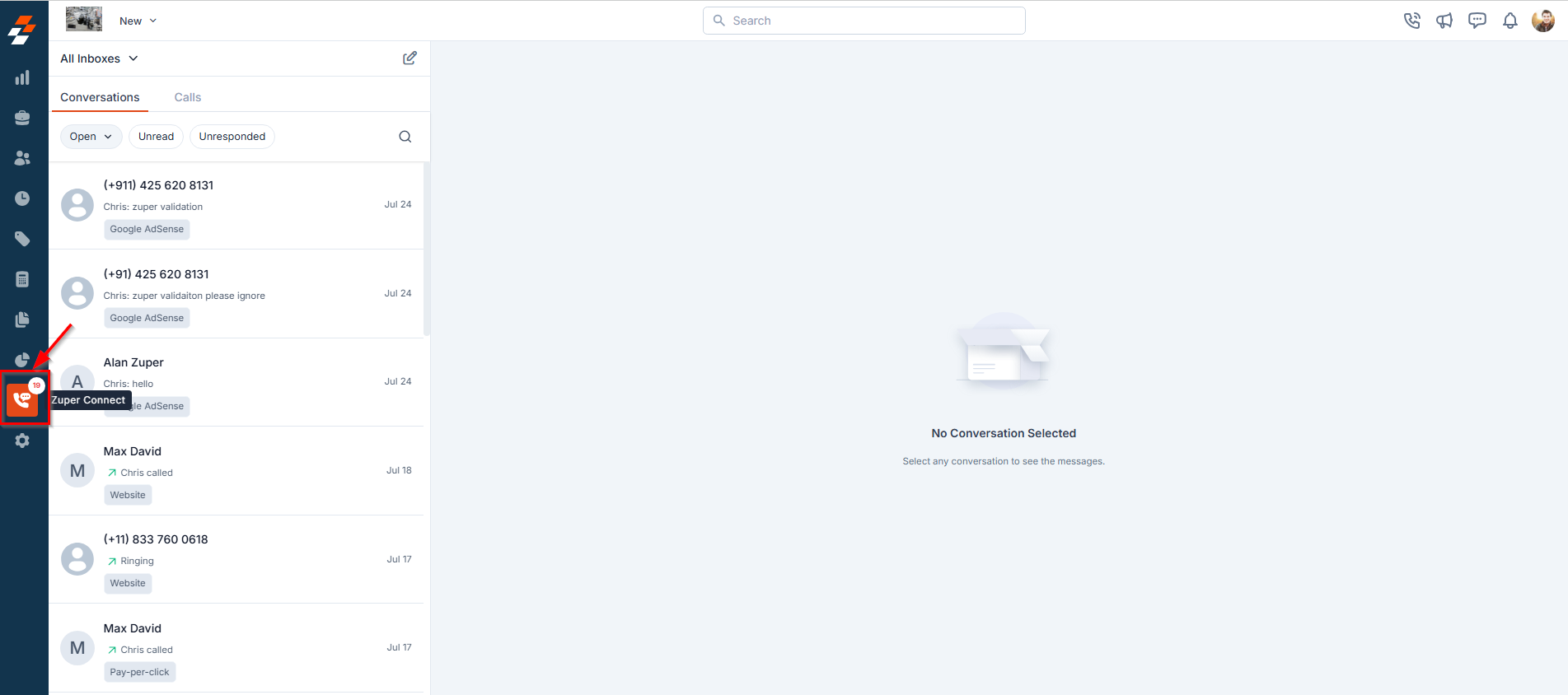 * Click on any **conversation** to open the **conversation thread**.
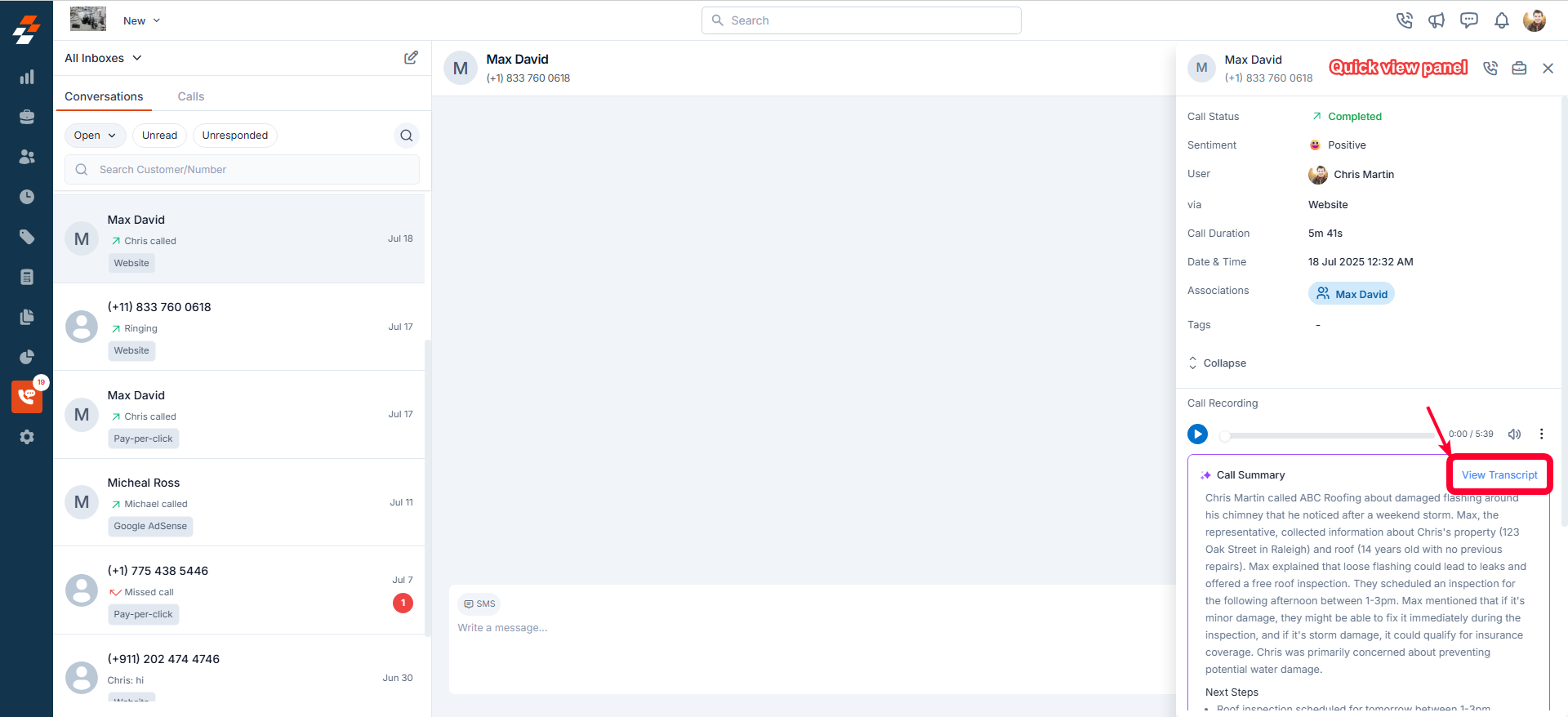
* If a call recording exists, the **AI-generated Call Summary** will appear beneath it.
* Click on any **conversation** to open the **conversation thread**.
* If a call recording exists, the **AI-generated Call Summary** will appear beneath it.
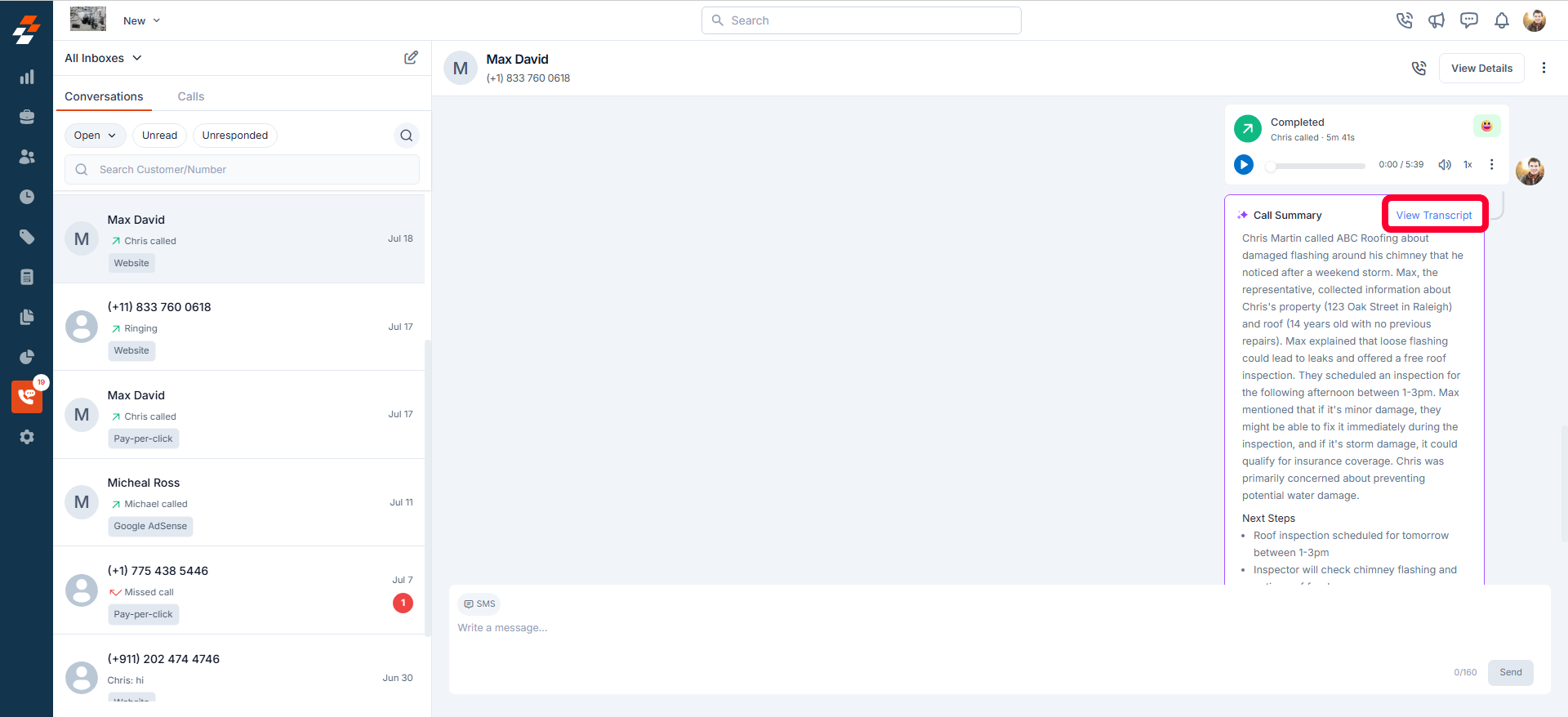
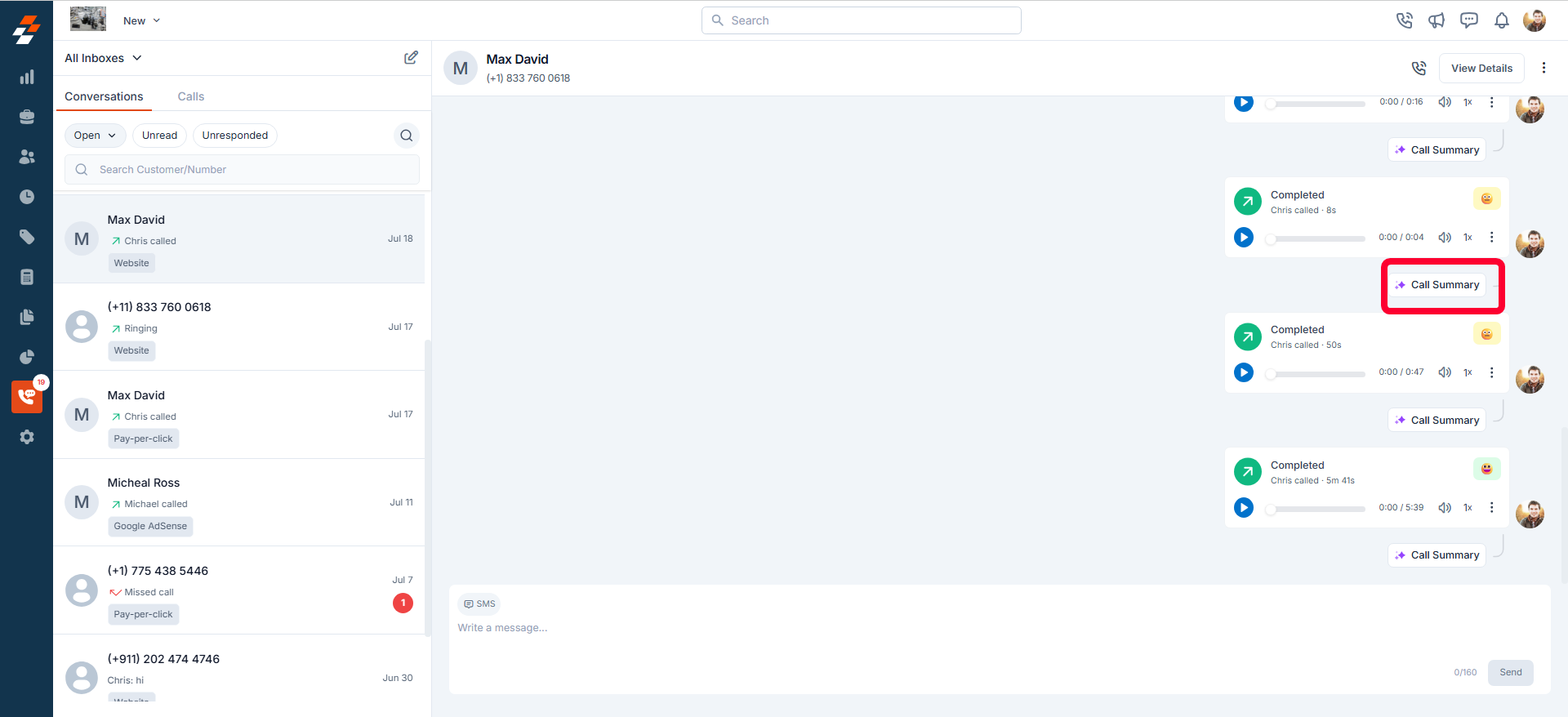 * Click **“View Transcript”** within the summary to open the full transcription.
 ## From Call Details View
* In the **Conversation Thread**, click on a specific **call entry**.
## From Call Details View
* In the **Conversation Thread**, click on a specific **call entry**.
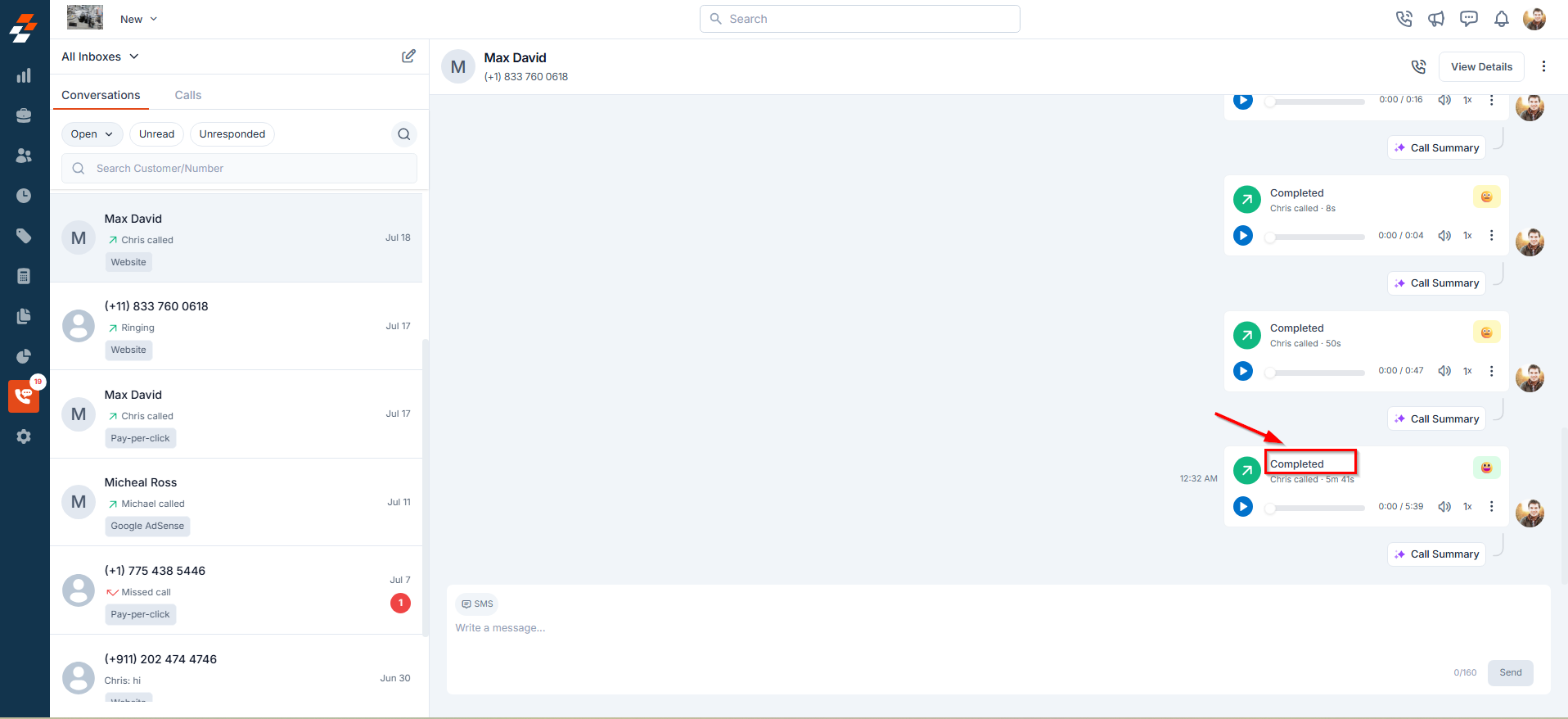 * A **Quick View panel** opens with detailed call information.
* Click **“View Transcript”** within the **Call Summary** section.
* A **Quick View panel** opens with detailed call information.
* Click **“View Transcript”** within the **Call Summary** section.
 # Call Transcription Functionality
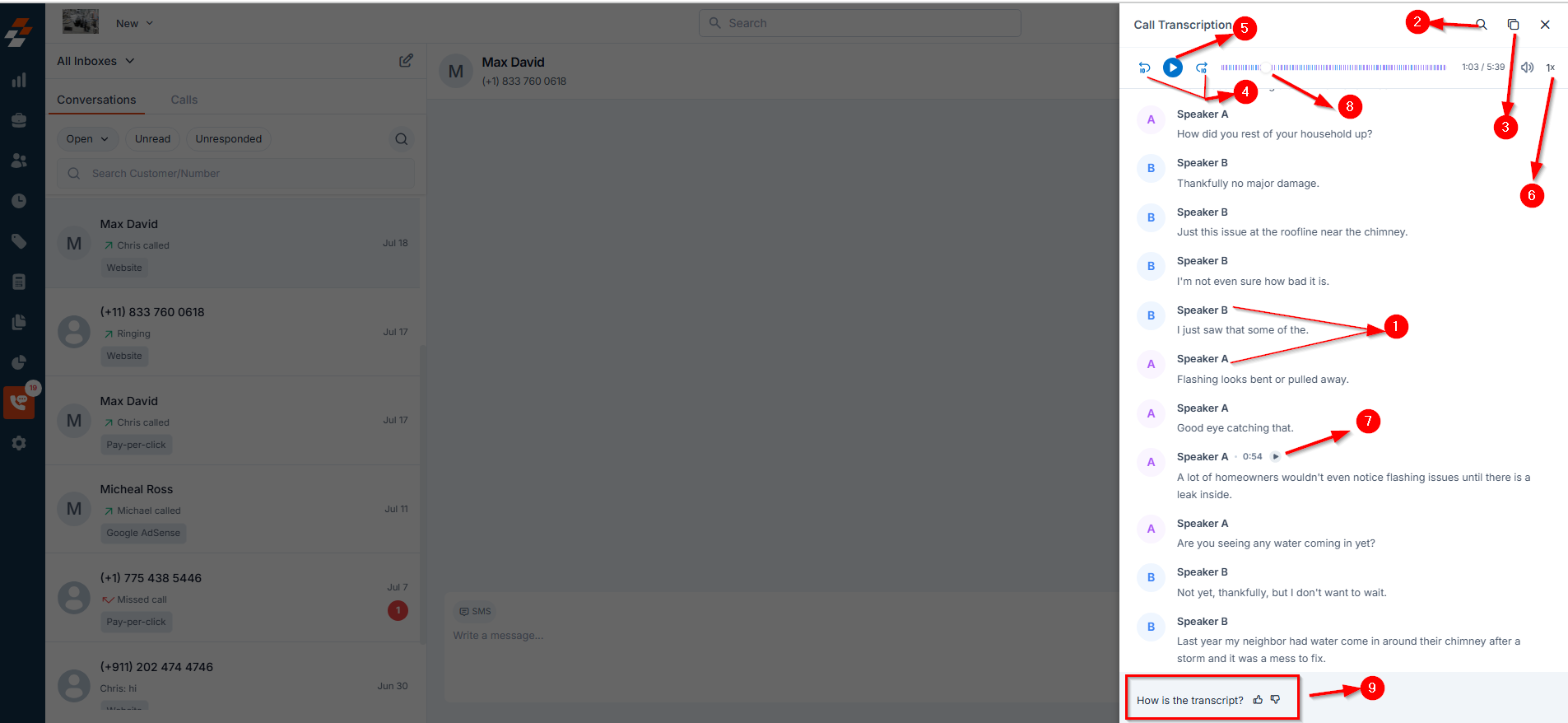
Once inside the **Call Transcription** screen, you’ll find several tools designed to help you efficiently review and navigate the transcript:
1. **Speaker Classification**: The transcription is organized by speaker, allowing for clear and structured dialogue review.
2. **Search**: Use the **search icon** to quickly find specific words or phrases within the transcript.
3. **Copy**: Click the **copy icon** to easily copy sections of the transcript.
4. **Jump Back/Forward**: Rewind or skip audio in **10-second increments**.
5. **Play/Pause**: Control playback with simple play and pause options.
6. **Playback Speed**: Adjust the playback speed—choose from **0.5x, 1x, 1.5x, or 2x**.
7. **Transcript Audio Navigation**: Hover over any line of text to see a **play button**—click it to start audio from that point.
8. **Drag Audio Bar**: Scrub through the call using the **progress bar** to hear audio at any point.
9. **Feedback Prompt**: A quick question—*"**How is the transcript?**"*—lets you provide feedback to help improve transcription quality.
# Call Transcription Functionality
Once inside the **Call Transcription** screen, you’ll find several tools designed to help you efficiently review and navigate the transcript:
1. **Speaker Classification**: The transcription is organized by speaker, allowing for clear and structured dialogue review.
2. **Search**: Use the **search icon** to quickly find specific words or phrases within the transcript.
3. **Copy**: Click the **copy icon** to easily copy sections of the transcript.
4. **Jump Back/Forward**: Rewind or skip audio in **10-second increments**.
5. **Play/Pause**: Control playback with simple play and pause options.
6. **Playback Speed**: Adjust the playback speed—choose from **0.5x, 1x, 1.5x, or 2x**.
7. **Transcript Audio Navigation**: Hover over any line of text to see a **play button**—click it to start audio from that point.
8. **Drag Audio Bar**: Scrub through the call using the **progress bar** to hear audio at any point.
9. **Feedback Prompt**: A quick question—*"**How is the transcript?**"*—lets you provide feedback to help improve transcription quality.
 **Note**: Transcripts are only generated for **recorded calls**.
By leveraging AI Call Transcription, your team can boost productivity, enhance customer service, and ensure greater call transparency across your organization.
**Frequently Asked Questions (FAQs)**
1. **Are call transcripts available for all calls?**
No, transcripts are only available for calls that are **recorded** in Zuper Connect.
2. **Can I download or export the transcript?**
Currently, transcripts can be copied using the copy icon. Export options may be considered in future updates.
3. **Are transcripts 100% accurate?**
Transcripts are AI-generated and typically accurate, but may vary based on background noise, speaker accents, or call quality.
4. **Will private or sensitive information be transcribed?**
Zuper AI is designed to exclude sensitive information like passwords or PINs during transcription.
5. **Can I provide feedback on the transcript?**
Yes! Use the built-in **"How is the transcript?"** prompt to rate and improve the feature.
***
***
**Note**: Transcripts are only generated for **recorded calls**.
By leveraging AI Call Transcription, your team can boost productivity, enhance customer service, and ensure greater call transparency across your organization.
**Frequently Asked Questions (FAQs)**
1. **Are call transcripts available for all calls?**
No, transcripts are only available for calls that are **recorded** in Zuper Connect.
2. **Can I download or export the transcript?**
Currently, transcripts can be copied using the copy icon. Export options may be considered in future updates.
3. **Are transcripts 100% accurate?**
Transcripts are AI-generated and typically accurate, but may vary based on background noise, speaker accents, or call quality.
4. **Will private or sensitive information be transcribed?**
Zuper AI is designed to exclude sensitive information like passwords or PINs during transcription.
5. **Can I provide feedback on the transcript?**
Yes! Use the built-in **"How is the transcript?"** prompt to rate and improve the feature.
***
***