> ## Documentation Index
> Fetch the complete documentation index at: https://docs.zuper.co/llms.txt
> Use this file to discover all available pages before exploring further.
# Reset Dialer Status for a User
## **Overview**
Sometimes, your dialer status in Zuper Connect does not update automatically after a call ends. When this happens, your status remains **Unavailable** or **Busy**, and you cannot make or receive calls until you reset it manually.
## How to identify when a user needs a status reset?
When a call does not end cleanly, the dialer session occasionally stays open. Zuper Connect continues to treat the call as active, which keeps your status locked as **Unavailable** or **Busy**. The user will see one or more of the following signs:
| **What the user sees** | **Detail** |
| :--------------------- | :-------------------------------------------------------- |
| Dialer icon | Shows Call in Progress continuously. |
| Dialer window | Does not open when selected. |
| Availability status | Shows as Unavailable or Busy — the user cannot change it. |
| Calls | The user cannot make or receive calls. |
**Note:** The available statuses in Zuper Connect are: **Available**, **Unavailable**, **Busy**, and **Offline**.
## How to reset a User’s dialer status?
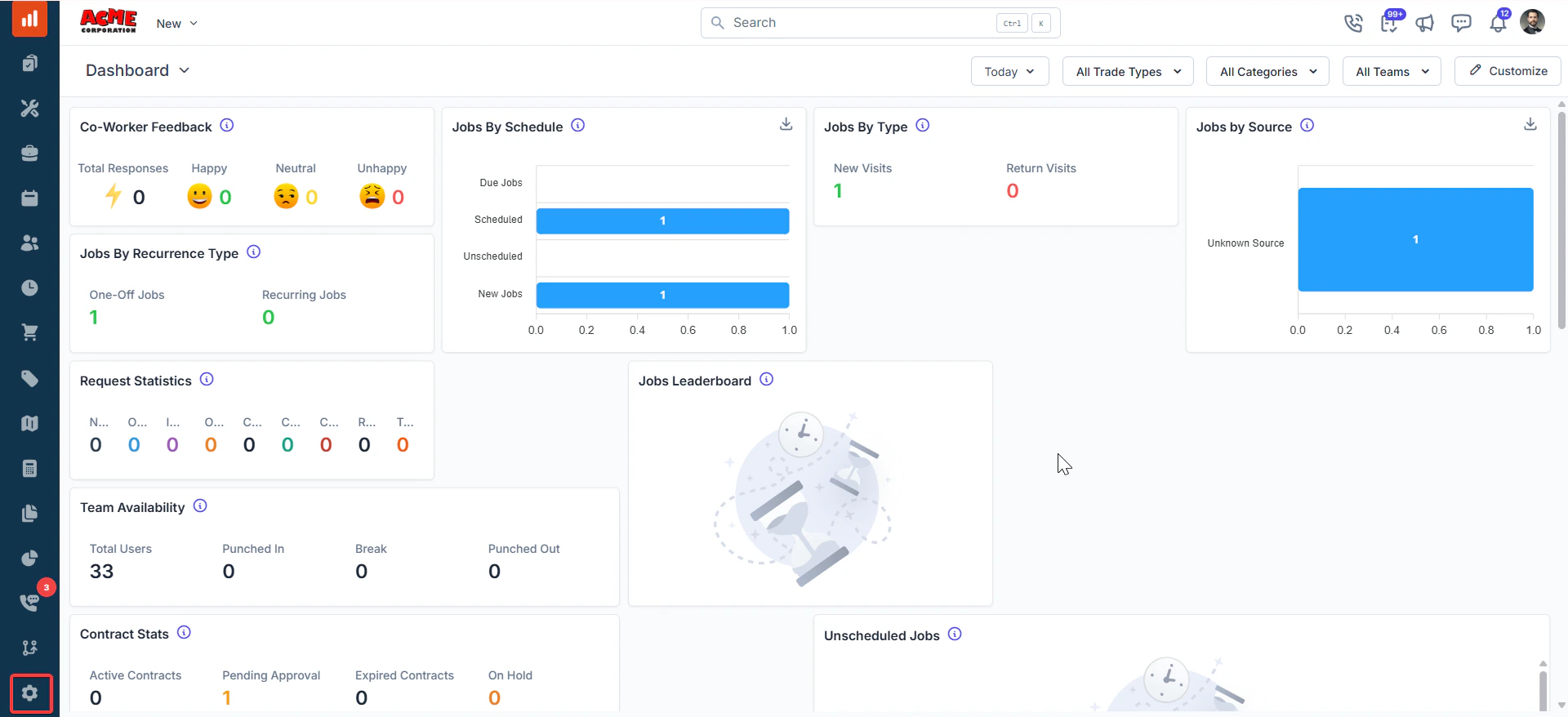
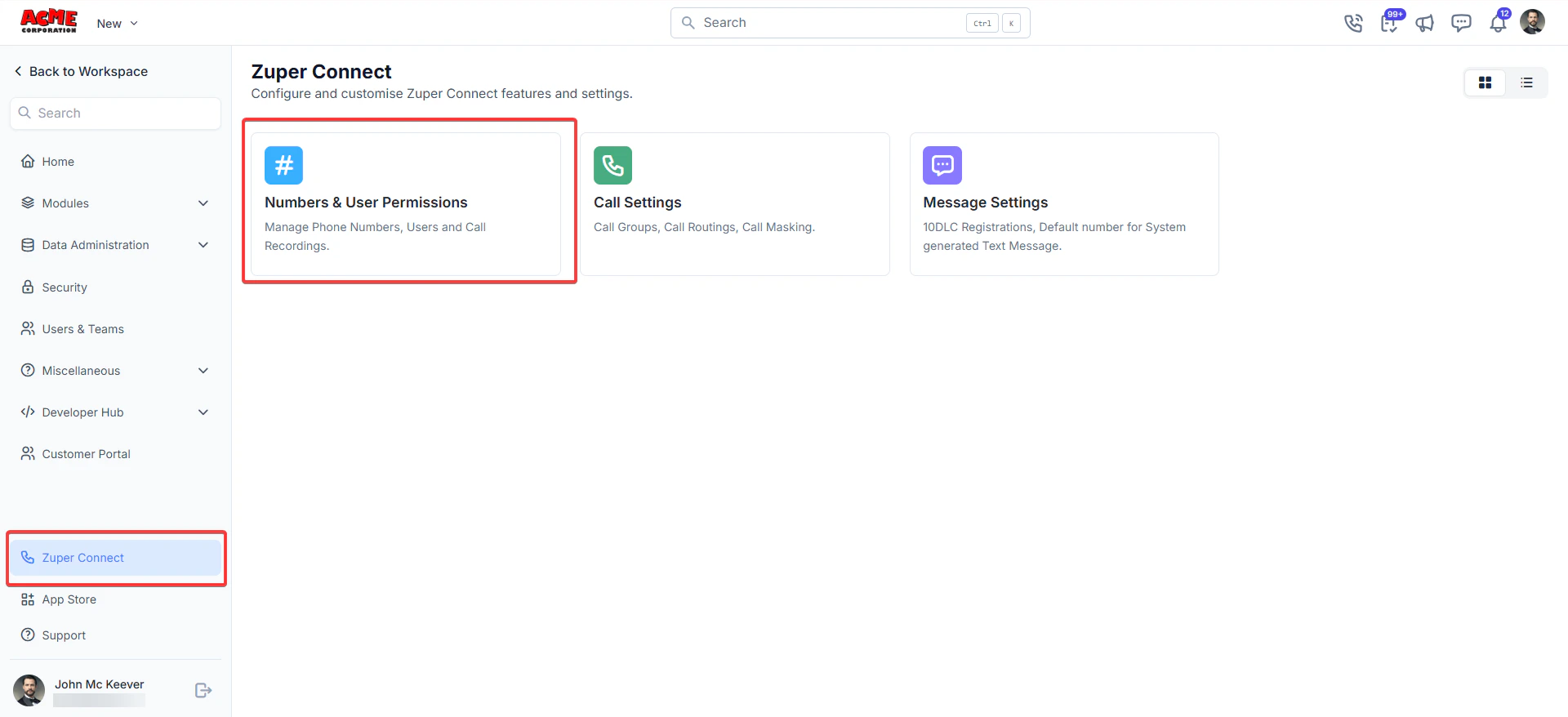
**Navigation**: *Settings → Zuper Connect → Numbers & User Permissions → User Permissions*
1. Select the **Settings** module from the left navigation menu.
 2. Select **Zuper Connect** from the settings menu.
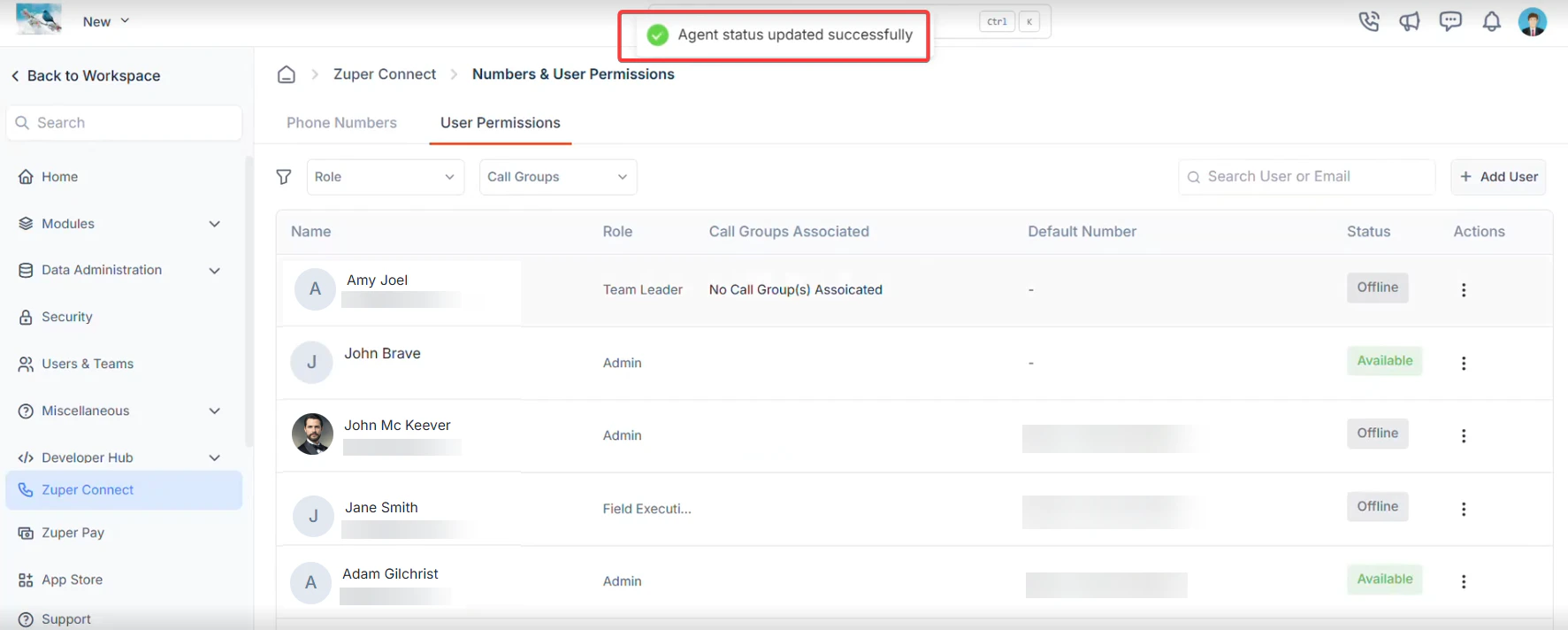
 3. Go to **Numbers & User Permissions**. The page opens on the **Phone Numbers** tab by default. Select the **User Permissions** tab.
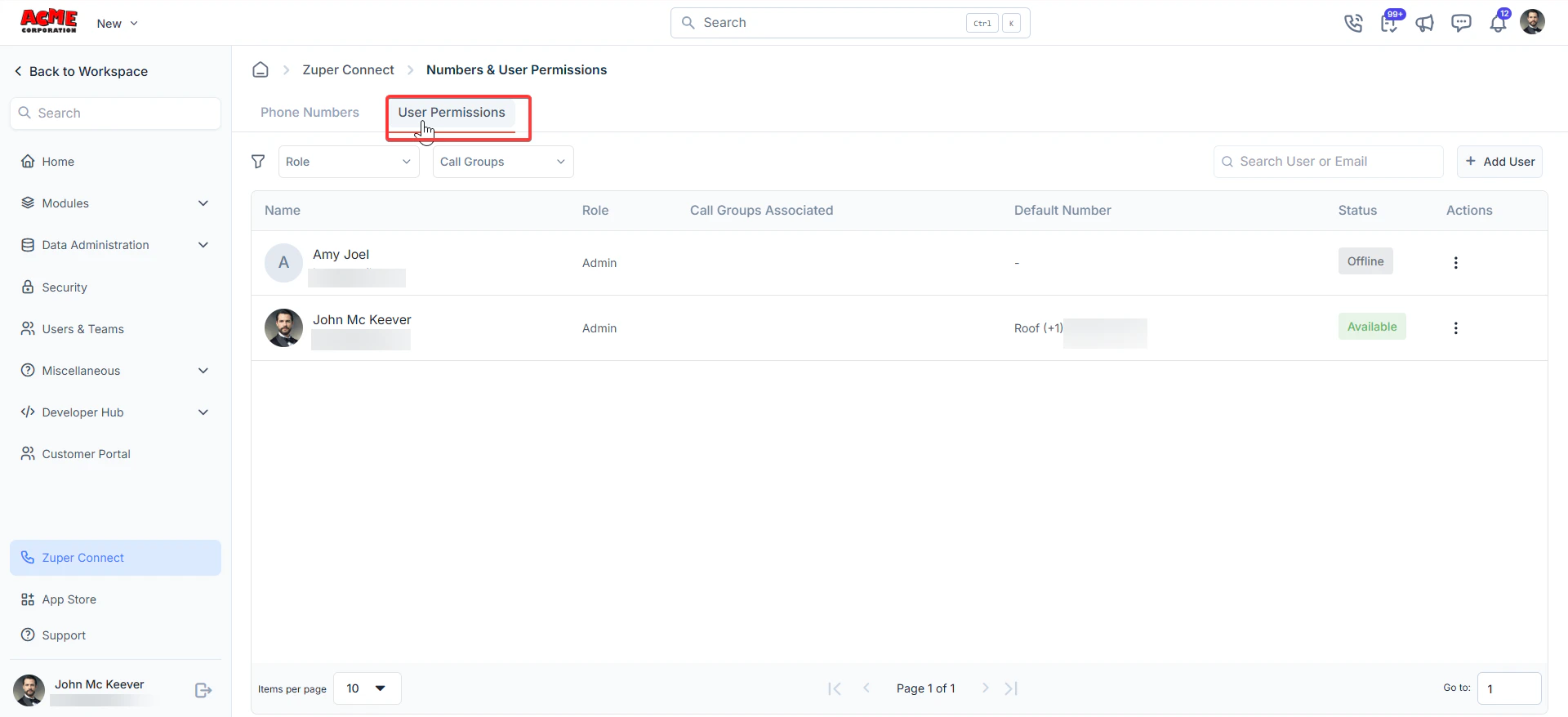 **Tip**: Use the **Search User** or **Email** field at the top-right of the table to quickly find the user.
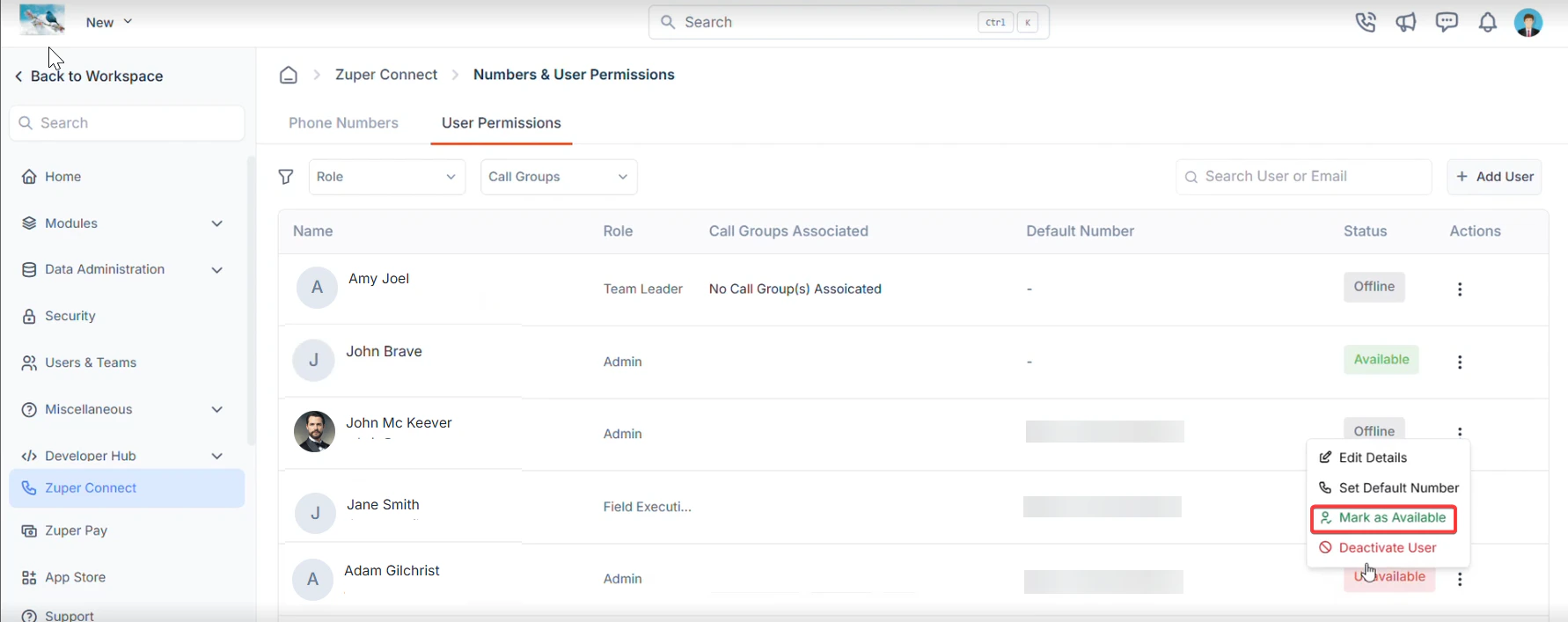
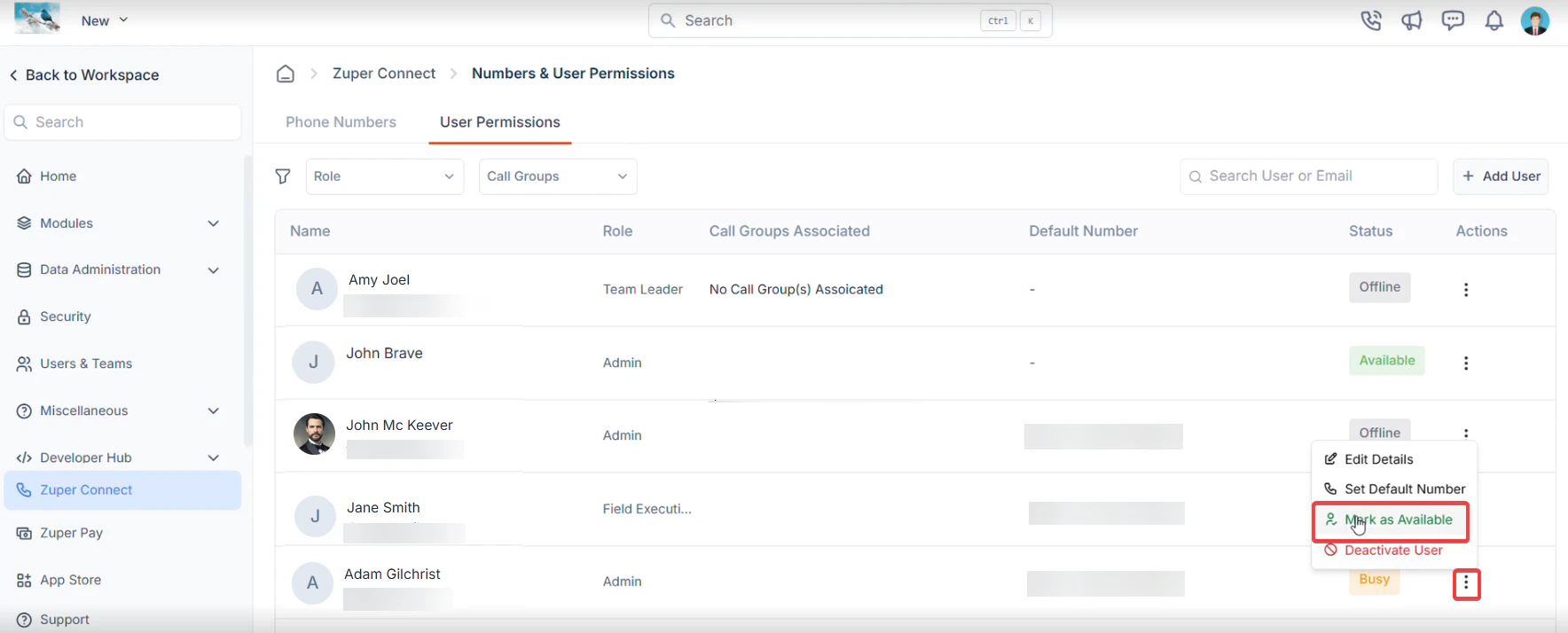
4. Locate the user in the list. You will see all Zuper Connect users and their current status.
Note: This action applies only when the user's status shows as **Unavailable** or **Busy**. If the status shows **Offline**, see the FAQ at the end.
**Tip**: Use the **Search User** or **Email** field at the top-right of the table to quickly find the user.
4. Locate the user in the list. You will see all Zuper Connect users and their current status.
Note: This action applies only when the user's status shows as **Unavailable** or **Busy**. If the status shows **Offline**, see the FAQ at the end.
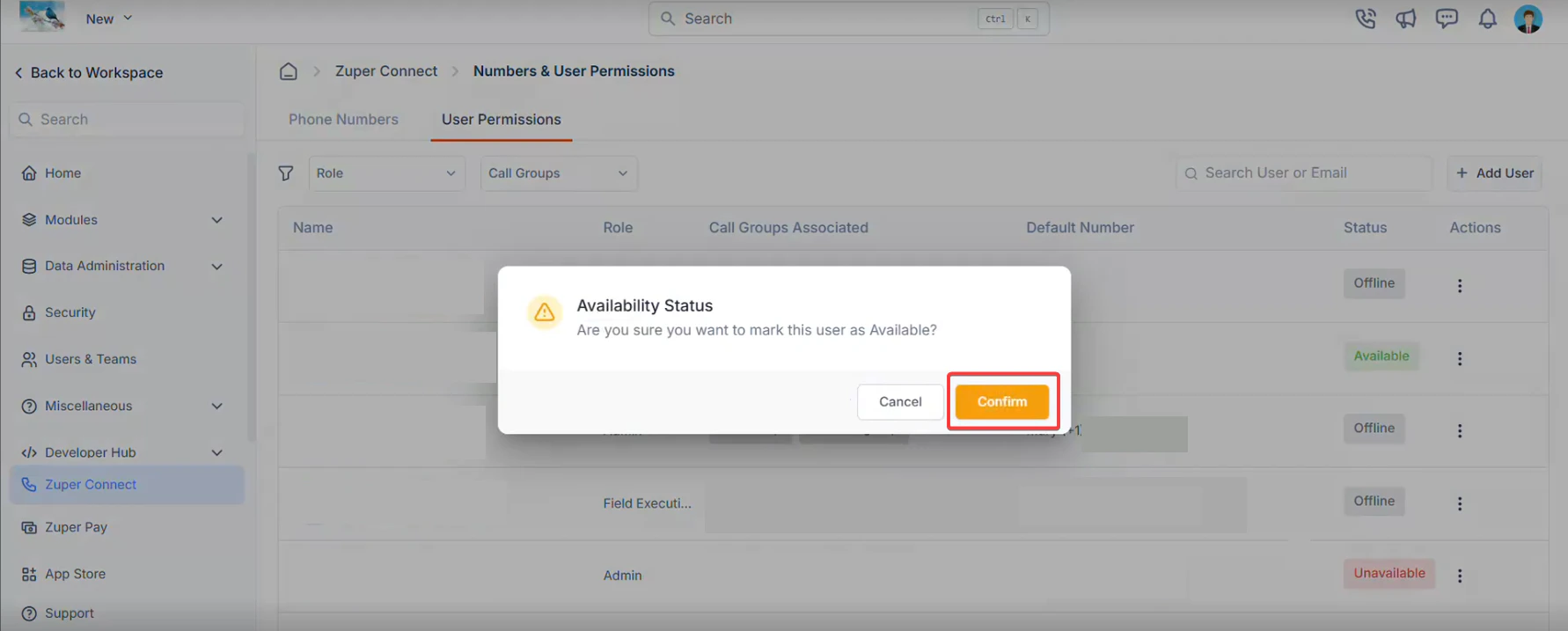
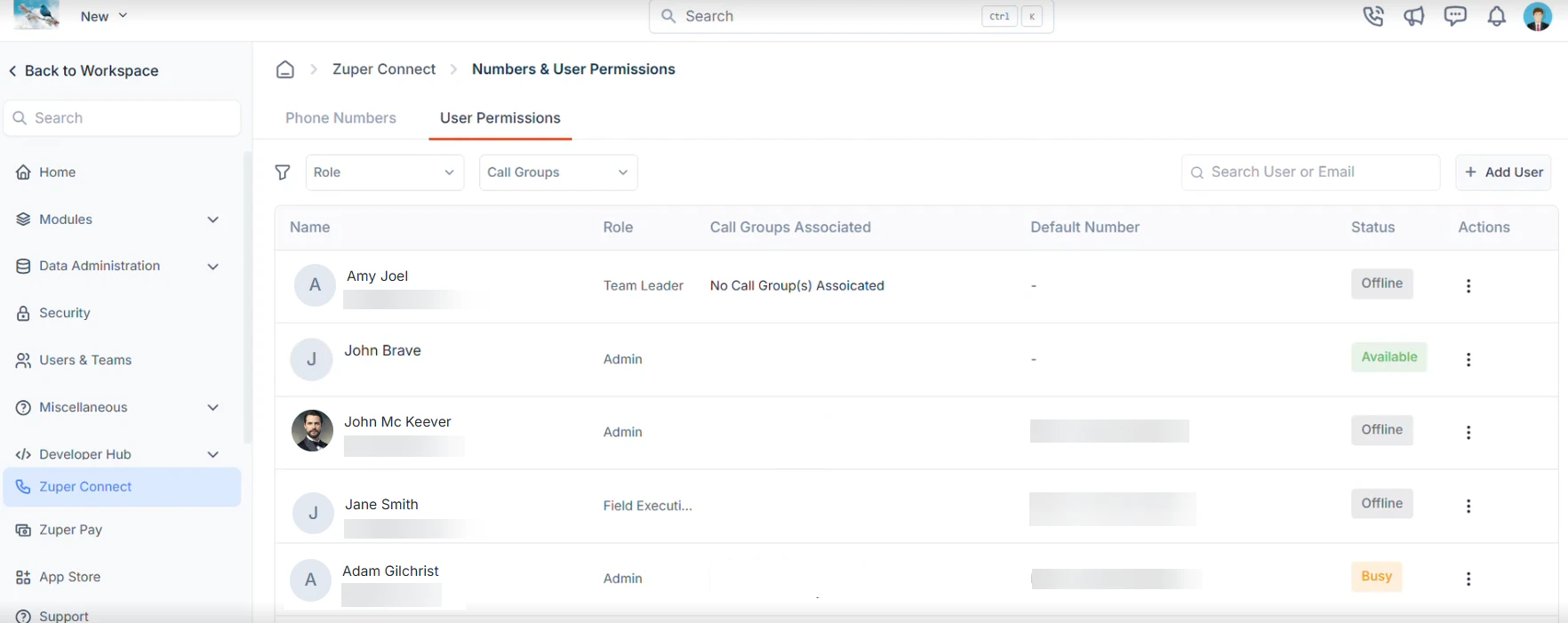 5. Select the user's status. A confirmation dialog appears. The display message depends on the user's current status: **If the status is Unavailable:** Are you sure you want to mark this user as Available?
 **If the status is Busy:** 'Are you sure you want to mark this user as Available?' If the user is currently on a call, the call will be automatically disconnected.
 6. Select **Confirm** to proceed, or select **Cancel** to exit without making changes.
• If the status shows **Unavailable**: "*Are you sure you want to mark this user as Available?* "
6. Select **Confirm** to proceed, or select **Cancel** to exit without making changes.
• If the status shows **Unavailable**: "*Are you sure you want to mark this user as Available?* "
 • If the status shows **Busy:** "*Are you sure you want to mark this user as Available*? If the user is currently on a call, the call will be automatically disconnected.
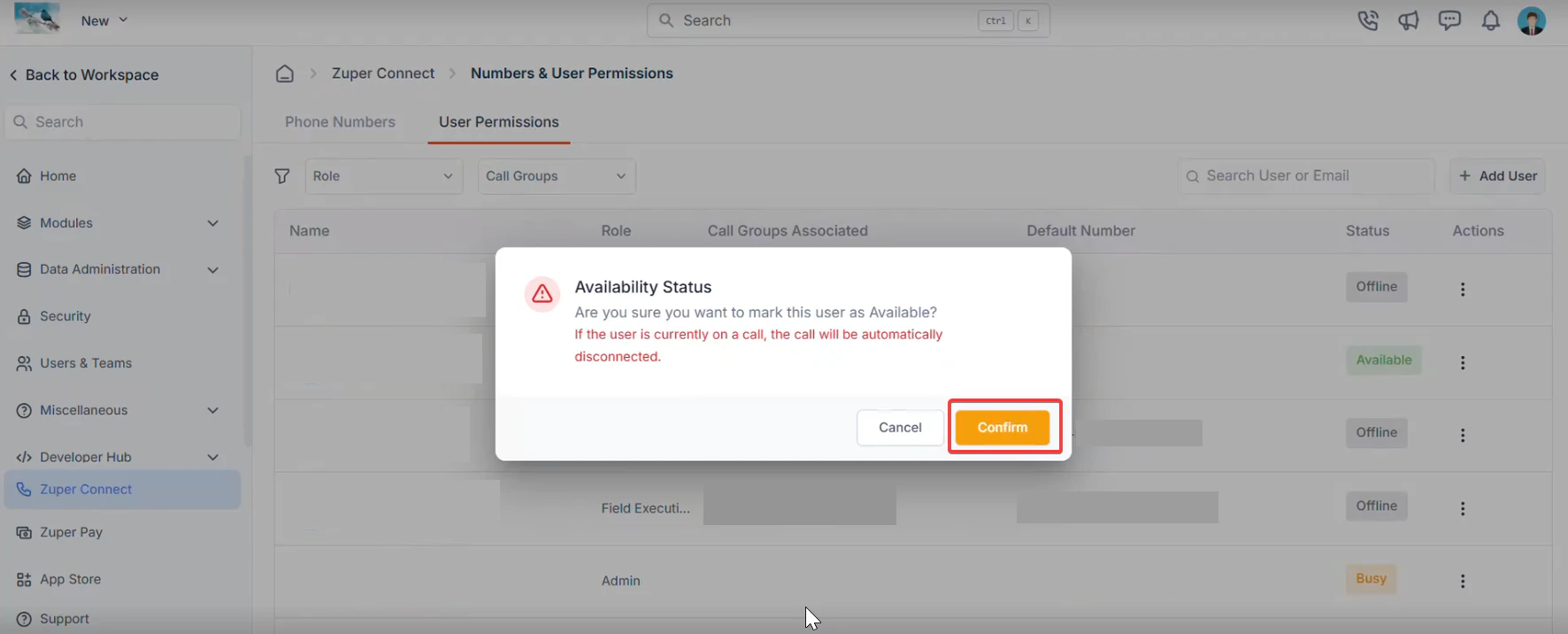 7. Your dialer status updates automatically.
 ## What happens after you reset the dialer?
When you set the status to **Available**, Zuper automatically:
* Updates the user's availability status to **Available**
* Refreshes the user's dialer session
* Clears any previous call state associated with the user
The user's status updates to **Available** immediately. No logout, refresh, or further action is needed. They can start making and receiving calls right away.
***
## Troubleshooting
**The status does not update after the reset**
**Symptom:** The status badge still shows the previous state after you select **Available**.
1. Refresh the **User Permissions** page.
2. Locate the user and check the **Status** column.
3. If the status remains unchanged, wait 30 seconds and refresh again.
4. If the status does not update, ask the user to close and reopen their browser tab.
**The user can see the dialer, but cannot make or receive calls**
**Symptom:** The dialer opens after the reset but calls do not connect.
1. Confirm the user's status shows **Available** in the **User Permissions** tab.
2. Ask the user to check their availability status inside the dialer. It must also be set to **Available**.
3. Ask the user to verify that their browser microphone permissions are enabled.
4. Ask the user to use Google Chrome. This is the recommended browser for Zuper Connect.
If the issue continues, contact [support@zuper.co](mailto:support@zuper.co).
***
## FAQs
1. **Does the user need to do anything after the admin resets their dialer?** \
No. The user's status updates to **Available** immediately. No logout, refresh, or further action is needed. They can start making and receiving calls right away.
2. **Will the reset affect any call recordings or call logs?** \
No. This action only updates the user's session status. Zuper does not delete or modify any existing call logs or recordings.
3. **Can I reset the dialer for multiple users at the same time?** \
No. You must update each user individually from the **User Permissions** tab.
4. **What statuses can a user have in the User Permissions tab?** \
A user can show as **Available**, **Unavailable**, **Busy**, or **Offline**. The reset sets the user to **Available** and refreshes their dialer session.
5. **What if the user's status shows Offline, not Call in Progress?** \
If a user reports they cannot use the dialer and their status shows **Offline**, confirm that they are logged in and that Zuper Connect is enabled for their account. \
This reset applies only to users whose status shows as **Unavailable** or **Busy**. It does not apply to users showing **Offline**. \
If the issue continues, contact [support@zuper.co](mailto:support@zuper.co).
## Related articles
* [Using Zuper Connect on the web](https://docs.zuper.co/Zuper_Connect/Using_Connect_on_web)
* [Managing numbers and user permissions](https://docs.zuper.co/Zuper_Connect/Setup-Zuper-Connect/User_permissions)
* [Zuper Connect overview](https://docs.zuper.co/Zuper_Connect/Overview)
## What happens after you reset the dialer?
When you set the status to **Available**, Zuper automatically:
* Updates the user's availability status to **Available**
* Refreshes the user's dialer session
* Clears any previous call state associated with the user
The user's status updates to **Available** immediately. No logout, refresh, or further action is needed. They can start making and receiving calls right away.
***
## Troubleshooting
**The status does not update after the reset**
**Symptom:** The status badge still shows the previous state after you select **Available**.
1. Refresh the **User Permissions** page.
2. Locate the user and check the **Status** column.
3. If the status remains unchanged, wait 30 seconds and refresh again.
4. If the status does not update, ask the user to close and reopen their browser tab.
**The user can see the dialer, but cannot make or receive calls**
**Symptom:** The dialer opens after the reset but calls do not connect.
1. Confirm the user's status shows **Available** in the **User Permissions** tab.
2. Ask the user to check their availability status inside the dialer. It must also be set to **Available**.
3. Ask the user to verify that their browser microphone permissions are enabled.
4. Ask the user to use Google Chrome. This is the recommended browser for Zuper Connect.
If the issue continues, contact [support@zuper.co](mailto:support@zuper.co).
***
## FAQs
1. **Does the user need to do anything after the admin resets their dialer?** \
No. The user's status updates to **Available** immediately. No logout, refresh, or further action is needed. They can start making and receiving calls right away.
2. **Will the reset affect any call recordings or call logs?** \
No. This action only updates the user's session status. Zuper does not delete or modify any existing call logs or recordings.
3. **Can I reset the dialer for multiple users at the same time?** \
No. You must update each user individually from the **User Permissions** tab.
4. **What statuses can a user have in the User Permissions tab?** \
A user can show as **Available**, **Unavailable**, **Busy**, or **Offline**. The reset sets the user to **Available** and refreshes their dialer session.
5. **What if the user's status shows Offline, not Call in Progress?** \
If a user reports they cannot use the dialer and their status shows **Offline**, confirm that they are logged in and that Zuper Connect is enabled for their account. \
This reset applies only to users whose status shows as **Unavailable** or **Busy**. It does not apply to users showing **Offline**. \
If the issue continues, contact [support@zuper.co](mailto:support@zuper.co).
## Related articles
* [Using Zuper Connect on the web](https://docs.zuper.co/Zuper_Connect/Using_Connect_on_web)
* [Managing numbers and user permissions](https://docs.zuper.co/Zuper_Connect/Setup-Zuper-Connect/User_permissions)
* [Zuper Connect overview](https://docs.zuper.co/Zuper_Connect/Overview)