> ## Documentation Index
> Fetch the complete documentation index at: https://docs.zuper.co/llms.txt
> Use this file to discover all available pages before exploring further.
# Manage user permissions
In Zuper Connect, managing user permissions ensures that the right team members have access to the communication features they need to stay connected and productive.
By configuring permissions, users can:
* Efficiently make and receive calls from customers or internal team members through the Zuper Phone interface within the app.
* Access the Zuper Connect Inbox/Conversations for a unified view of all communication threads.
* Access Call Logs to review call history, status, recordings, and related interactions.
**User Role: Admin (if assigned)**
The following communication features can be accessed on different platforms:
| **Feature** | **Web** | **Mobile** |
| :------------ | :------ | :--------- |
| Zuper Phone | Yes | Yes |
| Conversations | Yes | No |
| Call Logs | Yes | Yes |
**User Role: Team leaders/Field technicians (if assigned)**
The following communication features can be accessed on different platforms:
| **Feature** | **Web** | **Mobile** |
| :------------ | :------ | :--------- |
| Zuper Phone | No | Yes |
| Conversations | No | No |
| Call Logs | No | Yes |
# Access User Permissions
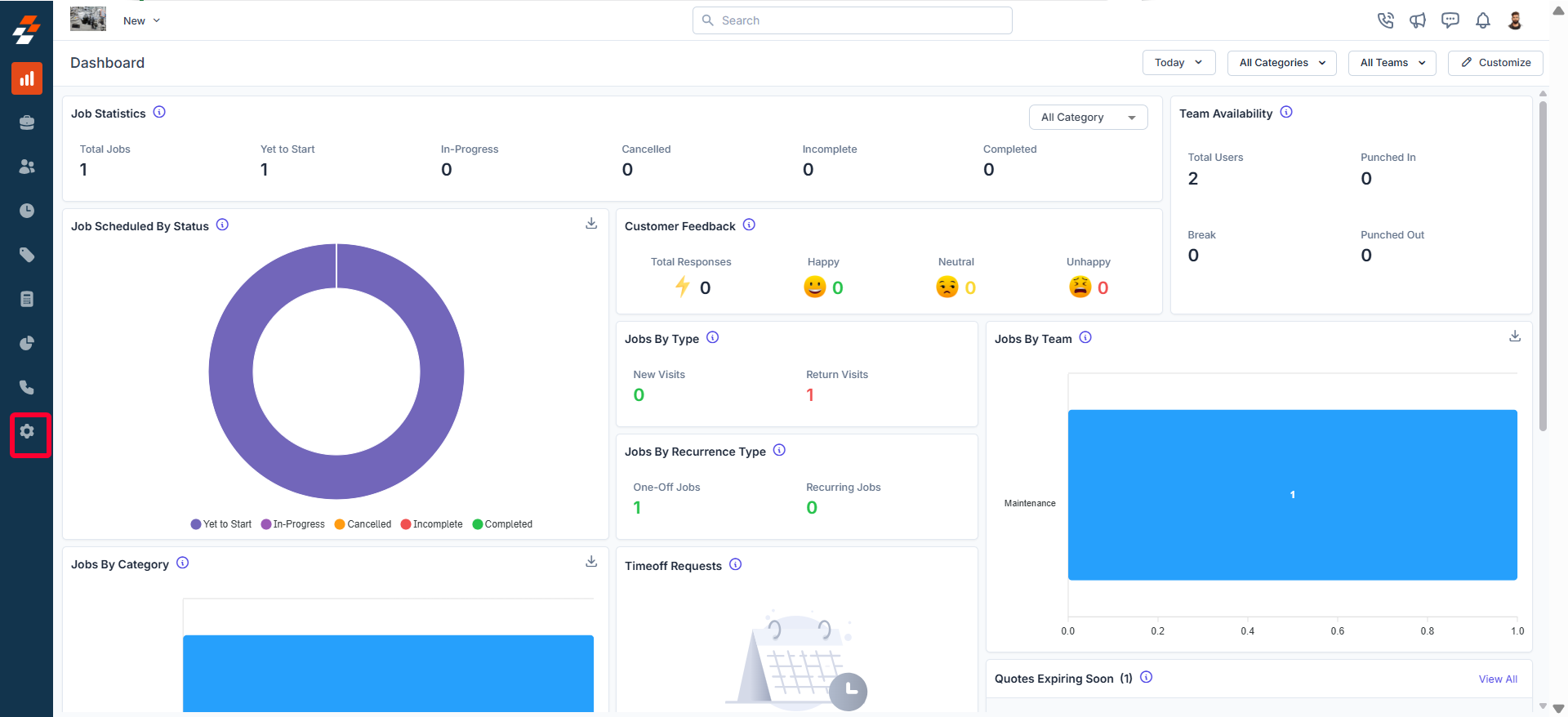
* Select the “**Settings**” module from the left navigation menu.
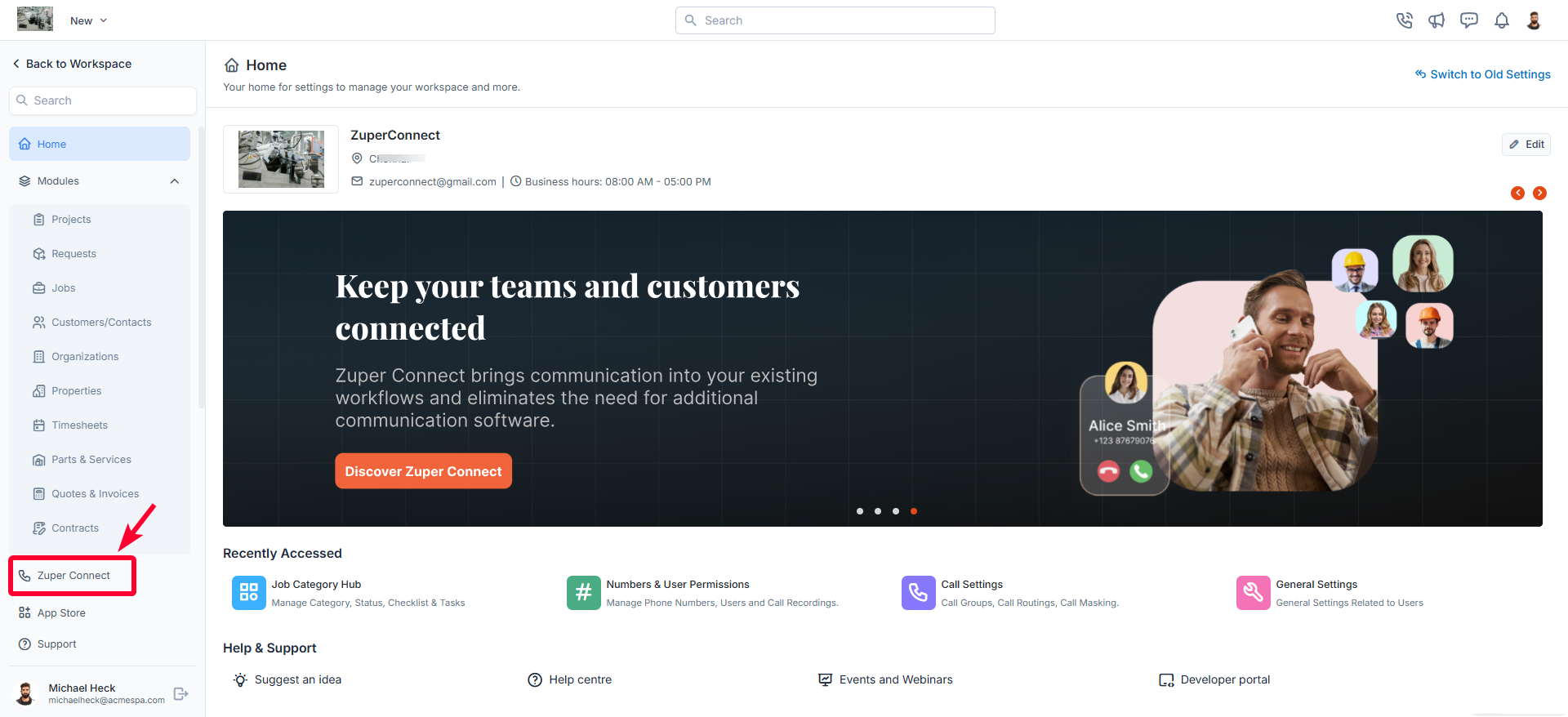
 * On the settings page, click “**Zuper Connect**.”
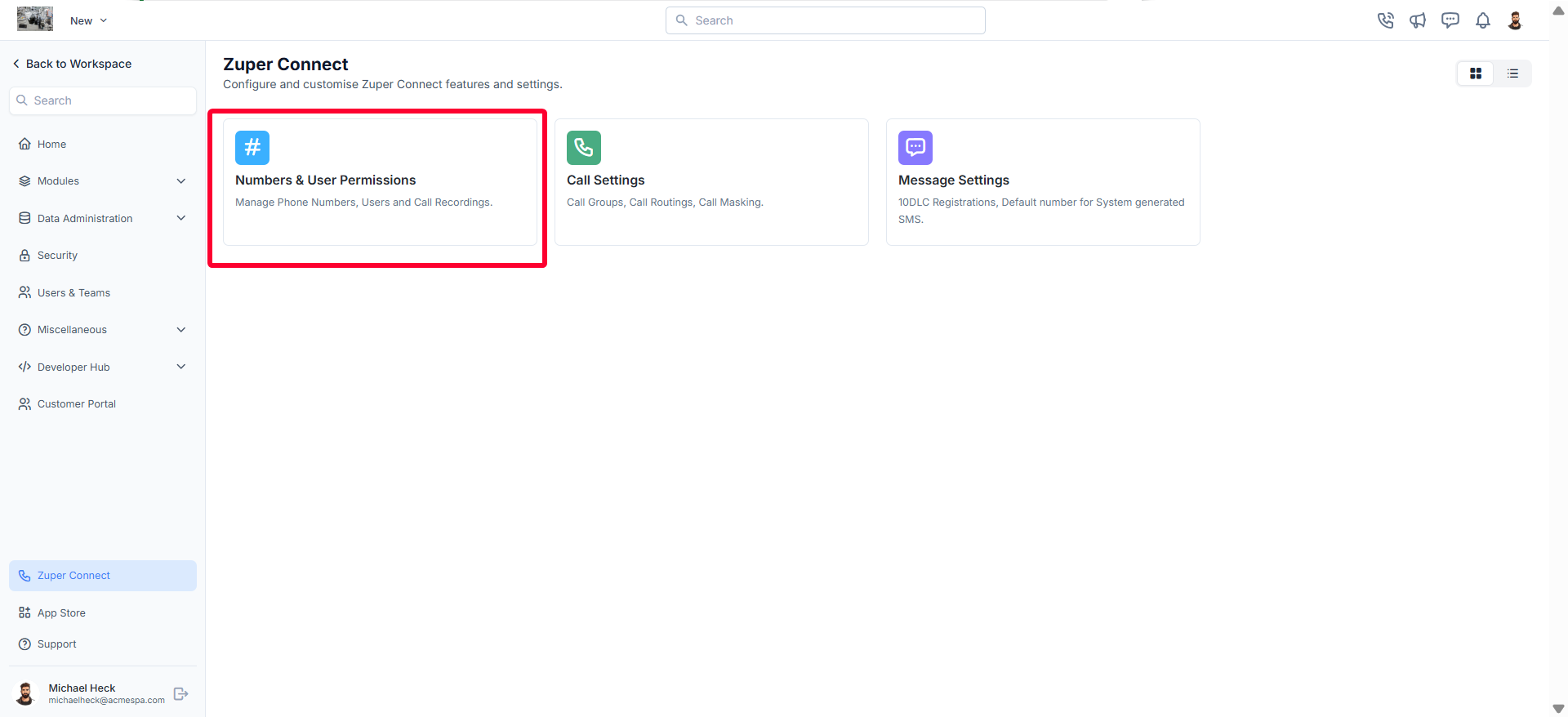
 * The Zuper Connect settings page will appear.
* Select “**Numbers & User Permissions**” to open the page where you can manage Zuper Phone Numbers and User Permissions.
* The Zuper Connect settings page will appear.
* Select “**Numbers & User Permissions**” to open the page where you can manage Zuper Phone Numbers and User Permissions.
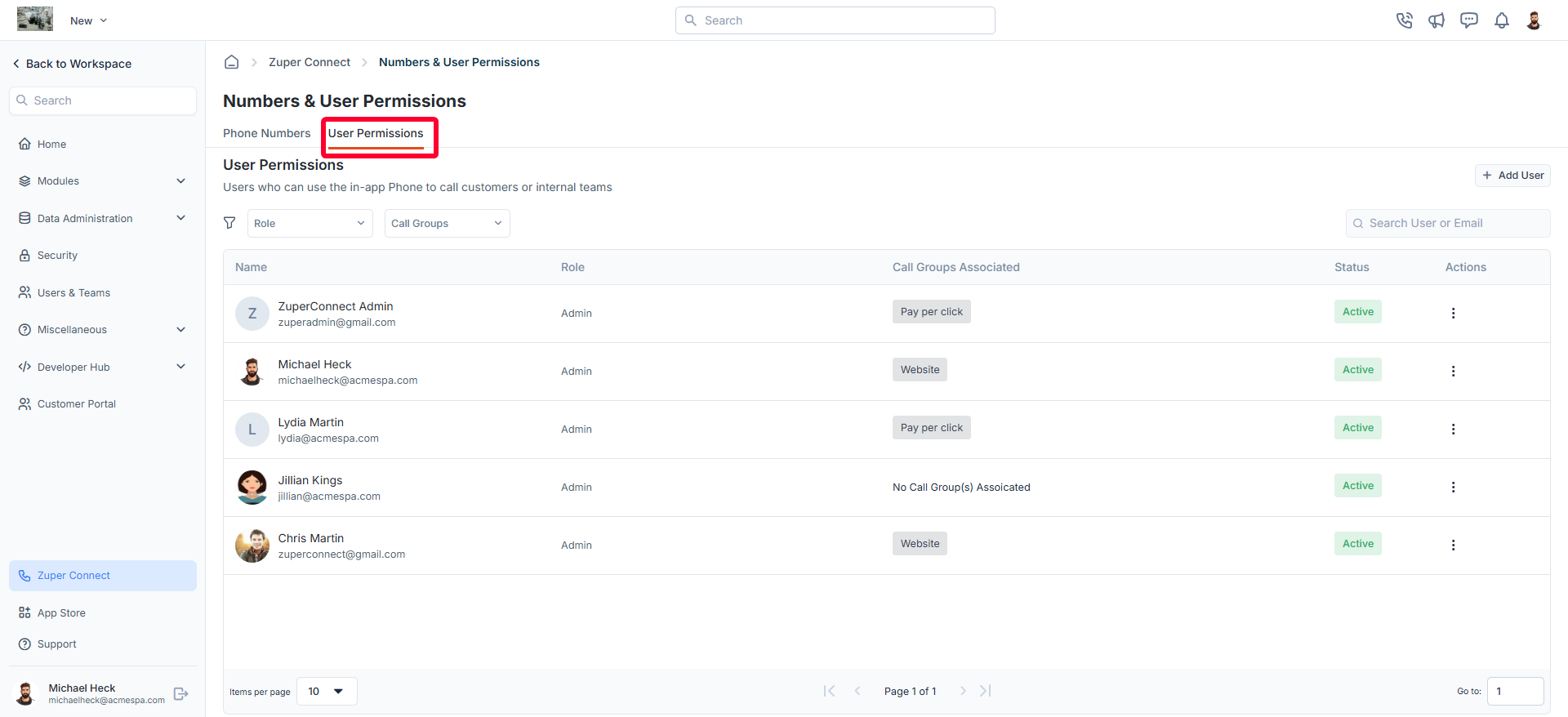
 * Navigate to the “**User Permissions**” tab. The listing page will display all users, including their roles and associated call groups.
 ## Add a new user
To add a new user,
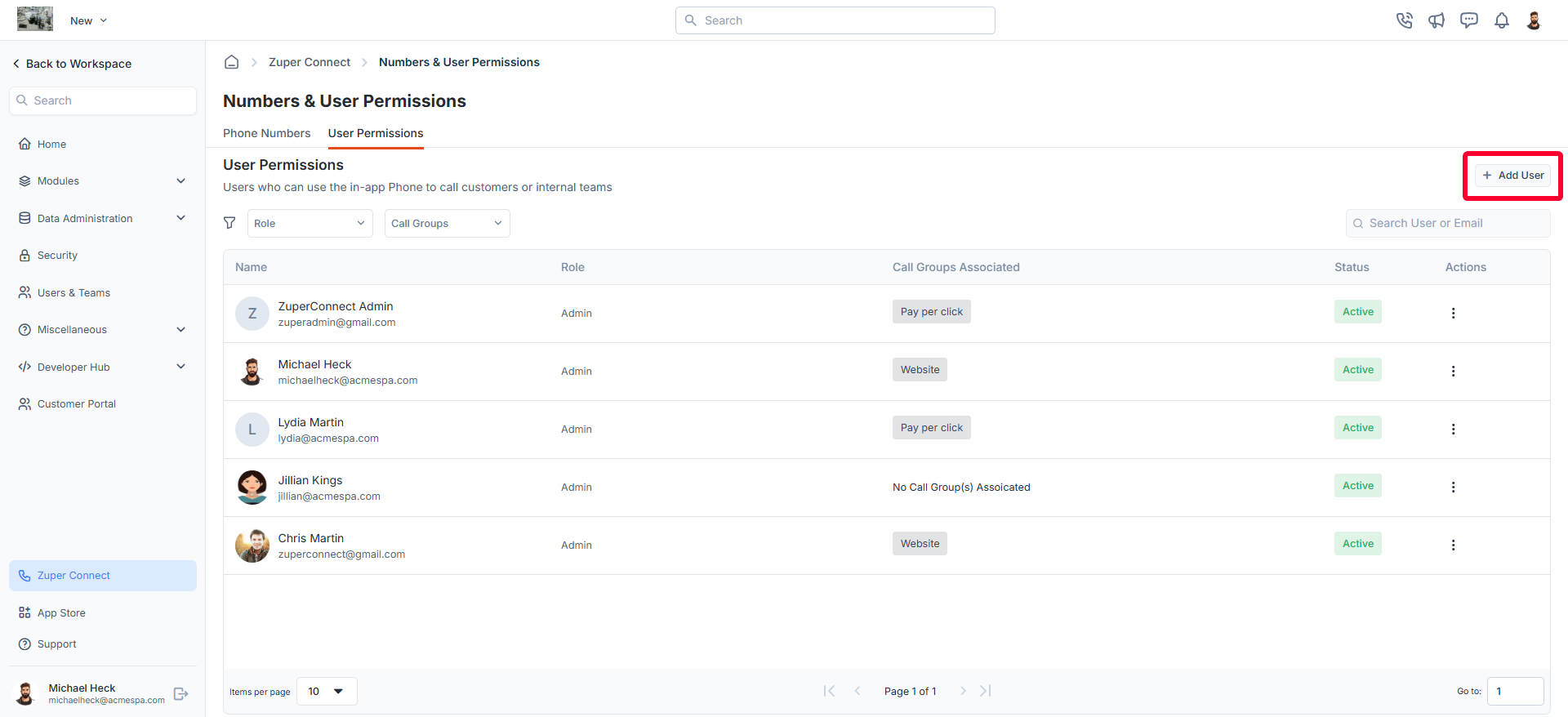
* Click the “**+ Add User**” button on the user's listing page. A dialog box will appear.
## Add a new user
To add a new user,
* Click the “**+ Add User**” button on the user's listing page. A dialog box will appear.
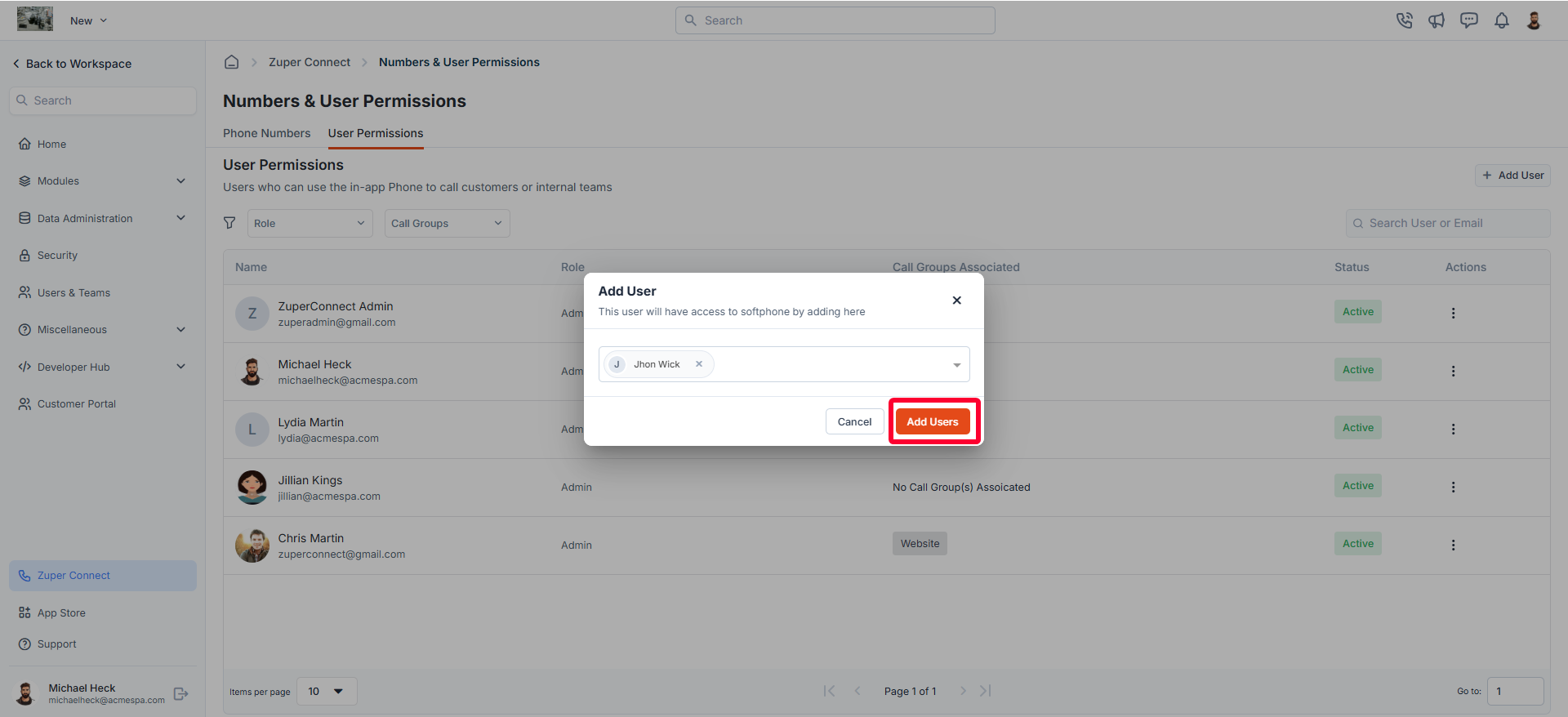
 * Add the user(s) you want to grant access to Zuper connect.
* Once added, click the “**Add Users**” button. A confirmation message will appear indicating that the user(s) have been successfully added.
* Add the user(s) you want to grant access to Zuper connect.
* Once added, click the “**Add Users**” button. A confirmation message will appear indicating that the user(s) have been successfully added.
 ## Add user to a call group (Optional)
Once permissions are granted for the selected users, you can optionally assign them to a call group. This helps streamline communication by grouping team members who handle similar tasks or customer calls, ensuring calls are routed efficiently and reach the right people at the right time. To do this, follow these steps:
* Click the “**Add to Group**” button next to the user.
## Add user to a call group (Optional)
Once permissions are granted for the selected users, you can optionally assign them to a call group. This helps streamline communication by grouping team members who handle similar tasks or customer calls, ensuring calls are routed efficiently and reach the right people at the right time. To do this, follow these steps:
* Click the “**Add to Group**” button next to the user.
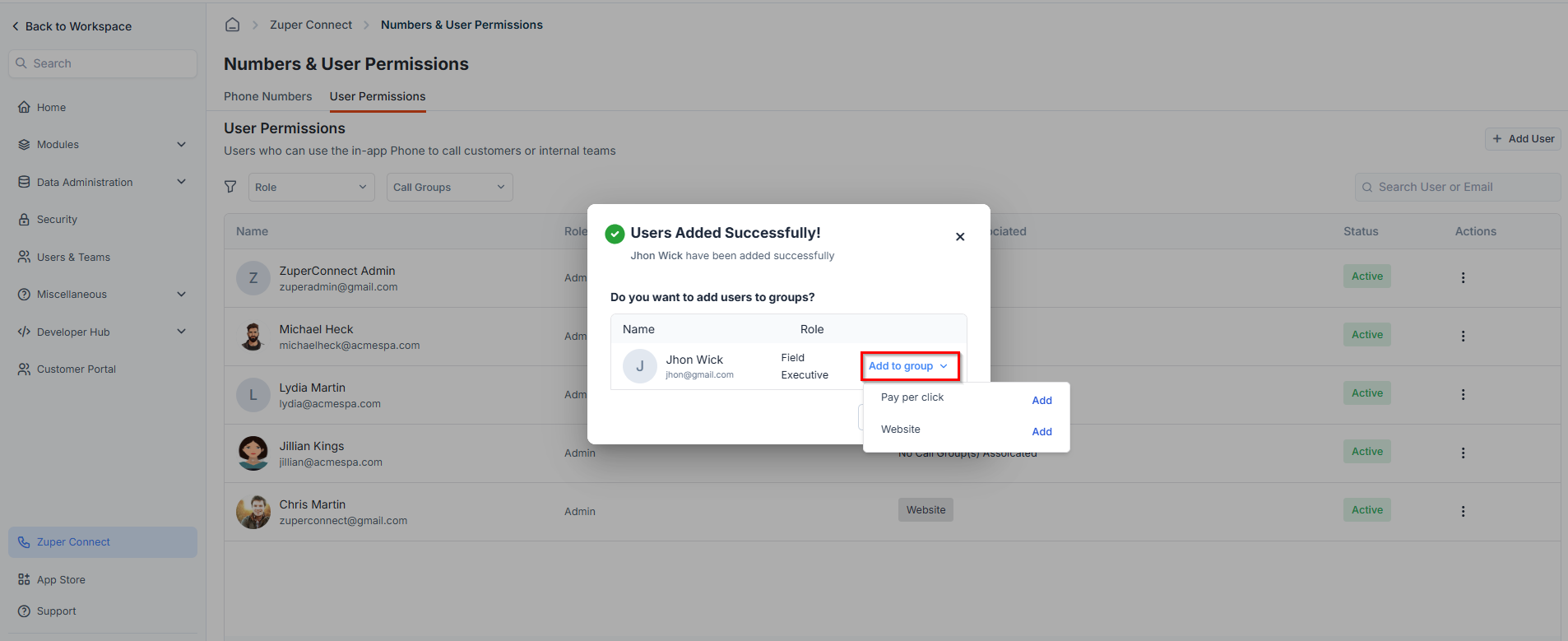 * A list of existing call groups will appear. (For details on creating call groups, refer to the “[How to Create a Call Group](https://docs.zuper.co/Zuper_Connect/Setup-Zuper-Connect/Call_groups)” guide.)
* Select the desired group by clicking “**Add**” next to it.
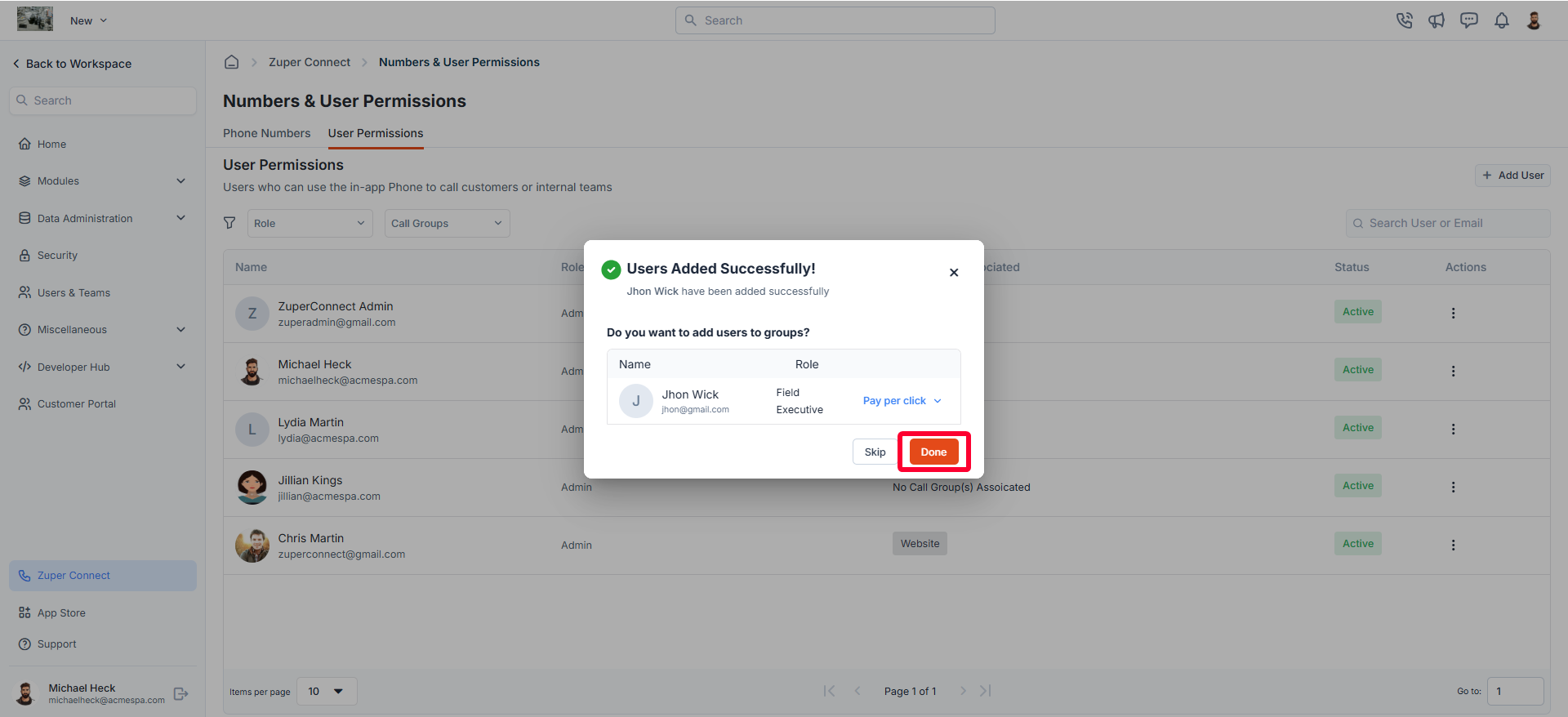
* Click “**Done**” to save the changes.
* A list of existing call groups will appear. (For details on creating call groups, refer to the “[How to Create a Call Group](https://docs.zuper.co/Zuper_Connect/Setup-Zuper-Connect/Call_groups)” guide.)
* Select the desired group by clicking “**Add**” next to it.
* Click “**Done**” to save the changes.
 ## Managing users
After adding users who have access to Zuper Connect, admins can manage these users directly from the User Permissions listing page. You can **edit** user details or **deactivate** users as needed.
### **Edit a User**
To modify user details:
1. On the **User Permissions** listing page, click the icon next to the user you want to modify.
2. Select **Edit Details** from the dropdown menu.
## Managing users
After adding users who have access to Zuper Connect, admins can manage these users directly from the User Permissions listing page. You can **edit** user details or **deactivate** users as needed.
### **Edit a User**
To modify user details:
1. On the **User Permissions** listing page, click the icon next to the user you want to modify.
2. Select **Edit Details** from the dropdown menu.
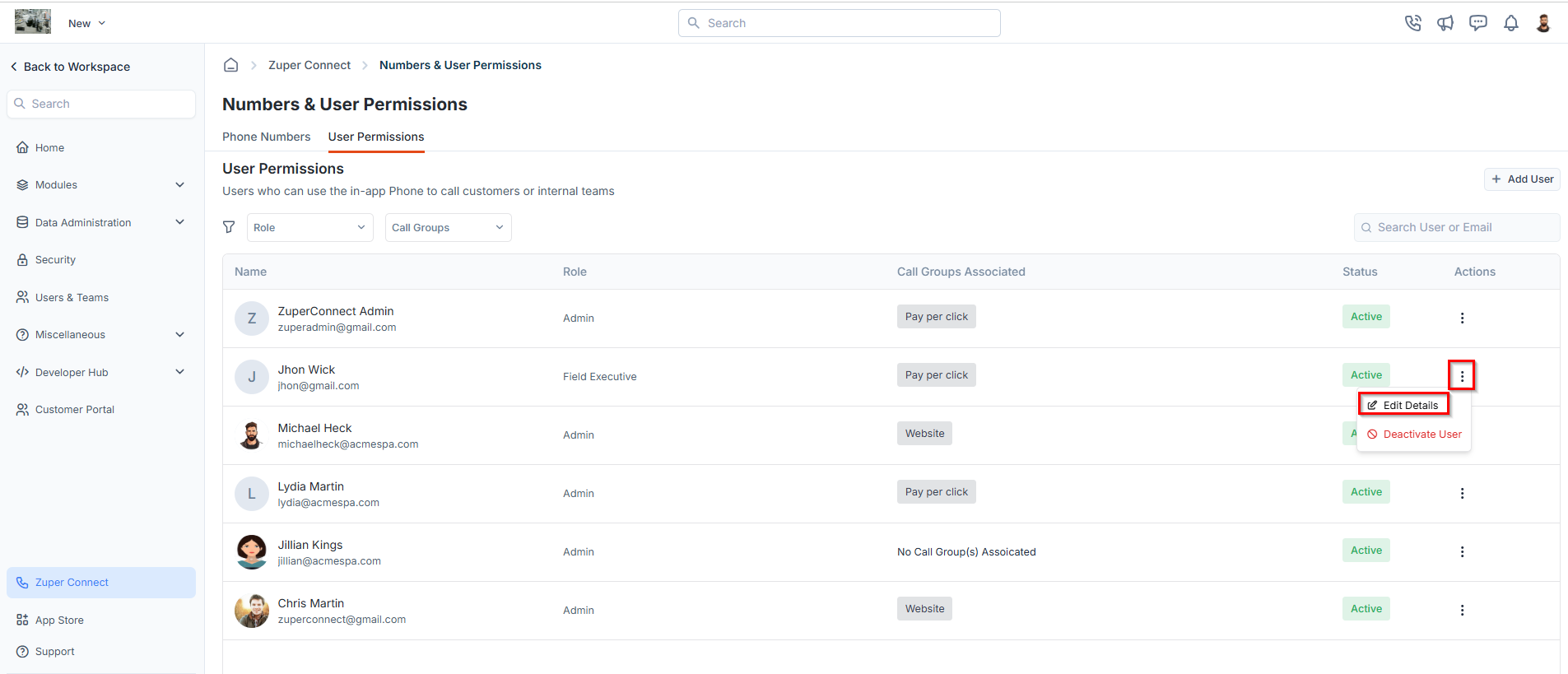 3. In the **Edit User** dialog box, you can:
* **Call Groups** – Add or remove call groups associated with the user.
4. Click **Update User** to save your changes.
### **Deactivate a User**
To remove a user’s access:
1. On the **User Permissions** listing page, click theicon next to the user you want to modify.
2. Select **Deactivate User** from the dropdown menu.
3. In the **Edit User** dialog box, you can:
* **Call Groups** – Add or remove call groups associated with the user.
4. Click **Update User** to save your changes.
### **Deactivate a User**
To remove a user’s access:
1. On the **User Permissions** listing page, click theicon next to the user you want to modify.
2. Select **Deactivate User** from the dropdown menu.
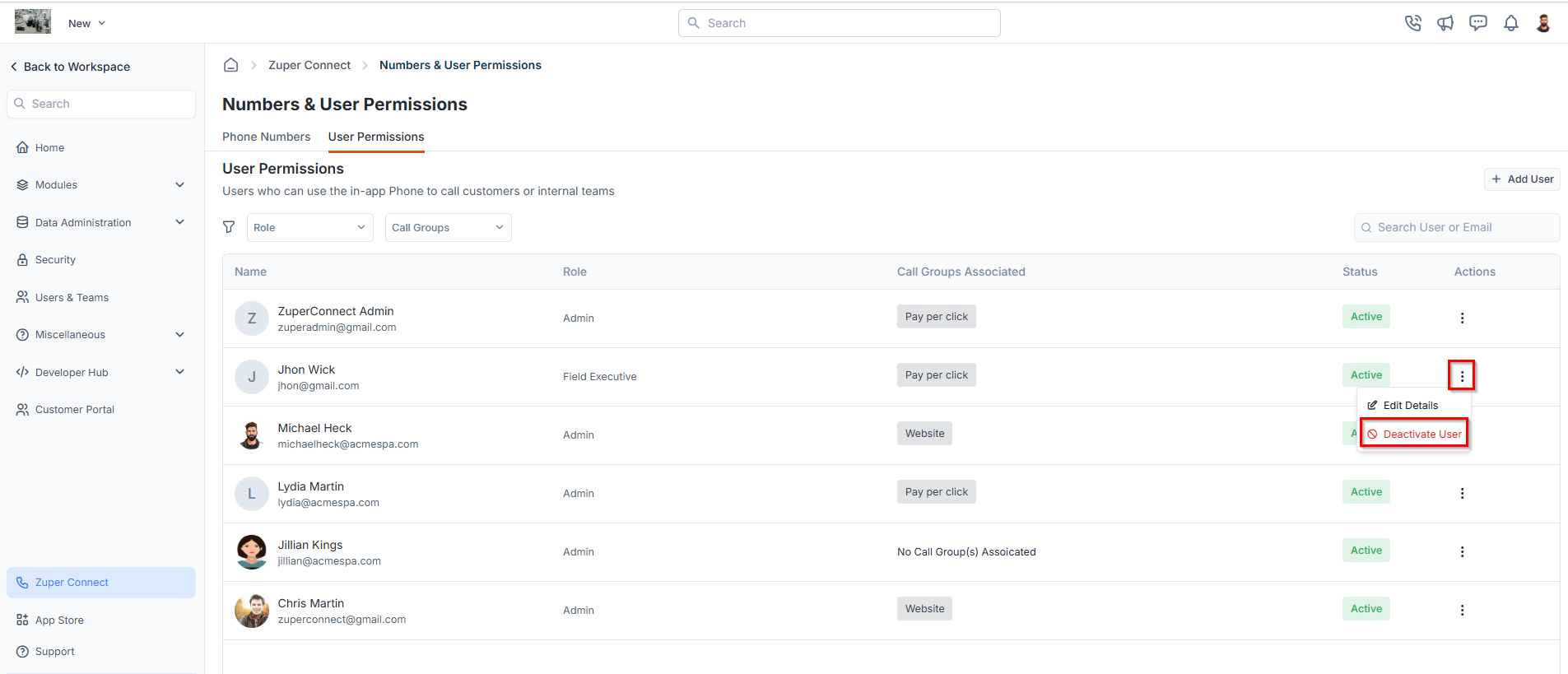 3. A confirmation dialog box will appear.
4. Click **Deactivate** to revoke the user’s access.
3. A confirmation dialog box will appear.
4. Click **Deactivate** to revoke the user’s access.