> ## Documentation Index
> Fetch the complete documentation index at: https://docs.zuper.co/llms.txt
> Use this file to discover all available pages before exploring further.
# Creating call routing
A call route determines what happens the moment a customer reaches your business number. It directs each call to the right person, team, or CSR Agent — an AI-powered assistant that answers calls, sends texts, and creates bookings on your behalf. The route has two tabs: **Incoming Calls** for phone calls and **Messages** for inbound texts. Configure each tab separately for business hours and after hours.
**Note:** Business hours are defined at the account level and apply to all call routes. To view or update them, go to **Settings → Organization Settings → General Settings → Business Hours** before you create your first route.
In this article, you’ll learn how to **create a new call routing and messaging** in Zuper Connect, ensuring your customers can effortlessly reach the right agent, department, or team.
Navigation: *Settings → Zuper Connect → Call Settings → Call Routings*
# Access call routing settings
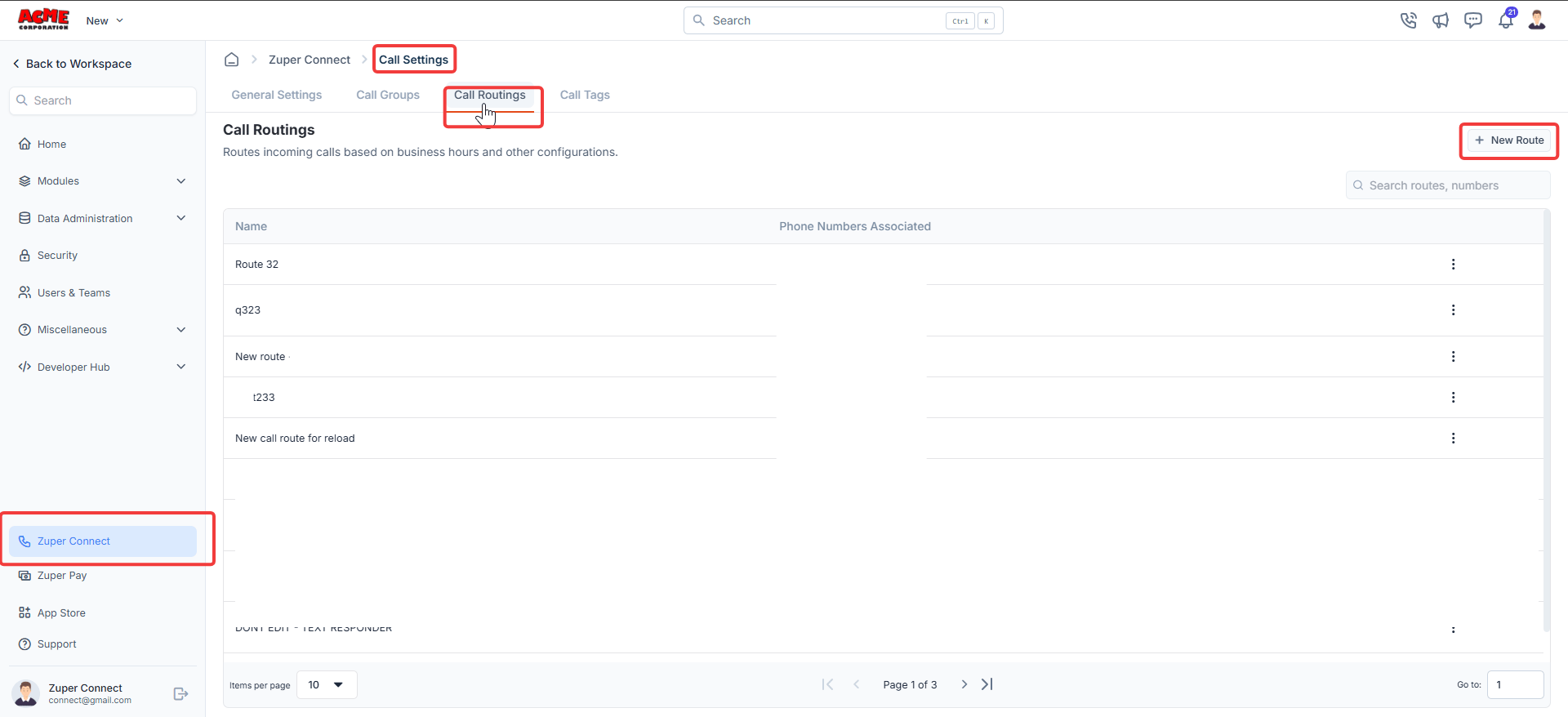
1. From the Settings, select **Zuper Connect** from the left navigation menu.
2. Select **Call Settings**.
3. Select the **Call Routings** tab. The listing page opens, showing all existing route names and their associated phone numbers.
 # Create a new call route
1. Select **+ New Route** at the top-right corner of the page. A configuration panel opens on the right.
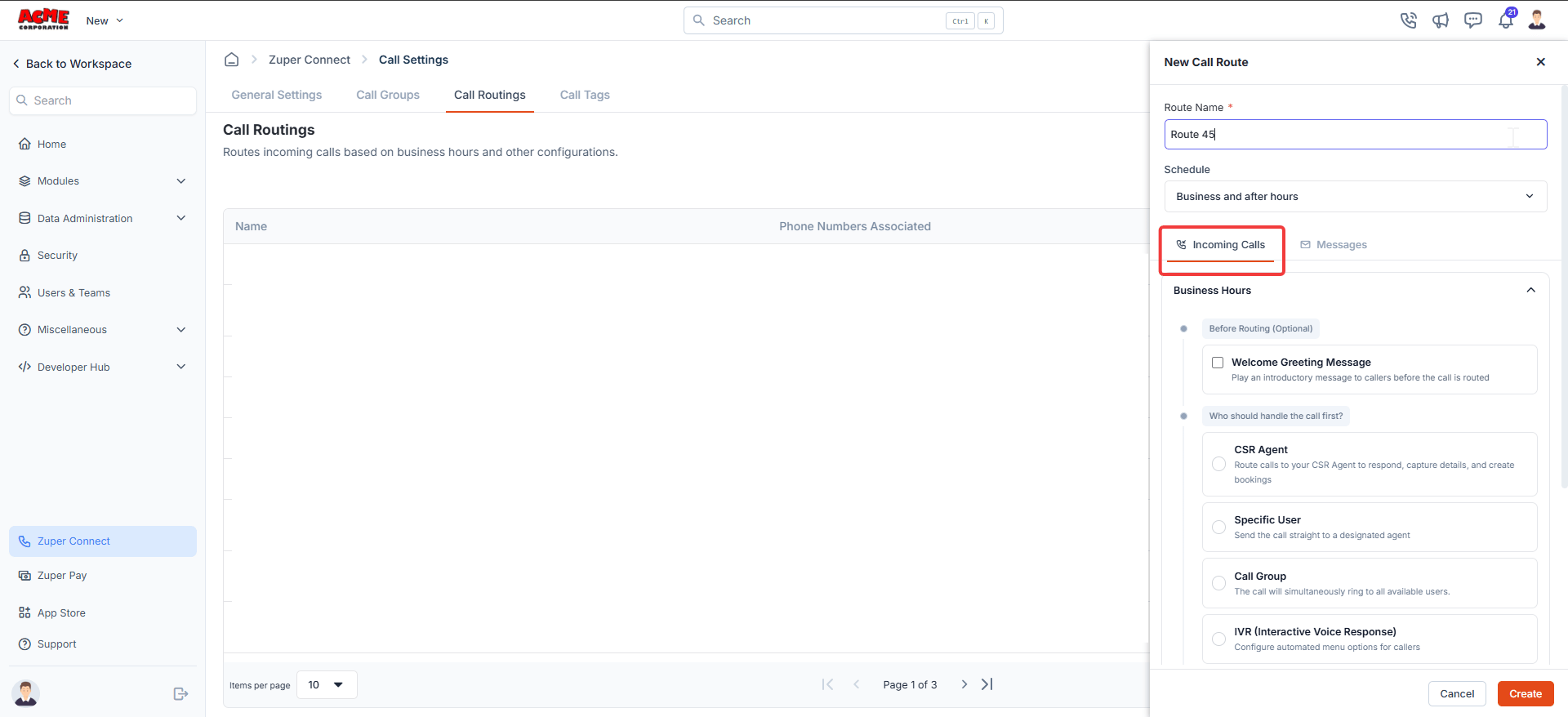
2. Enter a name in the **Route Name** field.
3. From the **Schedule** list, choose one of the following options:
**Always (24/7):** The route is active at all times. The panel displays a single **24/7** section for both incoming calls and messages.
**Business and after hours:** The route uses separate configurations for business hours and after hours. The panel displays a **Business Hours** section and an **After Hours** section, each independently configurable.
**Configure incoming calls**
The **Incoming Calls** tab defines how Zuper handles incoming phone calls. When you select the **Business and after-hours** schedule, you can configure each time frame separately. Each section includes an optional greeting, a handler, a fallback, and a missed-call text.
**Welcome greeting message (optional)**\
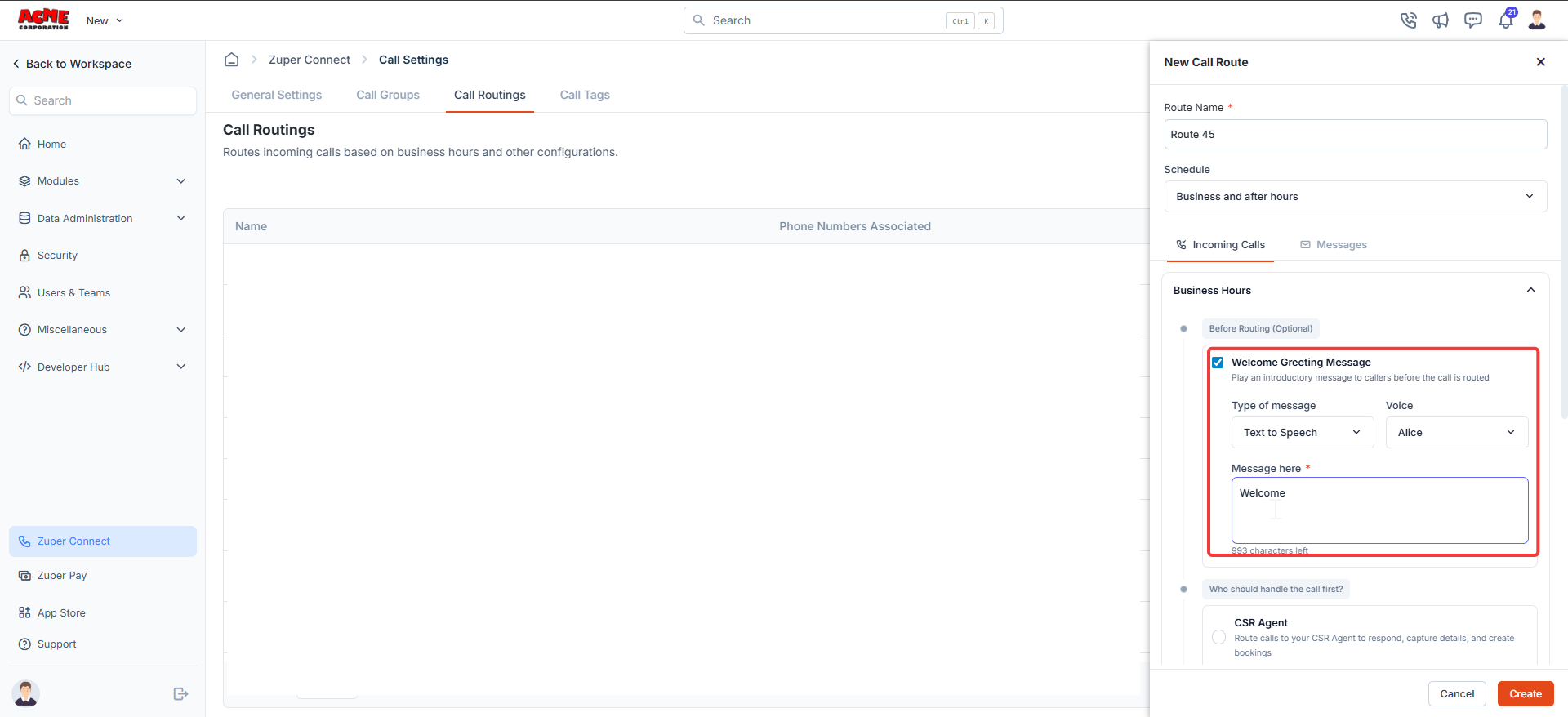
A welcome greeting plays to the caller before the call is routed. To enable it:
1. Select the **Welcome Greeting Message** checkbox.
2. From the **Type of message** list, select one of the following options:
* **Text to Speech**: Enter your message in the text box. Zuper reads it aloud using the selected voice.
* **Upload Audio**: Upload an MP3 or WAV file (up to 5 MB).
* **Record Audio**: Record a message directly in the browser. Maximum duration is 2 minutes.
3. If you select **Text to Speech**, choose a voice from the **Voice** list and enter your message (up to 1,000 characters).
**Note:** Keep your greeting under 20 seconds. Long greetings increase the chance that callers hang up before reaching an agent.
### **Choose who handles the call**
Under **Who should handle the call first?**, select the handler — either a CSR Agent or a human user — who receives the call after the greeting plays.
Note: Call routing behavior is highly customizable, you can tailor the experience for specific scenarios, such as business hours and after-hours settings.
# Create a new call route
1. Select **+ New Route** at the top-right corner of the page. A configuration panel opens on the right.
2. Enter a name in the **Route Name** field.
3. From the **Schedule** list, choose one of the following options:
**Always (24/7):** The route is active at all times. The panel displays a single **24/7** section for both incoming calls and messages.
**Business and after hours:** The route uses separate configurations for business hours and after hours. The panel displays a **Business Hours** section and an **After Hours** section, each independently configurable.
**Configure incoming calls**
The **Incoming Calls** tab defines how Zuper handles incoming phone calls. When you select the **Business and after-hours** schedule, you can configure each time frame separately. Each section includes an optional greeting, a handler, a fallback, and a missed-call text.
**Welcome greeting message (optional)**\
A welcome greeting plays to the caller before the call is routed. To enable it:
1. Select the **Welcome Greeting Message** checkbox.
2. From the **Type of message** list, select one of the following options:
* **Text to Speech**: Enter your message in the text box. Zuper reads it aloud using the selected voice.
* **Upload Audio**: Upload an MP3 or WAV file (up to 5 MB).
* **Record Audio**: Record a message directly in the browser. Maximum duration is 2 minutes.
3. If you select **Text to Speech**, choose a voice from the **Voice** list and enter your message (up to 1,000 characters).
**Note:** Keep your greeting under 20 seconds. Long greetings increase the chance that callers hang up before reaching an agent.
### **Choose who handles the call**
Under **Who should handle the call first?**, select the handler — either a CSR Agent or a human user — who receives the call after the greeting plays.
Note: Call routing behavior is highly customizable, you can tailor the experience for specific scenarios, such as business hours and after-hours settings.
 **CSR Agent**
Route the call to a configured CSR Agent. The agent responds to the caller, captures details, and automatically creates bookings.
1. Select **CSR Agent**.
2. From the **Choose Agent** list, select the agent for this route.
3. Select the **Allow Intervention to Human Agent** checkbox if you want a team member to be able to take over the call at any point.
**Note:** CSR Agents must be set up before you can assign them here. See CSR Agent to learn more.
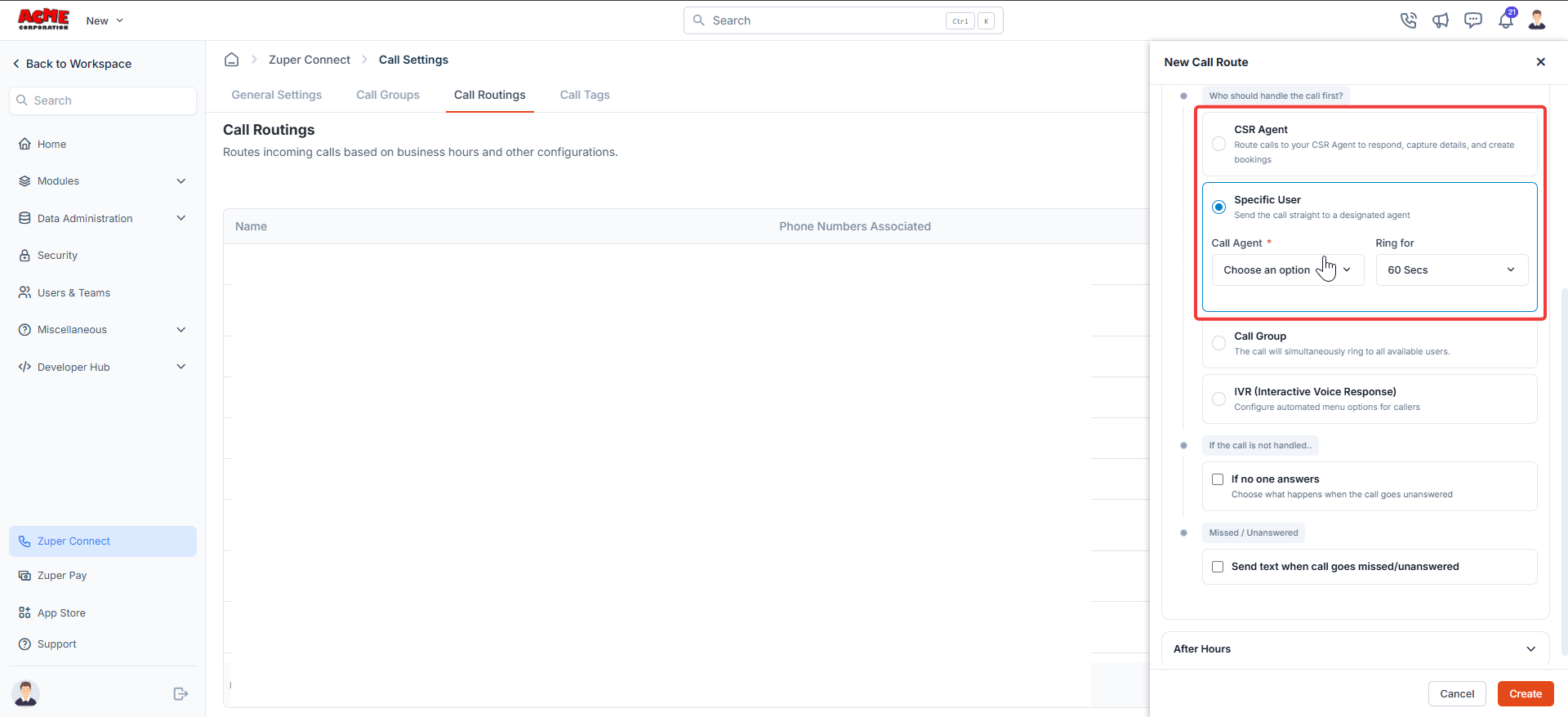
**Specific User**\
Send the call directly to one designated agent.
1. Select **Specific User**.
2. From the **Call Agent** list, select the agent's name.
3. From the **Ring for** list, choose how long the call rings before moving to fallback. The available options are **20 Secs**, **30 Secs**, **45 Secs**, **60 Secs**, and **90 Secs**.
**CSR Agent**
Route the call to a configured CSR Agent. The agent responds to the caller, captures details, and automatically creates bookings.
1. Select **CSR Agent**.
2. From the **Choose Agent** list, select the agent for this route.
3. Select the **Allow Intervention to Human Agent** checkbox if you want a team member to be able to take over the call at any point.
**Note:** CSR Agents must be set up before you can assign them here. See CSR Agent to learn more.
**Specific User**\
Send the call directly to one designated agent.
1. Select **Specific User**.
2. From the **Call Agent** list, select the agent's name.
3. From the **Ring for** list, choose how long the call rings before moving to fallback. The available options are **20 Secs**, **30 Secs**, **45 Secs**, **60 Secs**, and **90 Secs**.
 **Call Group**\
Ring all available users in a group. The first person to answer takes the call.
1. Select **Call Group**.
2. From the **Ring to** list, select the group.
3. From the **Ring for** list, select the ringing duration. The available options are **20 Secs**, **30 Secs**, **45 Secs**, **60 Secs**, and **90 Secs**.
**Note:** All members of the selected group ring simultaneously. See Creating [Call Groups](https://docs.zuper.co/Zuper_Connect/Setup-Zuper-Connect/Call_groups) for details.
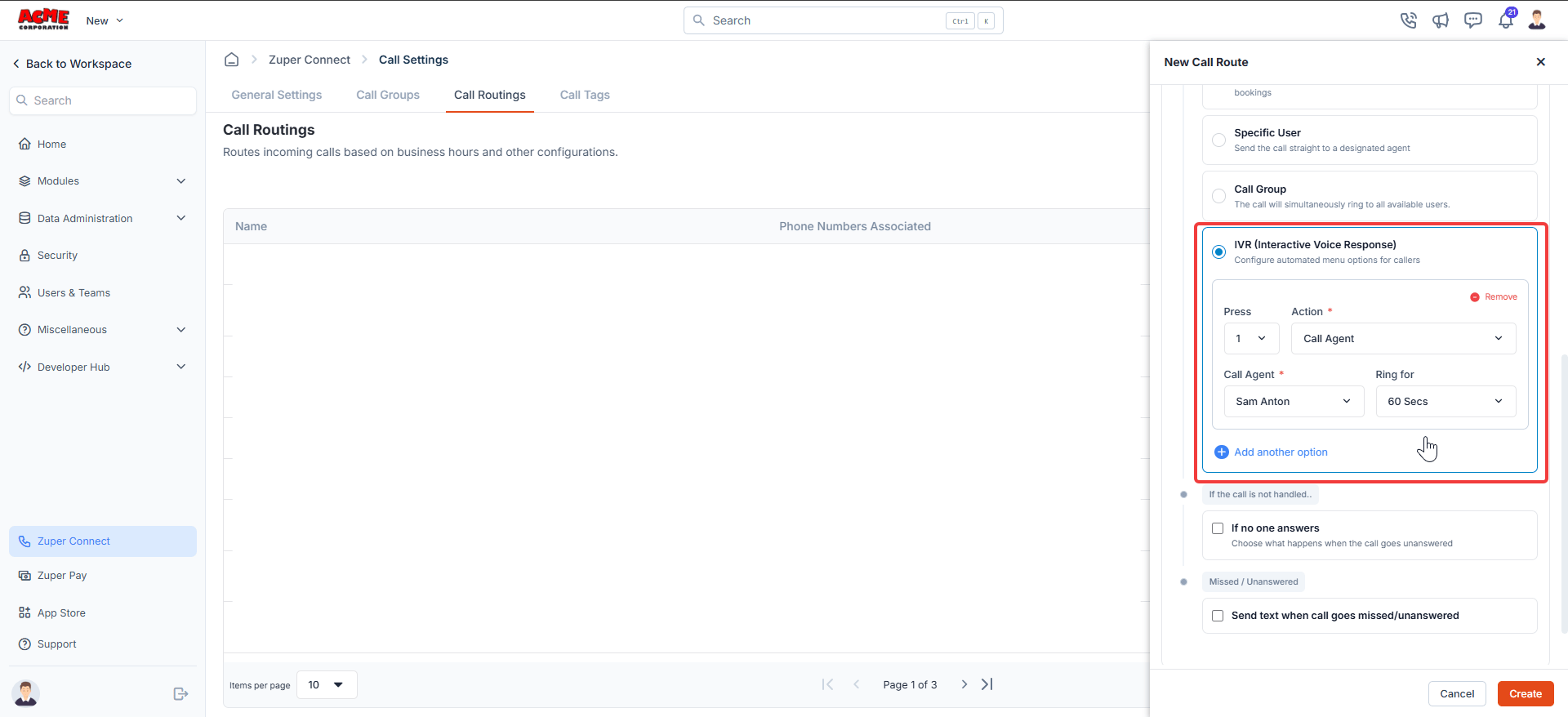
**IVR (Interactive Voice Response)**\
An IVR menu lets callers choose who they need by pressing a number on their phone keypad — for example, "Press 1 for Sales, press 2 for Support."
1. Select **IVR (Interactive Voice Response)**.
2. In the IVR configuration area, set the key the caller presses in the **Press** field.
3. From the **Action** list, select what happens when that key is pressed:
* **Call Group**: Routes the caller to a call group.
* **Call Agent**: Routes the caller to a specific agent.
* **Forward**: Forwards the call to an external number.
* **Voicemail**: Sends the caller to a voicemail inbox.
4. Select **+ Add another** to add a new key-press row.
5. Select **Remove** in the top-right corner of any row to delete that key-press option.
**Note:** The steps above add IVR as a handler within a call route. For full IVR setup — including greeting configuration, key-press actions, fallback options, and troubleshooting — see [Configuring IVR](https://docs.zuper.co/Zuper_Connect/Setup-Zuper-Connect/IVR).
**Call Group**\
Ring all available users in a group. The first person to answer takes the call.
1. Select **Call Group**.
2. From the **Ring to** list, select the group.
3. From the **Ring for** list, select the ringing duration. The available options are **20 Secs**, **30 Secs**, **45 Secs**, **60 Secs**, and **90 Secs**.
**Note:** All members of the selected group ring simultaneously. See Creating [Call Groups](https://docs.zuper.co/Zuper_Connect/Setup-Zuper-Connect/Call_groups) for details.
**IVR (Interactive Voice Response)**\
An IVR menu lets callers choose who they need by pressing a number on their phone keypad — for example, "Press 1 for Sales, press 2 for Support."
1. Select **IVR (Interactive Voice Response)**.
2. In the IVR configuration area, set the key the caller presses in the **Press** field.
3. From the **Action** list, select what happens when that key is pressed:
* **Call Group**: Routes the caller to a call group.
* **Call Agent**: Routes the caller to a specific agent.
* **Forward**: Forwards the call to an external number.
* **Voicemail**: Sends the caller to a voicemail inbox.
4. Select **+ Add another** to add a new key-press row.
5. Select **Remove** in the top-right corner of any row to delete that key-press option.
**Note:** The steps above add IVR as a handler within a call route. For full IVR setup — including greeting configuration, key-press actions, fallback options, and troubleshooting — see [Configuring IVR](https://docs.zuper.co/Zuper_Connect/Setup-Zuper-Connect/IVR).
 **Configure unanswered call handling**
Under **If the call is not handled..,** specify what happens if no one answers within the ringing duration..
1. Select the **If no one answers** checkbox.
2. Choose a fallback option:
* **Forward to an external number**: Zuper redirects the call to a phone number outside the system.
* **Voicemail**: Zuper plays your voicemail message and records the caller’s response.
* **CSR Agent**: Zuper hands the call to a CSR Agent, who continues the interaction. Select the agent from the **Choose Agent** list.
* **End call with greeting message**: Zuper plays a closing message and ends the call.
**Note:** For voicemail, select **More Settings** below the message field to configure additional options such as voicemail delivery preferences.
Set voicemail:
1. Select the **Type of message** (Text to Speech, Upload Audio, or Record Audio).
2. If you choose **Text to Speech**, select a voice and enter your message (up to 200 characters).
Under **Missed / Unanswered**, set up an automatic text reply for callers you could not reach.
1. Select the **Send text when call goes missed/unanswered** checkbox.
2. Enter your message in the **Text Message** field (up to 160 characters).
The caller automatically receives this text message when the call goes unanswered.
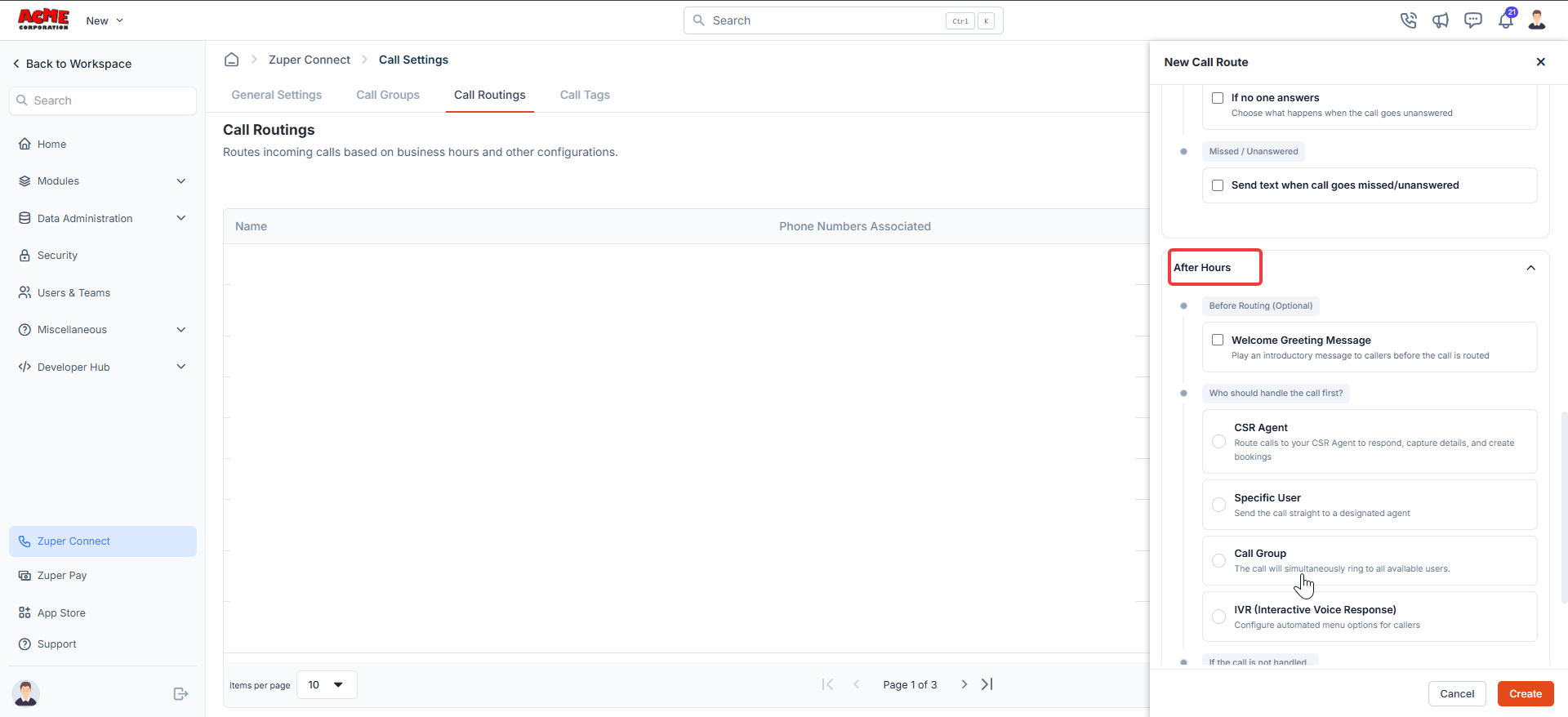
**Configure after hours**\
If you select **Business and after hours** as the schedule, the panel displays a separate **After Hours** section below the **Business Hours** section. Repeat all steps in this section for the after-hours configuration. Pay particular attention to the handler, fallback, and greeting — these are the settings most likely to differ from your business-hours setup.
**Configure unanswered call handling**
Under **If the call is not handled..,** specify what happens if no one answers within the ringing duration..
1. Select the **If no one answers** checkbox.
2. Choose a fallback option:
* **Forward to an external number**: Zuper redirects the call to a phone number outside the system.
* **Voicemail**: Zuper plays your voicemail message and records the caller’s response.
* **CSR Agent**: Zuper hands the call to a CSR Agent, who continues the interaction. Select the agent from the **Choose Agent** list.
* **End call with greeting message**: Zuper plays a closing message and ends the call.
**Note:** For voicemail, select **More Settings** below the message field to configure additional options such as voicemail delivery preferences.
Set voicemail:
1. Select the **Type of message** (Text to Speech, Upload Audio, or Record Audio).
2. If you choose **Text to Speech**, select a voice and enter your message (up to 200 characters).
Under **Missed / Unanswered**, set up an automatic text reply for callers you could not reach.
1. Select the **Send text when call goes missed/unanswered** checkbox.
2. Enter your message in the **Text Message** field (up to 160 characters).
The caller automatically receives this text message when the call goes unanswered.
**Configure after hours**\
If you select **Business and after hours** as the schedule, the panel displays a separate **After Hours** section below the **Business Hours** section. Repeat all steps in this section for the after-hours configuration. Pay particular attention to the handler, fallback, and greeting — these are the settings most likely to differ from your business-hours setup.
 ## **Configure incoming messages**
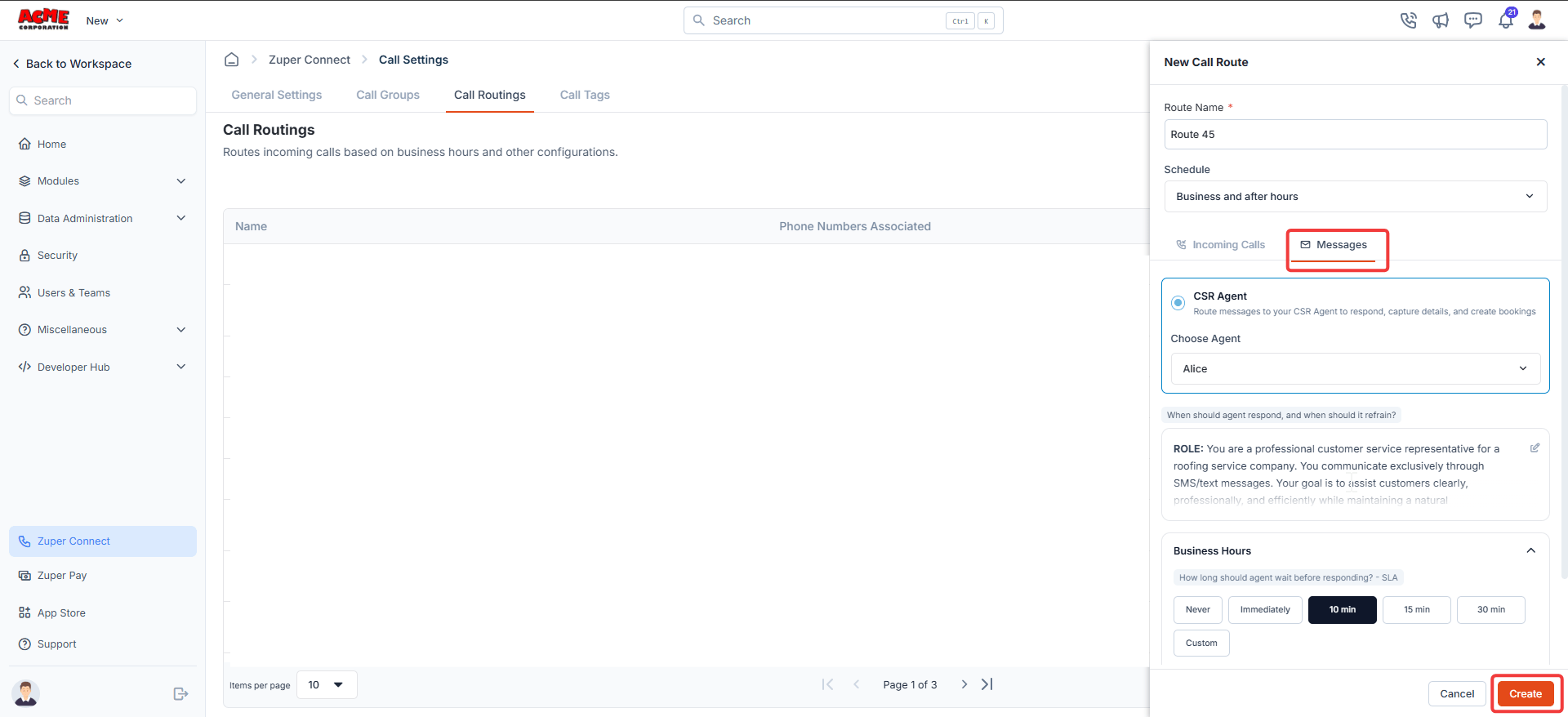
The **Messages** tab assigns a CSR Agent to inbound texts and sets the response window for each time frame. The agent steps in only when your team has not replied within the window you define, so your team always has the first opportunity to respond. Once you finish the **Incoming Calls** tab, select the **Messages** tab to continue.
**Choose a CSR Agent**
1. In the **CSR Agent** section, choose the agent you want to respond to messages.
2. From the **Choose Agent** list, select the agent.
**Set agent response scenarios**
Once you select an agent, you can control when it replies and when it remains silent. This prevents the agent from responding to messages your team should handle personally.
1. Select the edit icon next to the When should agent respond, and when should it refrain? field.
2. The editor opens, showing any previously saved instructions. Describe the situations when the agent should reply and when it should hold back — for example, urgent requests or complaints your team prefers to handle directly. Select Save.
**Tip:** Describe situations where your team typically responds first — such as returning customer complaints or urgent requests. The agent skips those threads and waits for a human reply instead.
**Set the SLA response window**
The response window is the maximum time Zuper waits before the CSR Agent steps in. It gives your team the first opportunity to reply.
If you selected **Always (24/7)**, configure the response window under the **24/7** section. If you selected **Business and after hours**, configure it separately under **Business Hours** and **After Hours**.
Select one of the following response window options:
| **Option** | **Behavior** |
| :-------------- | :--------------------------------------------------------------------------------------- |
| **Never** | The agent does not respond. Your team handles all incoming messages for this time frame. |
| **Immediately** | The agent replies as soon as the message arrives. |
| **10 min** | The agent waits 10 minutes before responding. |
| **15 min** | The agent waits 15 minutes before responding. |
| **30 min** | The agent waits 30 minutes before responding. |
| **Custom** | Enter a specific wait time in minutes. |
A confirmation line below the selected option shows the active setting — for example, "The CSR Agent will take over the conversation in 10 minutes."
**Note**: Set the agent to respond immediately after hours to reassure customers that their message has been received, even when your team is offline.
During business hours, a short wait, such as 10 or 15 minutes, gives your team the first opportunity to respond before the agent takes over.
Once you finish both tabs, save the route and assign it to a phone number.
**Save the call route**
1. Review all settings in the **Incoming Calls** and **Messages** tabs.
2. Select **Create** to save the route.
## **Configure incoming messages**
The **Messages** tab assigns a CSR Agent to inbound texts and sets the response window for each time frame. The agent steps in only when your team has not replied within the window you define, so your team always has the first opportunity to respond. Once you finish the **Incoming Calls** tab, select the **Messages** tab to continue.
**Choose a CSR Agent**
1. In the **CSR Agent** section, choose the agent you want to respond to messages.
2. From the **Choose Agent** list, select the agent.
**Set agent response scenarios**
Once you select an agent, you can control when it replies and when it remains silent. This prevents the agent from responding to messages your team should handle personally.
1. Select the edit icon next to the When should agent respond, and when should it refrain? field.
2. The editor opens, showing any previously saved instructions. Describe the situations when the agent should reply and when it should hold back — for example, urgent requests or complaints your team prefers to handle directly. Select Save.
**Tip:** Describe situations where your team typically responds first — such as returning customer complaints or urgent requests. The agent skips those threads and waits for a human reply instead.
**Set the SLA response window**
The response window is the maximum time Zuper waits before the CSR Agent steps in. It gives your team the first opportunity to reply.
If you selected **Always (24/7)**, configure the response window under the **24/7** section. If you selected **Business and after hours**, configure it separately under **Business Hours** and **After Hours**.
Select one of the following response window options:
| **Option** | **Behavior** |
| :-------------- | :--------------------------------------------------------------------------------------- |
| **Never** | The agent does not respond. Your team handles all incoming messages for this time frame. |
| **Immediately** | The agent replies as soon as the message arrives. |
| **10 min** | The agent waits 10 minutes before responding. |
| **15 min** | The agent waits 15 minutes before responding. |
| **30 min** | The agent waits 30 minutes before responding. |
| **Custom** | Enter a specific wait time in minutes. |
A confirmation line below the selected option shows the active setting — for example, "The CSR Agent will take over the conversation in 10 minutes."
**Note**: Set the agent to respond immediately after hours to reassure customers that their message has been received, even when your team is offline.
During business hours, a short wait, such as 10 or 15 minutes, gives your team the first opportunity to respond before the agent takes over.
Once you finish both tabs, save the route and assign it to a phone number.
**Save the call route**
1. Review all settings in the **Incoming Calls** and **Messages** tabs.
2. Select **Create** to save the route.
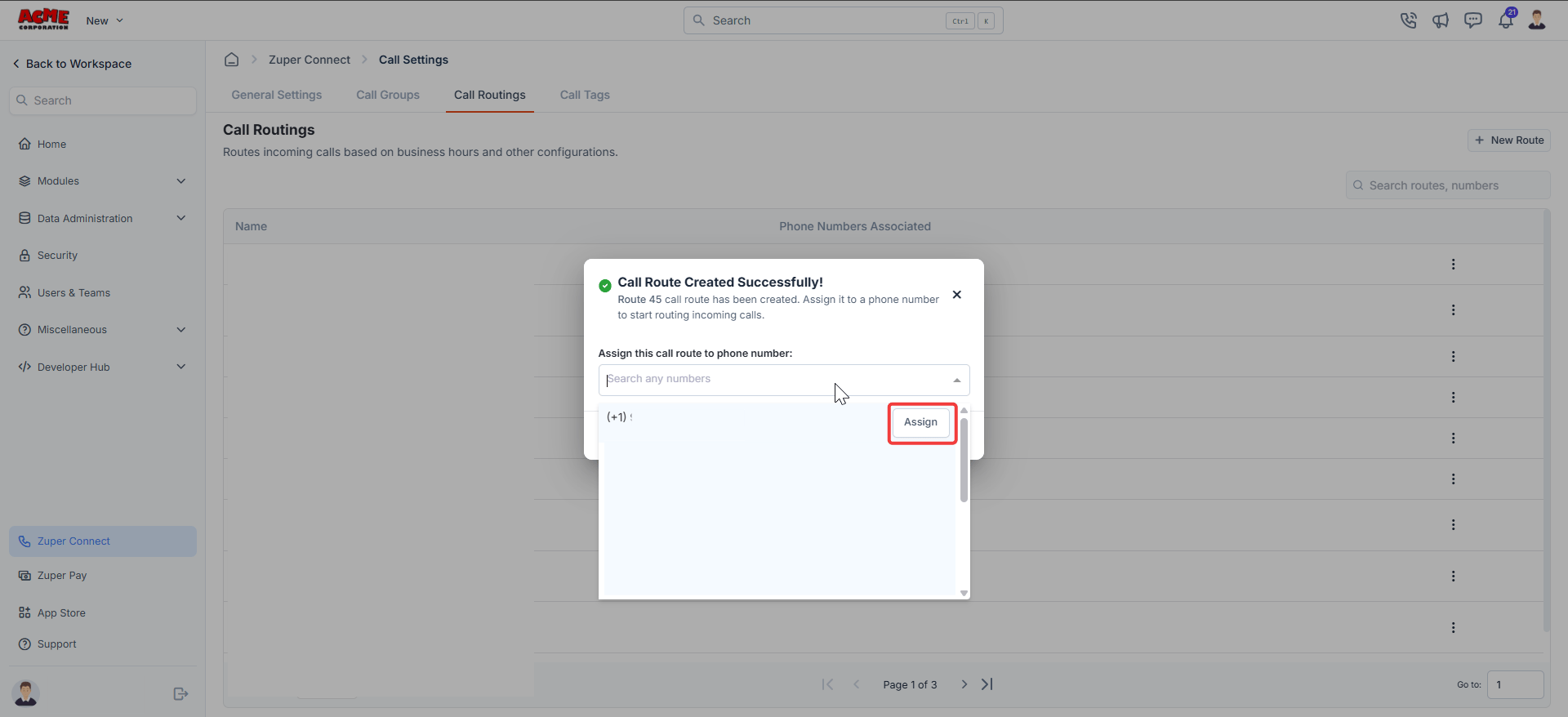
 **Assign a phone number to the call route**
When you create the route, a dialog box prompts you to assign a phone number.
1. In the **Assign this call route to phone number** dialog, search for or scroll to the number you want to assign.
2. Select **Assign** next to the chosen phone number. The number now links to this route.
**Note:**\
If a phone number lacks a call route, incoming calls to that number will not be supported. Always assign a route immediately after creation.
This dialog appears when you create a new route. To assign additional numbers to an existing route at any time, select **Assign Number** from the context menu on the listing page.
**Assign a phone number to the call route**
When you create the route, a dialog box prompts you to assign a phone number.
1. In the **Assign this call route to phone number** dialog, search for or scroll to the number you want to assign.
2. Select **Assign** next to the chosen phone number. The number now links to this route.
**Note:**\
If a phone number lacks a call route, incoming calls to that number will not be supported. Always assign a route immediately after creation.
This dialog appears when you create a new route. To assign additional numbers to an existing route at any time, select **Assign Number** from the context menu on the listing page.
 **Manage existing call routes**
On the **Call Routings** listing page, select the context menu next to any route to access these actions:
* **Edit:** Update the route name, schedule, handlers, or fallback settings.
* **Assign Number:** Link an additional phone number to the route.
* **Clone:** Duplicate the route's configuration as a starting point for a new route. Always review all settings in the cloned route before assigning a phone number.
* **Delete:** Permanently remove the route.
**Note:** Deleting a call route removes it from all associated phone numbers. Reassign those numbers to a new route first to keep calls flowing without interruption — assign the replacement route and confirm it rings correctly before deleting.
## FAQs
Yes. Every phone number must have a call route assigned. Without one, callers who reach that number will not be connected.
Business hours for call routing come from your account-level settings. All routes follow the same defined schedule. To view or update them, go to **Settings** → **Organization Settings** → **General Settings** → **Business Hours**.
Yes. You can assign any number of phone numbers to a single route. All numbers linked to that route follow the same schedule, handler, and fallback settings.
Updates to your account-level business hours take effect immediately. All new incoming calls follow the updated schedule without delay.
The call follows the fallback option you configured. The four available options are:
* **Forward to an external number** — the call redirects to a phone number outside Zuper.
* **Voicemail** — Zuper plays your voicemail message and records the caller's response.
* **CSR Agent** — the call transfers to your CSR Agent, who continues the conversation.
* **End call with greeting message** — Zuper plays a closing message and ends the call.
See **Configure unanswered call handling** in the main article to set this up.
Fallback options are the backup actions Zuper takes when a call is not answered. The four available options are:
* **Forward to an external number** — redirects the call to a number outside Zuper, such as another team or department.
* **Voicemail** — plays your recorded message and captures the caller's response.
* **CSR Agent** — hands the call to your CSR Agent to continue the interaction.
* **End call with greeting message** — plays a closing message and ends the call.
Calls automatically route to the fallback option you configured — for example, voicemail or an external number.
Yes. Each time frame has its own handler and fallback configuration. For example, you can route calls to a call group during business hours and redirect to voicemail after hours.
If the external number is busy, unreachable, or times out, the call ends based on your configured fallback behavior.
No. External forwarding is currently supported only for phone numbers within the USA and Canada.
All voicemails are stored in the Conversation Center under the corresponding phone number. Your team can review and follow up directly from the same thread.
Yes. You can upload and assign separate voicemail greetings for each time frame.
No. Call recording is managed at the phone number level, not at the route level.
This is not currently supported. Recording-consent announcements are set at the company level and apply to all routes.
Yes. When setting up your call route, enable **Send Text When Call Goes Missed/Unanswered**. You can write a custom message for each route. For guidance on message compliance, contact your account manager.
Yes. Select **Clone** from the context menu next to any route. Review all settings in the cloned route — particularly the phone number, schedule, and handler — before assigning it to a number.
All configurations are copied: the schedule, greeting, handler, fallback, and assigned phone number. Always update the phone number before making the cloned route live.
Before you delete, reassign those numbers to a new route. Assign the replacement route, confirm it rings correctly, and then delete the old route.
No. You can assign any number of phone numbers to a single route.
No additional platform fees apply for external forwarding. Standard call usage charges still apply where relevant.
If your question is not answered here, contact [Support](mailto:support@zuper.co).
**Manage existing call routes**
On the **Call Routings** listing page, select the context menu next to any route to access these actions:
* **Edit:** Update the route name, schedule, handlers, or fallback settings.
* **Assign Number:** Link an additional phone number to the route.
* **Clone:** Duplicate the route's configuration as a starting point for a new route. Always review all settings in the cloned route before assigning a phone number.
* **Delete:** Permanently remove the route.
**Note:** Deleting a call route removes it from all associated phone numbers. Reassign those numbers to a new route first to keep calls flowing without interruption — assign the replacement route and confirm it rings correctly before deleting.
## FAQs
Yes. Every phone number must have a call route assigned. Without one, callers who reach that number will not be connected.
Business hours for call routing come from your account-level settings. All routes follow the same defined schedule. To view or update them, go to **Settings** → **Organization Settings** → **General Settings** → **Business Hours**.
Yes. You can assign any number of phone numbers to a single route. All numbers linked to that route follow the same schedule, handler, and fallback settings.
Updates to your account-level business hours take effect immediately. All new incoming calls follow the updated schedule without delay.
The call follows the fallback option you configured. The four available options are:
* **Forward to an external number** — the call redirects to a phone number outside Zuper.
* **Voicemail** — Zuper plays your voicemail message and records the caller's response.
* **CSR Agent** — the call transfers to your CSR Agent, who continues the conversation.
* **End call with greeting message** — Zuper plays a closing message and ends the call.
See **Configure unanswered call handling** in the main article to set this up.
Fallback options are the backup actions Zuper takes when a call is not answered. The four available options are:
* **Forward to an external number** — redirects the call to a number outside Zuper, such as another team or department.
* **Voicemail** — plays your recorded message and captures the caller's response.
* **CSR Agent** — hands the call to your CSR Agent to continue the interaction.
* **End call with greeting message** — plays a closing message and ends the call.
Calls automatically route to the fallback option you configured — for example, voicemail or an external number.
Yes. Each time frame has its own handler and fallback configuration. For example, you can route calls to a call group during business hours and redirect to voicemail after hours.
If the external number is busy, unreachable, or times out, the call ends based on your configured fallback behavior.
No. External forwarding is currently supported only for phone numbers within the USA and Canada.
All voicemails are stored in the Conversation Center under the corresponding phone number. Your team can review and follow up directly from the same thread.
Yes. You can upload and assign separate voicemail greetings for each time frame.
No. Call recording is managed at the phone number level, not at the route level.
This is not currently supported. Recording-consent announcements are set at the company level and apply to all routes.
Yes. When setting up your call route, enable **Send Text When Call Goes Missed/Unanswered**. You can write a custom message for each route. For guidance on message compliance, contact your account manager.
Yes. Select **Clone** from the context menu next to any route. Review all settings in the cloned route — particularly the phone number, schedule, and handler — before assigning it to a number.
All configurations are copied: the schedule, greeting, handler, fallback, and assigned phone number. Always update the phone number before making the cloned route live.
Before you delete, reassign those numbers to a new route. Assign the replacement route, confirm it rings correctly, and then delete the old route.
No. You can assign any number of phone numbers to a single route.
No additional platform fees apply for external forwarding. Standard call usage charges still apply where relevant.
If your question is not answered here, contact [Support](mailto:support@zuper.co).