> ## Documentation Index
> Fetch the complete documentation index at: https://docs.zuper.co/llms.txt
> Use this file to discover all available pages before exploring further.
# Using Connect on Web
Zuper isn't just your go-to platform for managing field service operations efficiently, it also includes a built-in phone system designed specifically for service businesses: **Zuper Phone**. This add-on feature enables you to answer incoming calls and make outgoing calls with just one click within the Zuper-web app.
All you have to do is [purchase a Zuper phone number](https://docs.zuper.co/Zuper_Connect/Setup-Zuper-Connect/getting_zuper_phone_number) for your business to make and receive calls via the Zuper web app. You will receive a browser notification when calls come in, seamlessly answer them with the [call routing](https://docs.zuper.co/Zuper_Connect/Setup-Zuper-Connect/call_routing) flow, and see a full history of all calls through the [call logs](https://docs.zuper.co/Zuper_Connect/navigating_Call_Logs) feature.
**Things to know**
* Admins can access Zuper phone on the web, but must have **permissions enabled** in the settings. For detailed steps, refer to "[How to Manage User Permissions](https://docs.zuper.co/Zuper_Connect/Setup-Zuper-Connect/User_permissions)." Once you have the necessary permissions, you will:
1. Receive browser notifications for incoming calls.
2. Seamlessly answer calls directly from your browser.
3. Have a 360-degree view of customer interactions, including messages, calls, voicemails, call recordings, and internal comments from the Zuper Connect Inbox/Conversation.
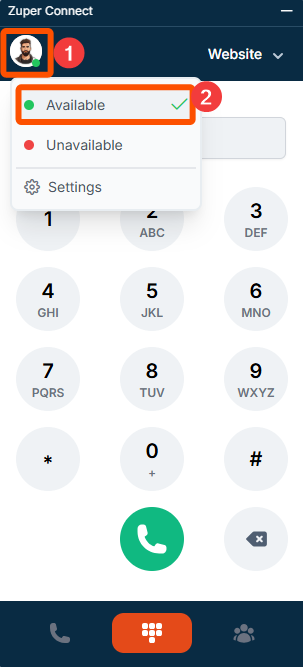
* Ensure your **status** and **web app availability are set correctly** to receive incoming call notifications.
**Available Status:**
If your status is set as "**Available**" and you are **not busy** with other calls, **notifications will be sent** to both web and mobile devices. If the web app status is offline, notifications will be sent only to your mobile device.
**Unavailable or Busy Status:**
If your status is "**Unavailable**" or you are **busy** with other calls, incoming call **notifications will not be sent**.
Before exploring how to use Zuper Phone on the web app, we recommend configuring your browser and desktop settings to ensure seamless call making and receiving.
# Configuring Your Browser and Desktop Settings for Calls
To ensure a seamless experience while making and receiving calls through Zuper Phone, we recommend using Google Chrome. Follow the steps below to configure your browser and desktop settings for optimal performance.
To configure Google Chrome for Zuper Phone:
* Open Google Chrome and click on the lock icon or site settings icon next to the URL bar.
* Select Site Settings from the dropdown menu.
* Ensure the following permissions are enabled:
1. Microphone = **Allow**
2. Notifications = **Allow**
3. Pop-ups and Redirects = **Allow**
4. Sound = **Allow**
* Refresh your Zuper window to apply the settings.
MacOS has additional settings that may block browser notifications. Follow these steps to ensure your settings are correctly configured:
**Enable Notifications**:
* Open System Preferences and select Notifications from the left navigation panel.
* Choose your browser (Google Chrome) from the Application Notifications list.
* Ensure that notifications are enabled for the selected browser.
**Configure Sound Settings**:
* Open System Settings and navigate to Sound from the left-side menu.
* Under Output, select your preferred speaker.
* Under Input, choose the correct microphone.
These selections will be used as the default devices for making and receiving VoIP calls.
**Configure Output (Speaker)**:
* Right-click the volume icon in the system tray and select Sound settings.
* Click the arrow icon next to your preferred speaker.
* In the Properties section, select your preferred speakers and set them as the default sound device.
**Configure Input (Microphone)**:
* Right-click the volume icon in the system tray and select Sound settings.
* Scroll down to the Advanced section and click More Sound Settings.
* Go to the Recording tab and view the list of available microphones.
* Right-click your preferred microphone and select Set as Default Device.
By following these steps, you will have successfully configured your browser and desktop settings, ensuring that Zuper Phone functions smoothly for making and receiving calls.
# Using Zuper Phone
## Accessing the Dialer
* Click the icon at the top of the Zuper web app.
* The dialer will open in a floating window.
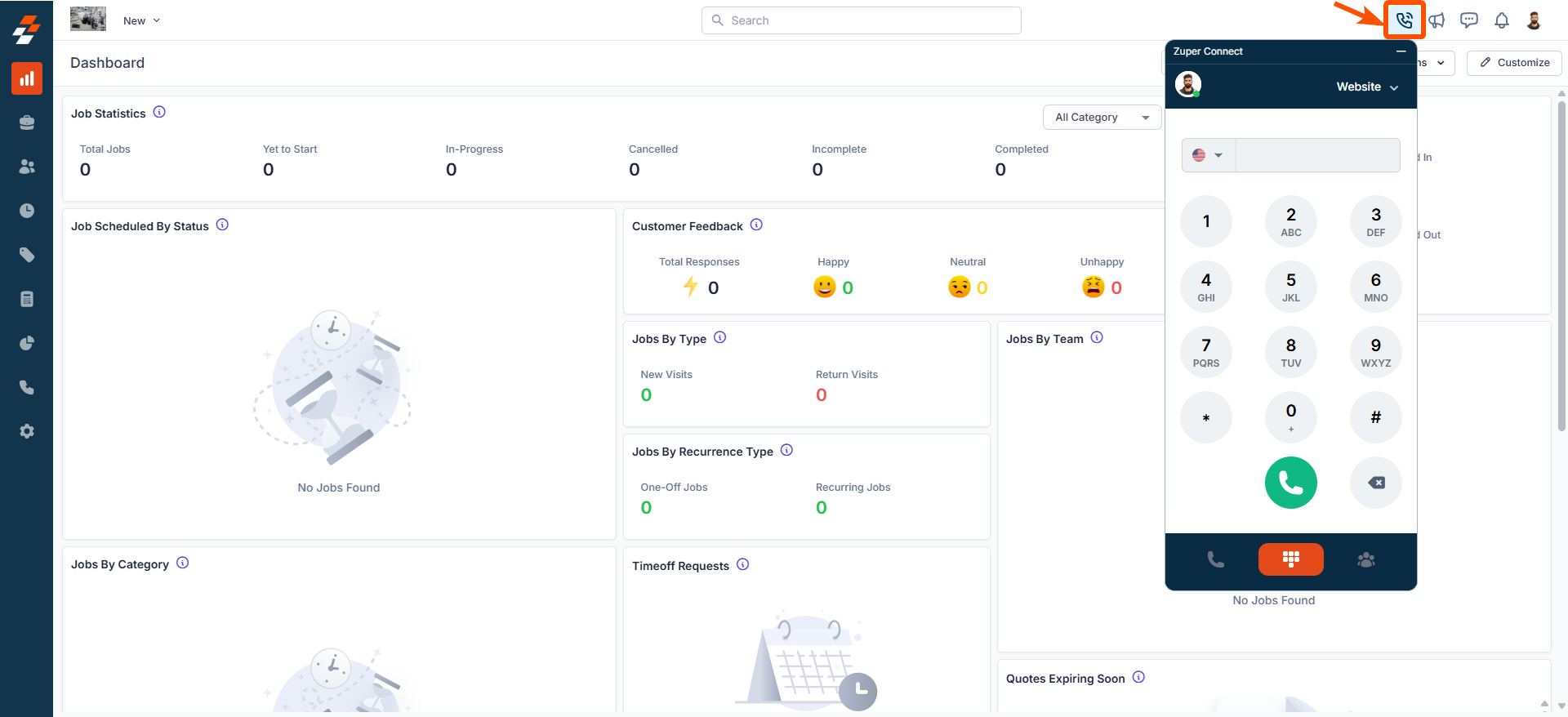 Note: If you have missed calls, the call icon will display a notification badge indicating the number of missed calls. Clicking it will take you to the Call Log page, where you can review missed calls.
## Answering an Incoming Call
To receive incoming calls, your availability status must be set to "**Available**." If your status is "**Unavailable**," you will not receive calls.
Note: If you have missed calls, the call icon will display a notification badge indicating the number of missed calls. Clicking it will take you to the Call Log page, where you can review missed calls.
## Answering an Incoming Call
To receive incoming calls, your availability status must be set to "**Available**." If your status is "**Unavailable**," you will not receive calls.
 When a call comes in, you'll see an alert on your screen. You have two options:
* Click "**Accept**" to answer the call.
* Click "**Ignore**" to reject the call.
When a call comes in, you'll see an alert on your screen. You have two options:
* Click "**Accept**" to answer the call.
* Click "**Ignore**" to reject the call.
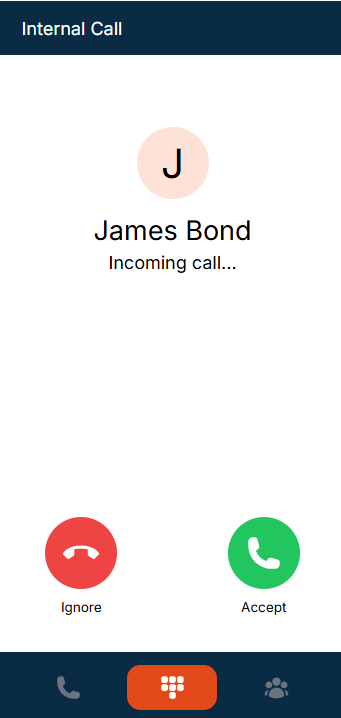 Note: If it is an existing customer, you will see the customer name and number. If it is an unknown customer, you will see only the phone number.
## Active Call Capabilities
During an active call, Zuper Phone provides advanced functionalities to enhance communication efficiency. This includes:
* **Viewing Customer Information** – If the customer already exists, click the icon to navigate to the Customer Details page.
* **Adding a New Job/Customer**– If the customer already exists, click the icon and select **"Add Job"** to create a job for them. If the number is unknown, select **"Add Customer"** to instantly create a new customer profile. Once the customer is added, you can proceed to create a job for them.
* **Adding Notes** – Take important notes during the call to capture key details.
* **Tracking Call Duration** – View the live call duration in real-time.
### Call Management Options
**On Hold** – Place the call on hold while you manage other tasks.
**Start/Stop Call Recording** – If recording is enabled for the phone number, you can start or pause recording during an active call.
Note: Paused recordings cannot be resumed for the same call. All recordings are securely stored and accessible based on your Zuper license.
**Mute** – Silence your microphone during the call.
**End Call** – Disconnect the call when finished.
**Minimize & Reopen** – Minimize the Zuper Phone at any time for seamless multitasking.
**Customize Placement** – Drag and position the Zuper Phone anywhere on your screen for better accessibility.
Note: Avoid refreshing the dialer while you are on the call. This may result in a loss of connection to your customer.
## Making Outgoing Calls
Zuper Phone allows you to connect with customers and team members through multiple methods, including:
1. Call from the Dialer
2. Call from the Contacts Tab
3. Call from Call History / Recent Calls
The Zuper Phone Dialer provides a quick and efficient way to place outbound calls directly from the platform. Whether you need to contact a customer or a team member, the dialer ensures a smooth calling experience without switching between different apps.
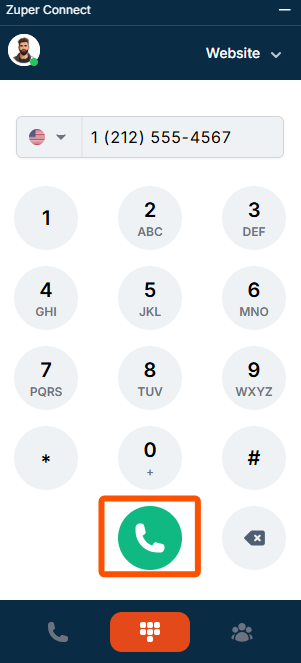
* Open the Zuper Phone Dialer.
* Select the appropriate country code from the dropdown menu and enter the phone number.
Note: If it is an existing customer, you will see the customer name and number. If it is an unknown customer, you will see only the phone number.
## Active Call Capabilities
During an active call, Zuper Phone provides advanced functionalities to enhance communication efficiency. This includes:
* **Viewing Customer Information** – If the customer already exists, click the icon to navigate to the Customer Details page.
* **Adding a New Job/Customer**– If the customer already exists, click the icon and select **"Add Job"** to create a job for them. If the number is unknown, select **"Add Customer"** to instantly create a new customer profile. Once the customer is added, you can proceed to create a job for them.
* **Adding Notes** – Take important notes during the call to capture key details.
* **Tracking Call Duration** – View the live call duration in real-time.
### Call Management Options
**On Hold** – Place the call on hold while you manage other tasks.
**Start/Stop Call Recording** – If recording is enabled for the phone number, you can start or pause recording during an active call.
Note: Paused recordings cannot be resumed for the same call. All recordings are securely stored and accessible based on your Zuper license.
**Mute** – Silence your microphone during the call.
**End Call** – Disconnect the call when finished.
**Minimize & Reopen** – Minimize the Zuper Phone at any time for seamless multitasking.
**Customize Placement** – Drag and position the Zuper Phone anywhere on your screen for better accessibility.
Note: Avoid refreshing the dialer while you are on the call. This may result in a loss of connection to your customer.
## Making Outgoing Calls
Zuper Phone allows you to connect with customers and team members through multiple methods, including:
1. Call from the Dialer
2. Call from the Contacts Tab
3. Call from Call History / Recent Calls
The Zuper Phone Dialer provides a quick and efficient way to place outbound calls directly from the platform. Whether you need to contact a customer or a team member, the dialer ensures a smooth calling experience without switching between different apps.
* Open the Zuper Phone Dialer.
* Select the appropriate country code from the dropdown menu and enter the phone number.
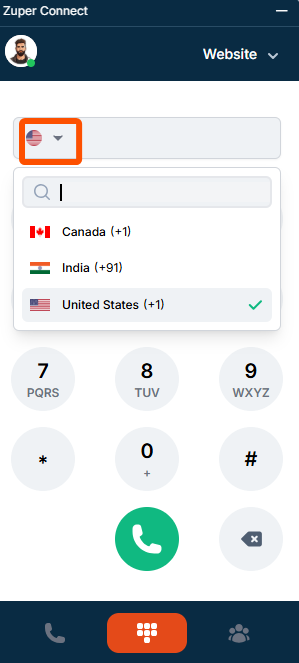 Note: Supported countries include Canada, India, and the United States. However, the default country code is set based on your account region
* Click the **Phone** icon to initiate the call.
Note: Supported countries include Canada, India, and the United States. However, the default country code is set based on your account region
* Click the **Phone** icon to initiate the call.
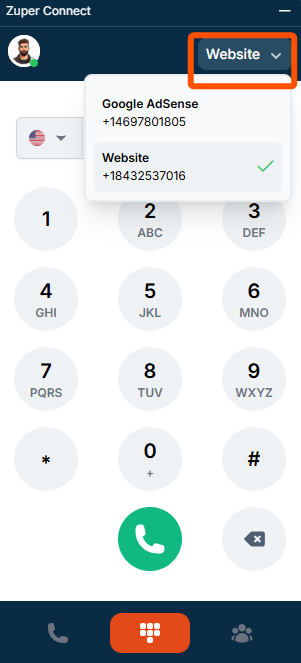
 Tip: If you have multiple Zuper Phone numbers, select the one before calling from the top of the Zuper Phone interface. The chosen number will appear as the caller ID during the call, ensuring professional and seamless communication.
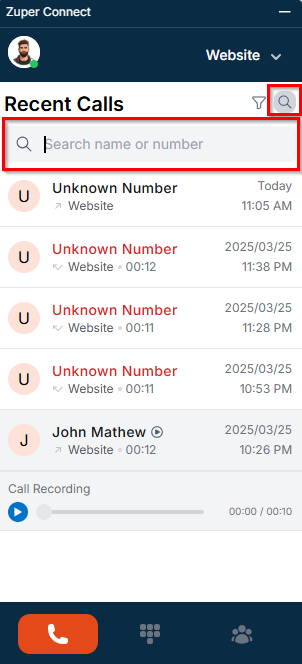
 The Recent Calls section in the Zuper Phone displays a detailed list of all calls (voicemails, incoming, outgoing, and missed), including their duration, date, time, and the associated Zuper Phone number. Here, you can view call history for up to 7 days. For a more extended history, refer to Web Call Logs.
Note: To access call recordings & voicemails (if available), click the Play icon next to a contact.
* Navigate to the Recent Calls tab on the left side of the Zuper Phone interface.
* Locate the user or customer you wish to call.
* Hover over the entry to view the **Phone** and **Call Logs** icon.
The Recent Calls section in the Zuper Phone displays a detailed list of all calls (voicemails, incoming, outgoing, and missed), including their duration, date, time, and the associated Zuper Phone number. Here, you can view call history for up to 7 days. For a more extended history, refer to Web Call Logs.
Note: To access call recordings & voicemails (if available), click the Play icon next to a contact.
* Navigate to the Recent Calls tab on the left side of the Zuper Phone interface.
* Locate the user or customer you wish to call.
* Hover over the entry to view the **Phone** and **Call Logs** icon.
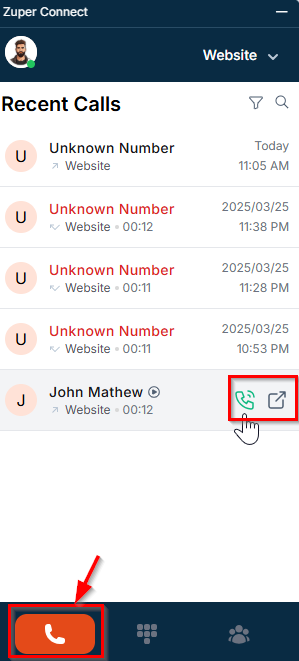 * Click the **Phone** icon to initiate a call.
* Click the **Call Logs** icon to view the call details.
**Filtering & Searching Call Logs**
To efficiently manage and review your call history, Zuper Phone offers filtering and search options. These features help you quickly locate specific call records without scrolling through the entire history. You can filter calls based on **type** or **search** for a particular contact or number to streamline communication.
* Filter calls by type (All, Incoming, Outgoing, Missed, Voicemail) using the Filter icon at the top right.
* Click the **Phone** icon to initiate a call.
* Click the **Call Logs** icon to view the call details.
**Filtering & Searching Call Logs**
To efficiently manage and review your call history, Zuper Phone offers filtering and search options. These features help you quickly locate specific call records without scrolling through the entire history. You can filter calls based on **type** or **search** for a particular contact or number to streamline communication.
* Filter calls by type (All, Incoming, Outgoing, Missed, Voicemail) using the Filter icon at the top right.
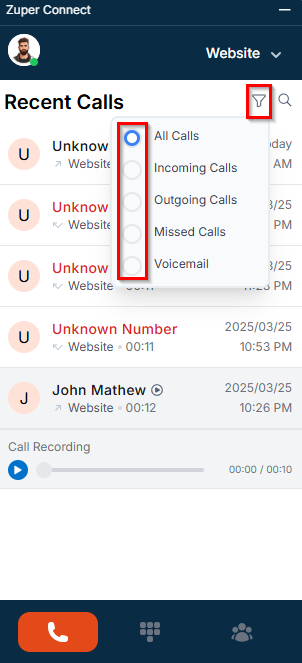 * Search for a specific contact or number using the Search icon to quickly find and place a call.
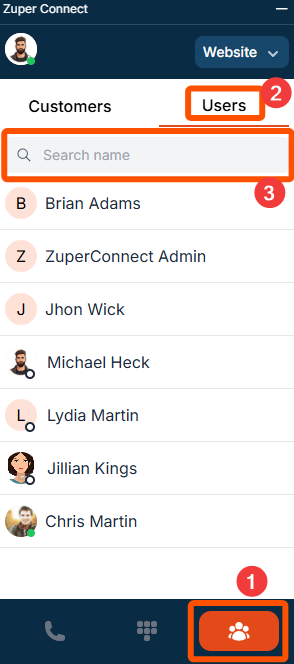
 The Contacts section in Zuper Phone provides a centralized directory of customers and internal users who have access to Zuper Phone. This feature allows you to quickly search for and connect with the right person without navigating through multiple screens.
**Accessing Contacts**
* Navigate to Contacts on the right side of the Zuper Phone interface.
* Click the **Customers** tab to view the list of customers.
To search for a customer, enter their name or phone number in the search bar at the top.
* Click the **Users** tab to view internal team members who have access to Zuper Phone.
To search for a user, enter their name in the search bar.
The Contacts section in Zuper Phone provides a centralized directory of customers and internal users who have access to Zuper Phone. This feature allows you to quickly search for and connect with the right person without navigating through multiple screens.
**Accessing Contacts**
* Navigate to Contacts on the right side of the Zuper Phone interface.
* Click the **Customers** tab to view the list of customers.
To search for a customer, enter their name or phone number in the search bar at the top.
* Click the **Users** tab to view internal team members who have access to Zuper Phone.
To search for a user, enter their name in the search bar.
 **Making a Call**
**For Customers**:
Hover over the customer or click on the customer's name to view their contact details.
**Making a Call**
**For Customers**:
Hover over the customer or click on the customer's name to view their contact details.
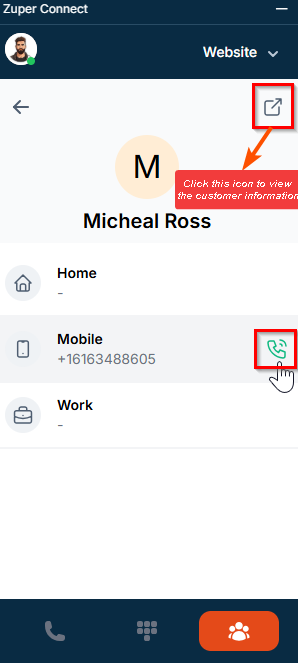
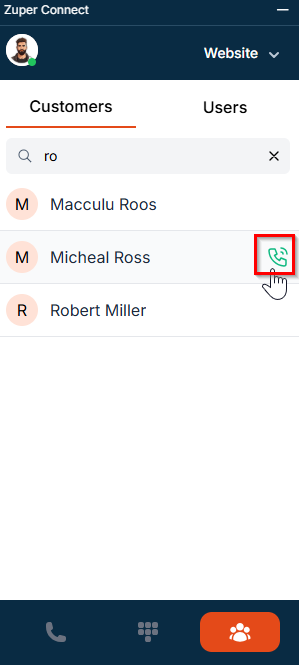 * Select the preferred phone number (home, mobile, or work).
* Hover over the number and click the **Phone** icon to initiate the call.
* Select the preferred phone number (home, mobile, or work).
* Hover over the number and click the **Phone** icon to initiate the call.
 **For Internal Users**:
* Hover over the user or click on the user's name to view their details.
**For Internal Users**:
* Hover over the user or click on the user's name to view their details.
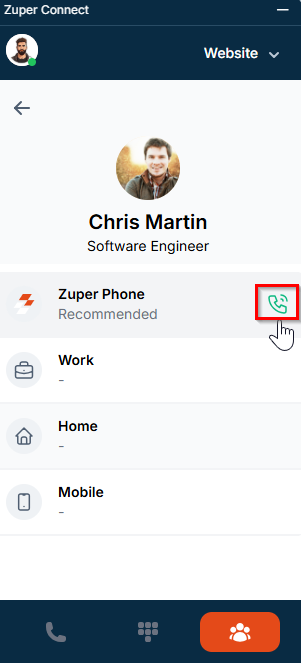
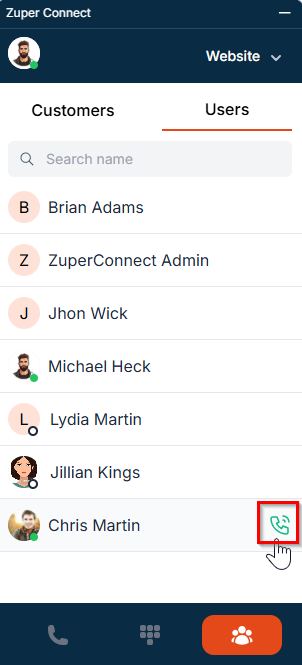 * You can see their Zuper Phone, work, home, and mobile number.
* Select the desired number and click the **Phone** icon to place the call.
* You can see their Zuper Phone, work, home, and mobile number.
* Select the desired number and click the **Phone** icon to place the call.
 Note: To view and manage recorded call logs, we highly recommend using the Zuper phone.
**Quick Access to Customer Details**
Easily view a customer's details from the Contacts tab. Select the customer and click the **redirect** icon at the top-right of the contact information page to navigate to the Customer Details page. From there, you can create a new job or request as needed.
# Zuper Phone Settings
The Settings section in Zuper Phone allows you to personalize your calling experience by configuring audio settings, adjusting themes, and accessing support resources. Proper setup ensures seamless communication with customers and team members.
## Accessing Settings
To access the settings:
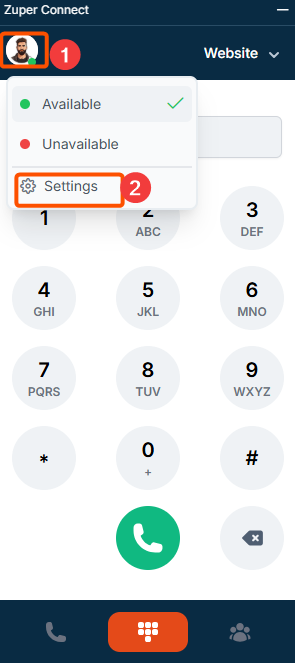
1. Click your profile icon at the top left of the Zuper Phone interface.
2. Select "**Settings**" from the dropdown menu.
Note: To view and manage recorded call logs, we highly recommend using the Zuper phone.
**Quick Access to Customer Details**
Easily view a customer's details from the Contacts tab. Select the customer and click the **redirect** icon at the top-right of the contact information page to navigate to the Customer Details page. From there, you can create a new job or request as needed.
# Zuper Phone Settings
The Settings section in Zuper Phone allows you to personalize your calling experience by configuring audio settings, adjusting themes, and accessing support resources. Proper setup ensures seamless communication with customers and team members.
## Accessing Settings
To access the settings:
1. Click your profile icon at the top left of the Zuper Phone interface.
2. Select "**Settings**" from the dropdown menu.
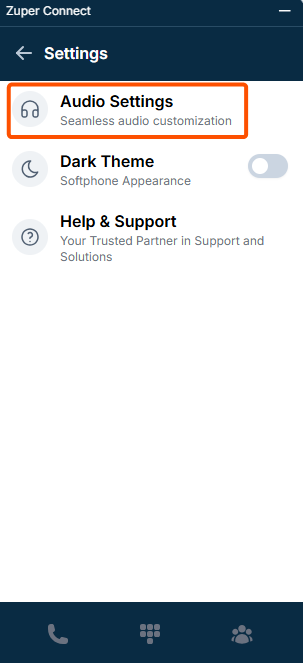
 From here, you can:
* Configure audio settings to ensure clear communication.
* Switch between dark and light themes based on your preference.
* Access help and support articles for troubleshooting and assistance.
To optimize sound quality and notifications, follow these steps:
* Under Settings, select "**Audio Settings**" to customize your sound preferences.
From here, you can:
* Configure audio settings to ensure clear communication.
* Switch between dark and light themes based on your preference.
* Access help and support articles for troubleshooting and assistance.
To optimize sound quality and notifications, follow these steps:
* Under Settings, select "**Audio Settings**" to customize your sound preferences.
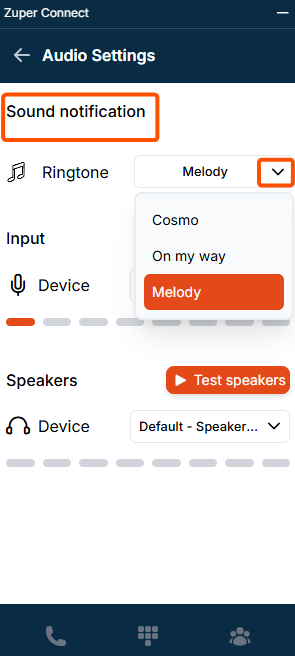
 * Choose a ringtone for incoming calls from the available list of tones.
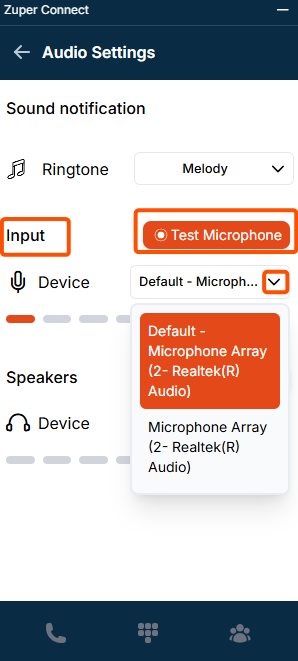
 * Select your preferred input device (e.g., microphone) from the dropdown list.
* Click "**Test Microphone**" to test your microphone.
* Click **Stop Recording** to check if it's working correctly.
* Select your preferred input device (e.g., microphone) from the dropdown list.
* Click "**Test Microphone**" to test your microphone.
* Click **Stop Recording** to check if it's working correctly.
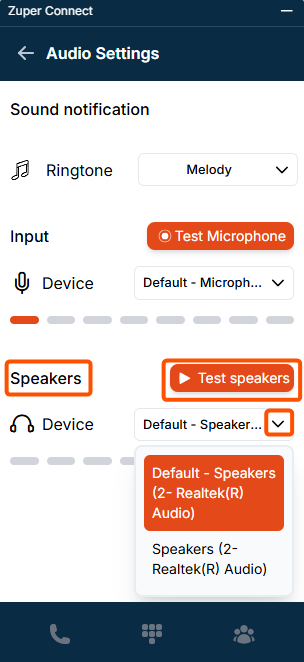
 * Select your preferred speaker device for audio output from the Speakers dropdown.
* Click "**Test Speakers**" to play a test sound and ensure clarity.
* Select your preferred speaker device for audio output from the Speakers dropdown.
* Click "**Test Speakers**" to play a test sound and ensure clarity.
 Properly configuring these settings enhances call quality and ensures smooth conversations with your contacts.