> ## Documentation Index
> Fetch the complete documentation index at: https://docs.zuper.co/llms.txt
> Use this file to discover all available pages before exploring further.
# Using Connect on Mobile
> Make calls, send messages, and stay connected with customers and teammates directly from the Zuper mobile app.
Zuper Connect gives powerful communication tools directly in your hands.
You can make and receive calls, send and receive messages, and stay fully connected with customers and collaborate with teammates, without switching to your phone's native dialer or returning to the office. \
Every call and message is automatically logged and linked to the right job and customer, giving you complete context and helping you deliver faster, more professional service.
**With Zuper Connect on mobile, you can:**
* Make and receive customer calls using Zuper Phone
* Send and receive SMS messages with full conversation history.
* Contact assigned teammates directly from a job.
* Access all communications from the **Dashboard**, active **Jobs**, and **Customer** profiles.
* View call logs, listen to recordings, and check voicemails — all in one place.
* Minimize calls or switch between messaging and job updates without losing progress.
## Before You Begin
Ensure the following before using Zuper Connect on mobile:
* Zuper Connect is enabled for your account.
* Your role has [agent](/Zuper_Connect/Setup-Zuper-Connect/User_permissions#access-user-permissions) access.
* Your user profile has a default phone number assigned.
* You have an active internet connection (Wi-Fi or mobile data) for Zuper Phone and messaging.
* Keep the Zuper app logged in to receive real-time calls and notifications.
## Accessing Zuper Connect
You can access Zuper Connect in three ways:
### From the Dashboard
This is the fastest option for daily use.
1. Open the Zuper mobile app.
2. On the Dashboard, tap the **Call** icon.
3. Zuper Connect opens with two tabs: **Conversations** (SMS/messages) and **Recent Calls** (call history).
 ### From a Job
1. Open any job.
2. Tap the **call icon** to call or the **message icon** to send a message next to the customer card or service address.
### From a Job
1. Open any job.
2. Tap the **call icon** to call or the **message icon** to send a message next to the customer card or service address.
 You can start a conversation on a job only when all of the following conditions are met:
* The job is assigned to you.
* A customer is associated with the job.
* The job status is not **cancelled**.
* The job falls within the 4-day visibility window. For example, if your job is scheduled on March 26, the Connect icon is visible from *March 25 to March 28*.
* The job is not hidden from Field Technicians by your administrator.
Admins and Team Leads have full access and can see communication options outside these conditions.
### From a Customer Profile
1. Go to **Clients → Customers**.
2. Open a customer profile.
3. Tap the **call icon** to call.
You can start a conversation on a job only when all of the following conditions are met:
* The job is assigned to you.
* A customer is associated with the job.
* The job status is not **cancelled**.
* The job falls within the 4-day visibility window. For example, if your job is scheduled on March 26, the Connect icon is visible from *March 25 to March 28*.
* The job is not hidden from Field Technicians by your administrator.
Admins and Team Leads have full access and can see communication options outside these conditions.
### From a Customer Profile
1. Go to **Clients → Customers**.
2. Open a customer profile.
3. Tap the **call icon** to call.
 ## Making a Call
When you need to call a customer, always use **Zuper Phone**. It ensures calls are logged, recorded (when enabled), and linked to the correct job and customer automatically. If you use your device's native dialer instead, the call will not be logged or linked in Zuper
1. Tap the **phone icon** next to the customer's name - from a job, customer profile, or Recent Calls.
2. Select your dialer: **Zuper Phone** or **My Phone** (native dialer).
## Making a Call
When you need to call a customer, always use **Zuper Phone**. It ensures calls are logged, recorded (when enabled), and linked to the correct job and customer automatically. If you use your device's native dialer instead, the call will not be logged or linked in Zuper
1. Tap the **phone icon** next to the customer's name - from a job, customer profile, or Recent Calls.
2. Select your dialer: **Zuper Phone** or **My Phone** (native dialer).
 **What you can do during a call:**
* **Mute** - silence your microphone without ending the call.
* **Record** - start recording (if your admin has enabled this)
* **Hold** - pause the call and resume when ready.
* **Minimize** - shrink the call screen so you can check job details, update statuses, or send a message while still on the call.
**Note**: Call transfer is not currently supported on mobile. However, you can receive the transferred call.
## Receiving a Call
When a customer calls you:
1. A notification appears on your mobile device.
2. If the number matches a customer in Zuper, their name displays automatically.
3. Tap **Accept** to answer or **Ignore** to decline.
**What you can do during a call:**
* **Mute** - silence your microphone without ending the call.
* **Record** - start recording (if your admin has enabled this)
* **Hold** - pause the call and resume when ready.
* **Minimize** - shrink the call screen so you can check job details, update statuses, or send a message while still on the call.
**Note**: Call transfer is not currently supported on mobile. However, you can receive the transferred call.
## Receiving a Call
When a customer calls you:
1. A notification appears on your mobile device.
2. If the number matches a customer in Zuper, their name displays automatically.
3. Tap **Accept** to answer or **Ignore** to decline.
 You must be logged into the Zuper app to receive calls in real time. If you were logged out when a call came in, you will see it as a missed call notification the next time you log in.
## Sending and Receiving Messages
You can manage all customer SMS messages directly from your phone.
**Note:** Messaging is available for existing customers only.
### Opening your conversations
1. On the **Dashboard**, tap the **Call** icon.
2. Tap the **Conversations** tab.
3. Your full list of conversations appears, showing customer name, last message preview, and timestamp.
**You can switch between the filters at any time to focus on what matters most:**
* **All** - every conversation
* **Unread** - messages you haven't opened yet
* **Unresponded** - conversations waiting for your reply
You must be logged into the Zuper app to receive calls in real time. If you were logged out when a call came in, you will see it as a missed call notification the next time you log in.
## Sending and Receiving Messages
You can manage all customer SMS messages directly from your phone.
**Note:** Messaging is available for existing customers only.
### Opening your conversations
1. On the **Dashboard**, tap the **Call** icon.
2. Tap the **Conversations** tab.
3. Your full list of conversations appears, showing customer name, last message preview, and timestamp.
**You can switch between the filters at any time to focus on what matters most:**
* **All** - every conversation
* **Unread** - messages you haven't opened yet
* **Unresponded** - conversations waiting for your reply
 ### Sending a Message
1. Open a conversation or tap the **message icon** next to a customer's name from a job.
2. Tap **Write a message** at the bottom of the screen.
3. Type your message and tap the **send arrow (▶)**.
### Sending a Message
1. Open a conversation or tap the **message icon** next to a customer's name from a job.
2. Tap **Write a message** at the bottom of the screen.
3. Type your message and tap the **send arrow (▶)**.
 The customer receives your message from your organization's Zuper phone number, not your personal number.
### Reading a Message
Tap any conversation to open it. You will see the complete history of messages and calls with that customer in a single thread, so you always have the full picture before you respond.
### Marking a Conversation as Unread
If you read a message but cannot respond right away, mark it as unread so you can come back to it.
1. Open the conversation.
2. Tap the **icon** in the top-right corner.
3. Select **Mark as unread** and tap **Proceed**.
The customer receives your message from your organization's Zuper phone number, not your personal number.
### Reading a Message
Tap any conversation to open it. You will see the complete history of messages and calls with that customer in a single thread, so you always have the full picture before you respond.
### Marking a Conversation as Unread
If you read a message but cannot respond right away, mark it as unread so you can come back to it.
1. Open the conversation.
2. Tap the **icon** in the top-right corner.
3. Select **Mark as unread** and tap **Proceed**.
 The conversation returns to your notifications as a reminder to follow up.
**Important**: Every message you send or receive on mobile syncs instantly with the Zuper web app. Your office team sees the same conversation history in real time.
## Viewing Call History and Recordings
### From Zuper Connect - Recent Calls Tab
1. Open Zuper Connect and tap **Recent Calls**.
2. Filter by call type to find what you need:
* **All** - your complete call history
* **Missed** - calls you did not answer
* **Voicemail** - voicemail messages left by customers
* **Incoming** - calls you received
* **Outgoing** - calls you made
The conversation returns to your notifications as a reminder to follow up.
**Important**: Every message you send or receive on mobile syncs instantly with the Zuper web app. Your office team sees the same conversation history in real time.
## Viewing Call History and Recordings
### From Zuper Connect - Recent Calls Tab
1. Open Zuper Connect and tap **Recent Calls**.
2. Filter by call type to find what you need:
* **All** - your complete call history
* **Missed** - calls you did not answer
* **Voicemail** - voicemail messages left by customers
* **Incoming** - calls you received
* **Outgoing** - calls you made
 3. Each entry shows the customer name, call direction, duration, and time.
4. Tap the **call-back** icon next to any entry to call that customer again immediately.
### From Inside a Job - Call Logs Tab
1. Open the job from your Jobs list.
2. Tap the **Call Logs** tab.
3. View every call linked to that job - type, timestamp, duration, and recording.
4. Tap the **play** button to listen to any recording directly from your phone.
**From a Customer Profile:**
1. Go to **Clients → Customers**.
2. Open the customer profile.
3. Tap the **Call Logs** tab.
3. Each entry shows the customer name, call direction, duration, and time.
4. Tap the **call-back** icon next to any entry to call that customer again immediately.
### From Inside a Job - Call Logs Tab
1. Open the job from your Jobs list.
2. Tap the **Call Logs** tab.
3. View every call linked to that job - type, timestamp, duration, and recording.
4. Tap the **play** button to listen to any recording directly from your phone.
**From a Customer Profile:**
1. Go to **Clients → Customers**.
2. Open the customer profile.
3. Tap the **Call Logs** tab.
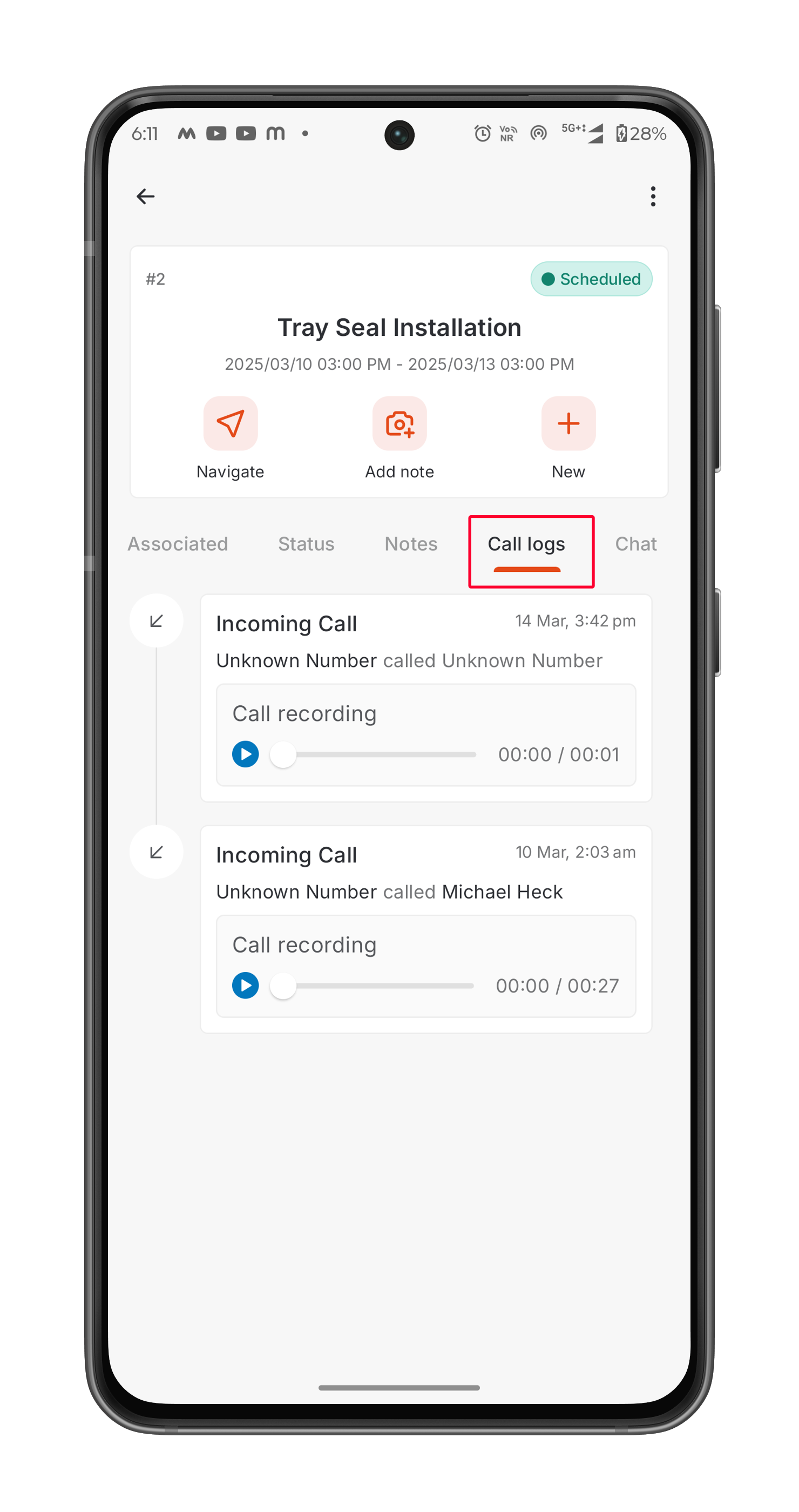 4. View all calls associated with that customer - type, timestamp, duration, and recording.
5. Tap the **Play** button to listen to any recording directly from your phone.
**Note:** When you open a conversation in the **Conversations** tab, calls and messages appear together in one unified thread. You get complete context - every text and every call, before you respond.
## Contacting Assigned Teammates from a Job
When multiple users are assigned to the same job, you can reach any of them directly from the job details screen.
1. Open the Zuper mobile app and navigate to the **Jobs** module.
2. Tap the job you want to open.
3. Tap the **Details** tab.
4. Scroll down to the **Assigned to** section.
5. You will see a list of all users assigned to this job, along with their team name and role.
6. Each user row displays one or both of the following icons:
* **Call icon**: initiates a call to this teammate. The calling apps shown depend on the apps installed on your device.
* **Message icon**: opens an in-app chat with this teammate.
4. View all calls associated with that customer - type, timestamp, duration, and recording.
5. Tap the **Play** button to listen to any recording directly from your phone.
**Note:** When you open a conversation in the **Conversations** tab, calls and messages appear together in one unified thread. You get complete context - every text and every call, before you respond.
## Contacting Assigned Teammates from a Job
When multiple users are assigned to the same job, you can reach any of them directly from the job details screen.
1. Open the Zuper mobile app and navigate to the **Jobs** module.
2. Tap the job you want to open.
3. Tap the **Details** tab.
4. Scroll down to the **Assigned to** section.
5. You will see a list of all users assigned to this job, along with their team name and role.
6. Each user row displays one or both of the following icons:
* **Call icon**: initiates a call to this teammate. The calling apps shown depend on the apps installed on your device.
* **Message icon**: opens an in-app chat with this teammate.
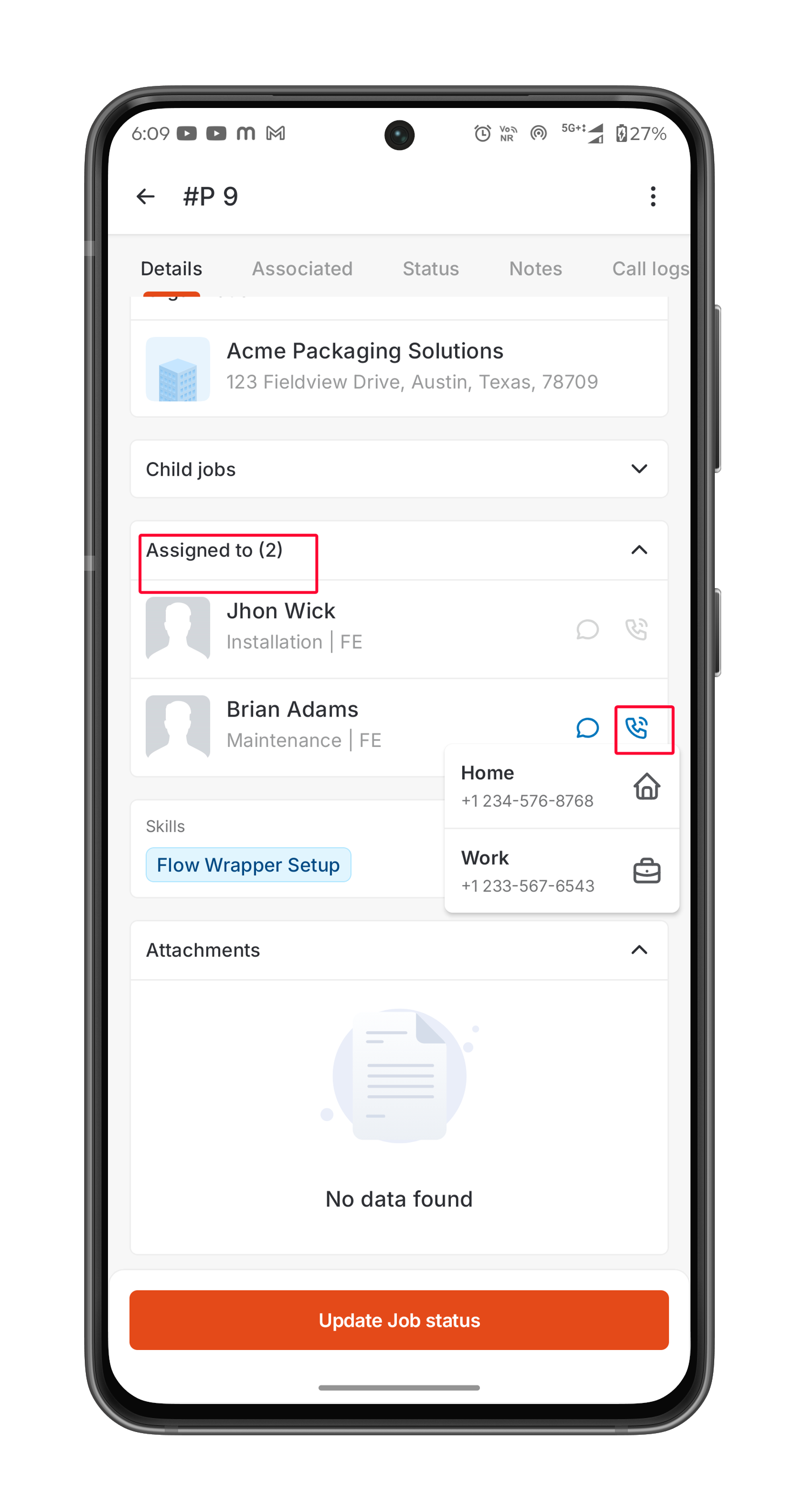 **Note**: The message icon may not appear for every assigned user. Its availability depends on your organization's message settings and user roles. If you do not see the message icon, use the call icon to reach them.
## FAQs
Field Executives, Team Leads, and Administrators can all use Zuper Connect on mobile. Field Executives have visibility restrictions; refer to Access Conditions. Admins and Team Leads have full access to all communications.
Your ability to send and receive messages depends on a set of conditions being met. Check that the job is assigned to you, has an associated customer, is not Cancelled, falls within the 4-day visibility window, and is not hidden by your administrator.
Zuper Phone logs the call automatically and supports recording. Native Phone uses your SIM but does not save the call in Zuper.
Yes, use the Conversations to send and receive messages in real time.
Yes. Everything syncs across mobile and web so the whole team stays updated.
**Note**: The message icon may not appear for every assigned user. Its availability depends on your organization's message settings and user roles. If you do not see the message icon, use the call icon to reach them.
## FAQs
Field Executives, Team Leads, and Administrators can all use Zuper Connect on mobile. Field Executives have visibility restrictions; refer to Access Conditions. Admins and Team Leads have full access to all communications.
Your ability to send and receive messages depends on a set of conditions being met. Check that the job is assigned to you, has an associated customer, is not Cancelled, falls within the 4-day visibility window, and is not hidden by your administrator.
Zuper Phone logs the call automatically and supports recording. Native Phone uses your SIM but does not save the call in Zuper.
Yes, use the Conversations to send and receive messages in real time.
Yes. Everything syncs across mobile and web so the whole team stays updated.