> ## Documentation Index
> Fetch the complete documentation index at: https://docs.zuper.co/llms.txt
> Use this file to discover all available pages before exploring further.
# Formula Library
The **Formula Library** in Zuper lets you automate the calculations behind your proposals. Instead of manually figuring out quantities or pricing, you can use formulas that pull real data from the job, measurements, checklist fields, and product details to handle the math automatically. \
Zuper includes pre-loaded formulas to help you get started, and you can view, duplicate, or create your own to match how your business prices work. With this, you'll achieve faster proposals, consistent pricing, and a more professional quoting experience for your customers.
## Accessing the Formula Library
Navigate to the **Settings** module from the left navigation menu and select **Module → Quotes & Invoice → Zuper IQ – Intelligent Quoting → Formula Library**.
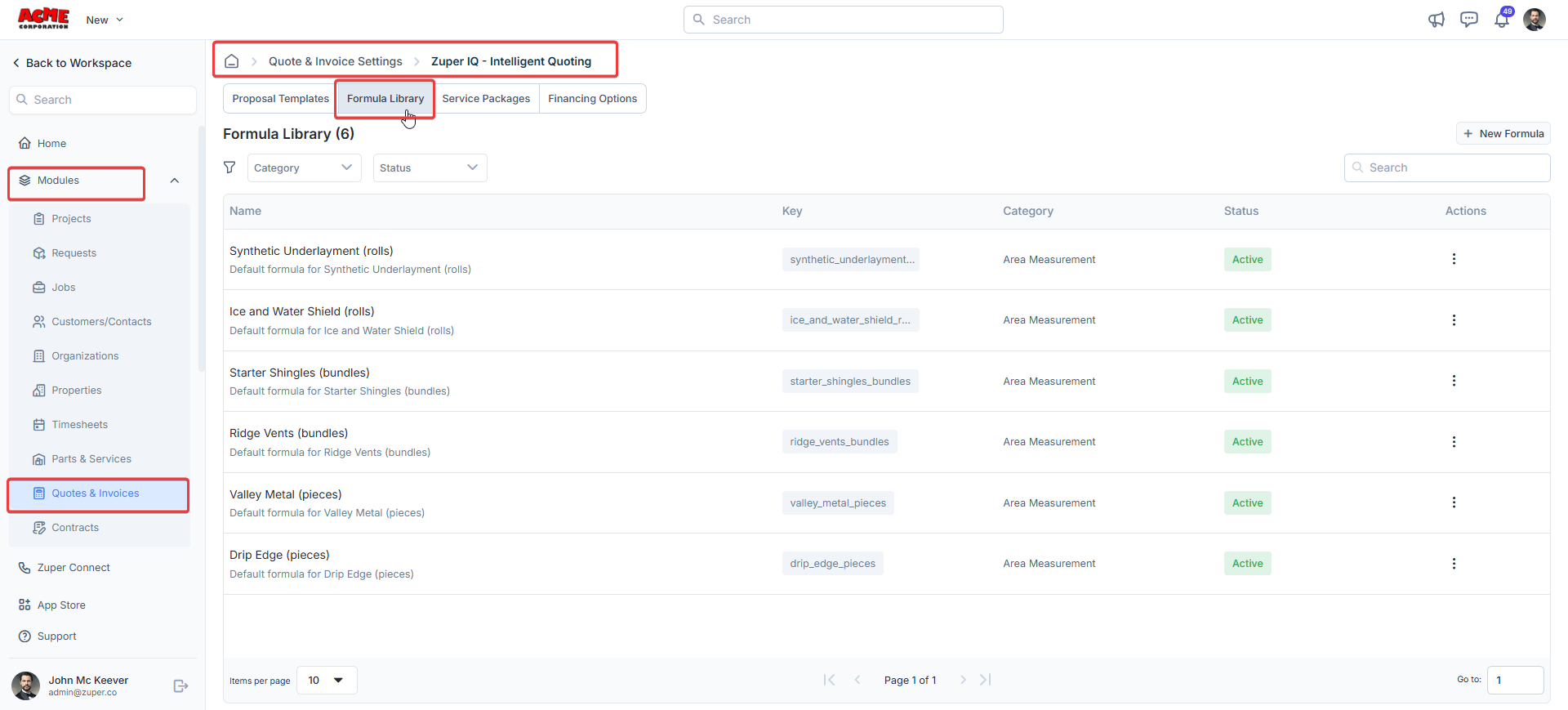 Here, you can view all your preloaded formulas and manage them whenever necessary.
**Pre-loaded Formulas**: Access our [Formula Cheat Sheet](https://drive.google.com/file/d/1Z7rffb6QhCBKvY431oVJR60jYqDFoAHL/view?usp=drive_link) for a better understanding of how different formulas work and can be used.
## Creating a New Formula
You can create your own formulas in Zuper by adding measurement tokens, checklist fields, and custom fields from both products and jobs. These fields pull real-time data to calculate exactly what you need for each proposal.
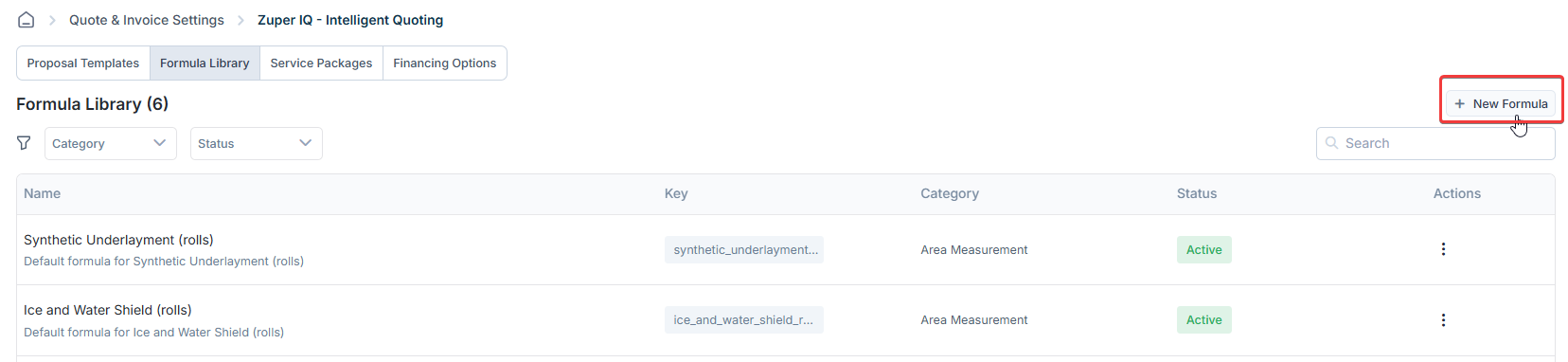
When you click **+ New Formula**, the Formula Builder will open. The workspace where all your logic comes together.
Here, you can view all your preloaded formulas and manage them whenever necessary.
**Pre-loaded Formulas**: Access our [Formula Cheat Sheet](https://drive.google.com/file/d/1Z7rffb6QhCBKvY431oVJR60jYqDFoAHL/view?usp=drive_link) for a better understanding of how different formulas work and can be used.
## Creating a New Formula
You can create your own formulas in Zuper by adding measurement tokens, checklist fields, and custom fields from both products and jobs. These fields pull real-time data to calculate exactly what you need for each proposal.
When you click **+ New Formula**, the Formula Builder will open. The workspace where all your logic comes together.
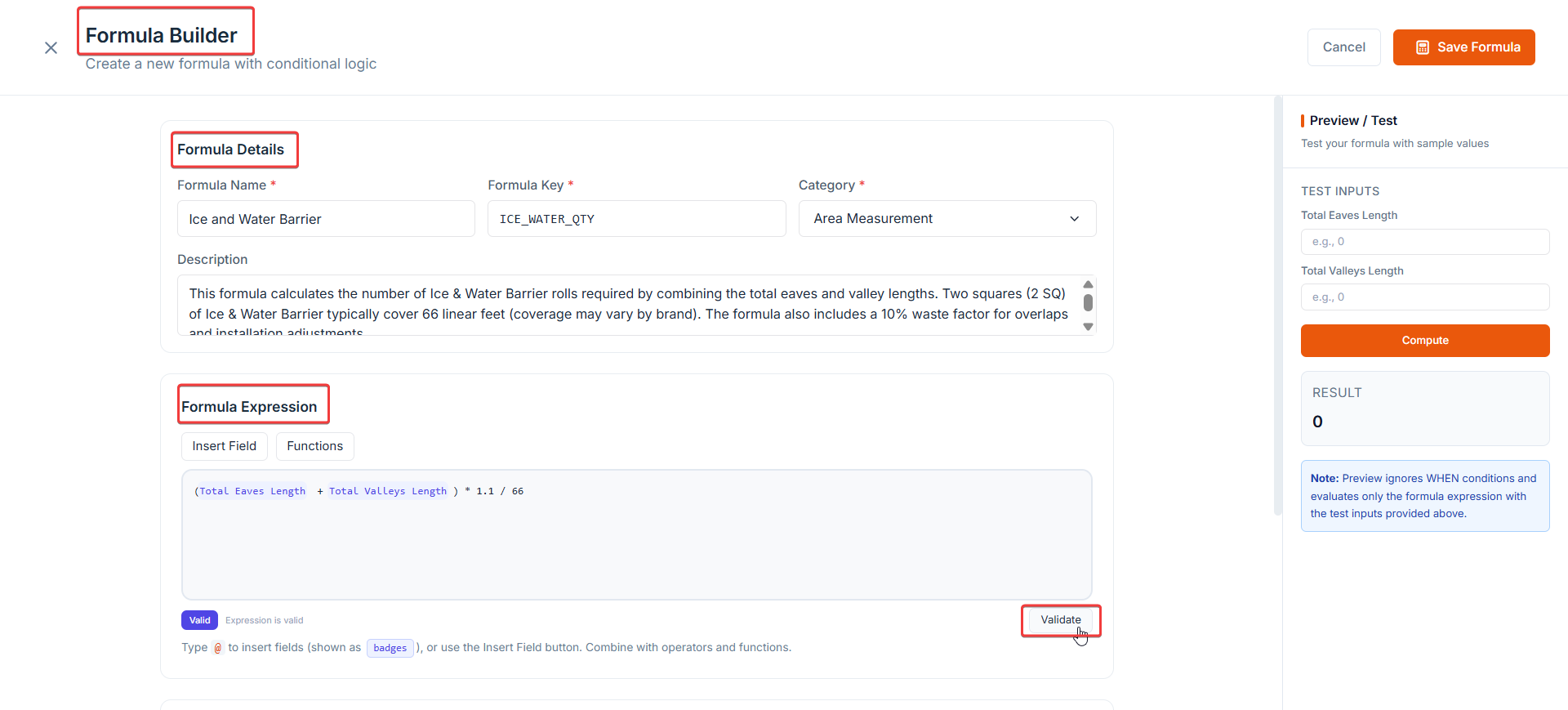
 Let’s start adding your formula details in the steps below:
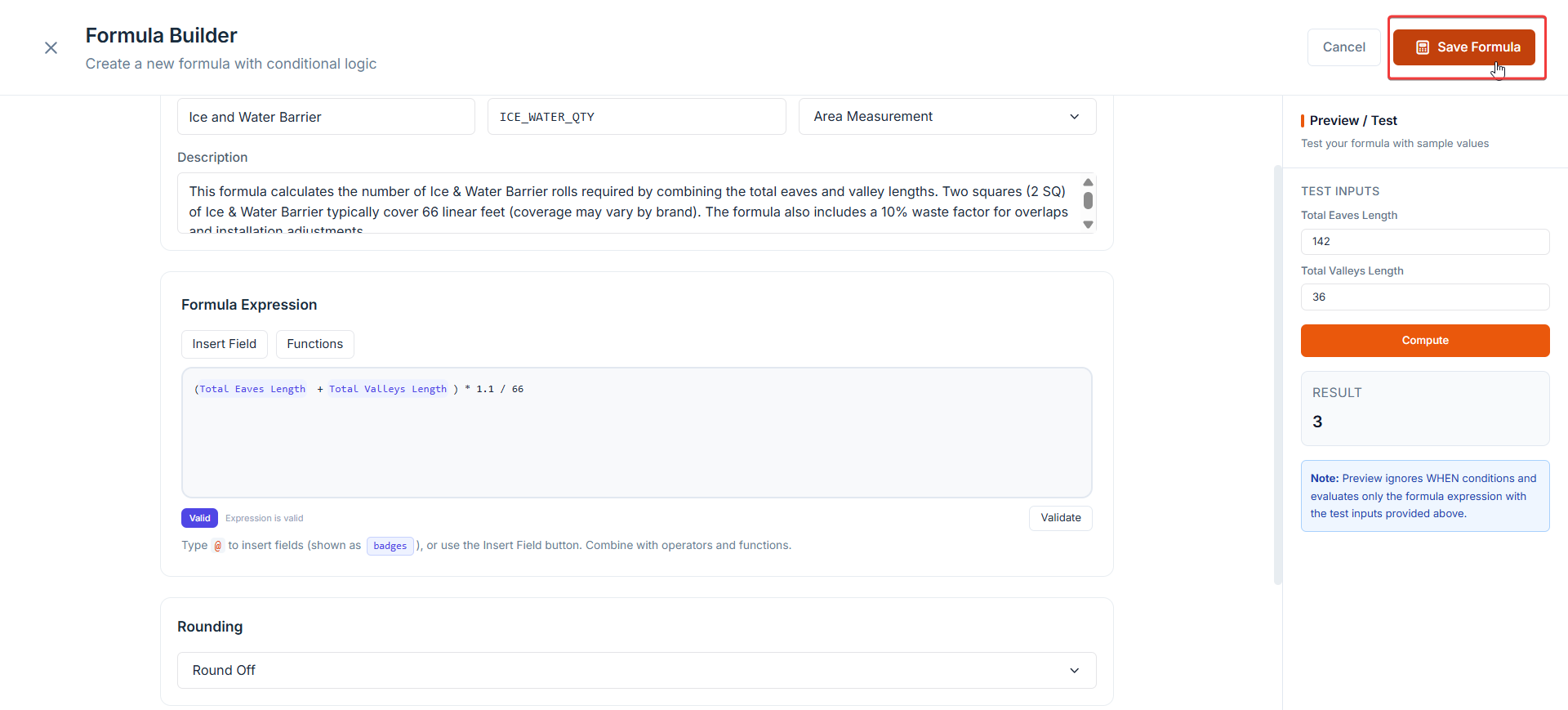
1. Give a **Formula Name** that your team will see later when applying the formula.
2. Enter a unique identifier. This **Formula** **Key** is the system reference that connects it to your templates.
3. Choose the relevant **category**, such as Area, material pricing, labor, and waste.
4. Add a short **description** if you want to remind yourself (or your team) what this formula does.
5. In the **Formula Expression** section, you can write your formula for calculations.
* Use **@** to insert fields such as custom fields, checklist fields, or measurement tokens (like roof area or slope).
* Use standard operators and functions like *CEIL(), FLOOR(), MAX()*, and others to build your equation.
* New You can include conditional logic using IF / ELSE statements.
For example:
IF ( Total Roof Area = "Hip Roof", 1.15,
IF ( Total Roof Area = "Gable Roof", 1.10,
IF (Total Roof Area = "Mansard Roof", 1.15,
IF (Total Roof Area = "Hip and gable Roof", 1.12, 0 ))))
* Click **Validate** to check your syntax before saving.
Let’s start adding your formula details in the steps below:
1. Give a **Formula Name** that your team will see later when applying the formula.
2. Enter a unique identifier. This **Formula** **Key** is the system reference that connects it to your templates.
3. Choose the relevant **category**, such as Area, material pricing, labor, and waste.
4. Add a short **description** if you want to remind yourself (or your team) what this formula does.
5. In the **Formula Expression** section, you can write your formula for calculations.
* Use **@** to insert fields such as custom fields, checklist fields, or measurement tokens (like roof area or slope).
* Use standard operators and functions like *CEIL(), FLOOR(), MAX()*, and others to build your equation.
* New You can include conditional logic using IF / ELSE statements.
For example:
IF ( Total Roof Area = "Hip Roof", 1.15,
IF ( Total Roof Area = "Gable Roof", 1.10,
IF (Total Roof Area = "Mansard Roof", 1.15,
IF (Total Roof Area = "Hip and gable Roof", 1.12, 0 ))))
* Click **Validate** to check your syntax before saving.
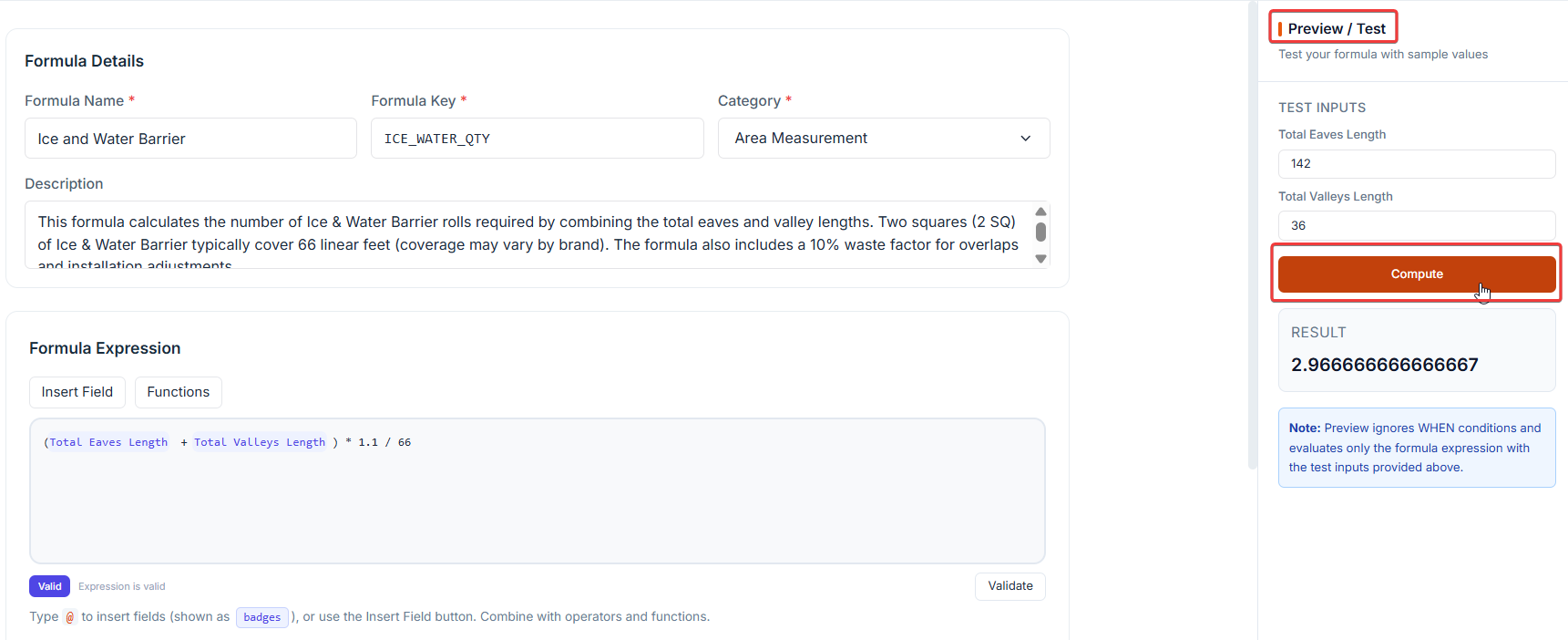
 6. **Test your formula**: A **Preview/Test** panel on the right side, where you can add sample values and see the result instantly.
**Note**: The preview focuses on your main expression only. IF/THEN conditions or advanced logic are ignored during testing.
6. **Test your formula**: A **Preview/Test** panel on the right side, where you can add sample values and see the result instantly.
**Note**: The preview focuses on your main expression only. IF/THEN conditions or advanced logic are ignored during testing.
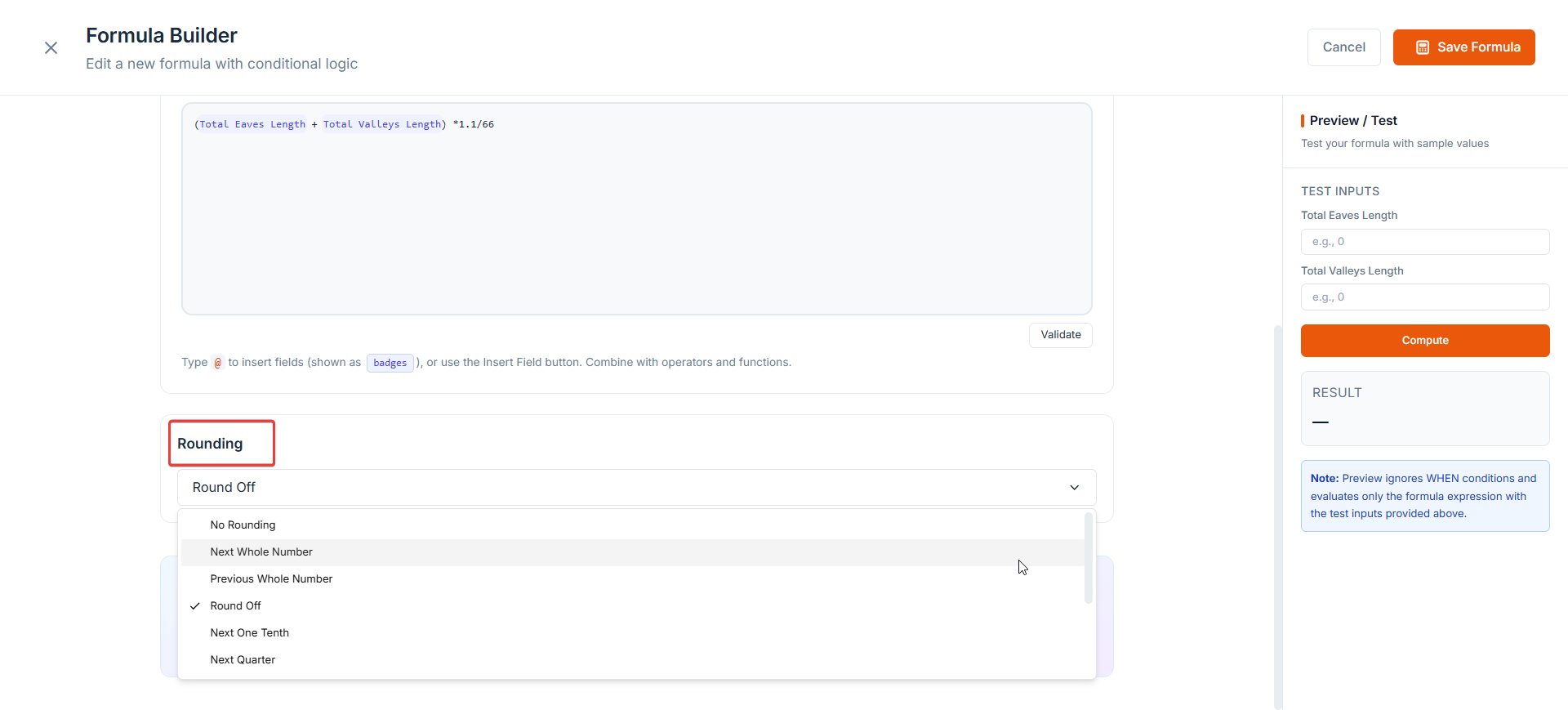
 7. In the **Rounding** section, you can choose how decimal results are rounded to fit real-world roofing needs.
 8. Once you have confirmed that it works, click **Save Formula**.
 ### Managing a formula
Once a formula is created, you can always go back whenever you want to modify.\
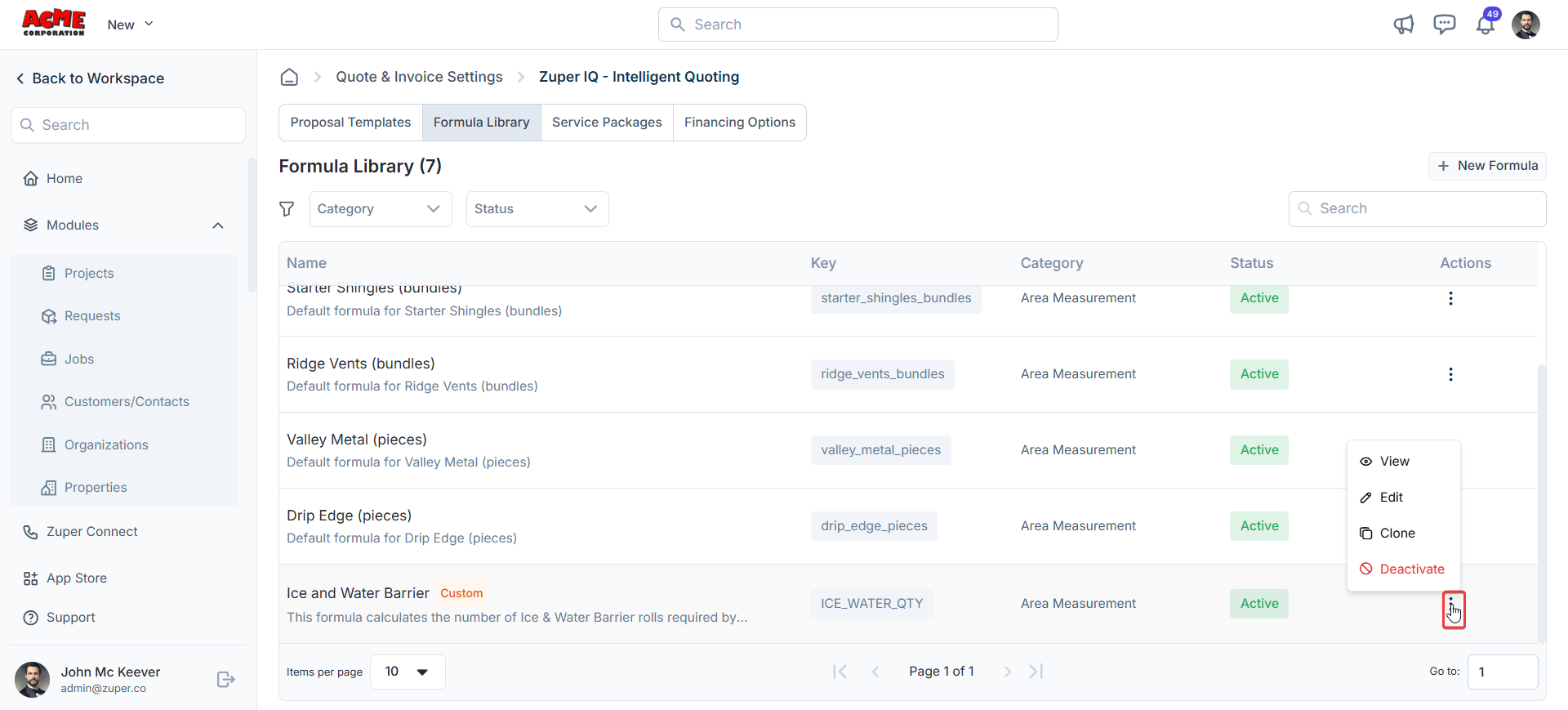
From the Formula Library, click the **three-dot menu** beside a formula and choose **Edit, Deactivate,** or **Clone**.
Editing updates the formula directly, while duplicating allows you to create a new version without affecting the original one.
### Managing a formula
Once a formula is created, you can always go back whenever you want to modify.\
From the Formula Library, click the **three-dot menu** beside a formula and choose **Edit, Deactivate,** or **Clone**.
Editing updates the formula directly, while duplicating allows you to create a new version without affecting the original one.
 **Remember**:
* Templates that already use the old formula will continue to work until you choose to replace them manually.
* Proposals that have already been created will not be updated retroactively.
***
**Remember**:
* Templates that already use the old formula will continue to work until you choose to replace them manually.
* Proposals that have already been created will not be updated retroactively.
***