> ## Documentation Index
> Fetch the complete documentation index at: https://docs.zuper.co/llms.txt
> Use this file to discover all available pages before exploring further.
# Create a Widget
Navigation: **Settings → Website Widget → Instant Estimate → + New Widget**
The instant estimate widget gives homeowners an on-demand roofing price estimate directly from your website; no phone call, no waiting. You configure it once in Zuper, activate it, and it runs on its own thereafter.
In this article, you will create a new widget and work through the four setup steps: **Appearance**, **Manage Questions**, **Roofing Options**, and **Advanced Settings**. By the end, your widget will be live and ready to share via a link, a QR code, or an embed on your website.
## Before you begin
A few things need to be in place in Zuper before you start. You do not need all of them, it depends on how you want the widget to work.
* At least one job category is set up under **Settings → Jobs**: needed only if you want Zuper to automatically create a job each time a homeowner submits an estimate request.
* Financing providers and plans are set up under **Settings → Quotes & Invoicing**: needed only if you want to display financing options on the widget.
* An email template is set up under **Settings → Email Templates**: Zuper uses it to automatically send homeowners their estimate.
## Create a new widget
Start by giving your widget a name. This is for your internal reference only; homeowners never see it. If you plan to run multiple widgets (for example, one for residential and one for commercial), pick names that make them easy to tell apart.
1. Go to **Settings** from the left navigation menu.
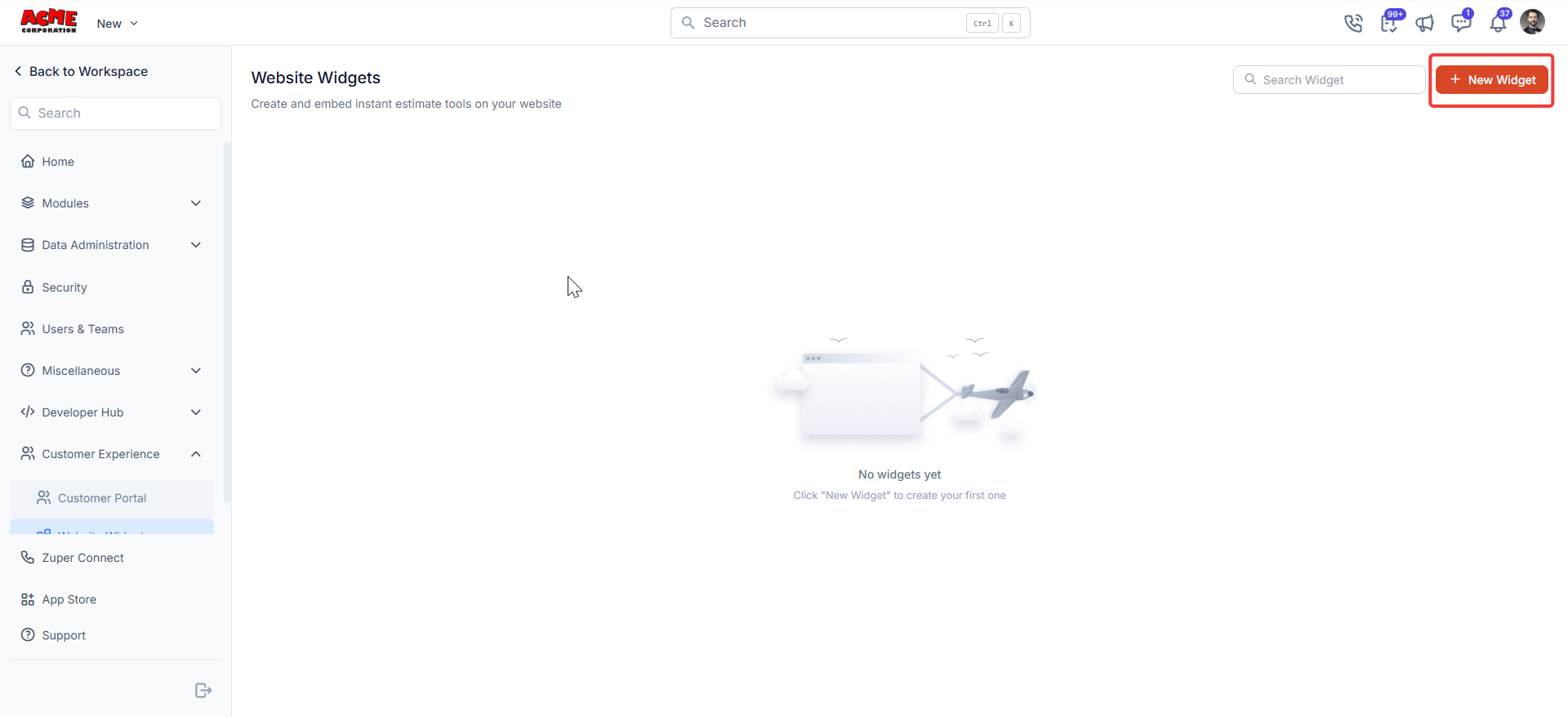
2. Under **Customer Experience**, select **Website Widget**. The **Website Widgets** page opens.
3. Select **+ New Widget** at the top right of the page.
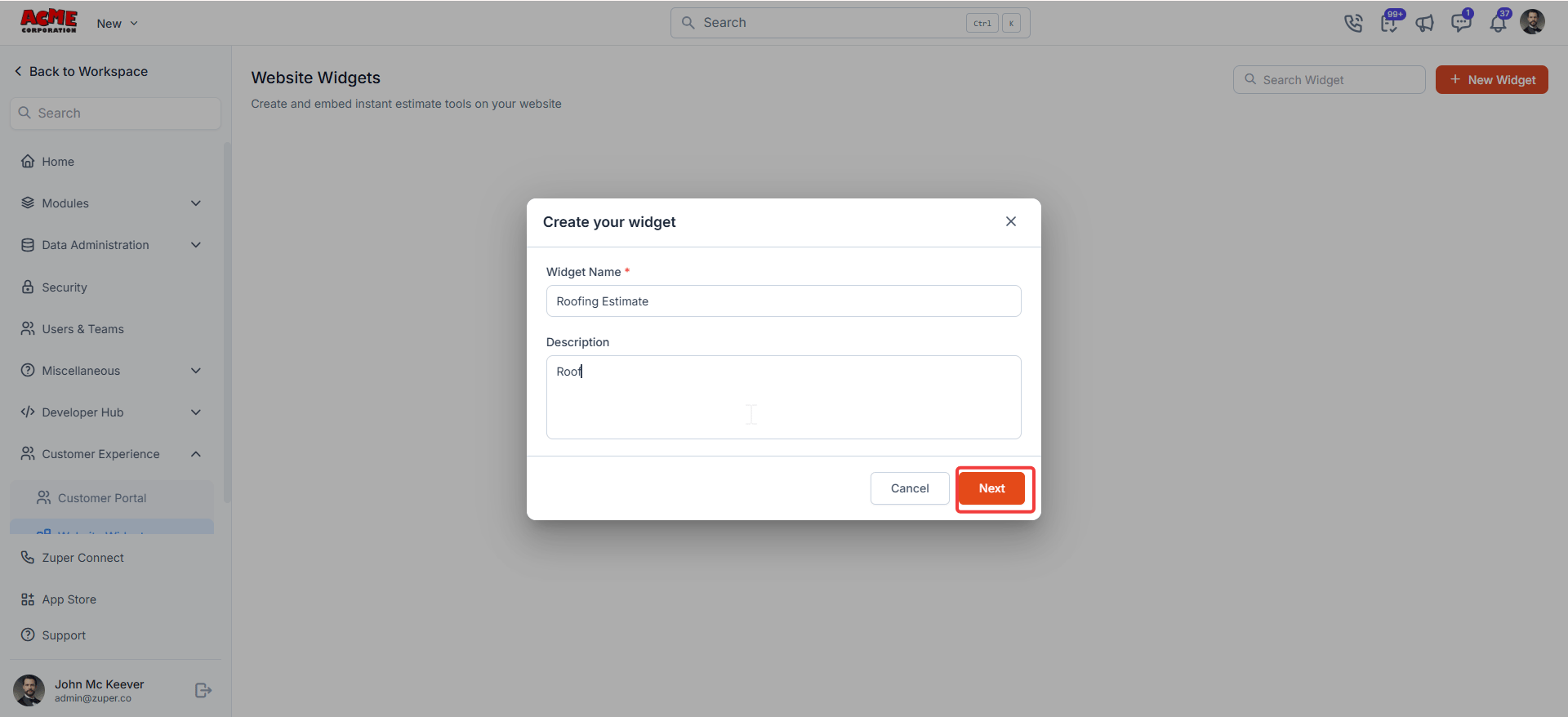
 4. The **Create your widget** modal appears.
5. Enter a name in the **Widget Name** field.
6. Optionally, enter a short description in the **Description** field.
7. Select **Next**. Zuper saves the widget as a draft and opens the setup wizard at **Appearance**.
4. The **Create your widget** modal appears.
5. Enter a name in the **Widget Name** field.
6. Optionally, enter a short description in the **Description** field.
7. Select **Next**. Zuper saves the widget as a draft and opens the setup wizard at **Appearance**.
 **Note**: The **Widget Name** field is required. Selecting **Next** without entering a name shows an inline error and prevents you from continuing.
## Appearance
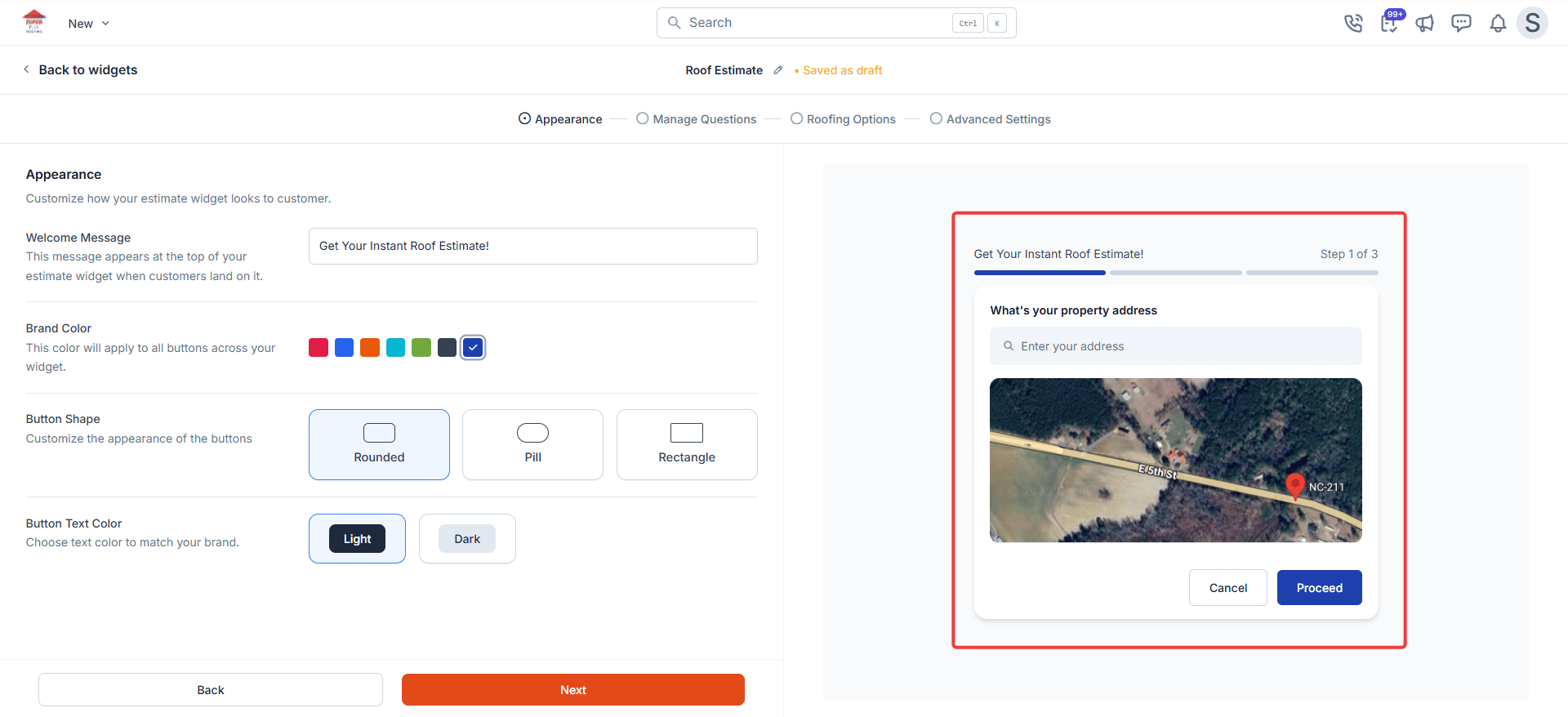
The **Appearance** step controls how your widget looks to homeowners. A live preview on the right updates as you make each change.
1. Enter your headline in the **Welcome Message** field. This is the first thing homeowners see when they open your widget.
2. Select your **Brand Color**. This applies to all buttons across the widget.
3. Under **Button Shape**, select **Rounded** for soft corners, **Pill** for fully rounded ends, or **Rectangle** for sharp corners.
4. Select your **Button Text Color**: **Light** for white text or **Dark** for black text.
5. Review the live preview on the right to confirm the widget looks correct.
**Note**: The **Widget Name** field is required. Selecting **Next** without entering a name shows an inline error and prevents you from continuing.
## Appearance
The **Appearance** step controls how your widget looks to homeowners. A live preview on the right updates as you make each change.
1. Enter your headline in the **Welcome Message** field. This is the first thing homeowners see when they open your widget.
2. Select your **Brand Color**. This applies to all buttons across the widget.
3. Under **Button Shape**, select **Rounded** for soft corners, **Pill** for fully rounded ends, or **Rectangle** for sharp corners.
4. Select your **Button Text Color**: **Light** for white text or **Dark** for black text.
5. Review the live preview on the right to confirm the widget looks correct.
 6. Select **Next** to save and proceed to **Manage Questions**.
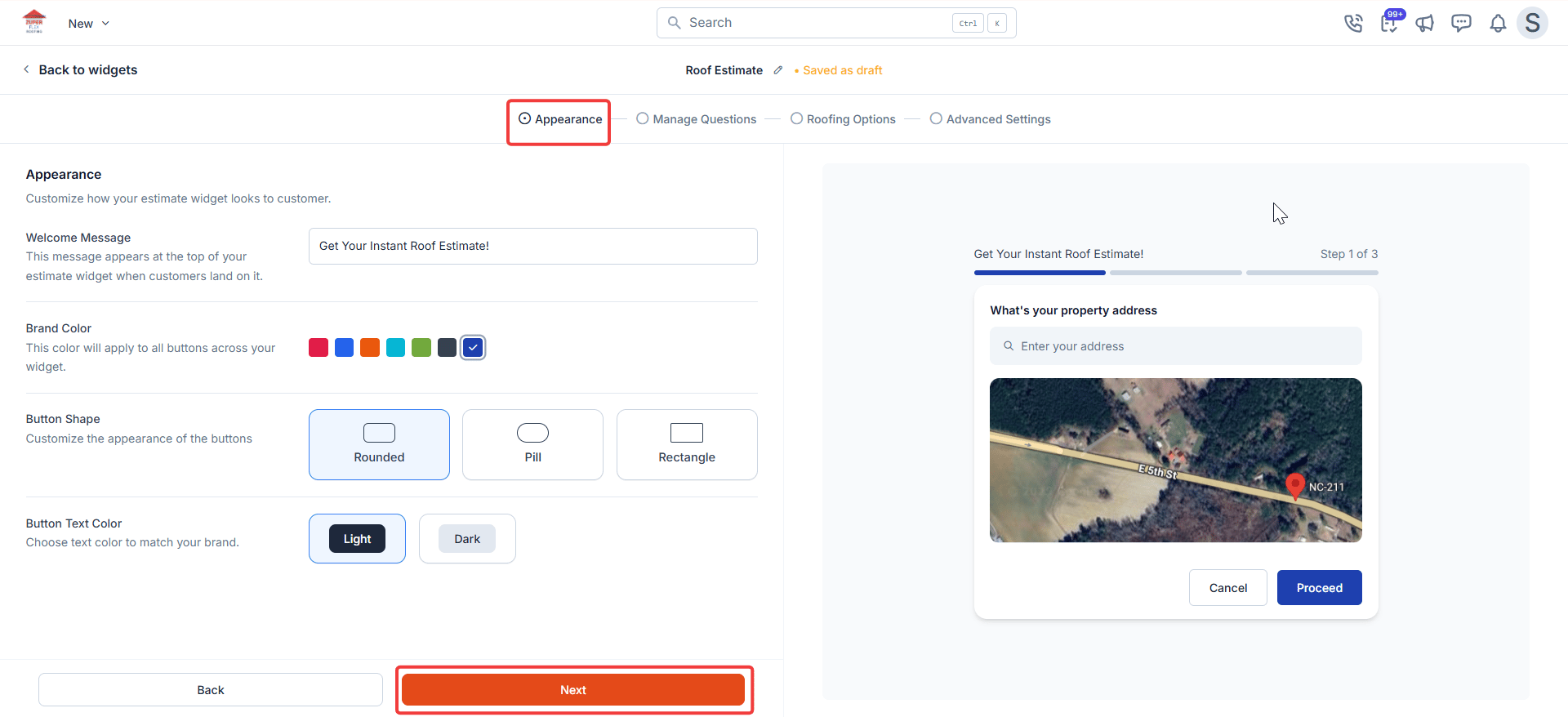 Choose a brand color with enough contrast for the button text you select. Light text works well on dark colors; dark text works better on lighter or brighter colors.
## Manage questions
The **Manage Questions** step lets you control what homeowners are asked before they see their estimate. Their answers help Zuper calculate pricing and filter which roofing options to show.
### Default questions
Three questions are included by default and cannot be deleted or changed to a different type. You can rename the label text by selecting the pencil icon next to each question.
* **What's your property address?** : Zuper uses this address to calculate the approximate roof area for pricing. This is the foundation of every estimate.
* **Where should we send your estimate?** : Collects the homeowner's first name, last name, email address, and phone number. Zuper saves this immediately, so even if a homeowner drops off before completing the estimate, you still have their contact details.
* **Select your roof type**: Captures the roof slope. Zuper uses this answer to apply steep-slope pricing automatically if you have configured it.
Choose a brand color with enough contrast for the button text you select. Light text works well on dark colors; dark text works better on lighter or brighter colors.
## Manage questions
The **Manage Questions** step lets you control what homeowners are asked before they see their estimate. Their answers help Zuper calculate pricing and filter which roofing options to show.
### Default questions
Three questions are included by default and cannot be deleted or changed to a different type. You can rename the label text by selecting the pencil icon next to each question.
* **What's your property address?** : Zuper uses this address to calculate the approximate roof area for pricing. This is the foundation of every estimate.
* **Where should we send your estimate?** : Collects the homeowner's first name, last name, email address, and phone number. Zuper saves this immediately, so even if a homeowner drops off before completing the estimate, you still have their contact details.
* **Select your roof type**: Captures the roof slope. Zuper uses this answer to apply steep-slope pricing automatically if you have configured it.
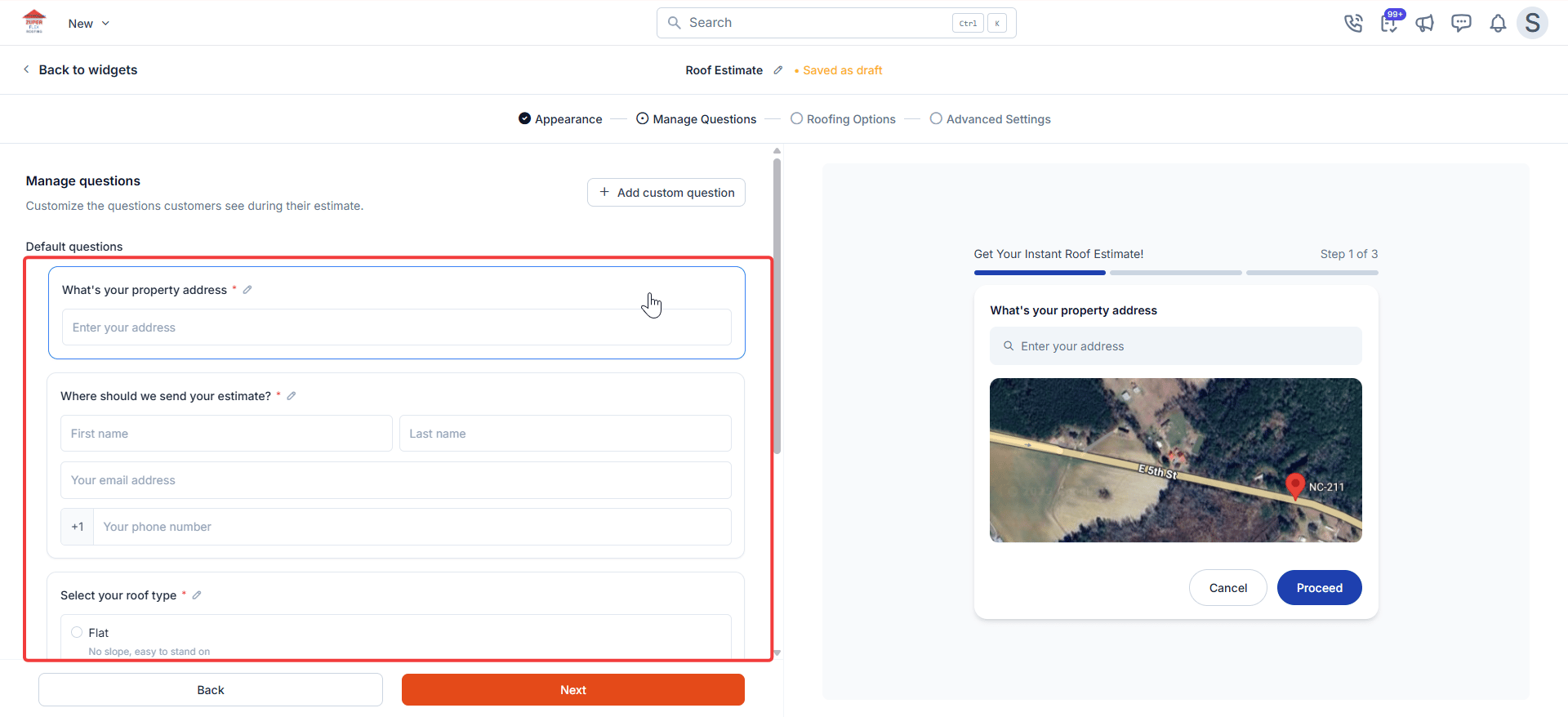 **Note**: You cannot delete or change the type of a default question. You can only rename the label text.
### Custom questions
Add custom questions when you need information that affects which options you show or how you price the job. For example, a question about the type of service needed full replacement versus repair lets you use visibility conditions to show only the options relevant to that answer. Keep the list short; every extra question is another moment where a homeowner might drop off.
1. Select **+ Add custom question**. A question-type menu appears.
2. Select a question type:
* **Short answer**: A single line of free text
* **Long answer**: A multiline text field
* **Single choice**: Homeowner selects one option from a list
* **Multiple choice**: Homeowner selects one or more options
* **Dropdown**: Homeowner selects one option from a dropdown list
3. Enter the question label text.
4. For **Single choice**, **Multiple choice**, and **Dropdown** types, add at least two answer options.
5. Select **Save question** to add it to the list.
**Note**: You cannot delete or change the type of a default question. You can only rename the label text.
### Custom questions
Add custom questions when you need information that affects which options you show or how you price the job. For example, a question about the type of service needed full replacement versus repair lets you use visibility conditions to show only the options relevant to that answer. Keep the list short; every extra question is another moment where a homeowner might drop off.
1. Select **+ Add custom question**. A question-type menu appears.
2. Select a question type:
* **Short answer**: A single line of free text
* **Long answer**: A multiline text field
* **Single choice**: Homeowner selects one option from a list
* **Multiple choice**: Homeowner selects one or more options
* **Dropdown**: Homeowner selects one option from a dropdown list
3. Enter the question label text.
4. For **Single choice**, **Multiple choice**, and **Dropdown** types, add at least two answer options.
5. Select **Save question** to add it to the list.
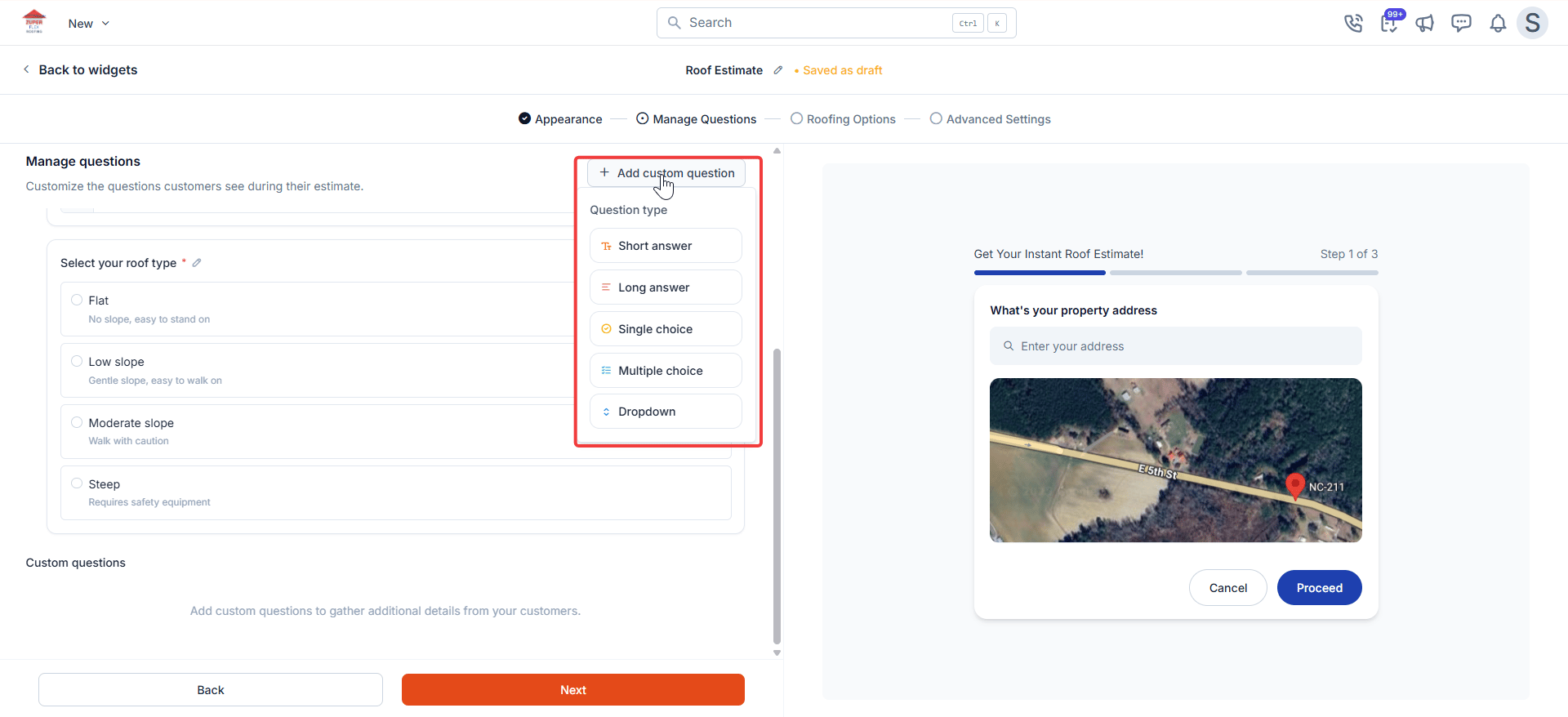 **Note**: To make a custom question mandatory, turn on the **Required** toggle before saving. Homeowners cannot proceed past that step without answering a required question.
**Reorder questions**
Drag any question up or down to change the order homeowners see them. Default and custom questions can both be reordered. The live preview updates immediately.
Once your questions are set, select **Next** to save and proceed to **Roofing Options**.
**Roofing options**
The **Roofing Options** step is where you define the products you offer homeowners. Each option becomes a card on the homeowner results page, showing a price, a photo, and a financing summary. What you configure here directly affects what homeowners see and what they decide to request.
The step loads with three default placeholder options. Edit any of them to match your actual products, or select **+ Add Option** to start fresh.
**Note**: To make a custom question mandatory, turn on the **Required** toggle before saving. Homeowners cannot proceed past that step without answering a required question.
**Reorder questions**
Drag any question up or down to change the order homeowners see them. Default and custom questions can both be reordered. The live preview updates immediately.
Once your questions are set, select **Next** to save and proceed to **Roofing Options**.
**Roofing options**
The **Roofing Options** step is where you define the products you offer homeowners. Each option becomes a card on the homeowner results page, showing a price, a photo, and a financing summary. What you configure here directly affects what homeowners see and what they decide to request.
The step loads with three default placeholder options. Edit any of them to match your actual products, or select **+ Add Option** to start fresh.
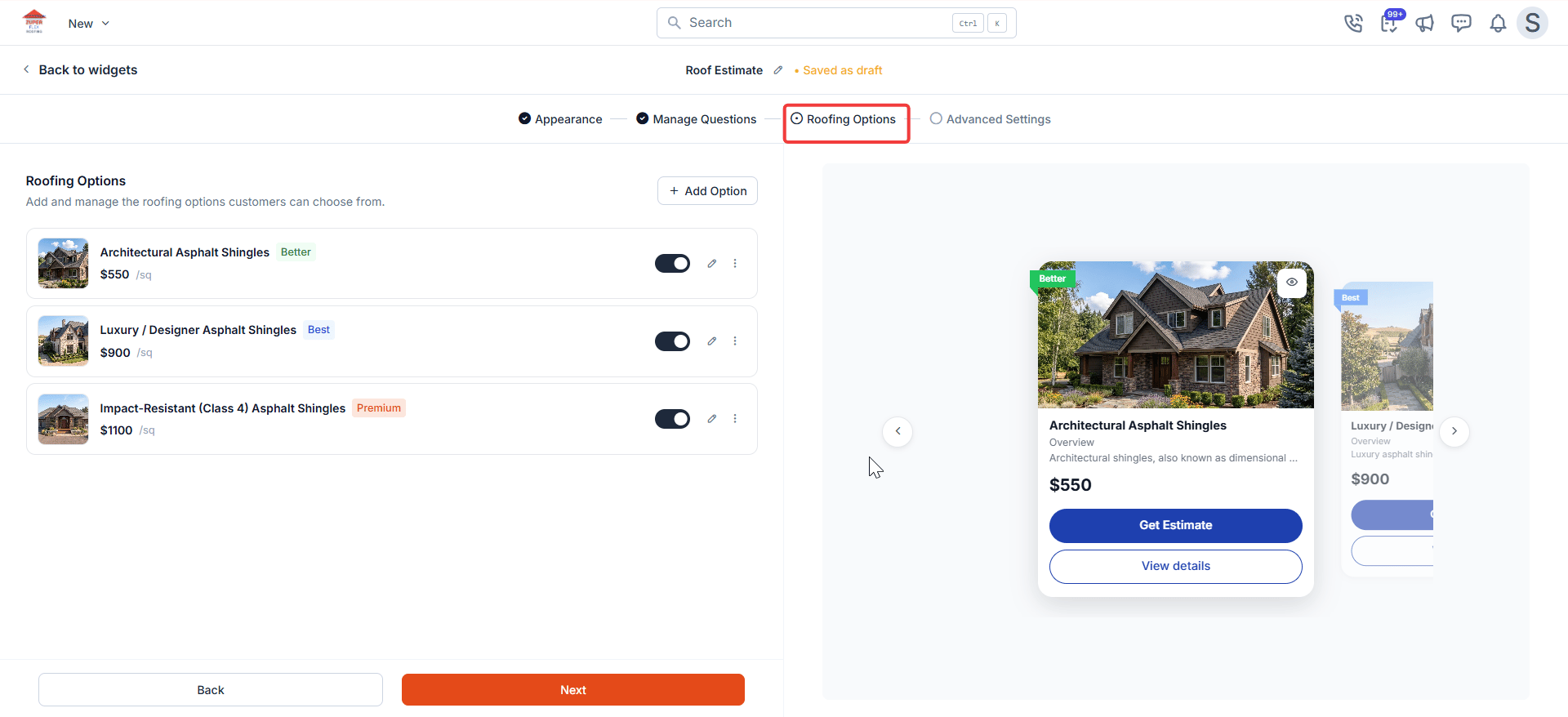 **Note**: Default options are placeholders. If you activate without updating them, homeowners see placeholder names and pricing on the results page. Select the pencil icon on any default option tile to update it before you activate.
**Identity**
1. Enter a name in the **Name** field. This field is required. Use the product name your team uses.
2. Select a label from the **Label** dropdown. Choose from **Good**, **Better**, **Best**, or enter a custom label. The label appears as a badge on the homeowner estimate card and helps homeowners compare options at a glance.
3. Optionally, select **Upload images** to add a reference photo. The first image you upload becomes the thumbnail on the homeowner estimate card.
### Pricing
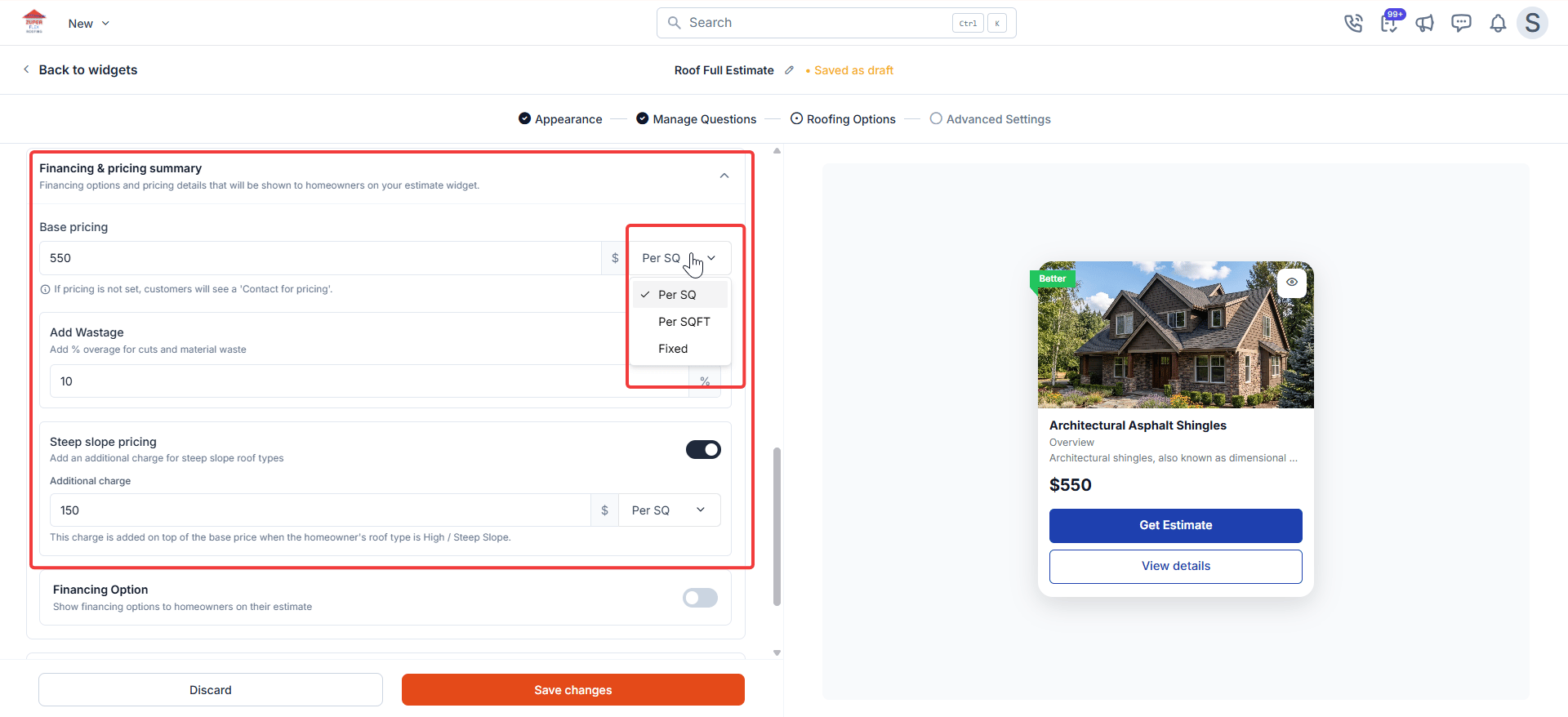
Pricing tells Zuper how to calculate the cost for this option based on the homeowner's roof size. Choose the model that matches how your business prices jobs.
1. Enter a value in the **Base pricing** field.
2. Select a pricing model from the dropdown:
| Model | When to use it |
| -------------- | --------------------------------------------------------------------------------------------------------------------------------------------------- |
| **Per SQ** | You price by the roofing square (100 sq ft). Zuper multiplies your rate by the calculated roof area. |
| **Per SQFT** | You price by the square foot. Zuper multiplies your rate by the calculated roof area. |
| **Fixed** | You charge a flat price regardless of roof size. Selecting **Fixed** disables the **Add Wastage** and **Steep slope pricing** fields automatically. |
| **Percentage** | A percentage price regardless of roof size. This does not apply to base pricing. |
3. To account for material waste, enter a percentage in the **Add Wastage** field. Zuper adds this to the calculated roof area before applying your unit price. A wastage factor of 10–15% is typical for most roofing jobs.
**Note**: Leaving the base price empty affects what homeowners see on the results page:
* If **Hide options without pricing** is off: The option still appears, but shows a **Contact for pricing** button instead of a price.
* If **Hide options without pricing** is on: The option is removed from the results page entirely.
You can find this setting under **Advanced Settings → Pricing settings**.
### Steep slope pricing
If your pricing changes for steep roofs, turn on the **Steep slope pricing** toggle and enter the additional amount. Zuper applies this surcharge automatically when a homeowner selects a steep roof type; you do not need a separate option for steep roofs.
Select a unit of measure for the surcharge from the dropdown:
| Unit of measure | How it works |
| --------------- | ----------------------------------------------------------------------------- |
| **Per SQ** | Additional charge per roofing square, added on top of the base price. |
| **Per SQFT** | Additional charge per square foot, added on top of the base price. |
| **Fixed** | A flat dollar amount added on top of the base price, regardless of roof size. |
| **Percentage** | A percentage of the calculated base price, added on top of it. |
**Note**: Default options are placeholders. If you activate without updating them, homeowners see placeholder names and pricing on the results page. Select the pencil icon on any default option tile to update it before you activate.
**Identity**
1. Enter a name in the **Name** field. This field is required. Use the product name your team uses.
2. Select a label from the **Label** dropdown. Choose from **Good**, **Better**, **Best**, or enter a custom label. The label appears as a badge on the homeowner estimate card and helps homeowners compare options at a glance.
3. Optionally, select **Upload images** to add a reference photo. The first image you upload becomes the thumbnail on the homeowner estimate card.
### Pricing
Pricing tells Zuper how to calculate the cost for this option based on the homeowner's roof size. Choose the model that matches how your business prices jobs.
1. Enter a value in the **Base pricing** field.
2. Select a pricing model from the dropdown:
| Model | When to use it |
| -------------- | --------------------------------------------------------------------------------------------------------------------------------------------------- |
| **Per SQ** | You price by the roofing square (100 sq ft). Zuper multiplies your rate by the calculated roof area. |
| **Per SQFT** | You price by the square foot. Zuper multiplies your rate by the calculated roof area. |
| **Fixed** | You charge a flat price regardless of roof size. Selecting **Fixed** disables the **Add Wastage** and **Steep slope pricing** fields automatically. |
| **Percentage** | A percentage price regardless of roof size. This does not apply to base pricing. |
3. To account for material waste, enter a percentage in the **Add Wastage** field. Zuper adds this to the calculated roof area before applying your unit price. A wastage factor of 10–15% is typical for most roofing jobs.
**Note**: Leaving the base price empty affects what homeowners see on the results page:
* If **Hide options without pricing** is off: The option still appears, but shows a **Contact for pricing** button instead of a price.
* If **Hide options without pricing** is on: The option is removed from the results page entirely.
You can find this setting under **Advanced Settings → Pricing settings**.
### Steep slope pricing
If your pricing changes for steep roofs, turn on the **Steep slope pricing** toggle and enter the additional amount. Zuper applies this surcharge automatically when a homeowner selects a steep roof type; you do not need a separate option for steep roofs.
Select a unit of measure for the surcharge from the dropdown:
| Unit of measure | How it works |
| --------------- | ----------------------------------------------------------------------------- |
| **Per SQ** | Additional charge per roofing square, added on top of the base price. |
| **Per SQFT** | Additional charge per square foot, added on top of the base price. |
| **Fixed** | A flat dollar amount added on top of the base price, regardless of roof size. |
| **Percentage** | A percentage of the calculated base price, added on top of it. |
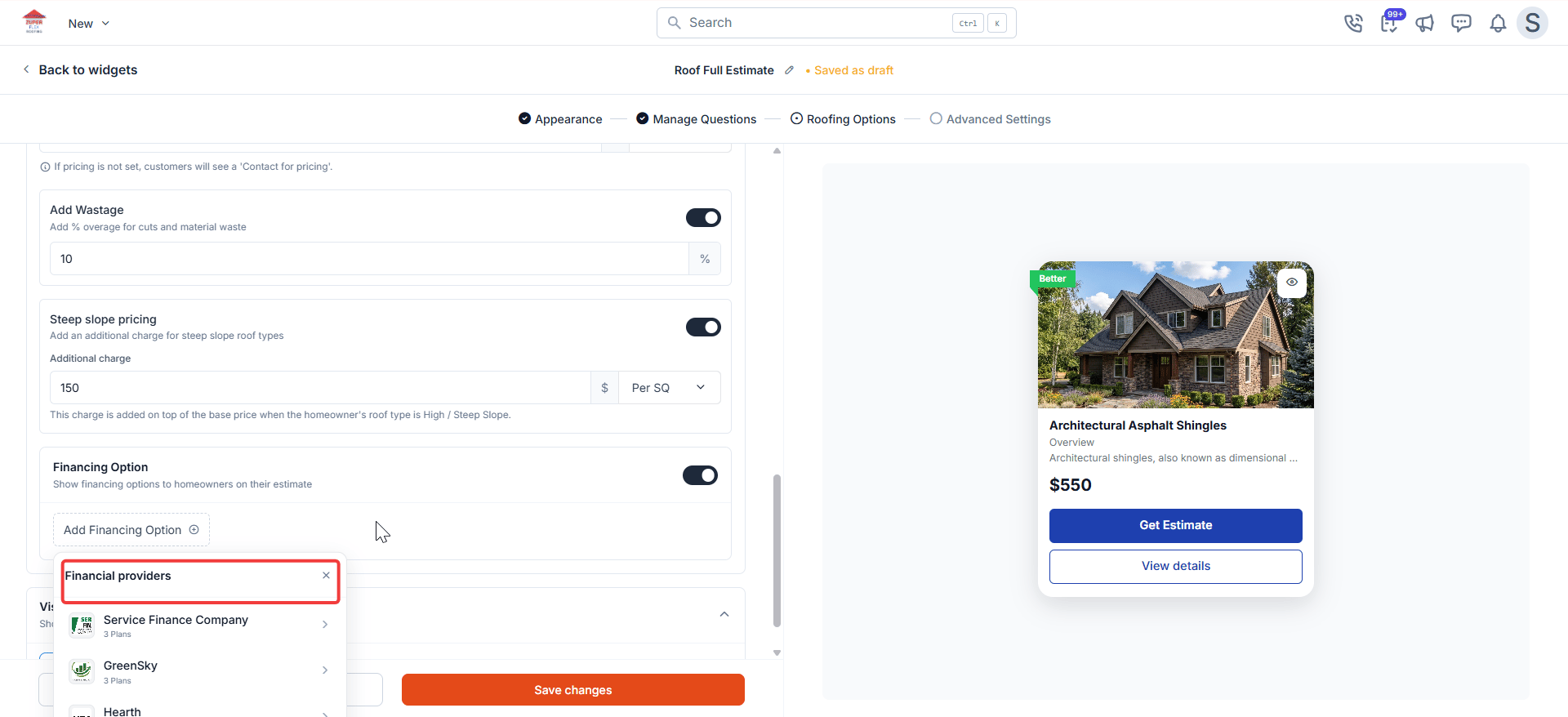
 ### Financing
If you offer financing, selecting a plan here shows homeowners a financing summary on their estimate card: For example, *Pay as low as \$350/mo with financing*. It gives homeowners a way to think about affordability before they speak to you.
1. Under **Financing**, select one or more providers and plans from the list.
**Note**: The financing options available here depend on how your account is configured:
* **Standard accounts**: Financing providers and plans set up under **Settings → Quotes & Invoicing** appear here.
* **CPQ-enabled accounts**: Custom financing options configured in your CPQ settings appear here instead. See [Configuring financing options](#) for setup instructions.
### Financing
If you offer financing, selecting a plan here shows homeowners a financing summary on their estimate card: For example, *Pay as low as \$350/mo with financing*. It gives homeowners a way to think about affordability before they speak to you.
1. Under **Financing**, select one or more providers and plans from the list.
**Note**: The financing options available here depend on how your account is configured:
* **Standard accounts**: Financing providers and plans set up under **Settings → Quotes & Invoicing** appear here.
* **CPQ-enabled accounts**: Custom financing options configured in your CPQ settings appear here instead. See [Configuring financing options](#) for setup instructions.
 ### Details and specifications
Use the rich text editor to add product highlights, what is included, warranty and guarantee details, and any other specifications that matter. This is what homeowners read when they select **View details** on your option card. Your chance to tell the full story of the product and why it's worth choosing.
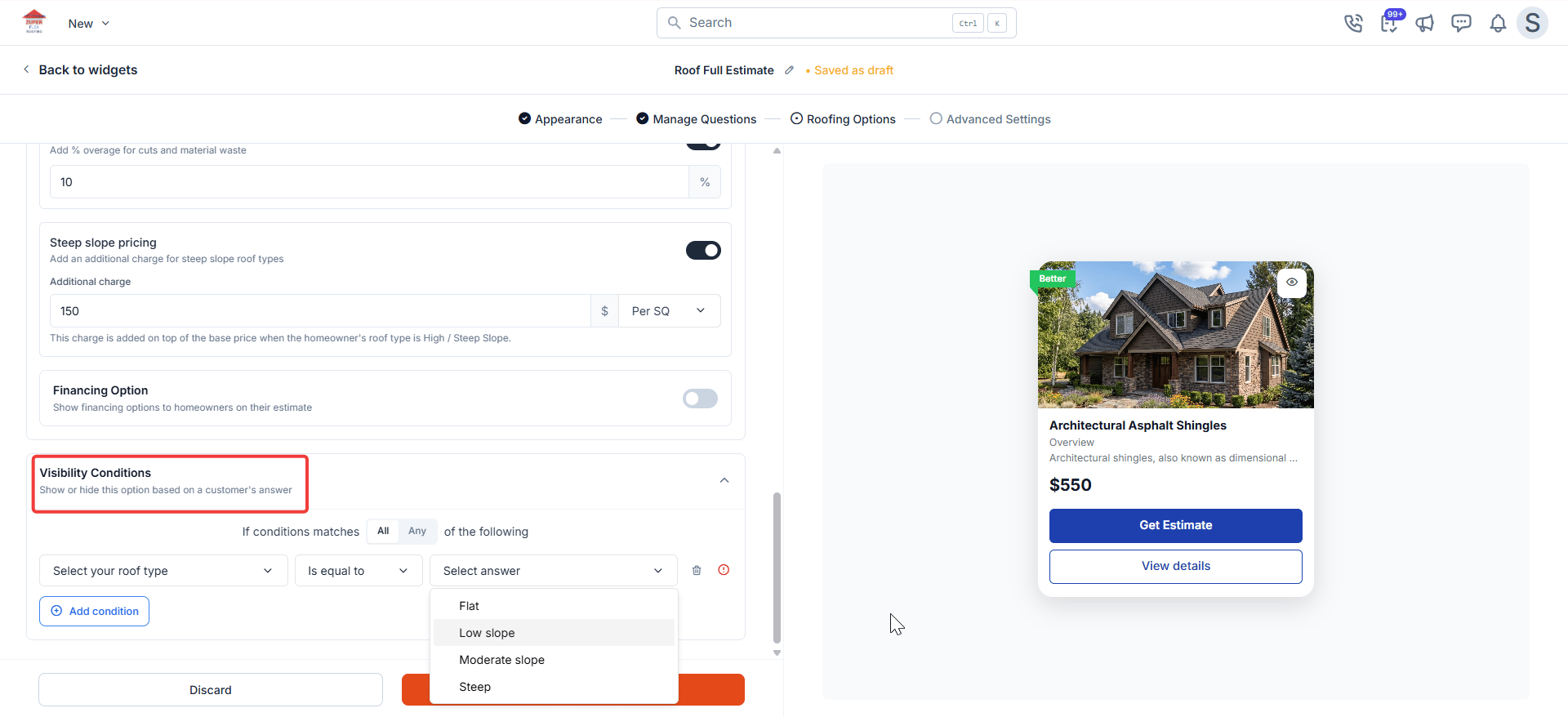
### Visibility conditions
Visibility conditions let you show or hide an option based on how a homeowner answers your questions. Used well, they make the results page feel tailored to the homeowner rather than a generic list.
Turn on the **Visibility conditions** toggle, then define your rules. Each rule takes the form: **Show this option when** \[question] \[operator] \[value], or **Hide this option when** \[question] \[operator] \[value]. Use **AND** when all conditions must be true, or **OR** when any one condition is enough.
Use visibility conditions to keep the estimate relevant. For example, hide a metal roofing option when a homeowner selects a very small roof area, or show a premium option only when they indicate they want a full replacement.
### Details and specifications
Use the rich text editor to add product highlights, what is included, warranty and guarantee details, and any other specifications that matter. This is what homeowners read when they select **View details** on your option card. Your chance to tell the full story of the product and why it's worth choosing.
### Visibility conditions
Visibility conditions let you show or hide an option based on how a homeowner answers your questions. Used well, they make the results page feel tailored to the homeowner rather than a generic list.
Turn on the **Visibility conditions** toggle, then define your rules. Each rule takes the form: **Show this option when** \[question] \[operator] \[value], or **Hide this option when** \[question] \[operator] \[value]. Use **AND** when all conditions must be true, or **OR** when any one condition is enough.
Use visibility conditions to keep the estimate relevant. For example, hide a metal roofing option when a homeowner selects a very small roof area, or show a premium option only when they indicate they want a full replacement.
 Select **Save changes** to save the option and return to the **Roofing Options** list.
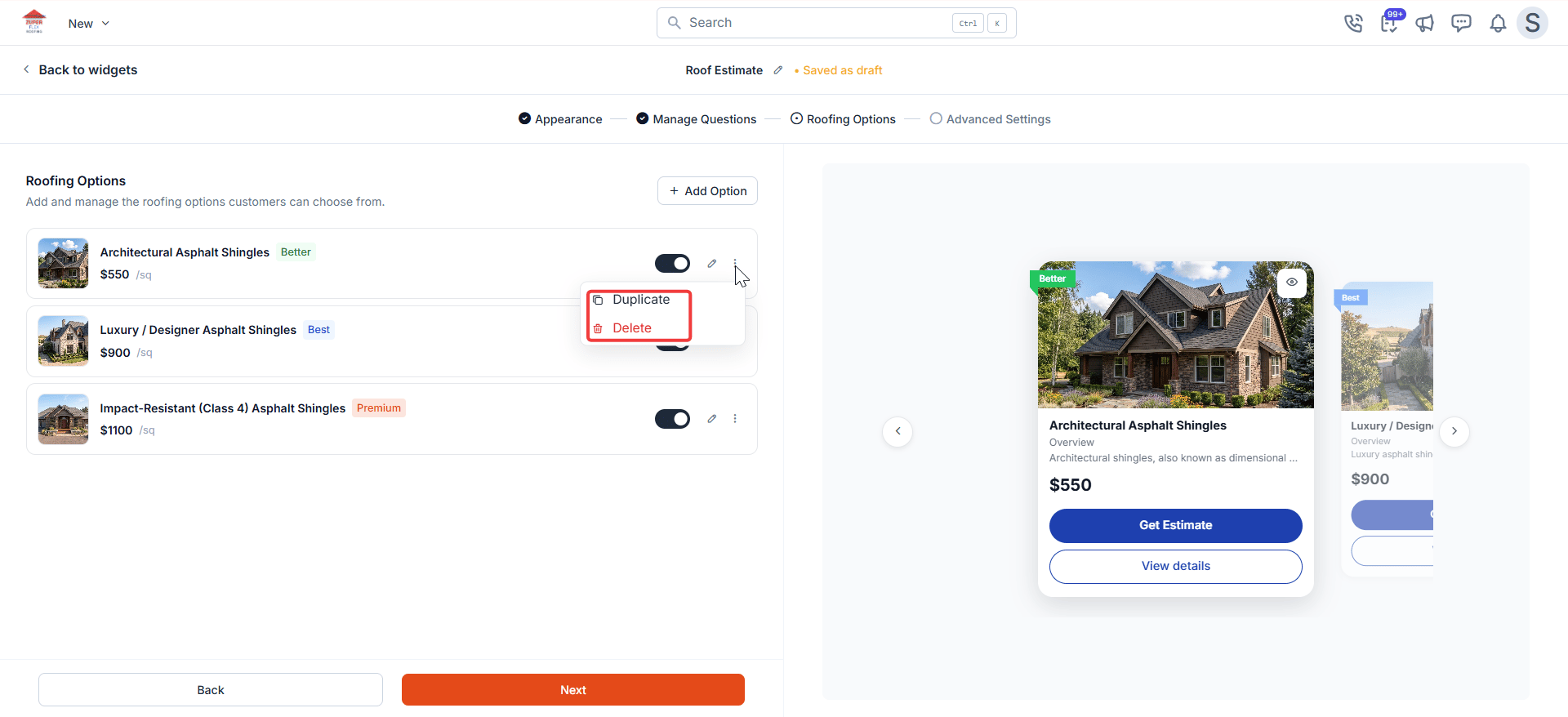
### Manage existing options
Each option tile shows a toggle to activate or deactivate it without deleting it. Select the pencil icon to edit an option, or the three-dot menu to duplicate or delete it. The live preview on the right updates as you make changes. Select any card in the preview carousel to see the full detail view.
Select **Save changes** to save the option and return to the **Roofing Options** list.
### Manage existing options
Each option tile shows a toggle to activate or deactivate it without deleting it. Select the pencil icon to edit an option, or the three-dot menu to duplicate or delete it. The live preview on the right updates as you make changes. Select any card in the preview carousel to see the full detail view.
 When all your options are configured, select **Next** to proceed to **Advanced Settings**.
## Advanced settings
**Advanced Settings** is where you decide how prices appear to homeowners, what Zuper creates when someone submits, and how your team gets notified. Most of these are one-time choices you set once and rarely revisit.
### Price display
By default, the widget shows homeowners an exact calculated price. To show a range instead to - account for variables your team discovers on-site, turn on **Price Range** and set your buffers.
* **Lower range (−%)**: How far below the calculated price the range starts. For example, a 10% lower buffer on a $10,000 estimate sets the lower bound at $9,000.
* **Upper range (+%)**: How far above the calculated price the range ends. For example, a 20% upper buffer on a $10,000 estimate sets the upper bound at $12,000.
When all your options are configured, select **Next** to proceed to **Advanced Settings**.
## Advanced settings
**Advanced Settings** is where you decide how prices appear to homeowners, what Zuper creates when someone submits, and how your team gets notified. Most of these are one-time choices you set once and rarely revisit.
### Price display
By default, the widget shows homeowners an exact calculated price. To show a range instead to - account for variables your team discovers on-site, turn on **Price Range** and set your buffers.
* **Lower range (−%)**: How far below the calculated price the range starts. For example, a 10% lower buffer on a $10,000 estimate sets the lower bound at $9,000.
* **Upper range (+%)**: How far above the calculated price the range ends. For example, a 20% upper buffer on a $10,000 estimate sets the upper bound at $12,000.
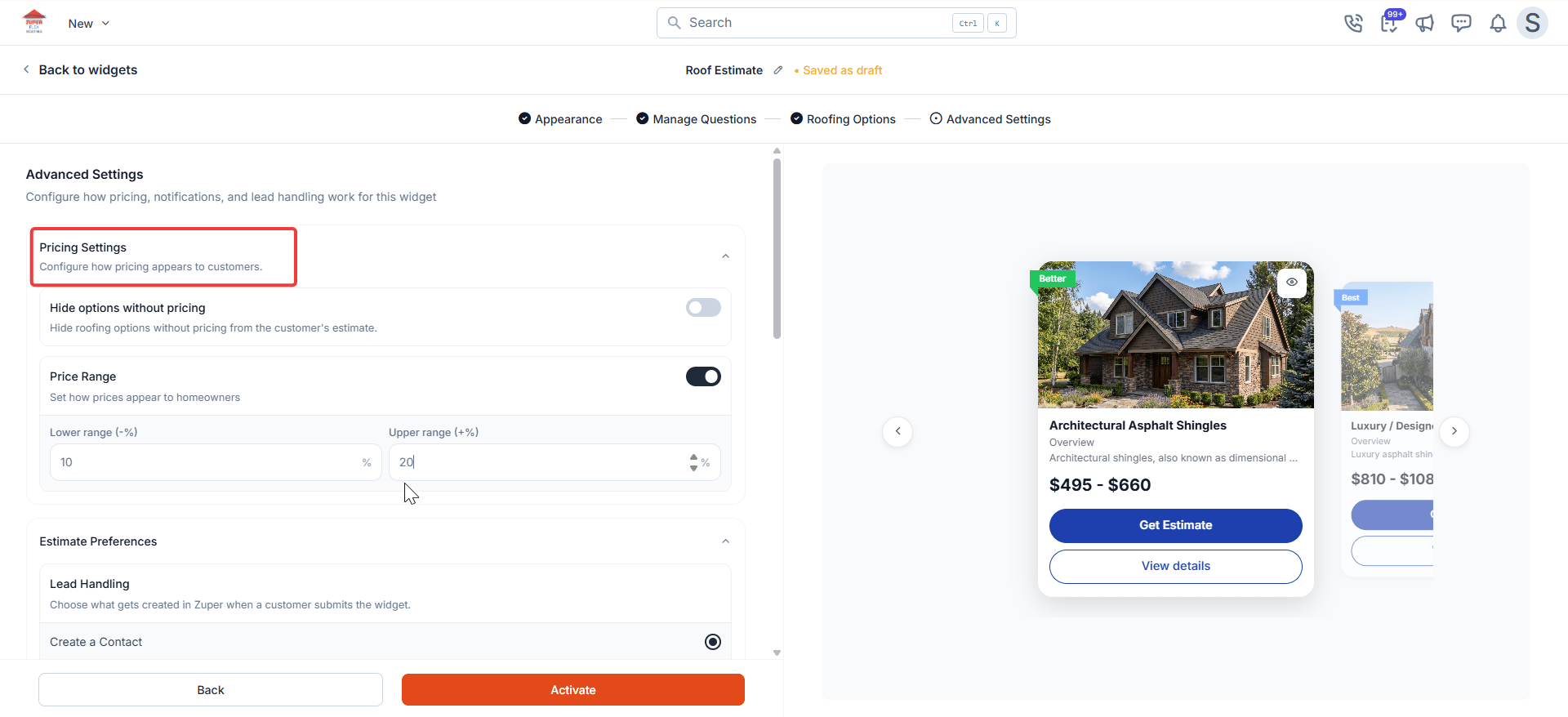 **Tip**: Setting both buffers to 0% displays the exact calculated price with no range. Use price buffers to account for variables your team discovers during an on-site inspection.
### Lead handling
This setting controls what lands in your Zuper account the moment a homeowner submits; before your team has seen the lead.
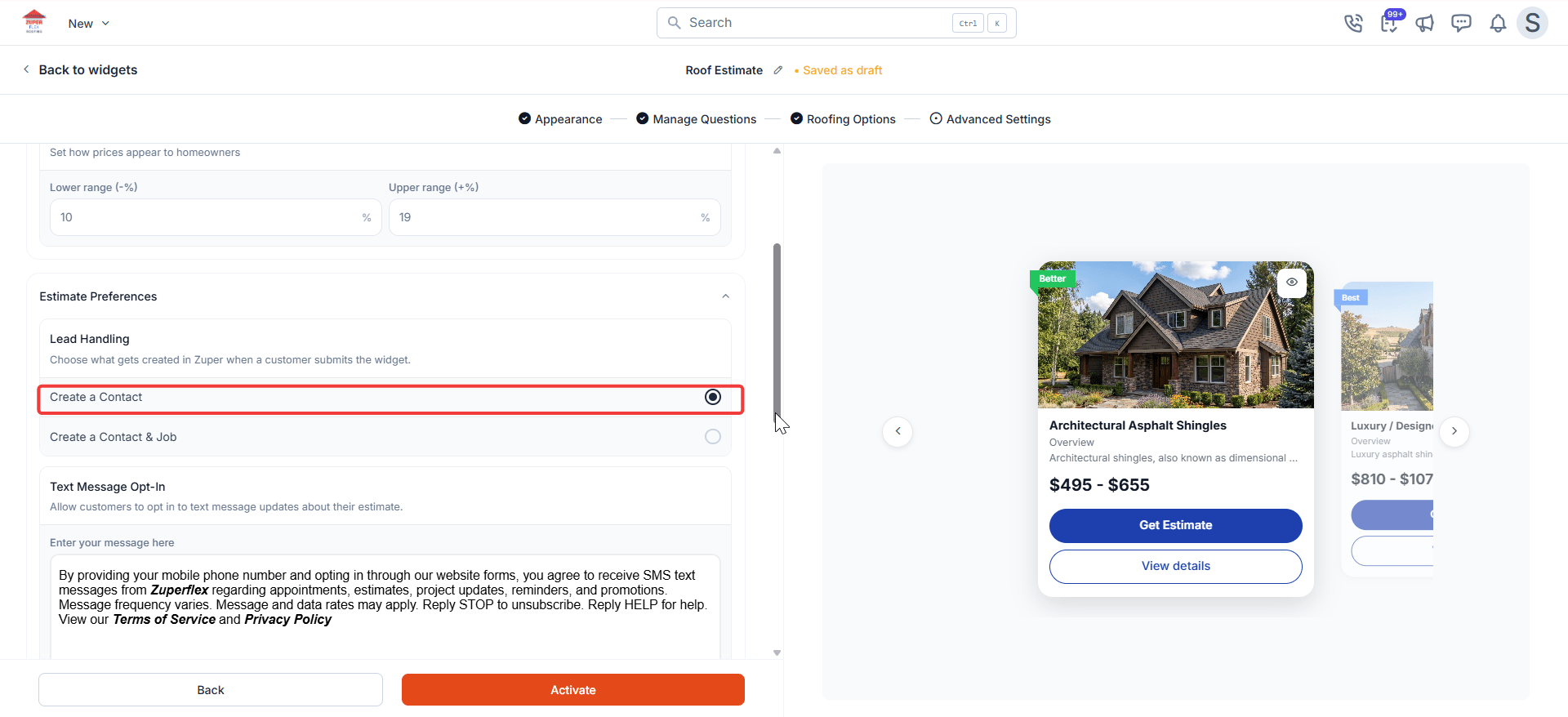
* Select **Create a Contact** if you want to review leads manually before they enter your pipeline. Zuper captures the homeowner's details. Nothing else is created until your team acts on it.
**Tip**: Setting both buffers to 0% displays the exact calculated price with no range. Use price buffers to account for variables your team discovers during an on-site inspection.
### Lead handling
This setting controls what lands in your Zuper account the moment a homeowner submits; before your team has seen the lead.
* Select **Create a Contact** if you want to review leads manually before they enter your pipeline. Zuper captures the homeowner's details. Nothing else is created until your team acts on it.
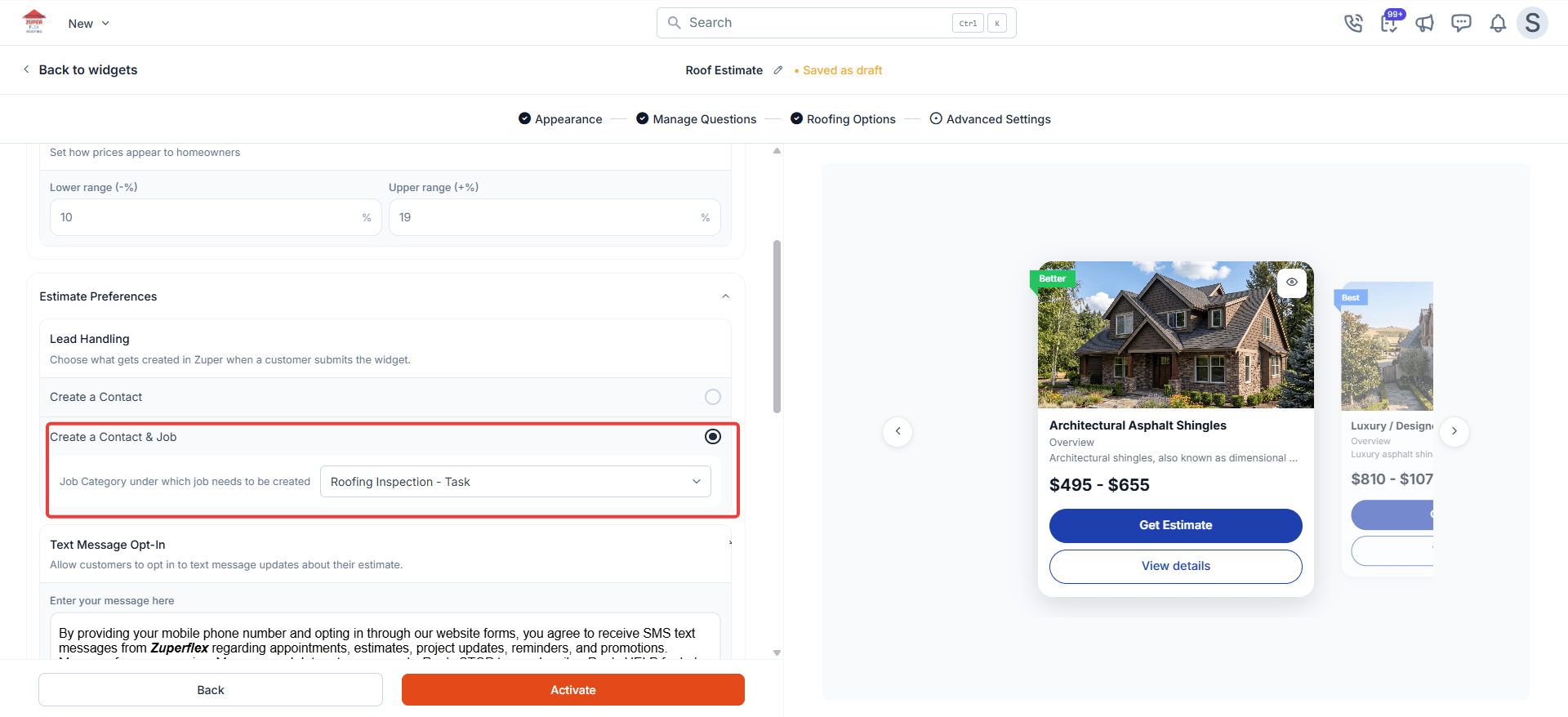
 * Select **Create a Contact & Job** if you want leads to flow straight into your pipeline automatically. Zuper creates the contact, opens a job under the category you choose, and your team can act on it immediately. A **Job Category** field appears: Select the category the job should be filed under.
 **Note**: Zuper applies deduplication logic on submission. If a contact with the same phone number already exists in your account, Zuper uses the existing record rather than creating a duplicate.
### Text message opt-in
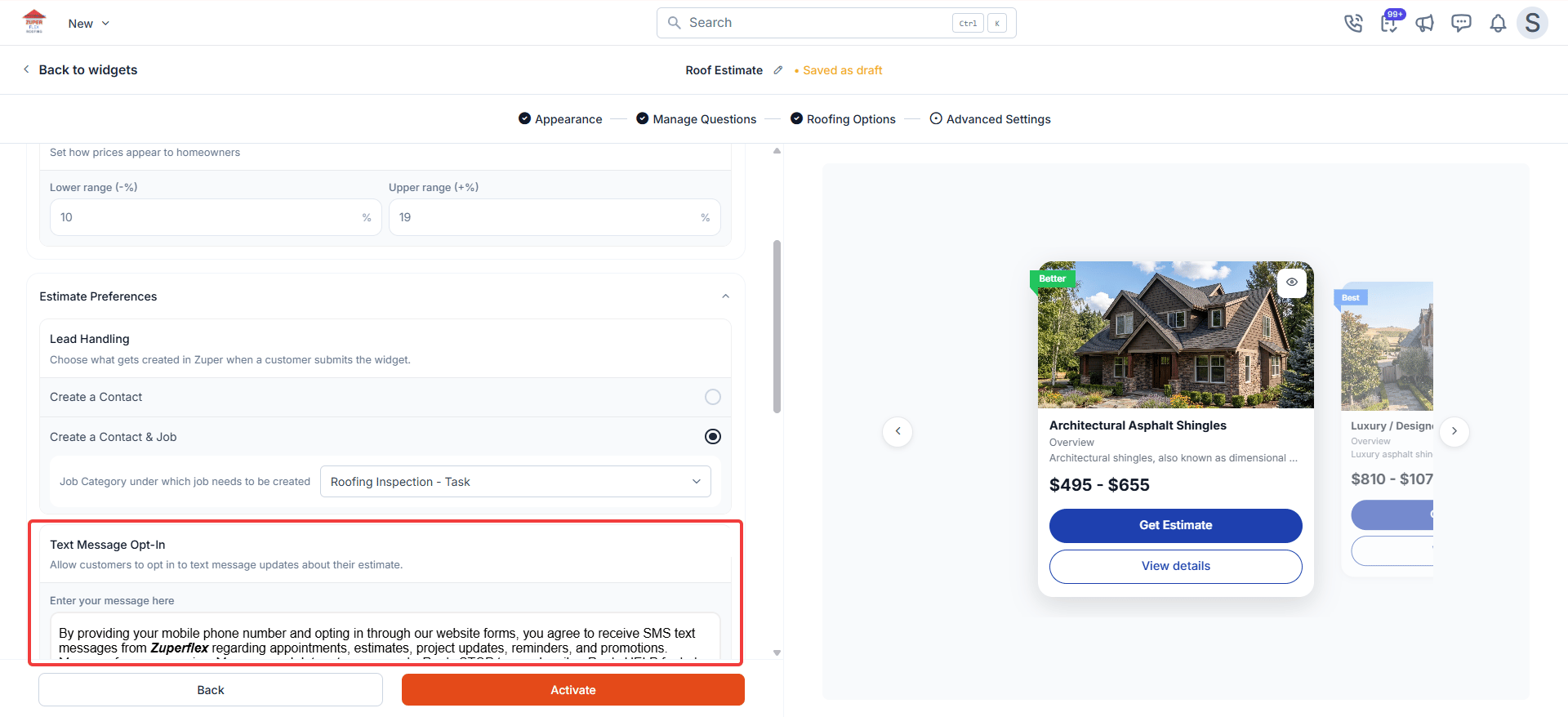
If you want homeowners to opt in to text message updates, turn on **Text Message Opt-In**. A consent message field appears where you write the opt-in text homeowners see at the contact details step. Checking it is optional, homeowners can submit without selecting it, but having it in place means you can legally send SMS follow-ups to those who do opt in.
**Note**: Zuper applies deduplication logic on submission. If a contact with the same phone number already exists in your account, Zuper uses the existing record rather than creating a duplicate.
### Text message opt-in
If you want homeowners to opt in to text message updates, turn on **Text Message Opt-In**. A consent message field appears where you write the opt-in text homeowners see at the contact details step. Checking it is optional, homeowners can submit without selecting it, but having it in place means you can legally send SMS follow-ups to those who do opt in.
 ### Out-of-service territory message
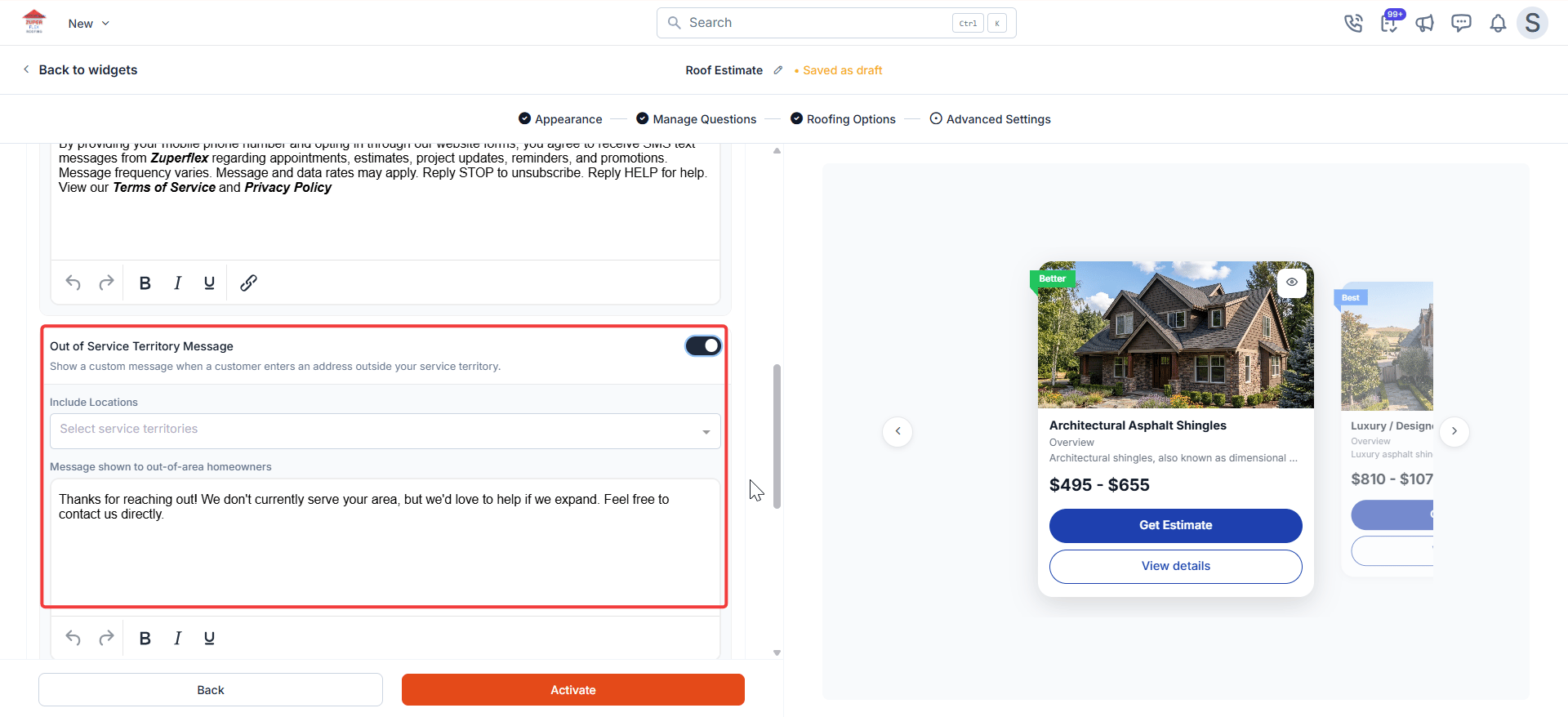
If your business only covers certain areas, turn on **Out of Service Territory Message** and select your service territories from the **Include Locations** field. Homeowners outside your coverage area see your custom message instead of an estimate. This prevents leads you cannot convert and sets honest expectations upfront.
### Out-of-service territory message
If your business only covers certain areas, turn on **Out of Service Territory Message** and select your service territories from the **Include Locations** field. Homeowners outside your coverage area see your custom message instead of an estimate. This prevents leads you cannot convert and sets honest expectations upfront.
 ### Customer notifications
Set up how Zuper communicates with homeowners and your team after every submission.
1. From the **Send From** dropdown, select the email address homeowners see as the sender when they receive their estimate. Only addresses configured under **Settings → Notifications** appear here.
2. In the **CC** field, enter any internal email addresses that should receive a copy of every homeowner estimate email.
3. From the **Select Email Template** dropdown, choose the template Zuper sends to homeowners after they submit. Select **Email preview** to review the template content before you activate.
### Customer notifications
Set up how Zuper communicates with homeowners and your team after every submission.
1. From the **Send From** dropdown, select the email address homeowners see as the sender when they receive their estimate. Only addresses configured under **Settings → Notifications** appear here.
2. In the **CC** field, enter any internal email addresses that should receive a copy of every homeowner estimate email.
3. From the **Select Email Template** dropdown, choose the template Zuper sends to homeowners after they submit. Select **Email preview** to review the template content before you activate.
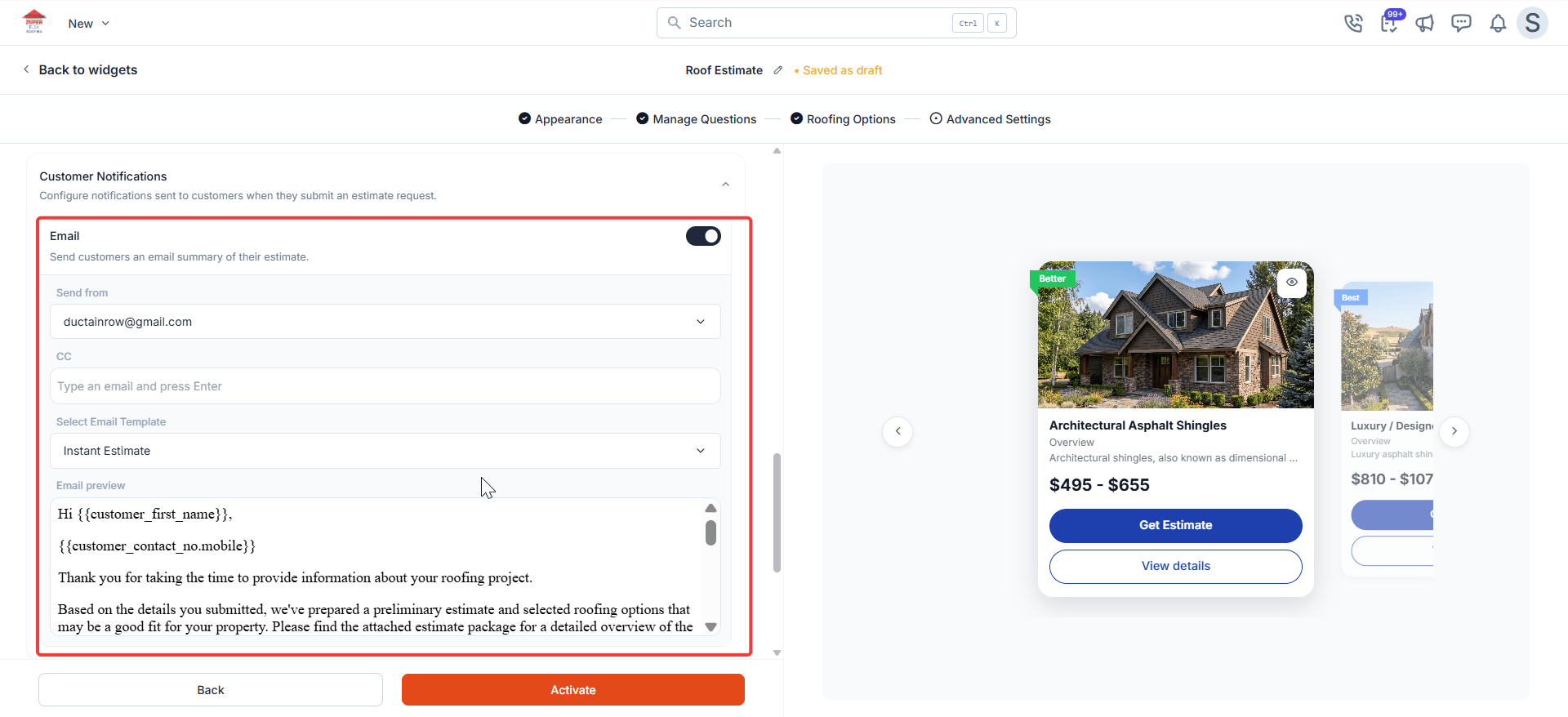 Note: If your account uses a custom SMTP configuration, estimate emails are sent through your own mail server instead of Zuper's default. The **Send From** address must be verified in your SMTP settings before it appears here. See [Configuring SMTP for outbound email](#) for setup instructions.
If the email template you select here is later deleted, Zuper will not send any email to homeowners for future submissions. Remove the template association from the widget before deleting the template.
### Contact details
Turn on **Show contact details on estimate** to display a team member's name, photo, phone number, and email on the homeowner results page. The email address and phone number can be modified. Homeowners can reach out directly with questions before selecting an option.
* Select the team member from the list.
Note: If your account uses a custom SMTP configuration, estimate emails are sent through your own mail server instead of Zuper's default. The **Send From** address must be verified in your SMTP settings before it appears here. See [Configuring SMTP for outbound email](#) for setup instructions.
If the email template you select here is later deleted, Zuper will not send any email to homeowners for future submissions. Remove the template association from the widget before deleting the template.
### Contact details
Turn on **Show contact details on estimate** to display a team member's name, photo, phone number, and email on the homeowner results page. The email address and phone number can be modified. Homeowners can reach out directly with questions before selecting an option.
* Select the team member from the list.
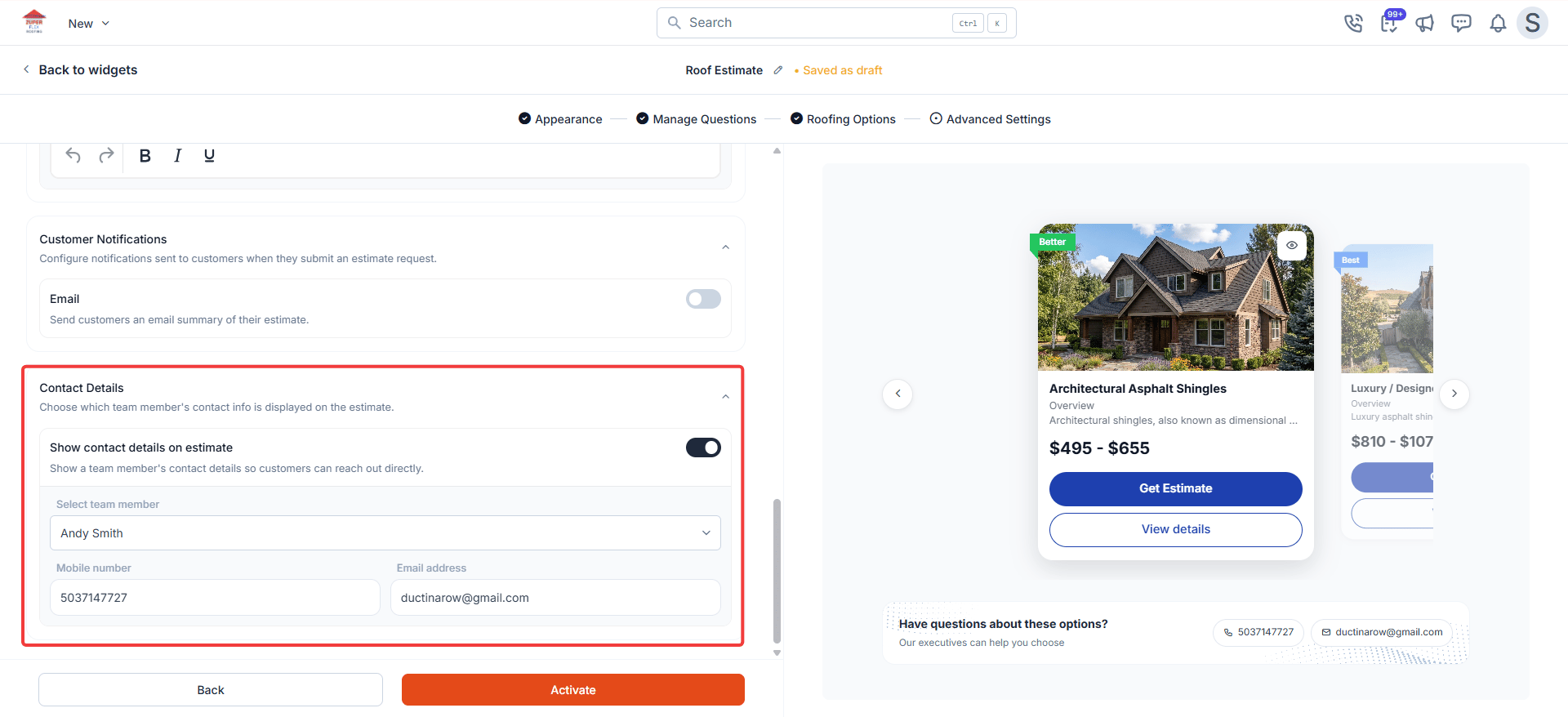 If the selected team member is later removed from Zuper, the first active user in your account appears as a fallback on the homeowner results page. No action is needed on the job record.
## Activate your widget
Before you go live, take a moment to preview the widget as a homeowner would see it. It is much easier to spot something that does not look right now than after you have shared the link.
If the selected team member is later removed from Zuper, the first active user in your account appears as a fallback on the homeowner results page. No action is needed on the job record.
## Activate your widget
Before you go live, take a moment to preview the widget as a homeowner would see it. It is much easier to spot something that does not look right now than after you have shared the link.
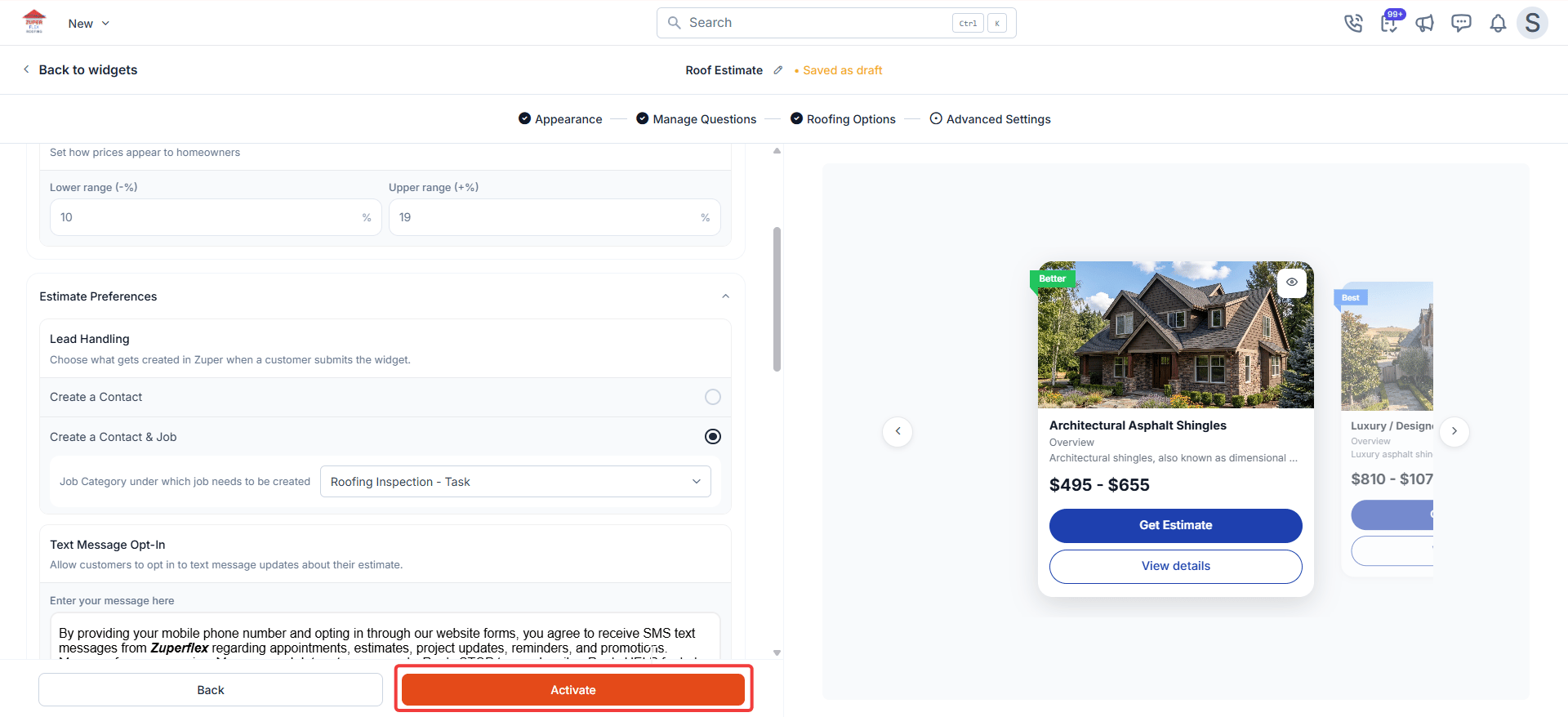 1. Review all settings across the four steps. Use the step indicators at the top to go back and make changes at any time.
2. Select **Activate** at the bottom of the page. A confirmation modal appears showing:
* The public widget URL
* A QR code you can download as a PNG
* An embed code (**Script** or **iFrame**) you can copy and paste onto your website
3. Select **Preview Widget** to open the live widget in your browser. Check it on desktop and on your phone, most homeowners will find the widget on mobile.
4. Select **Go to home** to return to the **Instant Estimate** listing page.
**Note**: Your widget is now live. Any homeowner who visits the link, scans the QR code, or finds the embed on your website can complete an estimate request immediately.
## Edit an activated widget
You can edit an activated widget at any time without taking it offline. Changes do not go live until you re-activate.
1. Go to **Settings → Instant Estimate**.
2. Select the three-dot menu on the widget card and select **Edit**.
3. Make your changes across any step of the wizard.
4. Select **Activate** to push the updated version live.
1. Review all settings across the four steps. Use the step indicators at the top to go back and make changes at any time.
2. Select **Activate** at the bottom of the page. A confirmation modal appears showing:
* The public widget URL
* A QR code you can download as a PNG
* An embed code (**Script** or **iFrame**) you can copy and paste onto your website
3. Select **Preview Widget** to open the live widget in your browser. Check it on desktop and on your phone, most homeowners will find the widget on mobile.
4. Select **Go to home** to return to the **Instant Estimate** listing page.
**Note**: Your widget is now live. Any homeowner who visits the link, scans the QR code, or finds the embed on your website can complete an estimate request immediately.
## Edit an activated widget
You can edit an activated widget at any time without taking it offline. Changes do not go live until you re-activate.
1. Go to **Settings → Instant Estimate**.
2. Select the three-dot menu on the widget card and select **Edit**.
3. Make your changes across any step of the wizard.
4. Select **Activate** to push the updated version live.
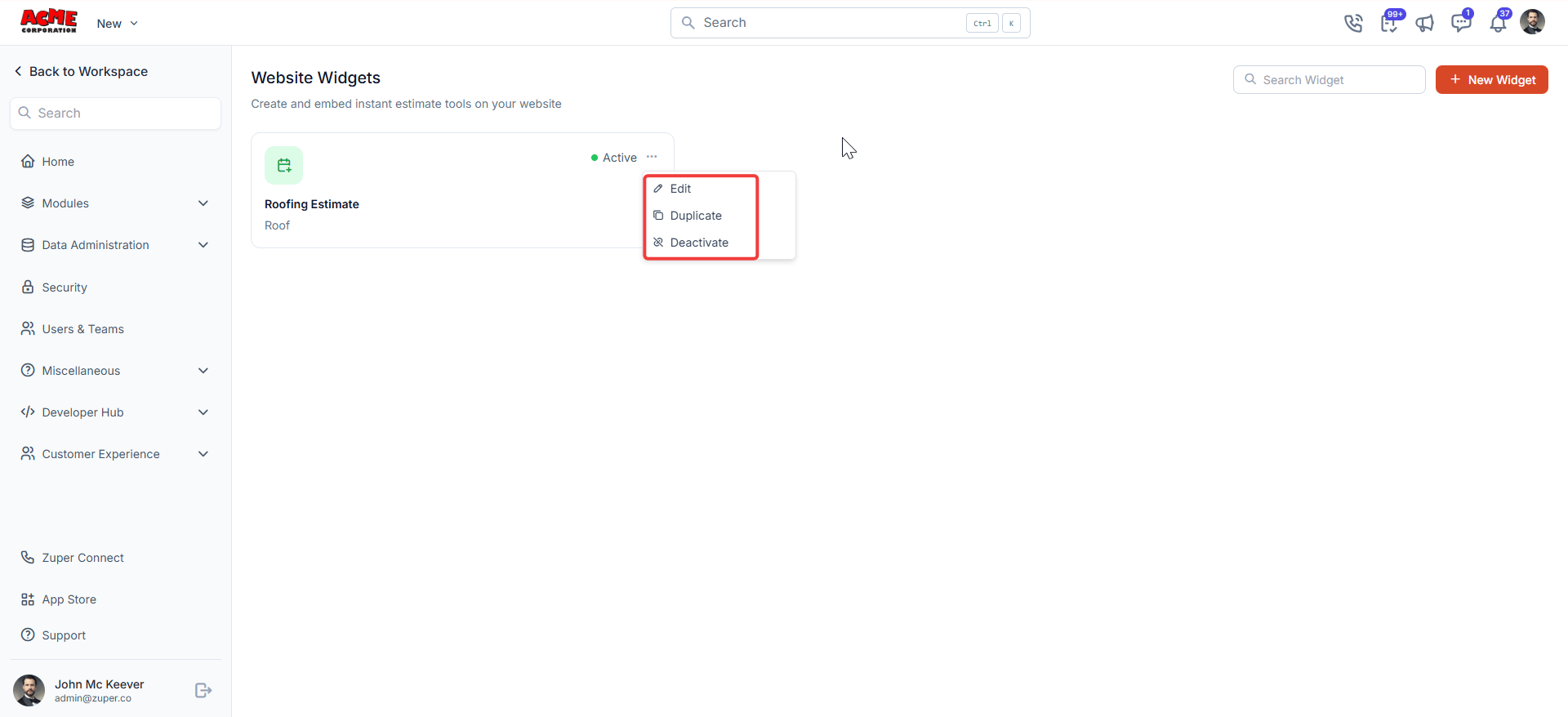 **Note**: Until you re-activate, homeowners continue to see the previously activated version of the widget. Unpublished changes are not visible to homeowners.
## FAQs
For most contractors, the first widget takes 15 to 30 minutes. Appearance and questions are quick. Roofing options take the most time because you are entering your actual products and pricing. Once you have done one widget, duplicating and adjusting it for a second takes a fraction of the time.
Yes. On the Instant Estimate listing page, select the three-dot menu on any widget card and select **Duplicate**. Zuper creates a copy in Draft status, preserving all settings. Open the duplicate, make your changes, and activate when ready.
Yes. Select the pencil icon next to any default question to edit the label text inline. You cannot change the question type or delete a default question, but you can rename it to match your terminology — for example, changing "Select your roof type" to "What type of roof do you currently have?"
Yes. You can create as many widgets as you need from the Instant Estimate listing page. Each widget is fully independent — it has its own branding, questions, roofing options, pricing, lead handling, and embed code. Changes to one widget do not affect any other.
After activating, open the widget detail page and select the **Share** tab, then select **Embed code**. You see two tabs: **Script** and **iFrame**.
Paste the Script snippet before the closing `` tag on any page where you want the widget to appear. Paste the iFrame anywhere in the page body — this works with most website builders, including WordPress, Wix, and Squarespace, without extra configuration.
If you need help placing the code, contact your web developer or the support team for your website platform.
**Note**: Until you re-activate, homeowners continue to see the previously activated version of the widget. Unpublished changes are not visible to homeowners.
## FAQs
For most contractors, the first widget takes 15 to 30 minutes. Appearance and questions are quick. Roofing options take the most time because you are entering your actual products and pricing. Once you have done one widget, duplicating and adjusting it for a second takes a fraction of the time.
Yes. On the Instant Estimate listing page, select the three-dot menu on any widget card and select **Duplicate**. Zuper creates a copy in Draft status, preserving all settings. Open the duplicate, make your changes, and activate when ready.
Yes. Select the pencil icon next to any default question to edit the label text inline. You cannot change the question type or delete a default question, but you can rename it to match your terminology — for example, changing "Select your roof type" to "What type of roof do you currently have?"
Yes. You can create as many widgets as you need from the Instant Estimate listing page. Each widget is fully independent — it has its own branding, questions, roofing options, pricing, lead handling, and embed code. Changes to one widget do not affect any other.
After activating, open the widget detail page and select the **Share** tab, then select **Embed code**. You see two tabs: **Script** and **iFrame**.
Paste the Script snippet before the closing `` tag on any page where you want the widget to appear. Paste the iFrame anywhere in the page body — this works with most website builders, including WordPress, Wix, and Squarespace, without extra configuration.
If you need help placing the code, contact your web developer or the support team for your website platform.