> ## Documentation Index
> Fetch the complete documentation index at: https://docs.zuper.co/llms.txt
> Use this file to discover all available pages before exploring further.

# Managing Your Instant Estimate Widgets

> Share, edit, duplicate, and deactivate your instant estimate widgets from the Website Widgets page.

After you create a widget, you can share it with homeowners, update pricing, swap roofing options, and take a widget offline all from the **Website Widgets** page. This article walks you through every action available after a widget is created.

## The Website Widgets page

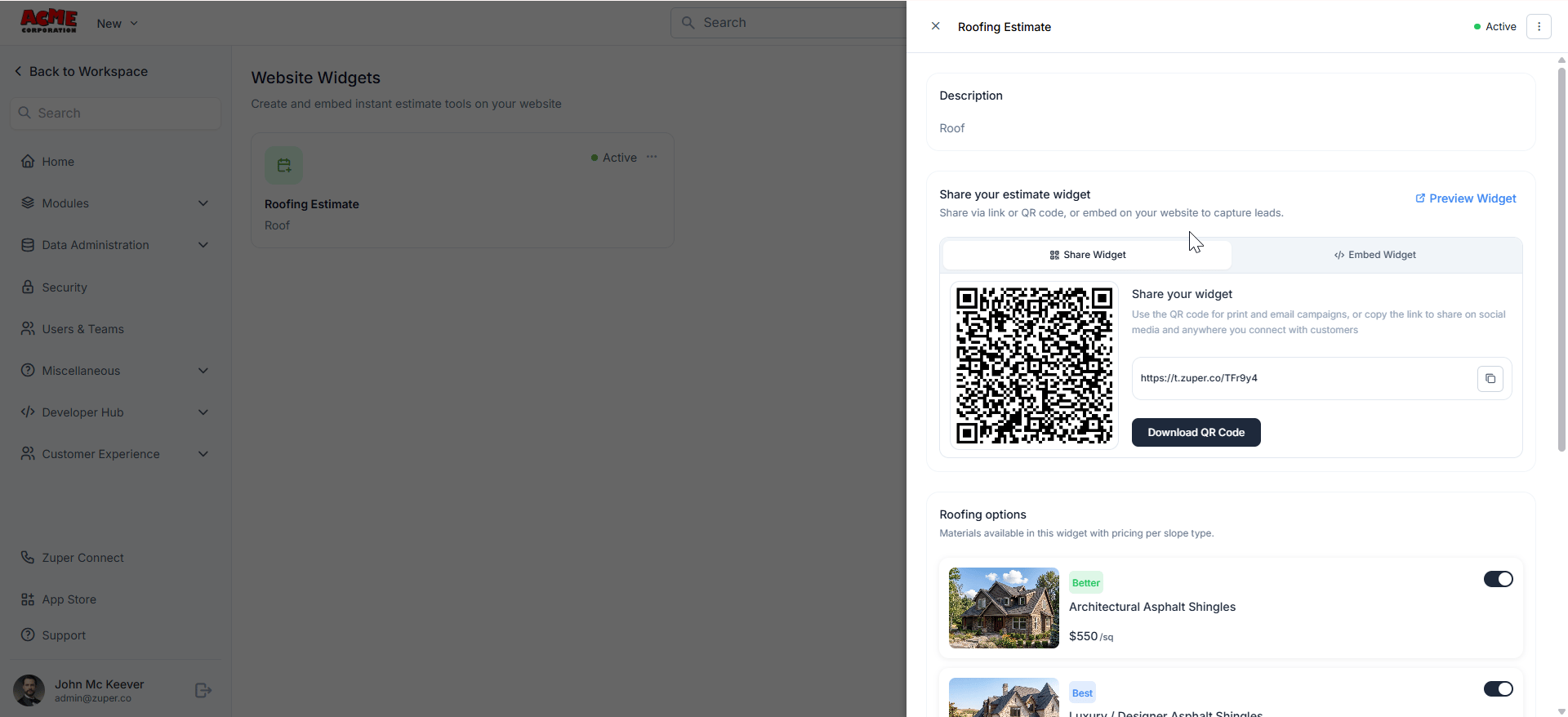
Go to **Settings** → **Customer Experience** → **Website Widget** to open the **Website Widgets** page. All widgets in your account appear as a grid. Each card shows:

* The widget name and description
* The widget type: For example, Instant Estimate
* A status badge: **Active**, **Draft**, or **Inactive**
* A three-dot menu for quick actions

Use the **Search Widget** field at the top right to find a specific widget by name.

### Widget statuses

| Status       | What it means                                                                                   |
| ------------ | ----------------------------------------------------------------------------------------------- |
| **Draft**    | The widget has been created but not yet activated. Homeowners cannot access it.                 |
| **Active**   | The widget is live. Homeowners can access it via the link, embed, or QR code.                   |
| **Inactive** | The widget has been deactivated. The link is offline and homeowners see an unavailable message. |

## Open a widget

Select any widget card to open its detail panel. The panel slides out on the right side of the screen; your widget list stays visible on the left.
<Frame>
  <img src="https://mintcdn.com/zuperinc/pTB7ewyszqPAXJ15/images/sidpanel1.png?fit=max&auto=format&n=pTB7ewyszqPAXJ15&q=85&s=7b00d4cde41caeb5f37762e2f5a150ed" alt="Sidpanel1" width="1920" height="878" data-path="images/sidpanel1.png" />
</Frame>

## Share your widget

After activation, you can share your widget with homeowners using three methods. All three are available from the widget detail panel.

### Copy the direct link

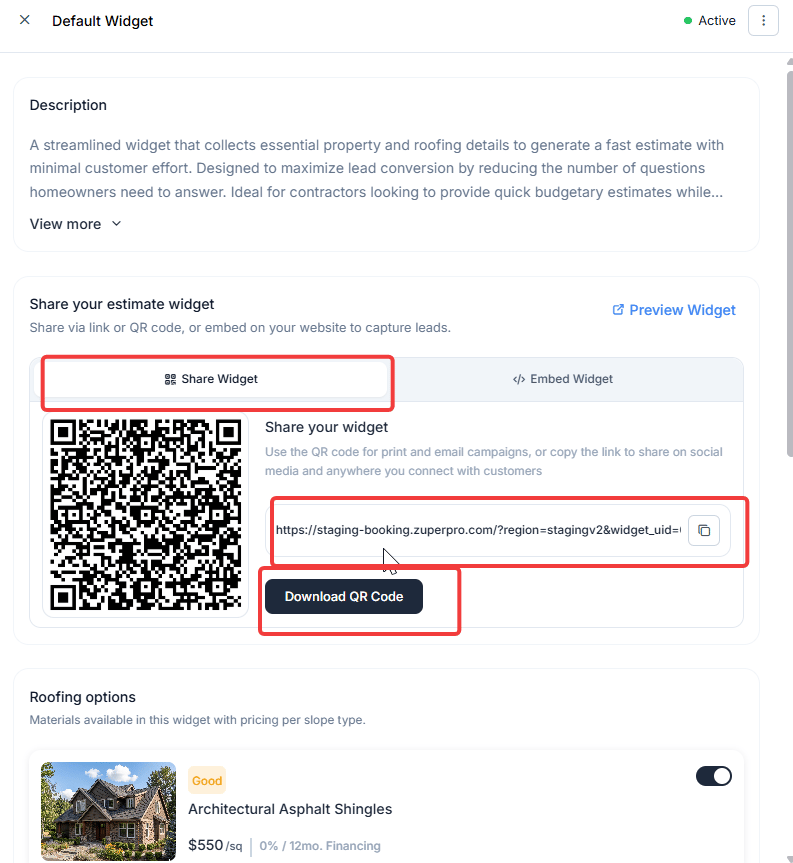
1. Open the widget detail panel and select the **Share Your Widget** tab.
2. Select the copy icon to the right of the URL field to copy the widget link to your clipboard.
3. Share the link via email, text message, your Google Business Profile, or your social media pages.

### Download the QR code

1. Open the widget detail panel and select the **Share Your Widget** tab.
2. Select **Download QR Code** to save the QR code as a PNG file.
3. Print it on business cards, truck wraps, yard signs, or any physical materials that homeowners can scan.
<Frame>
  <img src="https://mintcdn.com/zuperinc/V8l8gEbj5ewigidg/images/Crwid24-1.png?fit=max&auto=format&n=V8l8gEbj5ewigidg&q=85&s=c5f98ce9e75849831438928d31632ee2" alt="Crwid24 1" width="793" height="863" data-path="images/Crwid24-1.png" />
</Frame>

### Embed the widget on your website

1. Open the widget detail panel and select the **Embed Widget** tab.
2. Choose your preferred embed format:
   * **Script**: a JavaScript snippet. Paste it before the closing `</body>` tag on any page of your website.
   * **iFrame**: A standard HTML frame. Paste it anywhere in the body of your page. This works with most website builders, including WordPress, Wix, and Squarespace.
3. Select **Copy** next to your preferred option, then paste the code into your website.

<Note>
  **Note**: If you are not sure which embed option to use, start with **iFrame**: It works with most website builders without any additional setup.
</Note>

<Tip>
  **Tip**: If you need help placing the embedded widget on your website, contact your web developer or your website platform's support team. Zuper Support cannot assist with third-party website configuration.
</Tip>

<Frame>
  <img src="https://mintcdn.com/zuperinc/xFOizJ3qejy2jXeh/images/manwid2-1.png?fit=max&auto=format&n=xFOizJ3qejy2jXeh&q=85&s=88afb22528a509e94a69475767a2a270" alt="Manwid2 1" width="787" height="884" data-path="images/manwid2-1.png" />
</Frame>

<Frame>
  <img src="https://mintcdn.com/zuperinc/xFOizJ3qejy2jXeh/images/manwid3.png?fit=max&auto=format&n=xFOizJ3qejy2jXeh&q=85&s=9b39784d3ff1efba73e2dd7507089990" alt="Manwid3" width="781" height="865" data-path="images/manwid3.png" />
</Frame>

## Preview your widget

Select the **Preview Widget** on the widget detail panel to open the live homeowner-facing widget in your browser. Use this to check how your options, pricing, and branding appear to homeowners before sharing the link.

<Frame>
  <img src="https://mintcdn.com/zuperinc/xFOizJ3qejy2jXeh/images/manwid4.png?fit=max&auto=format&n=xFOizJ3qejy2jXeh&q=85&s=b3f9c4c22ec4b948b8dfd3f78763e137" alt="Manwid4" width="1875" height="876" data-path="images/manwid4.png" />
</Frame>

## Manage roofing options from the detail panel

The widget detail panel includes a **Roofing options** summary at the bottom. Each configured option appears with its name, price per unit, and an active/inactive toggle. Use the toggle to show or hide a specific option on the homeowner results page without opening the full editor.

To edit an option's name, pricing, or specifications, select **Edit** at the top of the panel to open the full setup wizard.

## Edit a widget

You can edit any widget: Draft or activated at any time.

1. On the **Website Widgets** page, select the three-dot menu on the widget card and select **Edit**. Alternatively, open the widget detail panel and select **Edit**.
2. Move through the wizard steps and make your changes.
3. Select **Activate** to save and push the changes live.

<Frame>
  <img src="https://mintcdn.com/zuperinc/yo2wtIjwyy4UK8Bb/images/editwid.png?fit=max&auto=format&n=yo2wtIjwyy4UK8Bb&q=85&s=01a1a7975debc7de7130a476780d247f" alt="Editwid" width="1920" height="878" data-path="images/editwid.png" />
</Frame>

Changes to an activated widget do not go live until you select **Activate**. Until then, homeowners continue to see the previous version of the widget.

You can navigate directly to any step in the wizard using the step indicators at the top, you do not need to move through each step in order when editing.

## Duplicate a widget

Duplicating a widget creates a copy in **Draft** status with all settings preserved; branding, questions, roofing options, pricing, and advanced settings. Use this to create a variation of an existing widget without rebuilding from scratch.

1. On the **Website Widgets** page, select the three-dot menu on the widget card and select **Duplicate**.
2. Zuper creates a copy with the prefix **Copy of** added to the widget name.
3. Select the duplicated widget card to open it.
4. Select **Edit** to update the name, settings, or options as needed.
5. Select **Activate** when the widget is ready to go live.

<Frame>
  <img src="https://mintcdn.com/zuperinc/yo2wtIjwyy4UK8Bb/images/delwid.png?fit=max&auto=format&n=yo2wtIjwyy4UK8Bb&q=85&s=87708647484d505c5f4976987ed22913" alt="Delwid" width="1920" height="878" data-path="images/delwid.png" />
</Frame>

<Tip>
  **Tip**: Use duplicate to create seasonal variations: For example, a storm damage widget active after severe weather without altering your primary widget.
</Tip>

## Activate or deactivate a widget

You can take a widget offline without deleting it. Deactivating preserves all settings so you can reactivate later.

### Deactivate a widget

1. On the **Website Widgets** page, select the three-dot menu on the widget card.
2. Select **Deactivate**. The status badge changes to **Inactive** immediately.

<Frame>
  <img src="https://mintcdn.com/zuperinc/yo2wtIjwyy4UK8Bb/images/dupwid.png?fit=max&auto=format&n=yo2wtIjwyy4UK8Bb&q=85&s=40238a42ff9a649406b1bb0d26aea036" alt="Dupwid" width="1920" height="878" data-path="images/dupwid.png" />
</Frame>

### Reactivate a widget

1. Select the three-dot menu on the inactive widget card.
2. Select **Activate**. The widget goes live immediately using the last activated version.

<Note>
  **Note**: When a widget is deactivated, homeowners who visit the link see a message that the widget is unavailable. No new contacts, properties, or jobs are created for visits during the inactive period. Your existing records are not affected.
</Note>

## Delete a widget

Deleting a widget permanently removes it and its public URL. This action cannot be undone.

1. On the **Website Widgets** page, select the three-dot menu on the widget card.
2. Select **Delete**.
3. Confirm the deletion in the prompt that appears.

<Frame>
  <img src="https://mintcdn.com/zuperinc/xFOizJ3qejy2jXeh/images/manwid8.png?fit=max&auto=format&n=xFOizJ3qejy2jXeh&q=85&s=74860a84b0e5c1767d286d7bf73ee3da" alt="Manwid8" width="612" height="200" data-path="images/manwid8.png" />
</Frame>

<Note>
  **Note**: Deleting an active widget immediately takes its public URL offline. Any homeowner who visits the link after deletion sees an error page. If you want to take a widget offline temporarily, deactivate it instead of deleting it.
</Note>

## Frequently asked questions

<AccordionGroup>
  <Accordion title="Can I rename a widget after activating it?">
    Yes. Open the widget, select **Edit**, and update the widget name at the top of the page. The name is for your internal reference only — homeowners do not see it. Select **Activate** to save the change.
  </Accordion>

  <Accordion title="Does duplicating a widget copy the roofing options and pricing too?">
    Yes. A duplicate preserves everything — branding, questions, all roofing options with their pricing, financing selections, visibility conditions, and advanced settings. The duplicate starts in **Draft** status so you can review and adjust before activating.
  </Accordion>

  <Accordion title="Can I have the same widget embedded on multiple pages of my website?">
    Yes. Copy the embed code once and paste it on as many pages as you need. All instances point to the same widget URL and use the same configuration.
  </Accordion>

  <Accordion title="What happens to homeowner submissions already in Zuper if I delete a widget?">
    Deleting a widget does not affect any contacts or jobs already created from previous submissions. Only the widget itself and its public URL are removed.
  </Accordion>

  <Accordion title="A homeowner says the widget link is not working. What should I check?">
    First, confirm the widget status is **Active** on the **Website Widgets** page. If the status is **Inactive** or **Draft**, the link does not work for homeowners. Activate the widget to restore access.

    If the issue continues, contact [support@zuper.co](mailto:support@zuper.co).
  </Accordion>
</AccordionGroup>

***

## Related articles

* [About the instant estimate widget](https://docs.zuper.co/Zuper_for_Roofing/Instant_Estimate_Widget/Instant_Estimate_Overview)
* [Setting up your instant estimate widget](#)
