> ## Documentation Index
> Fetch the complete documentation index at: https://docs.zuper.co/llms.txt
> Use this file to discover all available pages before exploring further.
# Proposal Template with CPQ
Creating a **CPQ (Configure, Price, Quote) proposal template** helps you turn complex estimating and quoting processes into fast, reliable, and fully automated proposals.
Instead of starting from scratch or manually calculating every job detail, you can predefine how each proposal should behave, which products to include, how pricing is calculated, and what options to display.
Once your template is set up, Zuper automatically builds accurate, professional proposals for every new job, using real job data like measurement values, checklists, and custom field answers.
#### Let’s start creating a new proposal template:
1. Navigate to **Quote Settings → Zuper IQ – Intelligent Quoting → Proposal Templates.**
2. Click **+ New Template.** 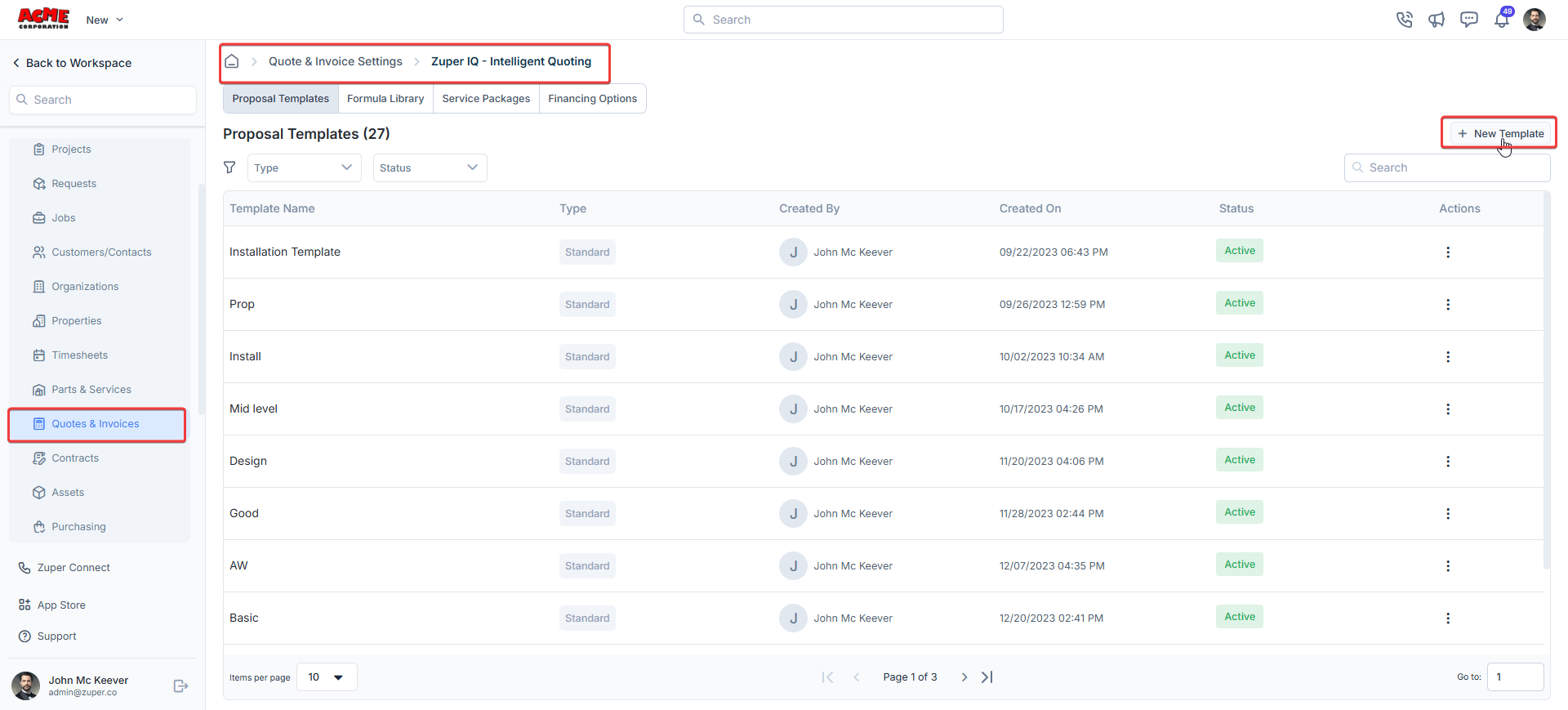 3. You’ll see two template types:
* [**Standard Template**](/Settings/Modules/Quotes-Invoices/Standard_proposal_template) – Great for simple, fixed-price proposals.
* **CPQ-based Template** – Ideal for configurable, multi-option proposals that use formulas and rules.
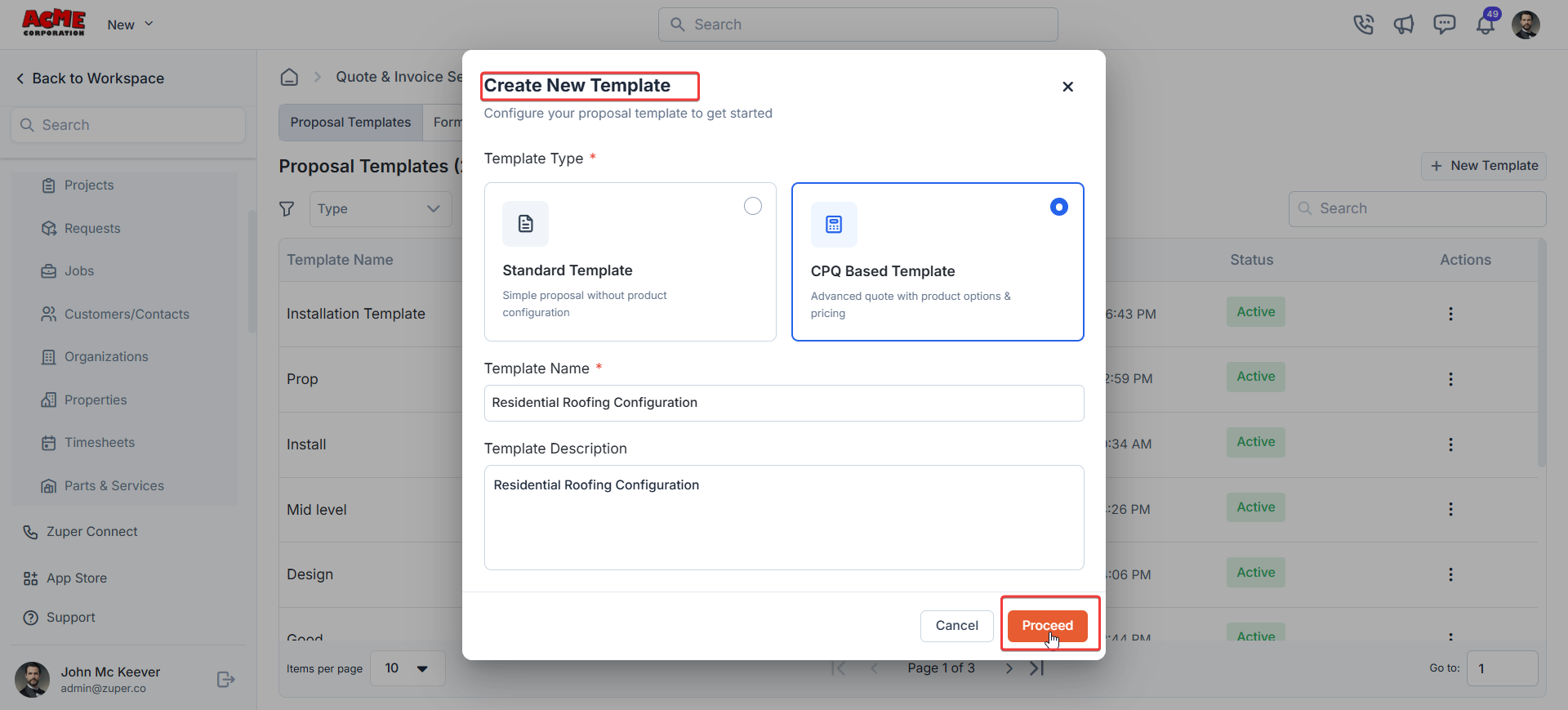
4. Choose a **CPQ-based Template**, give it a descriptive name (for example, *Residential Roofing Configuration*), and click **Proceed.**
3. You’ll see two template types:
* [**Standard Template**](/Settings/Modules/Quotes-Invoices/Standard_proposal_template) – Great for simple, fixed-price proposals.
* **CPQ-based Template** – Ideal for configurable, multi-option proposals that use formulas and rules.
4. Choose a **CPQ-based Template**, give it a descriptive name (for example, *Residential Roofing Configuration*), and click **Proceed.**
 #### Select Template triggers and options:
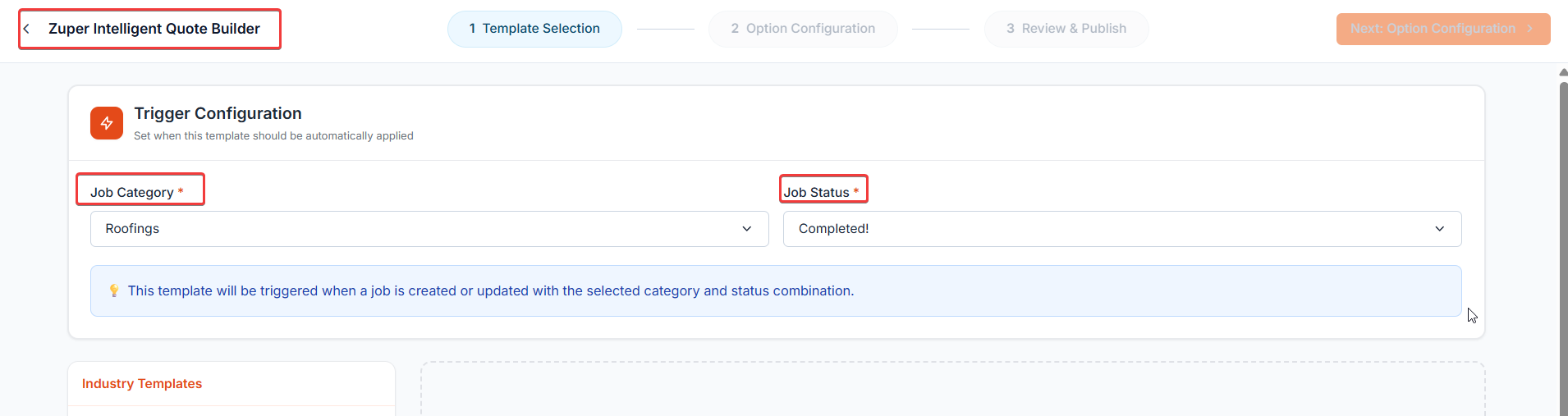
Every CPQ template begins with automation rules that tell Zuper when to apply it automatically.
You’ll set:
* **Job Category:** Select for which category this template should apply (e.g., Roofing, HVAC, Electrical).
* **Job Status:** Choose when the proposal should trigger (e.g., *Completed*, *Ready for Estimate*).
#### Select Template triggers and options:
Every CPQ template begins with automation rules that tell Zuper when to apply it automatically.
You’ll set:
* **Job Category:** Select for which category this template should apply (e.g., Roofing, HVAC, Electrical).
* **Job Status:** Choose when the proposal should trigger (e.g., *Completed*, *Ready for Estimate*).
 Below that, you’ll see two sections:
* **Industry Templates** – Preconfigured templates for brands like *Owens Corning*, *GAF*, or *CertainTeed.*
* **Generic Presets** – Options like *Good / Better / Best*, *Option 1 / 2 / 3*, or *Single Option.*
Click one of these presets to start building your layout or choose **Start from Scratch** to customize according to business needs.
Once selected, click **Next: Package Configuration.**
#### Configure Packages and Items
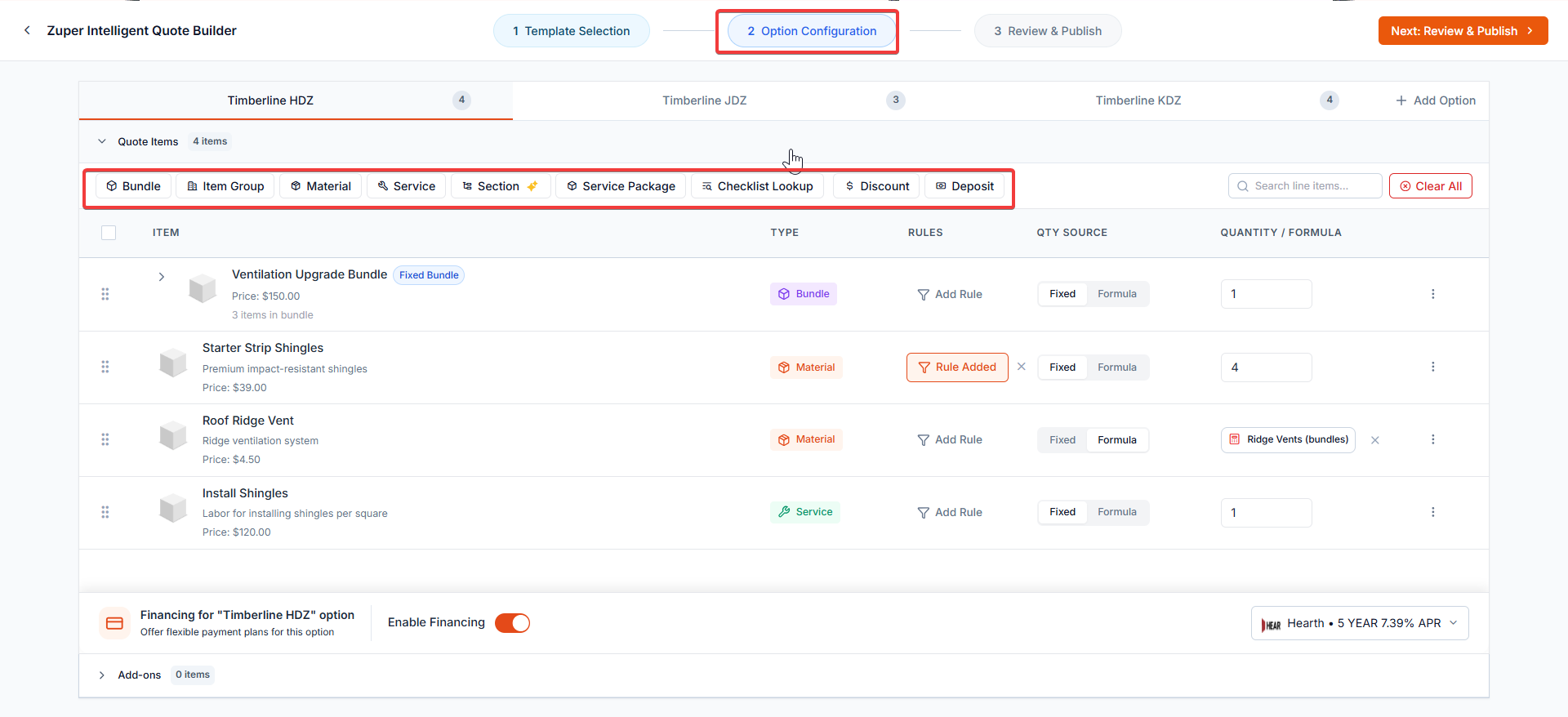
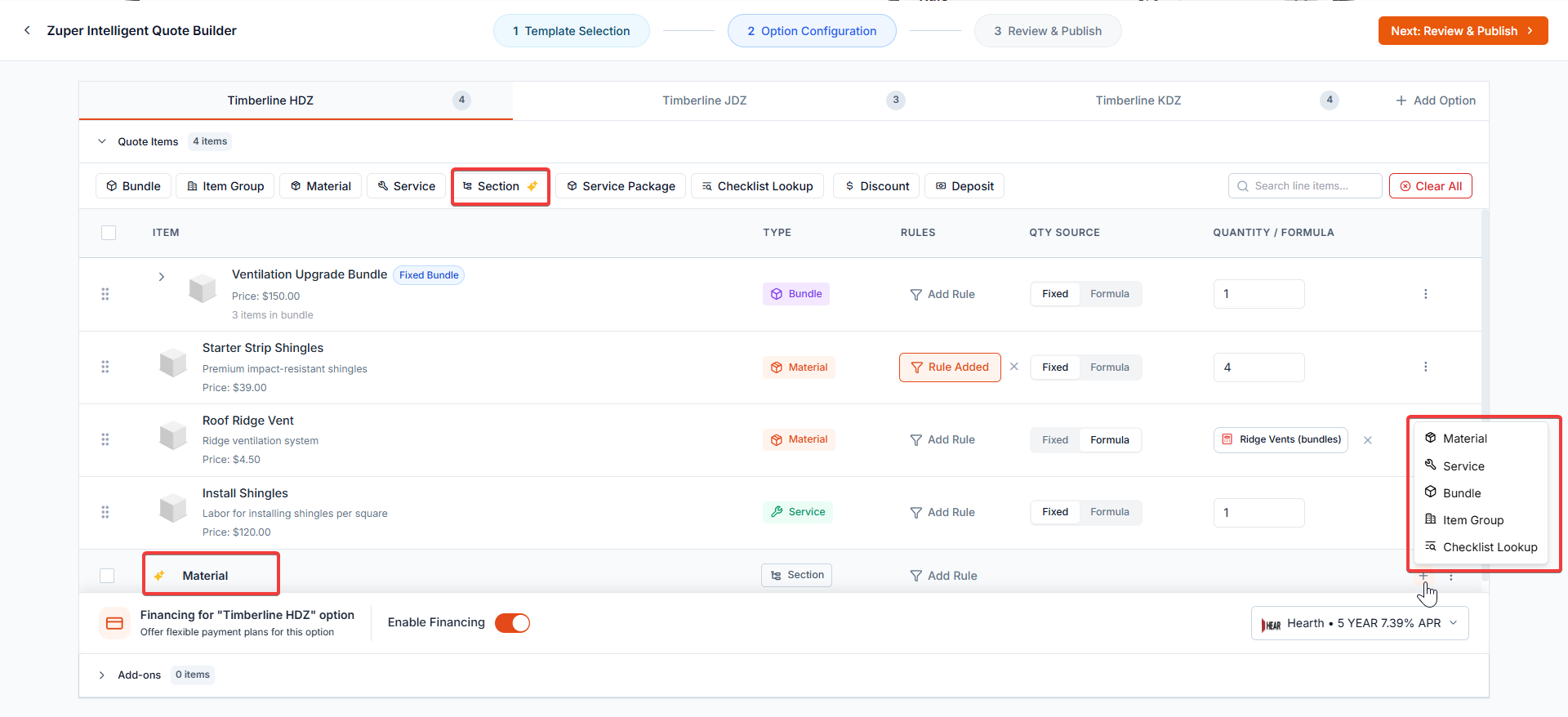
The **Package Configuration** page is the heart of your CPQ setup. Here, you define what products, services, bundles, or service packages appear in each option (such as *Good*, *Better*, *Best*).
You can add:
* [Bundles](/Inventory_Management/Parts_Services/Bundles)– Predefined groups of materials or services.
* [Materials](/Inventory_Management/Parts_Services/Create_New_Part_Service) – Individual catalog items like shingles, tiles, or sealants.
* [Services](Inventory_Management/Parts_Services/Create_New_Part_Service) – Labor, inspections, or custom charges.
* [Service Packages](/Accounting/Proposal#a-service-packages) – Combined service offerings.
* [**Sections**](https://docs.zuper.co/Accounting/Sections) – Used to group related items for easier readability.
* **Discount** – Apply pricing adjustments directly within each package.
* **Checklist Look-Up** – Add items from the checklist lookup fields directly to an option. You can apply the quantity as **Fixed**, which uses the value entered during lookup, or as **Formula**, which calculates the quantity using the product’s default quantity formula set in master.
* **Deposit** – Define an upfront amount for an option using either a percentage of the proposal total or a fixed amount.
Below that, you’ll see two sections:
* **Industry Templates** – Preconfigured templates for brands like *Owens Corning*, *GAF*, or *CertainTeed.*
* **Generic Presets** – Options like *Good / Better / Best*, *Option 1 / 2 / 3*, or *Single Option.*
Click one of these presets to start building your layout or choose **Start from Scratch** to customize according to business needs.
Once selected, click **Next: Package Configuration.**
#### Configure Packages and Items
The **Package Configuration** page is the heart of your CPQ setup. Here, you define what products, services, bundles, or service packages appear in each option (such as *Good*, *Better*, *Best*).
You can add:
* [Bundles](/Inventory_Management/Parts_Services/Bundles)– Predefined groups of materials or services.
* [Materials](/Inventory_Management/Parts_Services/Create_New_Part_Service) – Individual catalog items like shingles, tiles, or sealants.
* [Services](Inventory_Management/Parts_Services/Create_New_Part_Service) – Labor, inspections, or custom charges.
* [Service Packages](/Accounting/Proposal#a-service-packages) – Combined service offerings.
* [**Sections**](https://docs.zuper.co/Accounting/Sections) – Used to group related items for easier readability.
* **Discount** – Apply pricing adjustments directly within each package.
* **Checklist Look-Up** – Add items from the checklist lookup fields directly to an option. You can apply the quantity as **Fixed**, which uses the value entered during lookup, or as **Formula**, which calculates the quantity using the product’s default quantity formula set in master.
* **Deposit** – Define an upfront amount for an option using either a percentage of the proposal total or a fixed amount.
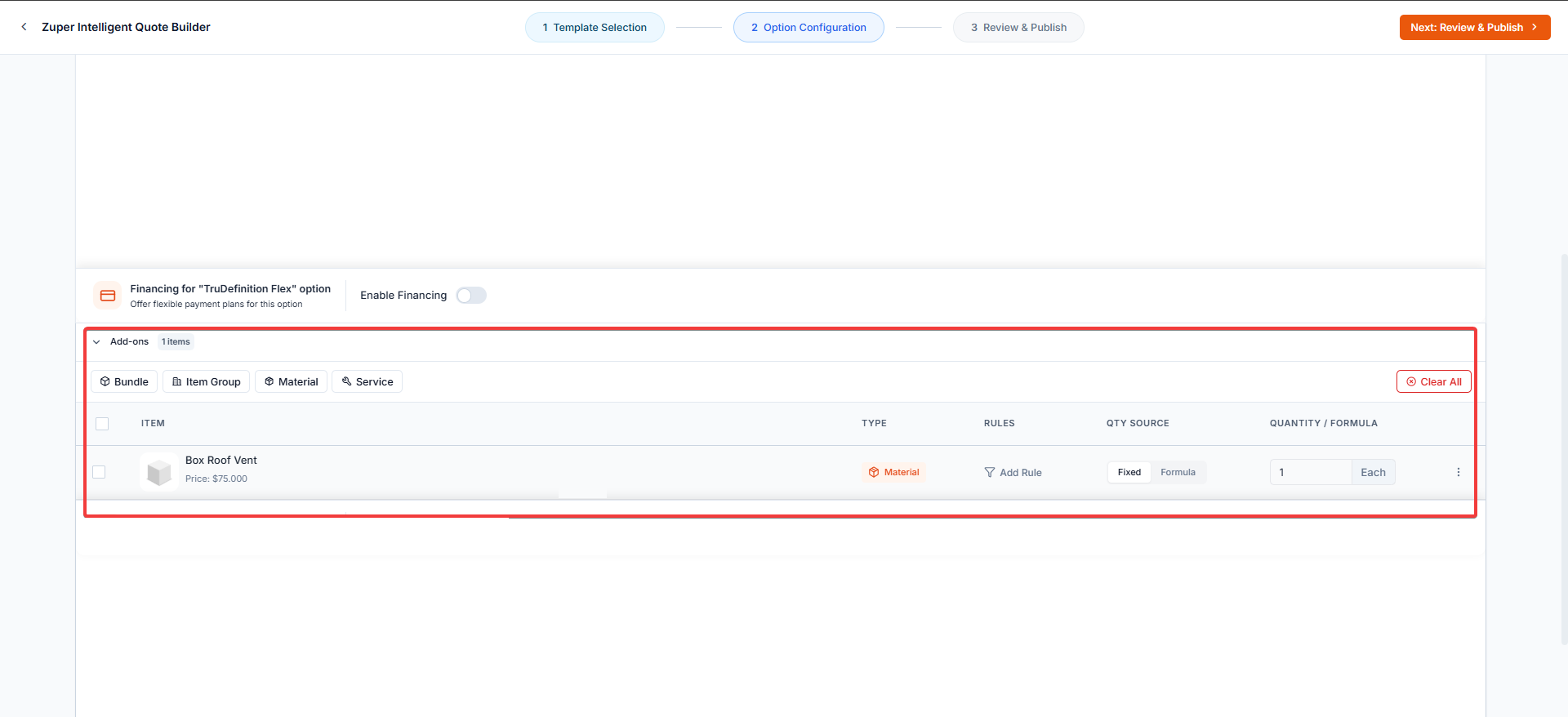
 ### **Add-ons**
**Add-ons** in CPQ are optional items tied to each option, allowing customers to select additional services or items before approval.
Add-ons configured at the **Service Package** level automatically flow into the CPQ options Add-ons section.
Note: CPQ Item Rules and Formulas are supported for the Add-on items too.
#### Configure Packages and Items
The **Package Configuration** page is the heart of your CPQ setup. Here, you define what products, services, bundles, or service packages appear in each option (such as *Good*, *Better*, *Best*).
You can add:
* [Bundles](/Inventory_Management/Parts_Services/Bundles)– Predefined groups of materials or services.
* [Materials](/Inventory_Management/Parts_Services/Create_New_Part_Service) – Individual catalog items like shingles, tiles, or sealants.
* [Services](Inventory_Management/Parts_Services/Create_New_Part_Service) – Labor, inspections, or custom charges.
* [Service Packages](/Accounting/Proposal#a-service-packages) – Combined service offerings.
* [**Sections**](https://docs.zuper.co/Accounting/Sections) – Used to group related items for easier readability.
* **Discount** – Apply pricing adjustments directly within each package.
* **Checklist Look-Up** – Add items from the checklist lookup fields directly to an option. You can apply the quantity as **Fixed**, which uses the value entered during lookup, or as **Formula**, which calculates the quantity using the product’s default quantity formula set in master.
* **Deposit** – Define an upfront amount for an option using either a percentage of the proposal total or a fixed amount.
### **Add-ons**
**Add-ons** in CPQ are optional items tied to each option, allowing customers to select additional services or items before approval.
Add-ons configured at the **Service Package** level automatically flow into the CPQ options Add-ons section.
Note: CPQ Item Rules and Formulas are supported for the Add-on items too.
### **Add-ons**
**Add-ons** in CPQ are optional items tied to each option, allowing customers to select additional services or items before approval.
Add-ons configured at the **Service Package** level automatically flow into the CPQ options Add-ons section.
Note: CPQ Item Rules and Formulas are supported for the Add-on items too.
#### Configure Packages and Items
The **Package Configuration** page is the heart of your CPQ setup. Here, you define what products, services, bundles, or service packages appear in each option (such as *Good*, *Better*, *Best*).
You can add:
* [Bundles](/Inventory_Management/Parts_Services/Bundles)– Predefined groups of materials or services.
* [Materials](/Inventory_Management/Parts_Services/Create_New_Part_Service) – Individual catalog items like shingles, tiles, or sealants.
* [Services](Inventory_Management/Parts_Services/Create_New_Part_Service) – Labor, inspections, or custom charges.
* [Service Packages](/Accounting/Proposal#a-service-packages) – Combined service offerings.
* [**Sections**](https://docs.zuper.co/Accounting/Sections) – Used to group related items for easier readability.
* **Discount** – Apply pricing adjustments directly within each package.
* **Checklist Look-Up** – Add items from the checklist lookup fields directly to an option. You can apply the quantity as **Fixed**, which uses the value entered during lookup, or as **Formula**, which calculates the quantity using the product’s default quantity formula set in master.
* **Deposit** – Define an upfront amount for an option using either a percentage of the proposal total or a fixed amount.
### **Add-ons**
**Add-ons** in CPQ are optional items tied to each option, allowing customers to select additional services or items before approval.
Add-ons configured at the **Service Package** level automatically flow into the CPQ options Add-ons section.
Note: CPQ Item Rules and Formulas are supported for the Add-on items too.
 You can reorder line items within a proposal option by dragging and dropping them into the order you prefer.
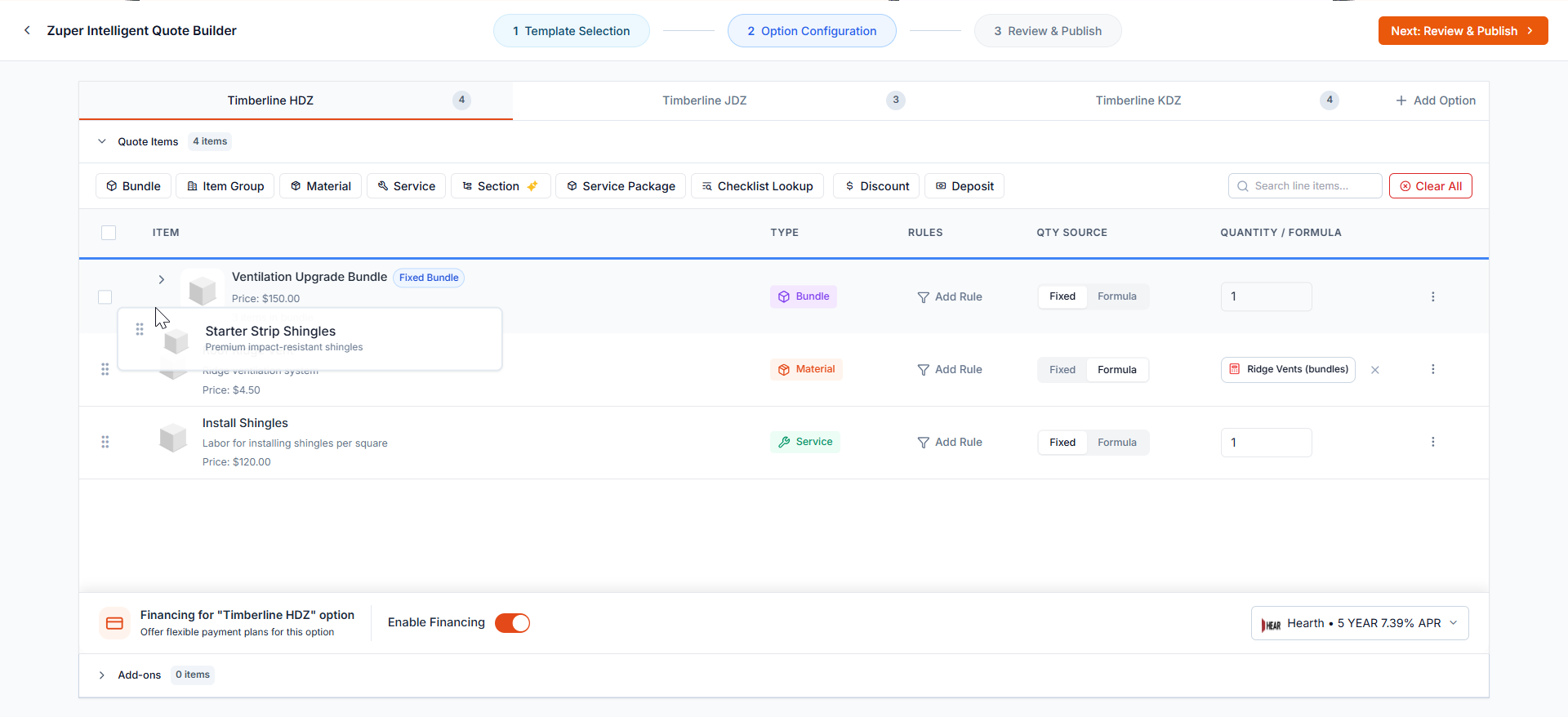 Each package acts like a mini-proposal with its own logic and items.\
To add more options, click **Add Option** and specify the option details.
For each line item, you can set:
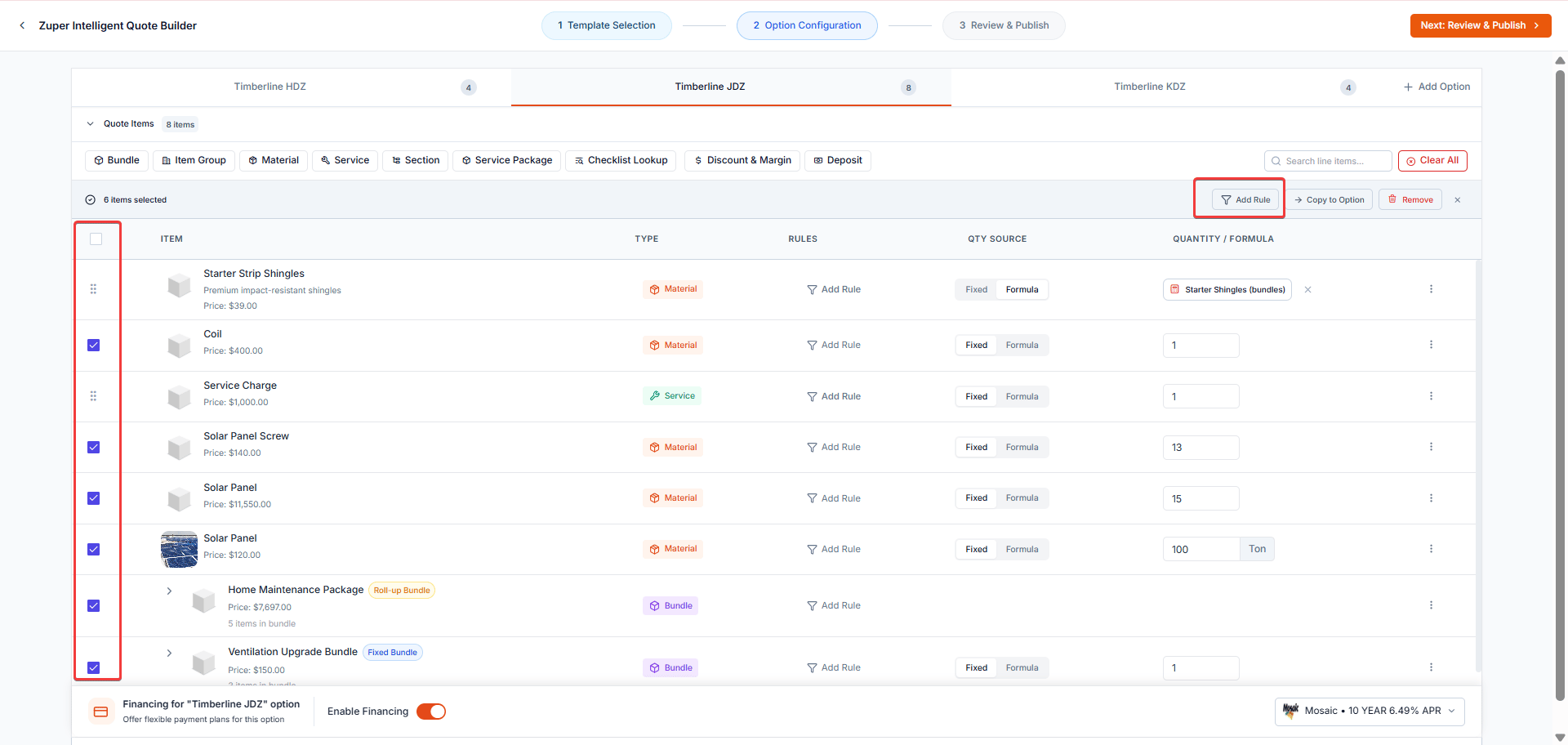
* [Rules](/Zuper_for_Roofing/Conditional_Rule): Click **Add Rule** beside a line item to define when that item should appear, be hidden, replaced, removed, or have its markup adjusted automatically based on Job details. If you need to remove a rule later, simply click the **X** next to the rule.
**Tip:** To apply the same rule to multiple items at once, select the checkboxes next to the required items, and then click **Add Rule** from the toolbar. The **Conditional Rule** panel opens, allowing you to configure the rule once and apply it to all selected items when you save it.
Each package acts like a mini-proposal with its own logic and items.\
To add more options, click **Add Option** and specify the option details.
For each line item, you can set:
* [Rules](/Zuper_for_Roofing/Conditional_Rule): Click **Add Rule** beside a line item to define when that item should appear, be hidden, replaced, removed, or have its markup adjusted automatically based on Job details. If you need to remove a rule later, simply click the **X** next to the rule.
**Tip:** To apply the same rule to multiple items at once, select the checkboxes next to the required items, and then click **Add Rule** from the toolbar. The **Conditional Rule** panel opens, allowing you to configure the rule once and apply it to all selected items when you save it.
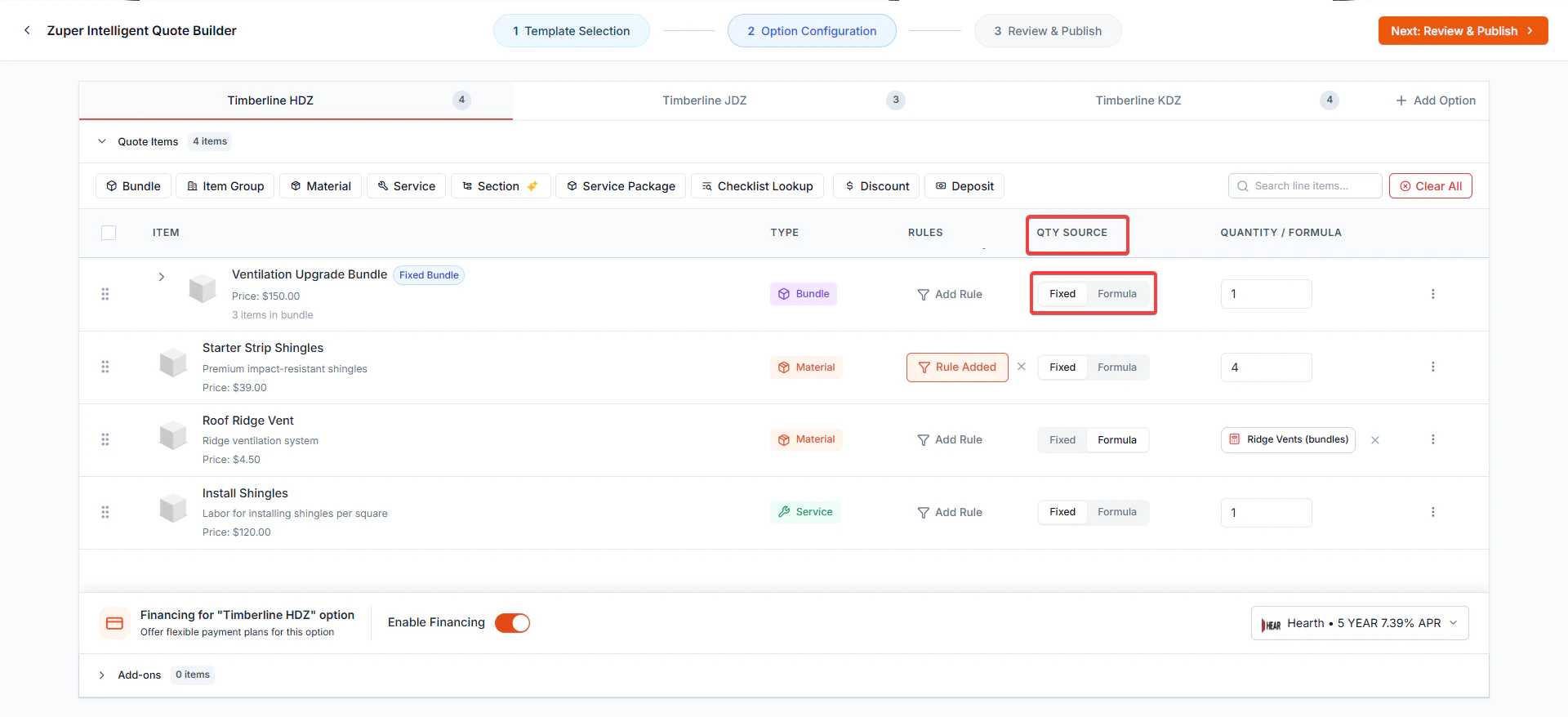
 * **Quantity Source:** *Fixed* (manual entry) or [*Formula*](/Zuper_for_Roofing/Formula_Library) (automatically calculated using your Formula).
If a **Quantity Formula** is defined in the part or product master, it automatically populates in the line item when you select that item in a CPQ template option. You can keep the auto-populated formula or modify it in the template to meet specific job requirements.
* **Quantity Source:** *Fixed* (manual entry) or [*Formula*](/Zuper_for_Roofing/Formula_Library) (automatically calculated using your Formula).
If a **Quantity Formula** is defined in the part or product master, it automatically populates in the line item when you select that item in a CPQ template option. You can keep the auto-populated formula or modify it in the template to meet specific job requirements.
 #### Enable Financing Options
At the bottom of the configuration page, you can toggle [**Enable Financing**](/Zuper_for_Roofing/Financing) to *On* for the package (e.g., “Financing for Better Option”) and select the provider and their plans.
#### Enable Financing Options
At the bottom of the configuration page, you can toggle [**Enable Financing**](/Zuper_for_Roofing/Financing) to *On* for the package (e.g., “Financing for Better Option”) and select the provider and their plans.
#### Enable Financing Options
At the bottom of the configuration page, you can toggle [**Enable Financing**](/Zuper_for_Roofing/Financing) to *On* for the package (e.g., “Financing for Better Option”) and select the provider and their plans.
#### Enable Financing Options
At the bottom of the configuration page, you can toggle [**Enable Financing**](/Zuper_for_Roofing/Financing) to *On* for the package (e.g., “Financing for Better Option”) and select the provider and their plans.
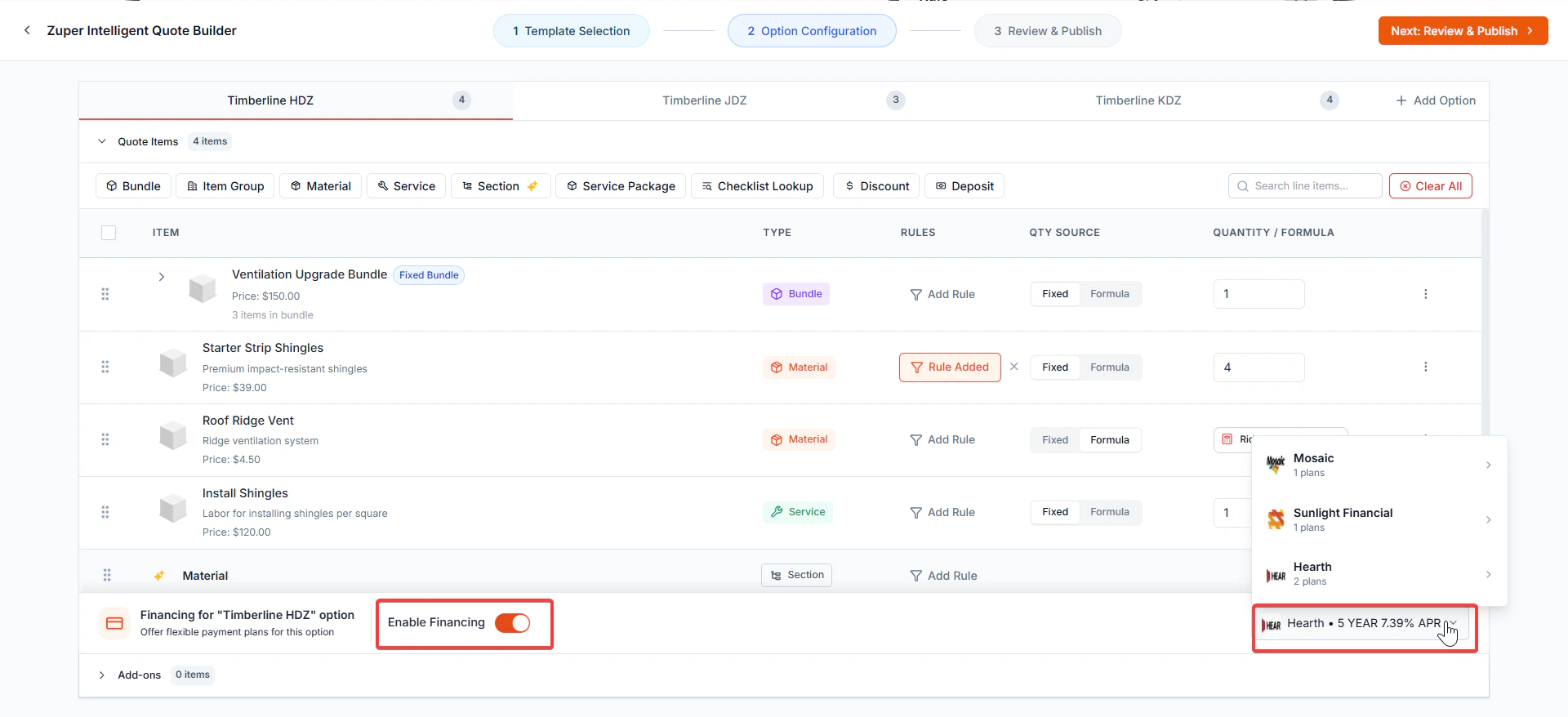 This displays financing plans directly within the proposal, allowing customers to compare payments.
#### Preview and Refine Package Options
Once your items, formulas, and rules are set, you’ll see a **Package Options Preview.**\
Each option (*Good*, *Better*, *Best*) appears as a visual card with:
* Item list and descriptions
* Unit Selling prices
* Package images
* “Recommended” labels for highlighting preferred options
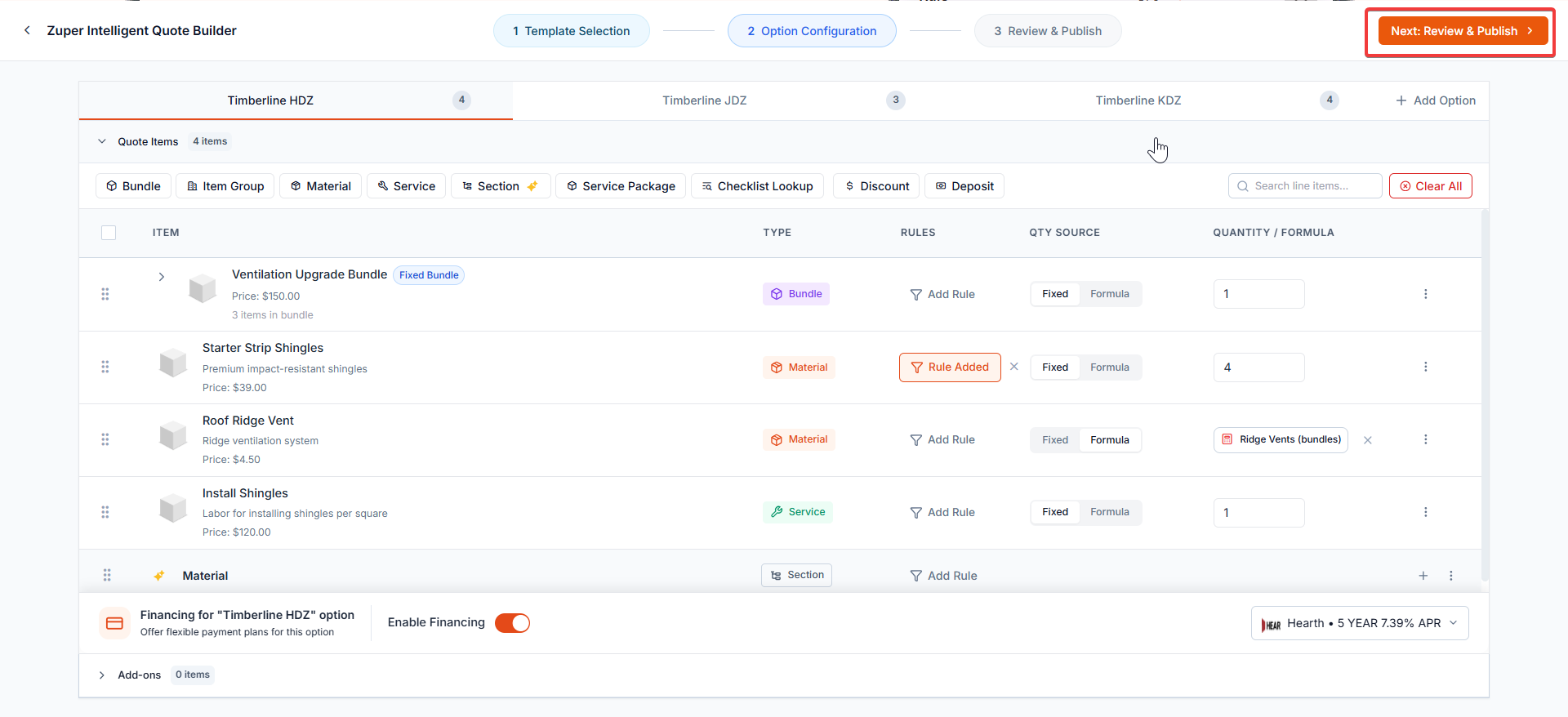
Once you’re satisfied with your setup, click **Next: Review & Publish.**
This displays financing plans directly within the proposal, allowing customers to compare payments.
#### Preview and Refine Package Options
Once your items, formulas, and rules are set, you’ll see a **Package Options Preview.**\
Each option (*Good*, *Better*, *Best*) appears as a visual card with:
* Item list and descriptions
* Unit Selling prices
* Package images
* “Recommended” labels for highlighting preferred options
Once you’re satisfied with your setup, click **Next: Review & Publish.**
 ### Review & Publish
1. Under **Select Proposal Layout**, choose the layout you want this CPQ template to use. Each layout controls the sections of your proposal, cover page, package summary, estimate options, and signature page.
### Review & Publish
1. Under **Select Proposal Layout**, choose the layout you want this CPQ template to use. Each layout controls the sections of your proposal, cover page, package summary, estimate options, and signature page. 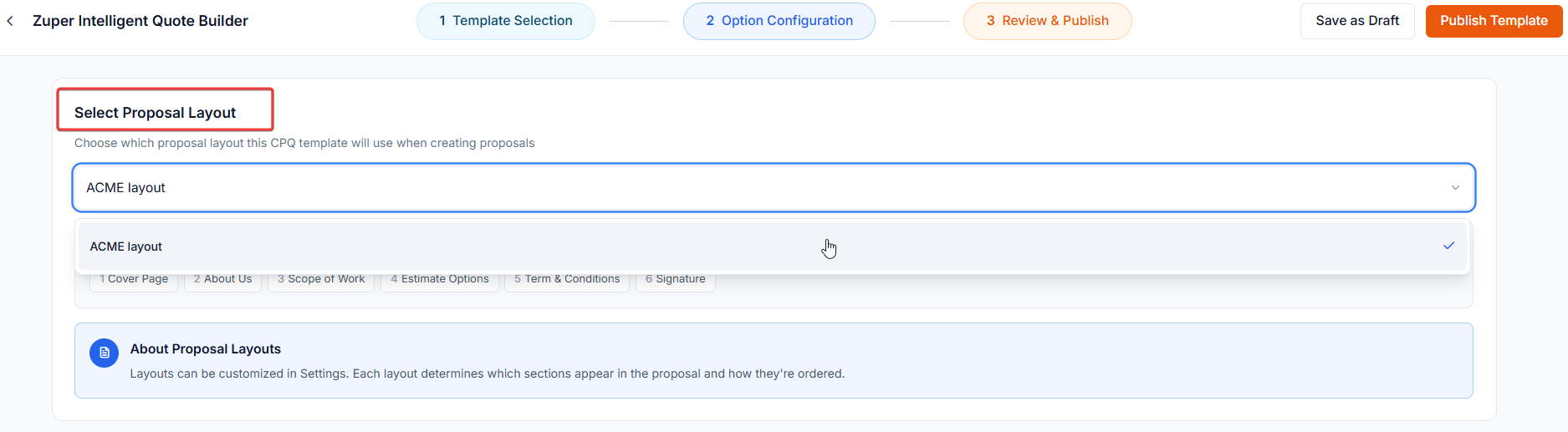 2. Use **Save as Draft** if you want to test or adjust later.
3. Click **Publish Template** when ready.
2. Use **Save as Draft** if you want to test or adjust later.
3. Click **Publish Template** when ready. 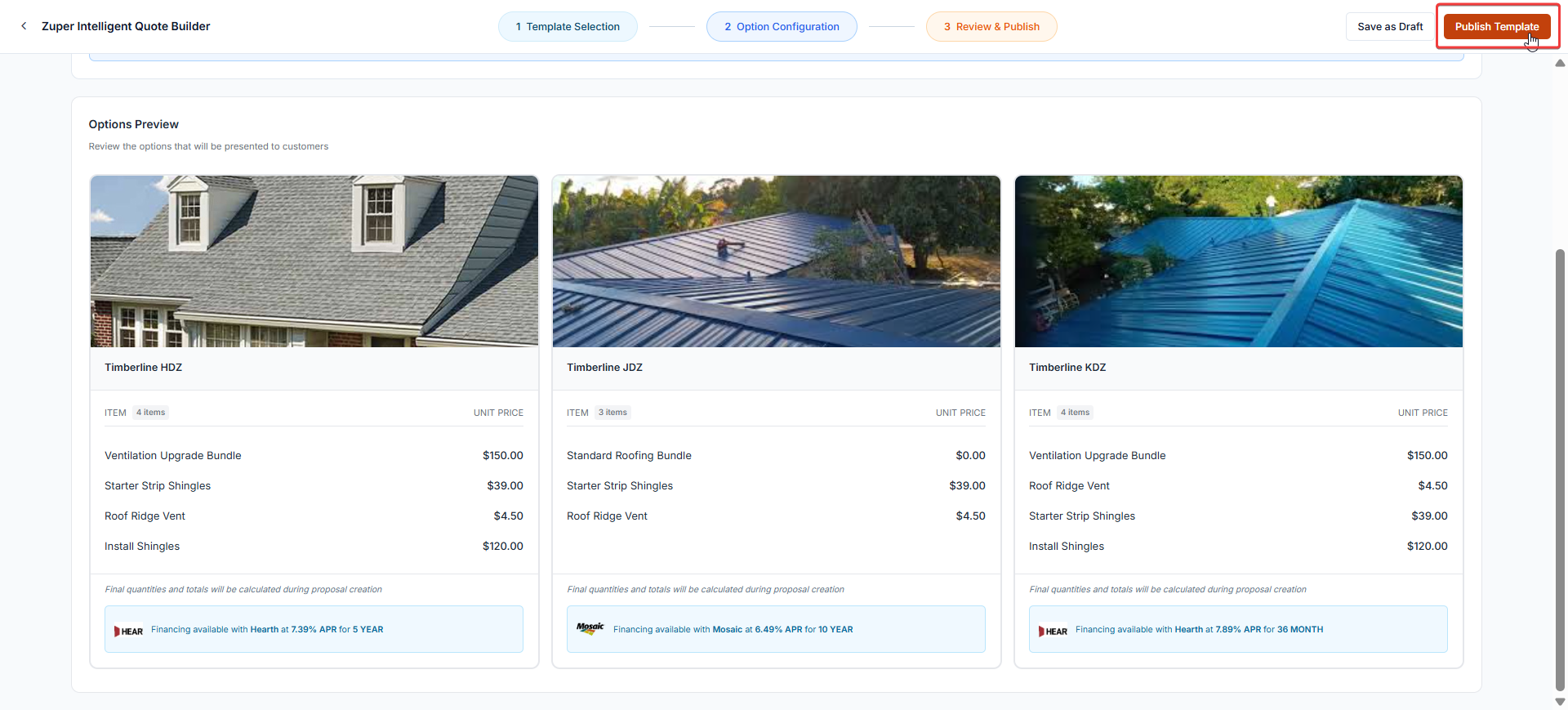 Once published, the template becomes available to your team. When a job is created or updated with the matching category and status, Zuper automatically generates a proposal using this template, and it’s ready for your field or sales reps to send to the customer.
## Frequently asked questions
1. **In CPQ proposals, what happens if a measurement token or a checklist value is not filled in or is null, and how is it used in a formula calculation or a conditional rule?** Zuper automatically treats any missing/null/blank value as **0** during calculations, so your proposals always generate successfully. **For example:** **Formula**: @Roof\_Area \* 1.1 (adds 10% waste) → If @Roof\_Area is missing → treated as 0 → quantity = 0 (item will not be added). **Conditional rule**: "Add ice & water shield IF @Eaves\_Length > 20" → If @Eaves\_Length is missing → treated as 0 → condition Rule(defined).
2. **What happens if the calculated quantity of a line item is 0?** If the calculated quantity is **0**, the item is automatically removed from the proposal option.
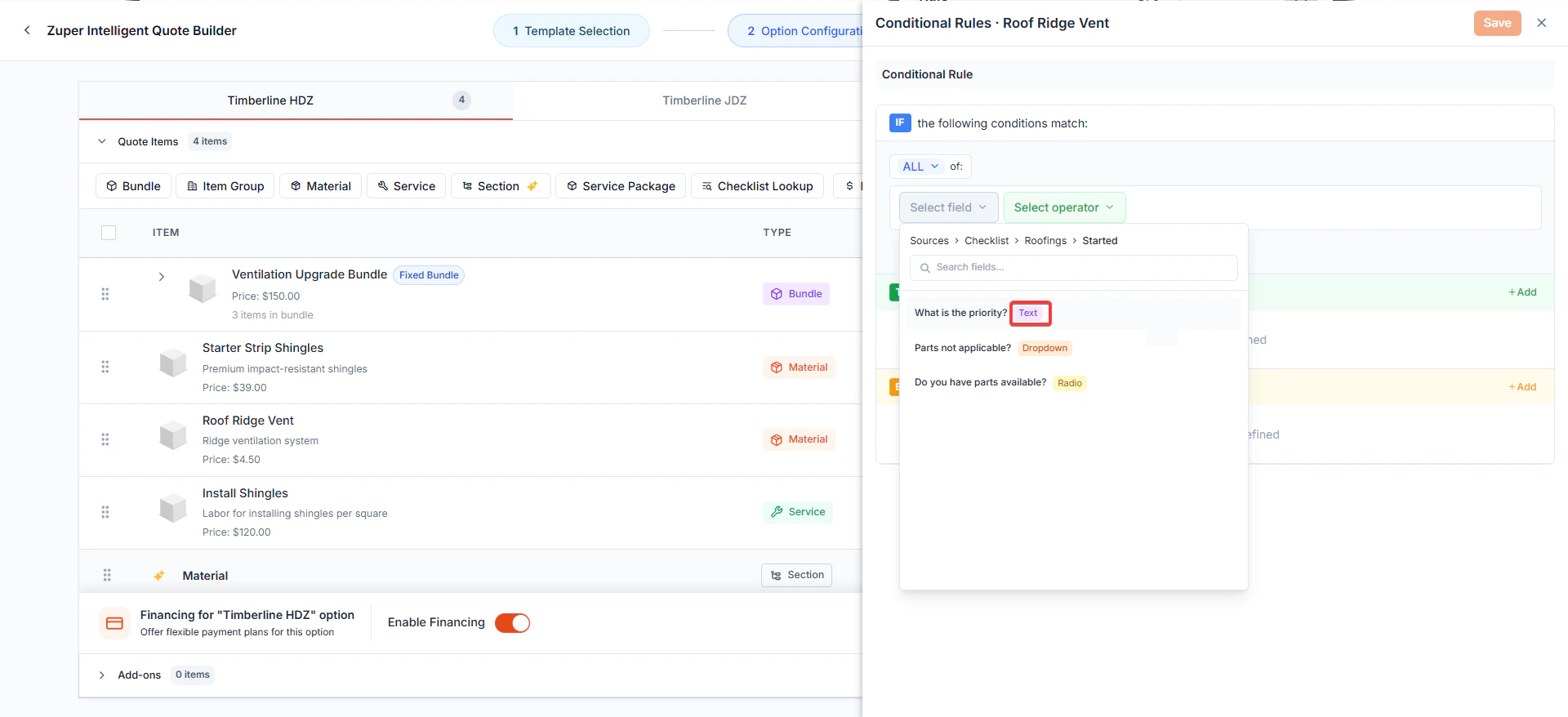
3. **Why do custom field types appear differently in CPQ?** When you create custom fields in **Checklist** or **Inspection** in Zuper, you may configure components like **Single Line Text** or **Multi Selection**.\
When these fields are used in Zuper CPQ (Intelligent Quote Builder), such as while creating **conditional rules**, the system displays simplified field type names like *Text* or *Checkbox*.\
This is expected behavior. CPQ simplifies the field type labels so they are easier to read and use.
Once published, the template becomes available to your team. When a job is created or updated with the matching category and status, Zuper automatically generates a proposal using this template, and it’s ready for your field or sales reps to send to the customer.
## Frequently asked questions
1. **In CPQ proposals, what happens if a measurement token or a checklist value is not filled in or is null, and how is it used in a formula calculation or a conditional rule?** Zuper automatically treats any missing/null/blank value as **0** during calculations, so your proposals always generate successfully. **For example:** **Formula**: @Roof\_Area \* 1.1 (adds 10% waste) → If @Roof\_Area is missing → treated as 0 → quantity = 0 (item will not be added). **Conditional rule**: "Add ice & water shield IF @Eaves\_Length > 20" → If @Eaves\_Length is missing → treated as 0 → condition Rule(defined).
2. **What happens if the calculated quantity of a line item is 0?** If the calculated quantity is **0**, the item is automatically removed from the proposal option.
3. **Why do custom field types appear differently in CPQ?** When you create custom fields in **Checklist** or **Inspection** in Zuper, you may configure components like **Single Line Text** or **Multi Selection**.\
When these fields are used in Zuper CPQ (Intelligent Quote Builder), such as while creating **conditional rules**, the system displays simplified field type names like *Text* or *Checkbox*.\
This is expected behavior. CPQ simplifies the field type labels so they are easier to read and use.
 This displays financing plans directly within the proposal, allowing customers to compare payments.
#### Preview and Refine Package Options
Once your items, formulas, and rules are set, you’ll see a **Package Options Preview.**\
Each option (*Good*, *Better*, *Best*) appears as a visual card with:
* Item list and descriptions
* Unit Selling prices
* Package images
* “Recommended” labels for highlighting preferred options
Once you’re satisfied with your setup, click **Next: Review & Publish.**
### Review & Publish
1. Under **Select Proposal Layout**, choose the layout you want this CPQ template to use. Each layout controls the sections of your proposal, cover page, package summary, estimate options, and signature page.
2. Use **Save as Draft** if you want to test or adjust later.
3. Click **Publish Template** when ready.
Once published, the template becomes available to your team. When a job is created or updated with the matching category and status, Zuper automatically generates a proposal using this template, and it’s ready for your field or sales reps to send to the customer.
## Frequently asked questions
1. **In CPQ proposals, what happens if a measurement token or a checklist value is not filled in or is null, and how is it used in a formula calculation or a conditional rule?** Zuper automatically treats any missing/null/blank value as **0** during calculations, so your proposals always generate successfully. **For example:** **Formula**: @Roof\_Area \* 1.1 (adds 10% waste) → If @Roof\_Area is missing → treated as 0 → quantity = 0 (item will not be added). **Conditional rule**: "Add ice & water shield IF @Eaves\_Length > 20" → If @Eaves\_Length is missing → treated as 0 → condition Rule(defined).
2. **What happens if the calculated quantity of a line item is 0?** If the calculated quantity is **0**, the item is automatically removed from the proposal option.
3. **Why do custom field types appear differently in CPQ?** When you create custom fields in **Checklist** or **Inspection** in Zuper, you may configure components like **Single Line Text** or **Multi Selection**.\
When these fields are used in Zuper CPQ (Intelligent Quote Builder), such as while creating **conditional rules**, the system displays simplified field type names like *Text* or *Checkbox*.\
This is expected behavior. CPQ simplifies the field type labels so they are easier to read and use.
You can reorder line items within a proposal option by dragging and dropping them into the order you prefer.
Each package acts like a mini-proposal with its own logic and items.\
To add more options, click **Add Option** and specify the option details.
For each line item, you can set:
* [Rules](/Zuper_for_Roofing/Conditional_Rule): Click **Add Rule** beside a line item to define when that item should appear, be hidden, replaced, removed, or have its markup adjusted automatically based on Job details. If you need to remove a rule later, simply click the **X** next to the rule.
**Tip:** To apply the same rule to multiple items at once, select the checkboxes next to the required items, and then click **Add Rule** from the toolbar. The **Conditional Rule** panel opens, allowing you to configure the rule once and apply it to all selected items when you save it.
* **Quantity Source:** *Fixed* (manual entry) or [*Formula*](/Zuper_for_Roofing/Formula_Library) (automatically calculated using your Formula).
If a **Quantity Formula** is defined in the part or product master, it automatically populates in the line item when you select that item in a CPQ template option. You can keep the auto-populated formula or modify it in the template to meet specific job requirements.
#### Enable Financing Options
At the bottom of the configuration page, you can toggle [**Enable Financing**](/Zuper_for_Roofing/Financing) to *On* for the package (e.g., “Financing for Better Option”) and select the provider and their plans.
#### Enable Financing Options
At the bottom of the configuration page, you can toggle [**Enable Financing**](/Zuper_for_Roofing/Financing) to *On* for the package (e.g., “Financing for Better Option”) and select the provider and their plans.
This displays financing plans directly within the proposal, allowing customers to compare payments.
#### Preview and Refine Package Options
Once your items, formulas, and rules are set, you’ll see a **Package Options Preview.**\
Each option (*Good*, *Better*, *Best*) appears as a visual card with:
* Item list and descriptions
* Unit Selling prices
* Package images
* “Recommended” labels for highlighting preferred options
Once you’re satisfied with your setup, click **Next: Review & Publish.**
### Review & Publish
1. Under **Select Proposal Layout**, choose the layout you want this CPQ template to use. Each layout controls the sections of your proposal, cover page, package summary, estimate options, and signature page.
2. Use **Save as Draft** if you want to test or adjust later.
3. Click **Publish Template** when ready.
Once published, the template becomes available to your team. When a job is created or updated with the matching category and status, Zuper automatically generates a proposal using this template, and it’s ready for your field or sales reps to send to the customer.
## Frequently asked questions
1. **In CPQ proposals, what happens if a measurement token or a checklist value is not filled in or is null, and how is it used in a formula calculation or a conditional rule?** Zuper automatically treats any missing/null/blank value as **0** during calculations, so your proposals always generate successfully. **For example:** **Formula**: @Roof\_Area \* 1.1 (adds 10% waste) → If @Roof\_Area is missing → treated as 0 → quantity = 0 (item will not be added). **Conditional rule**: "Add ice & water shield IF @Eaves\_Length > 20" → If @Eaves\_Length is missing → treated as 0 → condition Rule(defined).
2. **What happens if the calculated quantity of a line item is 0?** If the calculated quantity is **0**, the item is automatically removed from the proposal option.
3. **Why do custom field types appear differently in CPQ?** When you create custom fields in **Checklist** or **Inspection** in Zuper, you may configure components like **Single Line Text** or **Multi Selection**.\
When these fields are used in Zuper CPQ (Intelligent Quote Builder), such as while creating **conditional rules**, the system displays simplified field type names like *Text* or *Checkbox*.\
This is expected behavior. CPQ simplifies the field type labels so they are easier to read and use.
This displays financing plans directly within the proposal, allowing customers to compare payments.
#### Preview and Refine Package Options
Once your items, formulas, and rules are set, you’ll see a **Package Options Preview.**\
Each option (*Good*, *Better*, *Best*) appears as a visual card with:
* Item list and descriptions
* Unit Selling prices
* Package images
* “Recommended” labels for highlighting preferred options
Once you’re satisfied with your setup, click **Next: Review & Publish.**
### Review & Publish
1. Under **Select Proposal Layout**, choose the layout you want this CPQ template to use. Each layout controls the sections of your proposal, cover page, package summary, estimate options, and signature page.
2. Use **Save as Draft** if you want to test or adjust later.
3. Click **Publish Template** when ready.
Once published, the template becomes available to your team. When a job is created or updated with the matching category and status, Zuper automatically generates a proposal using this template, and it’s ready for your field or sales reps to send to the customer.
## Frequently asked questions
1. **In CPQ proposals, what happens if a measurement token or a checklist value is not filled in or is null, and how is it used in a formula calculation or a conditional rule?** Zuper automatically treats any missing/null/blank value as **0** during calculations, so your proposals always generate successfully. **For example:** **Formula**: @Roof\_Area \* 1.1 (adds 10% waste) → If @Roof\_Area is missing → treated as 0 → quantity = 0 (item will not be added). **Conditional rule**: "Add ice & water shield IF @Eaves\_Length > 20" → If @Eaves\_Length is missing → treated as 0 → condition Rule(defined).
2. **What happens if the calculated quantity of a line item is 0?** If the calculated quantity is **0**, the item is automatically removed from the proposal option.
3. **Why do custom field types appear differently in CPQ?** When you create custom fields in **Checklist** or **Inspection** in Zuper, you may configure components like **Single Line Text** or **Multi Selection**.\
When these fields are used in Zuper CPQ (Intelligent Quote Builder), such as while creating **conditional rules**, the system displays simplified field type names like *Text* or *Checkbox*.\
This is expected behavior. CPQ simplifies the field type labels so they are easier to read and use.
You can reorder line items within a proposal option by dragging and dropping them into the order you prefer.
Each package acts like a mini-proposal with its own logic and items.\
To add more options, click **Add Option** and specify the option details.
For each line item, you can set:
* [Rules](/Zuper_for_Roofing/Conditional_Rule): Click **Add Rule** beside a line item to define when that item should appear, be hidden, replaced, removed, or have its markup adjusted automatically based on Job details. If you need to remove a rule later, simply click the **X** next to the rule.
**Tip:** To apply the same rule to multiple items at once, select the checkboxes next to the required items, and then click **Add Rule** from the toolbar. The **Conditional Rule** panel opens, allowing you to configure the rule once and apply it to all selected items when you save it.
* **Quantity Source:** *Fixed* (manual entry) or [*Formula*](/Zuper_for_Roofing/Formula_Library) (automatically calculated using your Formula).
If a **Quantity Formula** is defined in the part or product master, it automatically populates in the line item when you select that item in a CPQ template option. You can keep the auto-populated formula or modify it in the template to meet specific job requirements.
#### Enable Financing Options
At the bottom of the configuration page, you can toggle [**Enable Financing**](/Zuper_for_Roofing/Financing) to *On* for the package (e.g., “Financing for Better Option”) and select the provider and their plans.
#### Enable Financing Options
At the bottom of the configuration page, you can toggle [**Enable Financing**](/Zuper_for_Roofing/Financing) to *On* for the package (e.g., “Financing for Better Option”) and select the provider and their plans.
This displays financing plans directly within the proposal, allowing customers to compare payments.
#### Preview and Refine Package Options
Once your items, formulas, and rules are set, you’ll see a **Package Options Preview.**\
Each option (*Good*, *Better*, *Best*) appears as a visual card with:
* Item list and descriptions
* Unit Selling prices
* Package images
* “Recommended” labels for highlighting preferred options
Once you’re satisfied with your setup, click **Next: Review & Publish.**
### Review & Publish
1. Under **Select Proposal Layout**, choose the layout you want this CPQ template to use. Each layout controls the sections of your proposal, cover page, package summary, estimate options, and signature page.
2. Use **Save as Draft** if you want to test or adjust later.
3. Click **Publish Template** when ready.
Once published, the template becomes available to your team. When a job is created or updated with the matching category and status, Zuper automatically generates a proposal using this template, and it’s ready for your field or sales reps to send to the customer.
## Frequently asked questions
1. **In CPQ proposals, what happens if a measurement token or a checklist value is not filled in or is null, and how is it used in a formula calculation or a conditional rule?** Zuper automatically treats any missing/null/blank value as **0** during calculations, so your proposals always generate successfully. **For example:** **Formula**: @Roof\_Area \* 1.1 (adds 10% waste) → If @Roof\_Area is missing → treated as 0 → quantity = 0 (item will not be added). **Conditional rule**: "Add ice & water shield IF @Eaves\_Length > 20" → If @Eaves\_Length is missing → treated as 0 → condition Rule(defined).
2. **What happens if the calculated quantity of a line item is 0?** If the calculated quantity is **0**, the item is automatically removed from the proposal option.
3. **Why do custom field types appear differently in CPQ?** When you create custom fields in **Checklist** or **Inspection** in Zuper, you may configure components like **Single Line Text** or **Multi Selection**.\
When these fields are used in Zuper CPQ (Intelligent Quote Builder), such as while creating **conditional rules**, the system displays simplified field type names like *Text* or *Checkbox*.\
This is expected behavior. CPQ simplifies the field type labels so they are easier to read and use.