> ## Documentation Index
> Fetch the complete documentation index at: https://docs.zuper.co/llms.txt
> Use this file to discover all available pages before exploring further.
# Photo Comments
> Leave text feedback directly on any photo in Zuper and @mention teammates to pull them into the conversation.
Commenting on photos in Zuper lets you leave text feedback directly on any photo. You can @mention teammates to pull them into the conversation. Mentioned users receive an in-app notification that takes them straight to the photo and comment. This keeps all photo-related feedback in one place, so nothing gets lost.
You can comment on any photo in Zuper, whether it was uploaded directly to the Gallery, added via a Checklist or Note, or attached to a record.
### Adding a Comment
1. Open any photo in Zuper. The photo opens with a **Details** and **Comments** panel on the right.
2. Click the comment input field at the bottom of the panel and type your message.
3. To add an emoji, click the icon in the comment toolbar and select from the picker.
4. To notify a teammate, type **@** and select their name from the dropdown. The photo uploader appears first, followed by all other users alphabetically.
Comments are plain text only. Rich text and file attachments are not supported.
5. Click **Post**. Your comment appears in the thread, and the mentioned users are notified instantly.
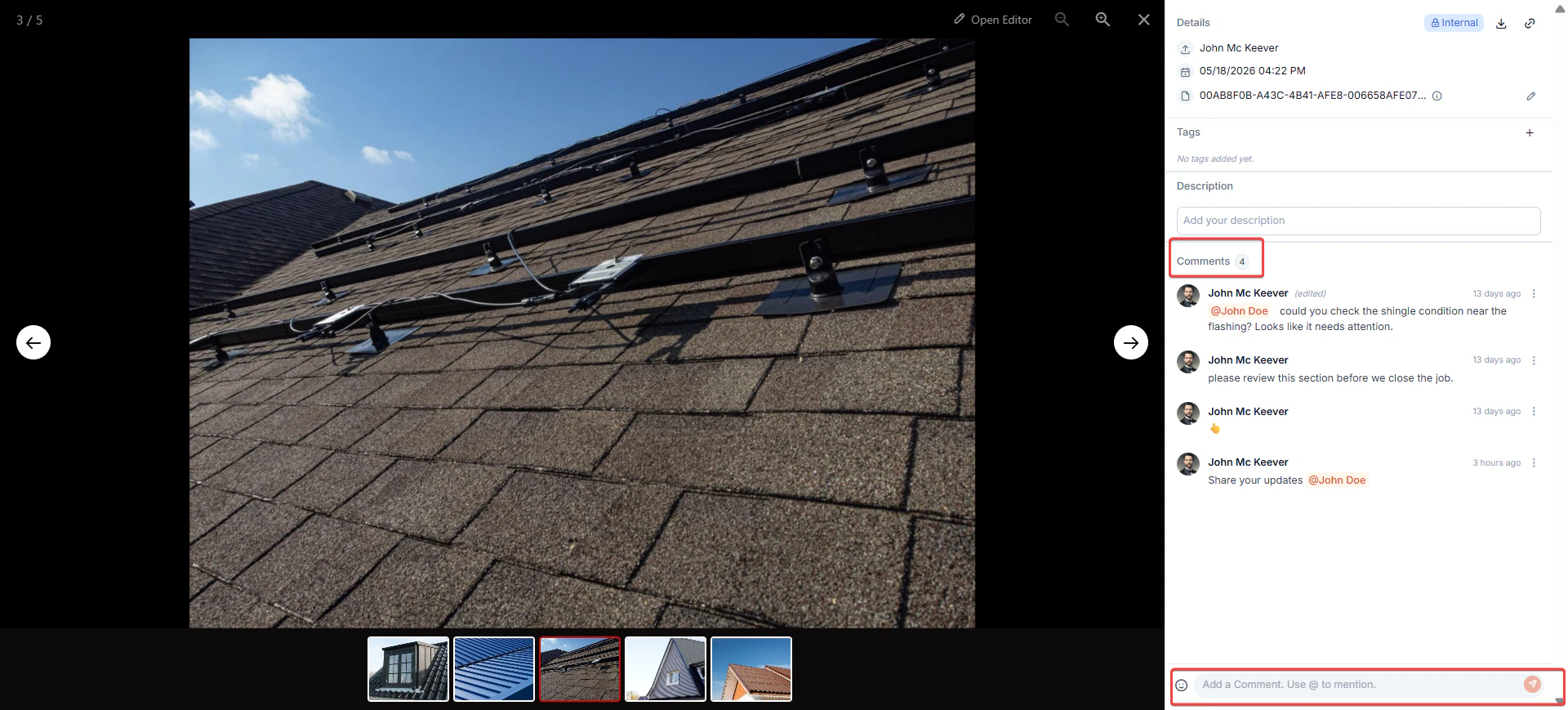 1. Open any photo in Zuper.
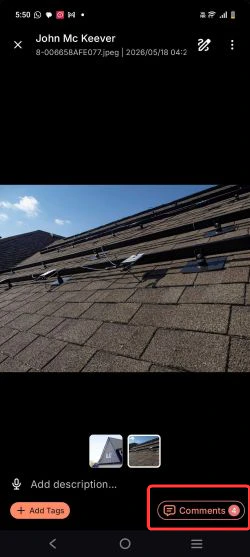
2. Tap the **Comments** button at the bottom right of the screen.
1. Open any photo in Zuper.
2. Tap the **Comments** button at the bottom right of the screen.
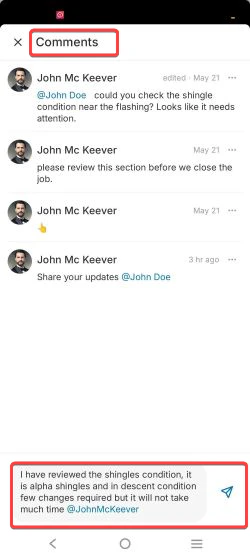
 3. Type your message in the input field.
4. To notify a teammate, type **@** and select their name from the dropdown.
5. Tap **Post** . Your comment appears in the thread, and the mentioned users are notified instantly.
3. Type your message in the input field.
4. To notify a teammate, type **@** and select their name from the dropdown.
5. Tap **Post** . Your comment appears in the thread, and the mentioned users are notified instantly.
 ### Notifications
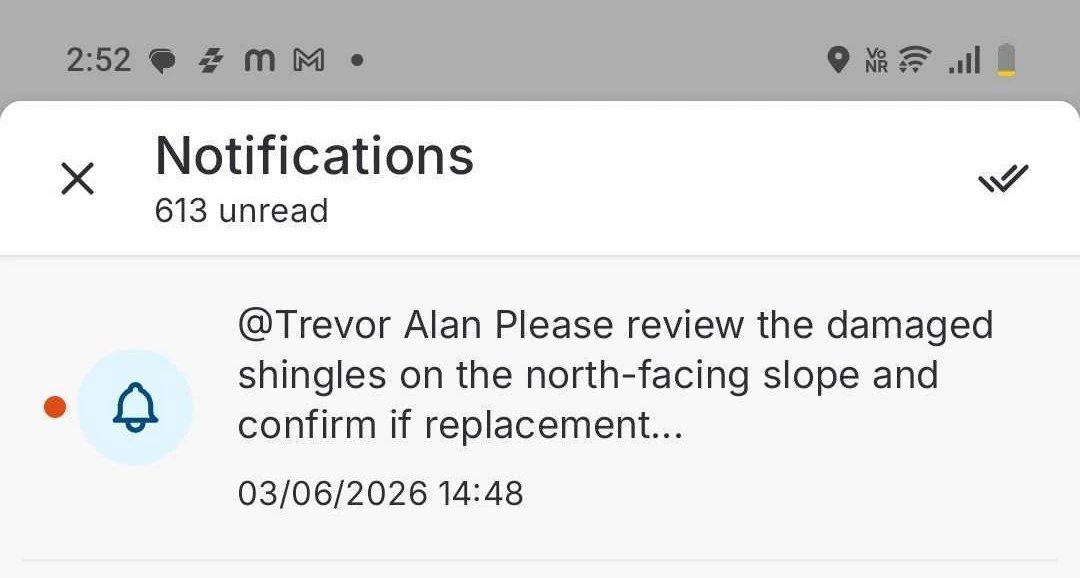
When you @mention a teammate in a comment, they receive an in-app notification. Tapping the notification opens the comment along with the associated photo.
### Notifications
When you @mention a teammate in a comment, they receive an in-app notification. Tapping the notification opens the comment along with the associated photo.
 ### Identifying Photos with Comments
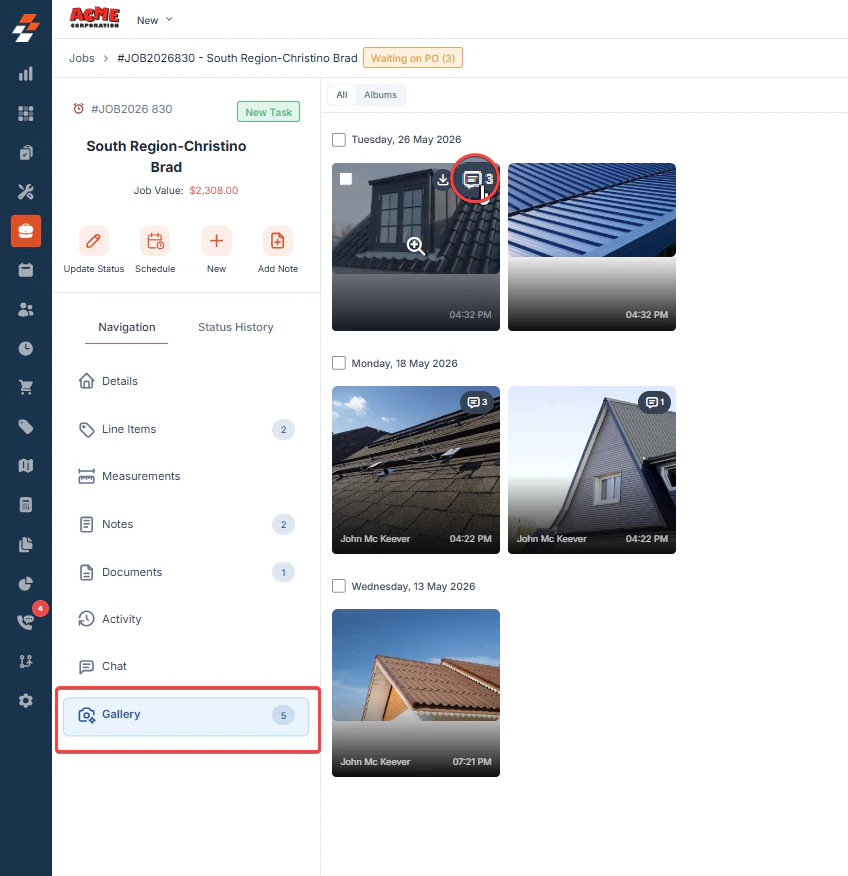
In the Gallery, photos that already have comments show a **comment count badge** on the thumbnail. The badge displays the total number of comments on that photo. Click the photo to open it and read the full comment thread.
### Identifying Photos with Comments
In the Gallery, photos that already have comments show a **comment count badge** on the thumbnail. The badge displays the total number of comments on that photo. Click the photo to open it and read the full comment thread.
 ### Editing or Deleting a Comment
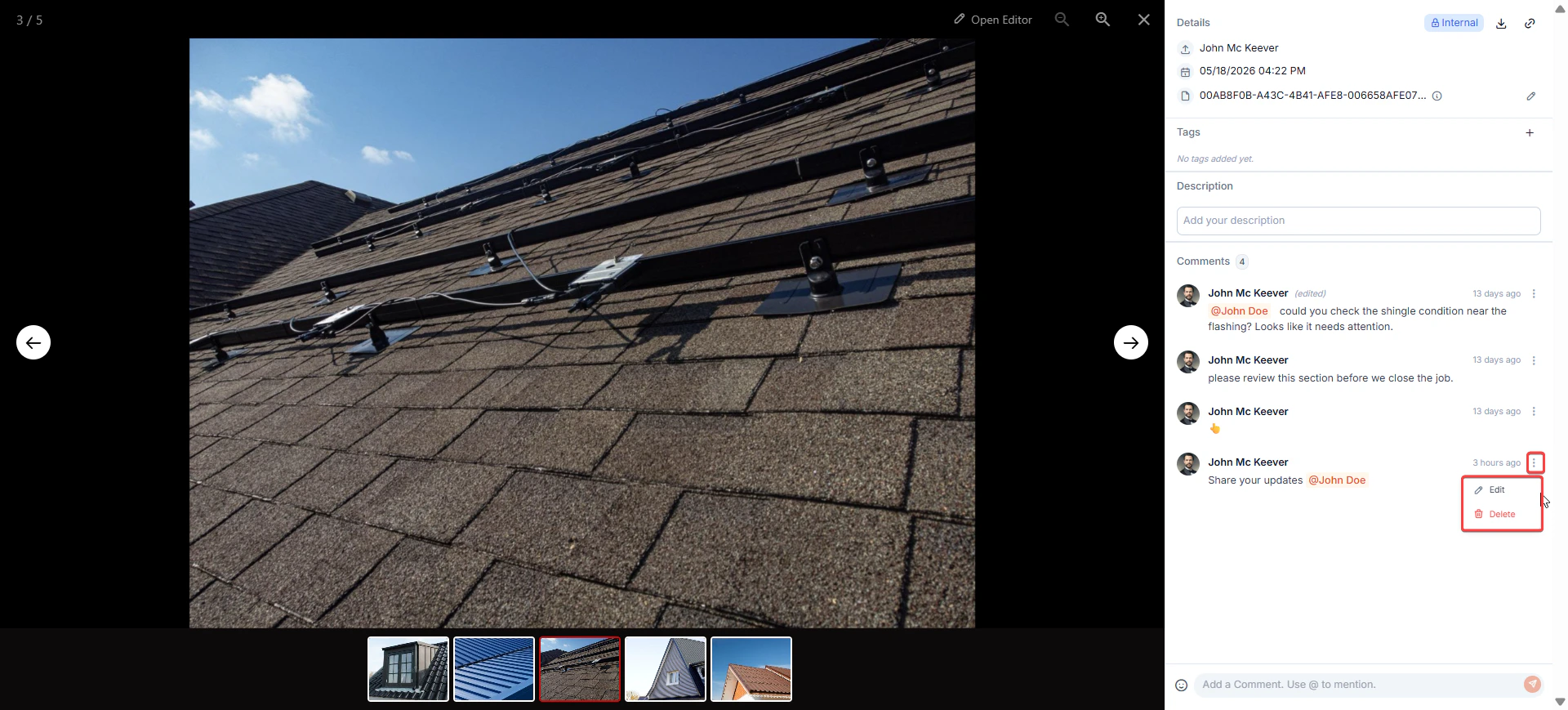
To edit or delete a comment, click the context menu **(...)** next to your comment and select **Edit** or **Delete**. You can only edit or delete comments you wrote. Admins can also delete comments posted by Field Technicians.
### Editing or Deleting a Comment
To edit or delete a comment, click the context menu **(...)** next to your comment and select **Edit** or **Delete**. You can only edit or delete comments you wrote. Admins can also delete comments posted by Field Technicians.
 ## Frequently asked questions
You can comment on any photo in Zuper — whether it was uploaded directly to the Gallery, added via a Checklist or Note, or attached to a record.
In the Gallery, photos with comments show a comment count badge on the thumbnail. The number tells you how many comments have been posted on that photo. Click the photo to open it and read the full thread. For photos added via Checklists, Notes, or Attachments, open the photo directly to view comments.
Not in this version. Comments appear as a flat chronological list.
## Frequently asked questions
You can comment on any photo in Zuper — whether it was uploaded directly to the Gallery, added via a Checklist or Note, or attached to a record.
In the Gallery, photos with comments show a comment count badge on the thumbnail. The number tells you how many comments have been posted on that photo. Click the photo to open it and read the full thread. For photos added via Checklists, Notes, or Attachments, open the photo directly to view comments.
Not in this version. Comments appear as a flat chronological list.