Note: This feature is available only on select Zuper plans. To enable it for your account, please contact your account administrator or email us at support@zuper.co
Accessing the AI Job Summary
To view the AI Job Summary:- Click the “Jobs” module from the left navigation menu.

- Select any of the Jobs from the jobs listing page. The selected job details page will appear.
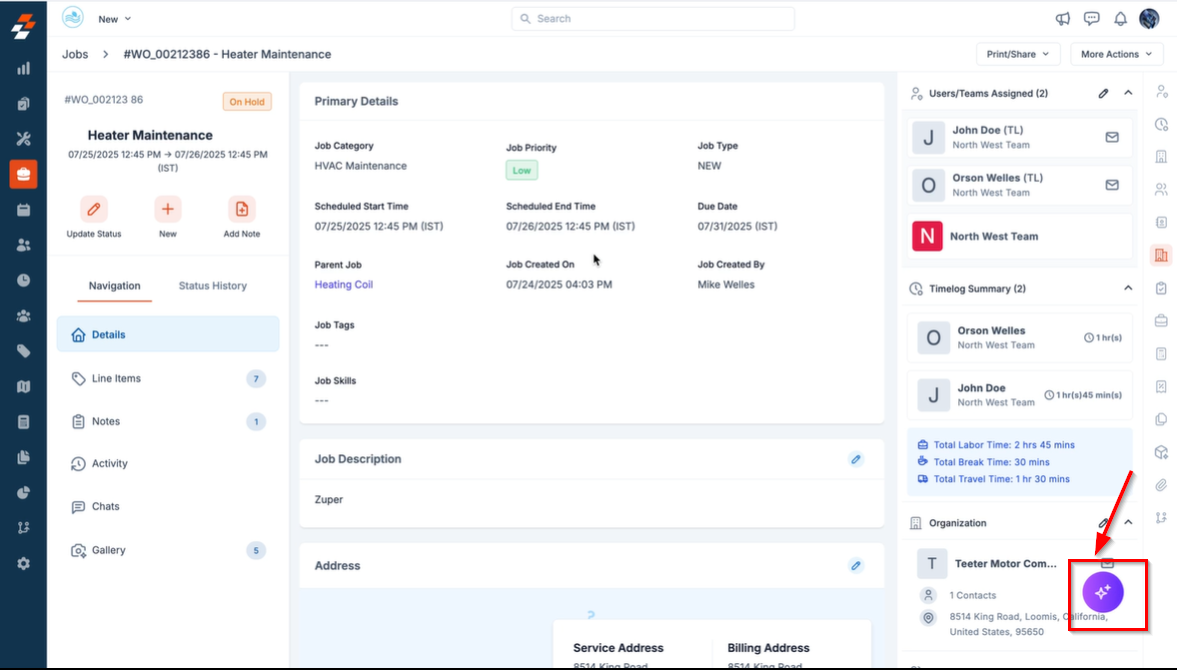
- Click the Zuper AI icon at the bottom right corner of the job details page.
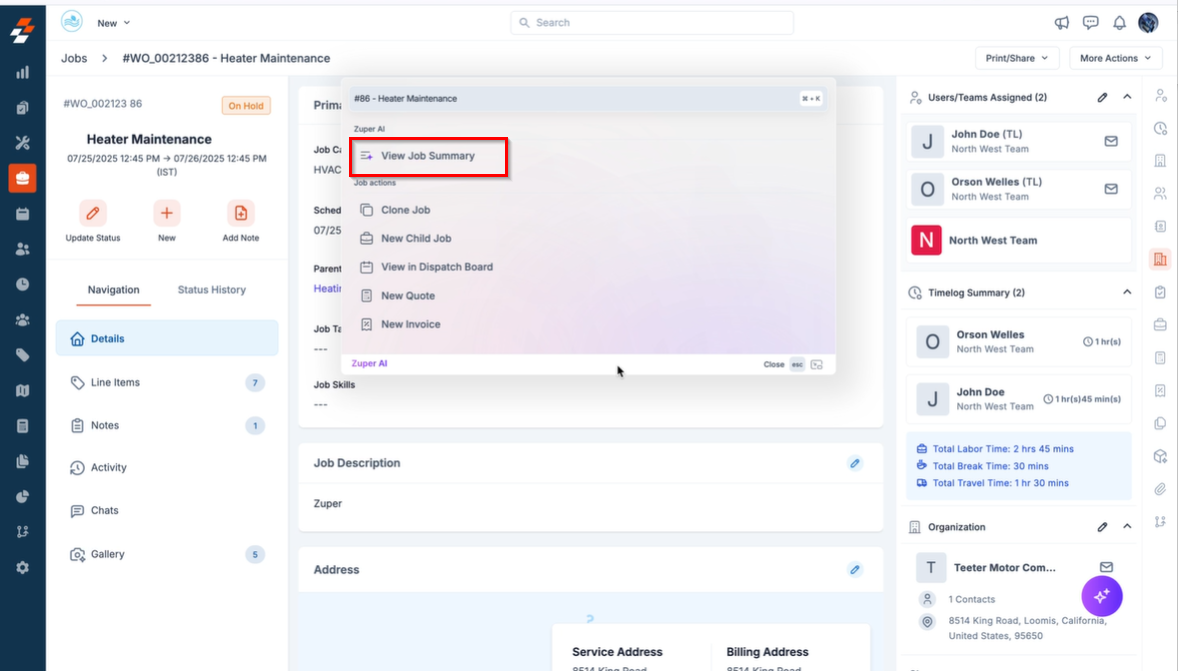
- Select “View Job Summary.”
What the Job Summary Includes
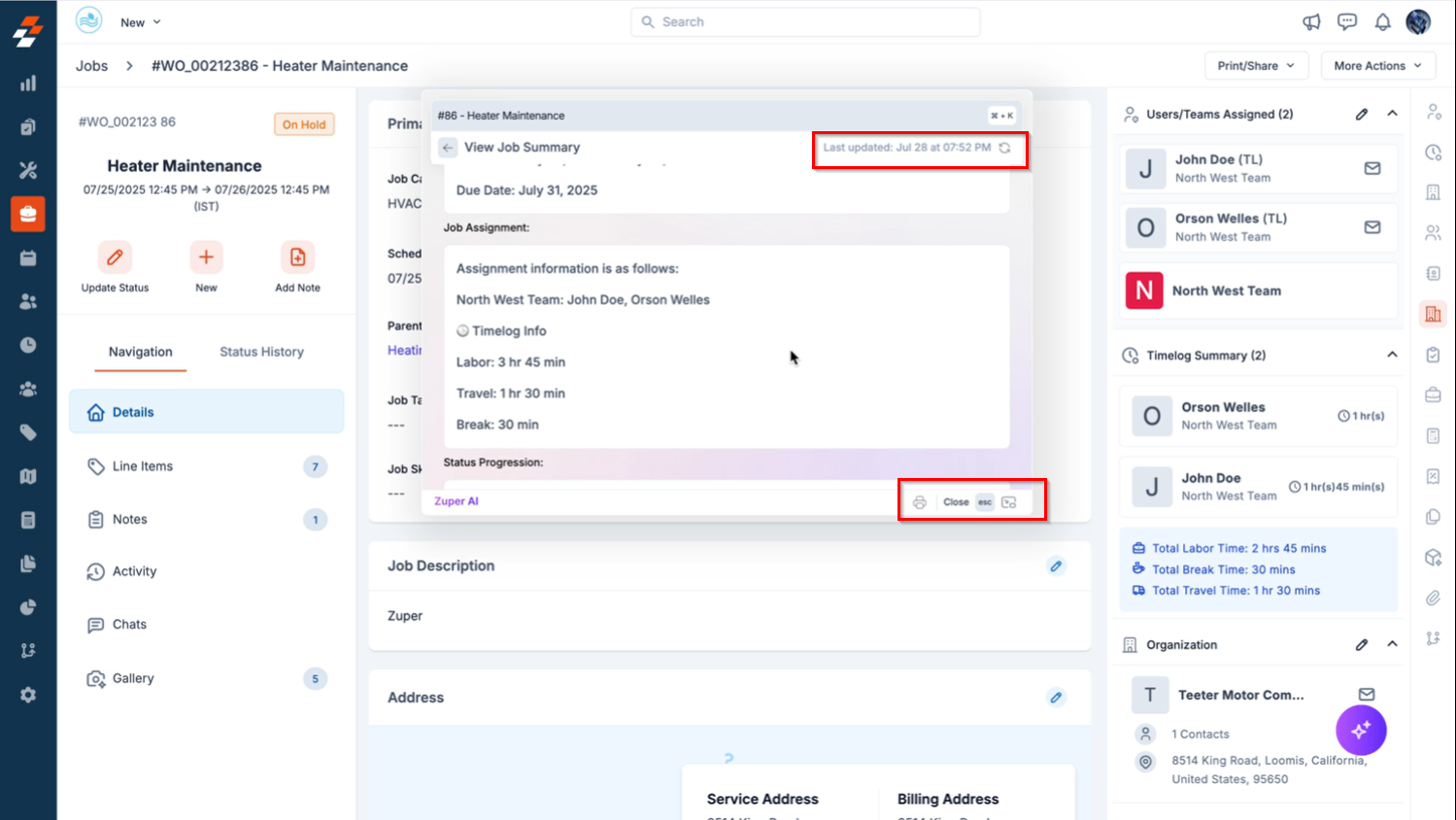
The AI Job Summary provides a holistic, auto-generated view of the job, allowing you to quickly assess the job’s context, progress, and associated records—all in a single glance. Below is a breakdown of the information included:- Job Overview
This helps you instantly understand what the job is, where and when it’s happening, and its current status.
- Job Assignment
- Job Timeline
- Status Progression
- Service Tasks
- Parts, Services, and Expense
- Associated Records
Note: At the top right of the summary window, you’ll find a timestamp indicating when the job was last modified.Example: Last updated: February 26, 2025, at 03:45 PM
Additional Actions
Within the summary window, the following quick actions are available:- Print – Print a copy of the AI-generated job summary for documentation or offline sharing.
- Close – Closes the summary window.
- Esc – Press Esc on your keyboard to quickly close the summary.
- Toggle Docking – Switch between a docked sidebar and a floating panel based on your screen preference.