- To onboard new merchants
- Configuring Wisetack
- Pre-Qualification Check
- Applying for a Finance and Payment Release
- Finance Cancellation Scenario
- Accessing Finance History
1. To onboard new merchants
To enable Consumer financing via Wisetack for our account, kindly reach out to your account manager or customer support team at support@zuper.co Once submitted, the information provided takes up to 5 business days to review.2. Settings – Configuration
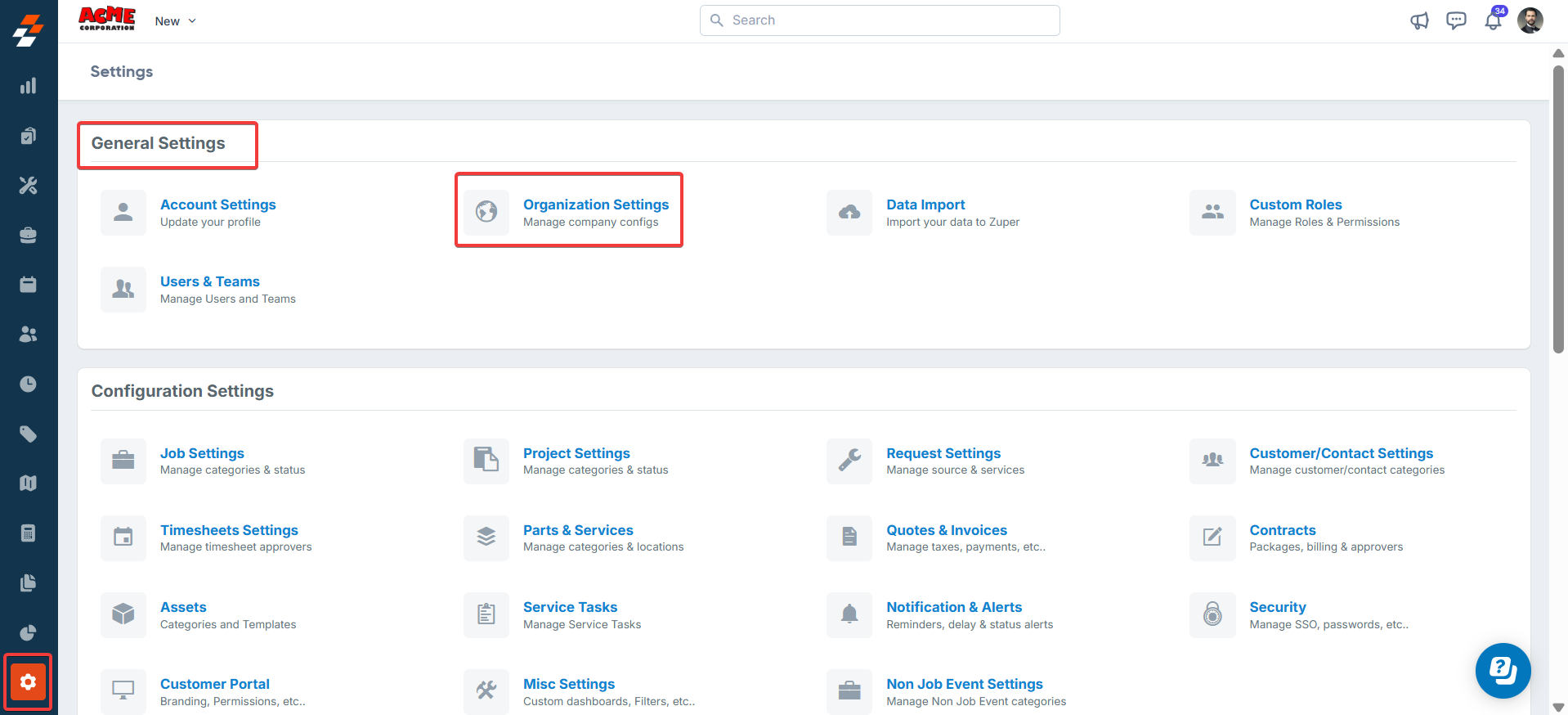
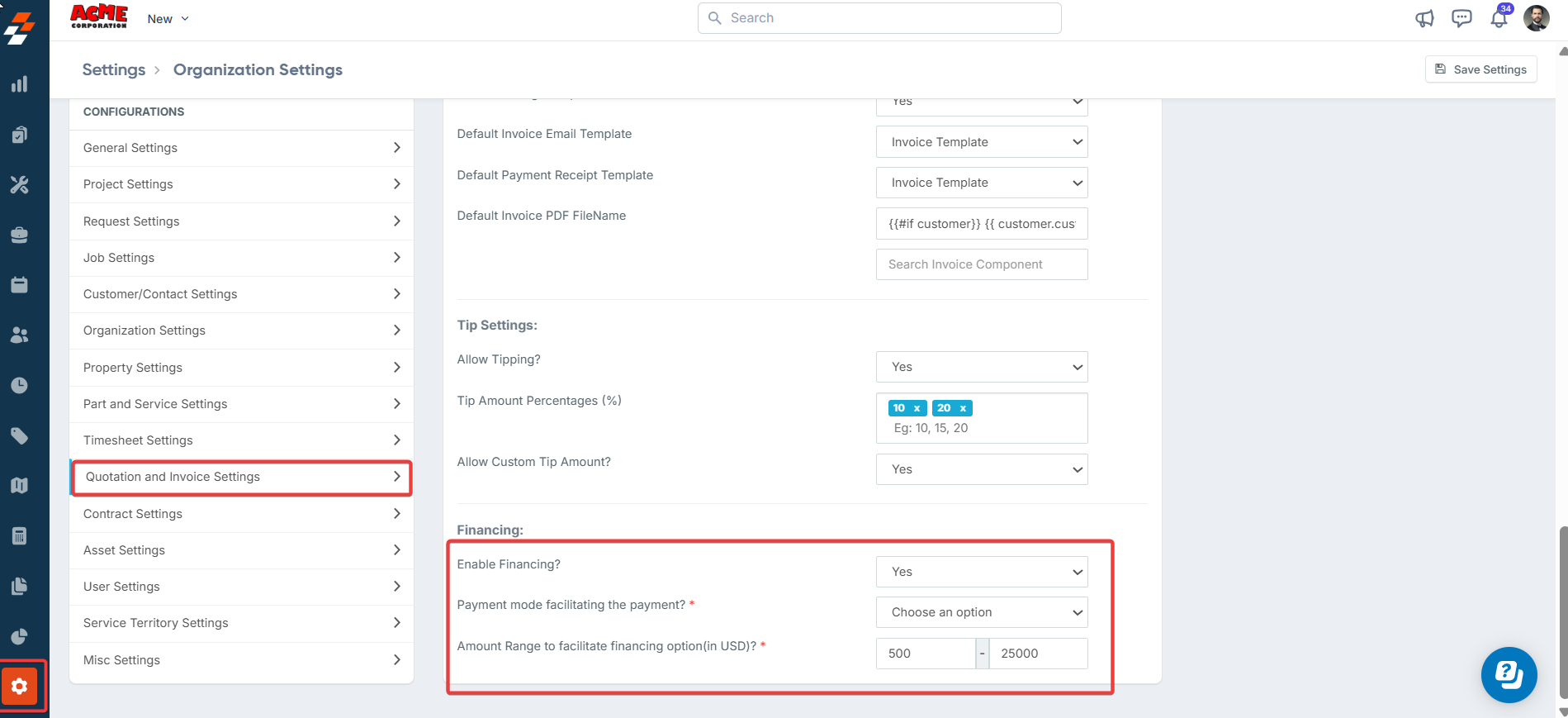
The configurations are the pre-defined settings that enable the admin to modify the essential details.- Select the “Settings” icon from the left panel and choose the “Organization Settings” section.
3. Pre-Qualification Check
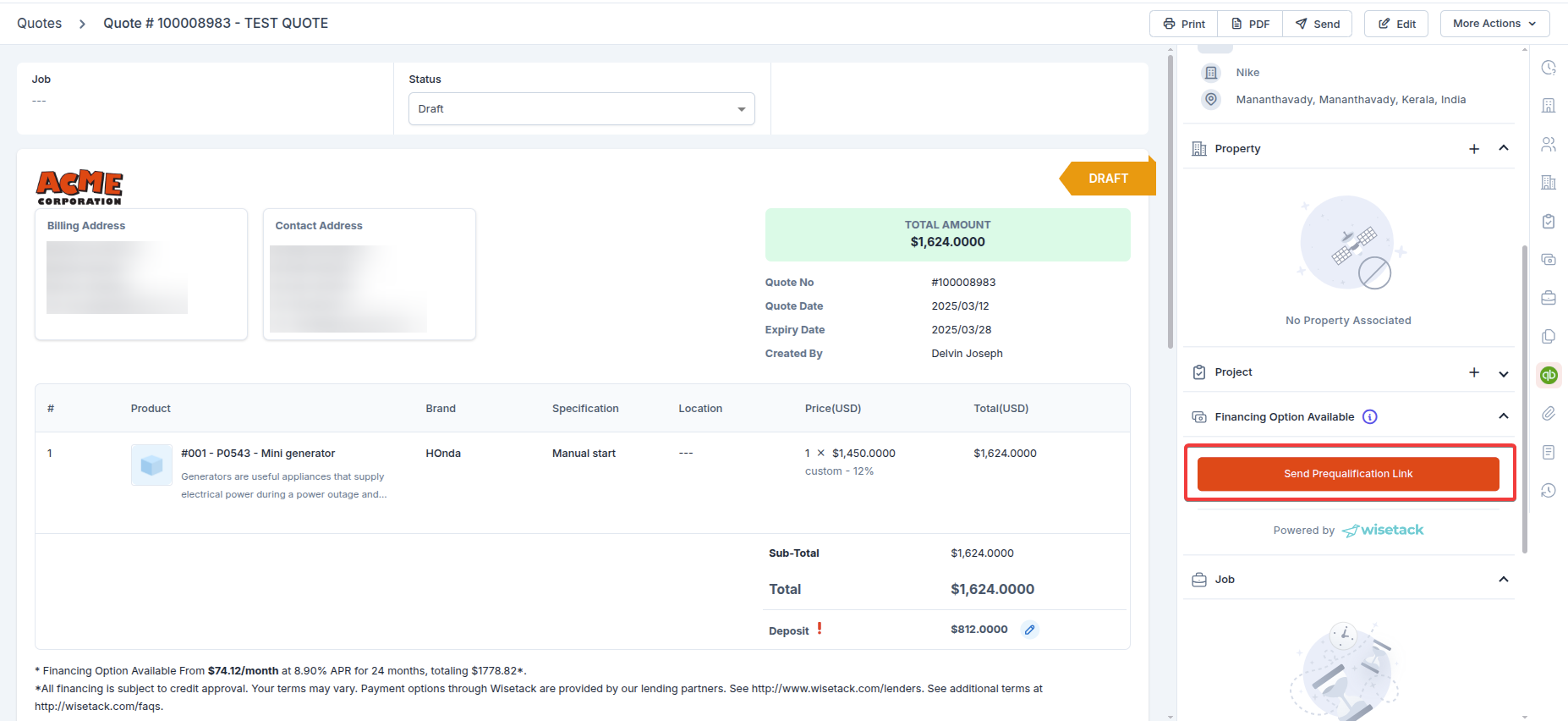
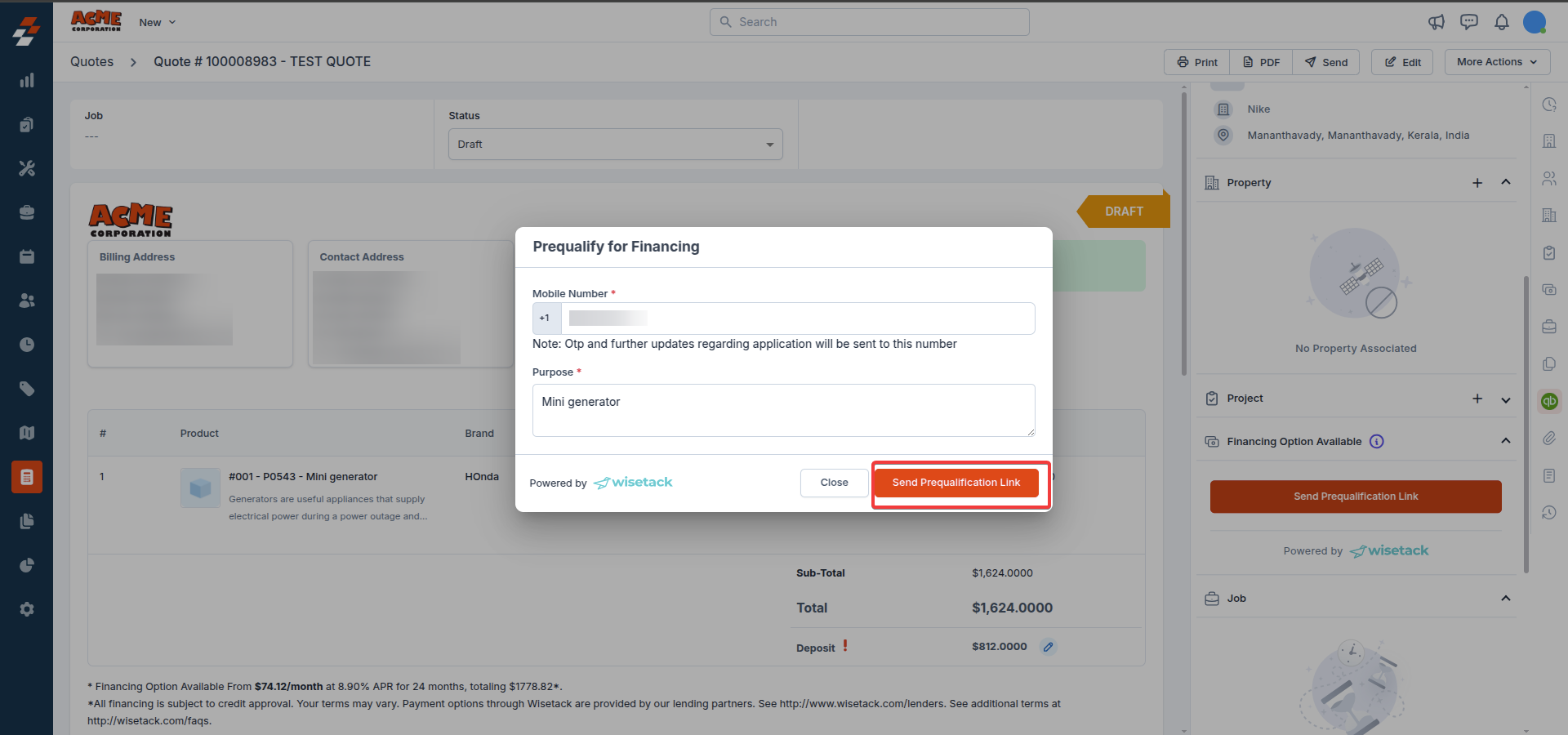
The eligibility check is a significant part of the Pre-Qualification phase. Using the maximum qualifying criteria Wisetack sets, the business and customer can learn about the eligible amount.- The pre-qualification occurs in the Quotes module. The business and customers can choose another payment mode based on the qualifying amount.
- Select the “Quotations” module from the left panel and choose the “+ New Quote” option. Fill in the necessary “Customer & Job Details,” “Billing Contact,” and “Billing Address” information.
- Enter the necessary “Parts and Services.”
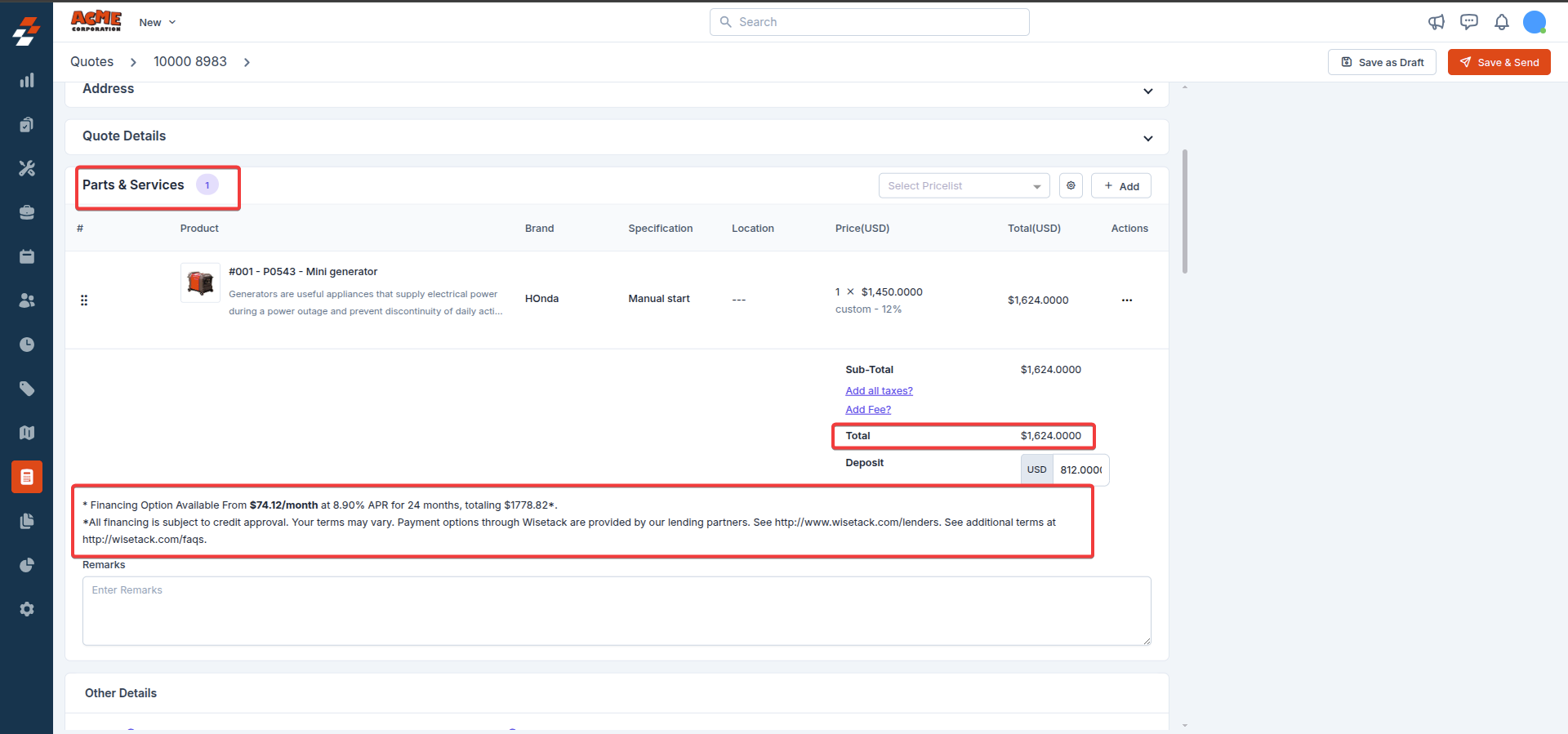
Note: Based on the final amount, the finance section specifies the approximate finance details, tenure, and interest will be visible to the customer at the bottom of the screen.
4. Applying for a Finance and Payment Release
- The pre-qualification link is optional. The business can directly create an invoice, and customers can opt-in for finance if needed.
- After following the steps above to convert the quote to an invoice, you can verify the details using the following steps.
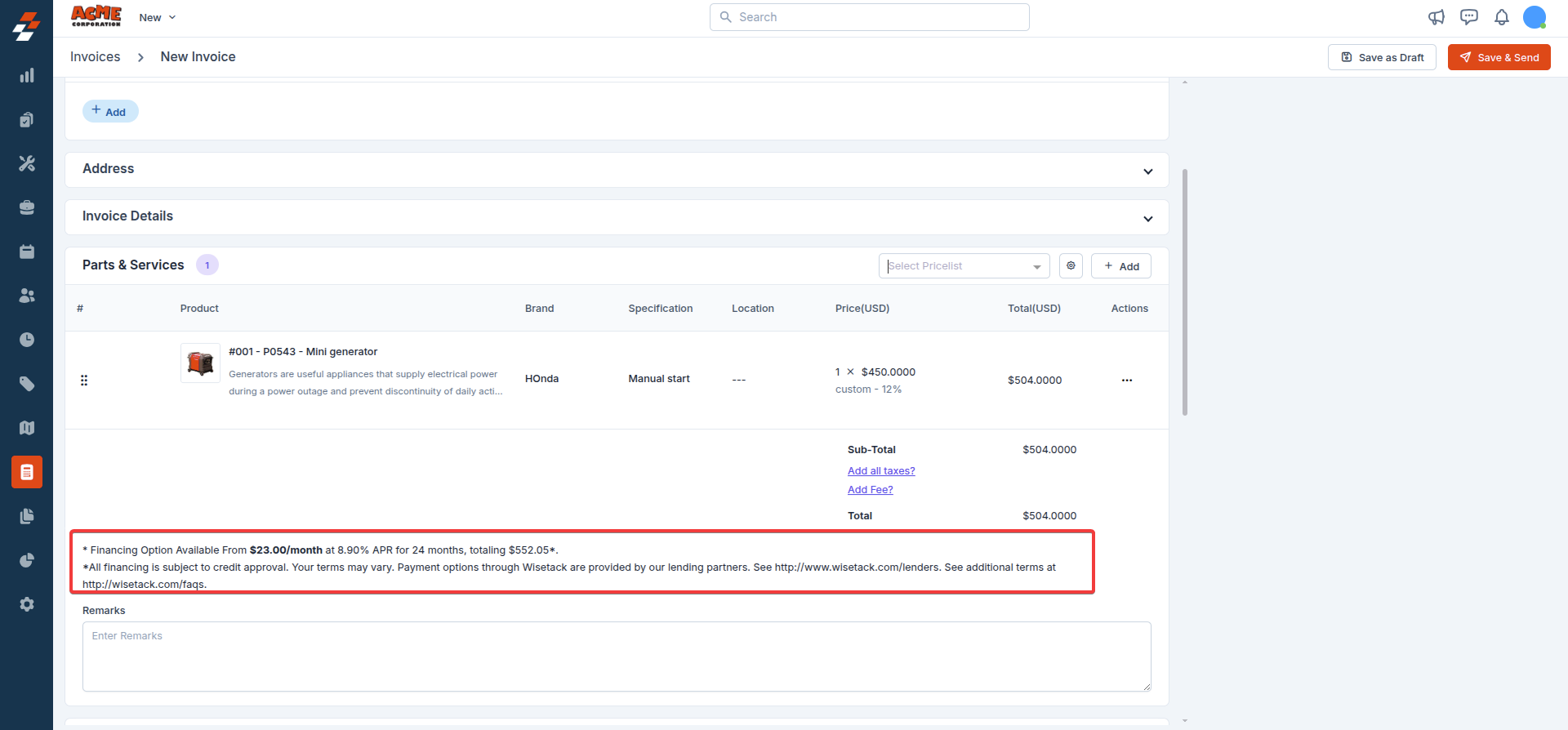
Note:The finance section, which specifies the approximate details of the Finance, tenure, and interest, will be visible to the customer at the bottom of the screen.
- Verify the pre-filled “Customer & Job Details,” “Billing Contact,” and “Billing Address” information as the invoice is converted from the quotation.
- Verify the necessary “Item Details.” The final amount will be displayed and saved as a draft in the invoice.
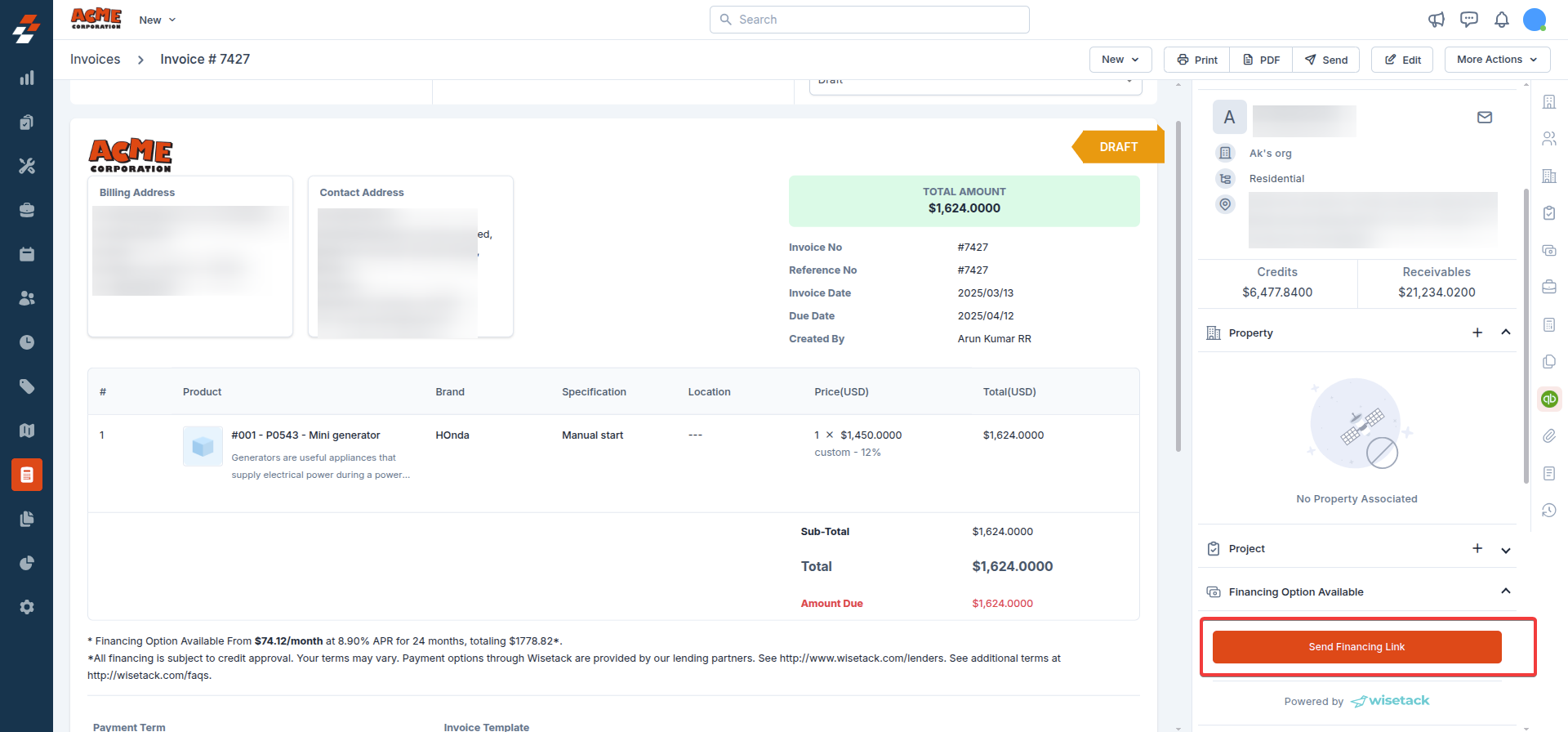
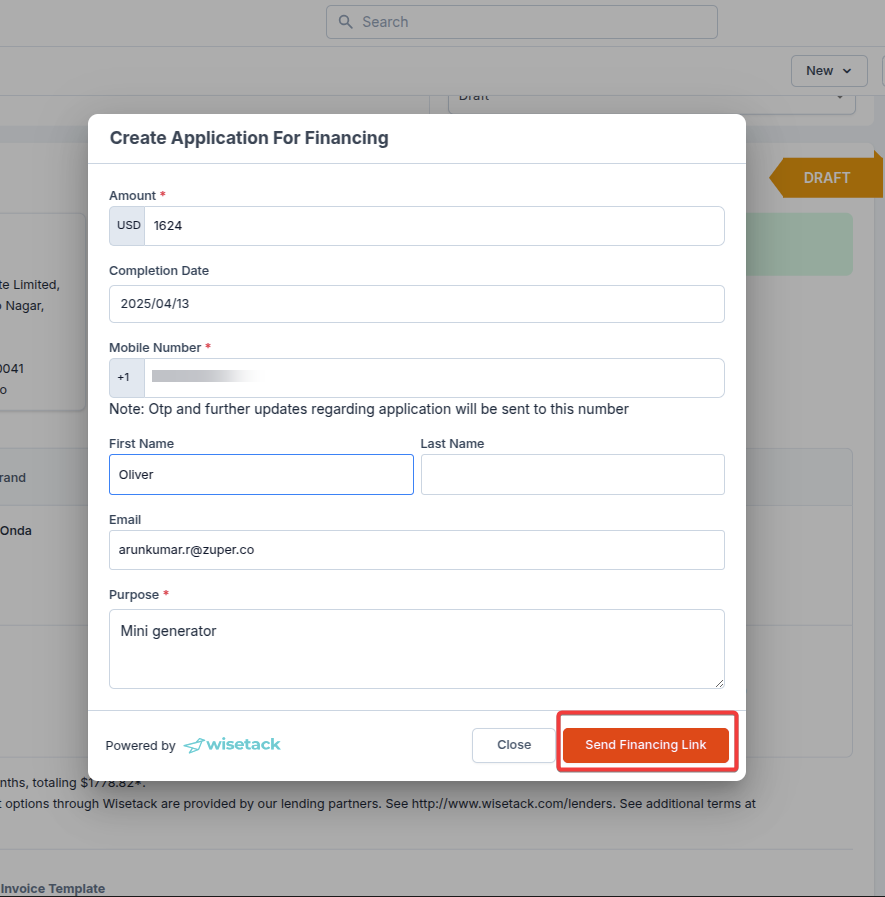
- Customers can review and accept Wisetack’s terms. After the customer agrees with the terms, the status will be updated as “Terms Accepted.”
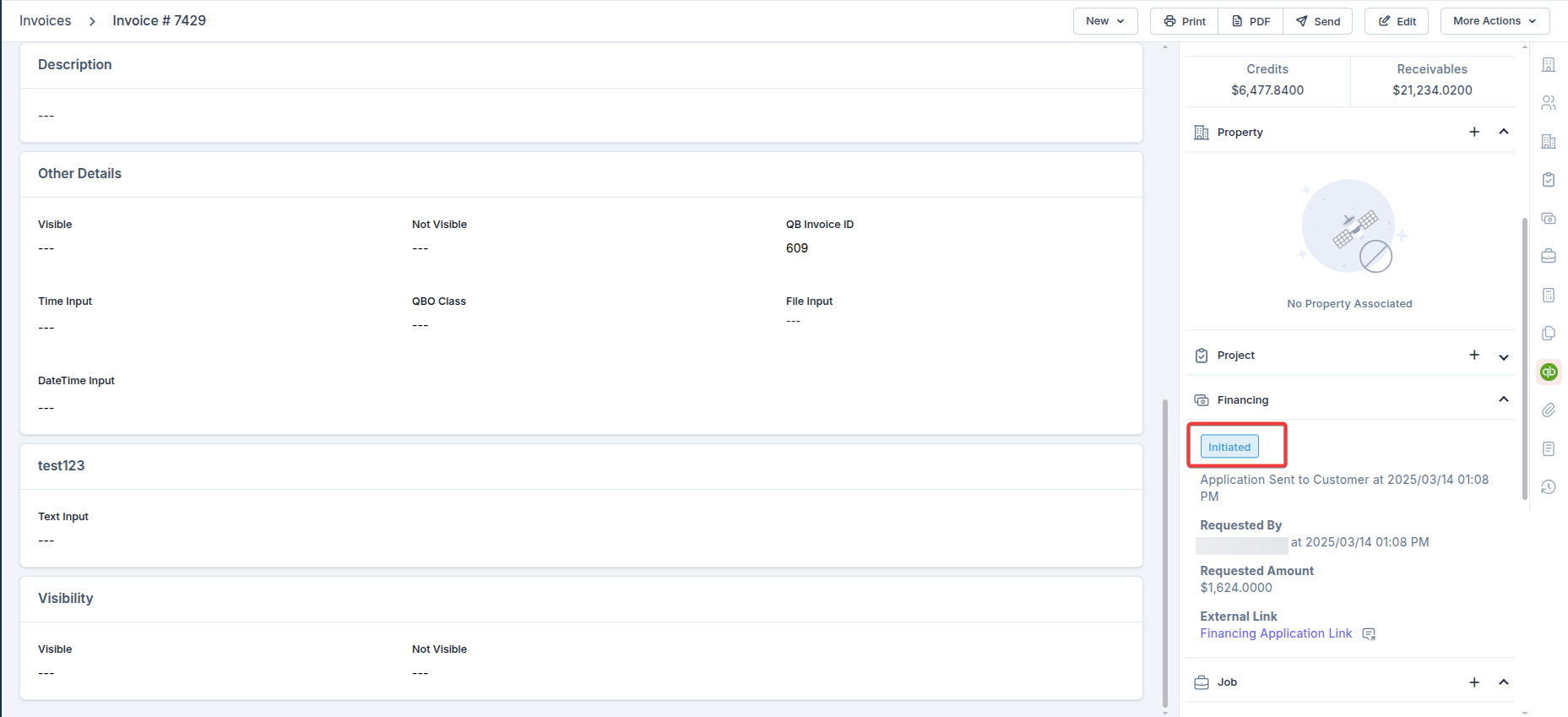
- The Financing section in the middle of the screen shows the Financing Application status.
- Once the job is complete and the customer approves the job completion, Wisetack will release the finance amount to the business.
- The status in the Zuper App will change to “Amount Settled.”
- The details will be sent to the customer’s registered email and SMS, indicating that Wisetack has settled the finances.
5. Financing Cancellation Scenario
An initiated finance can be canceled during one of the following scenarios.- Edit Invoice: (Mandatory)
- Invoice Detail (Cancellation)
- Mark as paid
- Collect Payment (Stripe) Invoice Detail
- Delete Invoice (Only Manager App or Back office)
6. Accessing Finance History
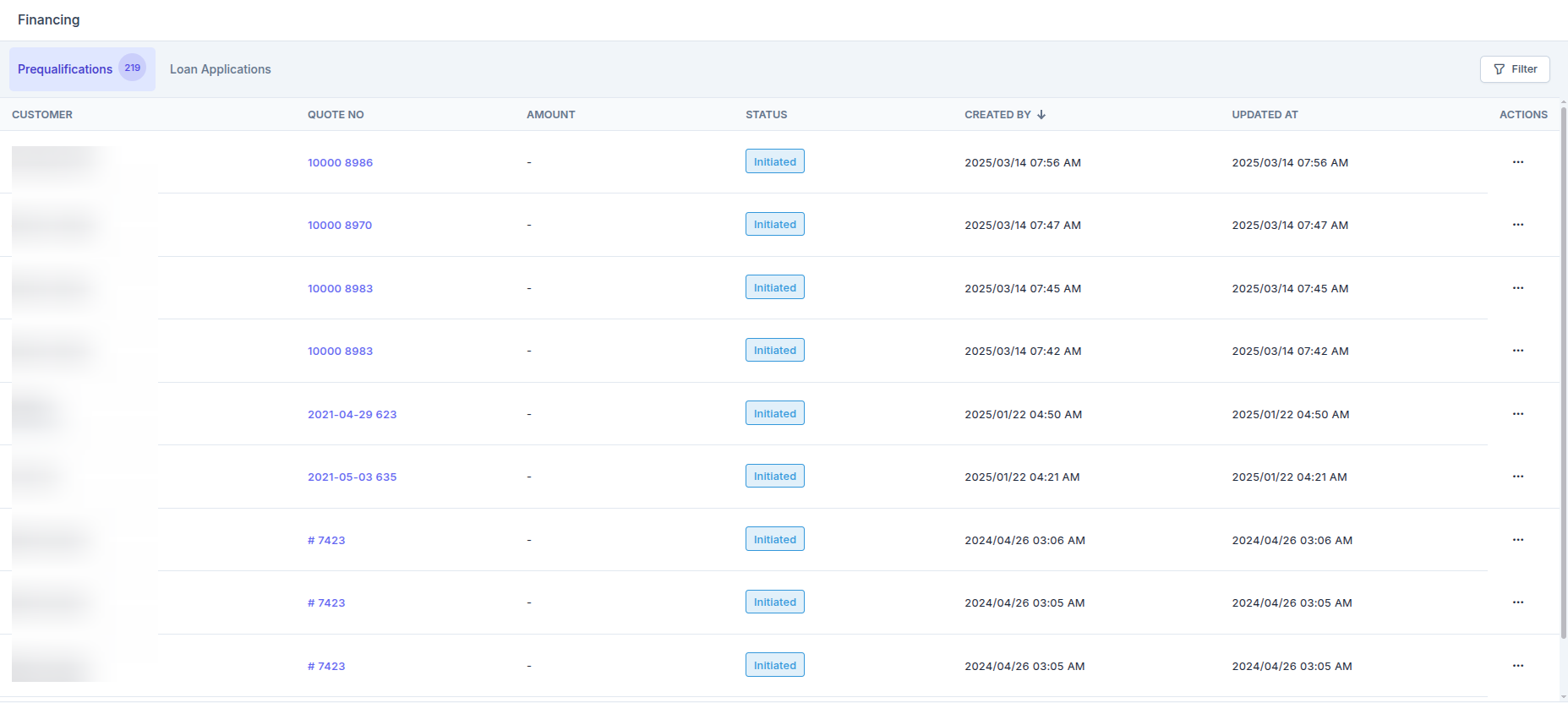
All Finance history can be viewed on a single page:Navigation: Accounting —>Financing
- Pre-qualifications: All customer finance pre-qualification histories can be tracked under this tab.
- Finance Applications: The customer’s finance application history can be tracked under this tab.
Note: You can view each line item using the Action a View icon and filter the required details using the filter icon.