

Before you begin
Set up the following as needed before creating the route:- A Zuper Connect phone number. You’ll assign the route to a phone number after creating it. See Getting a New Phone number.
- Your organization’s business hours, if the route should follow them. Configure them under Settings → Organization Settings → General Settings → Business Hours.
- A CSR Agent, if you want a CSR Agent to handle calls or messages.
- A call group, if calls should ring multiple users. See Creating Call Groups.
Access call routing settings
- From Settings, expand Communication in the left navigation menu.
- Select Zuper Connect.
- Select Call Settings.
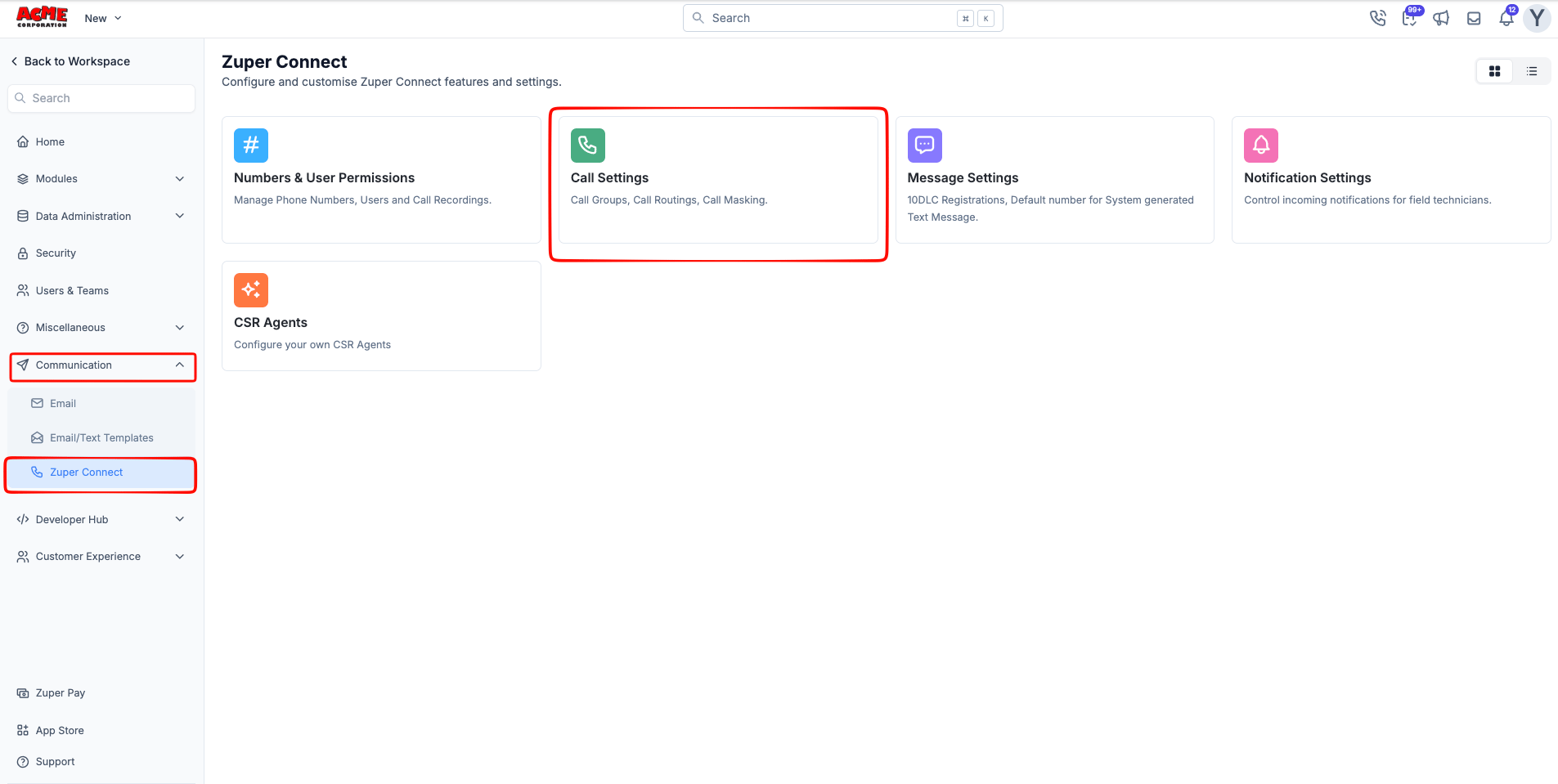
- Open the Call Routings tab.
Create a call route
Select + New Route from the Call Routings tab. The New Call Route panel opens on the right.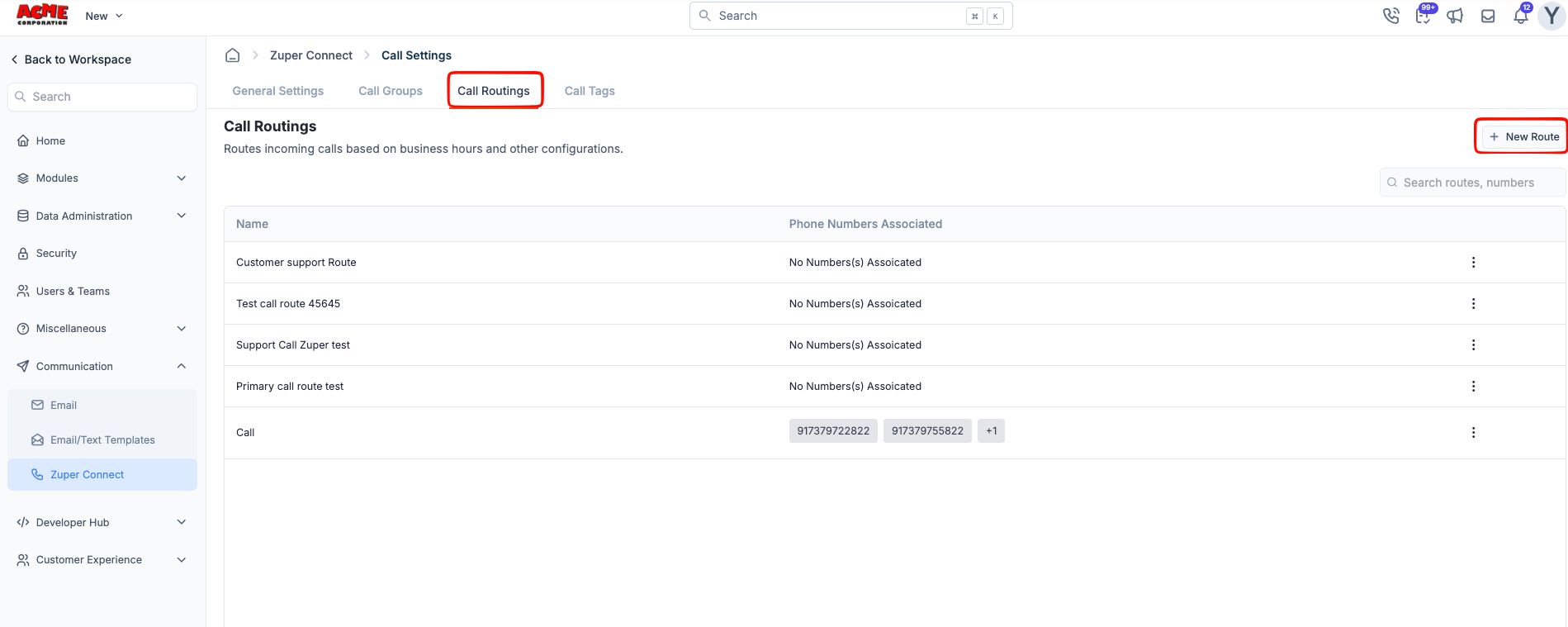
- Name the route and choose a schedule
- Set up incoming calls
- Set up incoming messages
- Save the route and assign a phone number
Name the route and choose a schedule
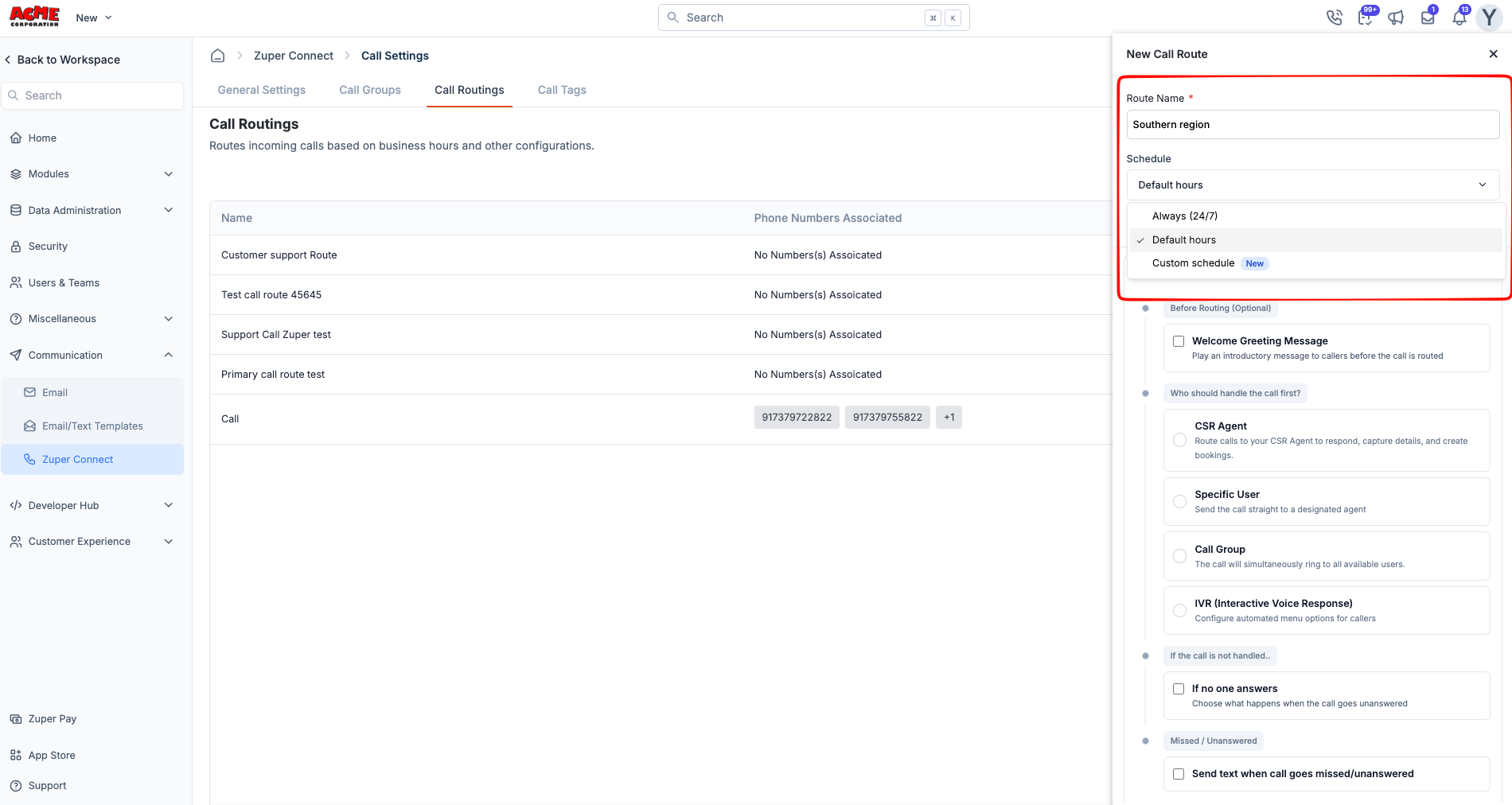
- Enter a name in Route Name.
- From Schedule, select when the route should be available:
Set a custom schedule
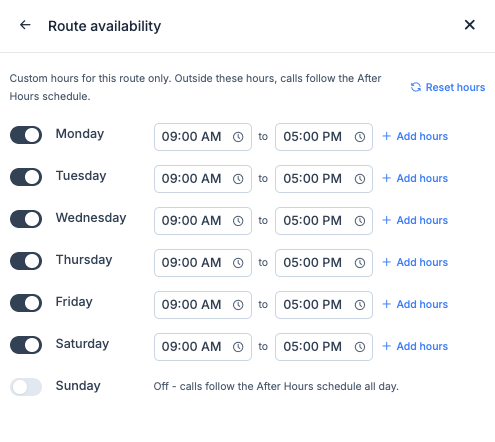
A custom schedule gives one call route its own day-by-day operating hours without changing your organization’s business hours or other routes. For example, your main office route can run Monday through Friday while another route handles Saturday mornings. Custom schedules use your organization’s time zone configured in General Settings. A call route can’t use a separate time zone.- From Schedule, select Custom schedule. The Route availability screen opens with Monday to Saturday set to 09:00 AM to 05:00 PM, and Sunday off.
- Leave the toggle on for each day the route should be available, and set the start and end times for that day.
- Turn off the toggle for days when the route should remain closed.
- To create another availability period on the same day, such as a lunch closure or split shift, select + Add hours and set the new time block.
- Select the back arrow to return to the route configuration.
Route availability options
Route availability options
Custom schedule guidelines
Custom schedule guidelines
- Two blocks on the same day overlap. The block turns red and shows Time ranges overlap.
- An end time is the same as or earlier than its start time. You’ll see End must be after start.
- At least one day must stay on. If you turn every day off, Zuper turns Monday back on with 9:00 AM to 5:00 PM when you leave the Route availability screen. Check the Route availability card before you save.
- A time block can’t continue past midnight, and 12:00 AM isn’t accepted as an end time. To cover hours across midnight, end the first day’s block at 11:59 PM and start another block on the next day at 12:00 AM.
- End times aren’t included in the availability block. For example, a block from 9:00 AM to 5:00 PM handles calls received before 5:00 PM. A call received at 5:00 PM follows the After Hours setup.
- Back-to-back blocks such as 9:00 AM to 1:00 PM and 1:00 PM to 5:00 PM are valid and don’t create a gap.
Example schedules
Example schedules
Set up incoming calls
The Incoming Calls tab determines how phone calls are handled.- With Always (24/7), configure one 24/7 section.
- With Default hours or Custom schedule, configure separate Business Hours and After Hours sections.
- A welcome greeting
- A primary call handler
- An unanswered-call fallback
- A missed-call text message
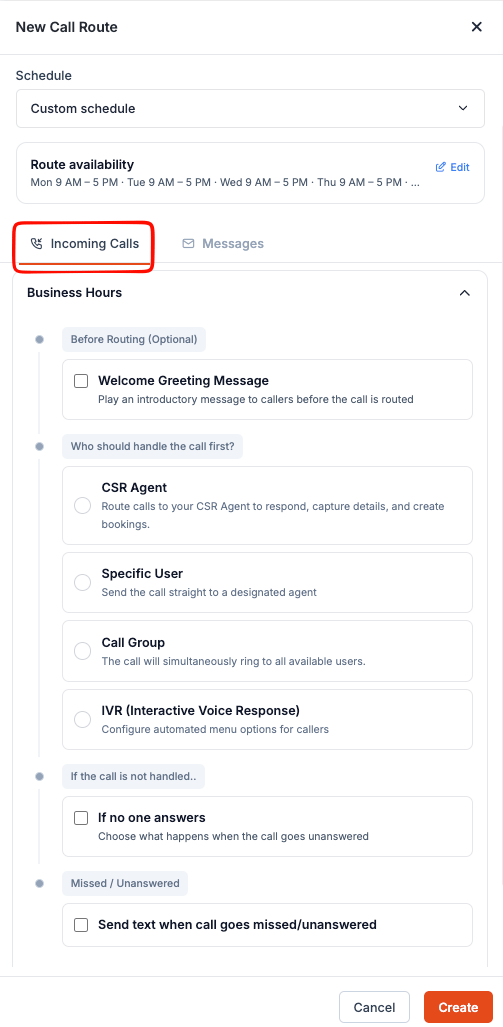
Add a welcome greeting
A welcome greeting plays before the call is routed.- Select Welcome Greeting Message.
- From Type of message, choose how you want to provide the greeting:
Choose who handles the call
Under Who should handle the call first?, select the primary handler for incoming calls:- CSR Agent
- Specific User
- Call Group
- IVR (Interactive Voice Response)
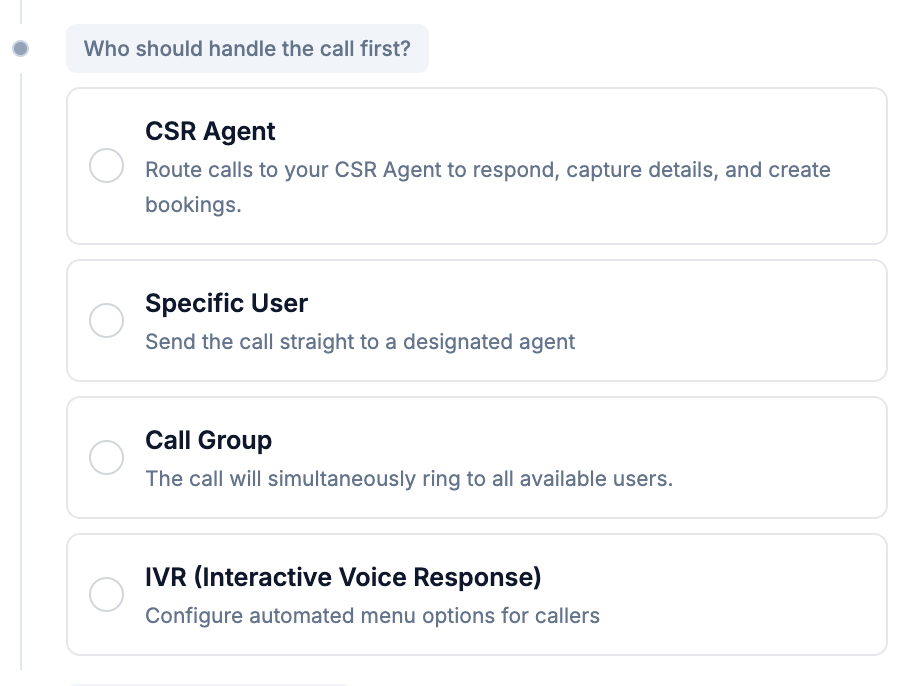
CSR Agent
A CSR Agent is an AI-powered assistant that answers calls, interacts with callers, captures their details, and creates bookings on your behalf.- Select CSR Agent.
- From Choose Agent, select the CSR Agent.
- Enable Allow Intervention to Human Agent if a team member should be able to take over the call.
Specific User
Use Specific User to send the call directly to one user.- Select Specific User.
- From Call Agent, select the user.
- From Ring for, choose how long the call should ring before moving to the fallback action: 20 Secs, 30 Secs, 45 Secs, 60 Secs, or 90 Secs.
Call Group
Use Call Group to ring all available users in the selected group. The first user to answer receives the call.- Select Call Group.
- From Ring to, select the group.
- From Ring for, select how long the group should ring: 20 Secs, 30 Secs, 45 Secs, 60 Secs, or 90 Secs.
IVR (Interactive Voice Response)
Use IVR (Interactive Voice Response) to let callers choose where their call should go by pressing a key on their phone. For example, callers can press 1 for Sales or 2 for Support.- Select IVR (Interactive Voice Response).
- In Press, enter the key the caller should select.
- From Action, select what happens when the caller presses that key:
- Call Group: Route the call to a call group.
- Call Agent: Route the call to a specific user.
- Forward: Forward the call to an external phone number.
- Voicemail: Send the caller to voicemail.
- Select + Add another to add another key option.
- Select Remove in the top-right corner of a row to delete that option.
Set what happens when no one answers
Under If the call is not handled.., specify what should happen if the primary handler doesn’t answer within the configured ring duration.- Select If no one answers.
- Choose a fallback option:
- Forward to an external number: Sends the call to a phone number outside Zuper.
- Voicemail: Plays a voicemail greeting and records the caller’s message.
- CSR Agent: Hands the call to a CSR Agent. Select the agent from Choose Agent.
- End call with greeting message: Plays a closing message and ends the call.
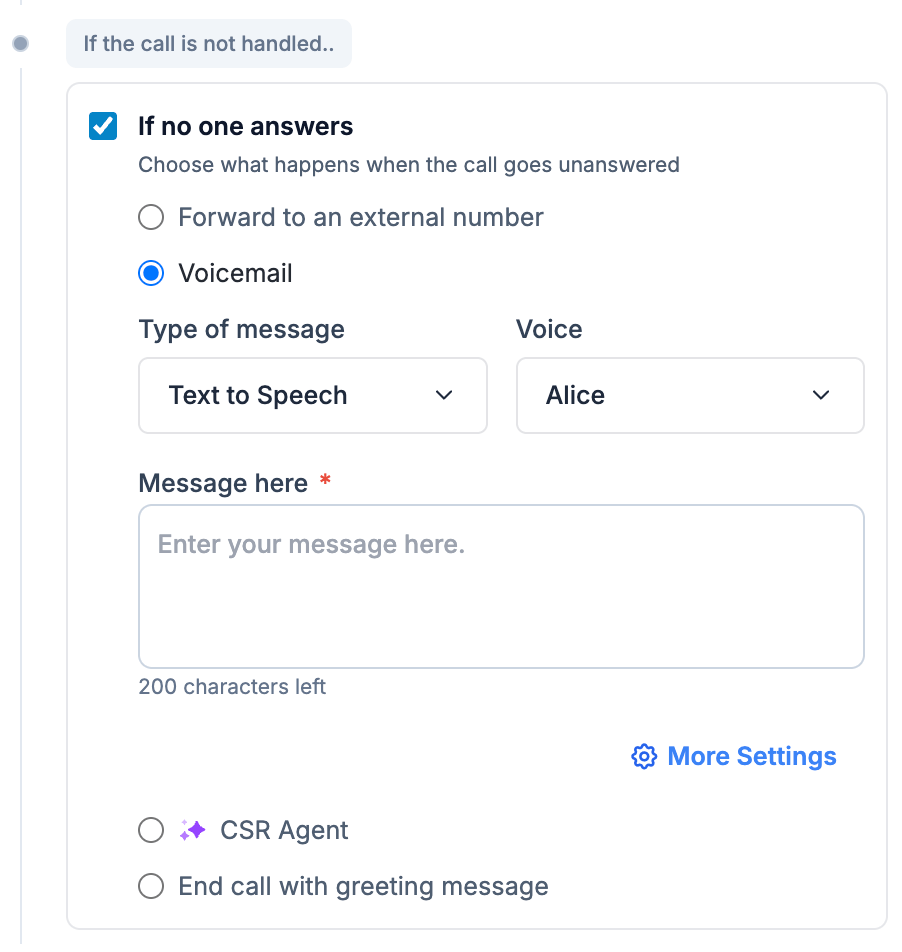
Set up voicemail
If you selected Voicemail:- From Type of message, choose Text to Speech, Upload Audio, or Record Audio.
- If you selected Text to Speech, select a voice and enter your message, up to 200 characters.
- To configure additional delivery options, select More Settings below the message field.
Send a text for missed calls
Under Missed / Unanswered, you can automatically send a text message when a call goes unanswered.- Select Send text when call goes missed/unanswered.
- Enter the message in Text Message, up to 160 characters.
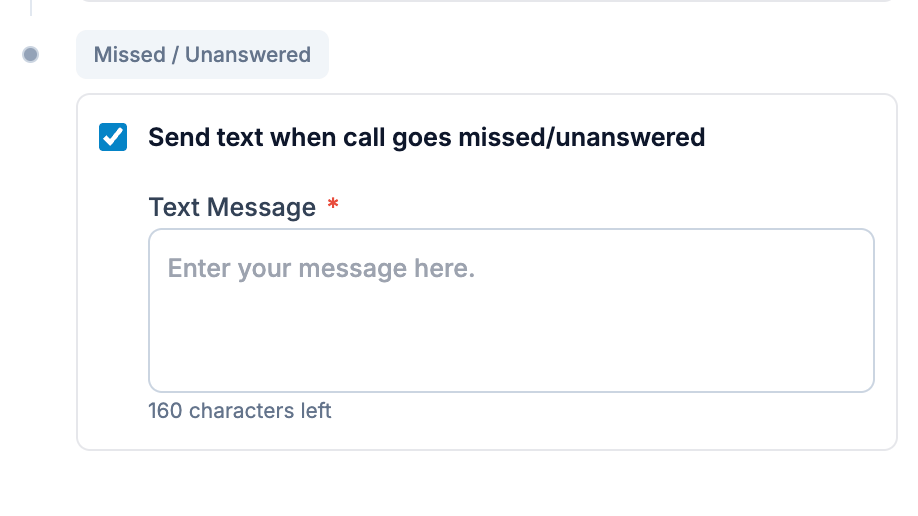
Set up after hours
If the route uses Default hours or Custom schedule, configure the After Hours section below Business Hours. Configure the greeting, handler, fallback, and missed-call text based on how calls should be handled outside the route’s open hours. For example, you can send calls to a call group during business hours and route them to voicemail or a CSR Agent after hours.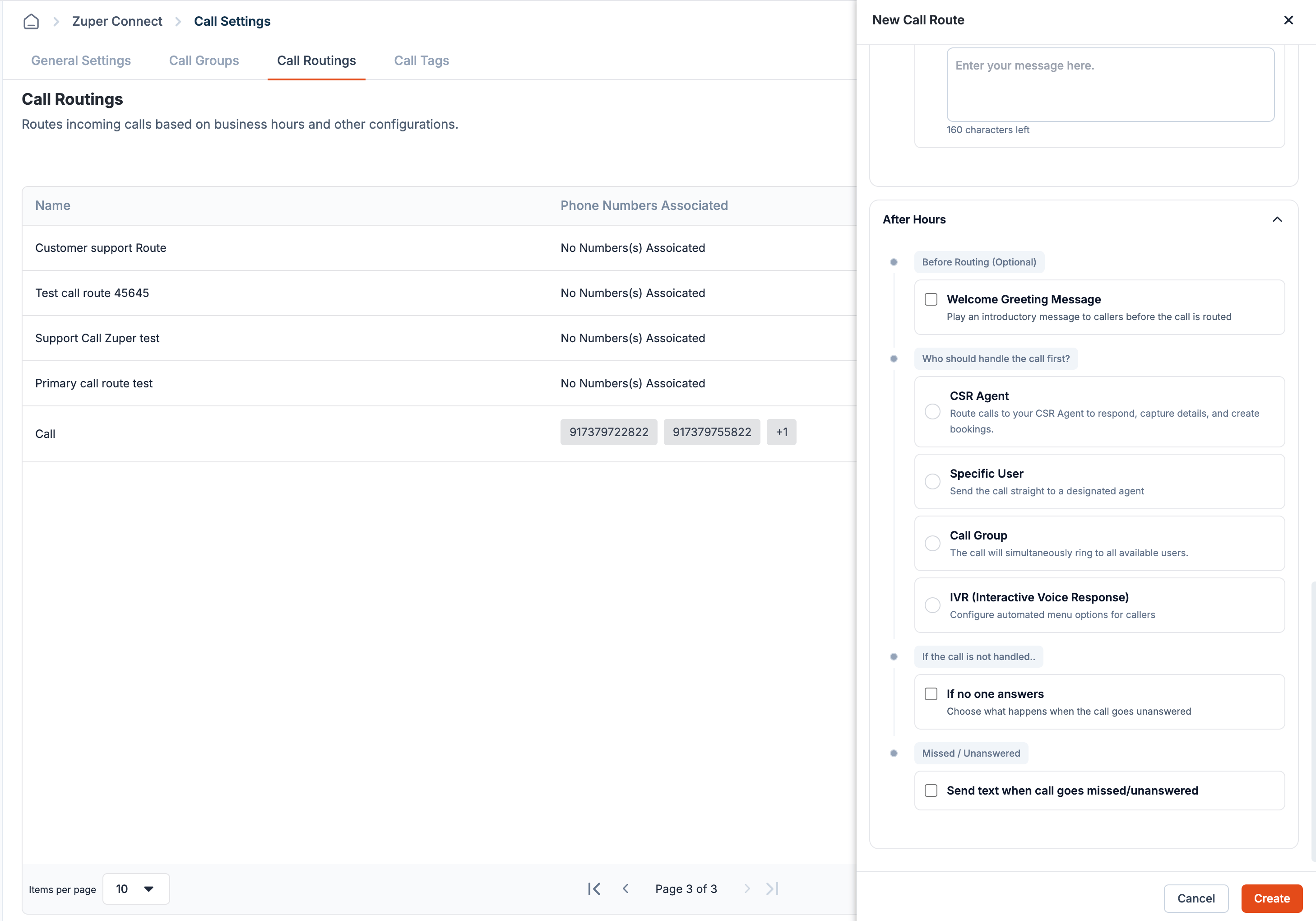
Set up incoming messages
The Messages tab determines when a CSR Agent responds to inbound text messages. The response window gives your team the first opportunity to reply. If no team member responds within the configured window, the CSR Agent steps in.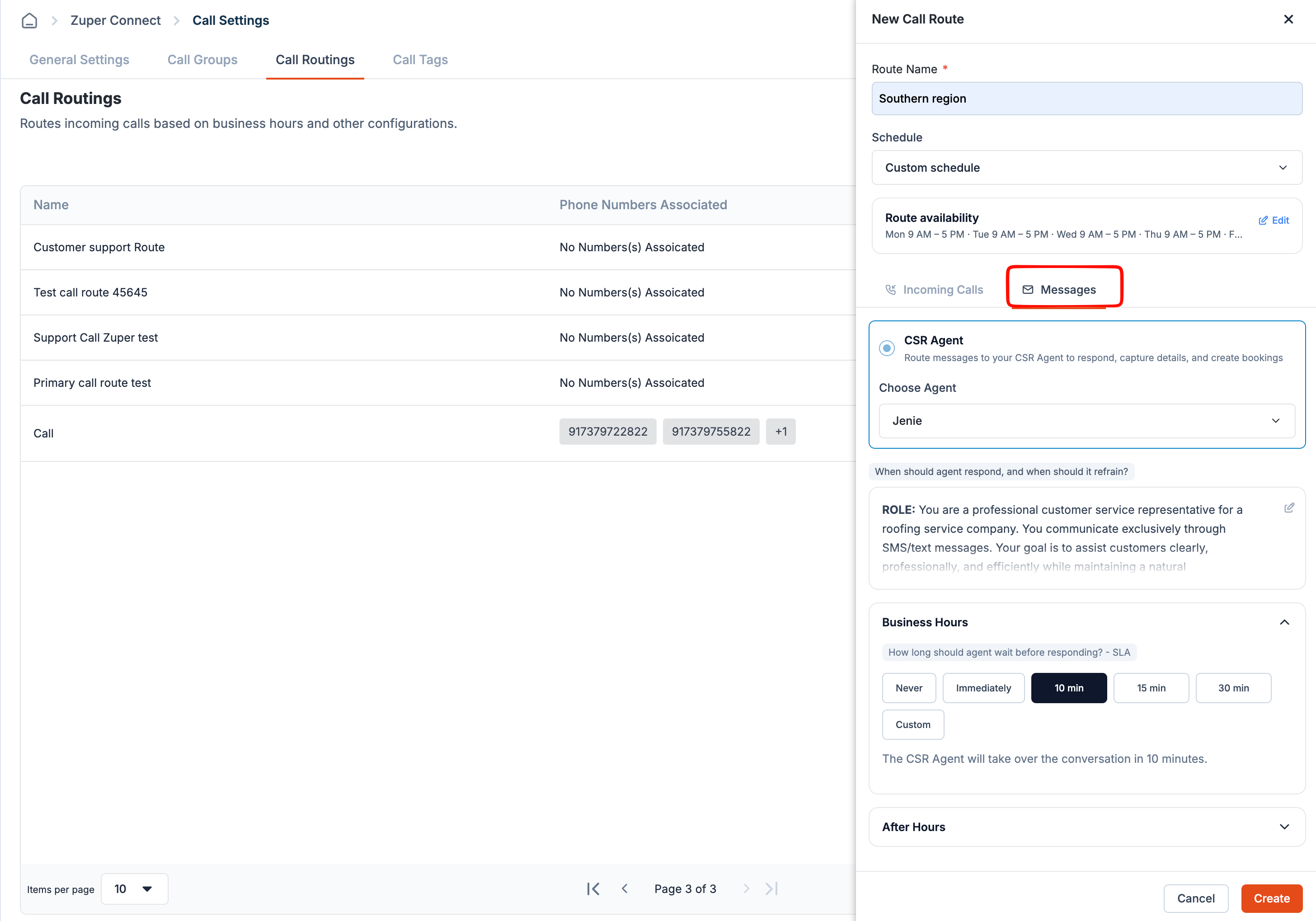
Choose a CSR Agent
- Open the Messages tab.
- In the CSR Agent section, open Choose Agent.
- Select the CSR Agent that should respond to inbound messages.
Tell the agent when to respond
You can define situations where the CSR Agent should respond or leave the conversation for your team.- Select the edit icon next to When should agent respond, and when should it refrain?
- Describe when the agent should reply and when it should hold back. For example, you can ask the agent to leave complaints or urgent requests for a team member.
- Select Save.
Set the response window
The response window determines how long Zuper waits for your team to respond before the CSR Agent steps in.- With Always (24/7), configure one response window under 24/7.
- With Default hours or Custom schedule, configure separate response windows for Business Hours and After Hours. The route’s schedule determines which window applies when a message arrives.
Save the route and assign a phone number
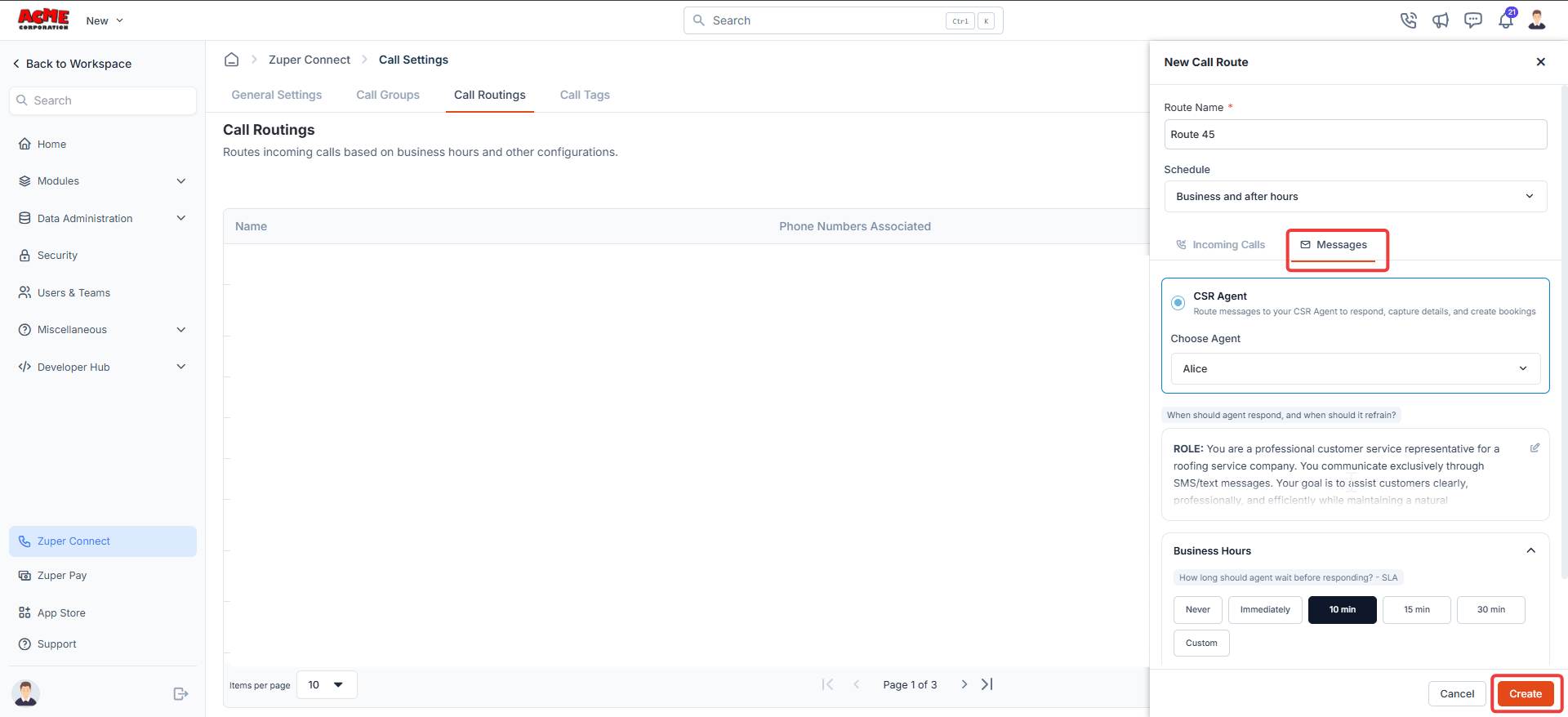
After configuring both tabs:- Review the Incoming Calls and Messages settings. In Business Hours and After Hours (or 24/7), select a handler under Who should handle the call first? and set up If no one answers. Zuper outlines a required field in red if you skip it.
- Select Create.
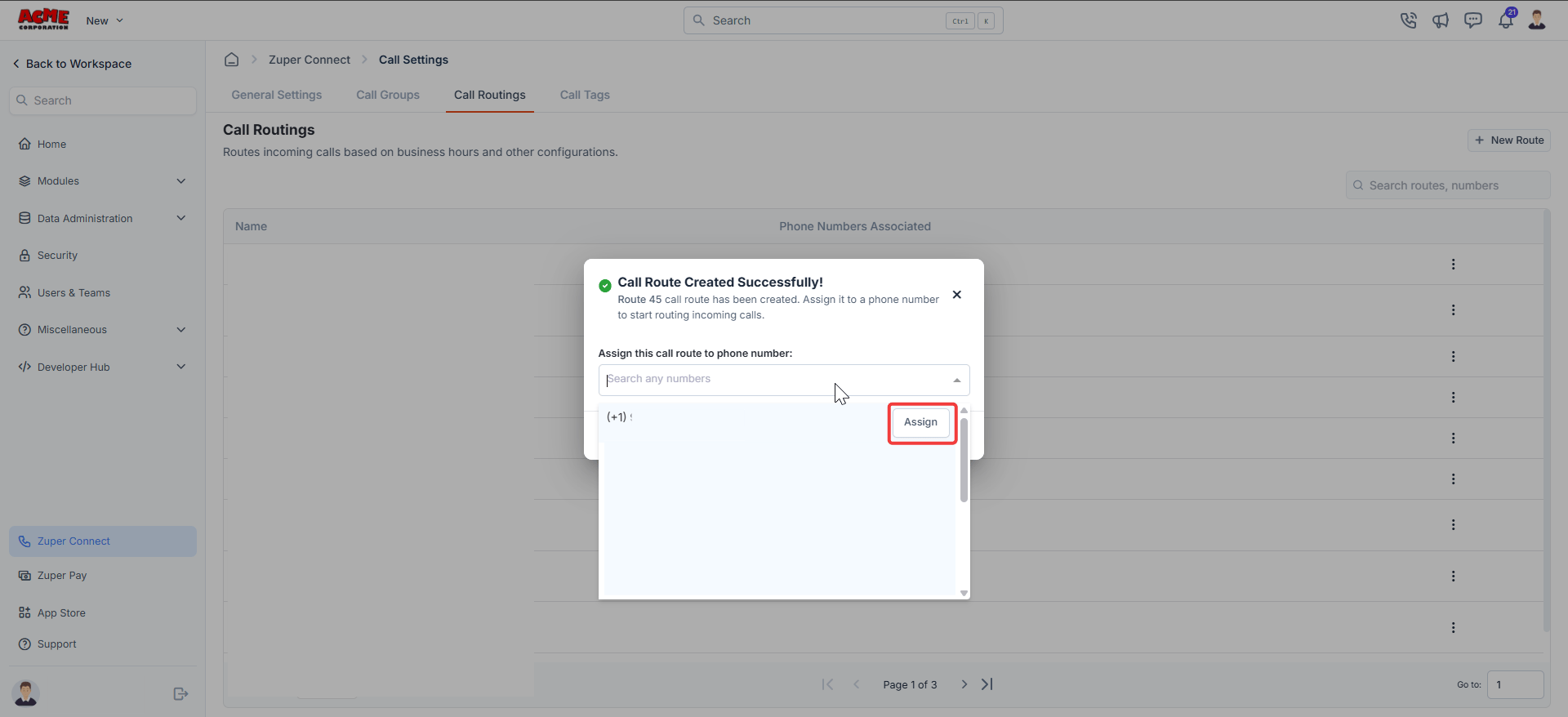
- Search for or scroll to the phone number you want to assign.
- Select Assign next to the phone number. The phone number is now linked to the route.
Manage existing call routes
On the Call Routings tab, open the context menu next to a route to perform the following actions:- Edit: Opens the Edit Call Route panel, where you can update the route name, schedule, handlers, or fallback settings. Select Update to save your changes.
- Assign Number: Link another phone number to the route.
- Clone Route: Opens a New Call Route panel named Copy of followed by the original route name. The schedule, including any custom hours, and the call handling settings are copied. Rename the route, review it, and select Create.
- Delete: Permanently remove the route.
Frequently asked questions
Do I need a call route to receive incoming calls?
Do I need a call route to receive incoming calls?
How are business hours determined for a call route?
How are business hours determined for a call route?
- Always (24/7): The route is always available and doesn’t have an after-hours period.
- Default hours: Uses your organization’s business hours from Settings → Organization Settings → General Settings → Business Hours.
- Custom schedule: Uses the days and time blocks configured on the route’s Route availability screen.
Which time zone does a custom schedule use?
Which time zone does a custom schedule use?
Does a custom schedule change my organization's business hours?
Does a custom schedule change my organization's business hours?
What happens if I switch a custom schedule back to Default hours?
What happens if I switch a custom schedule back to Default hours?
Does a custom schedule change the After Hours configuration?
Does a custom schedule change the After Hours configuration?
Can I close a route for a holiday or one-time closure?
Can I close a route for a holiday or one-time closure?
Can an availability block run past midnight?
Can an availability block run past midnight?
What happens at the exact end time of an availability block?
What happens at the exact end time of an availability block?
What happens to a call already in progress when business hours end?
What happens to a call already in progress when business hours end?
A caller reached voicemail during our open hours. Why?
A caller reached voicemail during our open hours. Why?
- Make sure the day is enabled in the route’s schedule.
- Confirm that the call arrived inside one of the configured availability blocks.
- Remember that the end time isn’t included. For example, a block ending at 5:00 PM stops handling Business Hours calls at 5:00 PM.
- Confirm that your organization’s time zone in General Settings matches where your team works.
Can different routes have different operating hours?
Can different routes have different operating hours?
What happens if I change my organization's business hours?
What happens if I change my organization's business hours?
What happens if no one answers an incoming call?
What happens if no one answers an incoming call?
Can Business Hours and After Hours use different routing settings?
Can Business Hours and After Hours use different routing settings?
What happens if an external forwarding number doesn't answer?
What happens if an external forwarding number doesn't answer?
Are international forwarding destinations supported?
Are international forwarding destinations supported?
Where can I find voicemail messages?
Where can I find voicemail messages?
Can I enable call recording for individual routes?
Can I enable call recording for individual routes?
Can I configure a recording-consent message for only one route?
Can I configure a recording-consent message for only one route?
Can I clone a call route?
Can I clone a call route?
Are there additional charges for external forwarding?
Are there additional charges for external forwarding?
Why can't I save another call route?
Why can't I save another call route?
Does this affect the Text Responder?
Does this affect the Text Responder?