Overview
Avalara AvaTax is a cloud-based solution that automates transaction tax calculations and tax filing. It provides real-time tax calculations using tax content from over 12,000 U.S. taxing jurisdictions and 200+ countries, ensuring compliance with current tax rules. By integrating AvaTax with Zuper, businesses can eliminate manual tax calculations, automatically retrieve accurate tax rates, and apply exemption rules for transactions.Prerequisites
- Active Account: An active Avalara AvaTax account is required.
- Geographic Restriction: Avalara integration is available only for organizations in the U.S.
Installing AvaTax in Zuper
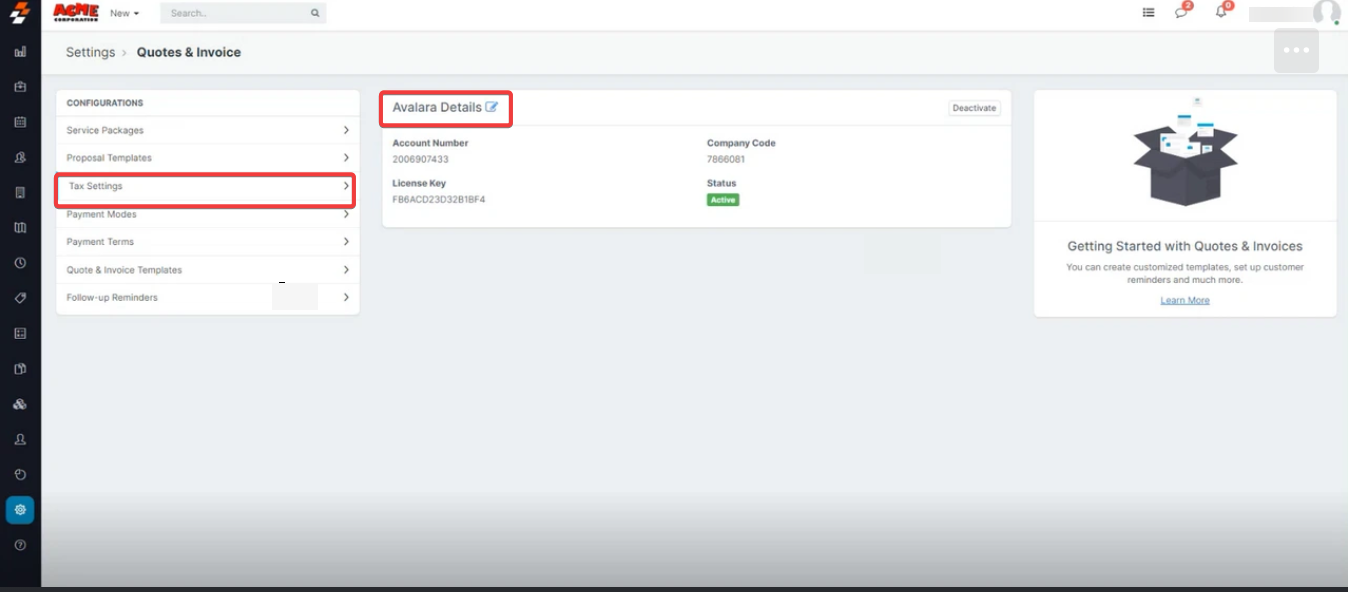
To enable the AvaTax integration, contact Zuper’s support team at support@zuper.co for initial configuration. Once configured, follow these steps:- Go to Settings > Configuration Settings > Quotes and Invoices > Taxes.
- Click Use Avalara on the Taxes configuration page.
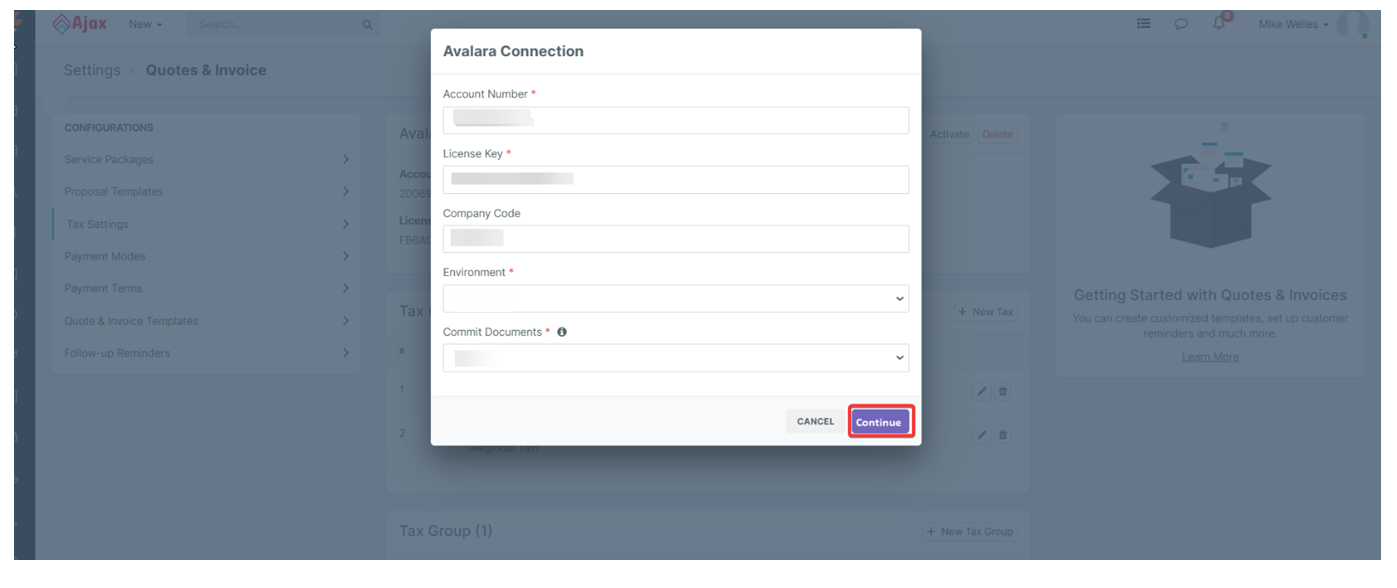
- Enter AvaTax Credentials:
- Account Number: Provided during AvaTax account activation.
- License Key: Provided during AvaTax account activation.
- Company Code/ID: Your company identifier in the AvaTax Admin Console.
-
Environment: Select either “Sandbox” or “Production.”
Note: Zuper’s sandbox environment can only connect to Avalara’s Sandbox account.
- Commit Documents: Enable to submit tax documents to AvaTax for record-keeping. If disabled, sales tax is retrieved but not recorded in AvaTax for compliance reporting.
- Click Continue to proceed further.
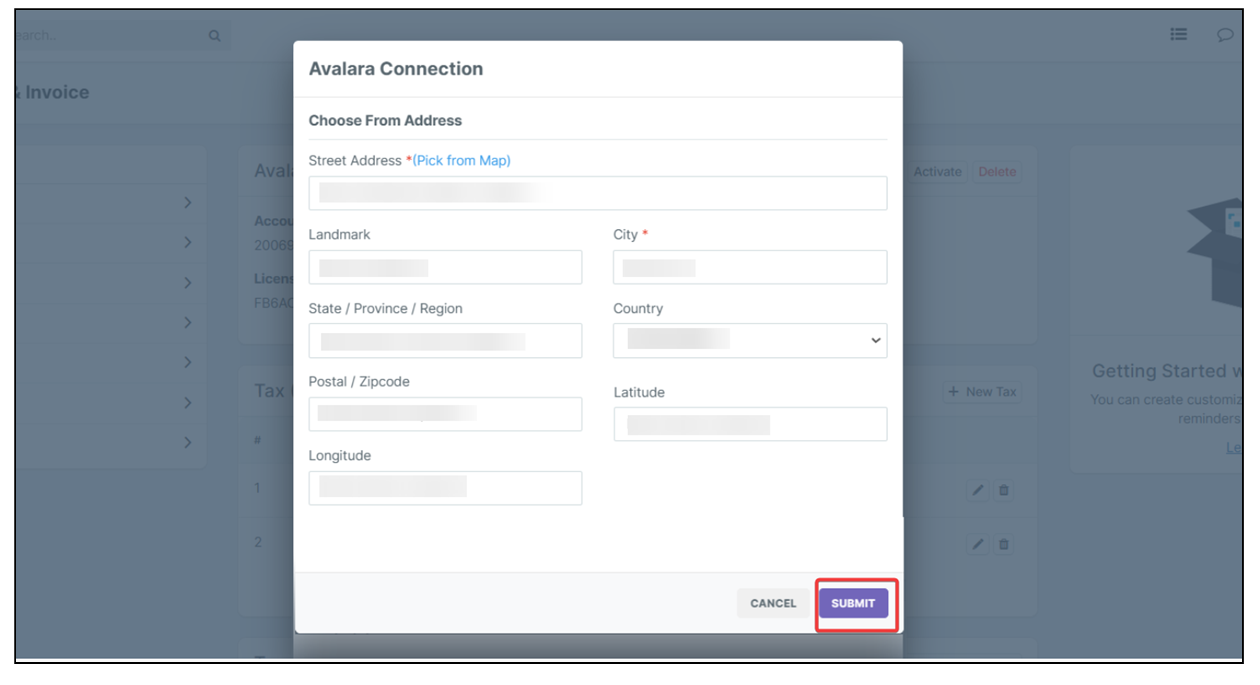
- In the Avalara Connection dialog box, select the exact address using the Pick from Map button.
Note: The address, country, and AvaTax credentials will be shared with Avalara during setup.
- Click the “Submit” button to complete the settings.
Configuring Organizations, Customers, and Properties
To ensure accurate tax calculations, configure the following modules with valid addresses and tax exemption details:Organizations
- Navigate to Organizations > + New Organization.
- Enter customer details for the organization.
- Add valid service and billing addresses using the address picker to ensure accurate geolocation data for Avalara.
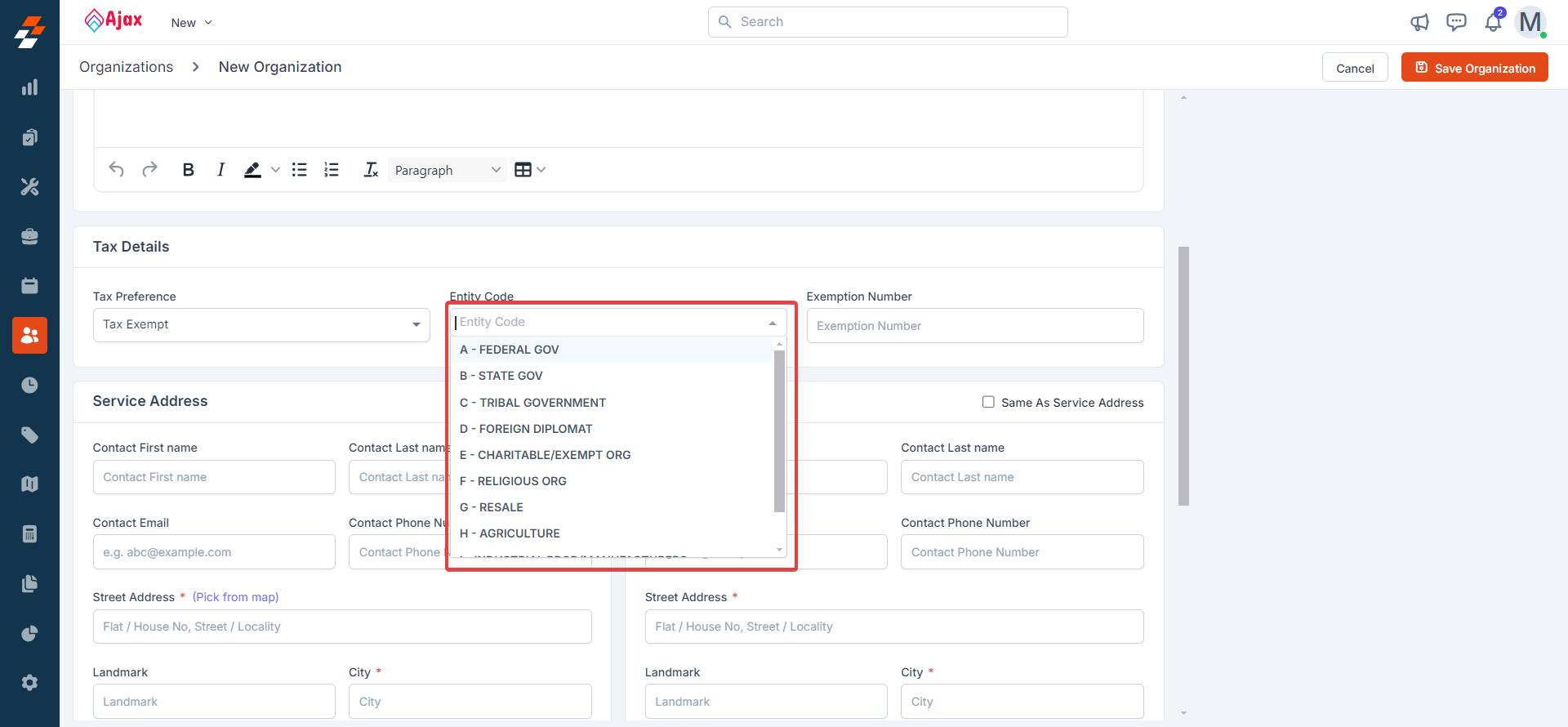
- For tax-exempt organizations:
- Mark as Tax-Exempt.
- Select the appropriate Entity Code (e.g., for religious or charitable organizations) or provide an Exemption Number issued by the government.
- Click Save.
Customers
- Navigate to Customers > + New Customer.
- Enter customer details.
- Add valid service and billing addresses using the address picker.
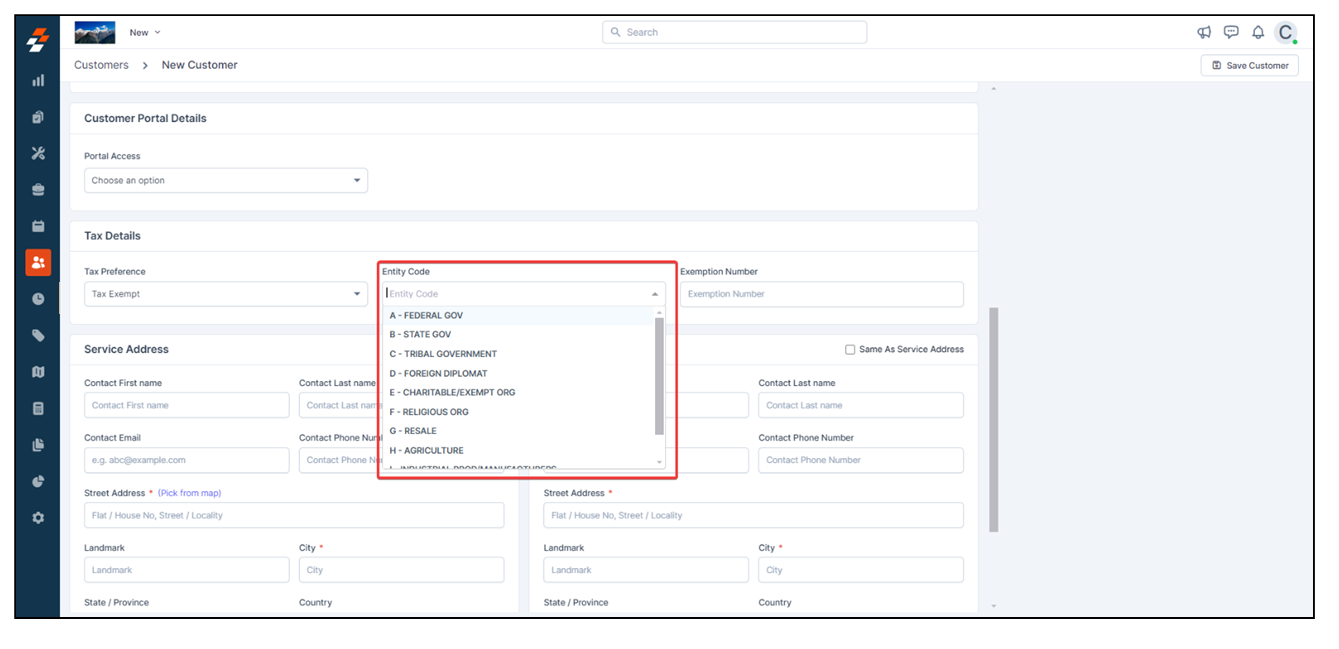
- For tax-exempt customers:
- Mark as Tax-Exempt.
- Select the appropriate Entity Code or provide an Exemption Number.
- Click Save.
Properties
- Navigate to Properties > + New Property.
- Enter property details.
- Add valid service and billing addresses using the address picker.
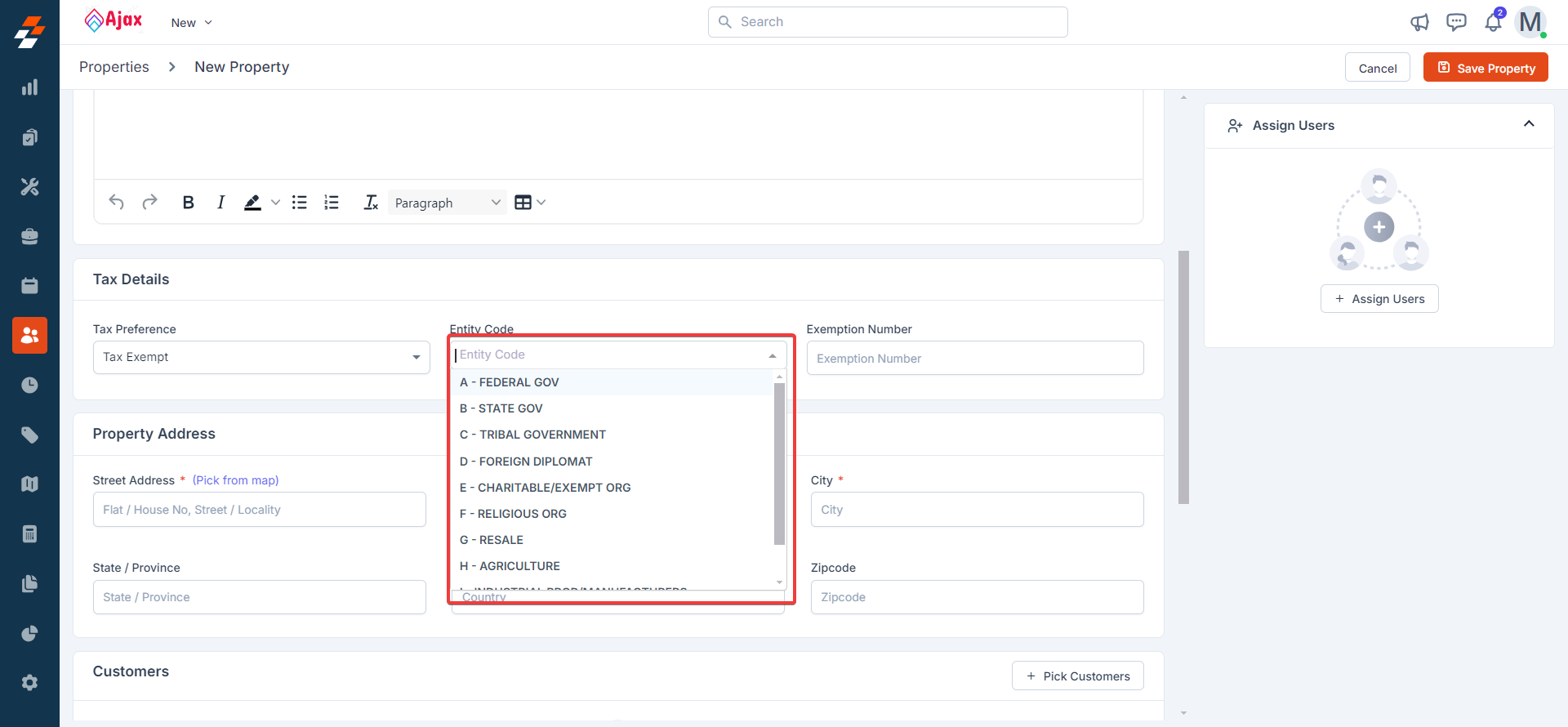
- For tax-exempt properties:
- Mark as Tax-Exempt.
- Select the appropriate Entity Code or provide an Exemption Number.
- Click Save.
Notes:
- Taxes are calculated based on the property’s address if the organization, customer, and property are taxable.
- Accurate geolocation data from the address picker is critical for Avalara to fetch the correct tax details.
Configuring Parts and Services
To apply the correct tax codes for items:- Navigate to Parts and Services from the left menu.
- Select a product to open its details.
- Click More Actions > Edit Parts/Services.
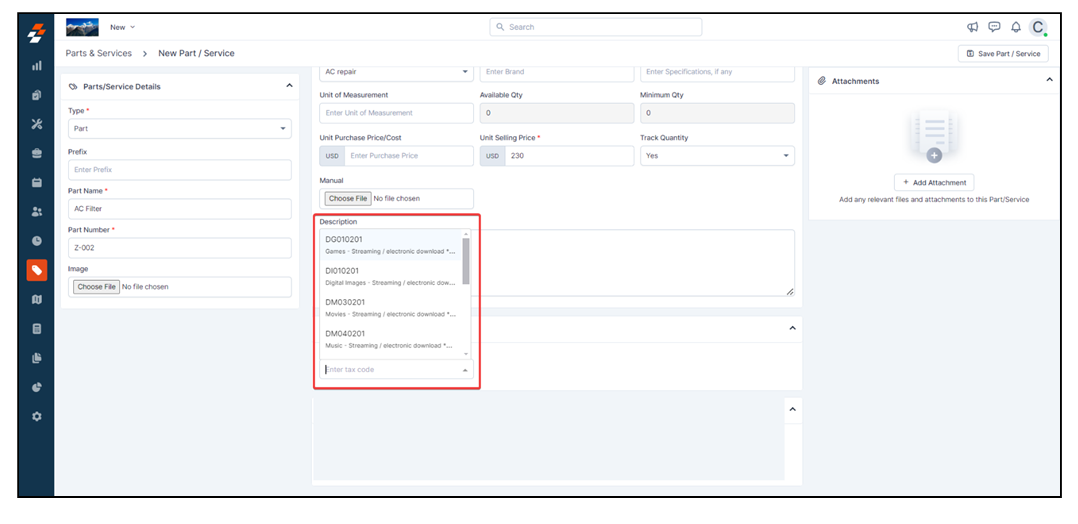
- Enter the applicable AvaTax System Tax Code in the Tax Code field.
- Note: View available tax codes at taxcode.avatax.avalara.com.
- Click Save.
- Tax Calculation: Avalara combines the tax code and the customer’s address to determine taxability (exempt, partially taxable, or fully taxable).the submission of
- Optional: Add or edit tax codes for items directly in the Tax Code field when creating a transaction.
Managing Transactions (Quotes and Invoices)
When creating quotes or invoices, AvaTax automates tax calculations:- Navigate to Quotes > + New Quote or Invoices > + New Invoice.
- Fill in the required details.
- Add discounts or fees via:
- Settings > Configuration Settings > Parts and Services > Discounts and Fees, or
- Directly on the parts and services in the transaction.
- Save the transaction as a draft to trigger AvaTax to:
- Identify tax applicability for parts and services in the customer’s geographic area.
- Assess the customer’s taxability.
- Retrieve accurate tax rates based on local governing authorities.
- Note: Taxes are applied based on the billing or service address configured in Organization Settings > Misc Settings > Tax Settings.
- Discounts:
- Transaction-level discounts are applied proportionately to all items.
- Line-item discounts are applied only to specific items.
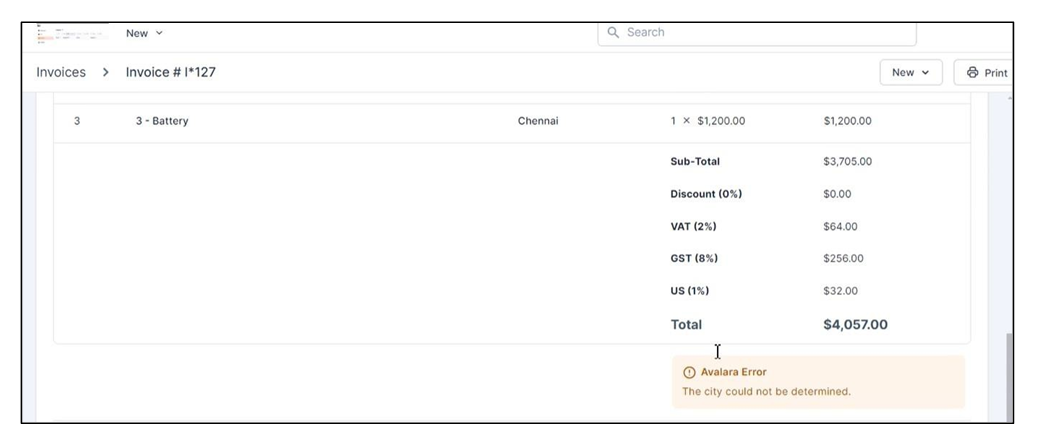
- Errors: Any errors returned by Avalara will be displayed on the transaction details page.
Disabling AvaTax Integration
To disable the AvaTax integration:- Navigate to Settings > Configuration Settings > Quotes and Invoices > Taxes.
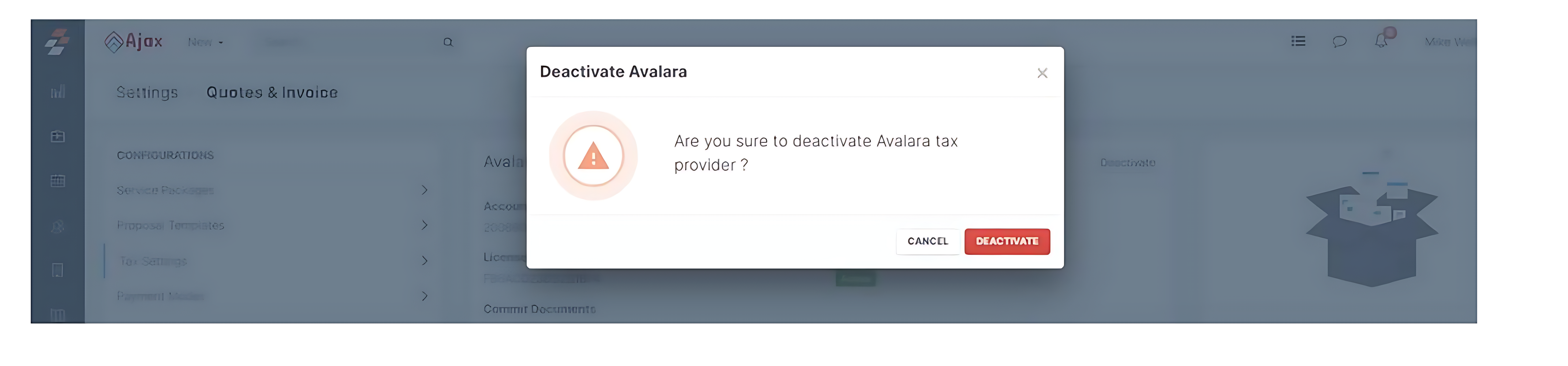
- Select the Deactivate option.
- Confirm the deactivation to disable the integration.